Controlling Page Visibility in Business App
The Pages section in Customize Business App controls which pages customers see in their Business App navigation and configures page-specific features. You can show or hide entire pages and fine-tune individual page settings.
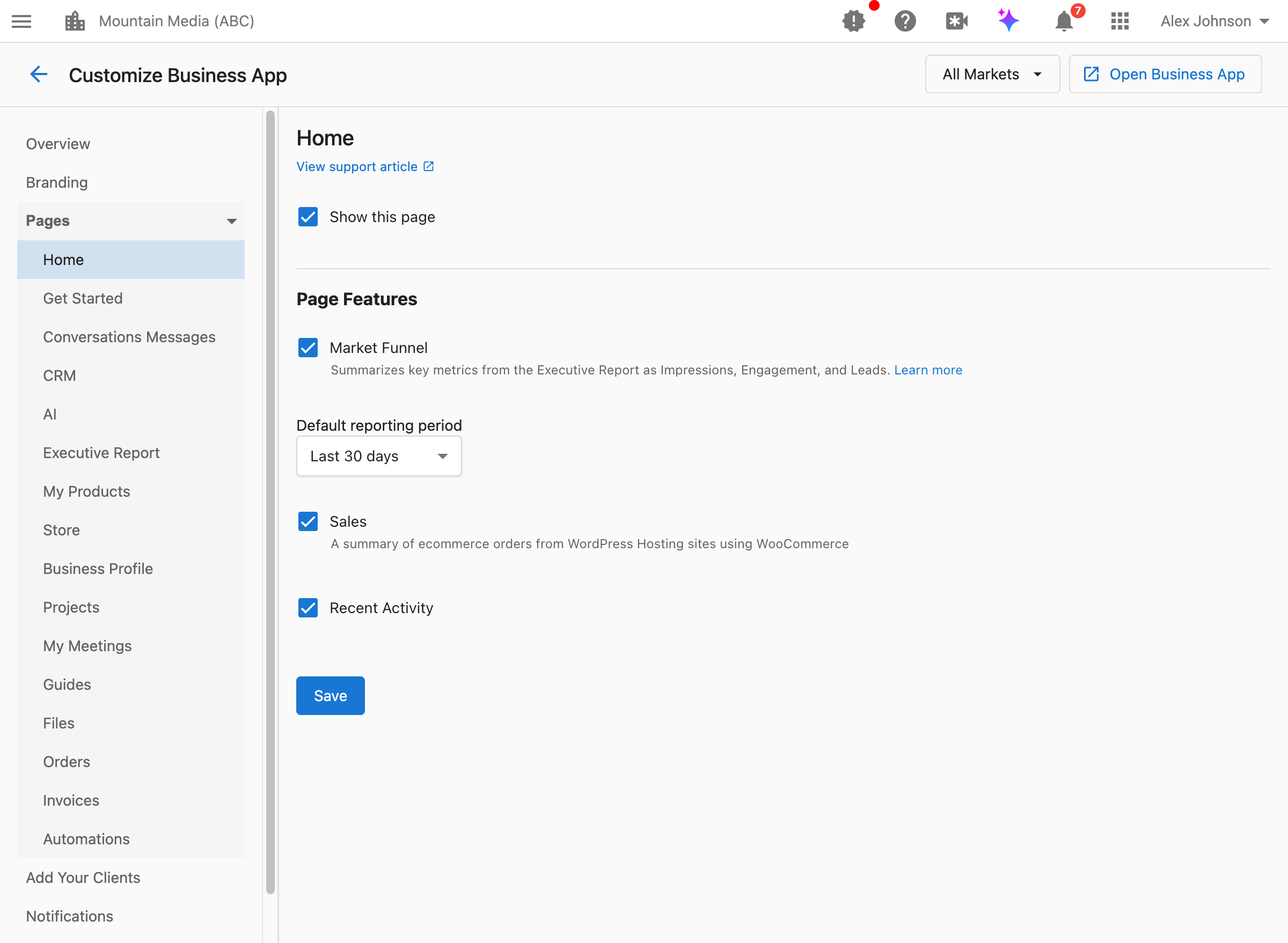
How do I access page settings?
Navigate to Partner Center → Administration → Customize Business App → Pages, then select the page you want to configure.
Understanding Show this page
Most pages have a Show this page checkbox that controls whether the page appears in customers' Business App navigation. Tick it to show the page, clear it to hide the page.
What happens when you hide a page:
- The page is removed from the customer's navigation menu
- Customers cannot access the page directly
- Underlying features may continue to work (e.g., automations run even if the Automations page is hidden)
Partner defaults vs. market settings:
- Configure defaults at the partner level using "All Markets"
- Override for specific markets by selecting that market from the dropdown
- Market-specific settings take precedence over partner defaults
When to hide pages:
- The feature isn't part of your service offering
- You want to simplify the interface for certain customer segments
- The page shows features customers haven't purchased
Home page settings
The Home page is the main dashboard customers see when they log into Business App.
Show this page (showDashboard)
Controls whether customers see the Home dashboard.
What is the Marketing Funnel and should I show it?
The Marketing Funnel summarizes key metrics from the Executive Report as Impressions, Engagement, and Leads in a visual funnel display.
When to show: Customers want a quick visual overview of their marketing performance When to hide: You don't use Executive Report metrics or want a simpler dashboard
How do I change the default time range for Home page reports?
The Default reporting period dropdown sets what time range is initially selected for Home page data.
Options: Last 7 days, 30 days, 90 days, 6 months, or 12 months
Should I show WordPress Sales/Orders?
The Sales setting displays a summary of ecommerce orders from WordPress Hosting sites using WooCommerce.
When to show: Customers have WordPress Hosting with WooCommerce When to hide: Customers don't use WordPress ecommerce
Should I show Recent Activity?
The Recent Activity section shows a feed of recent actions and events across the customer's account.
When to show: Customers want to see what's happening across their business When to hide: You want a cleaner, more focused dashboard
Should I show the Next steps card?
The "Next steps" card (showGetStarted) setting controls the checklist of setup tasks on Home — connecting Google, adding web chat, registering a texting number, and so on. Items clear as each task is completed or dismissed. See the AI onboarding experience for what the cards contain.
When to show: You want customers guided through setup inside Business App When to hide: You onboard customers through other channels, such as calls or custom training
The Home page also carries the "AI has done the work" card and "Recommended for your business" cards settings — both covered in the AI onboarding experience.
Where the Get Started settings went
Pages no longer has a Get Started entry — opening that address takes you to Pages → Home instead.
Onboarding guidance for new customers is now the Next steps card on Home, controlled by the "Next steps" card checkbox described above. That checkbox uses the same showGetStarted setting as the old page, so whatever you had configured carries over.
The custom onboarding video and Customer Journey settings that lived on the old Get Started tab are no longer configurable from Customize Business App.
Inbox/Messages page settings
The Inbox page (also called Conversations Messages) shows customer communications.
Show this page (showInboxMessage)
Controls whether customers see the Inbox/Messages page.
Should I let customers chat with my team?
The Customers can start conversations with you setting controls whether customers can initiate messages to you (the partner) via the Contact Us link in Business App navigation.
When enabled: Customers can message you; conversations appear in their Inbox When disabled: Customers can only respond after you start a conversation with them
Even when disabled, customers can still message you after you've initiated a conversation with them. The setting only controls whether they can start new conversations.
What can I control in the Contact Us modal?
The Contact Us Modal group on this page controls what customers see when they click the Contact Us card in Business App navigation. Each option below is independent — turn any combination on or off.
| Setting | What it does |
|---|---|
| Modal description | A message you write (up to 250 characters) that appears at the top of the modal, above any of the options below. Not tied to any toggle — it's always editable. |
| Show assigned salesperson name & email | Shows or hides the assigned team member's contact card in the modal. |
| Customers can start a conversation | Shows the chat button described above. |
| Show a support center link | Adds a button that opens a URL you specify, in a new tab. Reveals two fields: Support center URL (must start with https://) and Button text (defaults to "Visit support center"). |
How to configure the support center link:
- Go to
Partner Center→Administration→Customize Business App→Pages→Inbox/Messages - Under
Contact Us Modal, checkShow a support center link - Enter the destination in
Support center URL(must start withhttps://) - Optionally customize
Button text(defaults to "Visit support center") - Click
Save
If every Contact Us Modal option is off and the modal description is empty, the Contact Us card doesn't appear in the customer's navigation at all.
CRM page settings
The CRM page provides customer relationship management features. Multiple sub-features can be independently shown or hidden.
Which CRM features should I show customers?
Configure visibility for each CRM feature:
| Setting | What it shows |
|---|---|
Show CRM contacts page | Contact records and management |
Show CRM companies page | Company/organization records |
Show CRM tasks page | Task management and to-dos |
Show CRM forms page | Custom forms for data collection |
Show CRM opportunities page | Sales pipeline and deals |
Advanced CRM features
These features may require specific feature flags to be enabled for your account:
| Setting | What it shows |
|---|---|
Show CRM custom objects pages | Custom data objects you've created |
Show CRM lists page | Dynamic lists and segmentation |
Show CRM activity leaderboard page | Team activity rankings |
Show CRM lead scoring settings | Lead scoring configuration |
When to hide specific CRM features
- Hide Contacts/Companies: Customer doesn't need CRM functionality
- Hide Tasks: Customer manages tasks elsewhere
- Hide Forms: No custom forms are configured
- Hide Opportunities: Customer doesn't track sales pipeline
- Hide advanced features: Features aren't part of your offering or aren't set up
AI Assistant page settings
Show this page (showAiAssistant)
Controls whether customers see the AI Assistant page.
Show this page when customers have AI features enabled and would benefit from AI-assisted tools.
Choosing which AI Employees appear
Below the page toggle, a list lets you remove individual AI Employees from the AI Workforce page in Business App, market by market. Hiding an AI Employee disables it for that market, not just its card. See the dedicated Hiding AI Employees documentation for the full control, including market defaults, the Chat receptionist and Custom employee special cases, and what your clients see.
Executive Report page settings
The Executive Report provides comprehensive marketing performance analytics.
For detailed configuration of Executive Report sections, grades, and ordering, see the dedicated Customize Executive Report documentation.
My Products page settings
Show this page (showMyProducts)
Controls whether customers see the My Products page listing their active products.
When to show: Customers manage their own products or need to see what they have When to hide: You manage products for customers and don't want them making changes
Frequently asked questions about My Products
How do my clients use the My Products page?
Clients log in to Business App and click My Products to see all products and services active on their account. The page lists everything they have access to so they can open products or pin the ones they use most to the side panel for quick access.
How can clients organize products on the Business App side panel?
On the My Products page, clients click the pin icon in the top-right of a product card to choose which products appear on the Business App side panel. Each user can set their own pins, so different team members can have different products pinned.
Why can't a client pin a product to the navigation panel?
Only products that have a dashboard or destination link can be pinned. If a product doesn't have an associated link (for example, some custom products), the card is shown for reference but the pin option isn't available. Product links are configured when the product is set up (e.g. in Marketplace or custom product configuration).
Store page settings
Show this page (showStore)
Controls whether customers see the Store page for purchasing additional products.
When to show: You want customers to self-serve and purchase products When to hide: All purchases go through your sales team
For store configuration, navigate to Partner Center → Marketplace → Manage Store.
Business Profile page settings
The Business Profile page shows and optionally allows editing of the customer's business information.
Should I let customers edit their own profile?
The Customers can edit setting controls whether customers can modify their business profile information.
When enabled: All fields in the Business Profile are editable by customers When disabled: All fields are read-only; customers must contact you for changes
What customers can edit when enabled:
- Business name and contact information
- Address and location details
- Business hours
- Booking link URL
- Categories and descriptions
Projects page settings
Show this page (showFulfillment)
Controls whether customers see the Projects page for tracking fulfillment and project work.
When to show: You deliver services that involve project tracking or fulfillment workflows When to hide: Your services don't include project-based deliverables
My Meetings page settings
Show this page (meetingSchedulerBusinessApp)
Controls whether customers see the My Meetings page with meeting scheduling features.
When to show: You use the meeting scheduler and want customers to book or view meetings When to hide: You don't use the meeting scheduler feature
Guides page settings
Show this page (showContentLibrary)
Controls whether customers see the Guides page with educational content.
For custom guides configuration including WordPress blog integration, see the Custom Content documentation.
Files page settings
Show this page (showFiles)
Controls whether customers see the Files page for document storage and sharing.
When to show: You share files with customers or want them to upload documents When to hide: You don't use file sharing with customers
Orders page settings
Show this page (showOrderPage)
Controls whether customers see the Orders page showing their purchase history.
When to show: Customers purchase products and need to view order history When to hide: You manage all purchasing and customers don't need order visibility
Invoices page settings
Show this page (showInvoices)
Controls whether customers see the Invoices page for billing information.
When to show: Customers manage their own billing and need invoice access When to hide: You handle all billing externally or don't want customers viewing invoices
For billing configuration, navigate to Partner Center → Billing.
Automations page settings
Show this page (showAutomations)
Controls whether customers see the Automations page.
When to show: Customers create and manage their own automations When to hide: You manage automations for customers or don't offer this feature
Automations continue to run even when the Automations page is hidden. Hiding the page only removes customer access to view and manage automations.
For automation templates, navigate to Partner Center → Automations → Templates.
FAQs
If I hide a page, does the feature still work?
In most cases, yes. Hiding a page removes it from navigation but doesn't disable the underlying feature. For example:
- Hidden Automations still run when triggered
- Hidden CRM features still store data
- Hidden Inbox still receives messages
The page visibility setting controls customer access, not feature functionality.
The exception is hiding an individual AI Employee under AI Assistant page settings: that does disable it. See Hiding AI Employees.
Can I show different pages to different customers?
Page visibility is configured at the partner or market level, not per customer. To show different pages to different customer segments:
- Create separate markets for each segment
- Configure page visibility per market
- Assign customers to the appropriate market
How do I preview what customers see?
Use the View as Customer feature:
- Navigate to a customer's account
- Click the three-dot menu
- Select
View as Customer
This shows you the Business App exactly as that customer sees it.
What's the minimum set of pages I should show?
There's no required minimum. However, most implementations include at least:
- Home: Main dashboard and entry point
- Inbox/Messages: Communication capability
- One or more feature pages relevant to your offering
The right pages depend on your services and customer needs.
Can customers request access to hidden pages?
Hidden pages are not visible to customers, so they won't know to request them. If a customer needs access to a hidden feature, you would need to either:
- Enable the page for their market
- Move them to a different market with that page enabled
- Enable the page at the partner level for all customers
Do hidden pages affect billing or product access?
No. Page visibility only controls the navigation interface. Product access, billing, and feature functionality are managed separately through product assignments and account settings.
How do I hide the Store or Executive Report sections from all clients?
Go to Accounts → Manage Business App → Customize Business App. Uncheck Store and save. This hides it for everyone, and you can turn it back on later. You can also remove whole Executive Report sections (for example Websites, or Leads if you do not sell web chat) so clients do not see sections full of zeros.