Customize Business App
Customize Business App, at Administration → Customize Business App in Partner Center, controls what your clients see in Business App: which pages show, the app name and logo placement, notification banners, and client invitation settings.
How to access
Go to Partner Center → Administration → Customize Business App.
What you can do
- Page visibility and navigation – Show or hide dashboard sections (Grow, Listings, Protect, Connect, Reputation), the Automations page, and the Guides tab; organize the interface to match your workflow
- Branding and visual identity – Rename Business App, set logo placement, keep visual consistency across the interface
- User experience – Add notification banners, custom content (videos, messaging), and control how clients interact with features
Page visibility and navigation
Show or hide dashboard pages
- Go to
Partner Center→Administration→Customize Business App→Pages - Select the page you want to change:
Grow,Listings,Protect,Connect,Reputation, and others - Tick or clear the page's
Show this pagecheckbox, then save
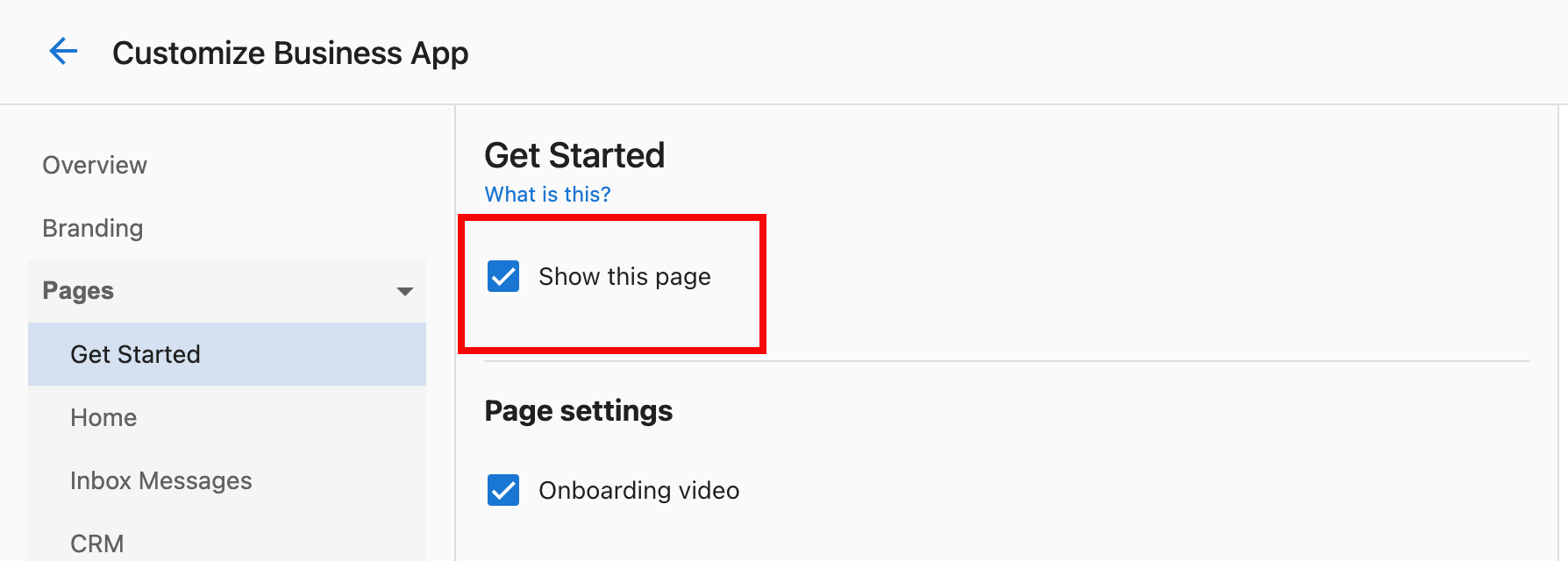
Automations page
- In
Customize Business App, openPages→Automations - Tick or clear the
Show this pagecheckbox and save (ticked = clients see automations; cleared = page hidden) - Changes apply immediately; automations still run when triggers are met even if the page is hidden
Guides section
- Go to
Customize Business App→Pages→Guides - Toggle Guides tab visibility and save (Show = clients see guides; Hide = tab removed)
- With multiple markets, configure per market
Hiding the Guides section can simplify the interface when clients don't need in-app guides or you train through other channels.
Branding and visual identity
Rename Business App
- Go to
Customize Business App→Branding - Select Rename Business App, enter your preferred name, and save
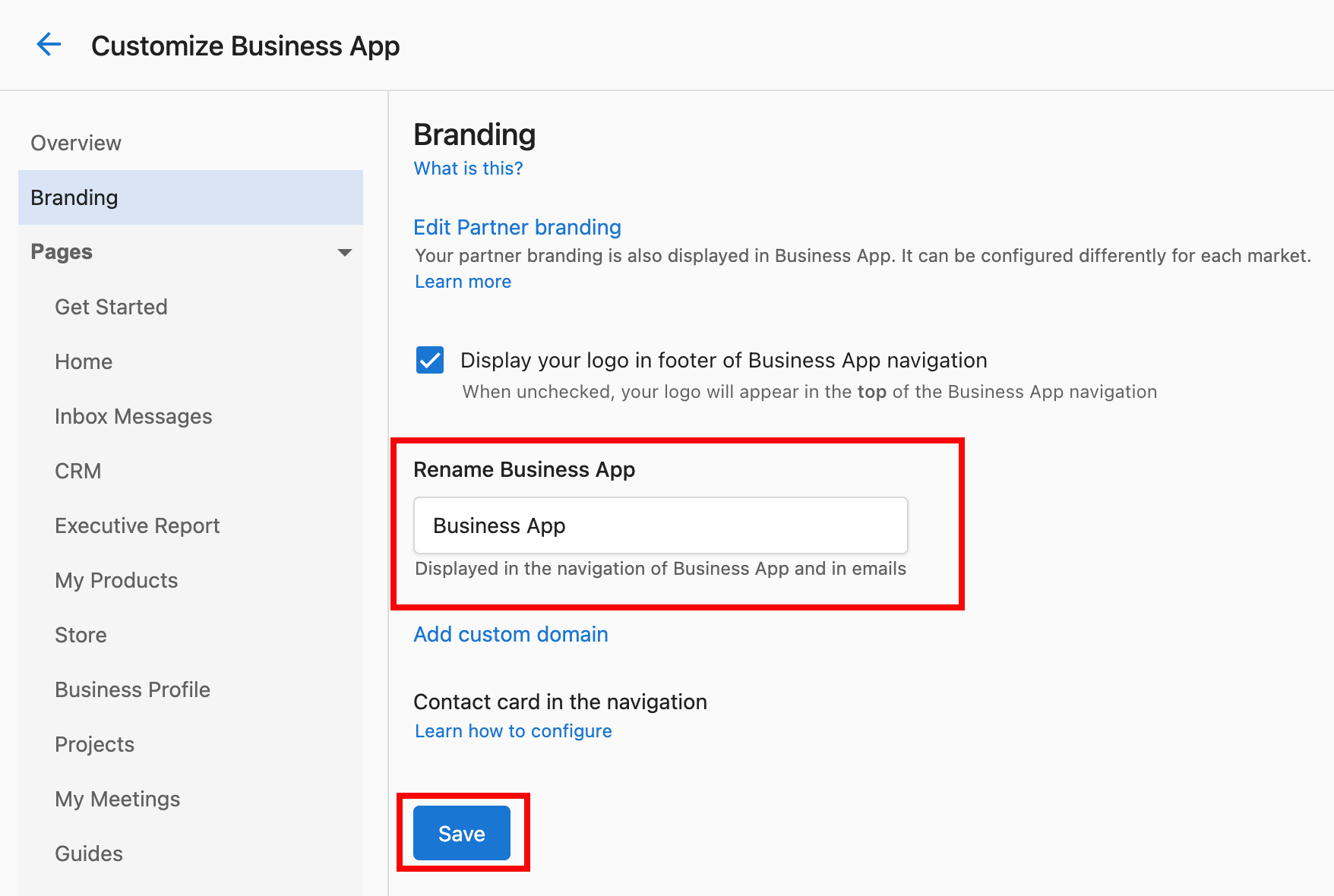
The name updates across the client interface and in emails.
Logo placement
- In
Customize Business App→Branding, upload your logo if needed - Use placement options: turn off Display your logo in footer of Business App navigation to move the logo from bottom-left to top-left
- Preview and save
User experience
Notification banners
- In Customize Business App, open the Notifications tab → Global notification banner
- Set message text, display duration, styling, and target audience
- Add an expiry date if needed and activate
Use banners for announcements, updates, or promotions.
Client invitation settings
- Create a landing page (e.g. with an Acquisition Widget for sign-up or trials)
- Go to
Customize Business App→Add Your Clients - Paste the landing page URL into Invitation Landing Page URL and save
An Invite a business button then appears in the client profile; clients can share your landing page to invite other businesses.
Frequently asked questions
How quickly do interface changes take effect?
Most changes (page visibility, branding) take effect immediately. Clients see them on next refresh or login.
Can I customize the interface differently for different clients?
Yes. Many settings can be set per client or group. You can also control at user level: Partner Center → Accounts → Manage Users → three dots next to the user → Edit Permissions.
What happens if I hide a page clients are using?
Access to that section is removed immediately. Communicate in advance and offer alternatives if needed.
Can I preview interface changes before applying them?
Some settings have previews. Best practice is to test with a staging or limited group before rolling out to everyone.
How do I know which pages my clients use?
Use analytics and engagement reports to decide what to show or hide.
Can I restore the default Business App name after renaming?
Yes. You can change the name back to "Business App" or another name anytime in branding settings.
What's the difference between hiding a page and disabling a feature?
Hiding a page removes it from navigation; the feature may still be reachable. Disabling a feature removes access and functionality.
How does logo placement affect mobile users?
Test logo visibility and size on desktop and mobile so branding stays consistent.
Can I schedule notification banners for specific times?
Check the banner settings for timing and scheduling options.
What should I consider when customizing for clients?
Focus on client needs, simplicity, and functionality: remove unused features, keep navigation clear, maintain brand consistency, and use client feedback.
Articles in this section
- Branding Settings – App name, custom domain, web chat footer branding
- Add Your Clients – Self-signup, user management, referrals, acquisition options
- Notifications & Campaigns – Announcement banners and onboarding campaigns
- Multi-Location Settings – Default reporting periods for multi-location customers
- Page Visibility Settings – Control which pages and features customers see
- Setup Guide – End-to-end setup, mobile configuration, launch checklist, and troubleshooting