Customize Executive Report
You can configure the order of Executive Report sections and hide or show sections on a market-by-market basis. This allows your client-facing reporting to focus on the areas where you provide value and avoid drawing attention to metrics that aren't part of your solution set.
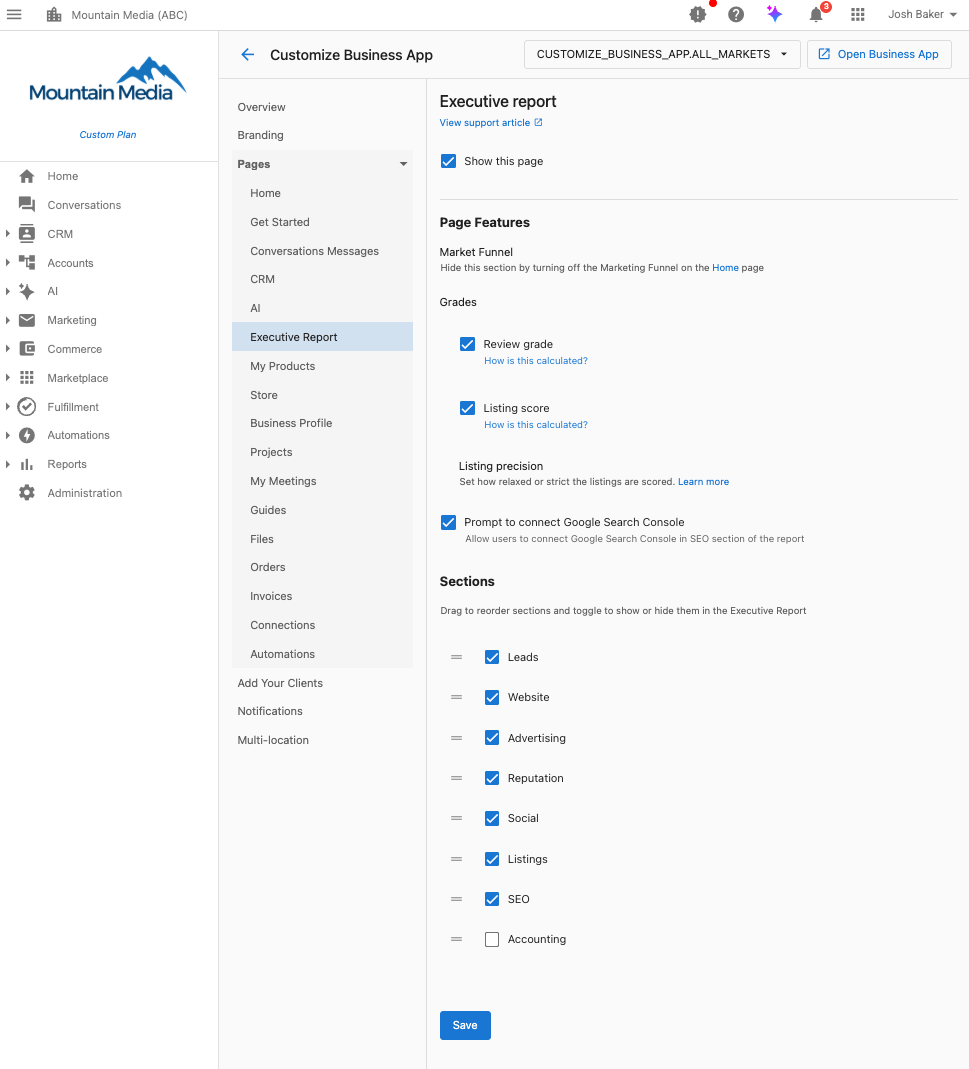
Why customize Executive Report sections?
The Executive Report shows only the sections you want to focus reporting on. If you don't want a section to ever show to a specific market, you can disable it entirely, ensuring your reports align with your service offerings.
How to customize Executive Report sections
Step-by-step instructions
-
Navigate to the Customization Settings
- Go to
Partner Center→Accounts→Manage Business App→Customize Business App→Executive Report→Sections
- Go to
-
Select Your Market
- Choose which market you wish to make changes to using the dropdown in the top right corner
- Each market can have its own customized configuration
-
Configure Page Features (Optional)
Show this page: Toggle whether Executive Report appears in Business AppMarket Funnel: Hide by turning off Marketing Funnel on Home pageReview Grade: Configure calculation and display settingsListing Score: Set calculation and display preferencesListing Precision: Adjust scoring strictness (relaxed to strict)Google Search Console Prompt: Enable/disable connection prompts
-
Configure Report Sections
- Toggle Visibility: Use the switches to show or hide specific sections
- Reorder Sections: Drag sections up or down to prioritize important metrics
- Available sections: Leads, Website, Reputation, Social, Listings, SEO, Advertising, Accounting
-
Save Changes
- Click
Saveto apply your customization - Changes will be reflected in all Single-Location Executive Reports for that market
- Click
Available configuration options
The Executive Report customization interface provides several configuration areas:
Page features
Show this page- Control whether the Executive Report page appears in Business AppMarket Funnel- Hide this section by turning off the Marketing Funnel on the Home pageReview Grade- Configure how review grades are calculated and displayedListing Score- Set how listing scores are calculated and displayedListing Precision- Adjust how strict or relaxed the listings are scoredGoogle Search Console Prompt- Allow your clients to connect Google Search Console in SEO section
Report sections (drag to reorder and toggle visibility)
The following sections can be reordered and hidden/shown in your Executive Report:
Leads- Lead capture, phone calls, AI receptionist, web chat, and form submission metricsWebsite- Website performance and analytics dataReputation- Review management and online reputation dataSocial- Social media marketing and engagement metricsListings- Business listing accuracy and visibility dataSEO- Search engine optimization and organic traffic dataAdvertising- Paid advertising performance across platformsAccounting- Financial data integration (QuickBooks, etc.)
Market-by-market configuration
Why use market-based settings?
Different markets may focus on different service areas. For example:
- Market A could specialize in SEO and Website services
- Market B could focus on Reputation AI and Social Media
- Market C could offer a full-service package
Configuring multiple markets
- Select the first market from the dropdown
- Configure sections for that market's focus areas
- Save changes
- Switch to the next market and repeat
- Each market maintains its own independent configuration
Single-location vs multi-location reports
Single-location Executive Reports
Section customization works for all single-location Executive Reports
- Use the settings described above
- Changes apply immediately to all reports for that market
Multi-Location Executive Reports
Multi-Location Executive Reports are managed differently
- Multi-Location reporting is controlled under
Partner Center→Accounts→Multi-Location Groups→ [Select Group] →Features - Enabling or disabling features will hide or show the related features in the Multi-Location report.
Best practices
Focus on value-driven sections
- Enable sections where you actively provide services
- Disable sections where you don't have active products or data
- Put your strongest performing areas at the top
Consider client expectations
- Align section visibility with your sales proposals
- Ensure enabled sections have sufficient data to show meaningful metrics
- Use section ordering to tell a compelling performance story
Data source dependencies
- Connected integrations drive value: Sections like Leads show multiple sources (Google Business Profile, AI Voice Receptionist, Web Chat, Forms) - the more connected, the richer the data
- Integration status affects credibility: Listings with "Synced" status provide more reliable data than "Manual update only" or "Syncing is disabled"
- Hide sections with poor data: If key integrations are disconnected or showing errors, consider hiding those sections until resolved
Section ordering strategy
- Start with high-impact metrics: Place sections with strong performance at the top (Website traffic, Leads generated)
- Follow the customer journey: Arrange sections to tell a story - Leads → CRM → Website → SEO → Reputation flows naturally
- End with growth opportunities: Position sections that encourage action (like "Connect your Google Business Profile") toward the bottom
Benchmarking value
- Industry context drives engagement: Sections showing "86th Percentile" or "Industry Average" comparisons create more compelling client conversations
- Competitive positioning: Enable sections where you can demonstrate above-average performance relative to industry benchmarks
- Use percentile rankings: Sections that include percentile data (like Review Grade or Listing Score) help clients understand their market position
Regular review and adjustment
- Review section performance quarterly
- Adjust ordering based on seasonal business patterns
- Enable new sections as you expand service offerings
Troubleshooting
Common issues and solutions
Q: I don't see the customization options
- Ensure you have admin permissions in Partner Center
- Verify you're in the correct market if using multi-market configuration
- Contact support if options are still not visible
Q: Changes aren't appearing in reports
- Customizations only apply to Single-Location Executive Reports
- Multi-Location reports require separate configuration
- Allow up to 24 hours for changes to take effect in scheduled reports
Q: Some sections show even when disabled
- Check if the section contains critical business data that overrides customization
- Verify you've saved changes after making modifications
- Ensure you're viewing the correct market's reports
Frequently asked questions (FAQs)
Can I customize Multi-Location Executive Reports the same way?
Multi-Location Executive Reports are managed separately under Partner Center → Accounts → Multi-Location Groups → [Group Name] → Features. Toggle CRM & Conversations on or off there to control whether that section appears in multi-location reports.
Do customization changes affect historical reports?
Yes, customization changes apply to all reports, past and present. Historical reports are affected by changes made to visibility and ordering.
Can I have different section orders for weekly vs monthly reports?
No, section customization applies to both weekly and monthly Executive Reports for the selected market. The same configuration is used for both frequencies.
Can I preview changes before saving?
Currently, there is no preview function. Changes take effect once saved. We recommend making adjustments and reviewing a report immediately.
What's the difference between Page Features and Report Sections?
Page Features control overall Executive Report functionality (showing the page, grade calculations, prompts), while Report Sections control which specific metric areas appear in the report and their order (Website, SEO, Advertising, etc.).
How does Listing Precision affect my reports?
Listing Precision controls how strict or relaxed the scoring is for business listing accuracy. A stricter setting means higher standards for what constitutes a "good" listing, while a more relaxed setting is more forgiving of minor discrepancies.
What happens if I turn off "Show this page"?
If you disable "Show this page," the Executive Report tab will not appear in Business App for that market. Clients won't be able to access the report, though email deliveries may still continue based on notification settings.