Add Your Clients Settings
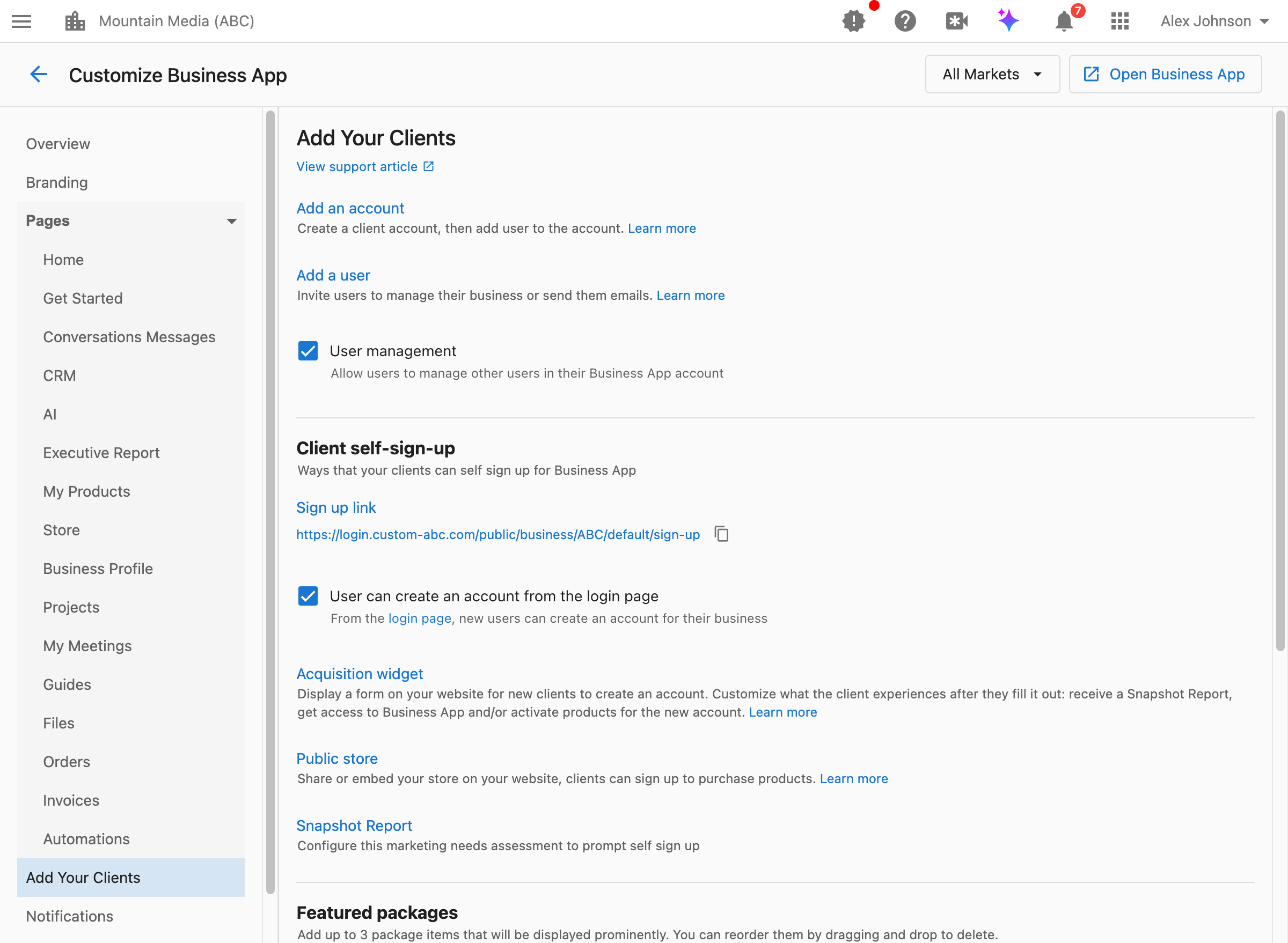
The Add Your Clients section in Customize Business App controls the various ways customers can be added to your platform. Configure self-service options, user management permissions, and referral capabilities.
How do I access these settings?
Navigate to Partner Center → Accounts → Manage Business App → Customize Business App → Add Your Clients.
How do I let customers invite their own team members?
The User Management setting controls whether your customers can invite or manage other users within their Business App account.
What this does:
- When enabled: Customers can invite additional team members to their account or manage existing users
- When disabled: Only you (the partner) can add users to customer accounts
When to enable this:
- Your customers have multiple employees who need access
- You want to reduce support requests for adding users
- Your customers manage their own teams
When to disable this:
- You want full control over who accesses each account
- Your pricing model is per-user and you need to manage this
- You're in a regulated industry requiring strict access control
How to configure:
- Navigate to
Partner Center→Accounts→Manage Business App→Customize Business App→Add Your Clients. - Find the
User managementorUsers can invite userscheckbox. - Toggle to enable or disable.
- Click
Save.
What customers can do when enabled:
- Invite new users via email
- Manage existing user permissions
- Remove users from their account
This setting supports market-specific configuration. You can enable user management for some markets while keeping it disabled for others.
How do I enable self-signup for new customers?
Self-signup allows potential customers to create their own Business App account without you manually adding them.
For comprehensive self-signup configuration including:
- Getting your signup link
- Enabling "Create Account" on the login page
- Automating onboarding for self-signup customers
- Best practices and tips
See the dedicated Self-Signup documentation.
How do I show new signups a preview of their AI Receptionist?
The AI Employee Preview shows new signups a live chat preview of their AI Receptionist, already trained on the business profile and website data captured during signup, right after they verify their email. They can chat with it as their own AI before they ever reach the Business App homepage.
To turn it on or off:
- Navigate to
Partner Center→Administration→Customize Business App→Add Your Clients. - Find the Add an AI Employee Preview to self signup checkbox.
- Check it to enable the preview, or clear it to disable.
If your account has Conversations AI enabled, the AI Employee Preview is turned on by default.
See Self-Signup documentation for more on what customers see during onboarding.
What is the Acquisition Widget?
The Acquisition Widget is a form you can embed on your website that allows new customers to create an account.
What it does:
- Displays a signup form on your website
- Captures new customer information
- Can trigger Snapshot Reports, Business App access, or product activation
When to use it:
- You want to capture leads directly from your marketing website
- You want to offer trials or demos through your site
- You want to automate the new customer onboarding process
How to configure:
Navigate to Partner Center → Marketing → Acquisition Widget to set up and customize your widget.
What is the Public Store?
The Public Store allows you to share or embed your product store on your website, enabling customers to sign up and purchase products directly.
What it does:
- Provides a shareable link to your product store
- Allows embedding store functionality on your website
- Enables self-service purchasing for new customers
When to use it:
- You want customers to browse and purchase products without contacting sales
- You're running marketing campaigns that drive to a product page
- You want to offer a self-service purchasing experience
How to configure:
Navigate to Partner Center → Marketplace → Manage Public Store to configure your public store settings and appearance.
How do I set up Featured Packages for new signups?
Featured Packages display prominently to customers who sign up but don't have active products, encouraging them to upgrade.
For detailed configuration of Featured Packages including:
- Setting up packages per market
- Best practices for package selection
- How Featured Packages appear to customers
See the dedicated Featured Packages documentation.
Featured Packages must be configured per market. Select a specific market from the dropdown before configuring Featured Packages. The "All Markets" view does not support Featured Package configuration.
How do I let customers refer other businesses?
The Client Referral feature enables your existing customers to invite other businesses to sign up for your services.
What this does:
- Adds an "Invite a business" button to customer profiles in Business App
- Customers can share your landing page link with other businesses
- Helps expand your customer base through word-of-mouth
How to set up:
- Create a landing page on your website with an Acquisition Widget for signups or trials (configured at
Partner Center→Marketing→Acquisition Widget). - Navigate to
Partner Center→Accounts→Manage Business App→Customize Business App→Add Your Clients. - Scroll to the
Client referralsection. - Enter your landing page URL in the
Invitation landing page URLfield. - Click
Save.
What customers see:
After saving, an Invite a business button appears in the customer's profile section. Customers can copy and share your landing page link.
Ensure your landing page includes an Acquisition Widget so referred businesses can easily create an account. Consider offering incentives for successful referrals to encourage participation.
FAQs
What's the difference between user invite and user management?
The setting label depends on your account configuration:
Users can invite users: Customers can send email invitations to add new usersUser management: Customers can both invite new users and manage (edit/remove) existing users
Both settings use the same toggle; the label reflects your enabled capabilities.
Can customers invite unlimited team members?
By default, yes. If you need to limit the number of users per account, this would be managed through your pricing model and account-level settings rather than this toggle.
How do I track referrals from customers?
Referrals that come through your landing page (with Acquisition Widget) are tracked like any other lead. You can identify them by the source URL or by setting up UTM parameters on your referral landing page.
Can I disable all self-service customer additions?
Yes. To prevent any self-service signups:
- Disable the "User can create an account from the login page" option
- Don't share the direct signup link
- Remove or don't implement the Acquisition Widget
- Clear the referral landing page URL
Customers will only be able to access accounts you create for them manually.
Do these settings apply to all markets?
Most settings in this section support market-specific configuration. Select a market from the dropdown to configure settings for that specific market, or use "All Markets" to set defaults.
Exception: Featured Packages must be configured per market and cannot be set at the "All Markets" level.
Where can I learn more about Snapshot Reports?
Snapshot Reports are marketing needs assessments that can prompt self-signup. To learn more, visit the Snapshot Report documentation.