How do I configure notifications and onboarding campaigns in Business App?
The Notifications settings in Customize Business App in Partner Center control whether your clients receive Business App notifications, show a global announcement banner, and automatically start an onboarding campaign when a client first logs in.
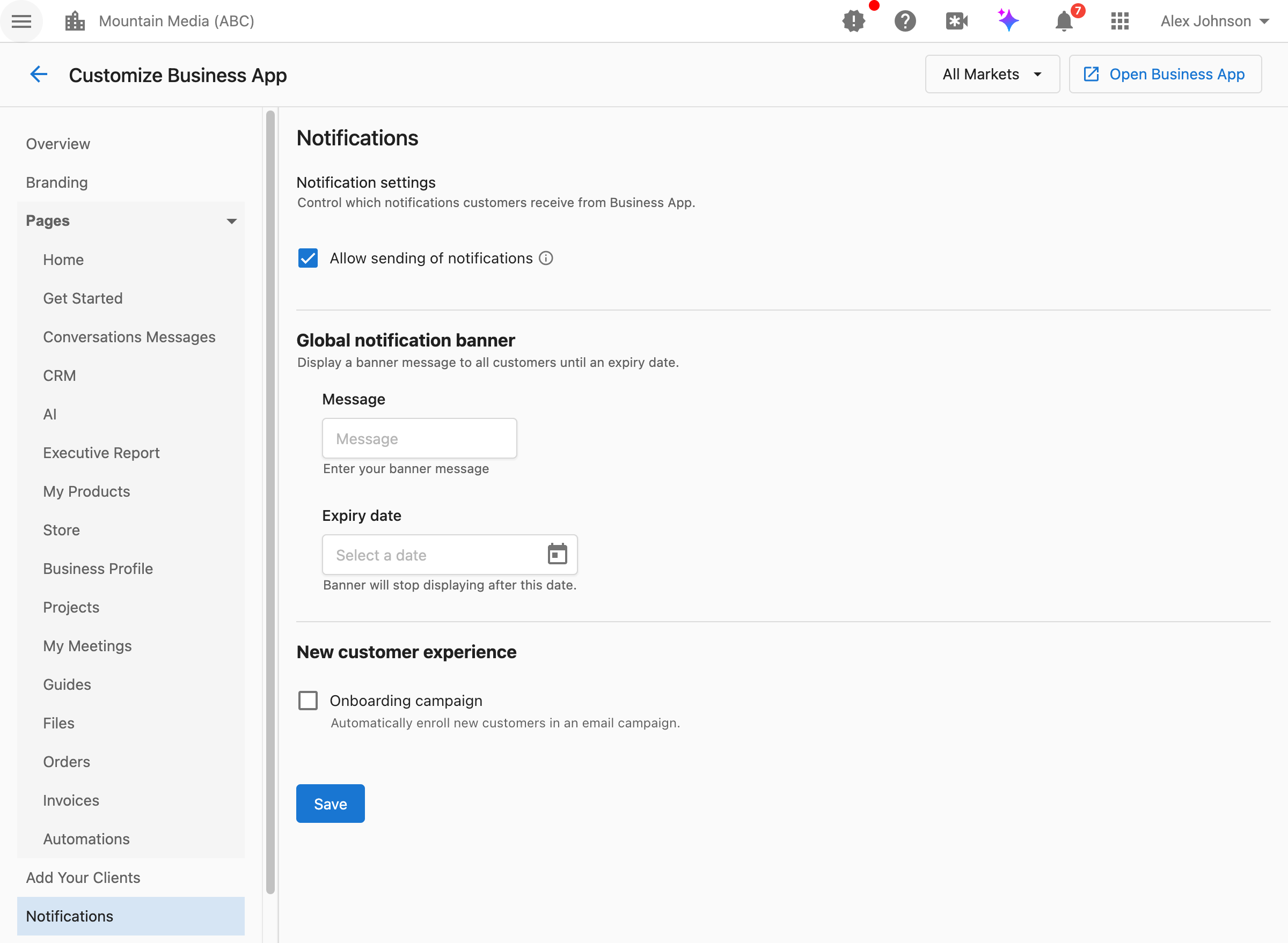
How do I access these settings?
Navigate to Partner Center → Accounts → Manage Business App → Customize Business App → Notifications.
How do I enable or disable customer notifications?
The notification setting controls whether customers receive any notifications from Business App and products.
What this controls:
- Email notifications sent to customers
- In-app notifications within Business App
- Product-related alerts and updates
When to disable notifications:
- You're migrating customers and don't want them disturbed
- You have a specific communication strategy outside the platform
- You're troubleshooting notification issues
How to configure:
- Navigate to
Partner Center→Accounts→Manage Business App→Customize Business App→Notifications. - Find the
Allow sending of notificationscheckbox. - Toggle to enable or disable.
- Click
Save.
Disabling notifications stops all notifications for Business App users going forward. Users will be unable to manage or subscribe to notifications while this is disabled. This setting is only available at the partner level (not per market).
Related settings:
For granular control over which specific notifications are sent, navigate to Partner Center → Administration → Customize Design → Default Notifications.
How do I display a global announcement banner?
The global notification banner displays a message at the bottom of all Business App pages for all customers until an expiry date you set.
What this does:
- Shows a persistent banner message across all Business App pages
- Visible to all customers until the expiry date
- Supports text or HTML content
When to use banners:
- Announcing scheduled maintenance or downtime
- Promoting a sale or special offer
- Notifying customers of important policy changes
- Sharing holiday office closures or reduced support hours
How to create a banner:
- Navigate to
Partner Center→Accounts→Manage Business App→Customize Business App→Notifications. - Find the
Global notification bannersection. - Enter your message in the
Messagefield. You can use plain text or HTML. - Set the
Expiry datefor when the banner should stop displaying. - Click
Save.
What customers see: A banner appears at the bottom of every Business App page with your message. The banner automatically disappears after the expiry date.
- Keep messages concise: Banners should be scannable at a glance
- Always set an expiry date: Stale banners reduce customer trust
- Use for time-sensitive info only: Don't use banners for permanent announcements
- Test HTML carefully: Preview your banner to ensure formatting displays correctly
Global banners are configured at the partner level only and apply to all customers across all markets. Market-specific banners are not supported.
How do I automatically send onboarding emails to new customers?
The onboarding campaign setting automatically enrolls new customers in an email campaign after they log in for the first time.
What this does:
- Triggers an email campaign when a customer first logs into Business App
- Sends a series of onboarding emails to help customers get started
- Works with campaigns configured in Marketing: Product Adoption
When to enable this:
- You want to automate customer onboarding
- You have helpful getting-started content to share
- You want to reduce manual follow-up with new customers
How to configure:
- First, create an onboarding campaign at
Partner Center→Marketing→Campaigns→Product Adoption. - Navigate to
Partner Center→Accounts→Manage Business App→Customize Business App→Notifications. - Find the
New customer experiencesection. - Enable the
Onboarding campaigncheckbox. - Select your campaign from the
New customer experiencedropdown. - Click
Save.
How this works with self-signup: When combined with self-signup, onboarding campaigns create a fully automated customer acquisition flow:
- Customer signs up via self-signup link
- Customer logs into Business App for the first time
- Onboarding campaign automatically starts
- Customer receives a series of helpful emails
Your onboarding campaign should:
- Welcome the customer and confirm their account is ready
- Explain key features and how to get started
- Highlight quick wins they can achieve immediately
- Provide contact information for support
- Include links to help documentation or tutorials
Navigate to Partner Center → Marketing → Campaigns → Product Adoption to create and manage your onboarding campaigns.
FAQs
Do banners appear on mobile devices?
Yes. Global banners appear on both desktop and mobile versions of Business App. Keep your message concise to ensure it displays well on smaller screens.
Can I have different banners for different markets?
No. Global banners are configured at the partner level and display to all customers across all markets. If you need market-specific messaging, consider using targeted email campaigns instead.
What happens when a banner expires?
The banner automatically stops displaying after the expiry date. No action is required. The message remains in your settings so you can reuse or modify it for future announcements.
Can I preview the onboarding campaign before enabling it?
Yes. Navigate to Partner Center → Marketing → Campaigns → Product Adoption and select your campaign to preview its content and email sequence before enabling it in Notifications settings.
How many emails are in an onboarding campaign?
This depends on how you configure your campaign. You create and control the onboarding campaign content at Partner Center → Marketing → Campaigns → Product Adoption. You can include as many or as few emails as appropriate for your onboarding process.
Does the onboarding campaign trigger for every login?
No. The onboarding campaign only triggers on the customer's first login to Business App. Subsequent logins do not re-trigger the campaign.
Can I use HTML in the banner message?
Yes. The message field accepts HTML, allowing you to add links, formatting, or styling. Test your HTML carefully to ensure it displays correctly across different browsers and devices.
What's the difference between notifications settings here and in Customize Design?
Customize Business App→Notifications: Controls whether notifications are sent at all, plus banner and onboarding campaign settingsCustomize Design→Default Notifications: Controls which specific notification types are enabled by default (e.g., review alerts, message notifications)
Can I turn off notifications for all Business App users?
Yes. Clear the Allow sending of notifications checkbox in Customize Business App → Notifications and click Save to stop all notifications for Business App users. To turn off only specific notification types, use Administration → Customize Design → Default Notifications instead.
How do I turn on the automatic onboarding email?
Create an onboarding campaign at Partner Center → Marketing → Campaigns → Product Adoption. Then go to Customize Business App → Notifications, enable the Onboarding campaign checkbox in the New customer experience section, select your campaign, and click Save.