Branding Settings in Customize Business App
The Branding section in Customize Business App controls how your brand appears within your customers' Business App experience. These settings let you rename the app, link to custom domain setup, and control web chat widget branding.
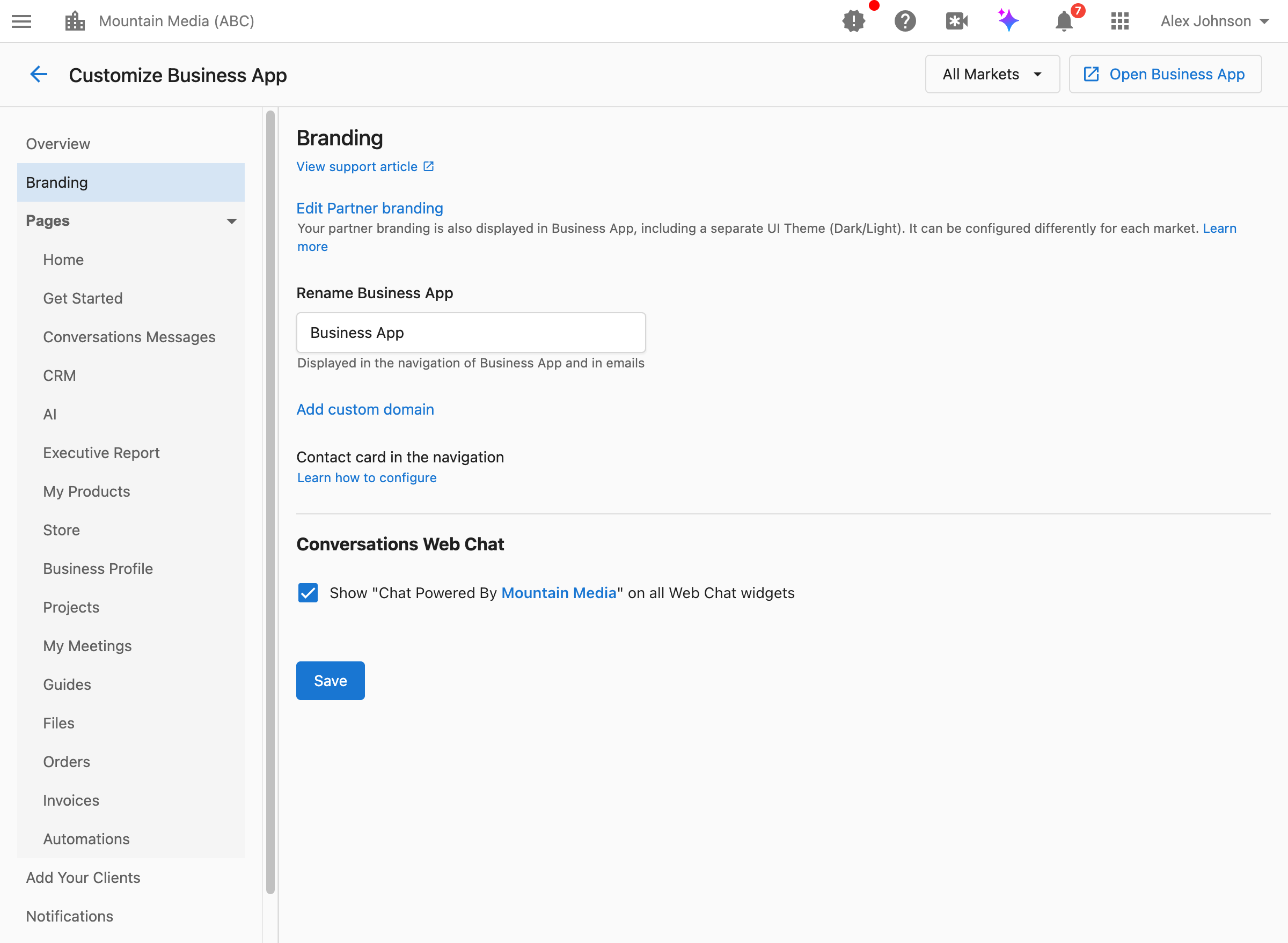
How do I access branding settings?
Navigate to Partner Center → Accounts → Manage Business App → Customize Business App → Branding.
How do I rename Business App?
The Business App name setting changes the display name "Business App" to your custom name throughout the customer interface.
What this does:
- Changes the name displayed in the Business App navigation
- Updates the name in email communications sent to customers
- Applies your brand name across the entire customer experience
When to use this:
- You want to white-label the platform with your brand name
- "Business App" doesn't align with your brand voice or terminology
- You want customers to recognize your product by its branded name
How to configure:
- Navigate to
Partner Center→Accounts→Manage Business App→Customize Business App→Branding. - Find the
Rename Business Appfield. - Enter your preferred name (e.g., "ClientHub", "MyAgency Portal", "Growth Dashboard").
- Click
Save.
What customers see: The new name appears in the navigation sidebar, page titles, and email communications instead of "Business App".
Keep your app name short (2-3 words) and recognizable. Avoid special characters that may not display consistently across all devices.
How do I add a custom domain?
A custom domain lets customers access Business App from your own branded URL (e.g., app.youragency.com instead of the default Vendasta URL).
When you need a custom domain:
- You want a fully white-labeled experience
- Your brand requires customers to see only your domain
- You want to build trust with a recognizable URL
How to configure:
Click the Add custom domain link in the Branding section to access domain configuration. For detailed setup instructions, see Customize your domains.
How do I customize the Contact Us card?
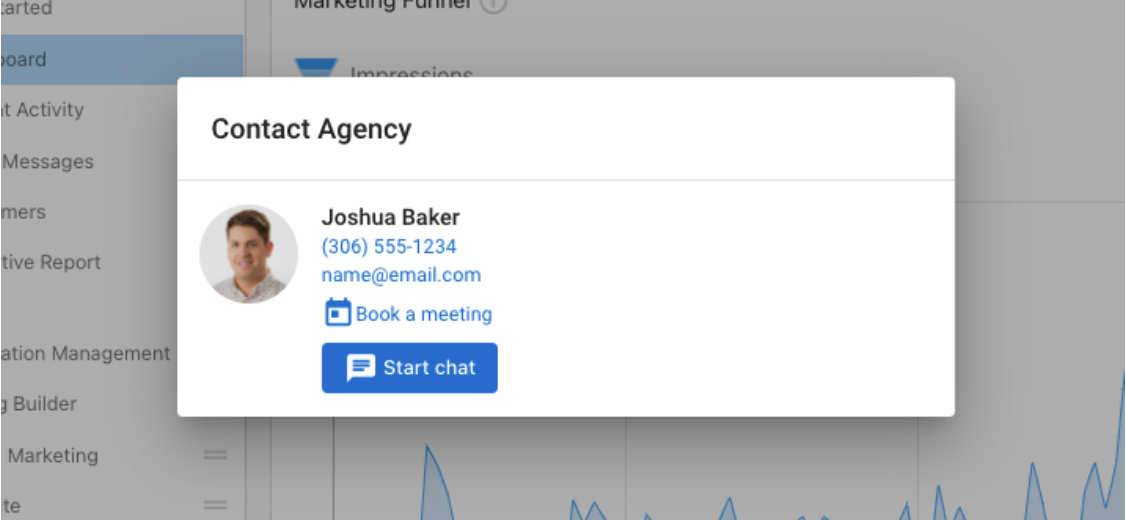
The Contact Us card appears in the Business App navigation and displays your contact information to customers. You can also add a meeting scheduling link so customers can book time with their assigned salesperson directly from the card.
What this does:
- Displays a
Book a meetingbutton on the Business App contact card - Links to a CalendarHero meeting link, or any other meeting scheduling link you provide
- Appears for accounts assigned to the salesperson with the link configured
When impersonating a customer's account from Business App, you can't start a conversation with the salesperson from that view. To test the booking link, log in to Business App directly as that customer.
How to configure:
- Add a booking link to the salesperson profile:
- Navigate to
Partner Center→Administration→My Team. - Find the salesperson, select the three dots next to their name, and choose
Edit Salesperson. - Scroll to the
Book a meeting linkfield. - Enter the meeting URL.
- Click
Save.
- Navigate to
- Assign the salesperson to the account:
- Navigate to
Partner Center→Accounts→Manage Accounts. - Select an account and choose
Edit. - Under
Administration, ensure the correct salesperson is assigned. - Once saved, customers on that account see a
Book a meetingbutton on the Business App contact card.
- Navigate to
How do I control web chat footer branding?
The Conversations Web Chat footer setting controls whether your brand name and website link appear at the bottom of web chat widgets on your customers' websites.
What this does: When enabled, displays "Chat Powered By [Your Partner Name]" (with optional link to your website) on all web chat widgets active across your customers' accounts.
When to enable this:
- You want to promote your brand through customer chat widgets
- You want backlinks to your website for SEO benefits
- You're comfortable with end-users seeing your brand alongside your customers' brands
When to disable this:
- You want a fully white-labeled experience with no reference to your brand
- Your customers prefer their chat widgets to appear entirely under their own brand
- You're operating as a silent partner behind your customers' brands
How to configure:
- Navigate to
Partner Center→Accounts→Manage Business App→Customize Business App→Branding. - Scroll to the
Conversations Web Chatsection. - Toggle the checkbox to show or hide the footer branding.
- Click
Save.
What appears in the footer:
- If you have a website URL configured in your partner profile: "Chat Powered By [Your Name]" with a clickable link to your website (includes UTM parameters for tracking)
- If no website URL is configured: "Chat Powered By [Your Name]" without a link
Your partner name and website URL are configured in your Company Profile. The web chat footer automatically uses these values.
Related resources
For comprehensive branding options including logos, colors, and themes, see Visual Branding and Identity.
FAQs
Can I use different app names for different markets?
No, the Business App name is set at the partner level and applies across all markets. If you need market-specific branding, consider using market-specific visual branding (logos, colors) instead.
Where does the custom app name appear?
The custom name appears in:
- The Business App navigation sidebar
- Email communications to customers
- Welcome messages and onboarding content
- Any interface text that would otherwise display "Business App"
Does renaming Business App affect existing bookmarks?
No. Renaming only changes the display text. URLs and bookmarks continue to work normally.
Is there a character limit for the app name?
Yes, the maximum length is 200 characters. However, for best display across all devices and screen sizes, keep your name under 25 characters.
Can I remove the web chat footer entirely?
Yes. Disable the "Show Chat Powered By" checkbox to remove your branding from the web chat footer completely.
What UTM parameters are added to the web chat footer link?
If enabled, the footer link includes ?utm_source=webchat&utm_medium=referral for analytics tracking in your website analytics tool.