CRM file upload
Overview
Upload files, including PDFs, images, documents, spreadsheets, and more, and associate them with a Contact or Company in Partner Center CRM, or a Contact, Company, or Opportunity in Business App CRM. After upload, an AI-generated summary of the file content appears automatically.
Why it matters
-
Improves context and organization
Files are properly linked to CRM objects for easier access and review. -
Enhances file discoverability
AI-generated summaries help you understand the contents at a glance, without needing to open the file. -
Enables automated file collection
Support for form-based file uploads allows prospects to submit documents directly through lead capture forms, automatically organizing files in CRM with AI summaries.
Where to find it
This feature is available in both Partner Center and Business App.
- Navigate to a
ContactorCompanyrecord (or anOpportunityrecord in Business App) - Open the
Filessection to view or upload
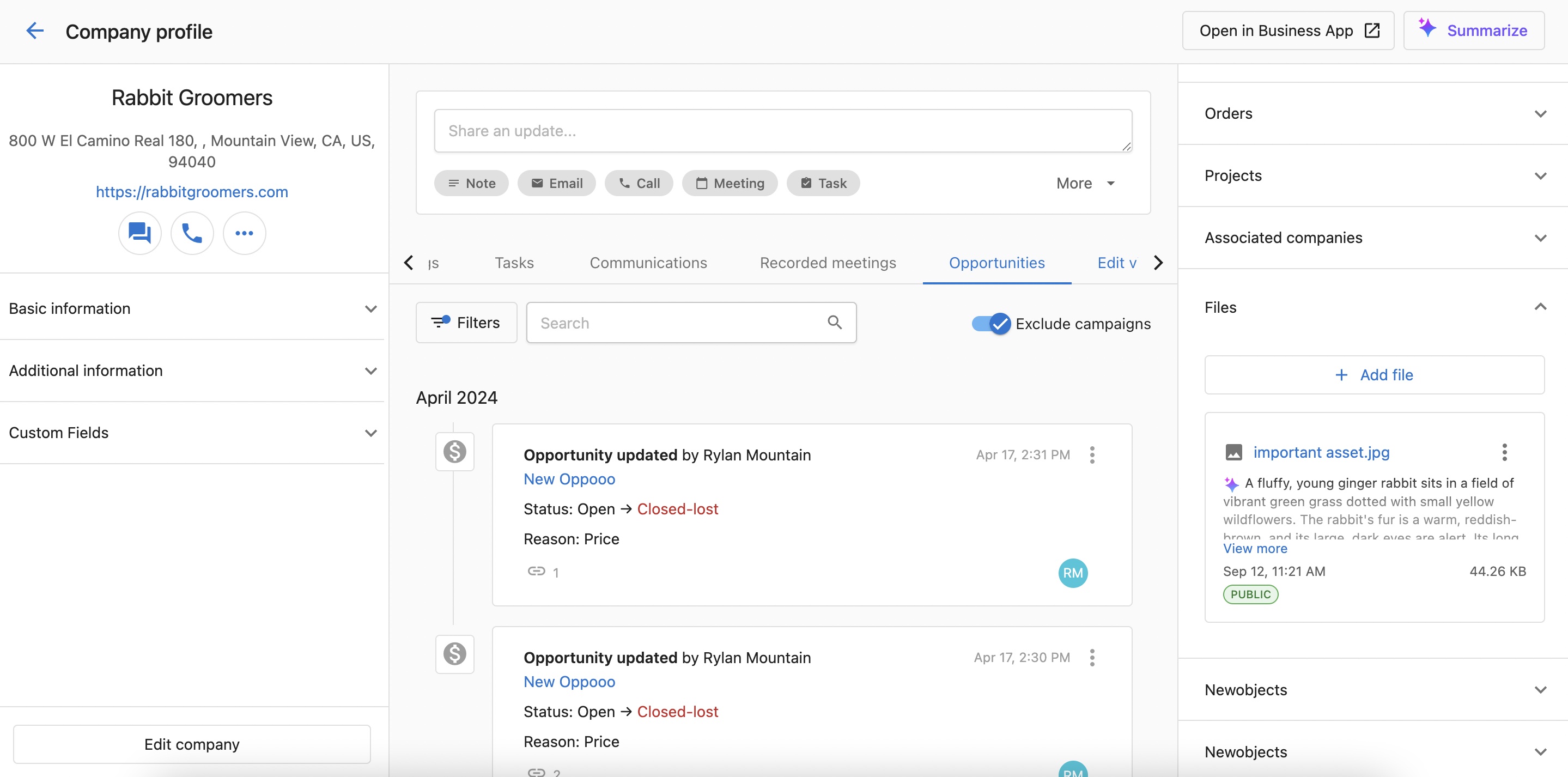
How to upload a file in CRM
Steps (Partner Center and Business App):
- Open a CRM record (Contact or Company in Partner Center; Contact, Company, or Opportunity in Business App)
- Go to the
Filessection - Click
Add a file - Upload a supported file (e.g., PDF, PNG, JPEG)
- After upload, an AI-generated summary appears automatically
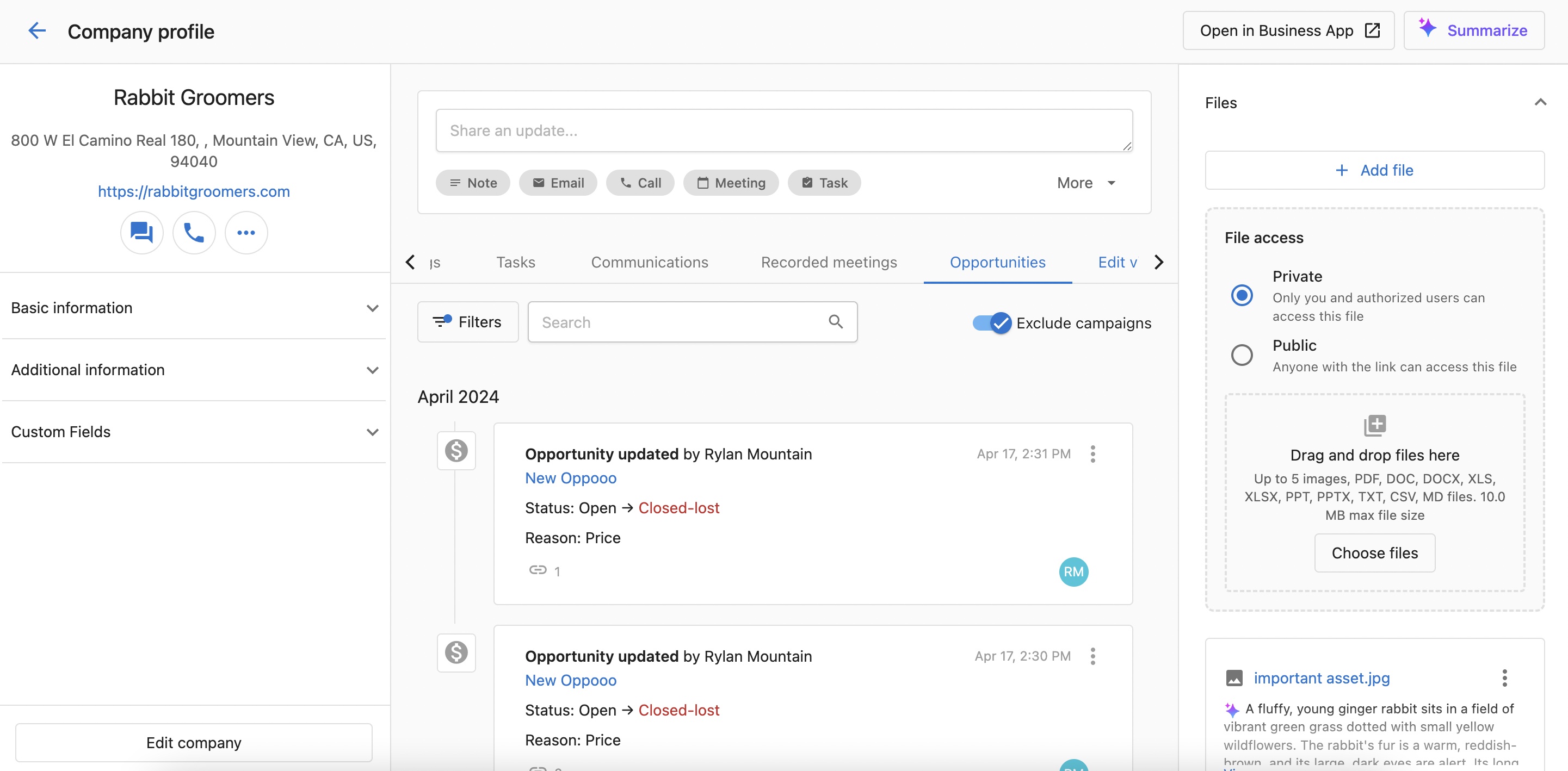
Business App supports file uploads to Opportunity records in addition to Contacts and Companies.
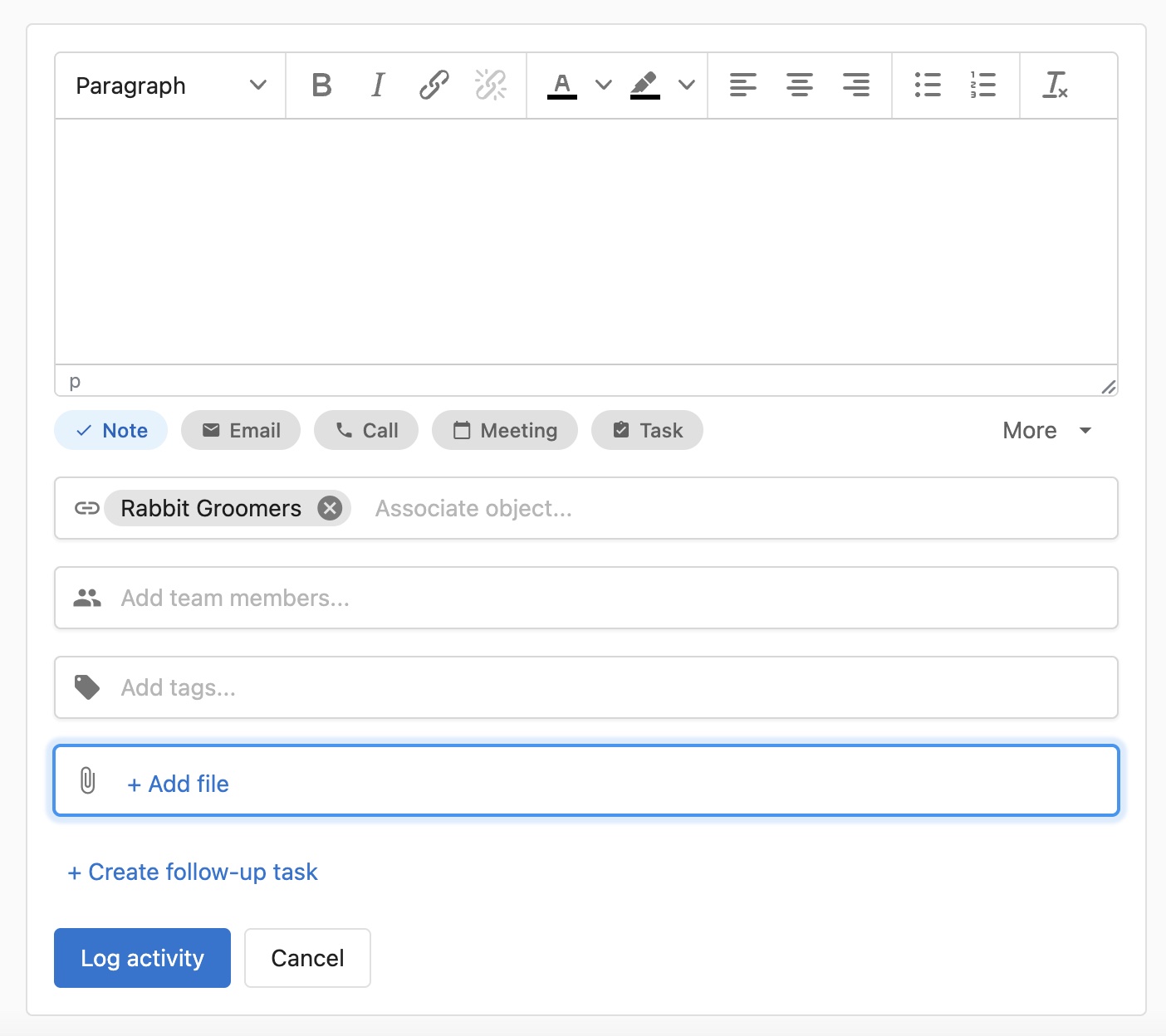
How to upload a file when logging an activity
Steps:
- Navigate to a
ContactorCompanyrecord - Click on the activity logger (
Log Activity) - Click
Add a file - Upload a supported file
- Log the activity
Uploaded files appear in:
- The
Filessection - The activity timeline under the associated log
How to upload files via forms
You can enable file uploads directly through CRM Forms, allowing prospects and clients to submit documents during form submissions.
Steps to set up form file uploads:
- Navigate to
Marketing→Forms - Create a new form or edit an existing form
- In the form builder, click
Add fields - Search for
Fileand select the file upload field type - Drag the file field to your desired location in the form
- Configure the field settings:
- Set field label (e.g., "Upload Document", "Attach Resume")
- Add help text for your clients
- Configure visibility settings (optional)
- Click
Saveto add the field to your form
When forms are submitted with files:
- Files are automatically attached to the created Contact and Company records
- AI-generated summaries are created for each uploaded file
- Files appear in the
Filessection of the respective CRM records - Form submissions trigger normal automation workflows with file data included
Use cases for form file uploads:
- Lead qualification forms: Allow prospects to upload RFPs, requirements documents, or business plans
- Application forms: Enable file submissions for job applications, vendor applications, or partnership requests
- Support requests: Let customers attach screenshots, logs, or documentation with support tickets
- Onboarding forms: Collect necessary documents during customer onboarding processes
- Quote requests: Allow prospects to upload specifications, blueprints, or requirement documents
Frequently asked questions (FAQ)
What file types support AI-generated summaries?
AI summaries are supported for the following file types:
- Images: PNG, JPEG
- Documents: PDF, DOC, DOCX, TXT, MD
- Spreadsheets: XLS, XLSX, CSV
- Presentations: PPT, PPTX
Is this feature available in both Partner Center and Business App?
Yes.
- Partner Center: Contacts and Companies
- Business App: Contacts, Companies, and Opportunities
Can I upload multiple files at once?
Yes. You can upload up to 5 images at a time.
Can I delete or replace an uploaded file?
Yes. You can delete files directly from the Files section. Uploading a new version will generate a new AI summary.
How long does it take to generate the AI summary?
Summaries typically appear within a few seconds after uploading, depending on file size and format.
Where do uploaded files appear in CRM?
Files show up in the Files section of the record (Contact, Company, or Opportunity), and under any associated activity if uploaded during logging.
Does uploading a file during activity logging associate it with the CRM record?
Yes. The file is linked to the relevant Contact or Company and visible in both the activity and file sections.
Can I search for files by the content of the AI summary?
Summaries are not searchable.
Can I edit or customize the AI-generated summary?
No. Summaries are generated automatically and cannot be manually edited.
Are uploaded files public or private?
You can choose the file's visibility before upload:
- Private: Only you and authorized users can access the file.
- Public: Anyone with the file link can access it, even without CRM access.
How do form file uploads work?
You can include file upload fields in CRM Forms. When visitors submit forms with files, the files are automatically attached to the created Contact and Company records with AI-generated summaries.
How it works:
- Add a "File" field type to any form using the form builder
- Configure the field label and help text for users
- When forms are submitted, uploaded files are attached to the CRM records
- AI summaries are automatically generated for all supported file types
Key features:
- Supported file types: Images (PNG, JPEG), Documents (PDF, DOC, DOCX, TXT, MD), Spreadsheets (XLS, XLSX, CSV), Presentations (PPT, PPTX)
- Single file per field: Each file upload field accepts one file per submission
- Automatic organization: Files appear in the
Filessection of Contact and Company records - AI summaries: Generated automatically so you can identify files at a glance
- Integration with automation: File uploads can trigger automation workflows and be used in follow-up processes
- Visibility control: Files follow standard CRM visibility rules (private/public access)
Common use cases:
- Lead qualification documents (RFPs, requirements)
- Job applications and resumes
- Support tickets with attachments
- Onboarding documentation
- Quote request specifications
What happens if I upload an unsupported file type?
Unsupported files do not upload, or upload without generating a summary.
Is there a file size limit for uploads?
Yes. The maximum file size is 10 MB, and you can upload up to 5 images at a time. Supported file types are PNG, JPEG, PDF, DOC, DOCX, XLS, XLSX, PPT, PPTX, TXT, CSV, and MD.