Lists
Lists in the Partner Center CRM, at CRM → Lists, group your contacts or companies so you can run bulk actions and automations on them. Static lists change only when you add or remove records, and smart lists update automatically based on rules you set.
You can use lists to organize contacts, companies, and opportunities, and lists are shared among your team members. You can start an automation for everyone on a list, or trigger an automation when a record is added to or removed from a list.
Why use lists?
Lists group records so you don't have to sort them manually each time. You can use them to target campaigns, nurture leads with automations, and run bulk actions on a whole group at once.
What's included
- Static lists for manually managed, fixed groups (e.g., event attendees)
- Smart lists that automatically update based on contact behavior and criteria
- Automation triggers when contacts or companies are added or removed from lists
- Team sharing capabilities for collaborative list management
- Integration with marketing campaigns and bulk actions
Get started
-
Navigate to lists
- Go to
Partner Center→CRM→Lists - Access your list management workspace
- Go to
-
Choose list type
- Create
Static Listsfor fixed groups (e.g., event attendees) - Create
Smart Listsfor dynamic, rule-based segmentation
- Create
-
Set up your first list
- Apply filters to create initial list criteria
- Define rules for smart lists or manual entries for static lists
-
Configure automations
- Set up automations based on list membership
- Configure triggers when contacts are added to lists
What's the difference between static and smart lists?
There are two types of lists in the CRM:
Static Lists: Users can set a filter to create an initial list of companies or contacts, then manually add or remove entries. This list doesn't change automatically, making it useful for fixed groups, like targeting attendees from a specific event.
Smart Lists: Smart lists automatically update based on rules you set, such as how contacts interact with emails. For example, a marketer could create a smart list that automatically includes contacts who have clicked on your marketing email or match your buyer profile. As customer behaviors or details change, the list updates in real time, helping the marketer keep track of engaged leads and nurture them automatically without manual updates.
How do I use lists in the CRM?
Navigate to Partner Center → CRM → Lists.

Click Create. You will be given the option to create either a Static or Smart list.
How do I create a static list?
1. Specify Filters: Use filters to select the contacts or companies you want to add initially. You can filter by criteria such as location, industry, interaction history, or any custom fields you've set up.
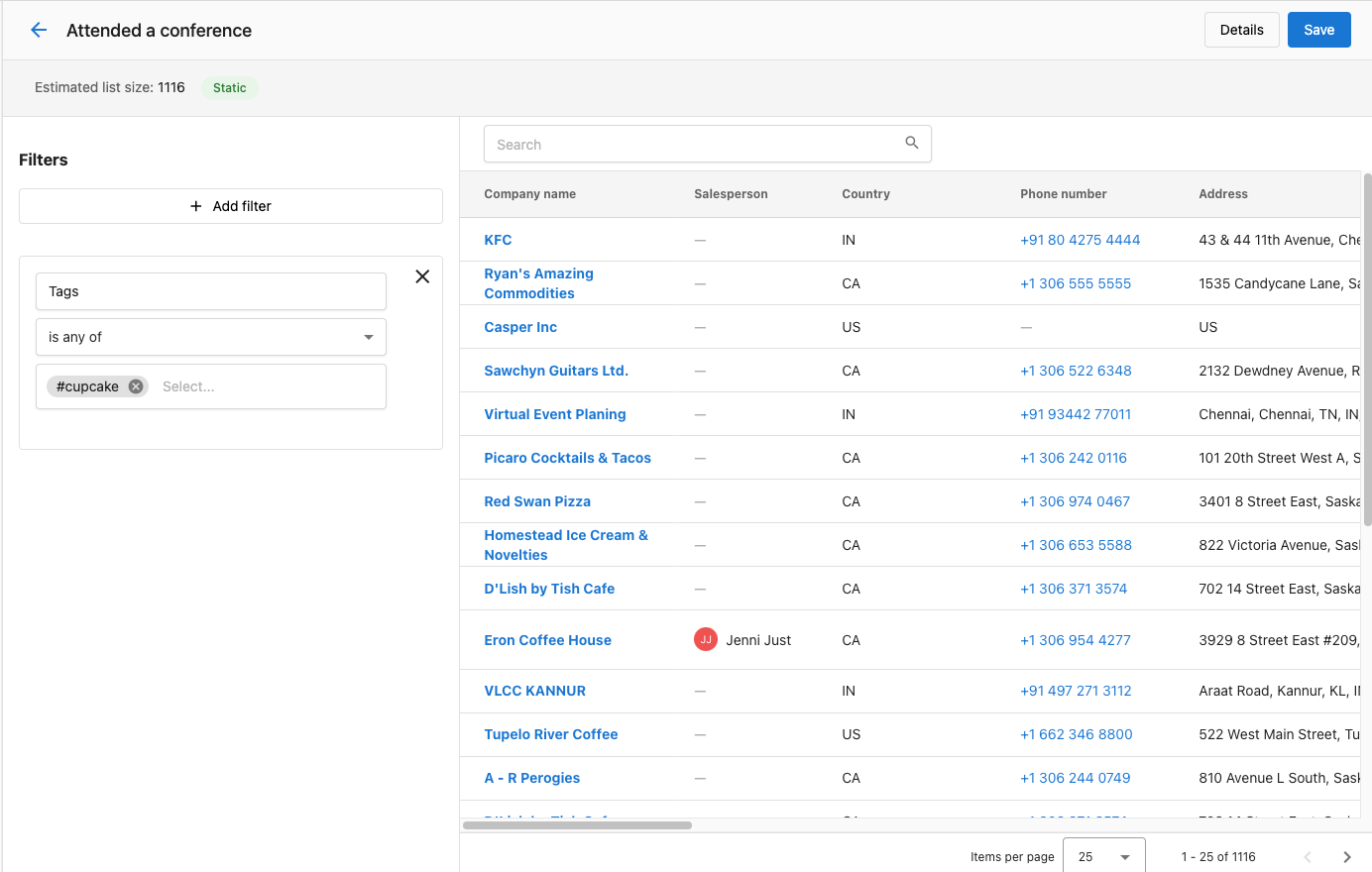
2. Click Save: Once you've applied the filters, click Save.
Note: It may take some time for the static list to populate fully with the selected contacts or companies, depending on the size of your CRM data.
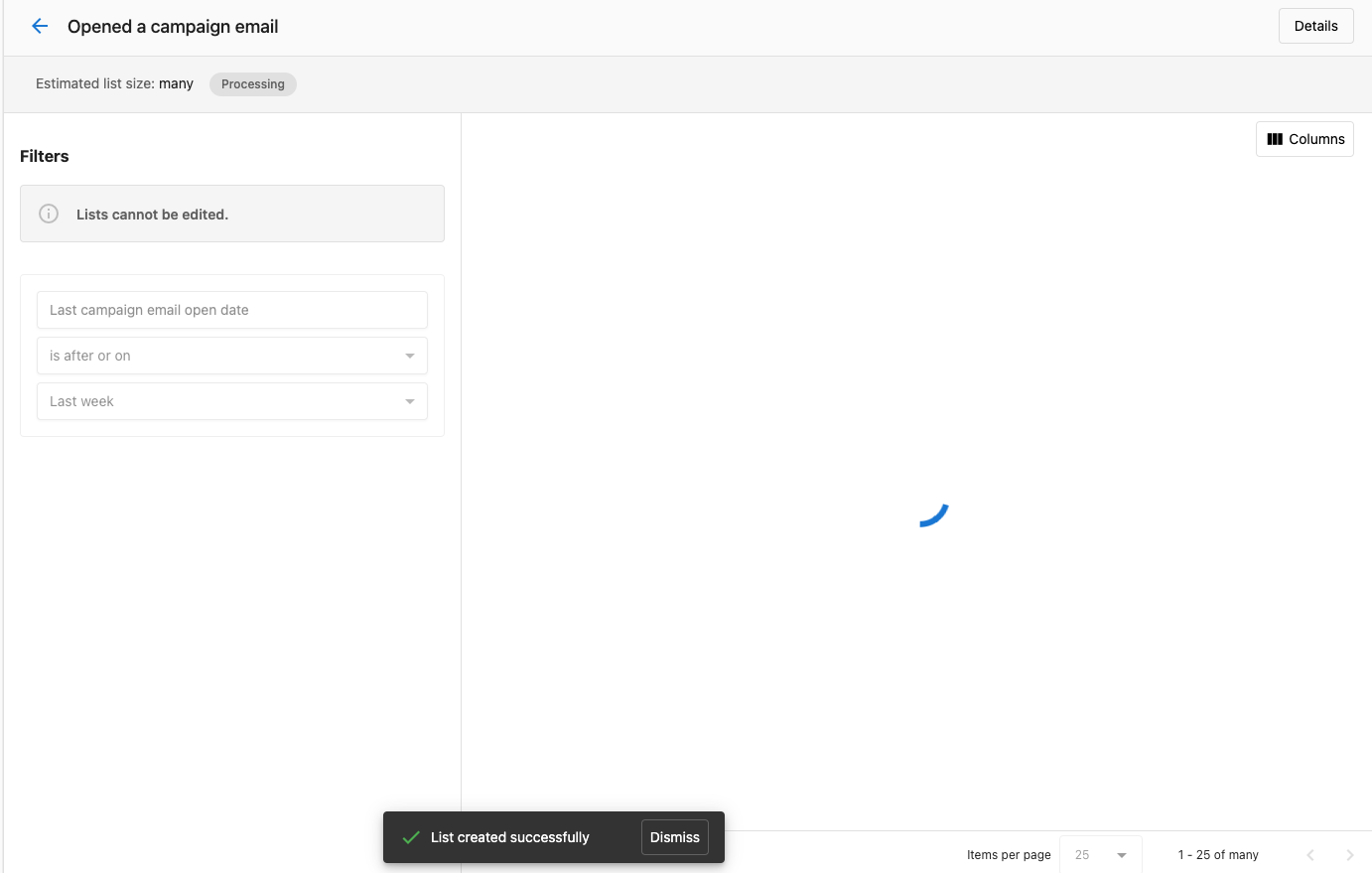
3. Manually Manage the List:
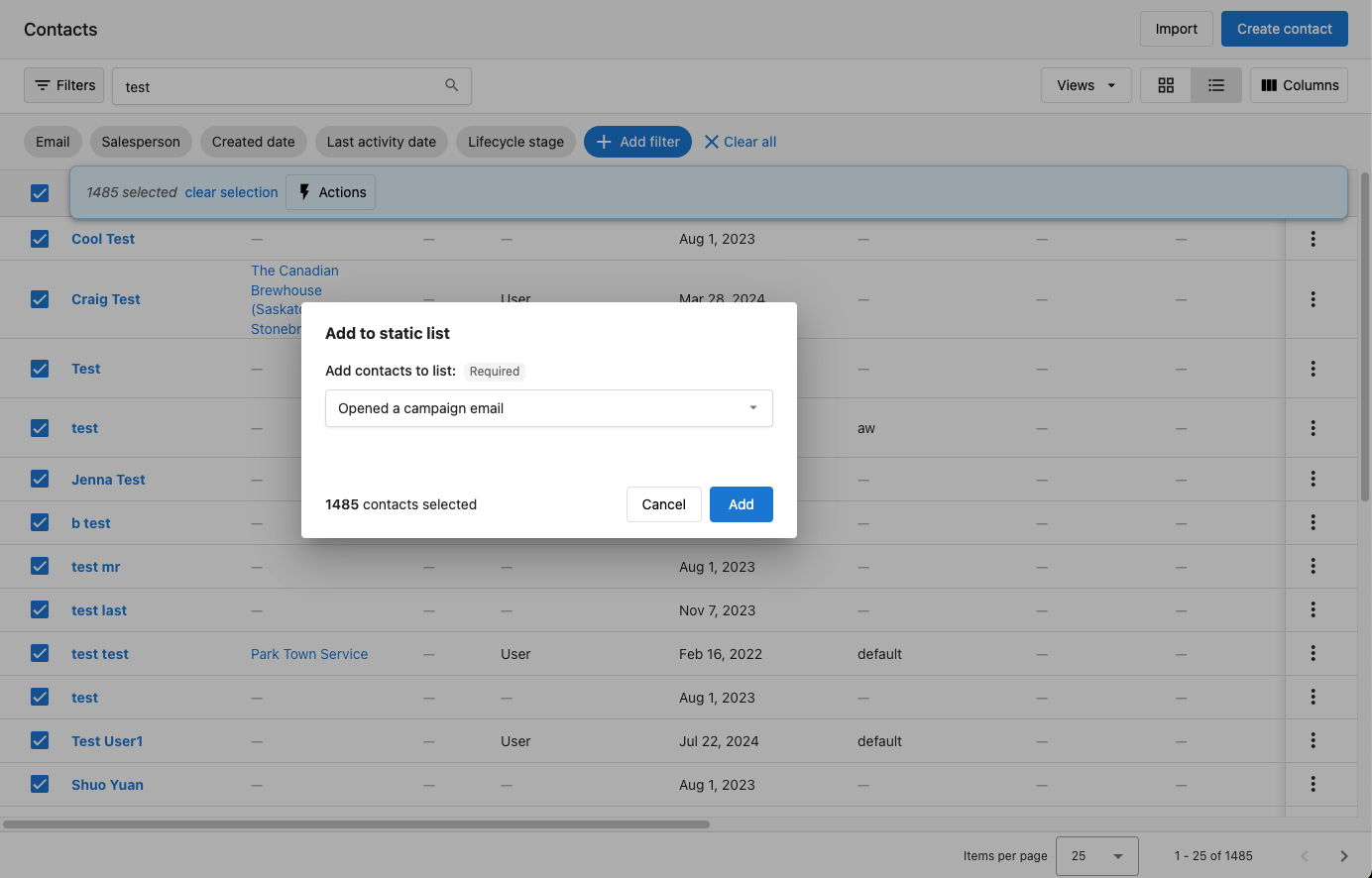
- Adding Contacts/Companies: After the list is created, you can manually add new contacts or companies by going to the Contact or the Company table, selecting the records you would like to add to a list, and then selecting a list to assign them to.
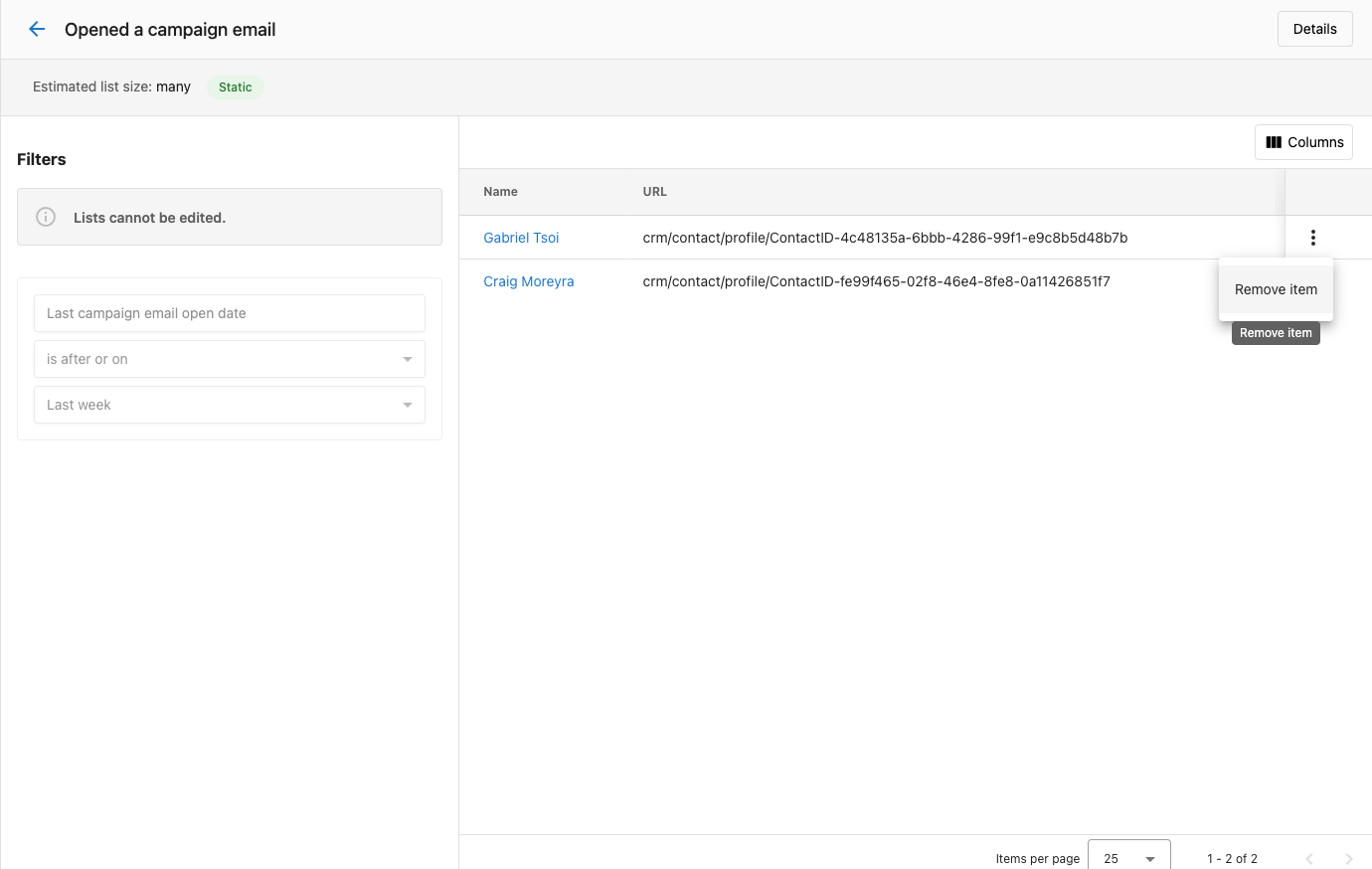
4. Removing Contacts/Companies: Similarly, you can manually remove any contact or company by selecting the record in the list and clicking the remove option.
How do I create a smart list?
1. Specify Filters: Define dynamic rules for the list, such as contact engagement, email opens, or other behaviors. For example, you can create a rule for "Companies who have a contact that has opened a marketing email in these two weeks" and "Companies who have a listing grade of C, D or F."
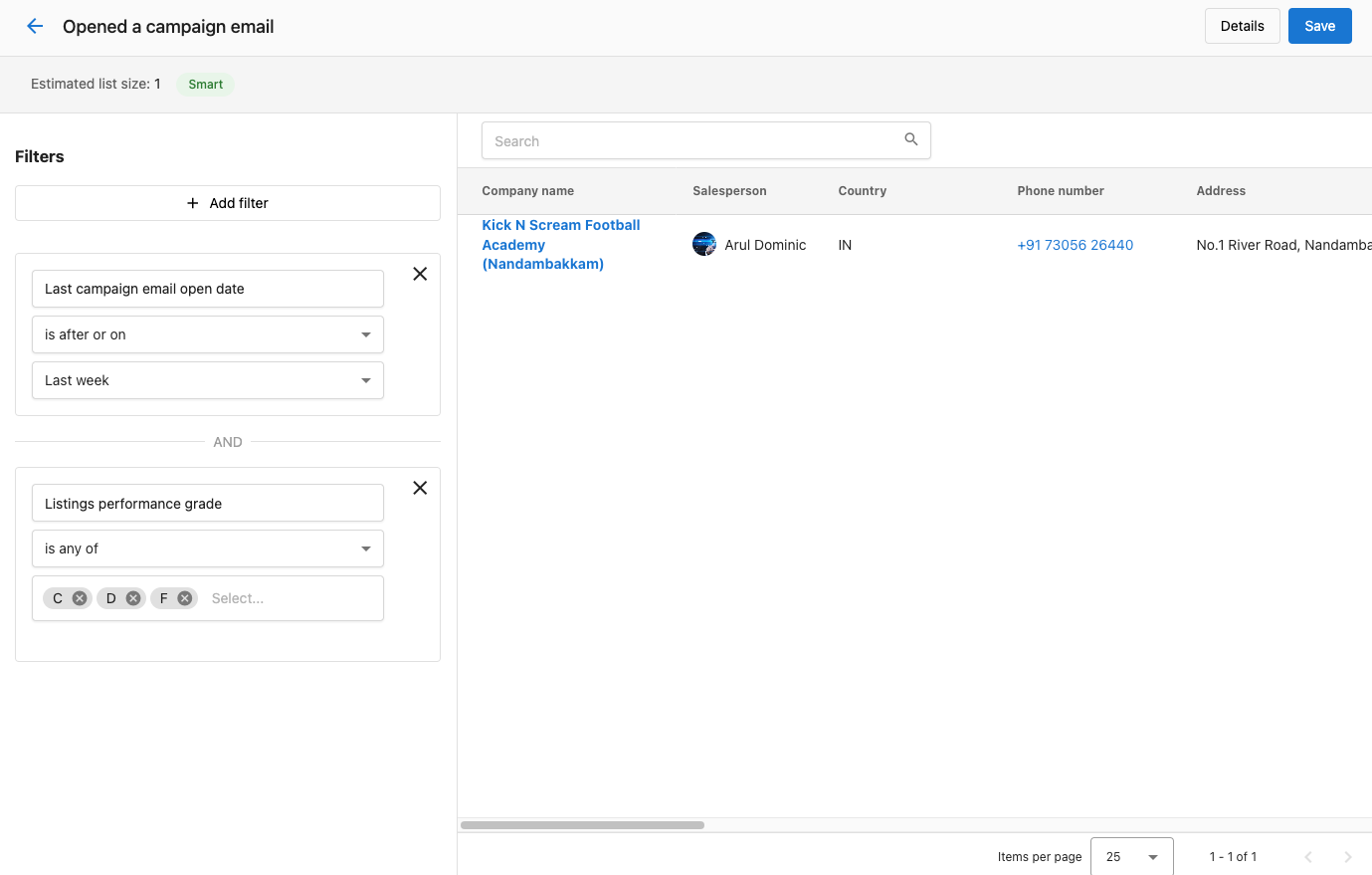
2. Click Save: Once saved, the smart list will automatically update based on the criteria you've set. Contacts and companies will be added or removed in real time as their details or behaviors change. You don't need to manage this list manually.
How do I start an automation from a list?
This process is the same for both static and smart lists:
1. Locate the List:
- On the List Table screen, find the list you want to automate actions for.
2. Start Automation:
- Click on the action menu (three dots) next to the list and select
Start Automation.
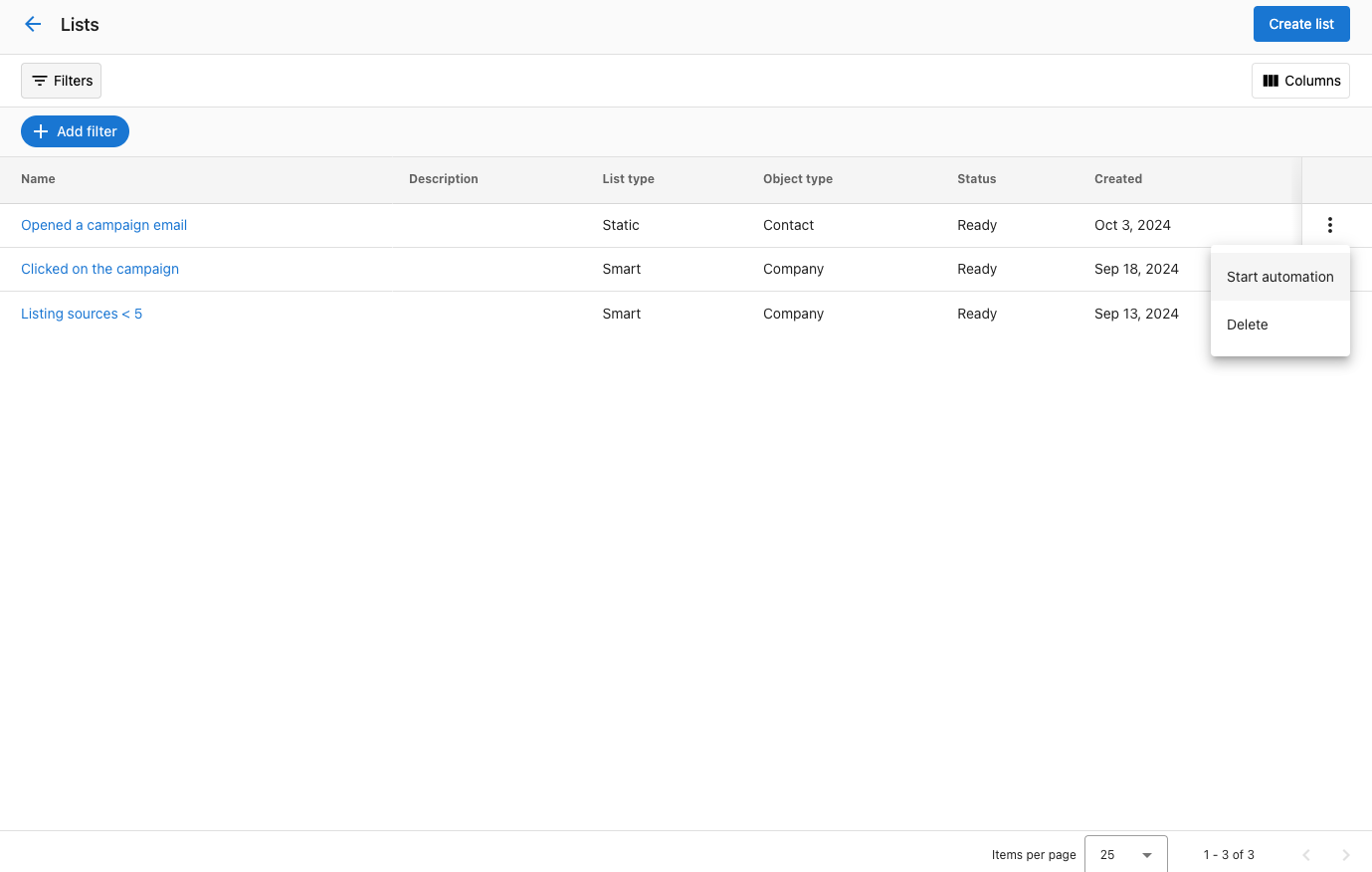
3. Choose the Automation:
a. Depending on whether your list is for contacts or companies, you will see a list of available automations with triggers Manually trigger for contact or Manually trigger for company.
b. Select the automation you want to run, and it will start immediately for all the entries in the list.
How do I automate actions when contacts or companies are added or removed from a list?
You can set up automations to trigger specific actions when a contact or company is added to or removed from a list. There are four available automation triggers for this:
- When a contact is added to a list
- When a contact is removed from a list
- When a company is added to a list
- When a company is removed from a list
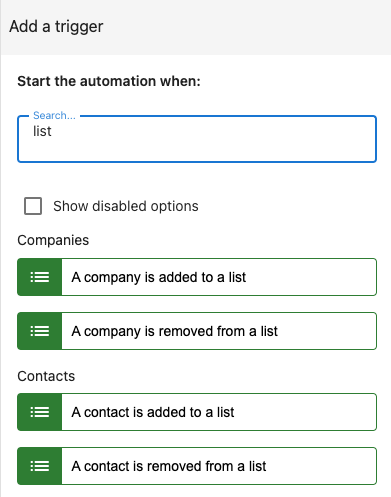
These triggers allow you to automate workflows, such as sending follow-up emails, notifying a sales team, or moving a contact to another CRM stage when they join or leave a list. Set up the automation with the appropriate trigger, and it runs based on your criteria.
Want to see this trigger built end to end? Put your workforce on autopilot pairs a smart list with the "contact is added to a list" trigger to start a real nurture campaign on its own.
How do I delete a list?
1. Locate the List:
- On the
List Tablescreen, find the list you want to delete.
2. Click delete:
- Click on the action menu (three dots) next to the list and select
Delete.
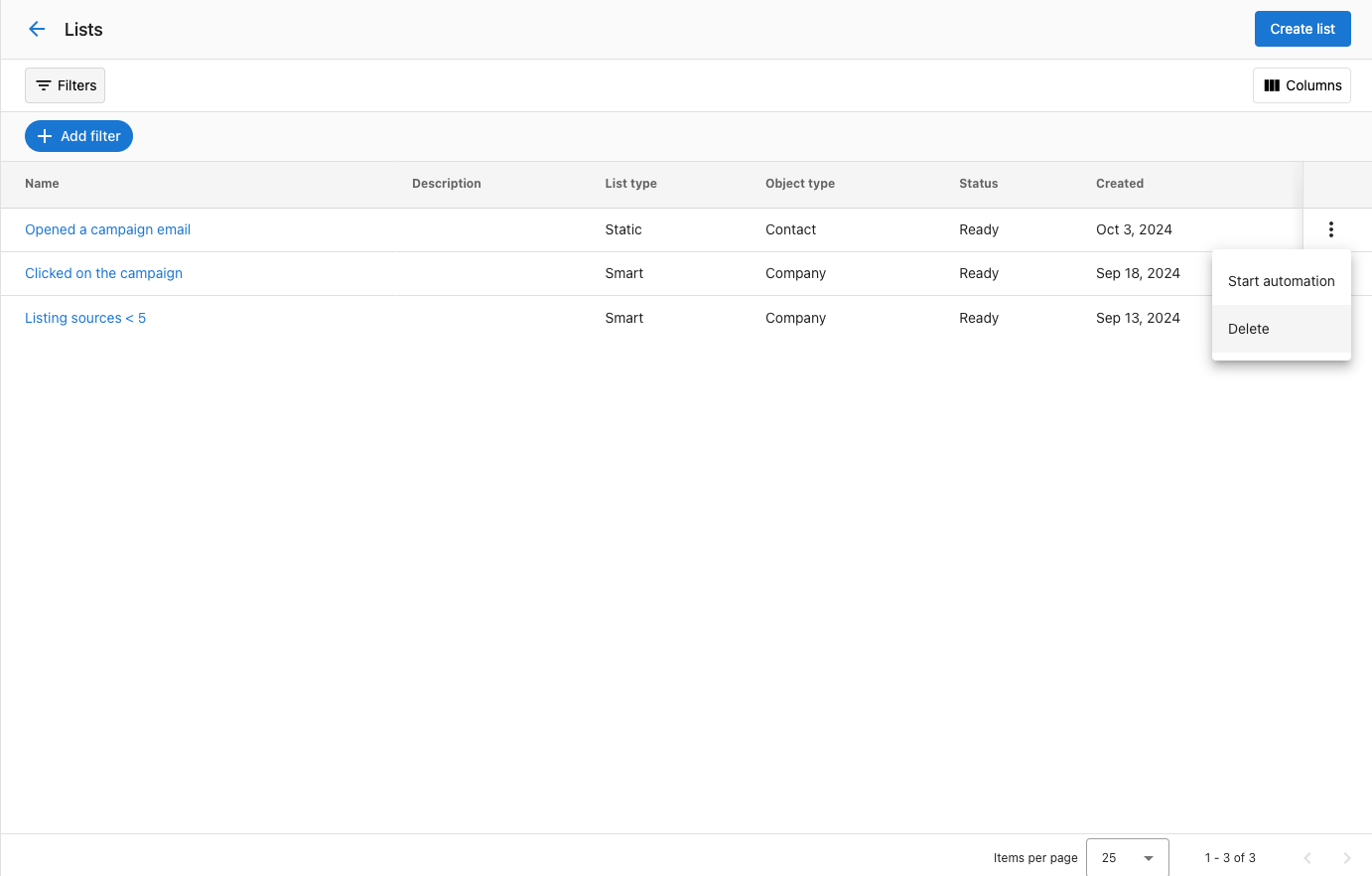
3. Confirm the deletion:
- In the confirmation modal, type
Deleteand clickDeleteto confirm.
Frequently asked questions
Will this be available for my customers?
Yes, this is also available for your clients in Business App.
Can I share lists with my team members?
Yes, both static and smart lists can be shared across your team. This ensures everyone is working with the same up-to-date information and helps improve collaboration.
What's the difference between a static list and a smart list?
A static list is manually managed and doesn't change unless you update it. It's great for fixed groups like event attendees. A smart list updates automatically based on rules you set, such as contact engagement or behaviors, making it ideal for dynamic targeting.
How do I set up automations for my lists?
You can set up automations by going to the list, clicking the action menu (three dots), and selecting Start Automation. From there, choose the automation you want to run, and it will trigger for all entries in the list. You can also set up an automation to automatically conduct actions when contact/companies are added/removed from the list.
Is there a limit to how many lists I can create?
There's no specific limit on the number of lists you can create, so you can organize your contacts or companies as needed for different campaigns or workflows.
Can a CRM list be added to a campaign?
Yes, but the specific workflow is different than adding an account list. To start a campaign from a CRM list, go to CRM → Lists, click the three dots next to the list, and select More Actions. Select a service account to perform this action, then select Campaigns and Emails → Start a campaign for this contact.
How do I add contacts to an existing static list?
Go to the Contact or Company table, select the records you want to add, and then select the list to assign them to.
Can I create a list of contacts who opened or clicked a campaign email?
Yes. Create a smart list and set a rule based on email engagement, such as contacts who opened or clicked your marketing email. The smart list updates automatically as contacts engage.
Why doesn't my new static list show all its contacts yet?
After you save a static list, it can take some time to populate fully, depending on the size of your CRM data.
Can I start an automation when a contact is added to a smart list?
Yes. Create an automation with the When a contact is added to a list trigger. The same triggers are available when a contact is removed, and when a company is added to or removed from a list.