Companies
Companies in the Vendasta CRM, at CRM → Companies in Partner Center, are the records you use to manage business relationships with prospects and clients. You can log activities, score and find leads, filter and tag records, and manage parent-child company hierarchies.
Why use companies?
Companies in the CRM enable you to maintain detailed records, score leads for better prioritization, and ensure no important business interactions are missed.
What's included in Companies?
- Activity logging: Track sales communications and create detailed activity records
- Lead scoring: Automated lead prioritization based on buyer profile and intention (configured in
Administration→Score) - Find leads: Discover and identify potential business opportunities using local business search
- Advanced filtering & search: Filter companies by various criteria and search across multiple fields
- Parent-child company relationships: Manage corporate hierarchies and filter child companies by their parent company
- CRM default company fields: Standard fields available for tracking company information
- Company vs account management: Understanding the relationship between billing accounts and CRM companies
How do I get started with Companies?
-
Navigate to companies
- Go to
Partner Center→CRM→Companies - Access your business relationship management workspace
- Go to
-
Set up company profiles
- Add new company information using default fields
- Configure custom fields based on your business needs
-
Configure lead scoring
- Navigate to
Partner Center→Administration→Score - Set up positive and negative scoring criteria
- Enable automated lead prioritization
- Navigate to
-
Start logging activities
- Click into company profile pages
- Record communications and sales activities
- Track engagement throughout the sales process
How do I log activities for companies?
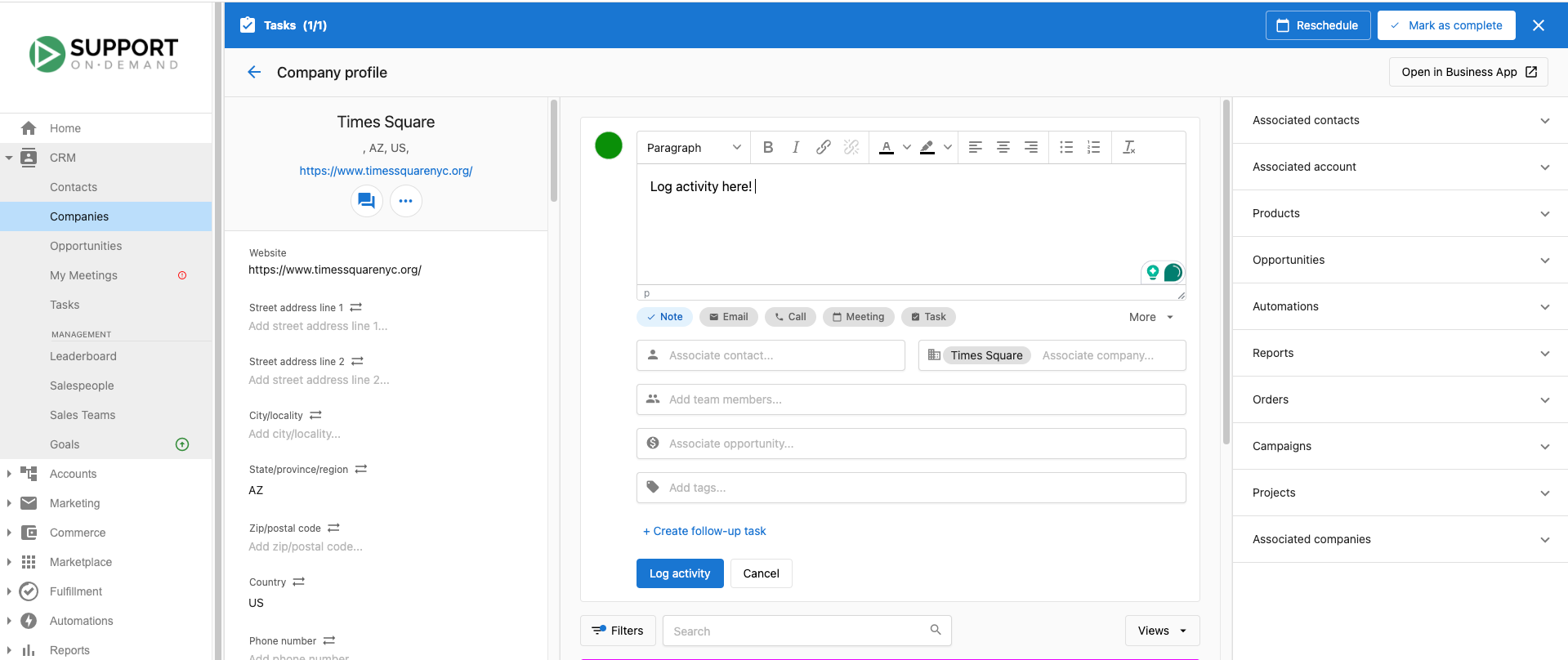
Throughout the sales process, your salespeople should log their communications and create sales opportunities in the CRM. This will help them understand where to focus their time and effort as their customer list continues to grow.
How to log activities
To log an activity for a contact, click into a contact profile page:
- In the middle of the page, locate the activity logger and click
Share an updateto explore various options - Select the type of activity and indicate if you successfully connected with the customer
- Add detailed notes about the activity
- Indicate if follow-up is required. If follow-up is required, create tasks to follow up on
Manual activity options
- Notes: Share any relevant information about companies through the notes function
- Email: Log email activities within the CRM. Keep track of inbound, outbound, and forwarded emails
- Call: Log call activities within the CRM. Keep track of inbound and outbound calls, call status, and the outcome of the calls
- Meeting: Monitor all meetings, including the duration, status, outcome and participants
- Task: Create tasks for future activities. Log the job to be done, the priority, and assign it
- More: SMS | Conversations | LinkedIn - Log external communication from SMS, Conversations, or LinkedIn through the 'more' button
- Creating tasks: Specify a task title, provide any necessary instructions, and choose the task type (for instance, a call). You can also set a priority if the task is urgent
Platform actions logged automatically
- Contact/company created
- When an assigned salesperson is changed
- Opportunities closed lost/closed won
- Email auto-captured from auto BCC/forwarding
- All sales activities from SSC
You can also set up automations/Zapier to get activities logged automatically.
How do I upload files to a company?
You can upload files directly to company records to maintain organized documentation:
- Open a company profile page
- Navigate to the
Filessection - Click
Add a fileto upload documents, images, or other files - View AI-generated summaries for better file organization
Learn more about file uploads and supported file types.
How do I filter and search companies?
The Companies interface provides filtering and search options to help you manage large numbers of prospects effectively:
Quick Search
- Company name: Search by full or partial company names
- Website URL: Find companies by their website domains
- Phone numbers: Search using full or partial phone numbers
- Address information: Filter by city, state, or zip code
Advanced Filters
- Lead scoring: Filter by lead score ranges (high, medium, low priority)
- Activity dates: Find companies based on last contact date or activity timeline
- Assigned salesperson: View companies assigned to specific team members
- Lifecycle stage: Filter by prospect stage (lead, qualified, customer, etc.)
- Parent company: Filter to show child companies that belong to a specific parent company
- Tags: Filter by applied company tags for categorization
- Creation date: Find recently added or historical companies
- Record source: Filter by how companies entered your CRM (form, import, manual)
What are the tag formatting rules?
Tags help you organize and filter company records. To work correctly in filters and search, tags must follow these formatting rules:
- Character limit: 50 characters maximum
- Allowed characters: Letters (A–Z, a–z), numbers (0–9), dashes (
-), spaces, and underscores (_) - Special characters: Not supported — tags containing characters such as
@,#,&,!, or%may appear to save but will not work correctly in filters or search
Best practices:
- Keep tags short and descriptive (for example,
hot-lead,enterprise,renewal-q3) - Establish a consistent tagging convention with your team to keep filters predictable
Tags with unsupported characters may appear to save successfully but will silently fail in filtering and search. If a tag filter isn't returning expected results, check the tags on those records for special characters.
How do I manage company hierarchies?
The CRM supports parent-child company relationships, allowing you to organize and manage corporate hierarchies effectively. This feature is particularly useful for tracking multi-location businesses, franchise operations, or corporate structures with subsidiary companies.
Setting up parent-child relationships
To establish a parent company relationship:
- Navigate to a company's profile page
- Edit the company information
- Set the Parent company field to link the company to its parent organization
- Save the changes to establish the hierarchy
Common use cases:
- Franchise operations: Link individual franchise locations to the main franchise company
- Corporate subsidiaries: Connect subsidiary companies to their parent corporation
- Multi-location businesses: Organize branch offices under a central headquarters company
- Business groups: Group related companies under a parent holding company
Finding child companies
Once parent-child relationships are established, you can easily find all companies within a corporate hierarchy:
Using the Parent company filter:
- Go to
CRM→Companies - Click
Add filterand select Parent company - Choose the parent company from the dropdown
- View all child companies that belong to the selected parent organization
This filtering capability helps you:
- Manage corporate accounts: View all locations or subsidiaries at once
- Track business relationships: Understand the full scope of corporate partnerships
- Coordinate sales efforts: Ensure consistent messaging across all company entities
- Analyze performance: Compare metrics across different parts of the same organization
What is the difference between companies and accounts?
Within the Vendasta platform, "Accounts" and "Companies" serve distinct roles in how you interact with the platform.
Accounts: Billing relationship
An Account in Vendasta is a legacy entity. It is the administrative record that encompasses the billing, service provisioning, and historical data for clients.
Key aspects of accounts:
- Billing center: Accounts are tightly integrated with billing systems where all financial transactions, product activation, invoices, and billing details are managed
- Back-end foundation: While not directly visible in the front end, Accounts support numerous essential functions behind the scenes
- Legacy features: Many of the platform's original features and processes are designed around the Account structure, such as Opportunities, Orders, and Snapshot Reports
Companies: Customer relationship
A Company is the CRM record designed to serve as the primary interface for managing client relationships. They focus on customer interaction, sales management, and operational details that support the growth and maintenance of your business connections.
Benefits of companies:
- CRM-focused: Companies center on managing your interactions and opportunities with clients
- Visibility and access: Provide the main user experience for relationship management activities
- Account data: Capture most of the information from accounts while being your primary workspace
The distinct roles
Accounts are mainly used for handling your financial dealings on Vendasta. This covers billing details, product activations, and payment histories. When business information for an account is changed, it syncs with Company details and vice versa.
Companies are centered on building and maintaining customer relationships. They help you track potential leads and manage ongoing client interactions through the activity timeline. This is the interface you'll engage with the most.
How do I find leads?
Identifying and qualifying potential clients within your local market is crucial for any salesperson focused on local businesses. The "Find Leads" feature allows you to discover potential prospects by searching for local businesses and analyzing their digital performance, including their Google Business Profile claimed status, Google reviews, website performance, and other key indicators. This tool enables you to create new company records in bulk for businesses that show potential.
How to use the "Find Leads" feature
-
Access the lead finder
- Go to
CRM→Companies - Click
Find Leads(previously "Find Accounts")
- Go to
-
Search for potential prospects
- Enter a business type and location (e.g., "restaurants in Denver, CO")
- Use specific search terms for better targeting:
- Industry terms: "dental offices", "auto repair shops", "law firms"
- Geographic areas: City, state, zip codes, or neighborhoods
- Business names: Search for specific businesses or competitors
-
Review search results
- Browse up to 20 results per search (Google API limitation)
- Companies already in your CRM are clearly indicated
- View key business information:
- Business name and address
- Google Business Profile claim status
- Google review score and count
- Website availability
- Phone number
-
Select and create companies
- Check individual businesses or use "select all" for bulk selection
- Click
Create companiesto add selected prospects to your CRM - Automatic deduplication prevents adding existing companies
-
Start prospecting
- Click
View companiesto access the newly created records - Begin outreach and relationship building activities
- Click
Advanced Search Tips
Effective search strategies:
- Broad searches: "restaurants" or "retail stores" for market exploration
- Niche targeting: "vegan restaurants" or "luxury car dealers" for specialized markets
- Geographic precision: Include specific neighborhoods or zip codes
- Competitive research: Search for businesses similar to your existing clients
Search result indicators:
- ✅ Green checkmark: Company already exists in your CRM
- ⭐ Star rating: Google review score and number of reviews
- 🌐 Globe icon: Website presence detected
- 📞 Phone icon: Phone number available
- 🏢 Building icon: Google Business Profile claimed status
How does lead scoring work?
Lead scoring gives customer-facing representatives customizable lead prioritization. This feature allows CRM users to create different scores as a contact or company field based on buyer profile fit and buyer intention. By incorporating these critical dimensions, representatives can efficiently prioritize their outreach, improving their chances of closing deals.
Configuration: Lead scoring is configured in Partner Center → Administration → Score. See the Score documentation for detailed setup instructions.
Availability: Lead scoring works out of the box for all users on the Professional subscription or above.
How do I bulk delete companies?
You can delete multiple company records at once to clean up CRM data.
Bulk deletion is permanent and cannot be undone. Any notes attached to deleted companies are lost and cannot be recovered, even if you recreate the company later. Export any records you may need before deleting.
Limits: Companies are deleted in batches of 100 records at a time.
Steps:
- Go to
Partner Center→CRM→Companies. - Increase the items-per-page setting to show more records (up to 100).
- Use filters or search to narrow to the records you want to delete.
- Click the top-left checkbox to select all visible records on the page. A banner confirms the count, for example "100 of 340 selected" — don't use the
Select alllink here, since deletion is limited to 100 records per batch. - Click
Actions→Delete. - In the confirmation modal, type
Deleteand confirm.
Repeat for additional batches if you need to delete more than 100 companies.
How do I recreate a deleted company?
If a company was accidentally deleted, you can trigger the system to recreate it — as long as the associated account still exists in Partner Center.
What gets recovered:
- The Company record (with a new Company ID)
- Business profile information synced from the account
What is NOT recovered:
- Notes and activity history from the deleted company record
- The original Company ID (a new one is assigned)
How to recreate:
- Go to the associated account in
Partner Center→Accounts→Manage Accounts. - Open the account and click Edit Account.
- Make a minor change to the Business Profile — the recommended approach is to add a tag and then remove it.
- Save the account.
Saving triggers a sync that recreates the Company record linked to that account. The recreated company will have a fresh activity timeline with no previous notes.
Frequently asked questions
What is the difference between a company and an account?
Accounts handle your financial dealings on Vendasta, such as billing details, product activations, and payment histories. Companies are the CRM records you use to build and maintain customer relationships. When business information changes on an account, it syncs with the company details and vice versa.
How do I delete a company in the CRM?
Go to Partner Center → CRM → Companies, select the records, then click Actions → Delete and type Delete to confirm. Deletion is permanent, and notes on deleted companies can't be recovered.
How do I find new leads?
Go to CRM → Companies, click Find Leads, and enter a business type and location, such as "restaurants in Denver, CO". Each search returns up to 20 results.
Can I add all Find Leads results to my CRM at once?
Yes. Use "select all" to select every result, then click Create companies. Companies already in your CRM are not added again.
Where do I find a company's lead score?
Lead scores are stored as contact or company fields, and you can filter companies by lead score range. Lead scoring is configured in Partner Center → Administration → Score.
Can I recover a deleted company?
Yes, if the associated account still exists in Partner Center. Edit the account's Business Profile and save it to recreate the company with a new Company ID, but previous notes and activity history aren't recovered.
What activity types can I log on a company?
You can log notes, emails, calls, meetings, and tasks, plus SMS, Conversations, and LinkedIn communication through the More button.