CRM in Business App overview
What is the CRM in Business App?
The CRM in Business App gives your clients one place to manage contacts, opportunities, sales pipelines, forms, and tasks. Leads from Conversations, forms, and other Business App products flow into the same system. Teams can track leads, move deals through stages, and keep customer data in one place.
Why is the CRM important?
The CRM helps your clients turn leads into closed deals by organizing people, companies, and opportunities in one view. With pipelines, tasks, and forms, they can capture leads from the web, assign follow-ups, and see exactly where each deal stands. For multi-location businesses, corporate teams can manage contacts and tasks across all locations from a single view, improving response times and consistency.
What's included with the CRM
Key features
- Contacts – Store and manage people (name, email, phone, tags); search, filter, and import via CSV; sync from Conversations, Customer Voice, Website forms, and Constant Contact
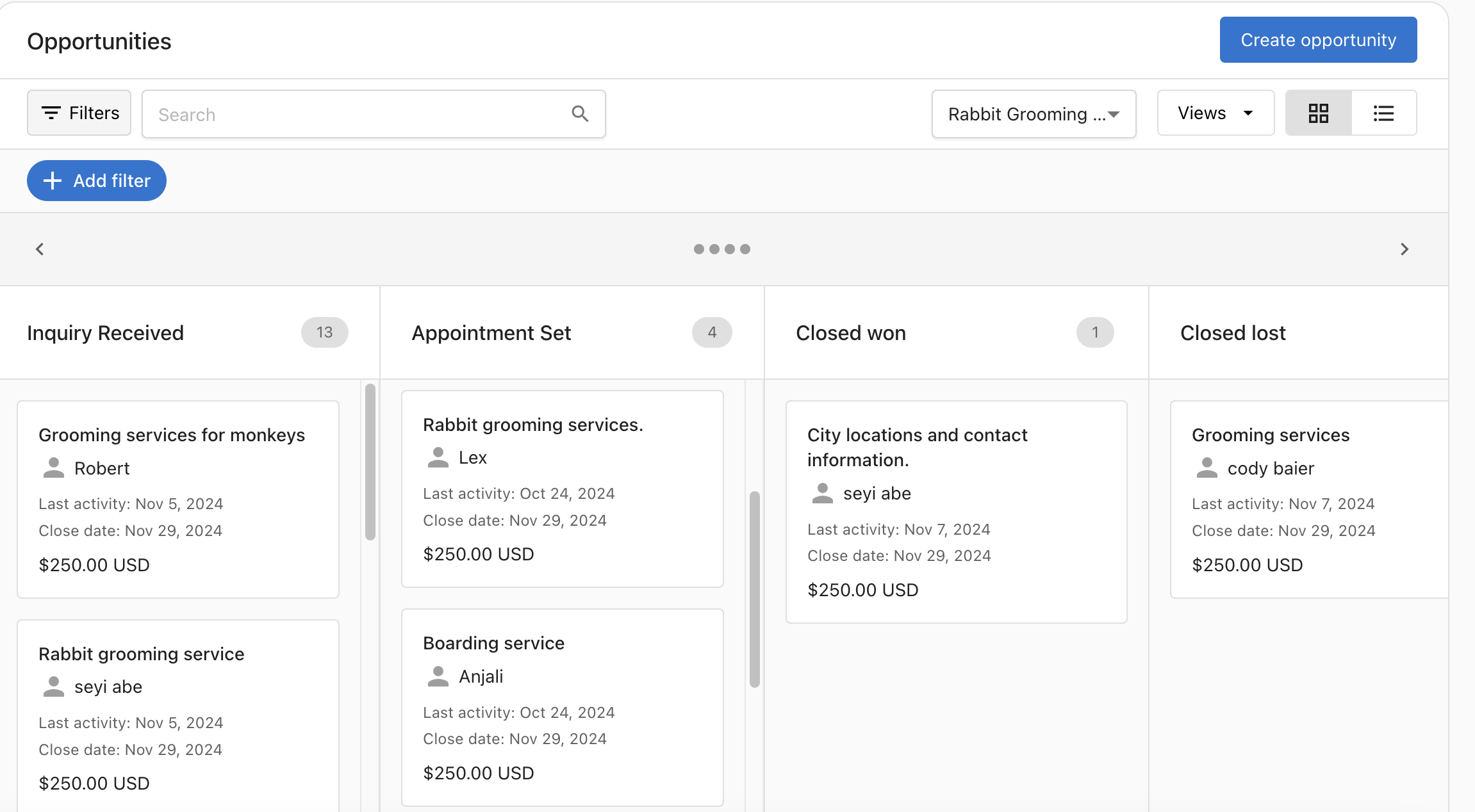
- Opportunities – Track potential sales with profiles, list view, and pipeline view; create and edit opportunities; move deals through stages
- Sales pipeline – Define stages that match your sales process; set close probability per stage; create multiple pipelines for different products or teams
- Forms – Build forms and embed them on websites or landing pages; submissions create a contact and a conversation for follow-up and automations
- Tasks – Track follow-ups and sales activities; in multi-location setups, view and complete tasks across all locations in one place
- Custom objects – Create custom modules to track industry-specific data (equipment, properties, vehicles) alongside standard CRM records (requires CRM AI Standard or Pro)
- Booking links – Show a meeting-scheduling link on the Business App contact card so clients can book time with a salesperson
AI-powered features
With a CRM AI subscription, the Business App CRM includes:
- AI Sales Assistant – Automatically update CRM records from sales conversations and chat with CRM data using natural language
- Conversation intelligence – Record and transcribe meetings with AI-generated summaries, action items, and conversation scoring (CRM AI Pro)
- Sales coaching – AI-driven coaching insights on every call with support for BANT, MEDDPICC, and SANDLER frameworks (CRM AI Pro)
Features and guides
- Creating and Customizing Your Sales Pipeline – Setting up pipelines, adding and removing stages, multiple pipelines
- Forms to capture leads in Business App – Creating forms, adding fields, embedding on your site, and connecting to CRM and Conversations
- Managing Contacts and Tasks in Multi-Location – Centralized task and contact view for corporate teams managing multiple locations
- Add a booking link to the contact card – Showing a meeting link on the salesperson’s contact card in Business App
How do I set up the CRM?
Getting value from the CRM typically involves a few configuration steps:
1. Set up a sales pipeline
- Have your client go to
Business App→CRM→Opportunities - Click Set up a pipeline if none exists, then add or adjust stages to match their sales process
- See Creating and Customizing Your Sales Pipeline for details
2. Create or import contacts
- Navigate to
Business App→CRM→Contacts - Create contacts manually or upload a CSV (up to 5MB) to import in bulk
- Contacts can also be created automatically when forms are submitted or when new conversations start
3. Add a form to capture leads
- Go to
Business App→CRM→Contacts→Forms - Create a form, add fields, then use the embed code on a website or landing page
- Submissions create a contact and a conversation; use automations to send replies or add contacts to campaigns
4. Configure a booking link (optional)
- In
Partner Center→Administration→My team, edit the salesperson and add a Book a meeting link - Assign the salesperson to the account so the link appears on their contact card in Business App
- See Add a booking link to the contact card for full steps
Start with a simple pipeline and one form. Once leads are flowing into the CRM, add tasks and automations to keep follow-ups on track.
Frequently asked questions
How are Contacts different from Business App users?
Contacts are people (e.g. customers, leads) stored in the CRM; they do not have access to the platform. Users are people who can log in to Business App and use products. When an account is created via Partner Center, a user is created with a corresponding contact; in other cases, contacts and users are separate. Changing a contact’s email disassociates them from any linked user.
Where do contacts in the CRM come from?
Contacts can be added manually, imported via CSV, or created automatically when data syncs from other products—for example, when a message is sent or received in Conversations, a form is submitted on the website, or a contact is created in Customer Voice or Constant Contact.
How do I set up a sales pipeline?
Go to Business App → CRM → Opportunities and click Set up a pipeline. You can add stages, set close probability for each stage, and create multiple pipelines. The Closed Won and Closed Lost stages are required and cannot be removed. See Creating and Customizing Your Sales Pipeline for full details.
What happens when someone submits a form?
When a form is submitted, it creates a contact in the CRM and a conversation in Conversations. From there, you can use automations to send an automatic reply, add the contact to an email or SMS campaign, create a task, or trigger other actions.
How does the multi-location task view work?
Corporate teams managing multiple locations can open the Multi-location Business App and go to CRM → Tasks to see all tasks assigned to them across locations in one view. This allows them to work through follow-ups (e.g. web chat leads, NPS detractors) without switching between accounts. Automations can create tasks when events occur (e.g. new detractor); reps then start and complete tasks from this central list.
Can I add a meeting booking link to the contact card?
Yes. In Partner Center, go to Administration → My team, edit the salesperson, and enter a URL in Book a meeting link. Assign that salesperson to the account. The link then appears on their contact card in Business App so clients can schedule time with them. See Add a booking link to the contact card for step-by-step setup.
Why aren't form submissions appearing in the CRM?
The most common cause is using Generic fields instead of CRM/Contact fields in the form. Generic fields only export to a CSV download — they do not create or update CRM contact records. To have submissions populate the CRM, use CRM or Contact field types when building your form. Go to Business App → CRM → Contacts → Forms, open the form, and check each field's type.
What is the difference between CRM fields and Generic fields in forms?
When adding fields to a form, there are two categories:
- CRM/Contact fields — Mapped directly to contact record properties (name, email, phone, etc.). Submissions create or update a contact in the CRM.
- Generic fields — Freeform fields with no CRM mapping. Data from these fields can only be retrieved by exporting the form submission CSV.
Use CRM or Contact fields for any information you want to appear on the contact record automatically.
How do dropdown values work in forms?
Dropdown fields have two components: a Label and a Value. The Label is the text the form user sees in the dropdown. The Value is what gets saved to the corresponding CRM field when the user selects that option. Make sure the Value matches exactly what the CRM field expects, otherwise the data may not map correctly.
Can I add file attachments to a Business App form?
File upload fields are not supported in Business App forms. As a workaround, add a Paragraph or Text field and ask the user to paste a URL to a document hosted elsewhere (e.g., Google Drive, Dropbox). The link is captured in the CRM contact record just like any other text field.