Executive Report Overview
What is the Executive Report?
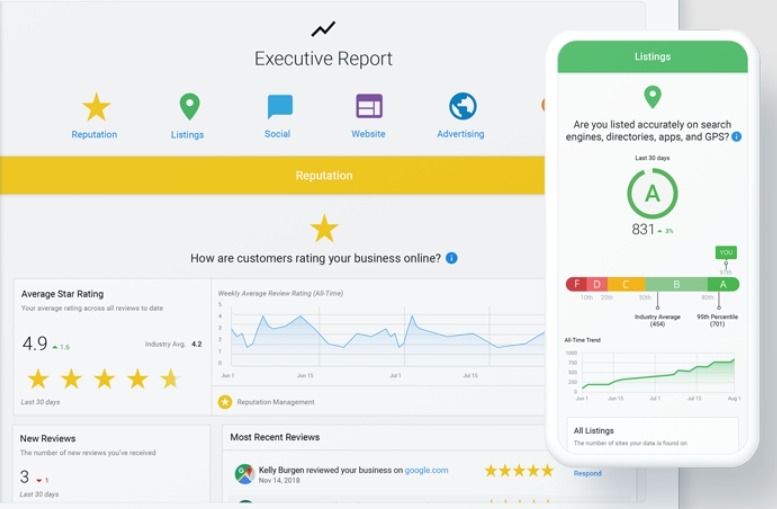
The Executive Report in Business App is an automatically generated, white-labeled report that rolls up your client's metrics from products across the platform, such as reviews, listings, social, website, SEO, and advertising. It's emailed to clients weekly, monthly, or both. Clients can also view it anytime in Business App to see the return on their investment.
Why is the Executive Report important?
The Executive Report helps you give clients relevant, personalized, actionable data at the right time. It serves as your tool for engaging with clients, continually proving your value, and retaining them for longer. Studies show that using the Executive Report with connected data sources like Google Business Profile can increase client retention rates by 51% over 24 months compared to those who don't use the Executive Report.
By receiving proof-of-performance reporting consistently, you provide clients with evidence of the value you bring to their business and engage them in your Business App offering.
What's included with the Executive Report?
Key features
- Metrics from across the marketing stack, including Reviews, Listings, Social, Website, SEO, and Advertising
- Customizable sections - Hide/show and reorder report sections on a market-by-market basis to focus on your value-add areas
- Short-term changes and long-term trends - Compare metrics week-over-week or month-over-month, and use long-term trends to contextualize changes over time
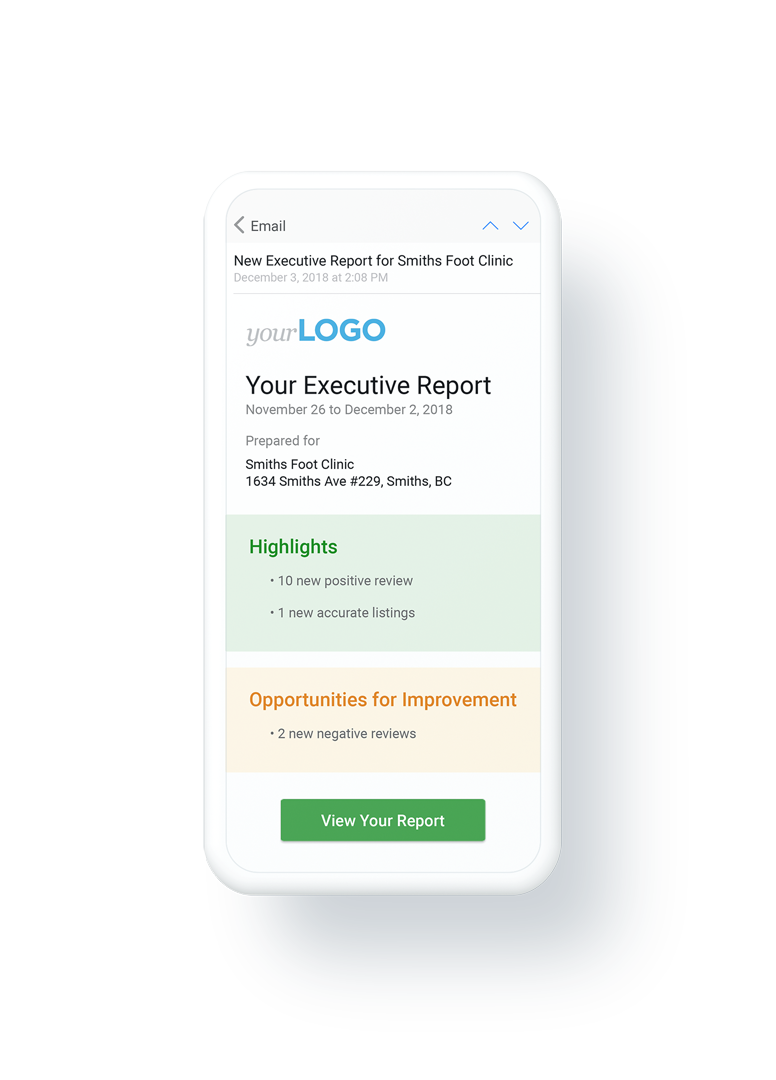
- Automated email delivery with relevant highlights sent to clients at the beginning of every week, month, or both
- Mobile-responsive design - No sign-in required to view the report, accessible from any device
- Data within minutes - Useful personalized data appears in the report within 5 minutes after running a Snapshot Report or authenticating Google Business Profile
- White-labeled branding with your logo in both email and Business App
Features
The Executive Report includes data from multiple marketing channels and can be customized to show only relevant sections:
- Leads - Lead capture, phone calls, AI receptionist, web chat, and form submission metrics
- Website - Website performance and analytics data
- Reputation - Review management and online reputation data
- Social - Social media marketing and engagement metrics
- Listings - Business listing accuracy and visibility data
- SEO - Search engine optimization and organic traffic data
- Advertising - Paid advertising performance across platforms
- Accounting - Financial data integration (QuickBooks, etc.); see Business App help for connecting QuickBooks and viewing finance in the report
Supported products
The following products push information to the Executive Report:
- Reputation AI
- Local SEO
- Google Business Profile (via Local SEO)
- WordPress Hosting
- Advertising Intelligence
- Google Ads (via Advertising Intelligence)
- Facebook Ads (via Advertising Intelligence)
- Social AI
- Google Ads Robot
- Marketgoo
- Metricool
- SEO Network
- Instant Website with Facebook Sync
- PinnacleCart
- Google Ads for Small Businesses
- SiteGlue AI Starter
- SiteGlue AI Pro
- Alpha SEO - Full-Service SEO
- QuickBooks
How do I set up the Executive Report?
Getting the most value from your Executive Report involves a few key configuration steps:
1. Customize your report sections
- Navigate to
Partner Center→Accounts→Manage Business App→Customize Business App→Executive Report→Sections - Configure
Page Features: Control page visibility, review grade calculations, and listing precision - Customize
Report Sections: Show/hide and reorder sections (Leads, Website, Reputation, Social, Listings, SEO, Advertising, Accounting) - Configure different settings for each market if needed
- See our Customization Guide for detailed steps
2. Set up notification preferences
- Configure who receives Executive Report emails
- Choose weekly, monthly, or both delivery frequencies
- Set default notification settings for new users
3. Connect data sources
- Authenticate Google Business Profile for immediate value
- Connect Google Search Console for SEO insights
- Set up Google Analytics for website performance data
- Integrate advertising accounts through Advertising Intelligence
4. Configure white-label branding
- Upload your logo to appear in reports and emails
- Customize email templates with your brand colors
- Set up custom domain (Growth and Scale plans)
Start with customizing your report sections first - this immediately improves client conversations by focusing on metrics where you provide clear value.
How do I view and navigate the Executive Report?
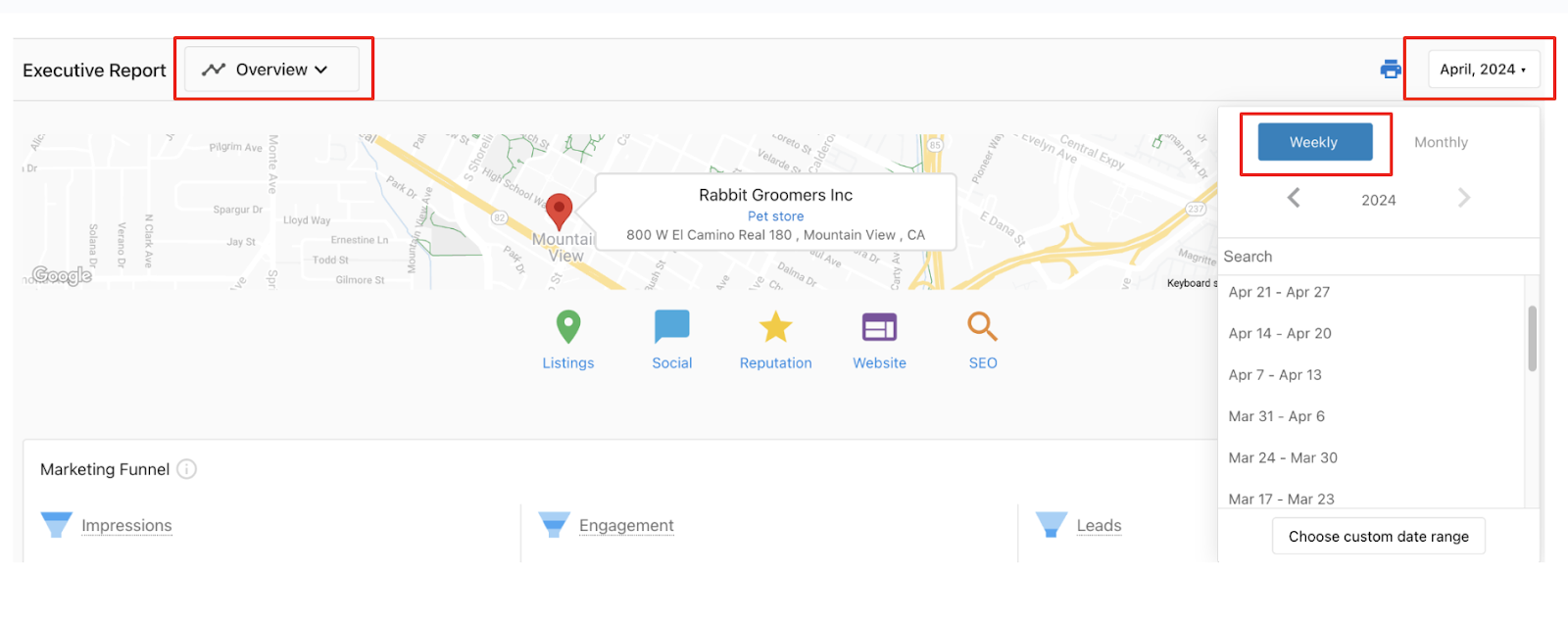
You can access the Executive Report through the Business App. On the top-right of the report, you can choose your date range. The default options are weekly or monthly reports, and you can also select a completely custom date range.
Quick navigation to specific sections in the report is possible by:
- Clicking on a category icon in the header of the report
- Choosing from the drop-down menu in the navigation header
When is the Executive Report sent?
Delivery schedule
- Monthly Executive Report: Usually sent between the 1st-3rd days of each month
- Weekly Executive Report: Sent out on Mondays
- Processing time: You may notice a 2-3 day delay before receiving your monthly report due to data processing requirements
The Executive Report may be sent outside of business days as it recognizes the start of each month, not specifically Monday-Friday.
Data requirements
New data appears in the Executive Report automatically when supporting products are activated on an account, and sufficient time has passed to allow for data ingestion. Processing times vary based on the product.
- Accounts with active products generally trigger Executive Reports to be sent
- For accounts with only Local SEO active, users will not receive Executive Reports if there are no changes in data
- If there are no changes from the previous month for any specific section, that section will not populate in the current month's report
Who receives Executive Report emails?
Default recipients
By default, the Executive Report email is sent to Business App users under these conditions:
- Users on accounts with active products that push data to the report, and
- Users on accounts that have authenticated Google Business Profile or Advertising Intelligence metrics
Managing notification settings
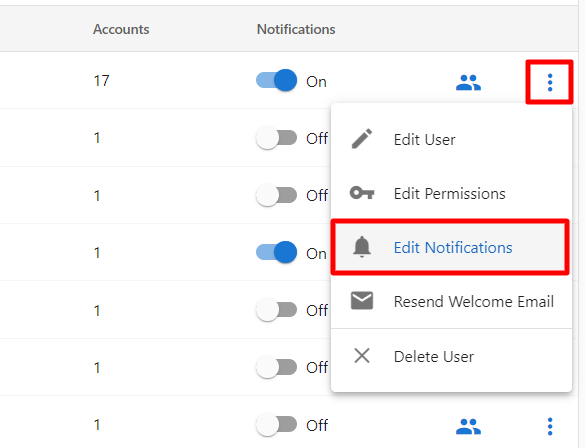
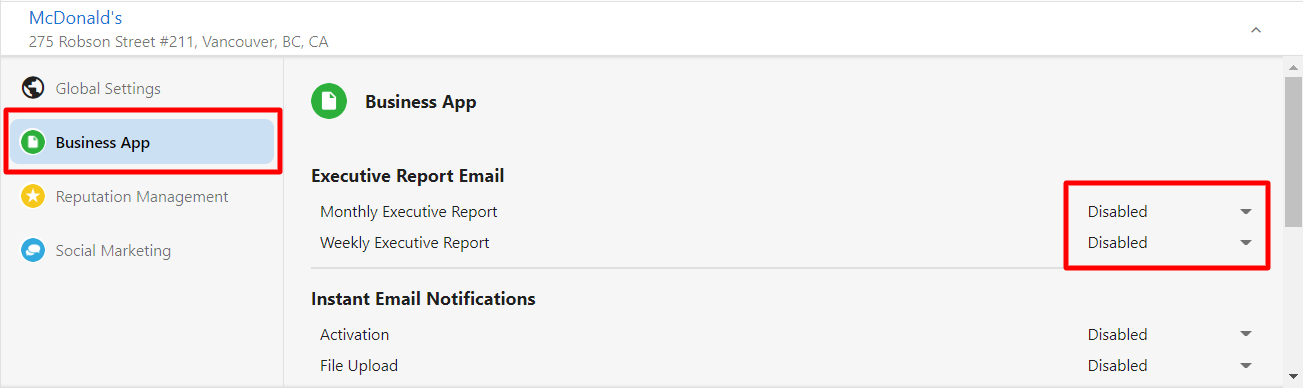
You can control email settings at the user level by:
- Clicking the three dots next to a user
- Selecting
Edit Notifications - Navigating to
Business App - Adjusting the Executive Report notification settings
Setting default notification settings
You can also set up default user notifications for Executive Report emails at the administrative level:
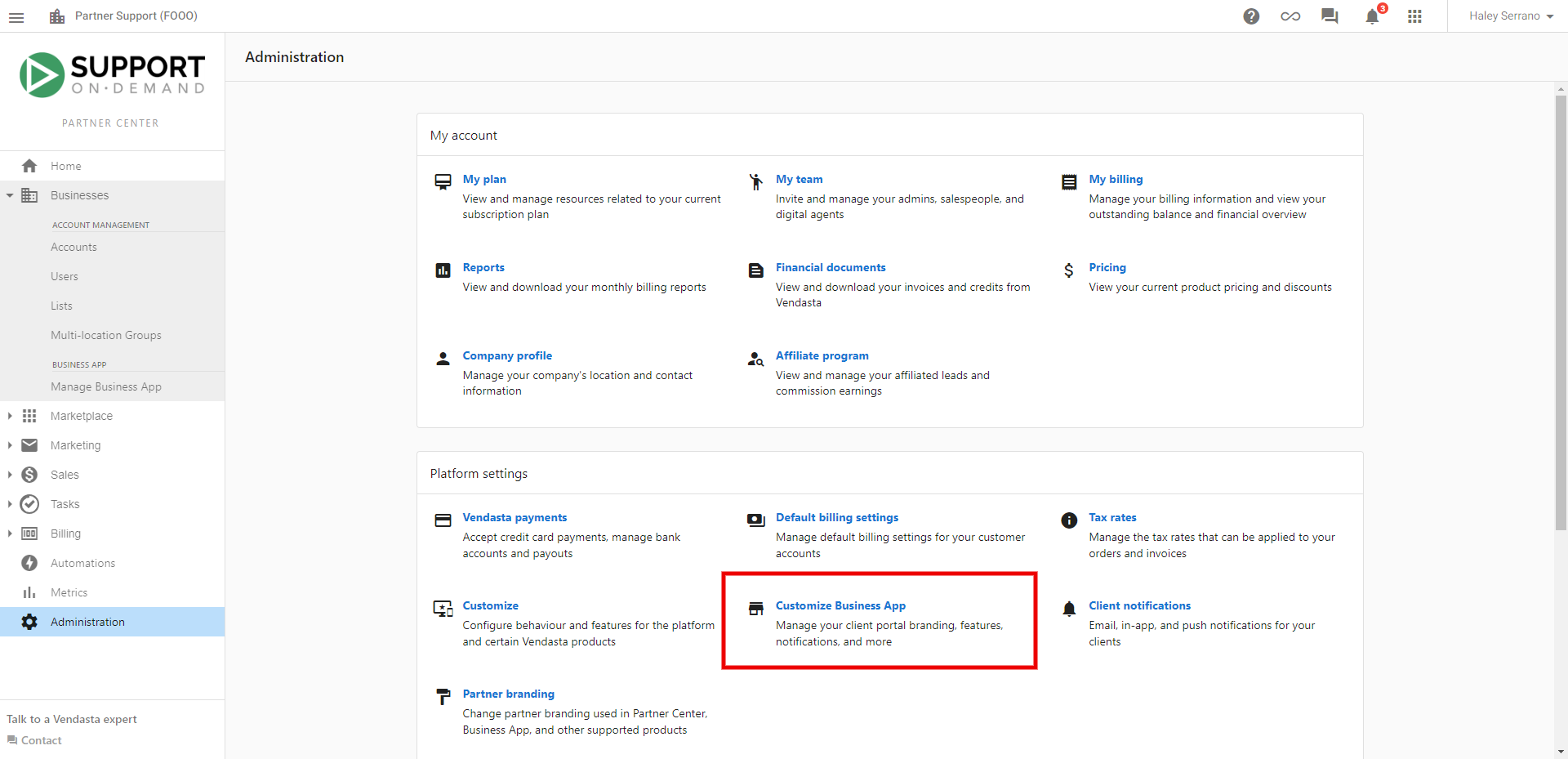
- Navigate to
Partner Center→Administration→Customize Business App
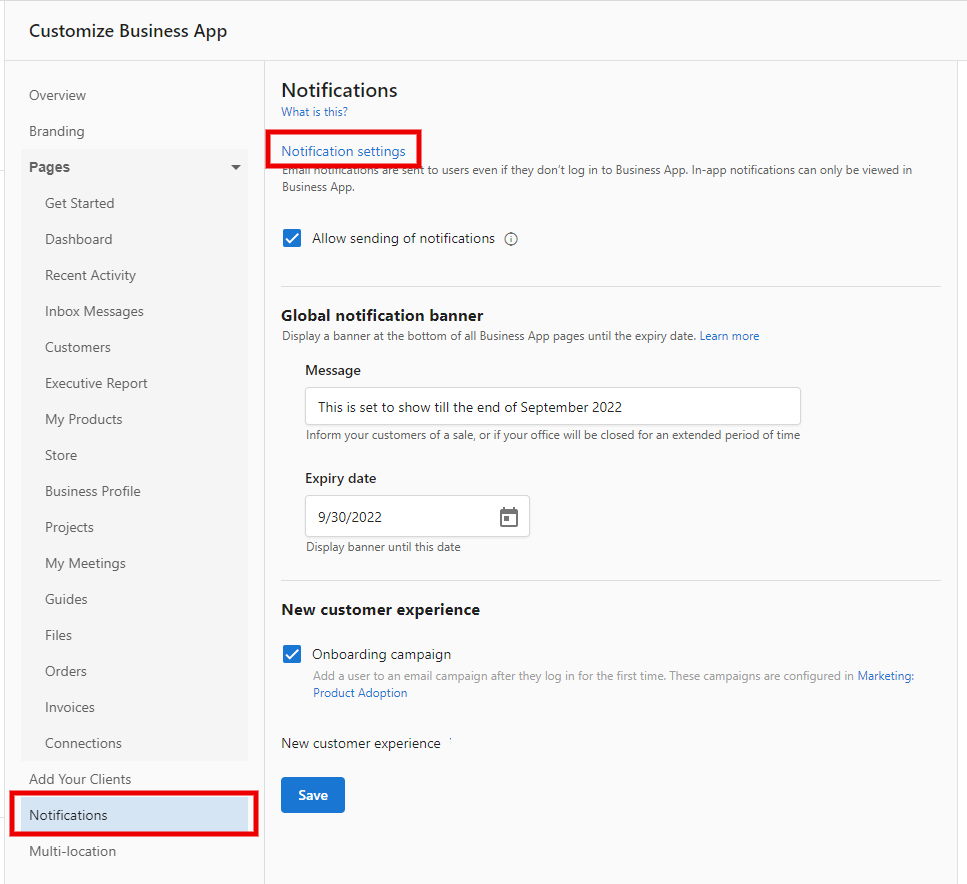
- Go to the
Notificationstab and clickNotification settings
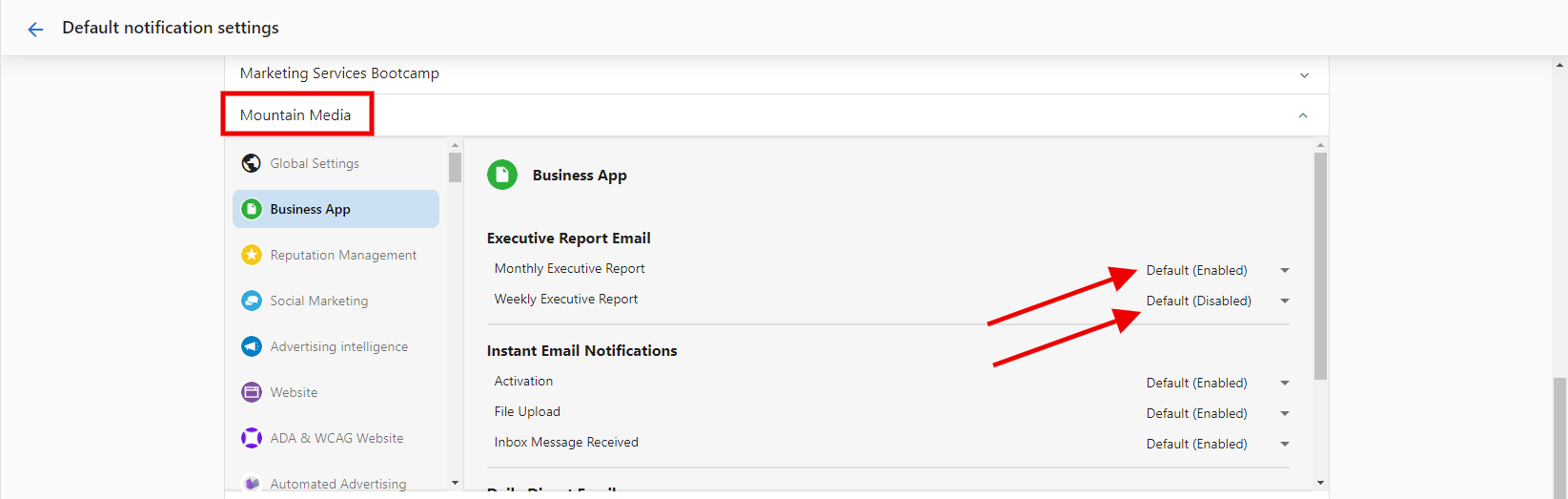
- Choose the market (if applicable) and select the
Business Apptab - Here you can
EnableorDisablemonthly or weekly frequencies for the Executive Report
Frequently asked questions (FAQs)
How long does it take for new data to appear in the Executive Report?
New data appears automatically when supporting products are activated on an account, with processing times varying by product. After running a Snapshot Report or authenticating Google Business Profile, useful data appears within 5 minutes.
What happens if there are no changes in my data from month to month?
If there are no changes from the previous month for any specific section of the report, that section will not populate in the current month's report. For accounts with only Local SEO active, you won't receive Executive Reports if there are no data changes.
Can I customize the date range for my Executive Report?
Yes, you can choose weekly or monthly reports as defaults, or select a completely custom date range using the date selector in the top-right of the report.
Note that Listings and Social AI cards are not available when a custom date range is selected. Those data sources are delivered in fixed monthly rollups and cannot be broken into arbitrary date ranges. An in-app banner appears to notify you when these cards are hidden. To see them again, switch back to the standard weekly or monthly view.
How do I navigate to specific sections within the Executive Report?
You can quickly navigate to specific sections by clicking on category icons in the header or choosing from the drop-down menu in the navigation header.
Who receives the Executive Report emails by default?
Business App users on accounts with active products that push data to the report, and users on accounts that have authenticated Google Business Profile or Advertising Intelligence metrics.
Can I control who receives Executive Report notifications?
Yes, you can control email settings at the user level through the user menu by selecting "Edit Notifications" and adjusting the Executive Report notification settings.
Why might my Executive Report be delayed?
The Executive Report processes large amounts of data, so you may notice a 2-3 day delay before receiving your monthly report. This ensures all data is properly compiled and accurate.
Is the Executive Report mobile-friendly?
Yes, the Executive Report is mobile-responsive and can be viewed from any device. No sign-in is required to view the report.
What products need to be active to receive an Executive Report?
You need active products that push data to the report, such as Reputation AI, Local SEO, WordPress Hosting, Advertising Intelligence, Social AI, and others listed in the supported products section.
Can I integrate custom data into the Executive Report?
Yes, custom data integrations are supported via API. You can work with your account representative for custom integrations through the Marketplace APIs.
What retention benefits does the Executive Report provide?
Business App users who receive a weekly or monthly Executive Report email have a 38% higher chance of being retained compared to those who don't. Additionally, users who received an Executive Report with Google Business Profile insights for at least half of their lifetime saw a 47% increase in retention after one year compared to those without Google Business Profile insights.
How does the Executive Report work?
There are two aspects of the Executive Report you can globally manage: the Executive Report tab in Business App and the automated report email. Your clients can view the Executive Report anytime in Business App → Executive Report, and you can set a weekly and/or monthly schedule for the report to be sent via email.
Can I customize the Executive Report?
Yes, you can customize the Executive Report by hiding/showing sections and reordering them on a market-by-market basis. Navigate to Partner Center → Accounts → Manage Business App → Customize Business App → Executive Report → Sections to:
- Hide or show sections based on your service focus areas
- Reorder sections to prioritize the most important metrics
- Configure settings per market to tailor reports for different business focuses
These customizations help ensure your client-facing reporting focuses on the areas where you provide value. See our Executive Report Customization Guide for detailed instructions.
How do I turn off the Executive Report?
To turn off Executive Report emails for existing users: go to Partner Center → Accounts → Manage Users → Bulk Update → Notifications → Business App section → Executive Report Email → select Disabled for weekly and monthly. For newly created users, go to Partner Center → Administration → Client Notifications to set default settings.
How do I change the Executive Report to weekly frequency?
For a single user: Partner Center → Accounts → Manage Users → 3 dots next to user → Edit notifications → click on the white space next to the business name → Business app tab. For bulk updates: Partner Center → Accounts → Manage Users → Bulk Update → Notifications tab → Business app.
How do I manually resend an Executive Report?
Navigate to Partner Center → Accounts → Manage Accounts, select the account, then under the Reports section, click Resend Executive Report. Select the report you want to resend from the dropdown menu and hit send.
How do I stop sending Executive Reports to a former client?
Deactivating a client's products does not automatically stop report emails: scheduling persists until you disable it explicitly.
To stop reports for a former client:
- Go to
Partner Center→Businessesand find the account - Navigate to
Manage Users - Click the three dots next to each user and select
Edit Notifications - Select the
Business Apptab - Set both
Executive Report(monthly) andWeekly DigesttoDisabled - Save
If the account has multiple users, select all users and use Bulk Update → Notifications → Business App to disable both report types at once.
A client isn't receiving their automated Executive Report or Weekly Digest. What should I check?
Work through these steps in order:
-
Check the notification toggle: Go to
Partner Center→Businesses→ [Account] →Manage Users, click the three dots next to the user, selectEdit Notifications→Business App, and confirm the Executive Report and Weekly Digest toggles are enabled. -
Check the spam or junk folder: Executive Report emails are sent via SendGrid and can be filtered by some email clients, especially Microsoft 365 and Outlook. Ask the client to check spam and mark the email as Not Spam.
-
Check for an accidental unsubscribe: If a user clicked Unsubscribe in a report email, they are removed from the mailing list. This cannot be self-served: contact Vendasta Support to request a resubscription for that user.
A client sees "The page that you are trying to access cannot be loaded" when clicking an Executive Report link. What's wrong?
This error is caused by Microsoft Defender SafeLinks, a security feature in Microsoft 365 that rewrites and scans email links before allowing them to open. SafeLinks may block the Executive Report link because the sending domain (sendgrid.com) isn't on the client's allowlist. Forwarding the email doesn't help: the SafeLinks wrapper travels with the email.
There are two ways to resolve this:
-
Option 1: Turn off SafeLinks (individual users): In Outlook, go to
Settings→Mail→Junk emailand disable the SafeLinks link-rewriting option. This may not be available if SafeLinks is controlled by an IT admin. -
Option 2: Allow
sendgrid.com(enterprise/IT admin): In the Microsoft 365 Defender portal, go toEmail and collaboration→Policies and rules→Threat policies→Safe Links, edit the policy, and addsendgrid.comto theDo not rewriteexceptions list.
As a workaround, the client can log in to Business App directly to view the Executive Report without needing the email link.
Charts and graphs are missing when I export the Executive Report to PDF. How do I fix this?
This is caused by a browser print setting. Most browsers hide background images by default when printing, which removes charts and visuals from the PDF.
To include graphics in the export:
- Open the Executive Report in Business App
- Press Ctrl+P (Windows) or Cmd+P (Mac)
- Click
More settings - Under
Options, checkBackground graphics - Set the destination to
Save as PDFand save
This applies to Chrome and Edge. In Firefox, look for Print Background Colors and Images in the print settings.
What is the difference between Listings on Search and Searches in the Executive Report?
These two GBP metrics measure different things:
- Views / Listings on Search: How many times the Google Business Profile listing appeared in Search or Maps results (impressions).
- Searches: The number of unique search queries that caused the listing to appear.
A single query searched repeatedly generates many views but counts as one search. They cannot be directly compared.
The Actions card (Visit your website, Call you, Request directions) shows what users did after finding the listing. Google Directions data appears here, not in the Marketing Funnel section.
If Searches shows as 0 early in the month, this is expected. Google releases Searches data on a monthly cadence and doesn't backfill it immediately at the start of a new period. Check back after the first week before assuming a data issue.
Example report
You can download a full-size example of the Executive Report here: