AI Workforce & Communication Automation
What is AI Workforce & Communication Automation?
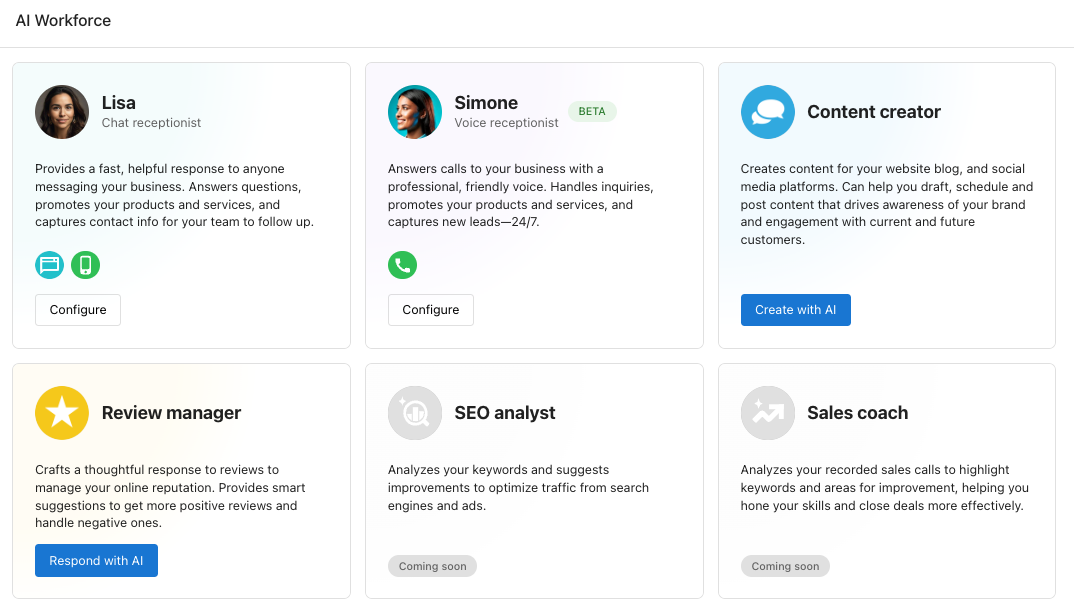
To set up AI communication in Business App, turn on the AI Voice Receptionist in AI → Workforce → AI Voice Receptionist → Configure, and set up missed-call text back and AI SMS responses in Administration → Conversations settings. Each feature needs a specific product.
AI Workforce & Communication Automation provides businesses with intelligent, automated communication tools that ensure no customer inquiry goes unanswered. This suite of AI-powered features includes the AI Voice Receptionist for handling phone calls, missed-call text back functionality, and AI-powered SMS responses. These tools work together to provide 24/7 customer support, capture leads, and maintain professional communication even when staff are unavailable.
Why is AI Workforce & Communication Automation Important?
When businesses are busy or unavailable, customers still expect prompt responses. Traditional voicemail systems and delayed responses often lead to lost opportunities as customers turn to competitors who answer immediately. AI Workforce & Communication Automation solves this by:
- Eliminating missed opportunities - Every call and message receives an immediate response
- Providing 24/7 availability - Customers get help outside business hours and during busy periods
- Maintaining professional image - AI represents your business professionally at all times
- Capturing lead information - Contact details and inquiries are automatically collected for follow-up
- Reducing staff workload - AI handles routine inquiries, freeing staff for complex tasks
What can AI Workforce & Communication Automation do?
AI Voice Receptionist Capabilities
- Answer phone calls 24/7 with AI-powered responses
- Handle multiple calls simultaneously without busy signals
- Answer frequently asked questions about your business
- Capture caller contact information and request details
- Provide call recordings and transcripts for review
- Support multiple languages (English, French, Spanish, German, and more)
- Customize AI personality to match your brand
Missed-Call Text Back Features
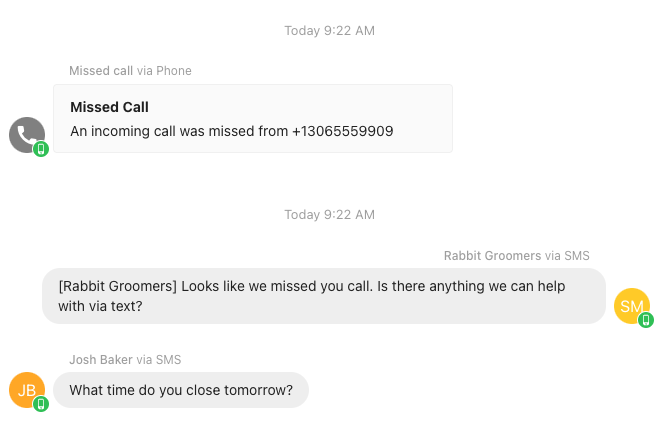
- Send automatic SMS messages to callers who don't reach you
- Configure text messages for all calls or missed calls only
- Customize professional text message content
- Include opt-out options for compliance
- Integrate with AI for automated follow-up conversations
AI-Powered SMS Responses
- Instantly reply to incoming SMS messages
- Provide 24/7 SMS support availability
- Handle common customer inquiries automatically
- Escalate complex conversations to human staff
- Maintain conversation context and history
How to Set Up AI Workforce & Communication Automation
Prerequisites
Different AI communication features require different products. Use the table below to confirm which subscription is needed before setting up each feature.
| Feature | Required product |
|---|---|
| AI Voice Receptionist | Conversations AI |
| AI SMS responses (Enable AI Responses toggle) | Conversations AI Pro or Premium, or Email & SMS Marketing with SMS add-on, or Reputation AI Pro with SMS add-on |
| Missed-call text back | Any product that includes SMS messaging |
| AI Chat Receptionist "Try it" preview | Local SEO must be active on the account |
| AI Chat Receptionist customer-facing widget | Conversations AI |
Why isn't SMS Configuration showing in Business App? The SMS Configuration section only appears when the account has an active product that includes SMS (listed above). If the section is missing, verify the correct product is provisioned on the account.
Why isn't AI SMS enabled by default? AI SMS responses must be manually activated. Enabling them automatically for all incoming messages could interfere with conversations already being handled by a staff member. Enable it intentionally once the account is ready.
Location requirement: Business must be in the USA or Canada for SMS and AI Voice features.
Phone number requirement: An SMS/phone number must be assigned to the account through the platform.
How to Set Up AI Voice Receptionist
-
Enable the AI Voice Receptionist
- Navigate to
Business App→AI→Workforce→AI Voice Receptionist→Configure - Check "Phone call: Answer with Voice AI" and click Save
- Test the default Voice Receptionist by calling your assigned number
- Navigate to
-
Customize AI Receptionist Settings
- Assign a custom name to your AI receptionist
- Update business knowledge base for accurate responses
- Add additional instructions for common scenarios:
- Example: "When you answer the phone, say 'Hello, thank you for calling [Business Name]'"
- Example: "If someone asks about reservations, direct them to [website.com]"
- Example: "For fax inquiries, provide the fax number: [number]"
-
Select Voice Options
- Choose from voice families:
- Astra: Multilingual, less expressive, slower speaking
- Horizon: Multilingual, very expressive
- Deepgram Aura: English-only, highly accurate speech recognition
- Navigate to Voice Settings section
- Click play icon to preview voices before selecting
- Save changes and test by calling your AI receptionist number
- Choose from voice families:
-
Configure Call Forwarding (Optional)
- Work with your phone provider to forward missed or busy calls to your AI Voice number
- Contact your provider for specific forwarding instructions
- Note: Additional charges may apply from your phone provider
How to Set Up Missed-Call Text Back
-
Access Settings
- Navigate to
Business App→Administration→Conversations settings→Phone & SMS→Settings
- Navigate to
-
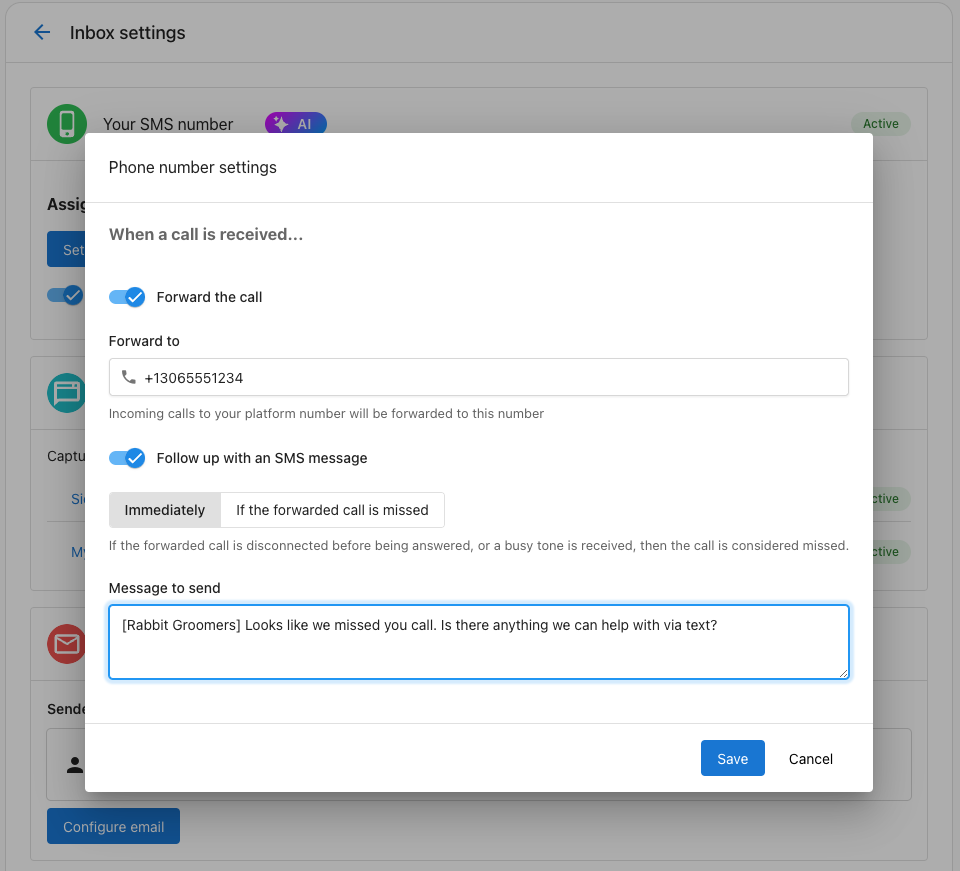
Enable Call Forwarding
- Configure call forwarding if not already set up
-
Activate Text Back Messages
- Enable the "Follow up with an SMS message" option
-
Configure Text Back Preferences
- Choose when to send text messages:
- For all calls: Text sent immediately for every call
- For missed calls only: Text sent only for unanswered calls
- Choose when to send text messages:
-
Customize Your Text Message
- Create a professional message including:
- Your business name
- Follow-up information
- Opt-out option (e.g., "Reply STOP to opt out")
- Example: "Hi, this is [Business Name]. We noticed you tried to call but couldn't reach us. How can we assist you? Reply to this message and we'll get back to you shortly. Reply STOP to opt out."
- Create a professional message including:
How to Set Up AI-Powered SMS Responses
-
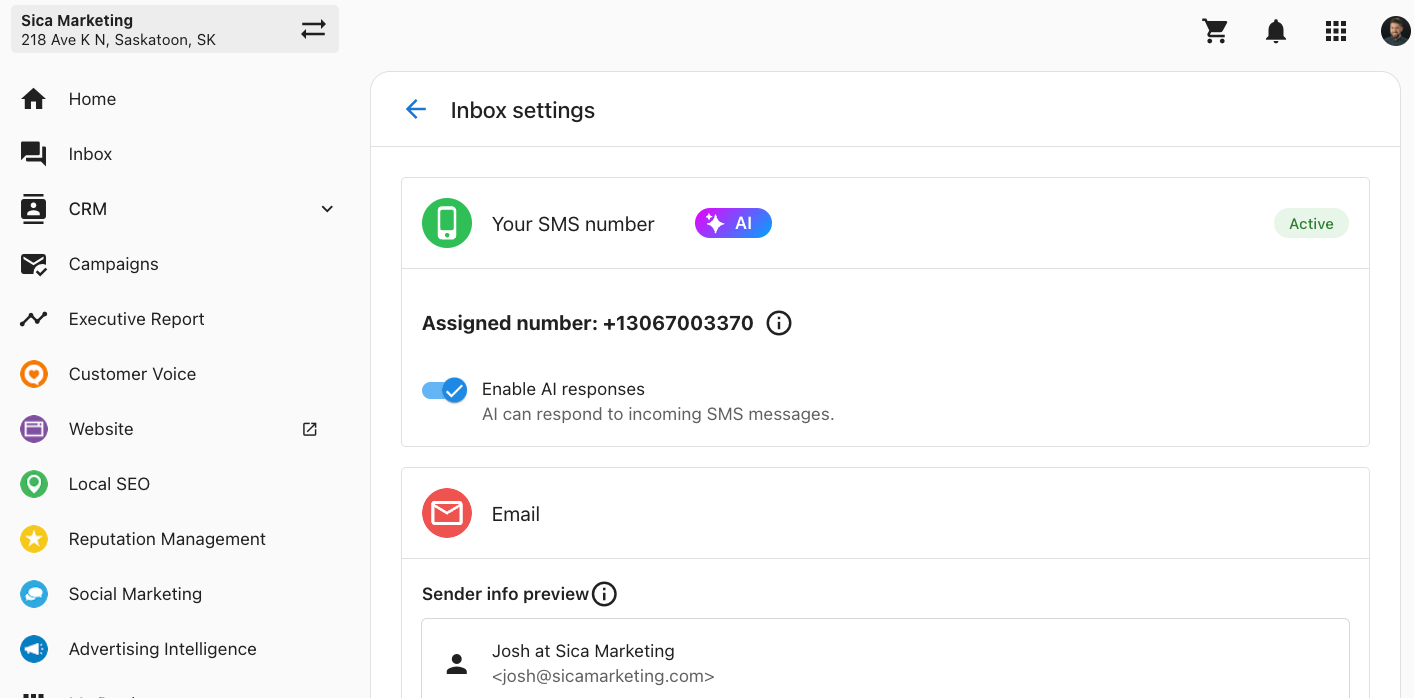
Navigate to Conversations settings
- In Business App, go to
Administration→Conversations settings
- In Business App, go to
-
Enable SMS Channel
- Ensure SMS is enabled as an available channel
- Toggle on Enable AI Responses
- AI will automatically reply to incoming SMS messages once activated
-
Manage AI Responses (Optional)
- To disable AI responses for specific conversations:
- Go to the conversation, click the three-dot menu
- Select Disable AI Responses
How to Set Up Automated Follow-Up SMS
-
Enable the Automation
- Navigate to
Business App→Automations - Find "AI Receptionist sends follow-up SMS to leads who called"
- Toggle the automation on
- Navigate to
-
Configure Follow-Up Settings
- The automation triggers when calls are made to the AI Voice Receptionist
- Personalized messages are generated based on call transcripts
- SMS is sent automatically through Inbox and Automations
Advanced Configuration
Voice AI Performance Tips
- Don't provide too much knowledge - AI performs best with specific, relevant information
- Add common questions and answers to 'Additional Instructions' for faster responses
- Include pricing, services, and FAQ information in the configuration area
- For non-English default language, add instruction: "IMPORTANT: Begin all calls by speaking [language], and say: 'Bonjour...'"
Call Management Features
- Call Recordings: Access through Inbox and CRM
- Call Transcripts: Available with detailed summaries and action items
- Multiple Call Handling: AI can manage simultaneous calls
- Call Duration: 5-minute limit during beta phase
- Notifications: Email and app notifications for new calls
Spam calls and number blocking
There is currently no spam blocking feature and no way to block an individual number from reaching the AI receptionist. This applies to both voice and SMS.
If a client is receiving an unusually high volume of spam, contact support@vendasta.com to request a number reassignment — a new number is the available remedy. Include the account's Account Group ID and roughly how many spam contacts they are seeing per day.
See Conversations AI for the same limitation as it applies to messaging.
Frequently Asked Questions
What happens if the AI cannot answer a caller's question?
If the AI cannot answer a caller's question, it will capture the caller's details and pass the inquiry to the business for follow-up. This ensures no leads or customer concerns are missed.
How accurate is the AI at answering FAQs?
The AI is trained with your business's knowledge base and FAQs. Accuracy depends on how well you provide up-to-date and comprehensive information during configuration. The AI performs best when given only highly relevant, specific information for common phone interactions.
Can I choose which languages my AI receptionist speaks?
Yes, you can enable specific languages based on your audience. Many common languages are supported, and the voice AI can switch languages at a caller's request. Multi-language support is currently in beta, so results may vary.
How do I listen to call recordings and review transcripts?
Call recordings and transcripts are accessible through the Inbox and CRM. New calls appear in Inbox and are logged in contact activity in the CRM. You'll receive notifications about new calls via email and app notifications.
Can the AI receptionist handle multiple calls simultaneously?
Yes, the AI receptionist can manage multiple calls simultaneously, ensuring no caller receives a busy signal or is left waiting.
Can I update my AI receptionist's script after setup?
Absolutely! You can update the AI's script and business knowledge at any time by revisiting the configuration settings in the AI Workforce section.
Does the AI receptionist work with existing phone systems?
The AI receptionist works with any phone number assigned through Conversations AI. It can receive calls forwarded from other phone systems but does not integrate directly with third-party phone systems.
Can the AI redirect calls to a human representative?
Currently, the AI cannot transfer calls directly. Instead, it captures contact details and sends notifications to business users for follow-up via Inbox or return calls.
How much does the AI Voice Receptionist cost?
The AI Voice Receptionist is included with Conversations AI Premium subscriptions. Currently, 300 minutes of call time (calls up to 10 minutes each) are provided with your subscription. Unlimited calling is included as a bonus until mid-2026, and we'll provide advance notice before any overage billing (~$0.10 per minute) begins.
Can I remove the "This call is being recorded" message?
This notification is a legal requirement in Canada and many US states. The notification will remain in place for all uses to ensure legal compliance.
Why can't I update my email send-from information?
If you receive an "unexpected error occurred" message when updating email information, this typically happens when impersonating a user or opening Business App from Partner Center. The Business App user must log in directly to Business App to update their email address and name.
Can I disable AI responses for specific conversations?
Yes, you can disable AI responses for specific customers or conversations. Go to the conversation, click the three-dot menu, and select "Disable AI Responses."
Why is the "Try it" option unavailable for AI Chat Receptionist?
The Try it preview for AI Chat Receptionist requires Local SEO to be active on the account. If Local SEO is not provisioned, the Try it button will be greyed out or missing. Activate Local SEO on the account first, then return to the AI Chat Receptionist settings to use the preview.
For the customer-facing chat widget (not just the preview), Conversations AI is also required.
Which products unlock the SMS Configuration section in Business App?
The SMS Configuration section appears in Business App when at least one of these products is active on the account:
- Conversations AI Pro or Premium
- Email & SMS Marketing with SMS add-on
- Reputation AI Pro with SMS add-on
If none of these are provisioned, the SMS Configuration section will not appear in Business App Administration.
Where do I configure SMS settings in Business App?
Go to Administration → Conversations settings in Business App. The SMS settings only appear when the account has an active product that includes SMS, such as Conversations AI Pro or Premium.
Can the AI Voice Receptionist send a text after a call?
Yes. In Business App, go to Automations and turn on "AI Receptionist sends follow-up SMS to leads who called." It sends a personalized SMS based on the call transcript.
Which product do I need for AI SMS responses?
AI SMS responses need Conversations AI Pro or Premium, Email & SMS Marketing with the SMS add-on, or Reputation AI Pro with the SMS add-on. The AI Voice Receptionist needs Conversations AI.