AI onboarding experience
The AI onboarding experience in Business App sends newly invited users an onboarding email showing the work AI has already done for their business, then greets them on Business App Home with work-done, next-step, and upgrade cards.
Instead of logging in to an empty dashboard, your SMB clients see the work your AI has done, recommended next steps, and one-click upgrade options.
The goal is faster activation and more recurring product purchases: the SMB sees results before they lift a finger, understands what to do next, and can add products without leaving Home.
What's included
The experience has two connected halves:
- The onboarding email — replaces the standard welcome email when you create a user, and shows the work AI has already completed for the business.
- The Business App Home cards — sections on the Home dashboard: a "work your AI has done" card, recommended next steps, and product upgrade cards.
Both are controlled by you, the partner, and both can be dismissed by the SMB. Details below.
The onboarding email
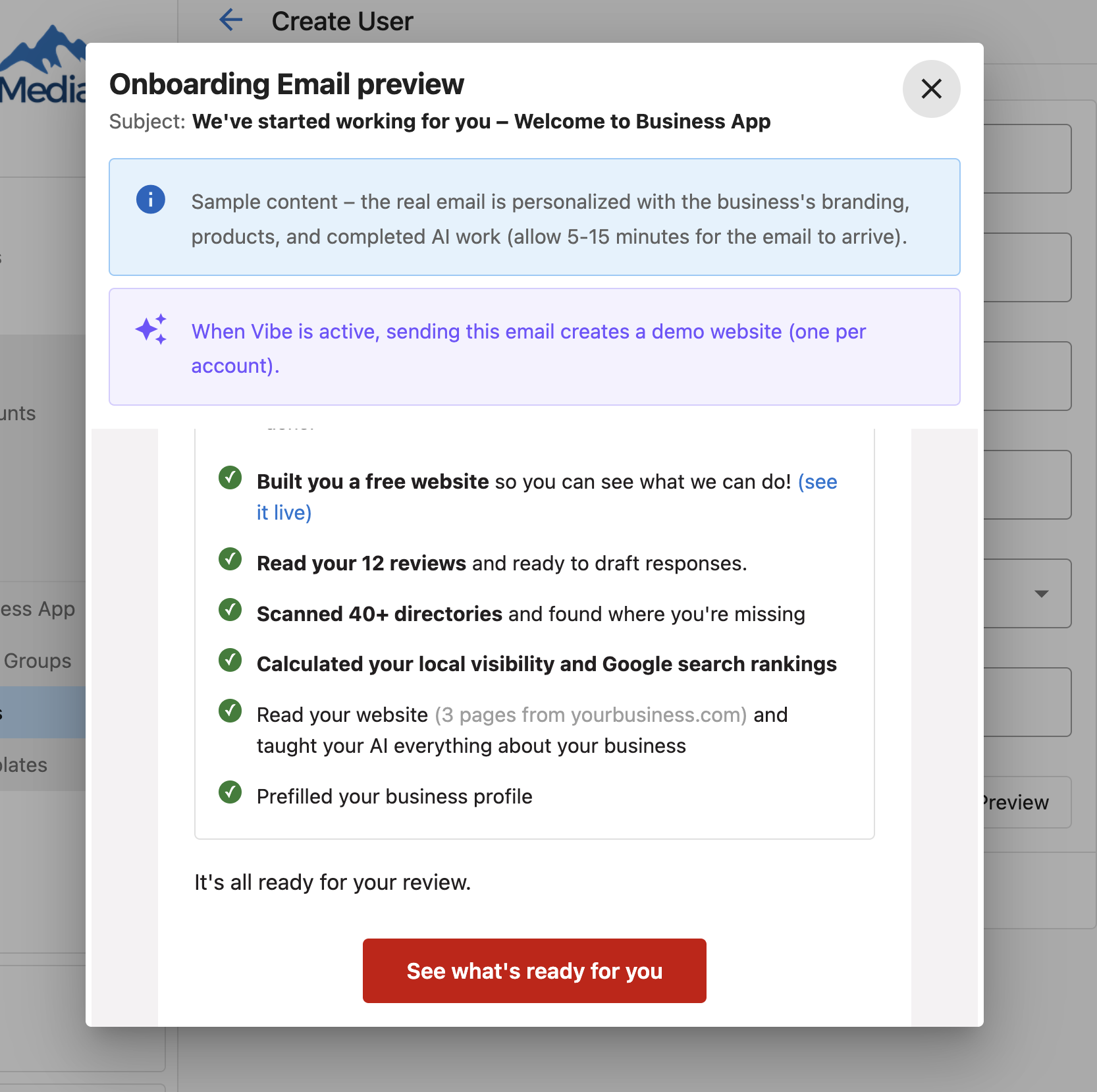
When you invite a new Business App user, they receive an onboarding email in place of the classic welcome email. Rather than a simple "set your password" note, it walks the SMB through what your AI has already accomplished for their business, then invites them in — and you can make it yours with a custom introductory message on every send. It's sent automatically wherever you invite users. You can send the classic welcome email afterward from the user's options menu.
What the email contains
- A subject line of "Welcome to [your Business App name]" — the same subject as the classic welcome email. The preview text under the subject greets the recipient by name.
- A short intro, then a "We already got to work" summary — the same checklist of completed work that appears on the SMB's Home page (see What the work summary shows). The content is generated from the business's own information — business name, website, number of pages read, reviews found, active products, and so on.
- If a Vibe website has been built, a preview image of that landing page near the top, linked to the live site.
- A single call to action — See what's ready for you — that takes the SMB to their Business App Home page. The link works whether the user still needs to set a password or can log in directly. When a password is needed first, the create-password page shows the user's email address, lets them set a password, and continues with a Get started button. For a user who still needs to set a password, a line under the button reads Already set your password? Log in any time at [your Business App URL], so the email keeps working as a way back to Business App after the password is set.
- A sign-off with the Sender Name from the account's market email settings, or your partner name if no sender name is set. The same name appears in the email header when no logo is set.
The email adapts to the products that are active on the account, so no two businesses necessarily receive the same checklist. The next section lays out every line it can contain.
What the work summary shows
This is the heart of the experience, and the part partners ask about most: what exactly will my client see? The "We already got to work" summary — shown both in the onboarding email and on the Home page — is fully dynamic. Every line is driven by the business's real data and the products active on the account, so the SMB only ever sees work that was genuinely done.
A few rules govern the whole summary:
- Lines are product-gated. A product's line only appears when that product is active on the account. The website-read and business-profile lines are the exceptions — they always appear (the website line needs a website on file).
- Wording adapts to the product edition (for example, Reputation Standard vs. Pro vs. Premium, or Local SEO Standard vs. Pro).
- Brand-new accounts show a "scanning" state. In the first 24 hours after the account is created, review and visibility work reads as "scanning… results in about 24 hours," then switches to the completed wording once results are in.
- The card only shows recent work. A line drops off roughly 30 days after the work was done, so the card stays relevant to genuinely new accounts.
- No access, no link. If the SMB doesn't have access to a product, the work is still shown, but the associated link is hidden (the Vibe "see it live" link is the one exception — a published site is always linkable).
The table below lists every line the summary can contain, the exact condition for it to appear, and the wording the SMB sees.
| What the SMB sees | Appears when | Link offered |
|---|---|---|
| Built you a free website so you can see what we can do! | Vibe is active and a Vibe site exists for the account | see it live (when the site is published), edit here (when the SMB has Vibe access) |
| …- Ready to connect your domain (appended to the line above) | The Vibe edition is Standard | — |
| …- With unlimited projects and potential available (appended) | The Vibe edition is Pro | — |
| Scanning your online reviews - results in about 24 hours | Reputation is active and the account is less than 24 hours old | connect your accounts to pull in reviews |
| Scanned the web for reviews | Reputation is active, past the first 24 hours, and no reviews were found yet | connect your accounts to pull in reviews |
| Gathered and analyzed your reviews | Reputation Standard is active and reviews were found | check for insights |
| Read your {count} reviews and ready to draft responses. | Reputation Pro is active and reviews were found | ready to draft responses |
| Analyzed your business reputation | Reputation Premium is active and reviews were found (shown in addition to the "Read your reviews" line) | ask your AI specialist for a report |
| Started your online visibility scan - results in about 24 hours | Local SEO is active and the account is less than 24 hours old | view the dashboard as results come in |
| Scanned 40+ directories and found where you're missing | Local SEO is active, past the first 24 hours | view your results |
| Calculated your local visibility and Google search rankings | Local SEO Pro/Premium is active (shown in addition to the directory line) | ask your local search specialist for a report |
| Drafted your first week's social posts - ready for you to review and approve | Social AI Premium is active and drafted posts are waiting | review and approve — opens the drafts for approval (in-app only; the email shows this line without a link) |
| Read your website ({count} pages from {domain}) and taught your AI everything about your business | The business has a website on file | the website domain |
| Prefilled your business profile | Always | review suggestions when the business description is empty and AI has drafted one, otherwise ready for you to review |
| Named your AI Chat Receptionist {name} | The receptionist has been named for the account | change it (when the SMB can edit the receptionist), chat with {name} (in-app only, when the SMB has access to AI) — opens a chat with the receptionist in the Inbox |
The onboarding email shows this same checklist. It keeps the fewest inline links — typically just the Vibe see it live link and the website domain — because the richer in-app links (drafting responses, opening a specialist chat, and so on) live behind login.
Your AI gets a name
When an account is created, AI reads what's known about the business — starting with its website — and gives the AI Chat Receptionist a real, human-sounding name rather than a generic one. The name is chosen to suit the business and avoids reusing the name of anyone found on the site.
The SMB sees it in two places:
- On the work summary, as "Named your AI Chat Receptionist [name]", with a change it link into the receptionist's configuration page and a chat with [name] link that opens a conversation with the receptionist.
- On the Meet your AI receptionist next-step card, whose title becomes "Meet [name]" once the naming has run.
The naming line waits until the name has actually been set, so the SMB never sees a placeholder. If the business has no website on file, a suitable name is still generated from the other business details. The SMB or your team can rename the receptionist at any time, and a later name change is never overwritten.
AI fills in the business profile
The business profile line takes the SMB straight to the Business Description tab of their profile. When the description is empty, AI drafts a suggestion in advance so the SMB arrives to a filled-in draft rather than a blank field, and the link reads review suggestions.
The suggestion still has to be reviewed and saved by the SMB — nothing is written to the business profile on their behalf without approval.
How is a Vibe website kicked off?
When Vibe is active, sending the onboarding email can automatically build the business a free Vibe demo website before the email goes out — so the SMB's very first touch points to a live, AI-built landing page. Partner Center states this directly on the email preview:
When Vibe is active, sending this email creates a demo website (one per account).
Here is exactly what triggers it. A Vibe site is generated only when all of the following are true:
- You send the onboarding email, or the SMB starts the build from Home. Vibe generation is the first step of the onboarding-email process. An SMB with Vibe active can also start the same build with Build it for me on the Vibe card on Business App Home. Both paths build the same one-per-account site, so they never produce two. A site is never generated on its own.
- Vibe is active on the account (any edition, including Free).
- The account has no live Vibe site yet. One demo site per account:
- No Vibe project exists → a new site is generated.
- A site is already being built (for example, a teammate just triggered one, or the SMB started one from Home) → the platform waits for that build instead of starting a second.
- A published Vibe site already exists → nothing is generated; the email simply links to it.
The email waits for the site to finish building (allow 5–15 minutes for it to arrive). If the build is slow or fails, the email is still sent — it just won't include the website line or preview image. Site generation never blocks the rest of the onboarding email beyond that window.
You shape this through what's active on the account at invite time: activate Vibe before inviting and the client's first touch leads with a live site; invite without Vibe and the email focuses on the rest of the work. One site per account — re-sending the email to an account with a published Vibe site never creates a second one. See the FAQ for the full details.
What the demo website includes
The demo website is built from the business's own information and is set up to capture leads from day one:
- Branding from the business's website. When the account has a website on file, the demo site uses it for branding and content. Social profiles aren't used as a source.
- An example banner when there's no website. When the account has no website on file, the site is built as an example of what's possible for the business. A banner across the top says so and invites the SMB to add their business details to make it theirs.
- A lead capture form. Every demo site includes a form that asks visitors for their name, email address (required), and a message. Each submission is saved to the business's CRM as a new contact and shows up as a lead. The form doesn't ask for a phone number.
- The business's web chat. When Conversations AI is active on the account, the site also embeds the account's web chat widget, so visitors can chat with the business's AI receptionist. If Conversations AI is still activating when the build starts, the build waits a few minutes for it so the chat can be included. Activate Conversations AI before inviting and the client's demo site opens with a working web chat. A build the SMB starts from the Vibe card on Home doesn't wait: it includes web chat only if the account's web chat is already set up when the build starts.
When the email is sent
Adding a user to an account is what sends the onboarding email. There is no checkbox to select or clear — the email goes out as part of creating the user, and it replaces the classic welcome email for that person. The two are never sent together.
Places you send it yourself:
- From an account: Accounts → Manage Accounts → select the account → Invite users — this opens the Invite users panel (see Inviting users with the Invite users panel). The same panel opens from the invite icon on the Manage Accounts list.
- From
Accounts→Manage Users→Create user. - From the Users panel of Easy Account Create, while you're creating the account itself — see Creating users in Easy Account Create.
- From a CSV import — see Creating accounts in bulk.
- From the CRM, on a contact or on a company's contact list — see Sending it from the CRM.
Places it sends on its own, whenever a user is created on an account:
- An automation that creates a user — see Create a user from a contact.
- A client signing themselves up for Business App.
- A user created through the API, where that user is associated with an account — including an existing user given their first account in your partner through the API.
- The example account created for your own business when you sign up as a partner. Vibe Free is activated on it, so the onboarding email you receive includes a demo website for your business.
- A Business App user inviting another user from
Administration→Usersin their own Business App.
Users created through single sign-on are not sent the email. When more than one of these paths would fire for the same person at the same time, only one email is sent.
Because the email follows user creation everywhere, the volume you send tracks how many users you create — not how often you choose to notify someone. If you're adding a person who shouldn't hear from Business App yet, keep them as a CRM contact and invite them when the time is right.
Inviting users with the Invite users panel
The Invite users side panel is the fastest way to invite one or several users to an account. It opens from the account's Invite users button and from the invite icon on the Manage Accounts list.
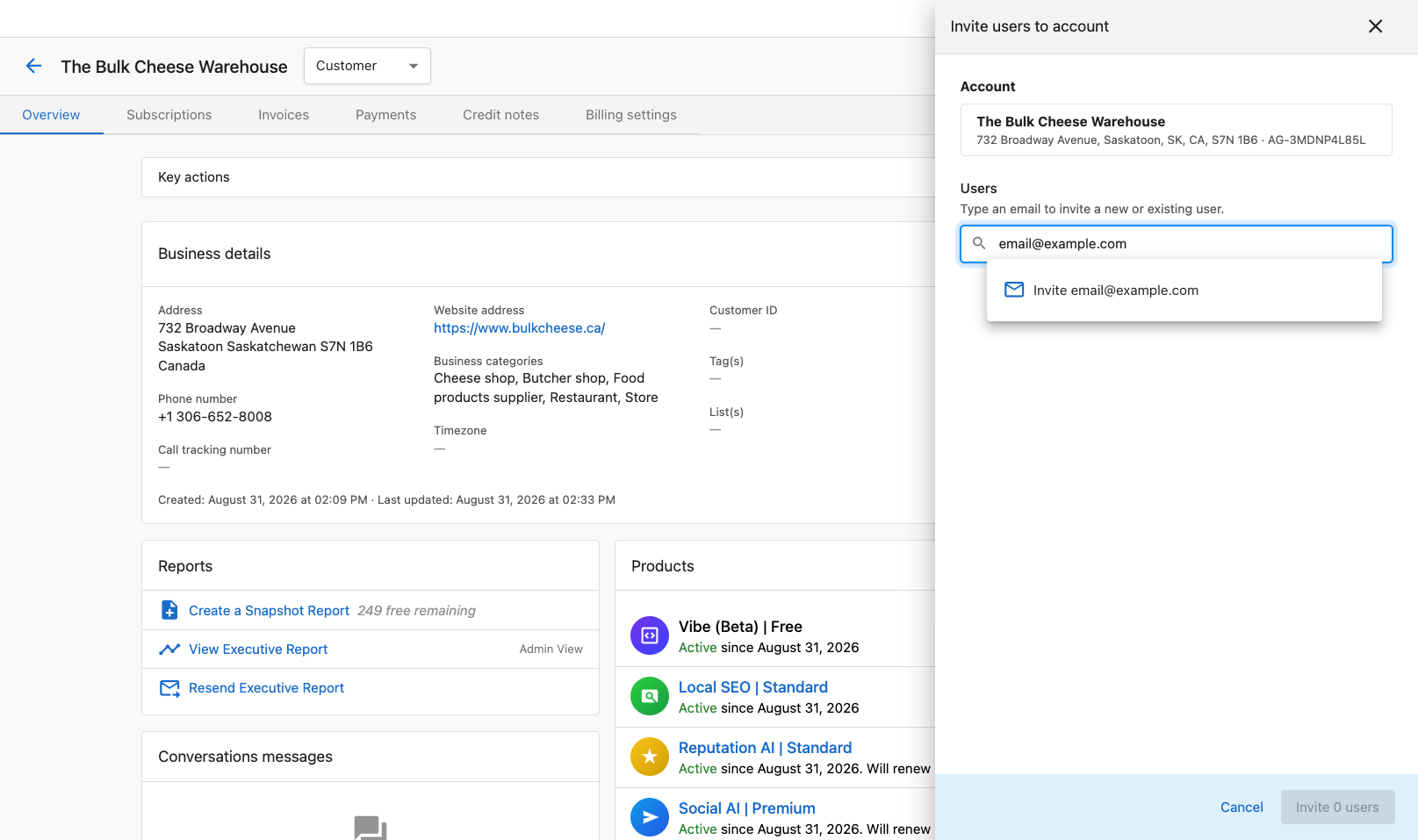
- In the Users field, type an email address. As you type, matching CRM contacts are suggested — select one to create the user from that contact, with their details prefilled — or type a full address to invite someone new. Repeat to invite more users in the same batch — up to five users at a time.
- Optional: under Customize users, select a user to adjust their details:
- Contact information — first name, last name, email, phone number, Correspondence language (the language of the platform and their emails, including the onboarding email template), and Greeting name (the name used to address them in emails).
- Permissions — the Business App tabs and products the user can access, with Select all and Clear all. The section summarizes the choice as Full access or a count such as 10 of 19 tabs. Each user in the list also shows whether they Can add and manage users.
- Email — a Custom greeting for the onboarding email, with a Preview button.
- Click Invite [count] users.
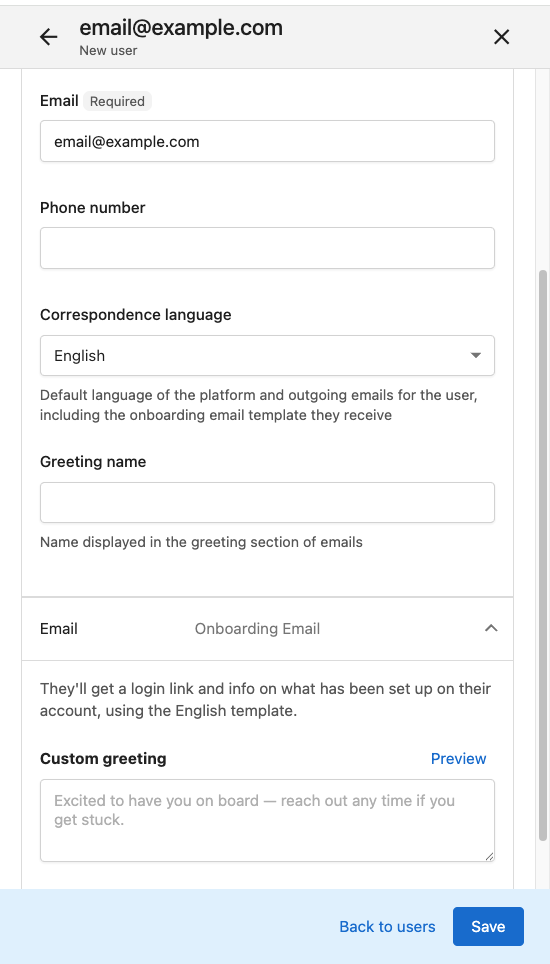
Inviting is what sends the email: everyone in the batch receives the onboarding email, personalized with whatever you customized — the panel notes this up front. If someone isn't ready for Business App yet, keep them as a contact in the CRM; when the time is right, the panel will suggest them by name and you can invite them with a custom greeting.
Sending it to an existing user
You don't have to create a brand-new user to use the onboarding email. You can send it to any existing user on an account:
- Go to the account's users (Accounts → Manage Accounts → select the account → Users, or
Accounts→Manage Users). If the person isn't a user yet, add them to the account first. - Open the options menu (⋮) next to the user.
- Choose Send Onboarding Email, then confirm.
This is handy for re-triggering the experience for someone already set up — and it's also the easiest way to see the real email yourself: add yourself as a user on the account and send it to your own inbox.
The classic welcome email is always available too. To send it after a user has been created, open the options menu (⋮) next to the user's name — either on the account or in Accounts → Manage Users — and click Send Set Password email (Welcome email).
Sending it from the CRM
You can send the onboarding email without leaving the CRM, from two places:
- On a contact record — the Access Business App card carries a Send Onboarding Email action, with a link underneath to preview the email first.
- On a company record — each contact listed on the company offers the same Send Onboarding Email action, so you can work down a business's people without opening each record.
Both open the same dialog used from Accounts, with a Preview and an optional custom greeting, and both start the same onboarding workflow as the create-user flow — including Vibe site generation where it applies.
Because the action stays available after someone is already a user, it doubles as a way to re-send the email to a client who has gone quiet. Repeat sends to the same person are expected here, so count recipients rather than sends when you're judging reach.
Adding a personal greeting
Each time you send the onboarding email, you can include a custom greeting — useful for referring to a conversation you've already had, or for setting up what the client is about to see.
- Your message is added to the top of the email, after the greeting and above the standard content.
- It appears in the preview, so you can check it before sending.
- It applies to that send only. It isn't saved as a default for future emails.
The custom greeting is available when creating a new user, when sending to an existing user from the options menu, when sending from the CRM, and in the Users panel of Easy Account Create. This matches how the custom message on the classic welcome email works.
Creating users in Easy Account Create
You can add an account's first users while you create the account, in the Users panel of Easy Account Create. Those users receive the onboarding email instead of the classic welcome email.
- Custom introductory message — an optional greeting added to the top of the email. It applies to this account creation only and isn't saved as a default.
- Preview email — opens the email before the account exists. It's branded with your white label, stands in a placeholder business name for the account you're creating, and renders in the language Partner Center is displayed in.
Each user you add also carries a Correspondence language, which sets the language their email is sent in, and a Greeting name, the name used to address them. English is the default language.
One send for the whole account. Everyone you added is emailed together, once the account is ready:
- The account and its users are created, and the products you selected begin activating.
- If Vibe is active, the demo website is built — see How a Vibe website is kicked off.
- Once those products are active and the site is built, or after 15 minutes, whichever comes first, the onboarding email goes to every user you added.
That wait is what lets a single email list the products the client just bought and link to their new website, rather than each user getting a separate email that arrived before any of it existed. If the 15 minutes elapse first the email is still sent — it just leaves out whatever wasn't ready.
The email uses the white-label branding of the market selected on the account, so partners running several markets get the right sender and logo without an extra step.
If something doesn't go through:
- If a user can't be created or associated, a message names the specific users that failed, so you can retry just those rather than re-running the whole batch.
- If the email can't be sent to someone, the message names their email address so you know who to follow up with. The account and the other recipients are unaffected.
- Entering an email address that already belongs to a user shows an error on the field. Add that person from the Add existing user tab instead — existing users are onboarded alongside the new ones.
Previewing before you send
Every place that sends the onboarding email offers a Preview so you can review it in Partner Center before it goes out.
The preview is a static example — it shows the email's branding, layout, and subject line so you can confirm it's on-brand. The email your client actually receives is generated dynamically from the real work the AI has done for their business, so the specific checklist items reflect that business's website, listings, reviews, active products, and Vibe site. Partner Center notes this on the preview itself:
Sample content – the real email is personalized with the business's branding, products, and completed AI work (allow 5-15 minutes for the email to arrive).
Want to see the exact email your new client will see? Add yourself as a user on the account and send yourself the onboarding email.
If you rely on custom onboarding content, you can layer a Marketing Campaign on top for messaging you fully control.
The Business App Home cards
When an SMB lands on their Business App Home page, these sections greet them. All are controlled by you and dismissible by the SMB.
New users go straight to Home the first time they sign in — the work summary is the first thing they see.
"We already got to work" card
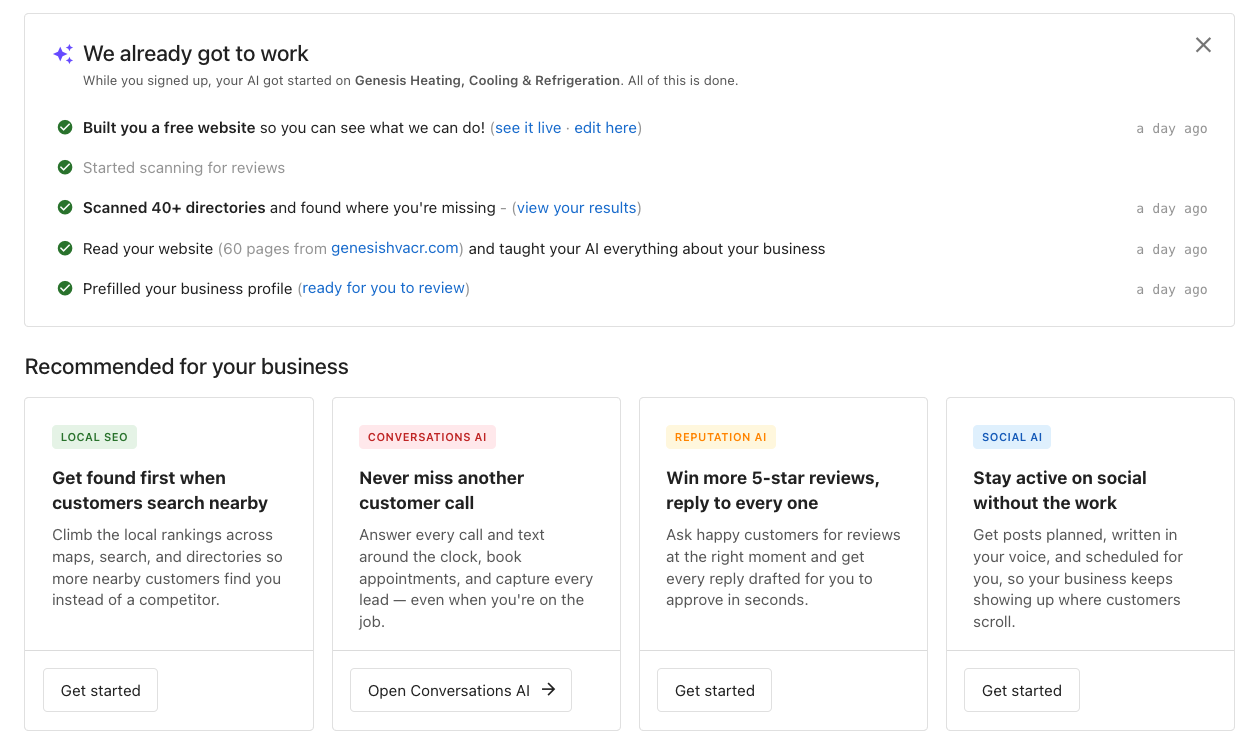
This card sits at the top of the Home page and shows the same checklist of completed work described in What the work summary shows. It opens with "We already got to work" and the line "While you signed up, your AI got started on [business name]. All of this is done."
On Home, each line can carry its in-app links — for example edit here on the Vibe site, ready to draft responses on reviews, or view your results on the directory scan — so the SMB can act on the work immediately. If a line's underlying product isn't accessible to that SMB, the work still shows but the link is hidden. The card only appears when there's at least one recent line to show.
Next steps cards
A "Next steps — get started in minutes" section shows setup cards that stay on the dashboard until the SMB clears them. Each card names the action, what it does for the business, a time estimate, and a one-click button:
- Meet your AI receptionist — Start a chat (2 min)
- Show up when customers search — Connect Google (2 min)
- Add web chat to your website — Add web chat (3 min)
- Connect the tools you already use — Connect a tool (3 min)
- Register your texting number — Register number (5 min)
- Get leads on your phone — Get the app (1 min)
Completing a task removes its card, and the SMB can dismiss a card they don't need. While next-step cards are showing, they take the place of the welcome banner at the top of Home.
Once the AI Chat Receptionist has been named, the Meet your AI receptionist card is titled "Meet [name]" instead — a small touch that makes the receptionist feel like a colleague rather than a setting.
Product upgrade cards
Below the work-done card, a Recommended for [business name] section surfaces Vibe and your core AI products so SMBs can add them without leaving Home. The cards sit three to a row, and each leads with a benefit headline:
- Vibe — "Launch your website, dashboard, or app"
- Local SEO — "Get found first when customers search nearby"
- Conversations AI — "Never miss another customer call"
- Reputation AI — "Win more 5-star reviews, reply to every one"
- Social AI — "Stay active on social without the work"
Each card's button adapts to the account's state:
| Situation | What the card shows |
|---|---|
| Product available with a self-serve upgrade path | Get started — opens the upgrade / checkout flow for that product |
| Product available, but you route upgrades to your sales team | Contact us — opens the contact card in Business App |
| Product already active (Pro tier or above) | Open — a link into the product's app |
| An order for the product is already in progress | Order submitted. (no button) |
| Product provisioning | Activating. This will only take a few moments. (no button) |
| You've turned the upgrade option off for that product | The card is not shown |
| Product not in your catalog, or the account is suspended | The card is not shown |
The Vibe card
The Vibe card lets an SMB get a website built without leaving Home. It shows only when the SMB can access the AI tab, and it follows the same upgrade setting as the other cards: turning Vibe's upgrade option off hides the card for every account, including accounts that already have Vibe.
- Vibe not active — Get started places an order for Vibe Free, at no charge, through the standard checkout. While the order is in progress the card shows Order submitted., then Activating while Vibe is set up.
- Vibe active, no site yet — Build it for me builds a demo website right on the card. This is the same one-per-account build the onboarding email starts, so it never creates a second site. The card narrates the build, and the SMB can leave the page while it runs.
- Site ready — the card shows Your site is ready! with a preview and View your site, which opens the site in Vibe to edit and publish.
- Build failed — Your site couldn't be built. with Try again.
- The account already has a Vibe project — Open, a link into Vibe.
When an SMB checks out from the Vibe card and returns to Home, the card waits a few minutes for Vibe to activate and then starts the build on its own. If activation takes longer, the card offers Build it for me once Vibe is active. See How is a Vibe website kicked off? for what the site includes.
Turning a product's upgrade option off in Marketplace → Manage Products removes that product's card from Home entirely rather than falling back to a Contact us button. This keeps Contact us meaningful: it appears only when you've deliberately chosen to route that product's upgrades to your sales team.
If you haven't configured a product's upgrade settings at all, the upgrade path is treated as on and the card shows Get started. To suppress a card, turn the upgrade option off explicitly.
When an SMB completes an upgrade, payment is collected through Vendasta Payments if you have it enabled — the SMB enters their card and checks out right from Home. If you don't use Vendasta Payments, the upgrade is sent to you as an order to process through your normal flow. The Vibe card's Get started orders Vibe Free, so no payment is collected.
For a full breakdown of how each card decides what to show and how to configure the upgrade path per product, see Customizing the "Recommended for your business" cards.
How do SMBs dismiss the cards?
SMBs stay in control of their own dashboard. Both the work-done card and the product upgrade cards can be dismissed:
- Each dismissible section has a small ✕ (labeled Dismiss) in line with its header.
- The work-done card dismisses as a whole.
- The upgrade cards dismiss one at a time — the section only disappears once the SMB has dismissed (or is ineligible for) every card in it.
- Dismissing the work-done card or an upgrade card hides it only on that account. An SMB user who works across several accounts keeps the cards on the others.
- Dismissals are stored per browser (in the browser's local storage), so they don't follow the SMB to another device. To bring dismissed cards back, the SMB can clear their browser's site data for the Business App.
- Recommended next-steps cards are removed when the SMB dismisses them or completes the underlying task.
This lets returning users clean up and streamline their Business App experience once they no longer need the onboarding content.
How do I customize what SMBs see?
You shape the Home experience for your SMBs from Customize Business App.
Go to Partner Center → Administration → Customize Business App → Pages → Home. Under Page Features:
- "AI has done the work" card — "A dynamic list of tasks that AI has completed on account setup based on products active and work done." Toggles the "We already got to work" summary card.
- "Recommended for your business" cards — "Allows users to access and upgrade some of Business App's top products. Follows your marketplace rules for sales and upgrades." Toggles the recommended product upgrade cards.
- "Next steps" card — "A checklist of setup tasks for new users, such as connecting Google and adding web chat. Items clear as each task is completed or dismissed." Toggles the Next steps cards.
All three are on by default. Turning a checkbox off hides that section for all of your SMBs. Remember to click Save.
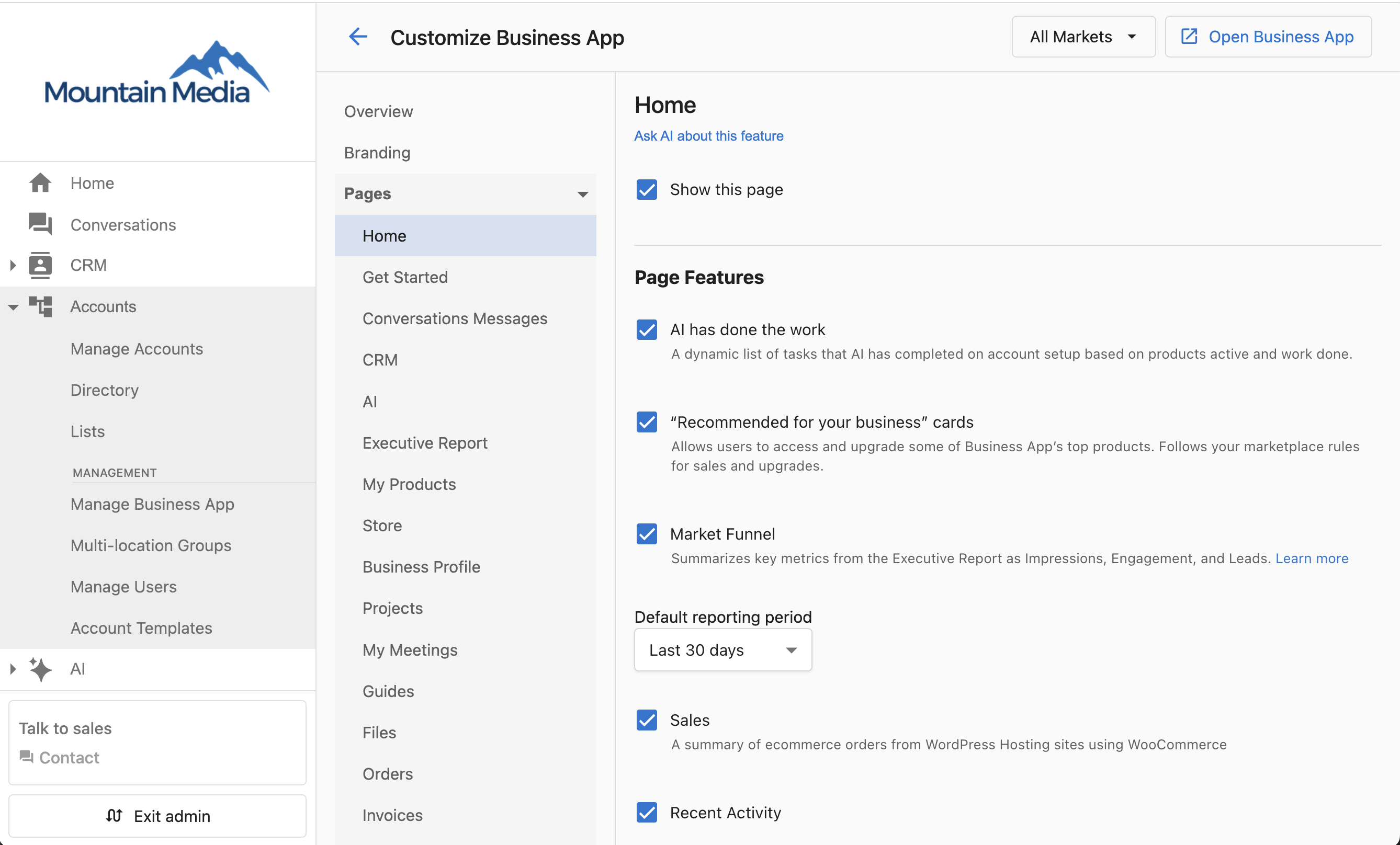
These toggles control display only. They hide the cards for all your SMBs, and individual SMBs can still dismiss cards for themselves even when you leave them on.
Benefits and how to get the most out of it
- Faster time to first value. The SMB sees concrete work — research done, a website built, listings scanned — before they've configured anything, which builds trust in the platform and in you.
- Higher activation. Recommended next steps turn a blank dashboard into a guided path, nudging SMBs to complete setup.
- More recurring revenue. Upgrade cards put your core AI products one click from checkout, right where the SMB is already engaged.
To take full advantage:
- Make sure the right products are active or have upgrade paths enabled so the work-done summary is rich and the upgrade cards show Get started rather than Contact us. Configure product upgrade paths under
Marketplace→Manage Products. - Activate Vibe on the account before inviting the SMB so the onboarding email can lead with a live, AI-built website.
- Preview the onboarding email to confirm the branding, and add yourself as a user to see the exact dynamic email a client will receive.
- Leave the Home cards on for new SMBs during their first weeks, then let them dismiss what they no longer need.
Frequently asked questions
What exactly will my client see in the email and on Home?
Only work that was genuinely done for their business. The summary is fully dynamic — see What the work summary shows for the complete list of possible lines and the exact condition for each. Lines are driven by the products active on the account and the business's real data, and the wording adapts to the product edition.
How do I control when a Vibe demo site is created?
Through what's active on the account when you invite. A Vibe site is created when you send the onboarding email or when the SMB selects Build it for me on the Vibe card on Home, and only when Vibe is active on the account and it has no live site yet:
- Activate Vibe before inviting and the client's onboarding email leads with their live demo site.
- Invite without Vibe active and the email sends normally, focused on the rest of the AI's work — no site is built.
- If the account already has a published Vibe site, re-sending the onboarding email is safe — it never creates a second one.
The "AI has done the work" card toggle in Customize Business App controls only whether the card is displayed, not site generation. To keep SMBs from starting a site from Home, turn Vibe's upgrade option off in Marketplace → Manage Products, or turn off the "Recommended for your business" cards.
When should I send the classic welcome email instead of the onboarding email?
The onboarding email is the default because it shows value up front, and it takes a per-send custom introductory message so you can make it personal. The classic welcome email suits a plain set-password send — a password reset, or a user who's already familiar with the platform. The onboarding email always goes out when a user is added; send the classic welcome email afterward if you need it. For fully custom messaging, layer a Marketing Campaign on top.
I created an account and added users in one go — when does the email arrive?
Within about 15 minutes. The platform holds the send until the products you selected on that account have finished activating and, if Vibe is active, the demo website has been built. It then emails everyone you added, all at once, so each person gets the same summary listing the products just purchased and a link to the new website.
Fifteen minutes is the ceiling, not the target — most sends go out as soon as everything settles. If the wait runs out first, the email still goes; it simply leaves out anything that wasn't ready.
I added several users while creating an account. Does each one get their own email?
Each person receives their own copy, addressed to them in their correspondence language, but they all go out together as one send for that account. That's why a custom introductory message you type on the account creation form reaches everyone you added, and why the product list is identical for all of them.
Can I still send the classic welcome email after a user is created?
Yes. The classic welcome email is always available. Open the options menu (⋮) next to the user's name — either on the account or in Accounts → Manage Users — and click Send Set Password email (Welcome email). This is useful for password resets or any time you'd prefer the standard welcome email over the onboarding email.
You don't choose a sending domain when you send it — the platform selects the best one automatically.
Can we change the name AI gives the receptionist?
Yes. The name is a starting point, not a fixed setting. The SMB can use the change it link on the work summary, and you or the SMB can rename the receptionist from its configuration page at any time. Once a name has been changed it stays changed — later updates to the account won't overwrite it.
What if the business doesn't have a website or Vibe isn't active?
The summary adapts to what's actually true for the account. Lines that depend on a specific product (the Vibe website, review analysis, local visibility) only appear when that product is active. The website-read line appears whenever a website is on file, and the business-profile line always appears. If Vibe is active and there's no website on file, the demo site is built as a labelled example — see What the demo website includes.
Do I need Vendasta Payments for the upgrade cards to work?
No. Without Vendasta Payments, an SMB's upgrade comes through to you as an order to process with your existing billing workflow. With Vendasta Payments enabled, the SMB pays by card right in Business App. Either way, you set the retail prices and choose which products appear.
What dates does the work summary use?
The actual dates the work was done (driven by product activation), not the date the feature rolled out. Because lines drop off roughly 30 days after the work, a long-standing client sees a much shorter list than a brand-new one — the summary never shows stale items.
Can an SMB bring a dismissed card back?
Yes. Dismissals are stored in the browser's local storage, so an SMB can restore dismissed cards by clearing the Business App's site data in that browser — or by opening Business App in a different browser or device. If you want to control visibility for everyone, use the partner-level toggles in Customize Business App → Home.
Can I disable the AI onboarding email when I add users in Partner Center?
No. There is no setting to turn off the AI onboarding email. Add users in Partner Center only when you are ready for them to receive that email.
Related
- Customizing the "Recommended for your business" cards — how the upgrade cards decide what to show, and configuring each product's upgrade path
- Home Overview — the Business App Home dashboard your clients see
- Customizing the welcome email — the classic welcome email and Marketing Campaign workaround
- Manage Users — creating and managing Business App users