How do I set up custom guides and advanced configuration in Business App?
What is Custom Content & Advanced Configuration?
Custom content and advanced configuration for Business App let you turn on the Guides section, show Vendasta's white-label content or your own WordPress blog posts as guides, and set up Clio custom-field triggers that control which client data syncs.
Why is Custom Content & Advanced Configuration important?
Advanced configuration options let you customize Business App to match your specific needs and branding requirements. These features are particularly valuable if you have clients with unique workflows or want to provide custom educational content to them. Key benefits include:
- Brand consistency - Display your own content and messaging within Business App
- Client education - Provide custom guides and resources tailored to your industry
- Workflow automation - Configure specialized triggers for industry-specific software
- Content control - Choose between pre-written content or your own custom materials
- Professional presentation - Integrate your expertise and knowledge base
- Specialized integrations - Advanced configurations for legal, medical, and other professional services
What you can do with Custom Content & Advanced Configuration
Custom Guides Management
- Enable or disable the Guides section in Business App
- Choose between Vendasta's white-label content or your own WordPress blog
- Filter content by WordPress tags to show specific articles
- Customize guide presentation with embedded titles and images
- Provide industry-specific educational content to clients
WordPress Integration Features
- Connect your WordPress blog directly to Business App
- Display WordPress articles as guides within Business App
- Use WordPress tags to filter and organize content
- Customize how blog content appears to clients
- Maintain your own content publishing workflow
Advanced Trigger Configuration
- Set up specialized triggers for legal practice management systems
- Configure opt-in and opt-out workflows for data syncing
- Create custom fields for triggering automated processes
- Manage complex business workflow requirements
- Handle compliance and privacy requirements
How do I set up custom content and advanced configuration?
How do I configure guides in Business App?
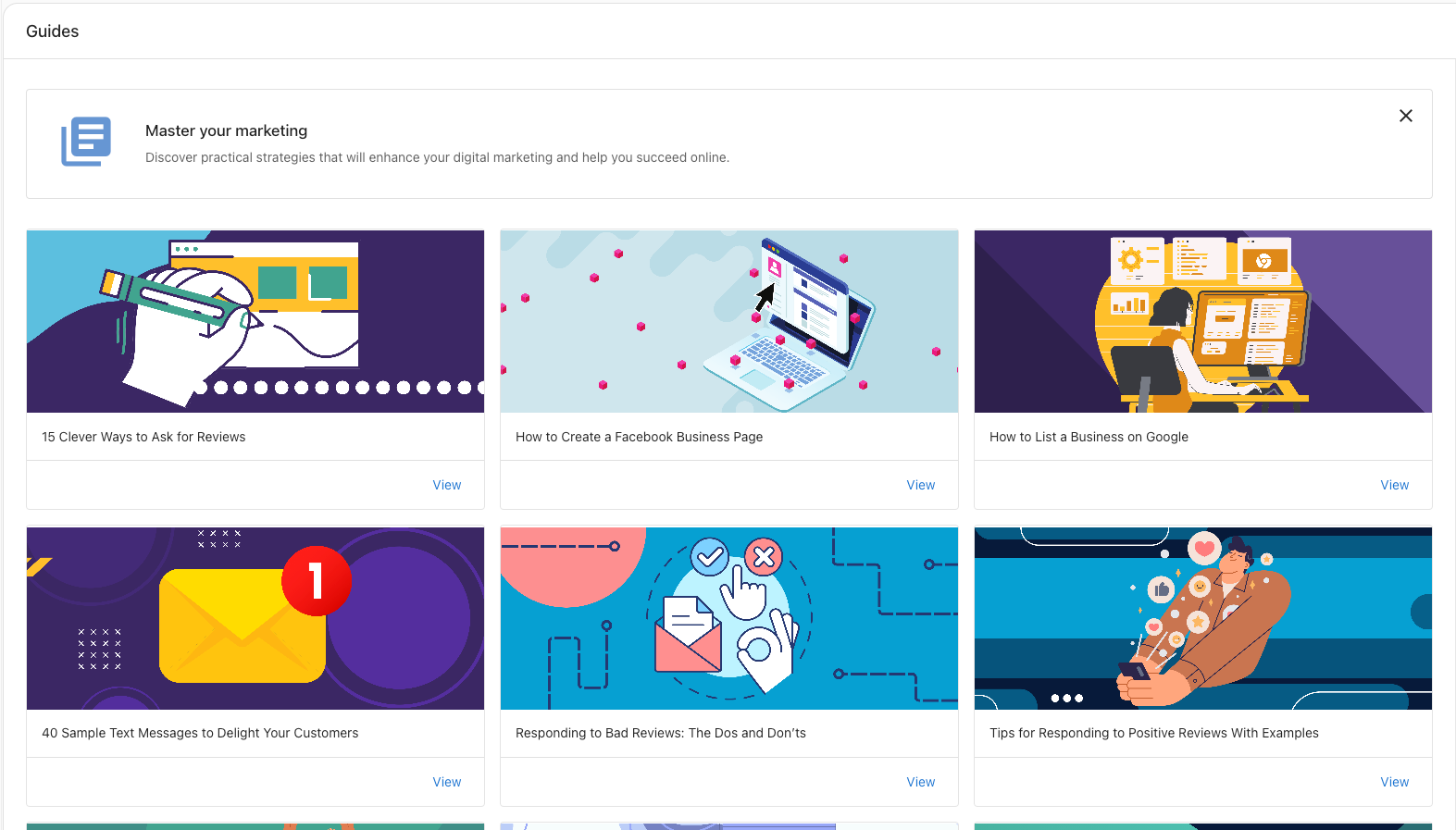
- Enable Guides Section
- Navigate to
Partner Center→Administration→Customize Business App - Select the
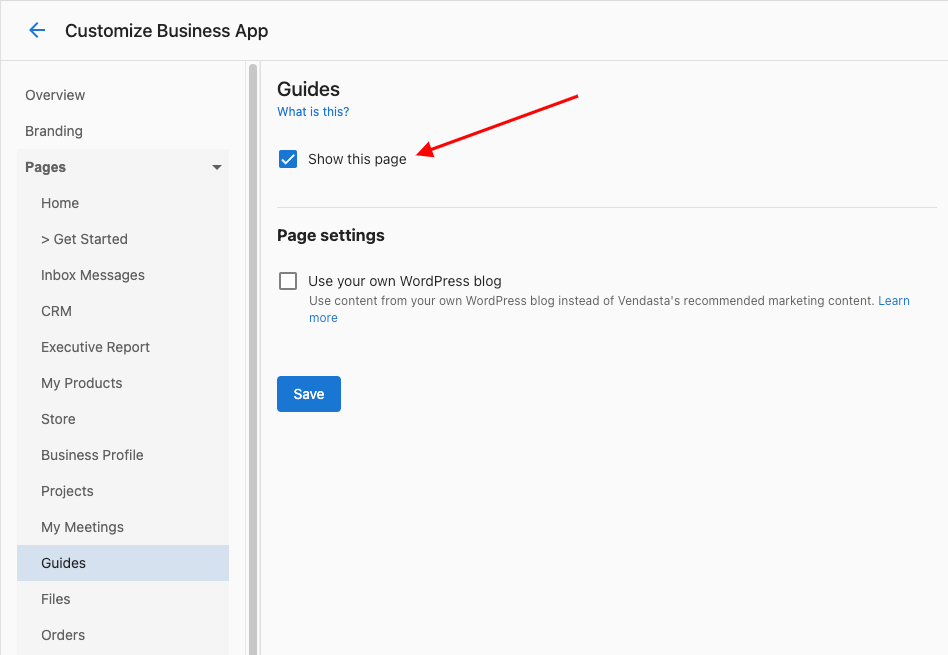
Guidestab - Check
Show this pageto enable Guides for Business App users - Click
Saveto apply changes
- Navigate to
-
Choose Content Source
- Option 1: Use Vendasta's pre-written white-label content (default)
- Option 2: Connect your own WordPress blog for custom content
-
Access Guides (for Business App users)
- Navigate to
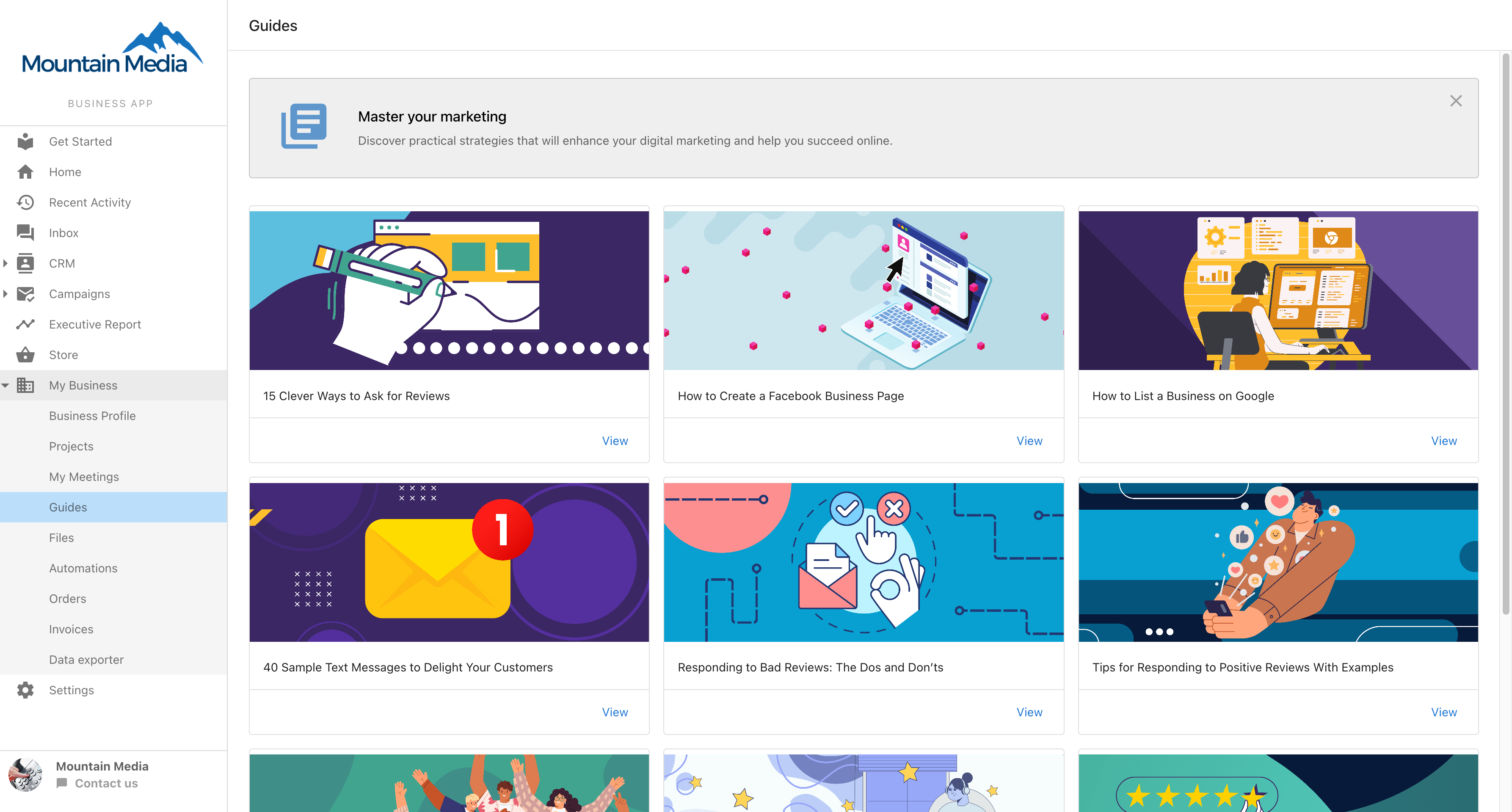
Business App→Administration→Guides - Browse available guides and educational content
- Access industry-specific information and best practices
- Navigate to
How do I set up WordPress blog integration?
-
Access WordPress Configuration
- Go to
Partner Center→Administration→Customize Business App - Select the
Guidestab
- Go to
-
Connect Your WordPress Blog
- Check
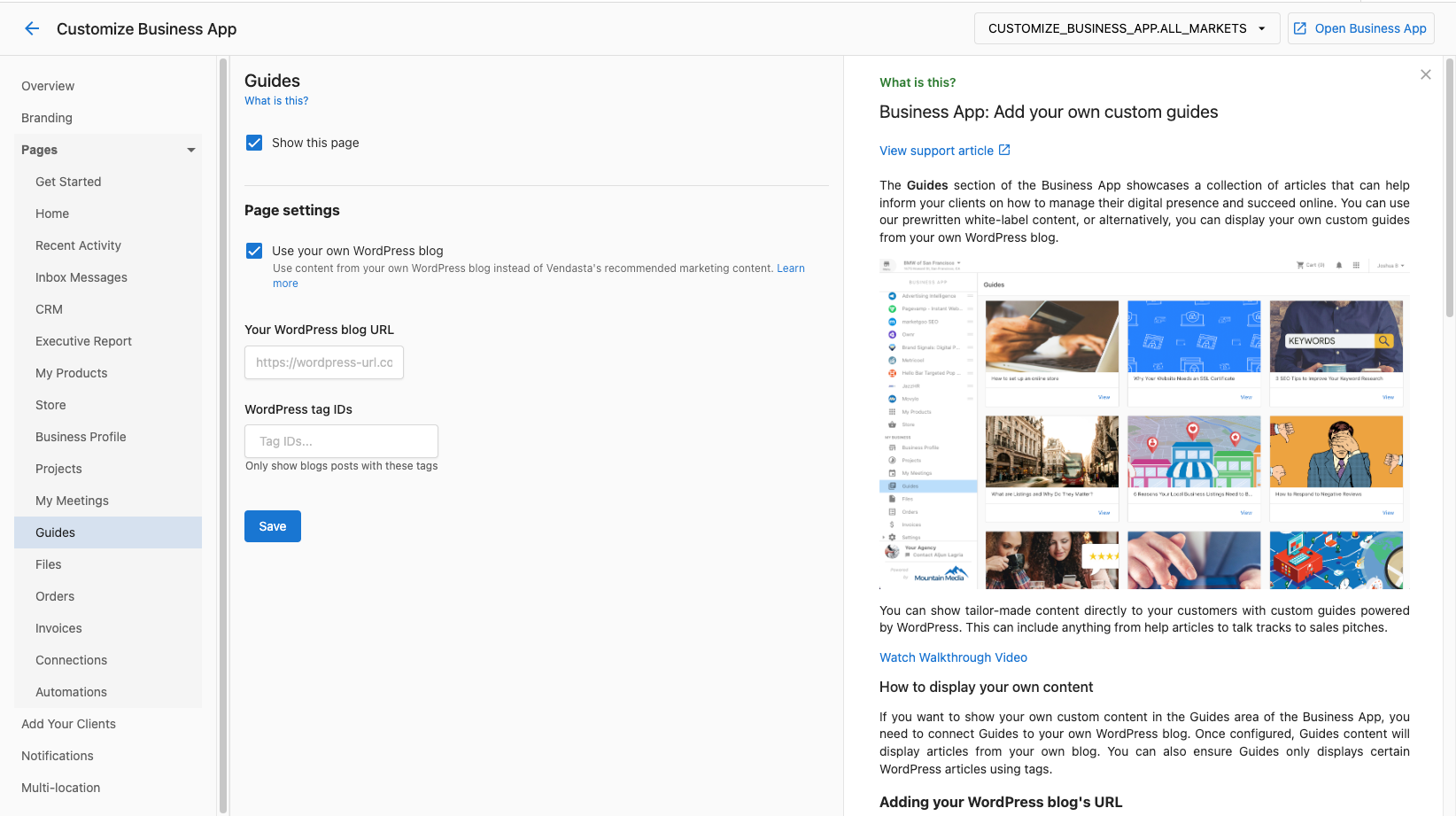
Use your own WordPress blog - Enter your
WordPress blog URL - Important: Use the actual blog URL (e.g.,
https://www.yoursite.com/blog), not your homepage URL
- Check
-
Configure Content Filtering (Optional)
- Enter WordPress tag IDs to filter content
- Only articles with specified tags will display in Business App
- Leave blank to show all blog posts
-
Customize Presentation (Optional)
- Check
Embed title in the first article imageto showcase titles on images - This adds visual appeal to your guide listings
- Check
-
Save Configuration
- Click
Saveto apply WordPress integration - Test Business App to ensure guides display correctly
- Click
How do I find WordPress tag IDs?
-
Access WordPress Admin Panel
- Log in to your WordPress dashboard
- Navigate to the administration interface
-
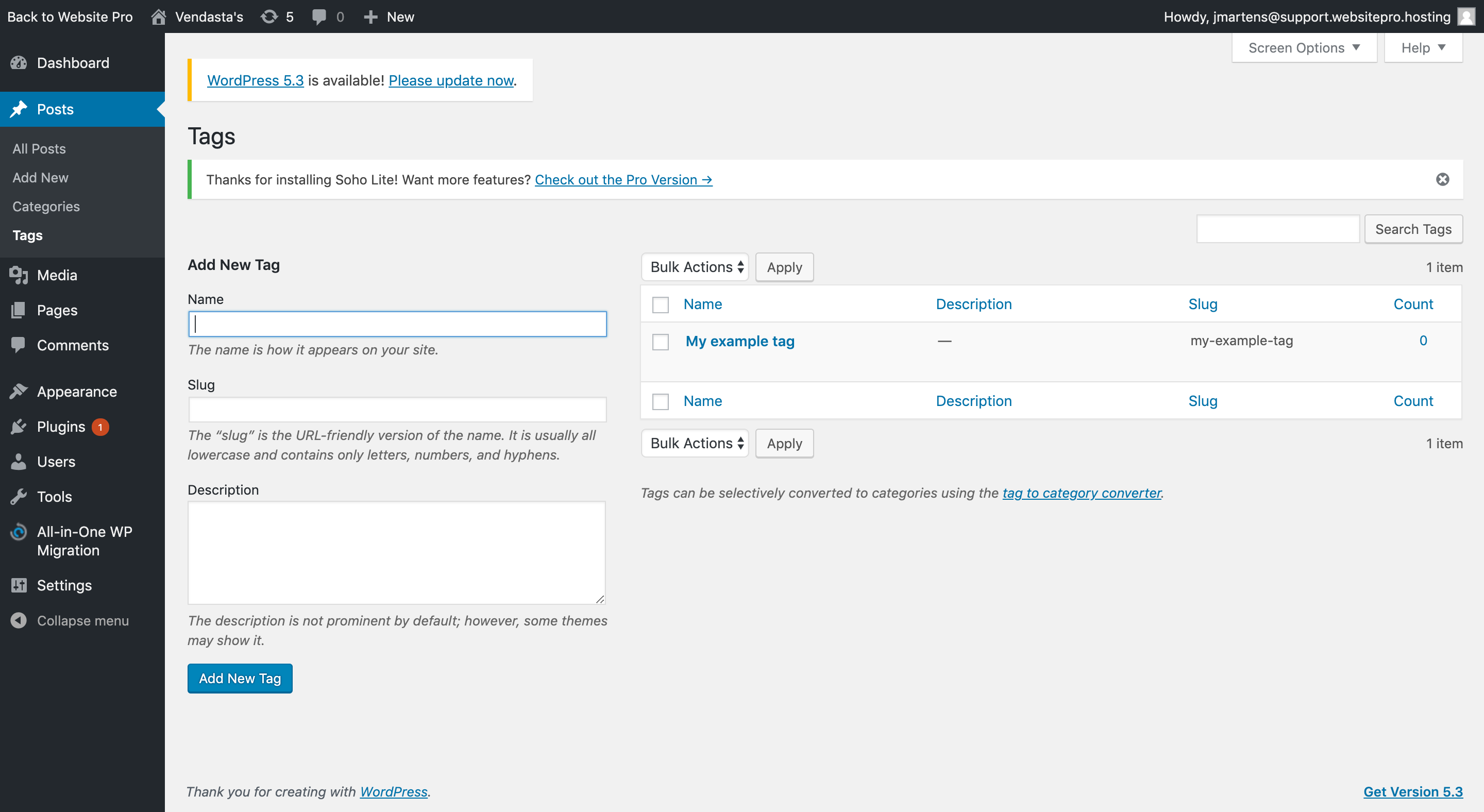
Navigate to Tags Section
- Hover over
Postsin the side panel - Click
Tagsfrom the dropdown menu
- Hover over
-
Create or Select Tags
- If tags don't exist, create new tags on the left side
- Existing tags appear on the right side of the page
-
Get Tag ID
- Click on the tag you want to use for filtering
- In the browser URL, find the number after
tag_ID= - Example: In
https://website.com/wp-admin/term.php?taxonomy=post_tag&tag_ID=4&post_type=post, the tag ID is 4
- Use Multiple Tag IDs
- Enter multiple tag IDs separated by commas
- Example:
4,7,12to show articles with any of these tags
How do I set up Clio integration triggers?
Setting up closed matter (opt out) trigger
-
Access Clio Dashboard
- Log in to your Clio practice management system
- Navigate to system settings and configuration
-
Create Contact Custom Field
- Go to
Settings→Custom Fields - Ensure you're in
Contact Custom Fieldssection - Select
Individual Fields
- Go to
-
Configure Opt Out Field
- Click the green
Addbutton - Enter field details:
- Field Name:
BroadlyOptOut(exact spelling required) - Type: Checkbox
- Default: Checked
- Required: Leave unchecked
- Field Name:
- Click
Save
- Click the green
-
Understanding Opt Out Behavior
- When checkbox is checked: Customer data will NOT sync to platform
- When checkbox is unchecked: Customer data will sync normally
- System references this field when Matters are marked as Closed
Setting up closed matter (opt in) trigger
-
Access Clio Matter Custom Fields
- Navigate to
Settings→Custom Fields - Ensure you're in
Matter Custom Fieldssection - Select
Individual Fields
- Navigate to
-
Create Opt In Field
- Click the green
Addbutton - Configure field settings:
- Field Name:
SendBroadlyThankYou(case-sensitive, no spaces) - Type: Checkbox
- Default: Checked
- Required: Leave unchecked
- Field Name:
- Click
Save
- Click the green
-
Understanding Opt In Behavior
- Customer data syncs only if SendBroadlyThankYou checkbox is marked
- Field name must be exactly SendBroadlyThankYou
- Default checked setting allows syncing unless manually unchecked
Advanced configuration best practices
WordPress integration optimization
- Content Quality: Ensure blog content is relevant and professional
- Regular Updates: Keep WordPress blog current with fresh content
- Tag Organization: Use consistent tagging strategy for easy filtering
- Mobile Optimization: Ensure WordPress content displays well on mobile devices
- SEO Considerations: Optimize blog content for search engines
Custom guides strategy
- Industry Focus: Create content specific to your client's industries
- Educational Value: Provide actionable advice and best practices
- Brand Voice: Maintain consistent tone and messaging across all guides
- Update Schedule: Regularly refresh content to keep it current
- Client Feedback: Use client input to improve guide content
Advanced trigger management
- Field Naming: Use exact field names as specified for trigger functionality
- Testing: Thoroughly test triggers in development environment
- Documentation: Maintain records of custom field configurations
- Staff Training: Ensure team understands trigger implications
- Compliance: Consider legal and privacy requirements for data handling
Content validation
- Preview Testing: Always preview changes in Business App before going live
- URL Verification: Ensure WordPress URLs are accessible and correct
- Tag Validation: Verify tag IDs correspond to intended content
- Fallback Planning: Have backup content strategy if WordPress integration fails
How do I troubleshoot custom content issues?
WordPress integration problems
- No Guides Displaying: Verify WordPress blog URL is correct and accessible
- Invalid URL Error: Ensure URL points to blog section, not homepage
- Content Not Updating: Check WordPress blog for new posts and tag assignments
- Tag Filtering Issues: Verify tag IDs are correct and posts have appropriate tags
Clio integration issues
- Trigger Not Working: Verify field names match exactly (case-sensitive)
- Data Not Syncing: Check custom field configuration and default settings
- Permission Problems: Ensure Clio user has appropriate field creation permissions
Guides display problems
- Guides Not Visible: Verify
Show this pageis checked in Partner Center - Content Formatting: Check WordPress content for compatibility with Business App display
- Image Display: Ensure images are properly sized and accessible
Frequently asked questions
What's the difference between Vendasta's content and WordPress integration?
Vendasta provides pre-written, white-label content that covers general business topics. WordPress integration allows you to display your own custom content, providing more control over messaging and the ability to create industry-specific guides.
Can I use both Vendasta content and WordPress content?
No, you must choose one content source. You can either use Vendasta's white-label content or connect your WordPress blog, but not both simultaneously.
What happens if my WordPress blog URL doesn't work?
If you enter an invalid WordPress blog URL or the URL becomes inaccessible, no guides will display in Business App. Always test the integration and have a backup plan.
How do I find my WordPress blog URL?
Your blog URL is typically different from your homepage. Look for URLs like https://www.yoursite.com/blog. Navigate to your blog section on your website to find the correct URL.
Can I filter WordPress content by categories instead of tags?
The integration only supports filtering by WordPress tag IDs. You cannot filter by categories, so ensure your content strategy uses tags for organization.
What if I don't have WordPress tag IDs?
If you don't enter any tag IDs, all blog posts from your WordPress site will display in Business App. Tag IDs are only needed if you want to filter and show specific content.
Are the Clio field names case-sensitive?
Yes, the field names must be exactly BroadlyOptOut and SendBroadlyThankYou with proper capitalization and no extra spaces. Incorrect naming will prevent triggers from working.
Can I modify the Clio trigger field names?
No, the field names are fixed and must match exactly as specified. The system looks for these specific field names to trigger data sync and review request workflows.
How often does WordPress content update in Business App?
WordPress content typically updates in Business App within a few hours of publishing new posts. The exact timing depends on system sync schedules and caching.
Can I see preview of how my WordPress content will look in Business App?
The best way to preview is to test the integration in Business App after configuration. Ensure your WordPress content is mobile-friendly and displays well in the Business App interface.