How do I fix common Marketplace package problems?
Most Marketplace package problems come from package setup: a missing store category, the wrong market, duplicate display settings, the purchase behavior, or the pricing model. Find your symptom below and follow the fix.
Why isn't a product visible or available to activate?
Why isn't my product appearing when Available in store is set to Yes?
Setting a product to Available in store makes it eligible for the store, but customers cannot find or purchase it until it is added to a published package that is assigned to a visible store category. Without that package step, the product remains invisible to customers regardless of the availability setting.
Why is my custom product missing from Order Products?
If your custom product doesn't appear in the Order Products list when creating an order for an account, the most likely cause is that the account has no address on file. Custom products use the account's business profile address to determine availability. Add an address to the account's business profile and the product should appear.
Why can't an account activate a product anymore?
Some Marketplace products are restricted to specific countries. If an account could previously activate a product but can no longer do so, check whether the business profile country on the account has changed. The account's country must match the country availability configured on the product. Update the business profile address if needed.
Why isn't the Review Widget Carousel option available?
The Carousel display option in the Review Widget is not available on the standard Review Widget. It requires the Review Widget Pro add-on. Activate Review Widget Pro on the account to enable the Carousel option.
How do I find a product's SKU?
Every product in the Vendasta Marketplace has a SKU identifier. To find it:
- Go to
Marketplace→Discover Products - Click into the product
- Look at the URL in your browser: the SKU is the string of characters at the end (e.g.
MP-XXXXXXXXXXXXXXXX)
SKUs follow the format MP- followed by alphanumeric characters. When contacting Support about a specific product, including the SKU speeds up identification.
How do I fix common package issues?
Package visibility problems are the most common package issues. Use the symptoms, root causes, and solutions below to get your packages in front of customers.
Why aren't my packages appearing in the Business App Store?
Symptoms:
- Published packages missing from customer-facing store
- Packages visible in Partner Center but not in Business App
- Customers cannot find or purchase packages
Root causes:
- Missing Category Assignment - Package created without store category selection
- Category Display Settings - Categories not configured to show in store
- Market Assignment Problems - Package not properly assigned to target markets
Solution 1: Category assignment fix
Steps
- Navigate to
Marketplace→Packages - Search for the missing package using package name or filters
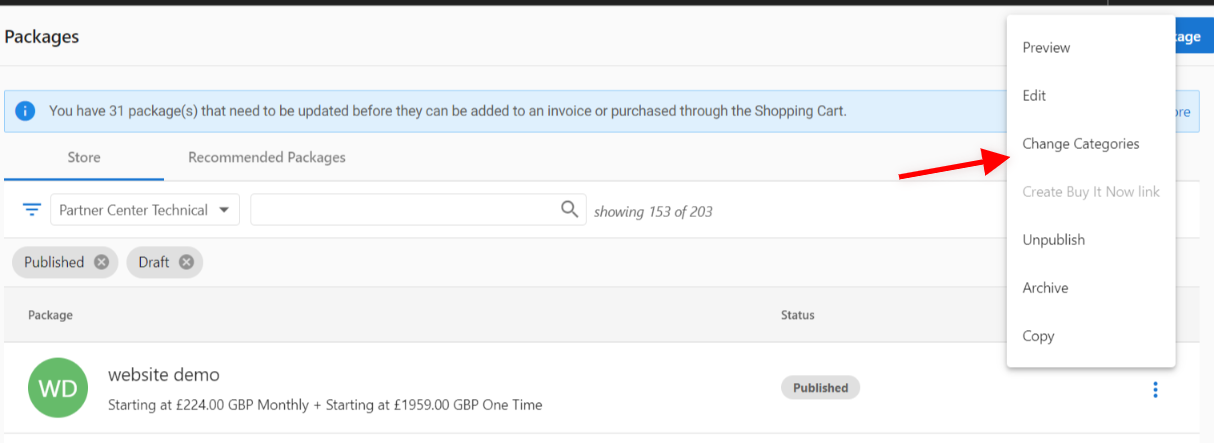
- Click the
options menu(⋮) on the package card - Select
Change Categoriesfrom the dropdown menu - Choose appropriate store categories from the available list
- Click
Saveto apply category assignments
Result: Package appears in Business App Store under selected categories
Solution 2: Store category configuration
Steps
- Navigate to
Marketplace→Manage Store→Categories - Review current category configuration and visibility settings
- Add Missing Categories - Create any categories needed for package organization
- Configure Package Assignments - Ensure packages are properly assigned to categories
- Enable Store Visibility - Toggle
Show in storefor all relevant categories - Save Configuration - Apply changes to update store display
Verification: Check Business App Store to confirm category and package visibility
Solution 3: Market assignment correction
For multi-market configurations
- Navigate to
Marketplace→Packages - Verify current market selection in the market dropdown
- Locate the package that should appear in target market
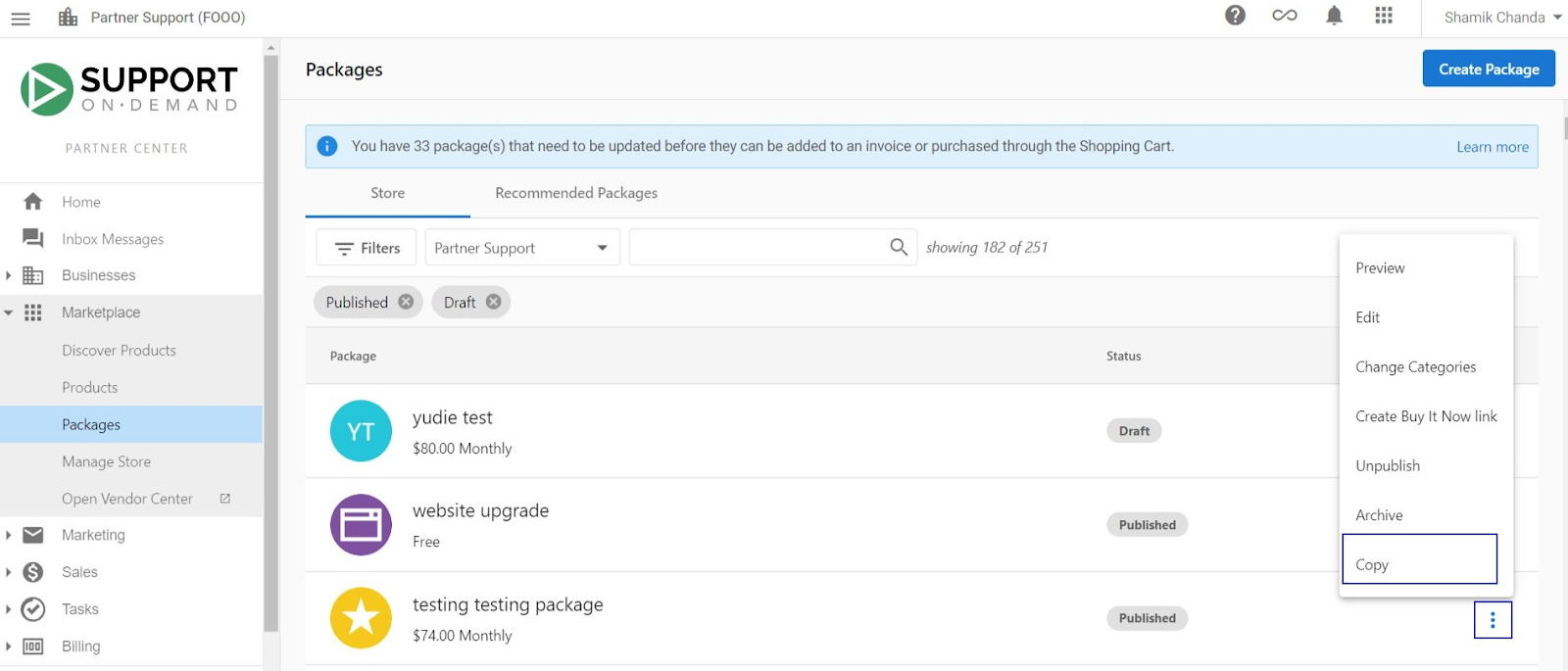
- Click the
options menu(⋮) next to the package →Copy - Select the required target market from the dropdown
- Click
Save & Publishto create package in target market - Switch market view to confirm package availability
Why do duplicate packages appear in the Public Store?
Symptoms:
- Same package appearing multiple times in customer store
- Duplicate listings with identical content and pricing
- Customer confusion due to repeated package options
Root cause:
Duplicate packages typically occur when both Business App and Public Store options are enabled for the same product, causing the system to display multiple instances.
Complete resolution
Step 1: Identify affected products
- Navigate to Partner Center main dashboard
- Access Product Section - Go to the main product management area
- Search for Duplicated Product - Use search functionality to locate the product causing duplication
- Document Current Settings - Note current configuration before making changes
Step 2: Modify product settings
- Click on Target Product - Select the product showing duplicate behavior
- Access Product Overview Page - Navigate to the main product configuration
- Locate Display Settings - Find the Business App and Public Store checkboxes
- Uncheck Both Options - Disable both Business App and Public Store options temporarily
- Save Changes - Apply the configuration updates
Step 3: Verification and restoration
- Refresh Page - Clear browser cache and reload the page
- Check Public Store - Navigate to customer-facing store to verify duplicate removal
- Re-enable Appropriate Settings - Enable only the necessary display options
- Final Verification - Confirm single package appearance in store
Prevention strategy
- Systematic Configuration - Use consistent approach for product and package display settings
- Regular Audits - Periodically review store for duplicate content
- Documentation - Maintain records of package and product configurations
Why aren't my package links working?
Symptoms:
- Direct package links return errors or don't load
- Buy it Now links redirect to incorrect pages
- Customers cannot access packages through shared links
Common causes and solutions
Cause 1: Package publication status
Check: Ensure package is published and not in draft status
Solution: Navigate to package management and confirm publication status
Cause 2: Purchase behavior configuration
Check: Verify package purchase behavior is set to Add to Shopping Cart
Solution: Edit package settings and configure appropriate purchase behavior
Cause 3: User access permissions
Check: For Buy it Now links, verify the target user exists and has appropriate permissions
Solution: Review user configuration and access rights
Cause 4: Market restrictions
Check: Confirm package is available in the customer's target market
Solution: Review market assignments and availability settings
Cause 5: Purchase attempted while impersonating a user
Check: If Get it now is unavailable or purchase cannot complete in Business App, confirm whether the partner is impersonating the customer
Solution:
- Ask the customer to sign in directly with their own Business App user to complete purchase
- If a partner needs to place the order on the customer's behalf, place it from Partner Center
Cause 6: Package purchase behavior needs republishing
Check: If package pricing or purchase actions do not match your intended setup in store, verify the package's Purchase behavior configuration in Marketplace → Packages
Solution:
- Open the package in
Marketplace→Packages - Set the intended
Purchase behavioroption explicitly - Confirm item visibility and pricing options are correct
Save & Publishthe package
Why did my package pricing change after editing?
Symptoms:
- Package pricing looks different after opening and saving an existing package
- Line items now show individual prices that weren't visible before
- Total price appears redistributed across items
Root cause:
Existing packages automatically migrate to the line-item pricing model the first time they are edited and saved in the package constructor. This migration distributes the package's total price across individual line items using a weighted breakdown based on each item's retail value and billing frequency.
Resolution
- Open the package in
Marketplace→Packages - Review the individual line-item prices to confirm they look correct
- Adjust any item-level prices as needed, or set a new total package price to trigger smart price allocation
- Save the package
This migration is a one-time conversion. After saving, the package uses the line-item pricing model going forward. The overall package price is preserved during migration. Only the per-item breakdown changes.
Why is Package Profit showing as unavailable?
If the Package Profit field shows as unavailable, the most common cause is a currency mismatch: the package currency does not match the currency configured for your market. Go to Manage Store → Currency and confirm the market currency matches the currency used in the package.
Why isn't the retail price updating after I edit a package?
In the package editor, updating the retail price of an item inside a package does not automatically recalculate and display the updated total in the list and grid views immediately. This is a known behavior. To apply the updated price:
- Open the package in
Marketplace→Packages - Remove the affected product from the package
- Re-add the product and set the correct retail price
- Save and publish the package
Note: bulk pricing updates across multiple packages are not supported. Each package must be updated individually.
Why isn't my package appearing when I add it to an invoice?
Packages must use the line-item pricing model to be compatible with invoices and the Shopping Cart checkout. If a package was created with the legacy pricing model, open and save it in the package editor. It will automatically migrate to the line-item pricing model. After saving, the package should appear as an option when creating invoices.
How do I fix packages that differ across markets?
Multi-market package synchronization
Complex scenario: Packages appear inconsistently across markets with varying availability and pricing.
Diagnostic process
- Market-by-Market Review - Systematically check each market configuration
- Package Comparison - Compare package settings across markets
- Product Availability - Verify all package components are available in each market
- Pricing Consistency - Check for appropriate regional pricing variations
Resolution strategy
- Standardize Base Configuration - Establish consistent core package settings
- Market-Specific Customization - Apply only necessary regional variations
- Synchronization Process - Use copy functionality to maintain consistency
- Ongoing Monitoring - Regular audits to prevent configuration drift
Considerations
- Localized pricing - Adjust package pricing for regional markets
- Product availability - Ensure all package components are available in target markets
- Regulatory compliance - Consider local regulations and requirements
- Cultural adaptation - Modify messaging and positioning for local audiences
Cross-market strategy
- Standardization - Maintain consistent core offerings across markets
- Localization - Adapt pricing, messaging, and product mix for regional needs
- Performance monitoring - Track package performance across different markets
- Optimization - Continuously improve packages based on market-specific data
Frequently asked questions
Why does activating a package fail with an "editions not supported" error?
This usually means a SKU in the package was stamped with editions when the package was built, and those editions were later turned off on the SKU. The package still carries the old editions stamp, so activation fails. Recreate or update the package so it no longer references unsupported editions, then activate again. If it keeps failing, contact support with the SKU and package details.
When should I contact support about a package issue?
If nothing in this guide fixes the issue, use the options below.
When to escalate
Escalate or open a support thread when you see any of the following:
- Configuration issues that cannot be resolved after following the steps above
- System-wide problems affecting multiple packages or customers
- Technical integration problems that need API or engineering help (start with Developer APIs and integrations when relevant)
- Performance or outage-like behavior that blocks sales or fulfillment
Before you assume a bug, check Vendasta system status for platform-wide incidents.
Contact Vendasta support
- Conversations: In Partner Center, open the contact card in the lower left and choose Send Message. See Contacting Vendasta Support.
- Email: support@vendasta.com
More help in the docs
- Partner Troubleshooting Guide: guidance on when to contact different teams, and what to put in a ticket (Partner ID, replication steps, screenshots, and so on).
- Package Management & Store Integration: normal setup for packages, store categories, and sharing (many “issues” trace back to configuration on that page).
Customer communication
When you need to update your customers about a package or store problem:
- Proactive updates: Tell affected customers what you know before they all hit support
- Clear explanations: Describe impact and what you are doing in plain language
- Timeline expectations: Give a realistic window when you have one; say when you will follow up if not
- Follow-up: Confirm the issue is resolved or the workaround still works for them
Frequently asked questions
Why can't I see my package when I create an invoice?
Packages must use the line-item pricing model to be compatible with invoices and the Shopping Cart checkout. Open and save a legacy package in the package editor to migrate it automatically, and it should then appear when you create invoices.
Why is my package showing a different price than I set up?
Existing packages migrate to the line-item pricing model the first time they are edited and saved, which redistributes the total price across line items. The overall package price is preserved; review and adjust the item-level prices in Marketplace → Packages if needed.
Can I update pricing across multiple packages at once?
No. Bulk pricing updates across multiple packages are not supported, so each package must be updated individually.
How do I find a product's SKU?
Go to Marketplace → Discover Products and click into the product. The SKU is the string at the end of the URL in your browser, in the format MP- followed by alphanumeric characters.
Why can't I find a product to add to an order?
If a custom product is missing from Order Products, add an address to the account's business profile. Some products are also restricted to specific countries, so the account's business profile country must match the product's country availability.