How do I use Conversations in Partner Center?
Conversations in Partner Center gives your team shared messaging channels to talk with clients, marketplace vendors, and Vendasta support. Click the message icon next to any account to start a conversation, and your client receives it in Business App → Conversations.
Unlike email threads that become unwieldy and lose context, Conversations lets any member of your team respond to client messages.
How do I start a conversation with a client?
- Start a conversation by clicking the message icon next to any account in Partner Center.
- Choose the recipient from the pop-up menu showing available accounts.
- Send your message. Clients receive it in
Business App→Conversationsalong with email notifications.
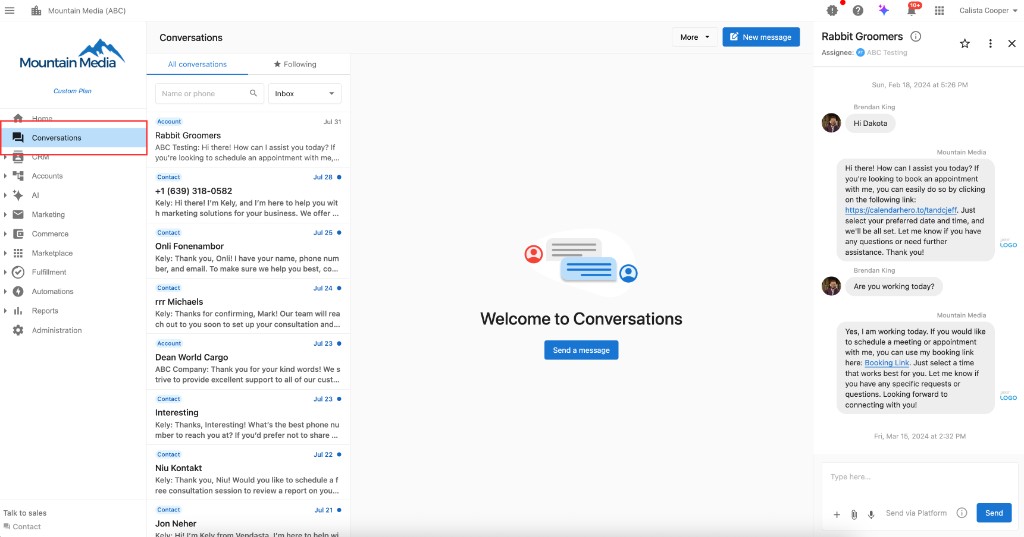
Your clients will see the message in their Business App interface:
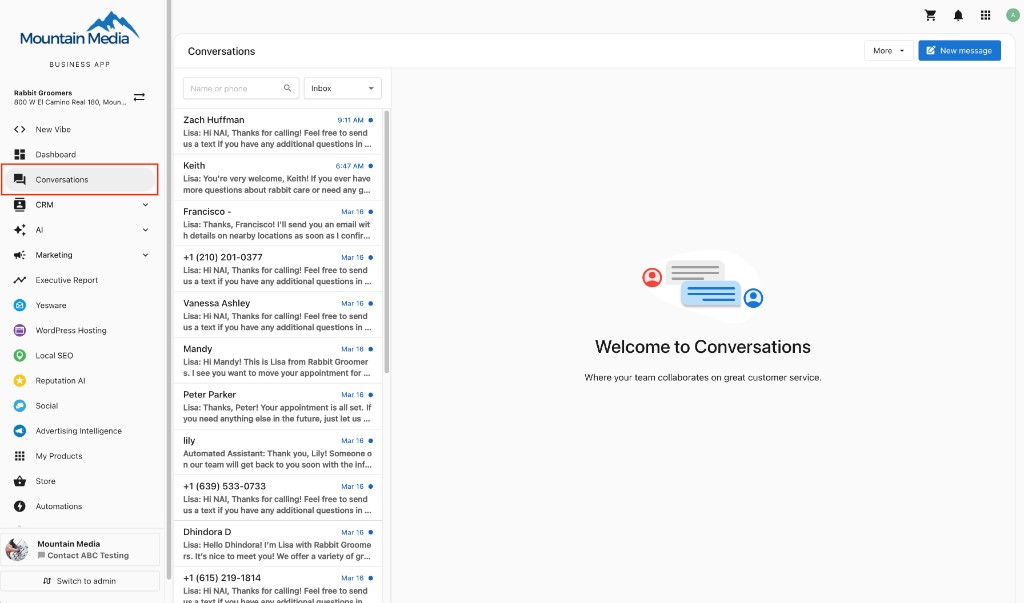
How do clients send me messages?
Clients can reach you through the Contact Us button in Business App. Enable notifications in Partner Center to stay on top of all incoming messages.
How do I contact a marketplace vendor?
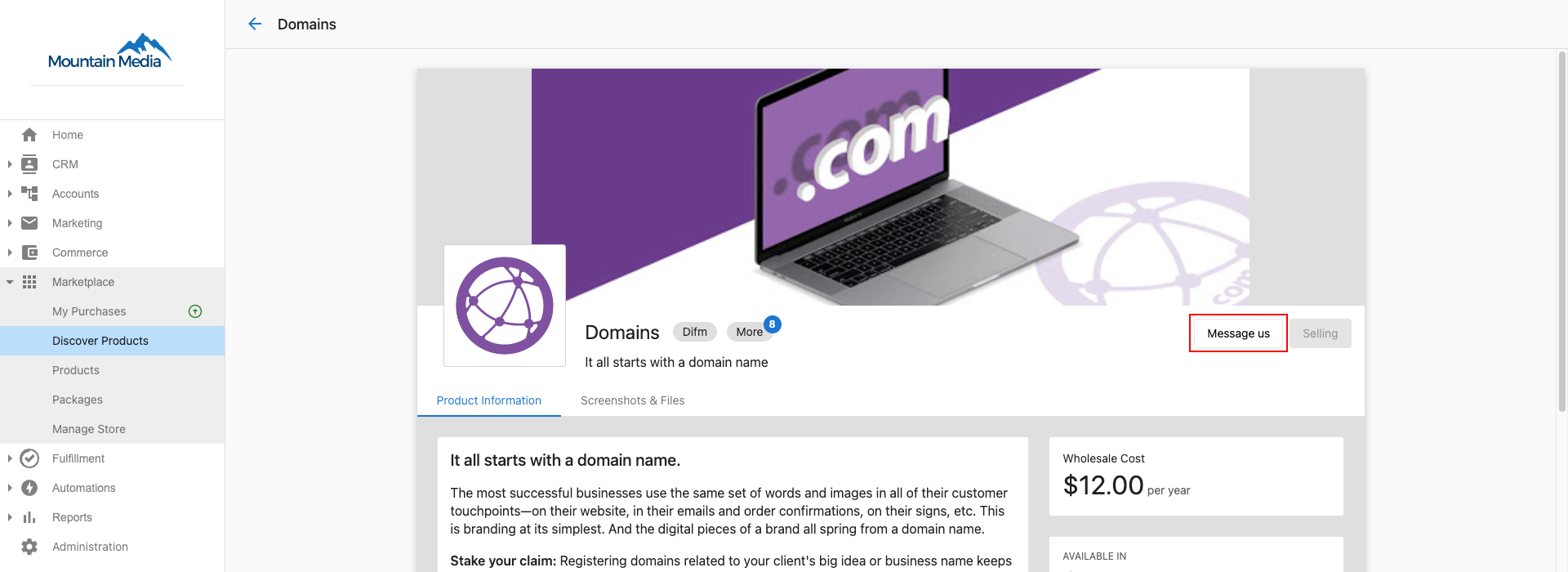
Connect directly with marketplace vendors for product support and sales assistance:
- Navigate to any product in the marketplace.
- Click
Contact Uson the vendor'sProduct Detailspage (when chat support is enabled). - Start your conversation to get help from the vendor.
How do I contact Vendasta support?
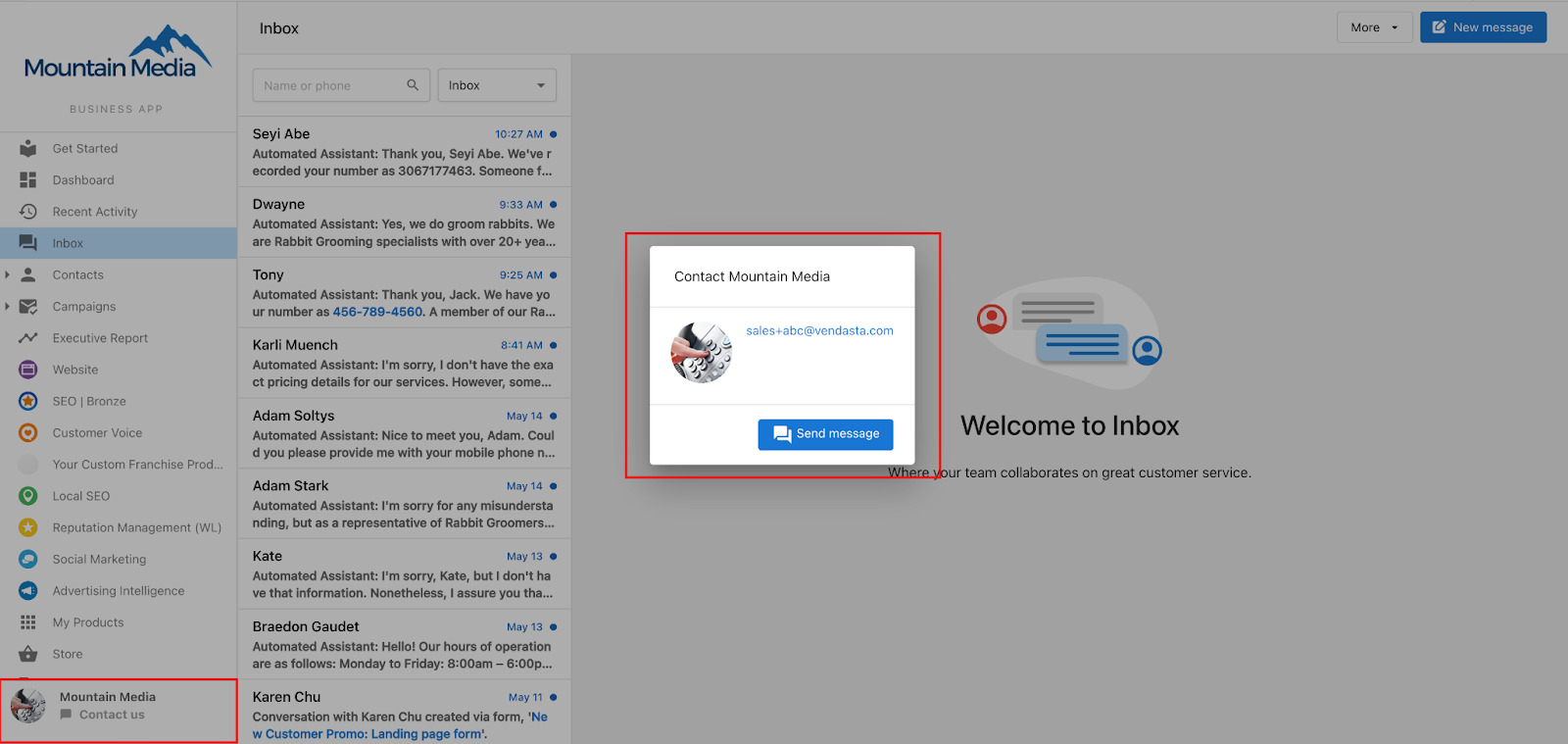
Reach Vendasta representatives directly through Conversations:
- Click the contact card in the bottom left of Partner Center navigation.
- Select
Send Messageto start a conversation with Vendasta support.
How do I set up Conversations notifications?
Stay on top of all communications by configuring notifications properly:
- Click the bell icon (
 ) in the top right corner of Partner Center.
 - Click the gear icon (
 ) at the top of the dropdown.
 - Enable
All eventsto receive notifications for all conversations. - Enable
Only my eventsto get alerts only for conversations you're following. - Configure your preferred notification method (email, browser alerts, etc.).

How do I automate conversations?
Use automations to respond and send messages for you:
- Auto-respond when messages are received
- Send triggered messages when specific events occur
- Set up follow-up sequences for consistent client communication
- Integrate with CRM for automated lead management
Learn more about setting up automation workflows here.
Key features available
- Unlimited in-platform messaging with all ecosystem participants
- Side-panel view that stays accessible across all Partner Center pages
- File sharing for documents and media attachments
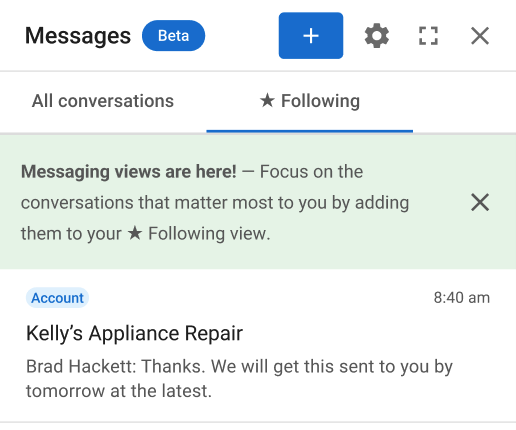
- Following view for managing priority conversations
- Team collaboration with shared channel access
How do I manage priority conversations with Following?
Use the ★ Following feature to focus on your most important conversations:
How do I follow a conversation?
- Look for the star button (★) in any conversation header.
- Click the star to start following that conversation.
- Access your
Followingview to see only conversations you're actively tracking. - Enable
Only My Eventsin notification settings to get alerts only for followed conversations.
When do I automatically follow a conversation?
You'll automatically follow conversations when:
- Sending a message in any conversation (can be unfollowed anytime)
- Assigned as Salesperson to an account (follows all past and future conversations)
Where do message notifications take me?
Message notifications direct you to the appropriate center based on your permission level:
- Partner Center Admin/Vendor Center users → Partner Center
- Digital Agent → Task Manager/Fulfillment
How do I customize client access through Business App?
Your clients communicate with you through Business App at no additional cost. To customize or disable this feature, configure these settings in Partner Center administration.
Frequently asked questions
How do I set up notifications for Conversations?
Click the bell icon in the top right corner of Partner Center, then click the gear icon at the top of the dropdown. Enable All events to get notifications for all conversations, or Only my events for conversations you follow, and choose your notification method.
Can I send a message to a client through Conversations?
Yes. Click the message icon next to the account in Partner Center, choose the recipient, and send your message. Your client receives it in Business App → Conversations along with an email notification.
What will I see in the Following view if I'm assigned as a salesperson?
When you're assigned as the salesperson on an account, you automatically follow all past and future conversations for that account. The Following view shows only the conversations you follow, and you also follow any conversation you send a message in.
How do my clients send me messages?
Your clients reach you through the Contact Us button in Business App. Enable notifications in Partner Center to stay on top of incoming messages.
Do my clients pay extra to message me through Business App?
No. Your clients communicate with you through Business App at no additional cost. You can customize or disable this in Partner Center administration settings.