How do I fix common Partner Center issues?
If something isn't working in Partner Center or Business App, check status.vendasta.com for outages, clear your cache and cookies, disable browser extensions, and try another browser. If the issue continues, email support@vendasta.com with the details listed below. Each section below explains a common issue and how to fix it, so you can resolve it before escalating to the Vendasta Support team.
Please note there is no guarantee these actions will resolve your issue so if after troubleshooting you still experience issues please submit a ticket to support@vendasta.com
Common issue: Login issues and platform slowness
Explanation
Login failures and platform slowness are usually caused by browser-related issues rather than a platform outage.
Issue
- Cannot log in or login page won't load
- Stuck on a loading spinner after entering credentials
- Platform is unusually slow or unresponsive
Fix
-
Check the Vendasta status page — Visit status.vendasta.com to rule out an active outage before troubleshooting your browser.
-
Clear your browser cache and cookies — Cached data can interfere with login. See the Cache and Cookies section below for steps.
-
Disable browser extensions — Ad blockers, Dark Mode tools, and password managers can block platform resources. Disable all extensions and try again.
-
Try incognito or private browsing mode — Extensions are typically disabled in incognito mode, which helps isolate whether an extension is the cause.
-
Try a different browser — If the issue only occurs in one browser, the problem is browser-specific. Chrome is recommended for the Vendasta platform.
-
If the issue persists — Contact support@vendasta.com with details about what you're seeing.
Common issue: "This site can't be reached" on a client or white-label URL
Explanation
A "This site can't be reached" or DNS error is not the same as a platform error. It means your browser never reached a server at all, so the status page and cache clearing usually will not help. The most common cause is the URL itself — a custom or white-label domain that is not resolving — rather than the product behind it.
Issue
- "This site can't be reached",
ERR_NAME_NOT_RESOLVED, orERR_CONNECTION_REFUSEDwhen opening a client login URL - A white-label domain (for example
login.youragency.com) stops loading whilevendasta.comURLs work normally - Client-facing products such as Social AI Pro or Local SEO cannot be opened from a custom domain, but open fine from Partner Center
Fix
-
Open the account from Partner Center instead — Go to Accounts → Accounts, open the account, and launch the product from there. If it opens this way, the product is working and the problem is the domain or URL, not the product.
-
Test the equivalent Vendasta URL — If the
vendasta.comaddress loads but your branded domain does not, the platform is up and the issue is isolated to your custom domain. -
Check the status page — Visit status.vendasta.com to rule out an active outage.
-
Review your custom domain configuration — See Partner Branding for white-label domain settings. A domain that previously worked can stop resolving if its DNS records or certificate have changed.
-
If the issue persists — Escalate with the details in Submitting a Support Ticket, and include the exact URL, the error code shown by the browser, and whether the
vendasta.comequivalent loads.
Step 1 is the fastest way to split "the product is broken" from "the address is broken". These need different teams, so establishing which one you have saves a round trip.
Common issue: Cache & Cookies
Explanation
Our platform is built to rely on your web browser's environment, a clean environment means the platform is happier and has fewer potential errors. By clearing your cache and cookies, you reset your browser settings and reduce the impact of cached data-related issues.
Issue
- 404/500 errors
- Spinning wheel
- Loading irrelevant information
- Duplicating information from a previous page
- Blank or partially loaded screens
- Images or videos not loading
- Login failed with no error
Fix
It is a good practice to capture a HAR file to identify potential issues before clearing Cache & Cookies. See the HAR file section below for detailed instructions.
- Clear cache and cookies
- Close out all open browsers
- Re-open intended page
- If the issue remains contact support@vendasta.com
Common issue: Mailing information not configured
Explanation
Every promotional email must include a physical mailing address to comply with anti-spam laws. The platform adds this address to the footer of each campaign email. If no address is available for the market an account belongs to, the account can't be added to the campaign.
Each market has its own Required Contact Information for Campaigns setting, and it overrides your Partner defaults. If a market is set to None (warning: disables campaigns), campaigns fail for every account in that market, even when your Partner defaults address is complete. The recipient's email address doesn't cause this error.
Issue
This error appears in:
- The history of a list that failed to be added to a campaign
- An automation's
Activitytab, on aStart a campaignstep: "Failed to complete due to an error. The required contact information for campaigns is missing."
Fix
- Navigate to
Administration→Customize - Select the
Marketstab - Click the pencil icon next to the market the affected account belongs to
- Expand
Email Settingsand scroll toRequired Contact Information for Campaigns - Under
Information Displayed, choose one of:Partner's Contact Informationuses the address saved on thePartner defaultstabMarket's Contact Informationuses an address specific to this market
- Click
Save - Re-add the list to the campaign, or test the automation with a new account
If you choose Partner's Contact Information, open the Partner defaults tab → Email Settings → Required Contact Information for Campaigns and confirm the address, city, country, state or province, and postal code are filled in.
Common issue: Network and Platform Connectivity (How to Generate a Network HAR File)
Explanation
There may be instances where you are not able to access areas of the platform while others are able to. In some cases, this can be linked to your network settings blocking specific domains through which we load some of our resources that you are accessing.
In order for our Technical Support Team to better troubleshoot these types of issues, we may require your Network (HAR) File to identify these errors or the root cause of the problem.
Issue
- Unable to access certain platform areas while others can
- Network connectivity problems
- Resources not loading properly
- Platform functionality blocked by network settings
- Technical support requesting HAR file for diagnosis
Fix
For Chrome and Most Browsers
- Go to the Login page on Business/Partner Center (or any area of the platform that you are having issues in)
- Right-click on the page and select "Inspect" from the selection panel that pops up
- In the console that pops up select the "Network" tab
- Select "Preserve Log"
- Complete the same action you were attempting to do
- You should see a bunch of information populate in the window that pops up
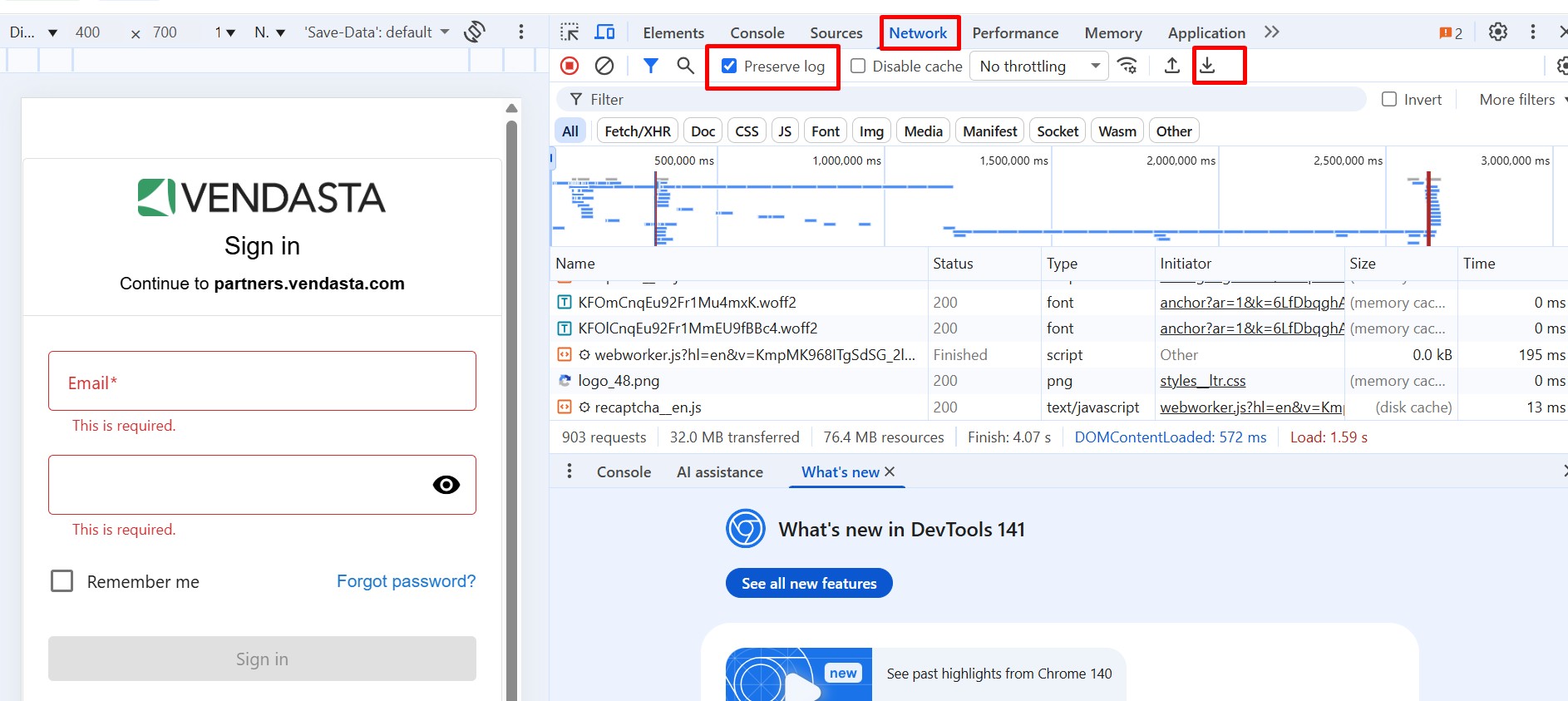 7. With the Network panel open, refresh the page and try the action again (if applicable).
8. Click the Download icon (↓) at the top of the Network panel.
9. Select "Export HAR (Sanitized)" to save your network log.
10. Choose a location on your computer to save the file.
11. Email the file to the Support On Demand team if requested, so we can diagnose the issue.
The HAR file may be over 35MB. If so, we recommend file sharing with Google Drive.
For Safari
To get your HAR file in Safari:
- Navigate to the menu bar at the top of the screen, and click on "Safari" then select
Preferences→Advanced - Make sure the option "Show Develop menu in the menu bar" (the last setting) is selected
- Then, you should be able to proceed with getting a HAR file like normal from the browser:
- Right click →
Inspect element→Network, check "Preserve log", refresh the page, right click on any lines that appear, and select "Save HAR"
- Right click →
Common issue: Product Activation Failed but I was Charged
Explanation
In the event that the product activation fails, our system will automatically initiate a refund for the failed products. For instant billing, the funds will appear in your bank account within 5 business days typically.
For invoiced billing, the refund will be in the form of removing the failed product activation from the monthly invoice.
Issue
A credit card was charged the wholesale cost of a failed product activation.
Fix
No fix is required.
- Check Billing Center under Refunds
- Once the refund has been issued, you can see it in Partner Center by going to
Administration→Financial Documents→Credit Memos
Common issue: Jim Salesman is Showing on the Email When I Send a Test
Explanation
The Jim Salesman salesperson contact card will appear when we don't select an account to impersonate on the test email. You can replicate real-life contact information by selecting an account from the menu at the top of the email preview in the text box that reads "Generic Account". Once an account is selected, you will see the new information in the preview email.
Issue
Jim Salesman is showing as the Salesperson contact card instead of your contact information.
Fix
- From the email preview select the Generic Account drop-down menu
- Select the business you wish to replicate in the test email
- You will now see the assigned salesperson's contact information on the test email
Common issue: Review Display Widget Not Showing Google Reviews
Explanation
The default widget available in Reputation AI Express ONLY supports My Listing reviews.
Issue
You are using the review display widget but Google, Facebook and other review sources are missing from the widget.
Fix
- Activate the Reputation AI add-on Review Display Widget Pro
- Direct client to replace the currently embedded code on their website with the new code in the Widget section of Reputation AI
Common question: When to Contact Marketing Support vs Support on-Demand
Explanation
Send a ticket to Support on-Demand if you are unsure where the best place to submit the ticket is, we will make sure it gets where it needs to be. However, there are some challenges when we get a ticket for Vendasta Services. Vendasta Services does not use the same system that Support on-Demand uses, this means that we can't just send the ticket to them to action. This can cause delays and loss of information in the transfer.
Issue
Unsure who to contact about a Vendasta Services related issue or question.
Fix
-
Is this an error with the platform/product?
-
Does this involve making changes to work Vendasta Services is currently doing or will be doing in the future?
-
Is there a reporting error or an error message blocking work, or does this feel like a bug?
-
Is this communication/feedback/questions for the Vendasta Services teams?
Best practice: Submitting a Support Ticket
Explanation
The more applicable information we have, the better our investigation will be, the fewer times we will have to reach out to you, and the quicker we can find an answer/escalate the problem. Understanding your specific processes and terminology helps our Support Agents provide more targeted assistance.
Issue
Unsure on what to include in a support request.
Fix
For best results, please include the following information in the body of the ticket or request:
- Your Partner ID
- Account Group ID (if applicable)
- User or team member affected (if applicable)
- Replication Steps
- Screenshots (or video) of error messages
These best practices are highly recommended when submitting a ticket to support.
Where to submit
You have three routes, and they reach different teams:
| Route | Use it for |
|---|---|
| support@vendasta.com | Platform or product errors, bugs, anything you are unsure about |
| marketingservices@yourdigitalagents.com — or 1-866-378-8031, Mon–Fri 8:00 AM–5:00 PM CST | Work Vendasta Services is doing or will do |
| Chat with support / Create a ticket in the Partner Center AI assistant | The same as above, but the assistant attaches your conversation transcript, Partner ID, and Account Group ID automatically |
If you are unsure, send it to support@vendasta.com — see When to Contact Marketing Support vs Support on-Demand for the full routing logic.
If you are already waiting on a ticket
Reply to the existing ticket thread rather than opening a second one. A duplicate ticket splits the history across two records, which slows the response down instead of speeding it up.
If you need to add information to a ticket you opened through the AI assistant, reopen that same conversation so the new detail is attached to the original transcript.
Frequently Asked Questions
What is a HAR file and why do you need it?
A HAR (HTTP Archive) file is a log of network activity that captures all the web requests made by your browser. It helps our Technical Support Team identify network-related issues, blocked resources, or connectivity problems that might be preventing you from accessing certain platform features.
Is it safe to share my HAR file?
HAR files can contain sensitive information including cookies, passwords, and personal data. Only share HAR files with Vendasta Technical Support when requested for troubleshooting. Never share HAR files publicly or with unauthorized parties.
My HAR file is too large to email. What should I do?
HAR files can be quite large (often over 35MB). If your file is too large for email, upload it to Google Drive, Dropbox, or another file-sharing service and share the link with our support team instead.
Can I generate a HAR file on mobile devices?
While possible on some mobile browsers, HAR file generation is most reliable on desktop browsers like Chrome, Firefox, Safari, and Edge. For the best troubleshooting experience, we recommend using a desktop browser when generating HAR files.
How long should I wait before saving the HAR file?
Wait until you've reproduced the issue you're experiencing before saving the HAR file. This ensures the file captures the problematic network activity. If the issue occurs immediately, you can save the file right after the problem appears.
How often should I clear my browser cache and cookies?
Clear your cache and cookies when experiencing platform issues like login problems, display errors, or unexpected behavior. As a general practice, clearing cache monthly helps maintain optimal browser performance, but only clear when troubleshooting specific issues.
Why do I see "Jim Salesman" in my test emails?
"Jim Salesman" appears when no specific account is selected for email preview. To see realistic contact information, select an actual account from the "Generic Account" dropdown in the email preview before sending your test.
Will I be refunded if product activation fails?
Yes, if product activation fails, our system automatically initiates a refund for the failed products. For instant billing, refunded funds typically appear in your bank account within 5 business days.
What's the difference between Support on-Demand and Vendasta Services?
Support on-Demand handles technical platform issues, while Vendasta Services manages marketing campaigns and creative work. If unsure, submit to Support on-Demand first - they'll route your ticket to the appropriate team if needed.
Why can't I access certain areas of the platform?
Platform access issues can be caused by browser cache problems, network restrictions, or account permissions. Try clearing your cache first, then generate a HAR file if issues persist. Your network may be blocking specific domains required for platform functionality.
What should I include in a support ticket?
Include your Partner ID, the Account Group ID if applicable, the affected user, steps to reproduce the issue, and screenshots or a video of any error messages. See Submitting a Support Ticket.
How do I check whether Vendasta is having an outage?
Visit status.vendasta.com before troubleshooting your browser. If there's no active incident, work through the login and cache fixes on this page.
Which browser works best with Partner Center?
Chrome is recommended. If an issue only happens in one browser, the problem is specific to that browser, so clearing its cache or disabling its extensions usually helps.