Permissions: What does each permission do?
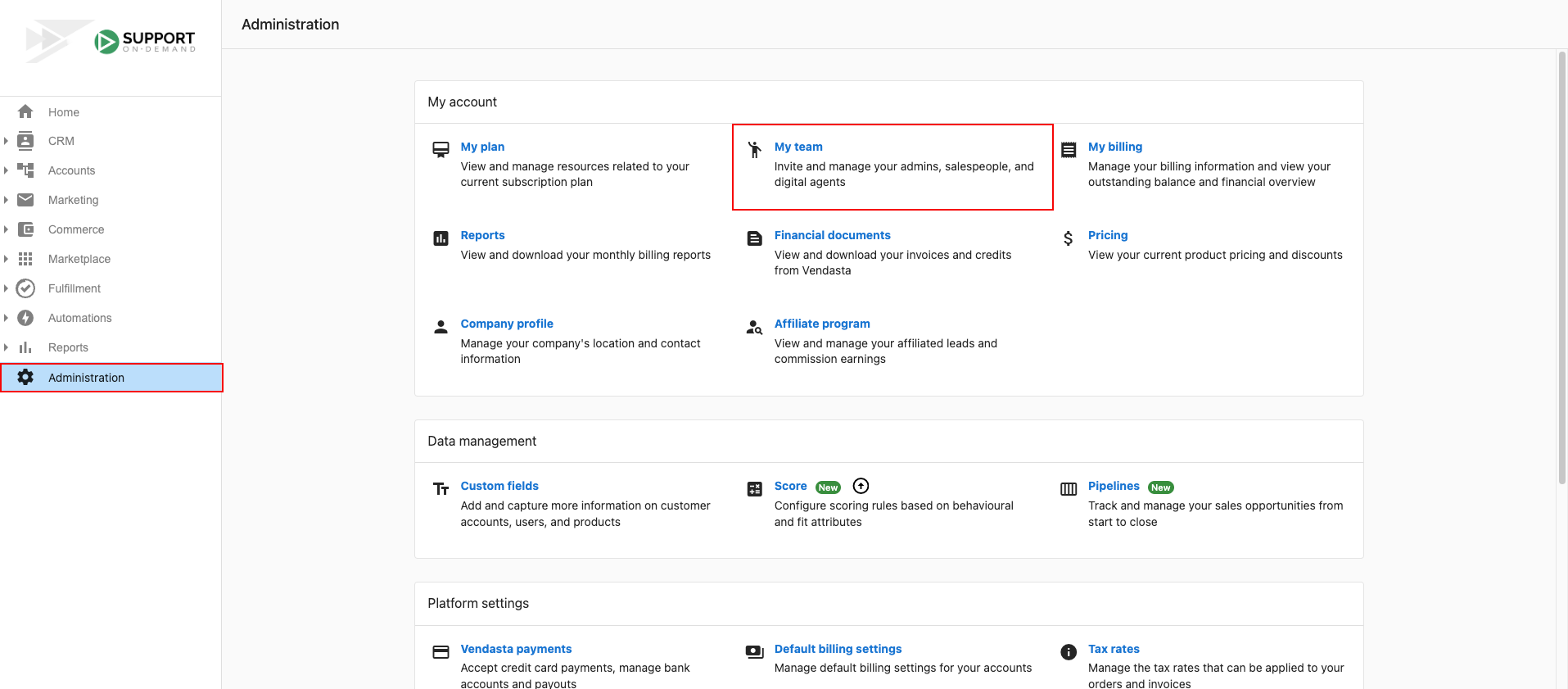
Partner Center permissions control what each admin and salesperson on your team can see and do. You set them in Administration → My team → ⋮ → Edit member: admin permissions cover areas like Automations, Marketplace, and billing, and salesperson permissions cover Proposals, Pricing, and Orders.
You may need to restrict a Partner Center admin's or salesperson's access to accounts or features—for example, to limit the list of actions, keep client information private, or simplify the experience.
How do I open the permissions screen?
- Go to
Partner Center→Administration→My teamand find the user. - Click
⋮→Edit member. To see the full list of permissions, the user must be an admin. If the admin box is checked, click Show more permissions to see all editable permissions.
Admin permissions
Admin permissions control what an admin can see and do in Partner Center—from Automations and Marketplace to accounts, billing, and team management.
Can view and edit Automations
- Off – The Automations tab is hidden in the left-hand navigation.
- On – The Automations tab is shown; the admin can view, manage, and edit all automations.
Access to Dashboard
When on, the admin has access to Home and Reports in Partner Center navigation. Further report access is controlled by other admin permissions.
Access to company billing reports
- On – Access to My billing, Financial documents, Reports, My Plan, and Billing pricing.
- Off – No access to those areas.
Able to customize the platform
- Off – No access to the Customize link under
Partner Center→Administration. - On – Full access to Customize and everything under it.
Can view and edit company profile
- Off – No access to the Company Profile link under
Partner Center→Administration. - On – Full access to Company Profile and everything under it.
Can access Marketplace
- Off – Marketplace tab is hidden; wholesale pricing is removed from orders.
- On – Marketplace tab is shown; admin can access Discover Products, Products, Packages, Manage Store, and Open Vendor Center. Wholesale pricing is visible on orders.
Can manage accounts and users
- Off – Users and Accounts under the Businesses tab are hidden.
- On – Users and Accounts are shown.
Can manage Marketing
- Off – Marketing tab is hidden.
- On – Marketing tab is shown.
Can manage Sales
Legacy permission; will be retired.
Can manage Task Manager/Fulfillment
- Off – Tasks tab is hidden.
- On – Tasks tab is shown; admin can access Task Manager/Fulfillment.
Can manage groups
Allows the admin to create and see multi-location groups.
Can create and manage admins
- Off – No access to the My team link under
Partner Center→Administration. - On – Full access to My team and everything under it.
Can manage orders
- Off – Admin can view orders and has the same order abilities as a salesperson (create and submit orders) but cannot approve or activate orders, unless system configuration allows it via accept-payment workflows.
- On – Admin can approve, decline, and activate orders and fully manage them, including charging orders in markets they can access (including all markets when their user access is configured for all-market coverage).
Can manage retail billing
When using Vendasta Payments, this permission allows the admin to:
- Create an invoice from
Commerce→Invoices - Set retail pricing under
Marketplace→Products→Product info - Access Subscriptions, Invoices, Payments, Payouts, credit notes, default billing settings, and tax rates
Premium Reports
A dropdown that controls a team member's access to Premium Reports:
- No access to reports – Cannot open Premium Reports.
- View all unrestricted reports – Can open any report shared with the whole team. Cannot change who has access.
- Manage permissions for all unrestricted reports – Can open any report shared with the whole team, and can change its per-report sharing settings.
Reports can also be restricted to specific people on a per-report basis. See Premium Reports access controls for the full guide.
Salesperson permissions
Salesperson permissions control access to Proposals, Conversations, Leaderboard, Pricing, Opportunities, and Orders—so you can limit what a team member sees or simplify their experience.
Can access Proposals
- Off – Proposals tab is hidden.
- On – Proposals tab is shown; the salesperson can view, manage, and edit all proposals.
Can access Conversations
- Off – Conversations is hidden across the platform (navigation, contact and company profile page).
- On – Conversations is available; the salesperson can view and interact with all conversations.
Can access Leaderboard
- Off – Leaderboard tab is hidden.
- On – Leaderboard tab is shown; the salesperson can view the Leaderboard.
Can access Pricing
- Off – Pricing tab is hidden.
- On – Pricing tab is shown; the salesperson can view retail pricing and product details.
Can manage Opportunities
- All opportunities – Salesperson can see all opportunities.
- Opportunities assigned to the user – Salesperson only sees opportunities assigned to them.
Can manage Orders
- All orders – Salesperson can see all orders.
- Orders assigned to the user – Salesperson only sees orders assigned to them.
Troubleshooting: why can't an admin see a certain area?
If an admin reports they cannot see a feature or section that another admin can access, the most likely cause is different permission settings — not a bug.
How to check and update an admin's permissions
- Go to
Partner Center→Administration→My team - Find the affected admin
- Click
⋮→Edit member - If the Admin checkbox is checked, click Show more permissions to see the full list
- Compare their settings to an admin who does have access and adjust as needed
- Click Save
Only admins with the Can create and manage admins permission can view or modify another user's permissions.
When permissions are not the cause
Permissions only govern the areas listed on this page. A full admin can still be unable to open a product or feature, and in that case nothing on the permissions screen will fix it. Rule these out before escalating:
| Cause | How to tell | What to do |
|---|---|---|
| The product is not activated on that account | The product does not appear in the account's active items, or shows as expired or demo-expired | Order or activate the product for the account |
| The feature is not included in your plan | You are on a lower tier and the feature is sold with a higher one | Check Administration → My Plan |
| The product is not available in your region | The feature is absent entirely rather than greyed out, and other partners in other countries have it | Contact Support to confirm regional availability and timelines: this is not something you can enable |
| The area is governed by a different setting | The area is a Business App tab, or is market-specific | Check Customize Business App and market settings |
| You are looking in the wrong place | Common with API and service account settings, which are not under My Team | See APIs and environment |
"I am an admin, so I should see everything" is the usual assumption behind these reports. Admin permissions control access to areas of Partner Center, not entitlement to products. A partner with every permission enabled will still not see a product their account has not been given.
If none of the above applies, escalate with the user's email address, the exact area they cannot reach, whether any other user on the account can reach it, and a screenshot of what they see instead.
Frequently asked questions
Can I hide wholesale prices from some users?
Yes. Turn off Can access Marketplace for that admin. The Marketplace tab is hidden and wholesale pricing is removed from orders.
Can I restrict access to specific sections of Partner Center?
Yes. Go to Partner Center → Administration → My team, click ⋮ → Edit member for the user, and turn individual permissions on or off. Each permission shows or hides a specific area, such as Automations, Marketplace, Marketing, or billing reports.
Can I limit which automations an admin can edit?
The Can view and edit Automations permission is either on or off. When it's on, the admin can view, manage, and edit all automations; when it's off, the Automations tab is hidden.
Why can't an admin see an area that another admin can?
The most likely cause is different permission settings, not a bug. Compare the affected admin's permissions in Edit member with those of an admin who does have access, adjust them, and click Save.
Who can change another user's permissions?
Only admins with the Can create and manage admins permission can view or modify another user's permissions.
How do I limit a salesperson to only their own opportunities and orders?
Set Can manage Opportunities to Opportunities assigned to the user and Can manage Orders to Orders assigned to the user. The salesperson then sees only the opportunities and orders assigned to them.