My team
The My team page in Partner Center, at Administration → My team, lists your Admins, Salespeople, and Digital Agents with their roles and last login date. From there you can invite, edit, and delete team members, resend welcome emails, and view login activity.
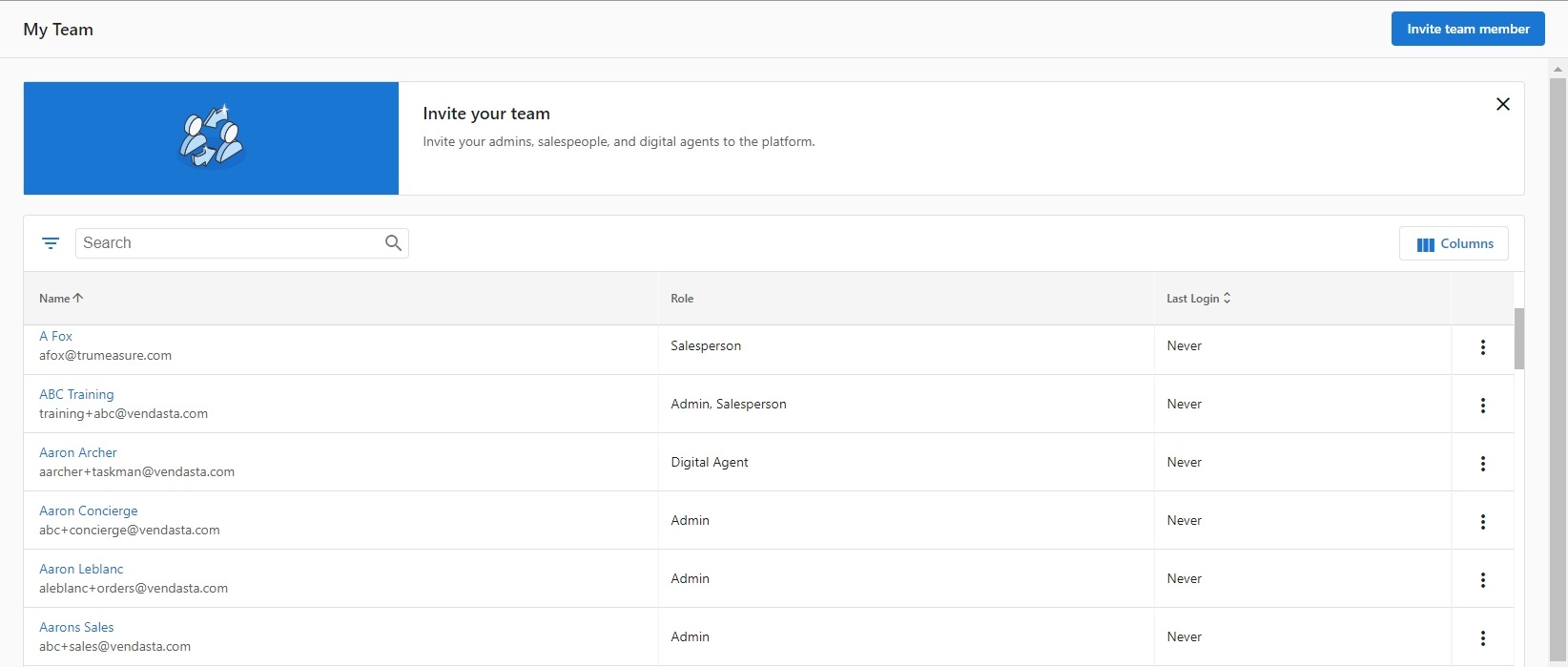
You can access the page from Partner Center → Administration → My team. Digital Agents are Task Manager/Fulfillment users.
Creating team members
You can create different types of team members depending on their role: Partner Center Admins, Salespeople, or Digital Agents. Each role has different access levels and permissions.
How do I create a Partner Center Admin?
Partner Center Admins access the platform via partners.vendasta.com. It's a best practice to give the majority of your internal team some level of admin access.
You can restrict Admins from certain actions in Partner Center, such as creating additional Admins, accessing billing reports, customizing the platform, customizing the marketplace, and managing salespeople.
To create a Partner Center Admin:
-
Go to
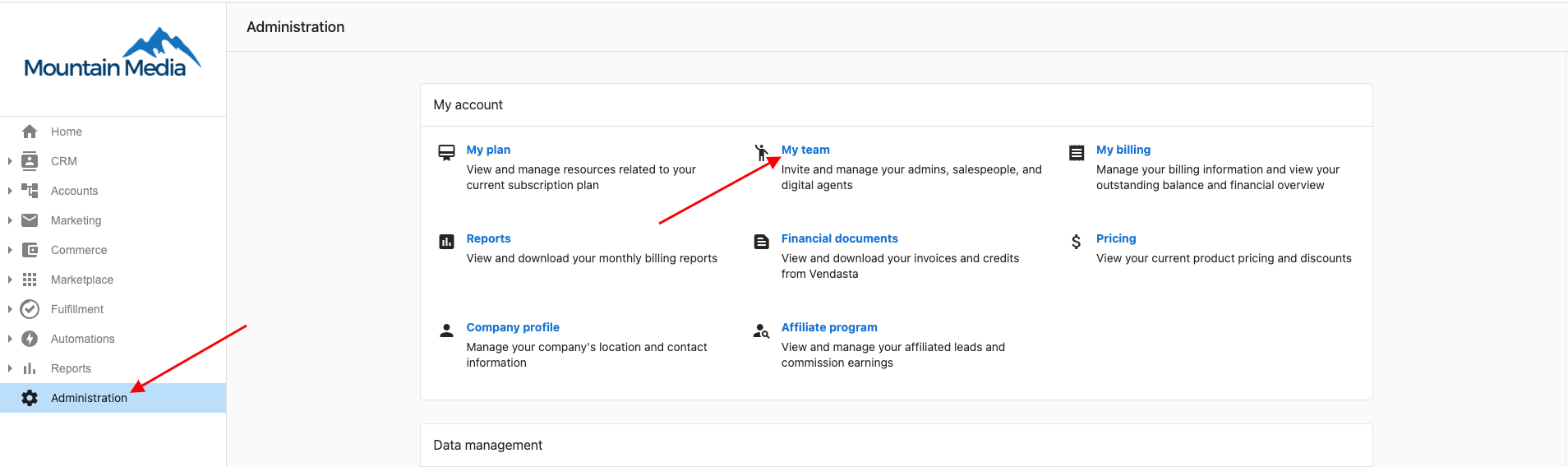
Partner Center→Administration→My team. -
Click
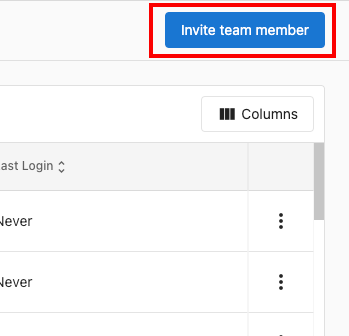
Invite Team Memberin the upper right corner of the screen.noteIf you do not see the
Invite Team Memberbutton, you do not possess permission to create new Admins. Please contact a separate Admin at your organization with these permissions, or have them contact our support team.
-
Complete the Create Admin User form:
- Enter the Admin's first name, last name, and email.
- Select the permissions you want to grant the Admin.
- Select which Markets the Admin should have access to.
-
Once you've confirmed that the information entered is correct, click
Send.
Permissions let you get really granular with who has access to what in Partner Center. Learn more about permissions
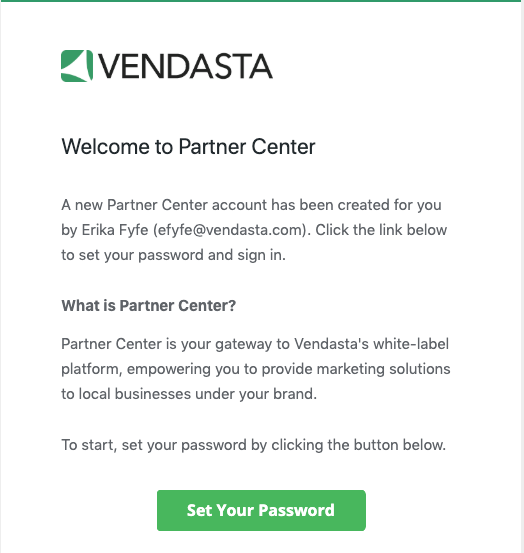
Once a new Partner Center Admin is created, they will receive a Welcome Email at the email address you entered while creating the team member. The Welcome Email contains a link that allows the Admin to set their password and sign in to Partner Center.
How do I create a Salesperson?
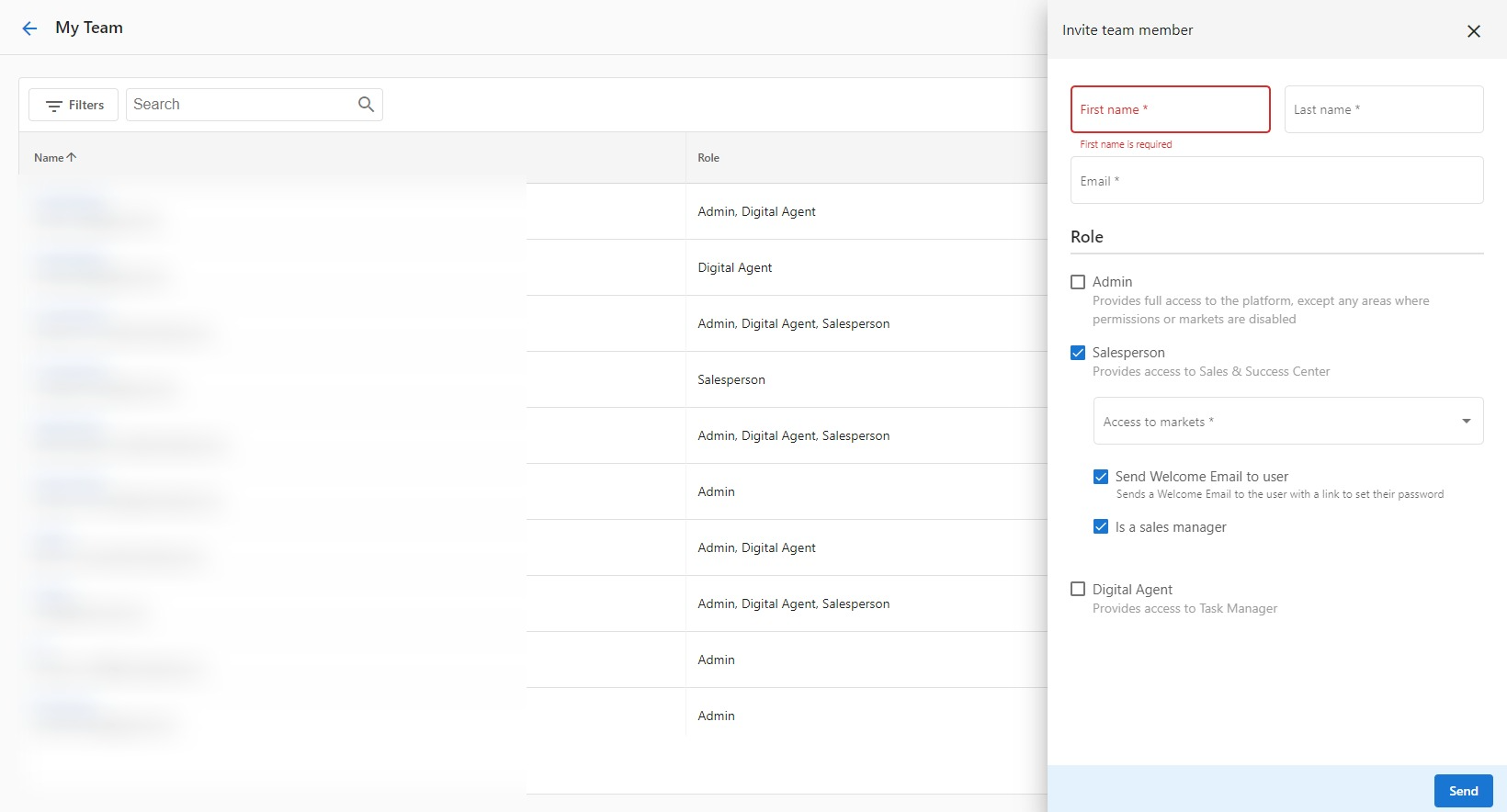
To create a Salesperson:
- In Partner Center go to
Administration→My team, then selectInvite Team Memberin the top right-hand corner of the screen. - Fill in the First Name, Last Name, and email address.
- Select the
Salespersonoption under Role. - Then, select the
Marketyou want the Salesperson to access. - Ensure that
Send Welcome Email to the userhas been checked. - Click
Send.
Walkthrough video
Viewing and editing team members
You can view detailed information about team members and make changes to their profiles, roles, and permissions.
How do I view a team member's profile?
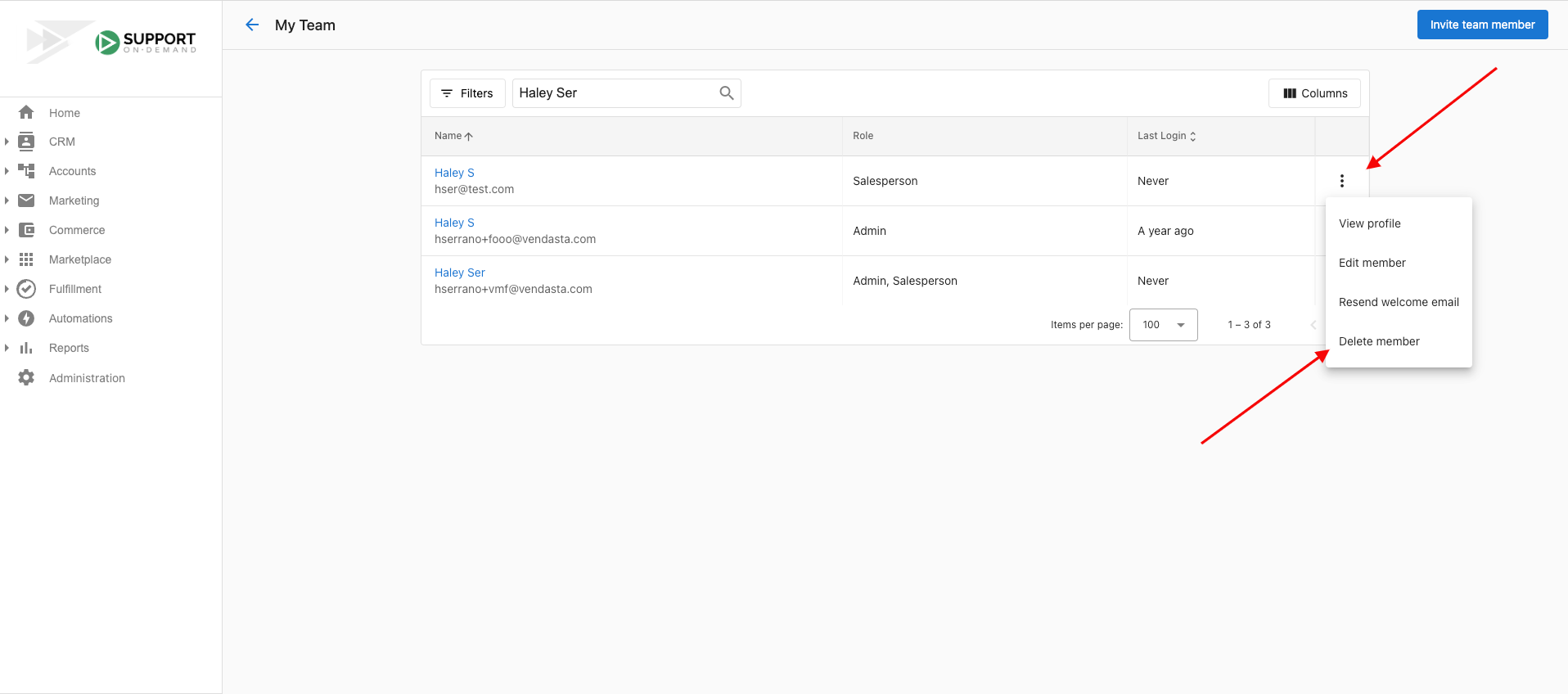
- Click on a team member's name, OR click on the menu icon at the end of the row, then click
View profile.
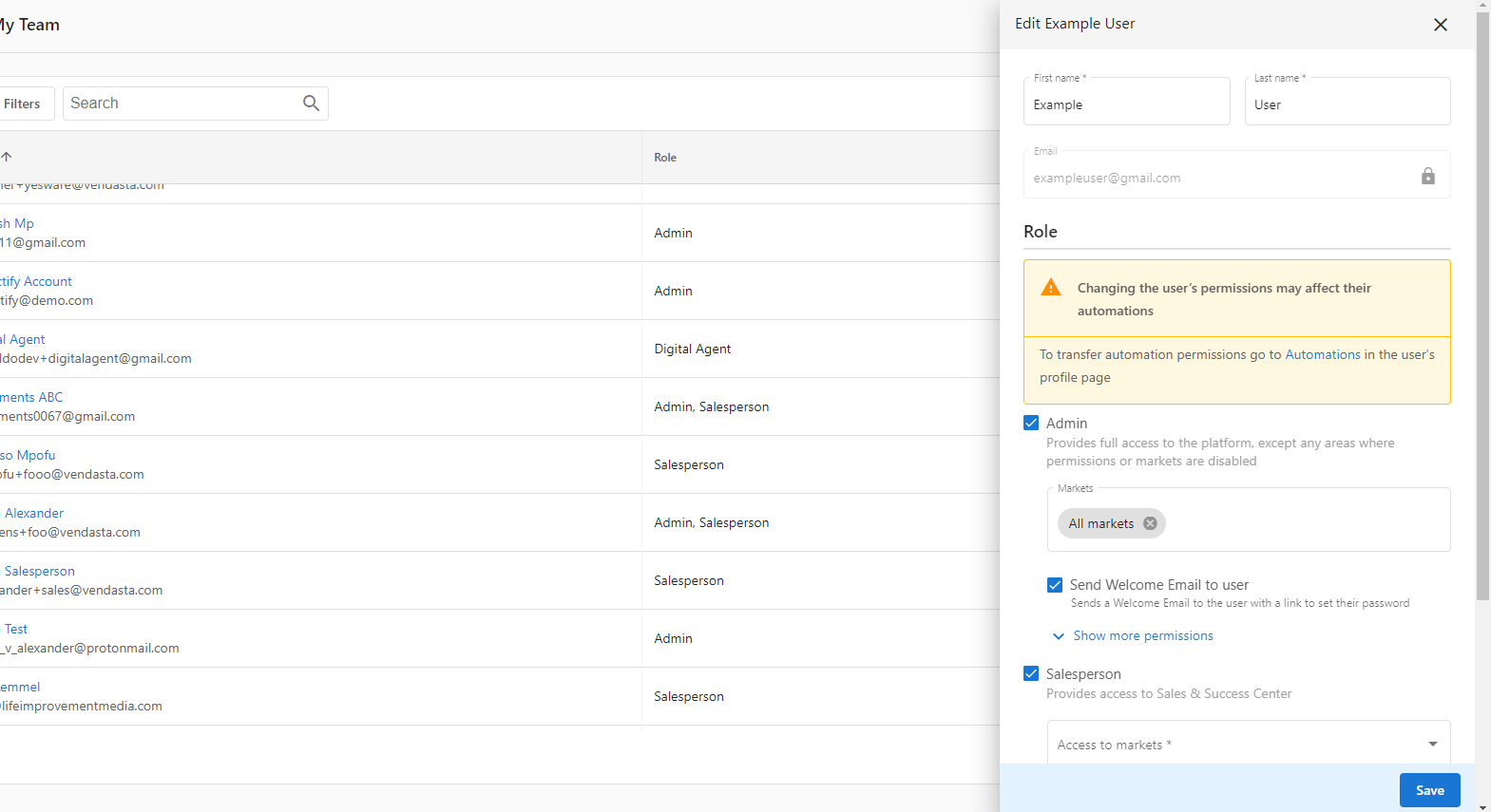
How do I edit a team member?
- Click on the menu icon at the end of the row, then click
Edit member. - In the side panel, edit the team member's name or role. You can't change a team member's email address. To use a different email, create a new team member with that email and delete the old one.
If you deselect a role, the team member will lose the permissions associated with that role.
Deleting team members
You can remove team members from your organization when they no longer need access. Before deleting, consider whether you need to remove the entire member or just a specific role.
Once an Admin is deleted, it cannot be restored. Before deleting a team member, determine if the member needs to be deleted or if just the Admin role needs to be removed. If a member is not required to be an Admin anymore, then the Admin role can be removed by unchecking the Admin role and NOT deleting the member itself.
How do I delete a team member?
- Go to
Partner Center→Administration→My team - Click the icon next to the Admin you want to delete, then select
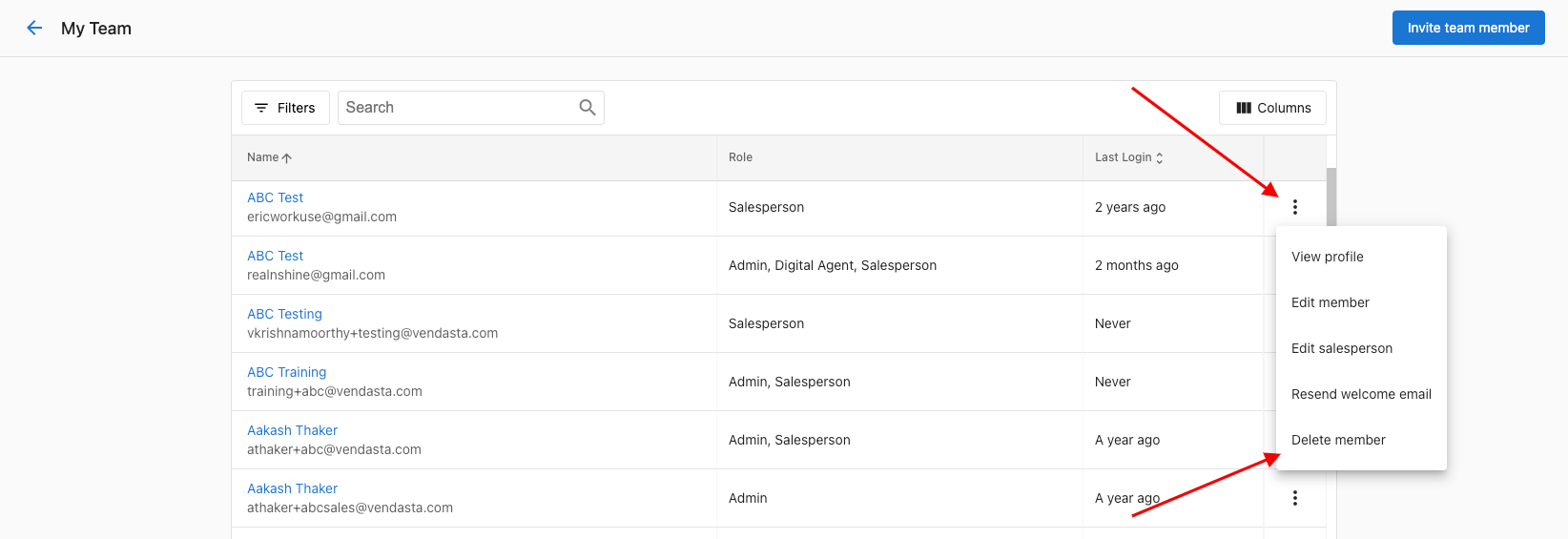
Delete member.
It's not possible to delete the user you are currently logged in as.
Managing team member accounts
You can manage team member accounts by resetting passwords and resending welcome emails to help team members access the platform.
How do I reset a password?
There are two ways to reset passwords:
- Reset your own password
- Reset passwords for team members
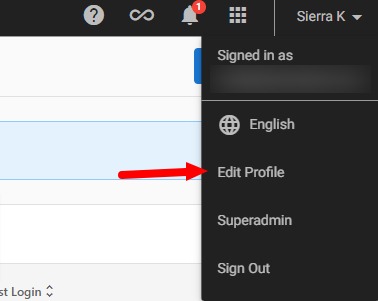
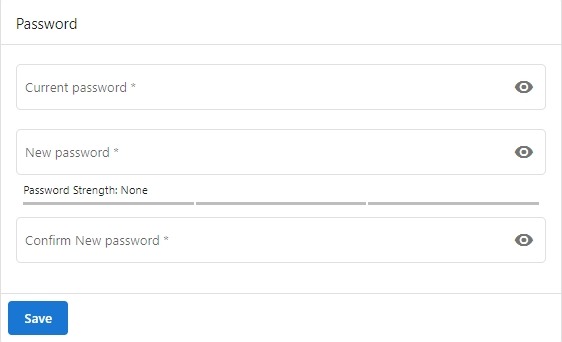
You can reset your own admin password by clicking your name in the top right corner of Partner Center and clicking Edit Profile, scroll down to Password section, enter your current and new password. Hit Save.
To help team members reset their passwords, you can resend their welcome email which contains a link to set their password:
- Go to
Partner Center→Administration→My team - Click the menu icon (⋮) next to the team member's name
- Select
Resend welcome email
The team member will receive an email with instructions to set or reset their password.
How do I view team member login activity?
Partner Center logs activity for each team member, which is useful for troubleshooting access issues or investigating suspicious login behavior.
To view activity for a specific user:
- Go to
Partner Center→Administration→My team - Click the team member's name, or click
⋮→View profile - Navigate to the
User activitytab
The activity log shows:
- Successful logins
- Failed login attempts
- Password resets
Seat limits
Seats are people at your company who will be able to use Vendasta. This can include salespeople, marketers, fulfillment professionals, and administrators. Be sure to check how many Team Member seats your subscription tier has available, as you may be charged for additional seats if they go over their limit of free seats. This is usually displayed in a banner at the top of the 'My team' page.

Frequently asked questions
How can I add additional Partner Center Admins?
Partner Center admins can be created through Partner Center under Partner Center → Administration → My team.
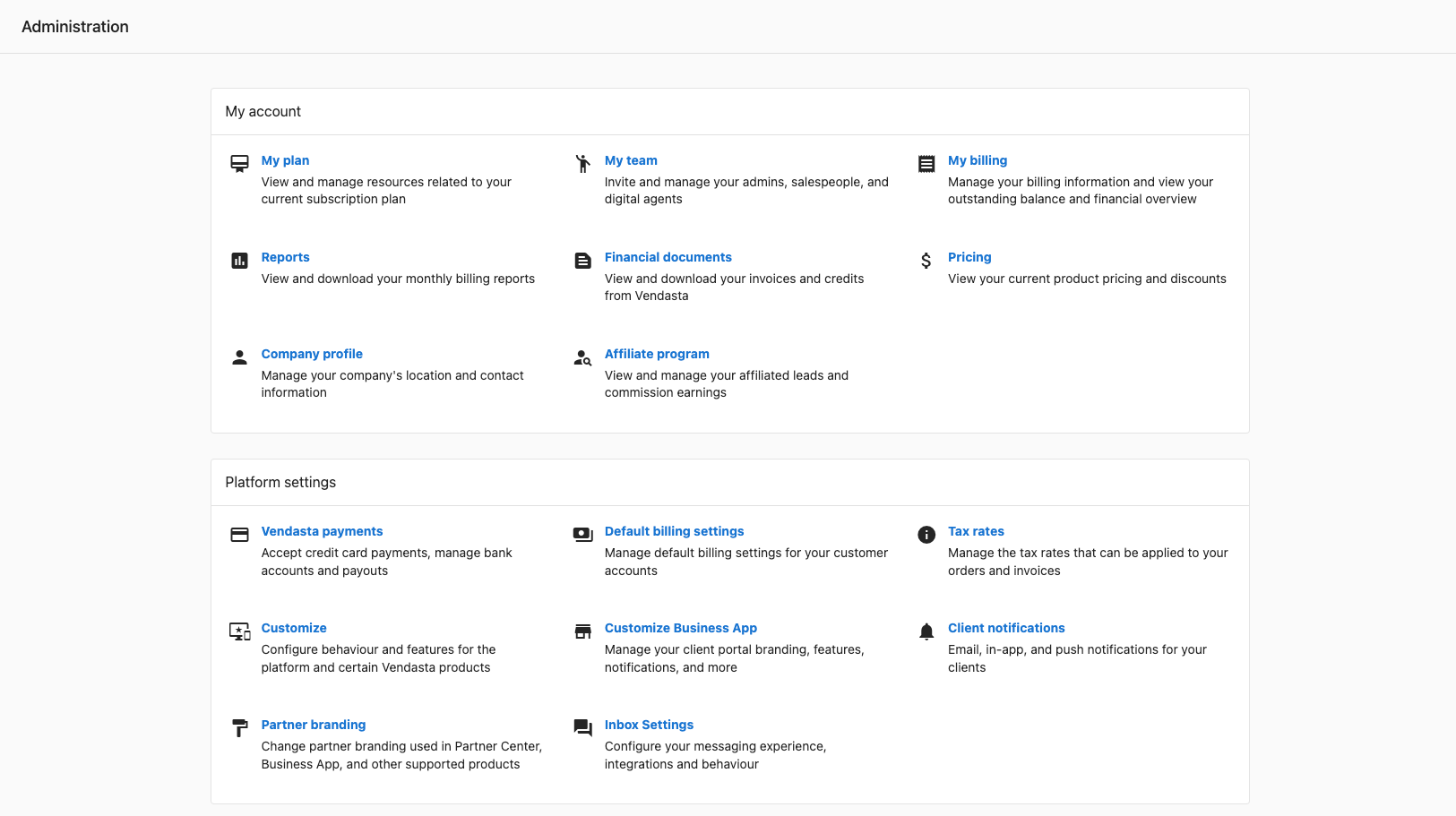
Once in this area, you can use the Invite Team Member button and fill out the form to create a new Partner Center Admin.
Can I change a Partner Center admin's email address?
No. You can't change a team member's email address in Partner Center. The best option is to create a new admin profile using the new desired email address and then delete the old admin profile if it's no longer needed.
Navigate to the Administration tab → My team to create/delete an admin profile.
To delete a team member, click the three dots next to the team member's name, and select Delete Member.
To add a new team member, select Invite Team Member from the top right-hand corner of the screen. Please note, this will use a team seat which may incur a charge if you're currently at your seat count limit.

How many seats do I get on a Free Trial?
Partners on a Free Trial will have a limited number of seats to prevent fraudulent activity:
- Admin - 5 seats
- Salesperson - 5 seats
- Digital Agents - 5 seats
This is to ensure that only legitimate users are accessing the platform and that there is no abuse of the free trial.
What do I do when my team members cannot log in?
If your team members are having issues logging in, there are several steps you can take to help resolve the problem.
Check if they've received their login details
When you create a new user in the platform, they should automatically receive an email with their login details. Ask them to check their email (including spam/junk folders) for a message from Vendasta containing their login credentials.
Ensure they're using the correct login URL
Make sure your team members are using the correct login URL. The login URL is typically in the format: https://partners.vendasta.com.
Reset their password
If your team member has forgotten their password, you can help them reset it:
- Go to your company's login page
- Click on "Forgot Password"
- They'll need to enter the email address associated with their account
- They'll receive an email with instructions to reset their password
Contact support
If the above steps don't resolve the issue, please contact Vendasta Support for further assistance. Be ready to provide the following information:
- The user's email address
- When the user was created
- What error messages (if any) they're receiving when trying to log in
- Screenshots of any error messages
- Whether this is a new issue or if they were able to log in previously
Where can I find team member user activity?
- Go to
Partner Center→Administration→My team - Click
View Profilefor the user you want to review - Navigate to the
User activitytab
You'll be able to see events such as:
- Successful logins
- Failed login attempts
- Password resets
What happens if I remove a role from a team member?
If you deselect a role, the team member loses the permissions associated with that role. To remove access without deleting the person, edit the team member and uncheck the role instead of deleting the member.
Why don't I see the Invite Team Member button?
If you don't see the Invite Team Member button, you don't have permission to create new Admins. Contact another Admin at your organization who has this permission, or have them contact support.
Can I restrict what an Admin can do in Partner Center?
Yes. When you create or edit an Admin, you can select which permissions to grant and which Markets they can access. You can restrict Admins from actions such as creating additional Admins, accessing billing reports, customizing the platform, customizing the marketplace, and managing salespeople.
Will I be charged for adding team members?
Your subscription tier includes a number of free Team Member seats, and you may be charged for additional seats over that limit. The seat count is usually displayed in a banner at the top of the My team page.