Markets and Advanced Configuration
Markets in Partner Center let you segment your accounts by region, brand, industry, or custom criteria, each with its own branding, sales order settings, and Snapshot Report limits. This article also covers the Early Access Program, Business Priorities, and Marketplace vendor contact settings.
What are Markets and advanced configuration settings?
Markets and advanced configuration settings help you organize your business structure, customize market-specific branding and settings, access new features early, and configure specialized business workflows. These settings include market segmentation, branding customization, feature preview programs, and business priority management.
Why are Markets and advanced configuration important?
- Business Organization: Segment your business by region, brand, industry, or custom criteria
- Market-Specific Branding: Customize logos, colors, and experiences for different markets
- Feature Management: Control access to new features and capabilities through Early Access programs
- Business Alignment: Configure settings to match your business priorities and workflows
- Scalability: Set up systems that grow with your business and maintain centralized oversight
What's included with Markets and advanced configuration?
Market organization and structure
- Account assignment: All new accounts must be assigned to a specific market
- Market segmentation: Organize by brand, region, industry, or custom criteria
- Centralized management: Maintain oversight across all markets from one platform
- Scalable structure: Add new markets as your business grows
Market-specific branding
- Custom logos: Upload different logos for each market
- Color schemes: Set unique color palettes per market
- Product naming: Customize product names for different markets
- Login portals: Branded experiences for market-specific users
Market-level configuration
- Individual settings: Configure features and restrictions per market
- Permission inheritance: Markets inherit default settings but can be customized
- Sales order settings: Market-specific sales processes and configurations
- Reporting limits: Set different limits and restrictions per market
Markets are only available on certain subscription tiers. Contact your account representative or support to activate Markets for your platform or add additional markets.
How is market structure organized?
Market organization principles
Account assignment process
When Markets are activated on your platform:
- Required assignment: Each new account must be assigned to a market during creation
- Dropdown selection: A market dropdown appears in the Account Create form
- Default market: One market represents your company as a whole
- Additional markets: Used for segmentation by region, brand, or other criteria
User access and permissions
Different user types interact with markets differently:
Business App Users:
- Assigned permissions to specific accounts rather than entire markets
- See branding from the first account in their list on login
- Branding updates when they select accounts from different markets
- View market-specific branding when accessing products on assigned accounts
Salespeople:
- See market-specific branding after logging into their account
- Snapshot Reports display their assigned market's branding
- New accounts automatically created under their assigned market
- Must be assigned to a market (required for salespeople created before Markets activation)
URL and portal management
- Consistent URLs: Portal URLs remain consistent with your original setup
- Custom domains: Per-market custom domains are not available
- Login branding: Pre-login portals display your white-label branding
- Market switching: Branding updates dynamically based on selected accounts
How do I configure market-specific branding?
Access market branding settings
To customize branding for individual markets:
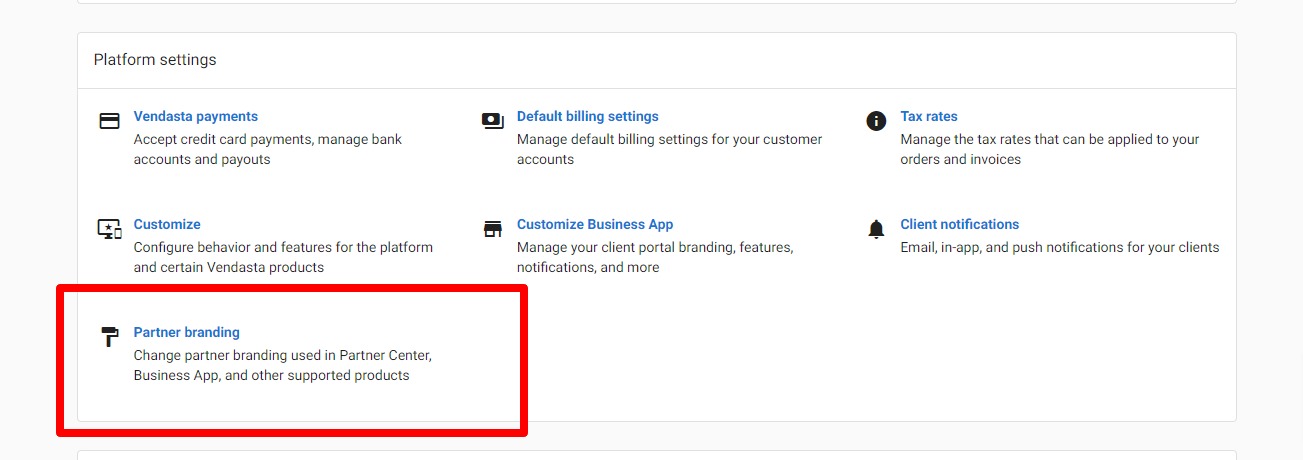
- Navigate to
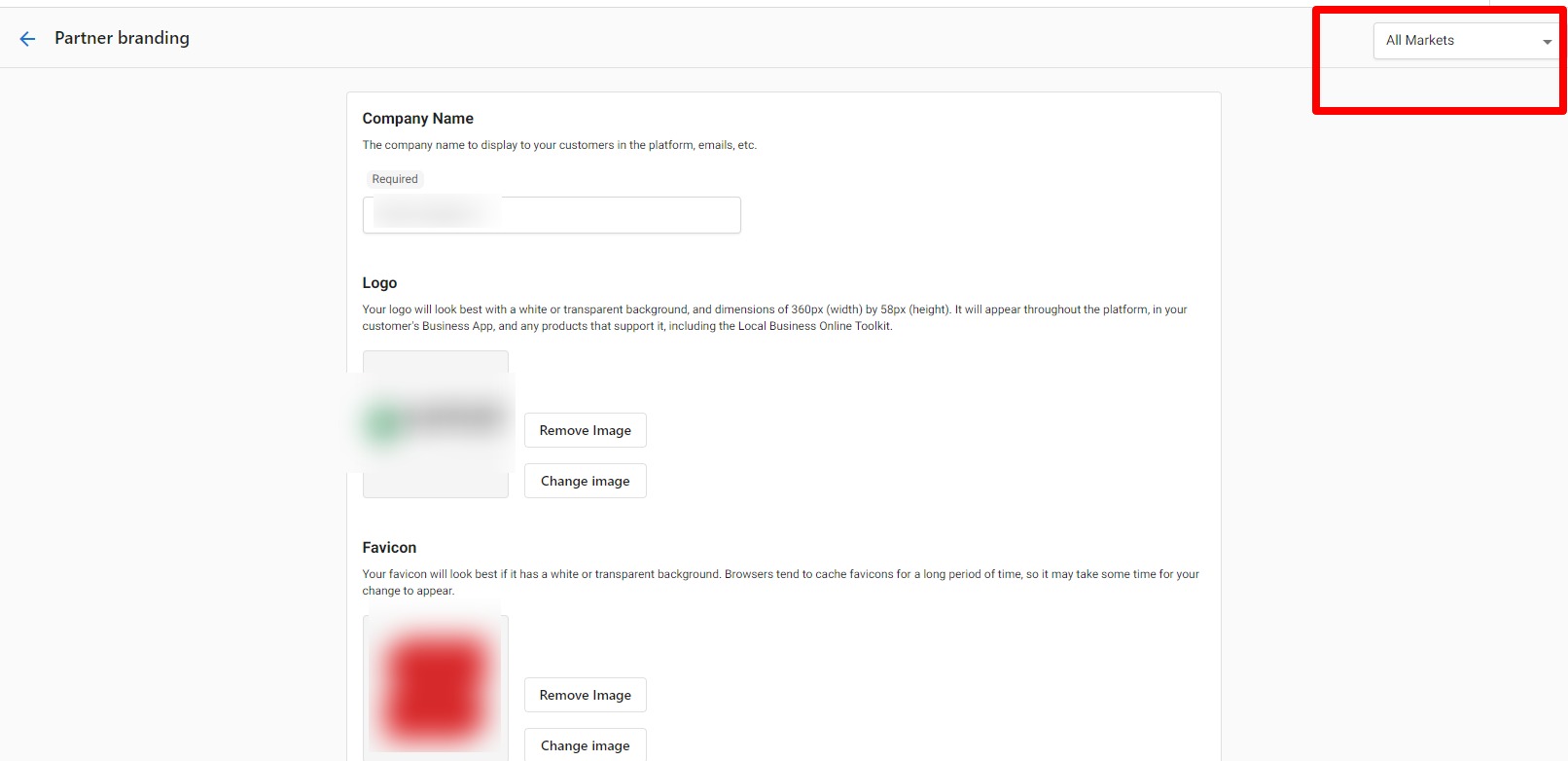
Administration→Partner branding - Use the dropdown in the top-right corner to select:
All Markets: Apply branding to all marketsIndividual Market: Customize specific market branding
- Configure logos, colors, and visual elements
- Save changes for the selected market scope
Branding inheritance and customization
- Default branding: Branding created before Markets activation becomes the default for new markets
- Individual customization: Each market can have unique visual identity
- Inheritance model: New markets inherit default settings but can be modified
- Consistent elements: Maintain brand consistency across markets while allowing differentiation
How do I manage market settings and configuration?
Configure market-specific features
Each market can have its own configuration for various features:
Sales order settings configuration
Markets can have customized sales processes:
- Individual sales processes: Configure unique workflows per market
- Order restrictions: Set market-specific product and sales limitations
- Process customization: Tailor sales workflows to market requirements
- Permission variations: Different access levels and capabilities per market
Beta program and feature management
- Market-level beta access: Enable or disable beta features per market
- Independent settings: Beta program participation separate from partner-level settings
- Feature rollouts: Test new features in specific markets before wider deployment
- Controlled access: Manage feature availability based on market readiness
Restore market settings to defaults
If you need to reset market-specific configurations:
- Go to
Administration→Customize - Click
Markets - Click the edit icon next to the market you want to restore
- Navigate to
Sales→Configure Orders and Sales Processes - Scroll to the bottom and click
Restore Back to Partner Defaults

The Restore Back to Partner Defaults option only appears if you've previously configured market-specific sales order settings. This ensures you don't accidentally reset markets that are using default configurations.
How do I configure market-based reporting limits?
Set market-specific Snapshot Report limits
While there's no direct market-wide snapshot limit, you can control reporting per market by configuring salesperson limits within each market:
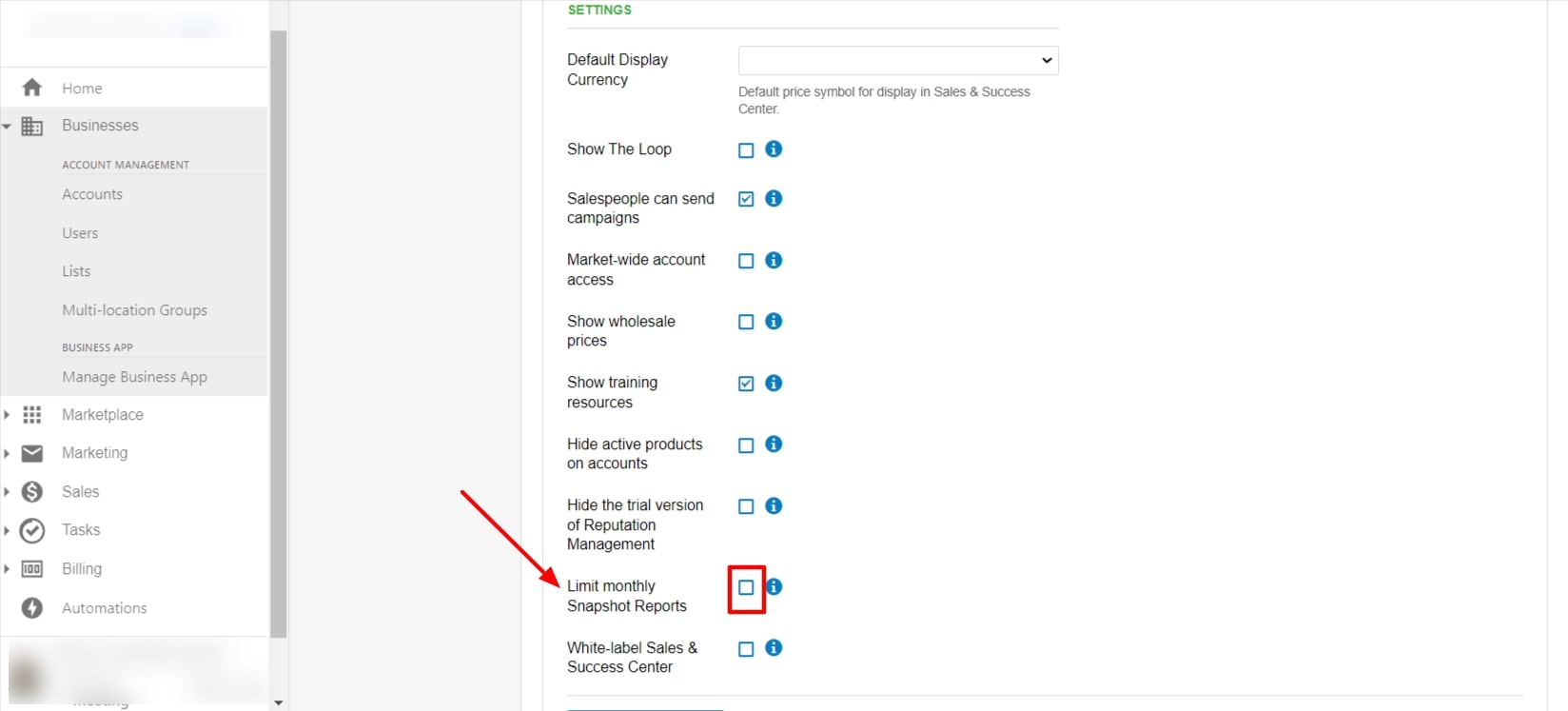
- Navigate to
Administration→Customize→Sales - Switch to the specific market you want to configure
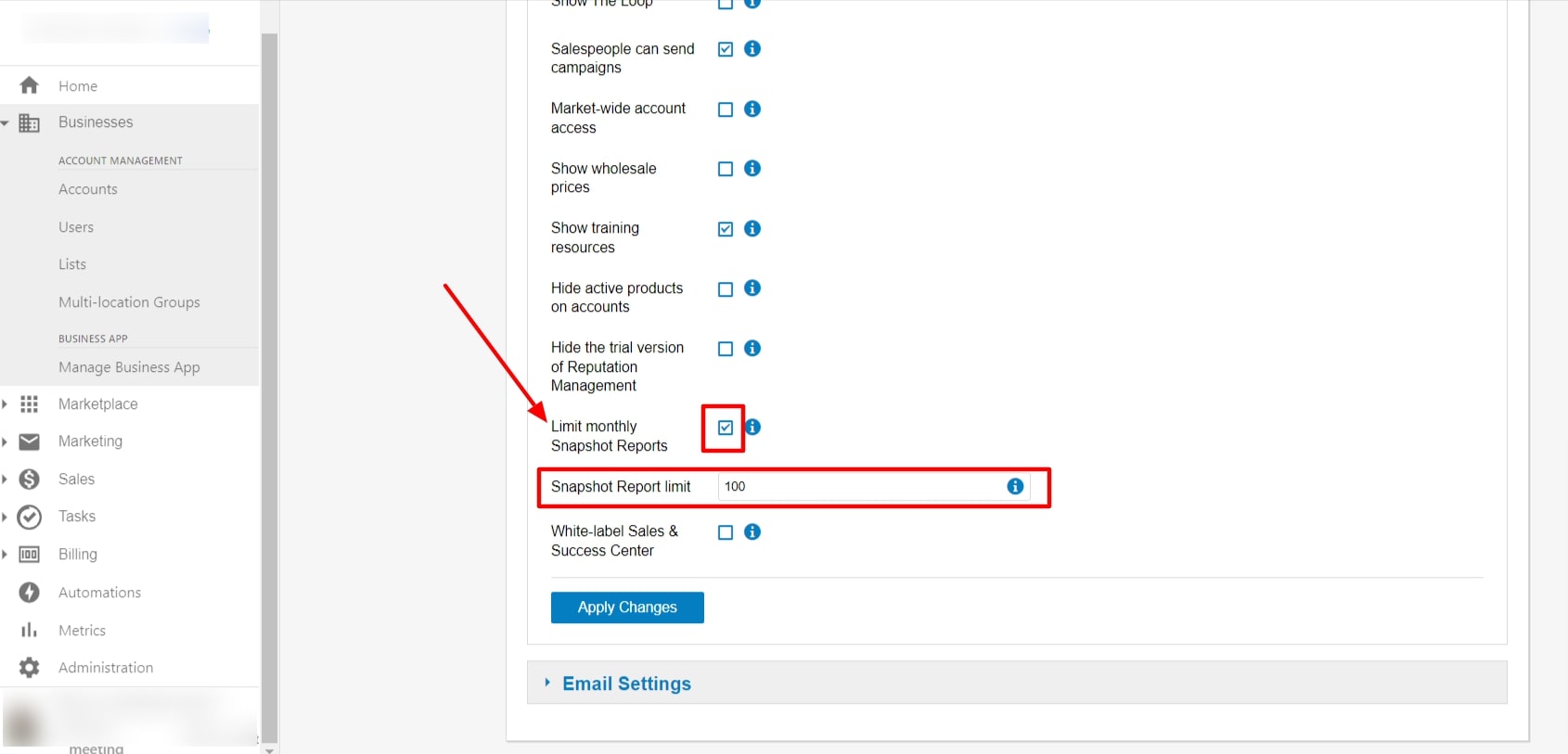
- Check the
Limit monthly Snapshot Reportscheckbox - Set the
Snapshot creation limitfor salespeople in that market - Save the configuration
Understanding market report limits
- Combined limits: If multiple salespeople work in a market, the limit is the total maximum all salespeople can create combined
- Market-specific: Each market can have different reporting limits
- Individual tracking: Each salesperson's usage is tracked separately within the market total
- Monthly reset: All limits reset monthly regardless of market configuration
How do I add and manage Markets?
Adding new Markets
To expand your market structure:
- Contact support: Reach out to your account representative or Support On Demand
- Define purpose: Clearly identify how the new market will be used
- Plan organization: Consider how accounts will be assigned and managed
- Branding preparation: Prepare market-specific branding elements if needed
Disabling a market
Disabling a market removes it from active use but does not delete it. Accounts and data associated with the market are preserved. To request a market be disabled, contact Vendasta Support with the market name and your account details.
Reactivating a market
A previously disabled or cancelled market can be reactivated. Before requesting reactivation, check with your Vendasta account manager, since reactivating a cancelled market may incur an additional cost depending on your contract. To reactivate a market, contact Vendasta Support with the market name and your account details.
Renaming a market
Market names can be changed at any time. Contact Vendasta Support with the current name, the new name, and your account details.
Market management best practices
- Clear naming: Use descriptive market names that reflect their purpose
- Consistent organization: Establish clear criteria for account assignment
- Regular review: Periodically assess market structure effectiveness
- User training: Ensure team members understand market assignments and implications
How do I join the Early Access Program?
What is the Early Access Program?
The Early Access Program provides access to features before they're released to all users. This allows you to test new capabilities and provide feedback to help shape future development.
Benefits:
- Immediate access to newest features
- Influence future development through feedback
- Competitive advantage with latest capabilities
Considerations:
- Features may change without notice
- Limited advance documentation
- Potential for unexpected behavior
Joining Early Access
For Your Entire Platform:
- Go to
Partner Center→Administration→Customize - Navigate to
General Product Settings→Others - Select
Join Early Access Program
For Individual Markets:
- Go to
Partner Center→Administration→Customize - Navigate to
Marketsand select your target market - Go to
General Product Settingssection - Locate
Early Access Program - Change selection to
Enable
Market-specific settings override partner defaults unless explicitly defined.
Leaving Early Access
If you leave the program, you'll no longer have access to Early Access features. Consider this carefully as some features may be removed from your platform.
How do I manage Business Priorities?
Customizing Business Priority options
You can customize the business priority options available to your clients, allowing them to focus on the most relevant goals for their industry or business model.
Configuration steps
- Navigate to
Partner Center→Administration→Customize - Go to
Product Settings→Business Priorities - Review available priority categories
- Enable/disable priorities based on your client base
- Customize priority descriptions if needed
- Save your configuration
Best practices for Business Priorities
- Industry Relevance: Enable priorities that align with your clients' industries
- Simplicity: Don't overwhelm clients with too many options
- Regular Review: Update priorities as your client base evolves
- Clear Descriptions: Ensure priority descriptions are easily understood
How do I control Marketplace vendor contact?
Preventing direct vendor contact
You can prevent Marketplace Vendors from directly contacting your partners, maintaining control over vendor relationships and communications.
Enabling contact protection
To prevent direct marketplace vendor contact:
- Navigate to
Partner Center→Administration→Customize - Go to
General Product Settings - Locate
Marketplace Vendor Contactsettings - Select
Prevent Direct Contact - Save your changes
Benefits of contact control
- Relationship Management: Maintain control over vendor partnerships
- Quality Assurance: Filter vendor communications for relevance
- Brand Protection: Ensure consistent messaging from your organization
- Client Protection: Shield clients from unsolicited vendor outreach
How do I restore market sales order settings?
Understanding default vs custom settings
Market sales order settings can be customized per market or inherit from partner-level defaults. Sometimes you may need to restore these settings to their original configuration.
Restoration process
- Navigate to
Partner Center→Administration→Customize - Go to
Marketsand select your target market - Locate
Sales Order Settingssection - Click
Restore to Partner Defaults - Confirm the restoration when prompted
Restoring market settings will override any custom configurations you've made for that specific market.
Frequently asked questions (FAQs)
How do I activate Markets for my platform?
Markets are only available on certain subscription tiers. Contact your account representative or Support On Demand to activate Markets or add additional markets to your platform.
Can I limit Snapshot Report creation per market?
There's no direct market-wide limit, but you can limit snapshot creation per salesperson within each market. The market limit becomes the total maximum all salespeople in that market can create combined.
How do I restore market settings to defaults?
Go to Administration → Customize → Markets, edit the market, navigate to Sales → Configure Orders and Sales Processes, then click "Restore Back to Partner Defaults" at the bottom of the page.
What happens to salespeople created before Markets were activated?
Salespeople created before Markets activation must be assigned to a market the next time you edit their details. This ensures proper market association and branding.
Can each market have different branding?
Yes, each market can have custom logos, colors, product names, and other branding elements. Use the market dropdown in Partner branding to configure individual market branding.
How do Business App users see different market branding?
Business App users are assigned to accounts, not markets. They see branding from their first account on login, and branding updates when they select accounts from different markets.
Can I use custom domains for different markets?
Custom domains per market are not available. All markets use URLs consistent with your original platform setup, but with market-specific branding applied.
What settings can be configured differently per market?
Markets can have different sales order settings, beta program participation, reporting limits, branding elements, and various feature configurations independent of partner-level settings.
How are new accounts assigned to markets?
When creating new accounts, you must select a market from a dropdown menu in the Account Create form. All accounts require market assignment for proper organization and branding.
What happens if multiple salespeople work in the same market?
When multiple salespeople work in a market with snapshot report limits, the limit represents the total maximum all salespeople in that market can create combined, not per individual.
Do I need Markets if I only serve one geographic area?
Markets aren't required for single-region businesses, but they can still be useful for segmenting by industry, service tier, or business type. Evaluate if the organizational benefits justify the additional complexity.
Can I test Early Access features before fully committing?
Early Access features are released directly to production. There's no separate testing environment. Consider starting with a single market in Early Access if you want to limit exposure while testing.
What happens to accounts if I remove a market?
Accounts assigned to removed markets need to be reassigned before the market can be deleted. Contact support for assistance with market consolidation or removal.
Can I customize business priorities for different markets?
Yes, business priorities can be configured differently for each market, allowing you to tailor options based on the specific industries or focus areas of each market segment.
How do I know which Early Access features are active?
Early Access features are typically announced in partner communications and release notes. Check your partner dashboard and communication preferences to stay informed about releases.
Can I prevent vendor contact for some markets but not others?
Marketplace vendor contact settings are typically platform-wide. If you need market-specific vendor contact controls, contact support to discuss available options.
Will restoring market settings affect existing orders?
Restoring settings affects future order processing but doesn't modify existing orders. However, any custom fields or processes specific to that market will revert to defaults.
How often are new features added to Early Access?
Feature release frequency varies based on development cycles. Early Access participants typically see new features monthly, though timing can vary based on feature complexity and testing requirements.