Import CSV
What is Import CSV?
The Import CSV feature in Multi-Location Social allows you to upload and manage multiple social media posts in bulk. You can schedule posts across various social networks and locations using a single CSV file. With AI-powered localization, you can now personalize these posts for each location.
Why is Import CSV important?
Previously, you could only schedule one social post at a time. This feature removes that limitation, making it faster to plan and publish content across multiple locations and networks. AI-powered localization enhances this further by tailoring each post to reflect local context, improving relevance without extra manual effort.
What's Included with Import CSV?
- CSV template for post formatting
- Bulk upload of text, images, and videos
- Multi-network selection (e.g., Facebook, Instagram, LinkedIn, Google Business Profile)
- Scheduling options for each post
- Optional draft mode for saving posts
- In-line editing and deletion after upload
- AI-powered localization for personalized posts by location
How to Import Posts Using CSV
- Go to
Multi Location Social → Overview
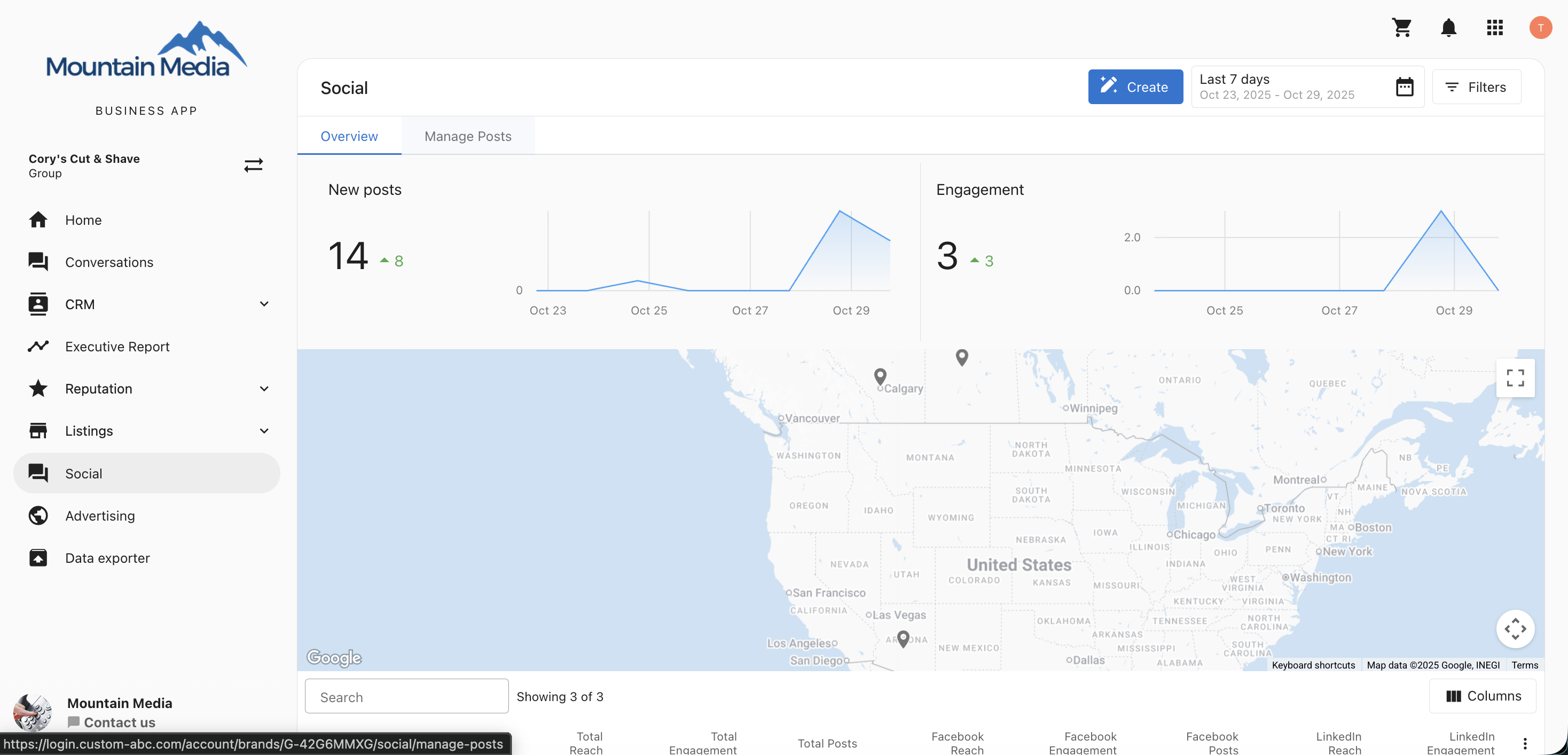
- Click
Create, then selectImport CSV
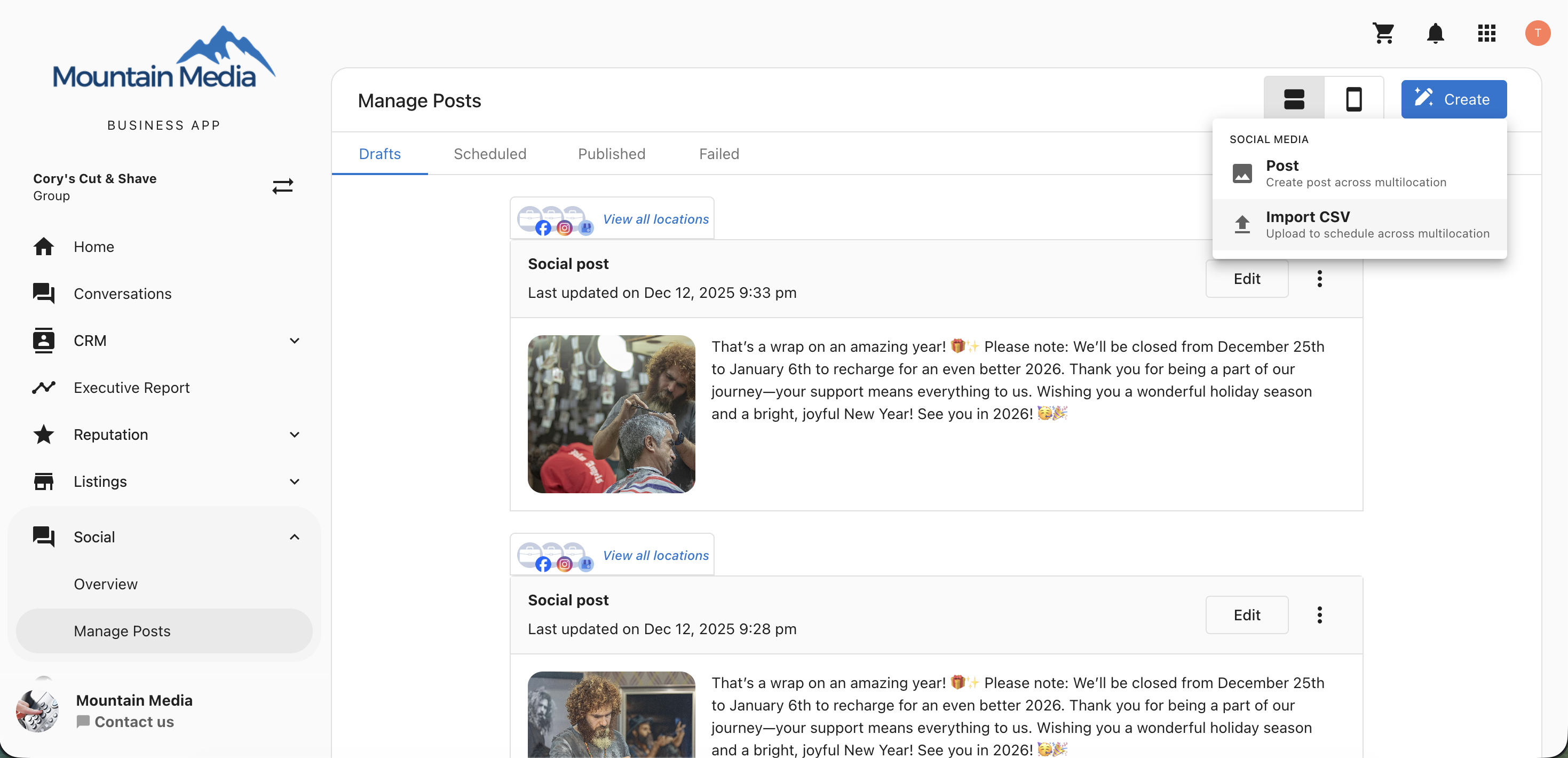
- In the composer, click
Download CSV template
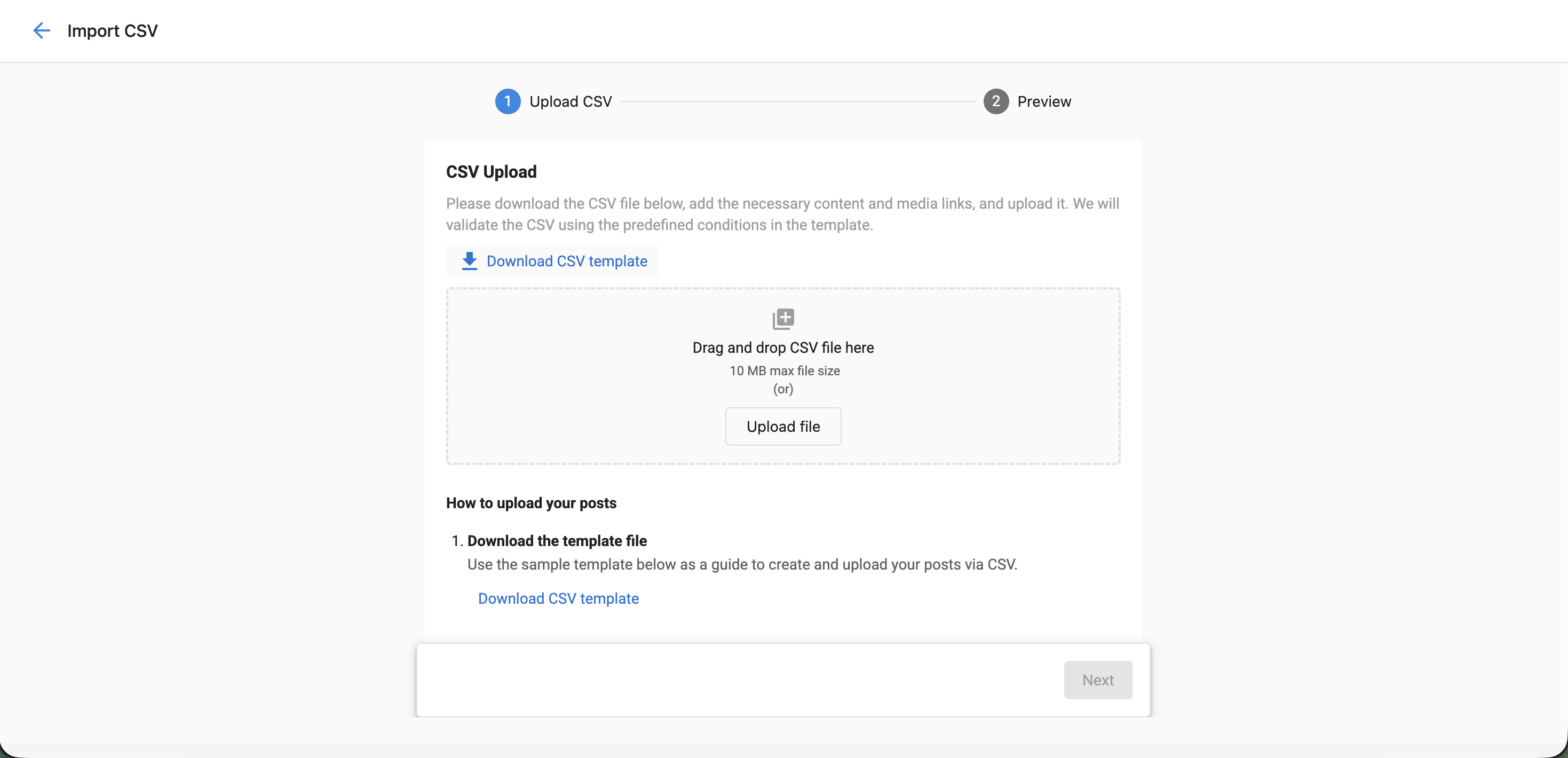
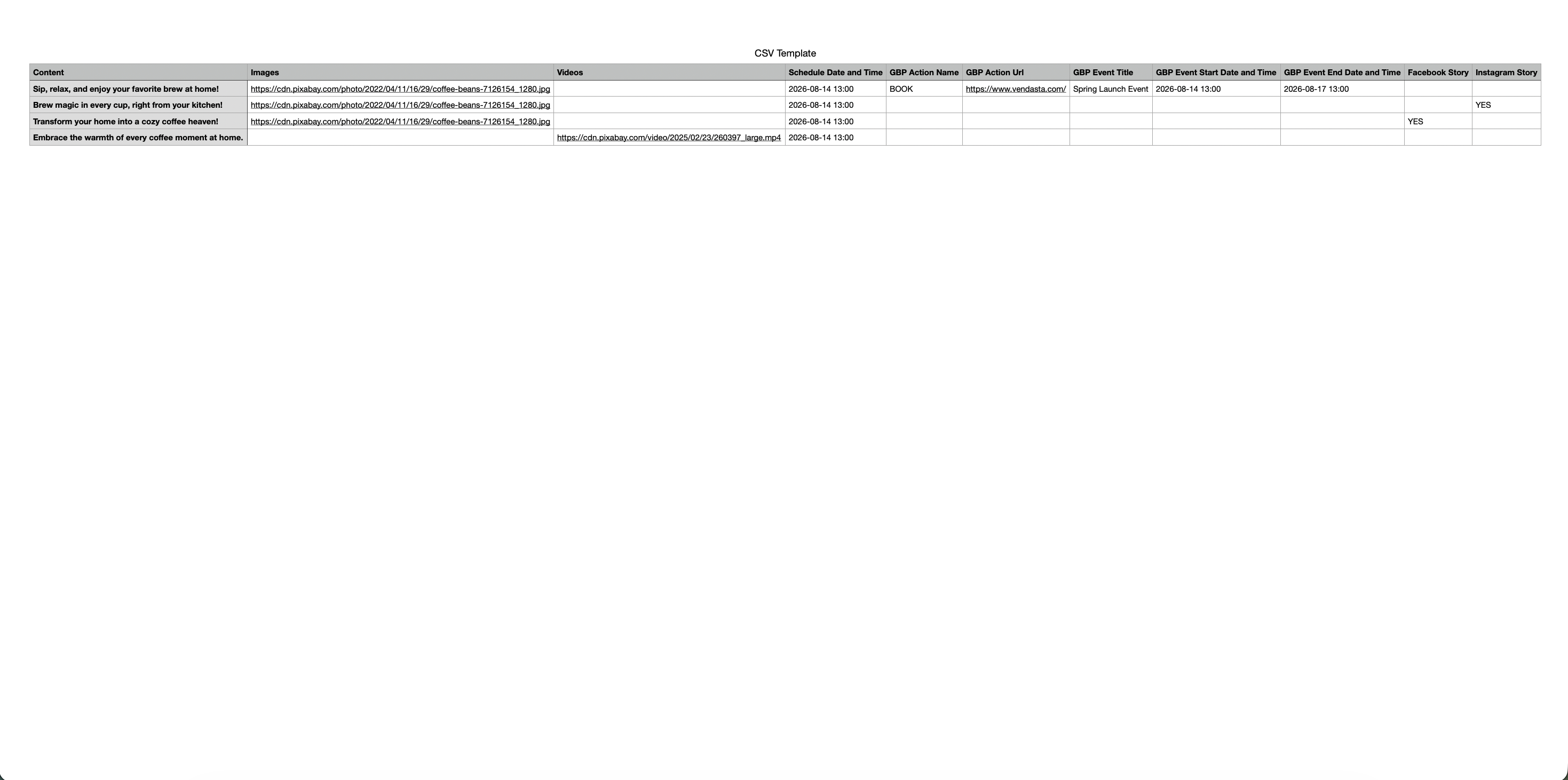
-
Open the template and add your content, including:
- Text
- Image URLs
- Video URLs
- Scheduled date and time
- Save and upload your updated CSV
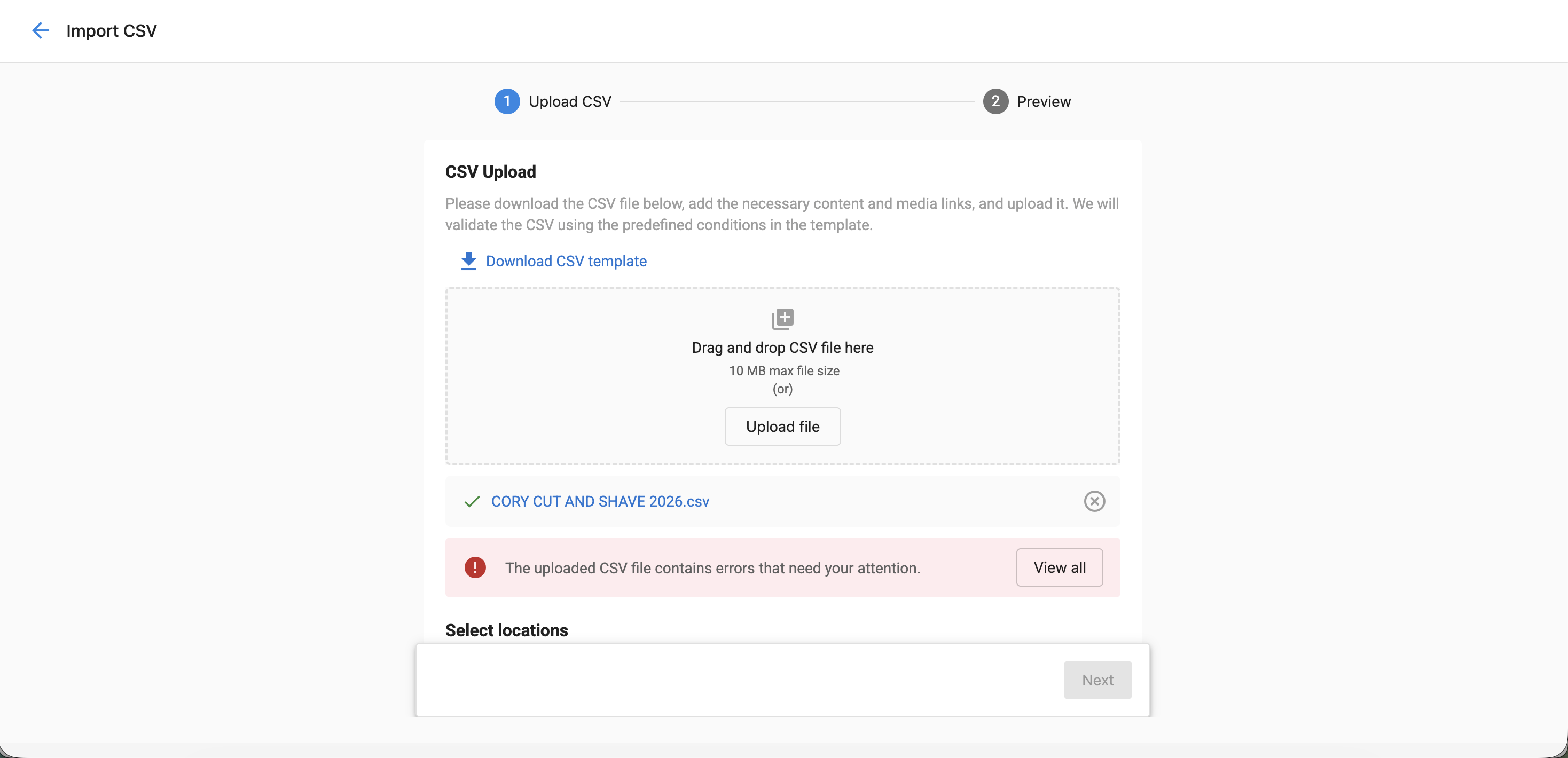
- If the upload is successful, you'll see options to select locations and social networks
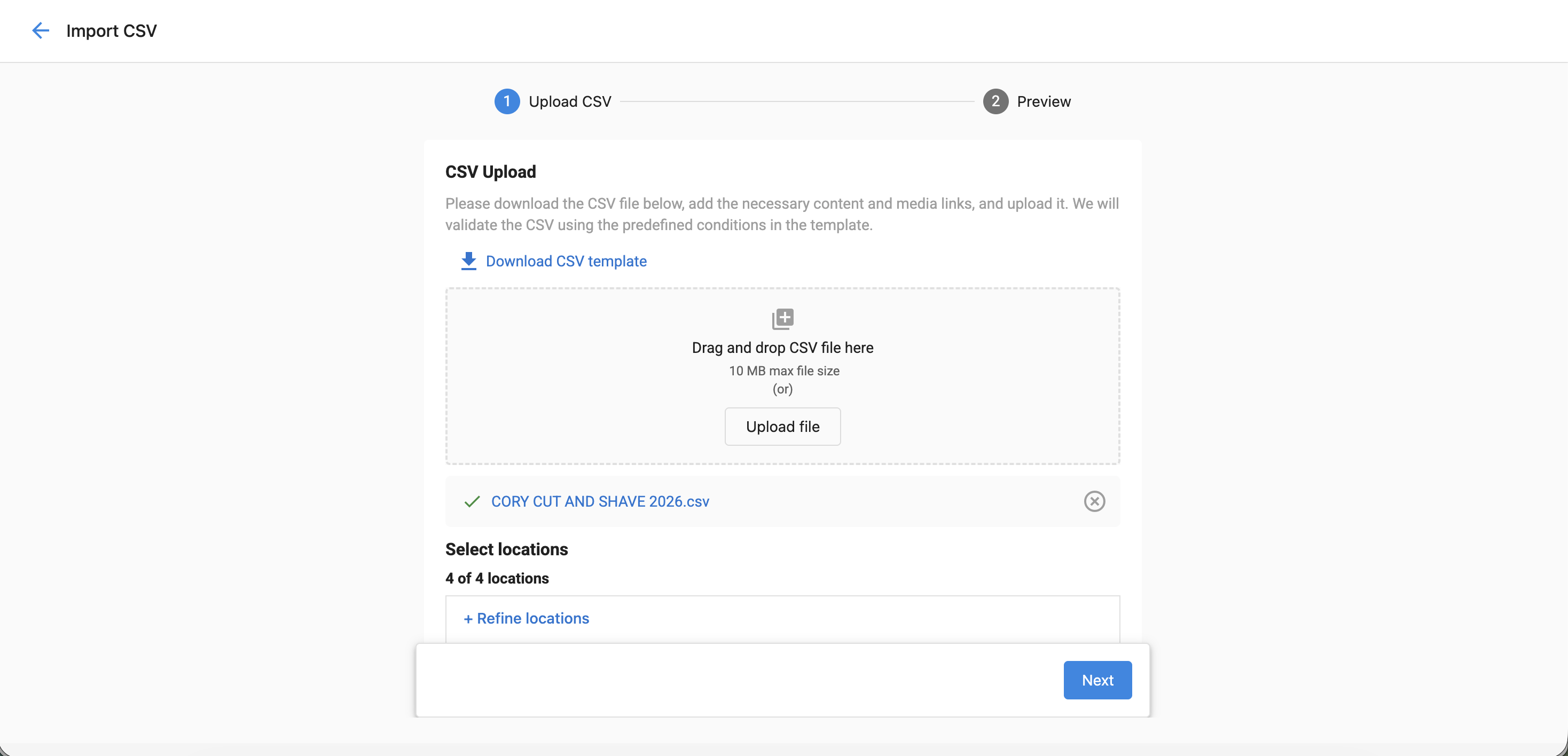
- Choose the desired locations and platforms
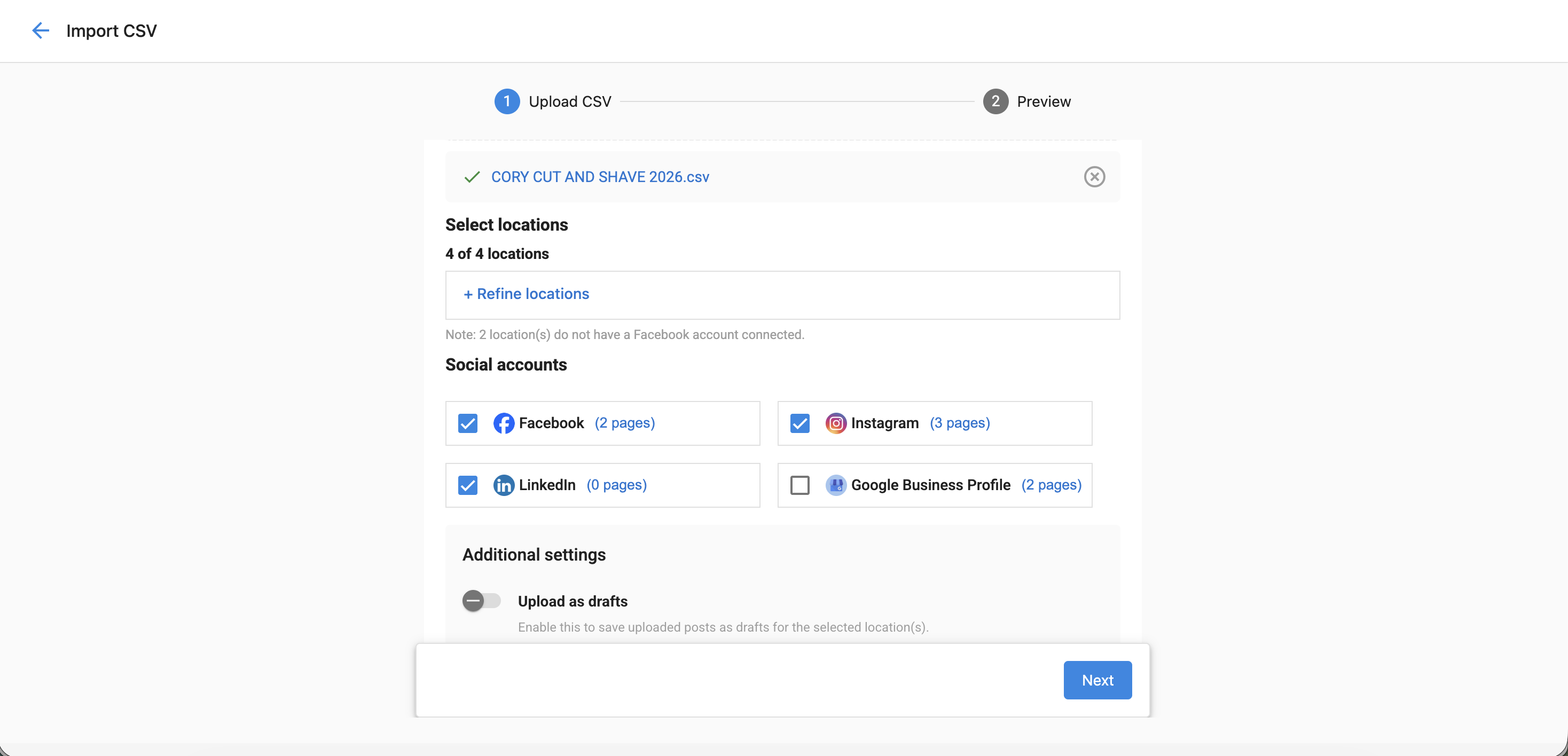
If LinkedIn is selected, use the Only LinkedIn business pages toggle to control which LinkedIn accounts receive the post. When enabled, posts are sent to LinkedIn business pages only. When disabled, posts are sent to both personal profiles and business pages.
If two or more of the locations you choose share the same Facebook, Instagram, LinkedIn, or X connection, you can't save the post. You'll see:
"Posts cannot be saved because the same Facebook/Instagram/LinkedIn/X connection is linked to multiple locations to stop duplicate posts. To continue, either remove this social connection from the other location(s) or remove the affected location."
Where possible, the message names the specific location. Remove the shared connection from the other location, or remove the affected location, then continue.
- (Optional) Enable
Upload as draftsto save posts without scheduling
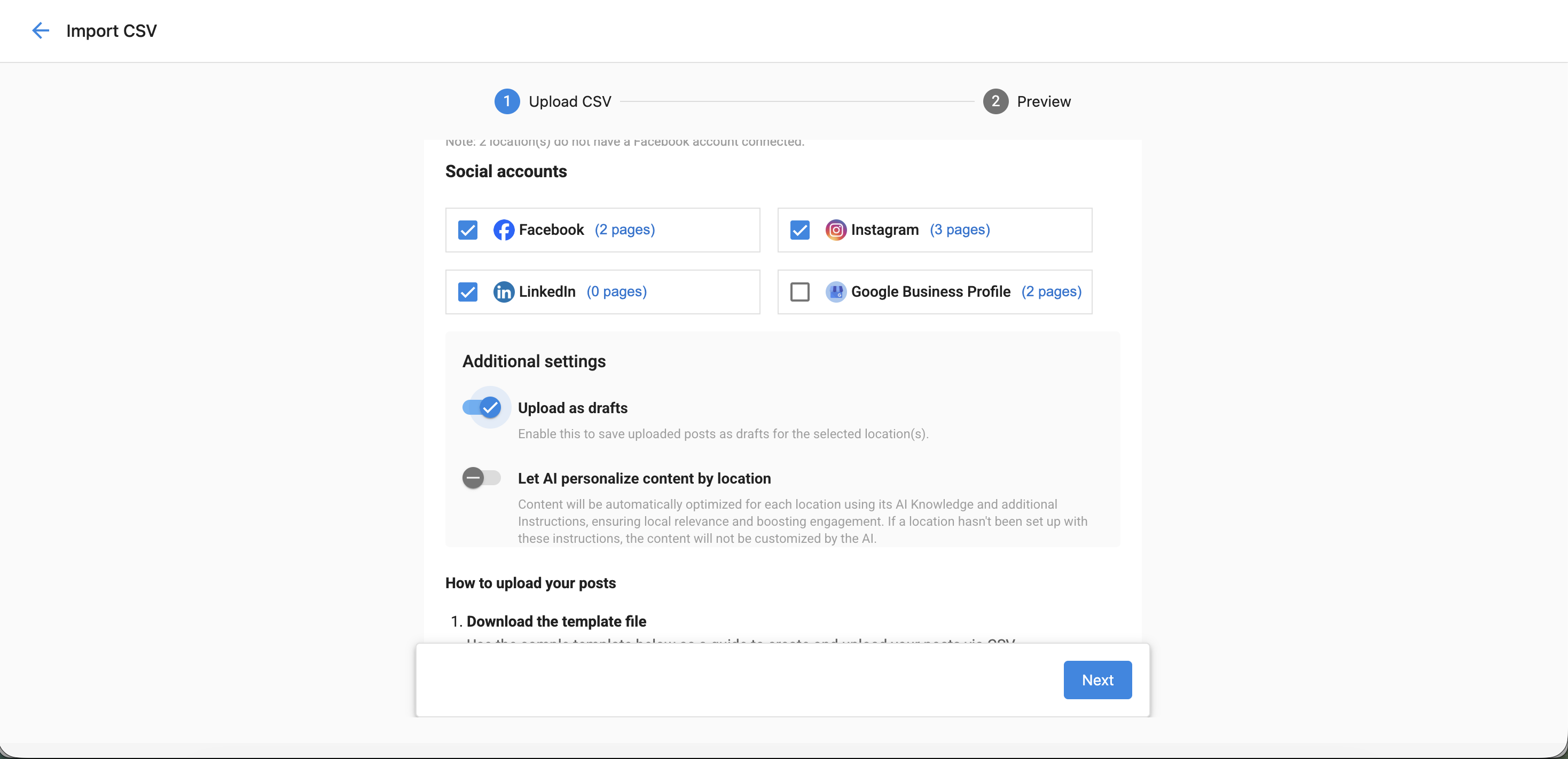
- Enable the toggle
Let AI personalize content by locationto generate localized versions for each location.
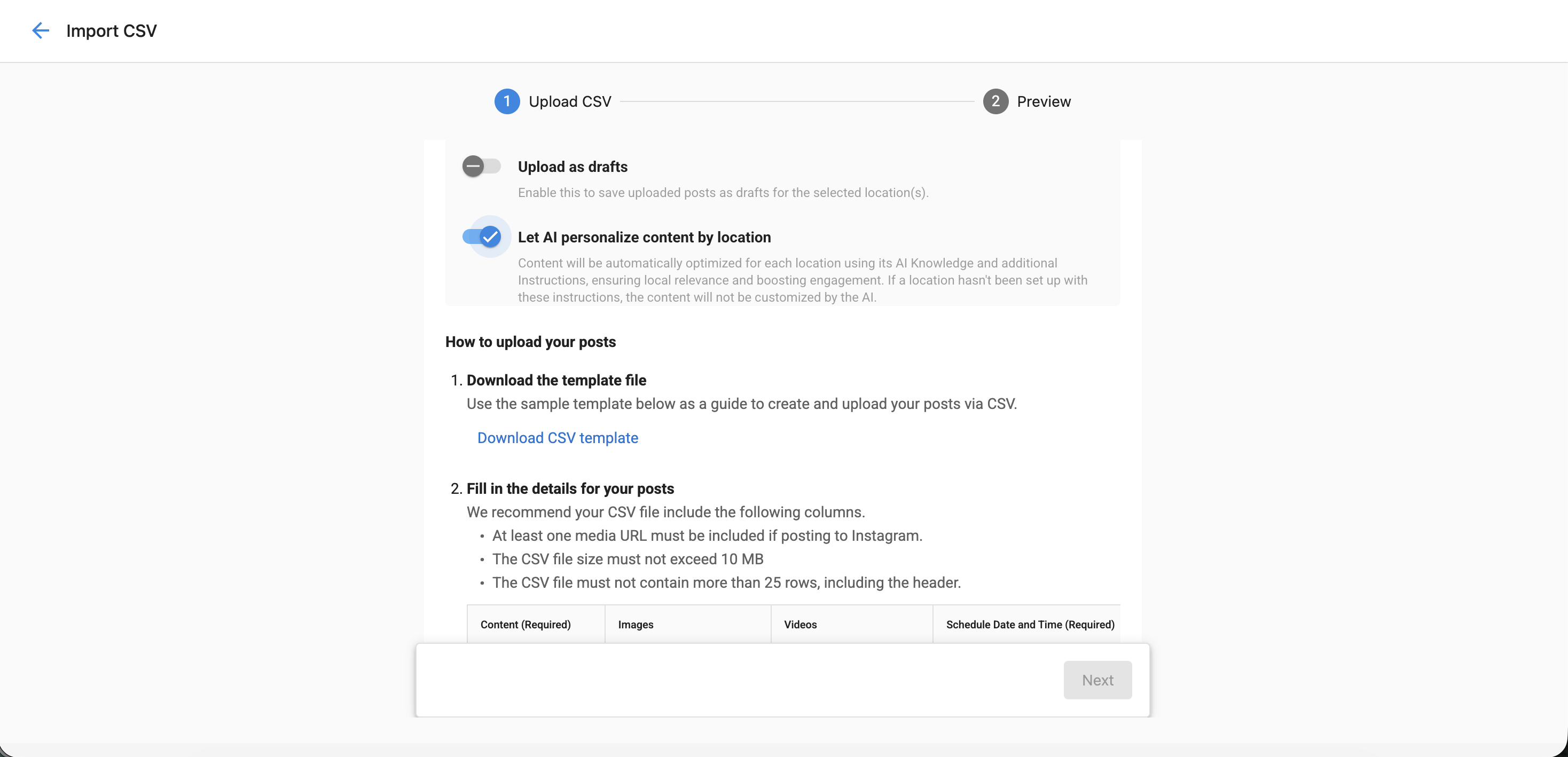
- Follow on-screen formatting guidance as needed
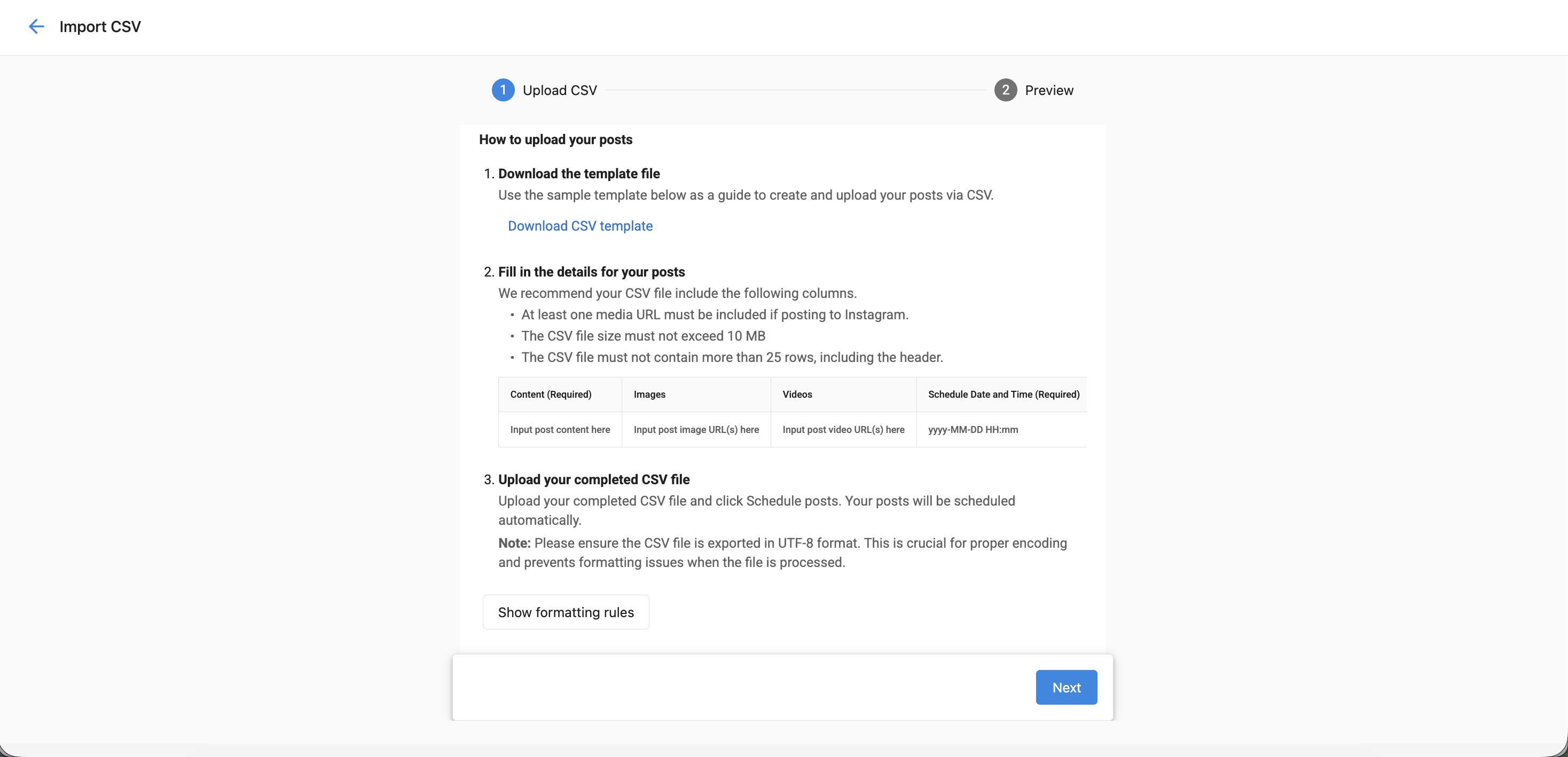
- Click
Nextto proceed
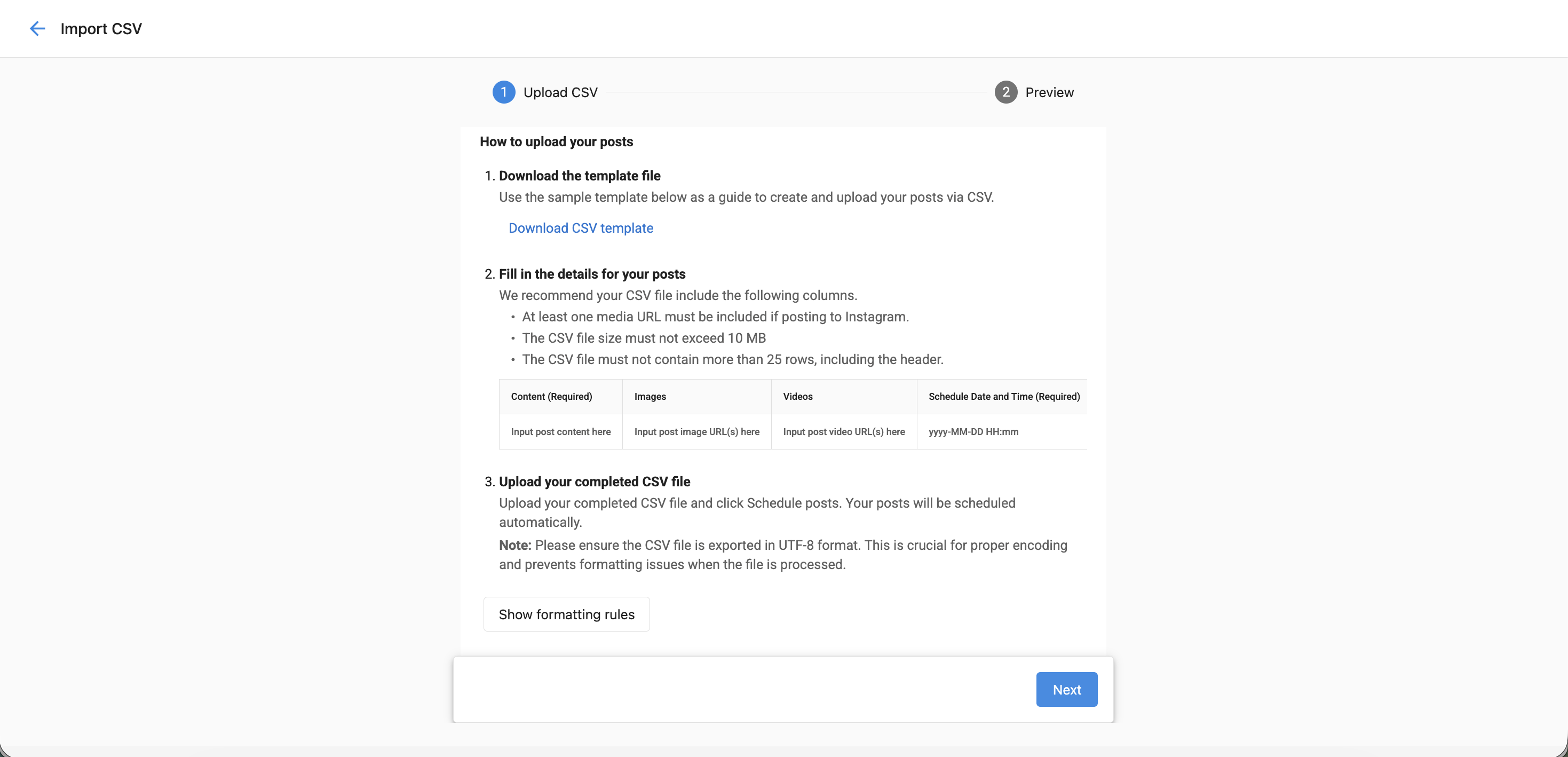
- Use
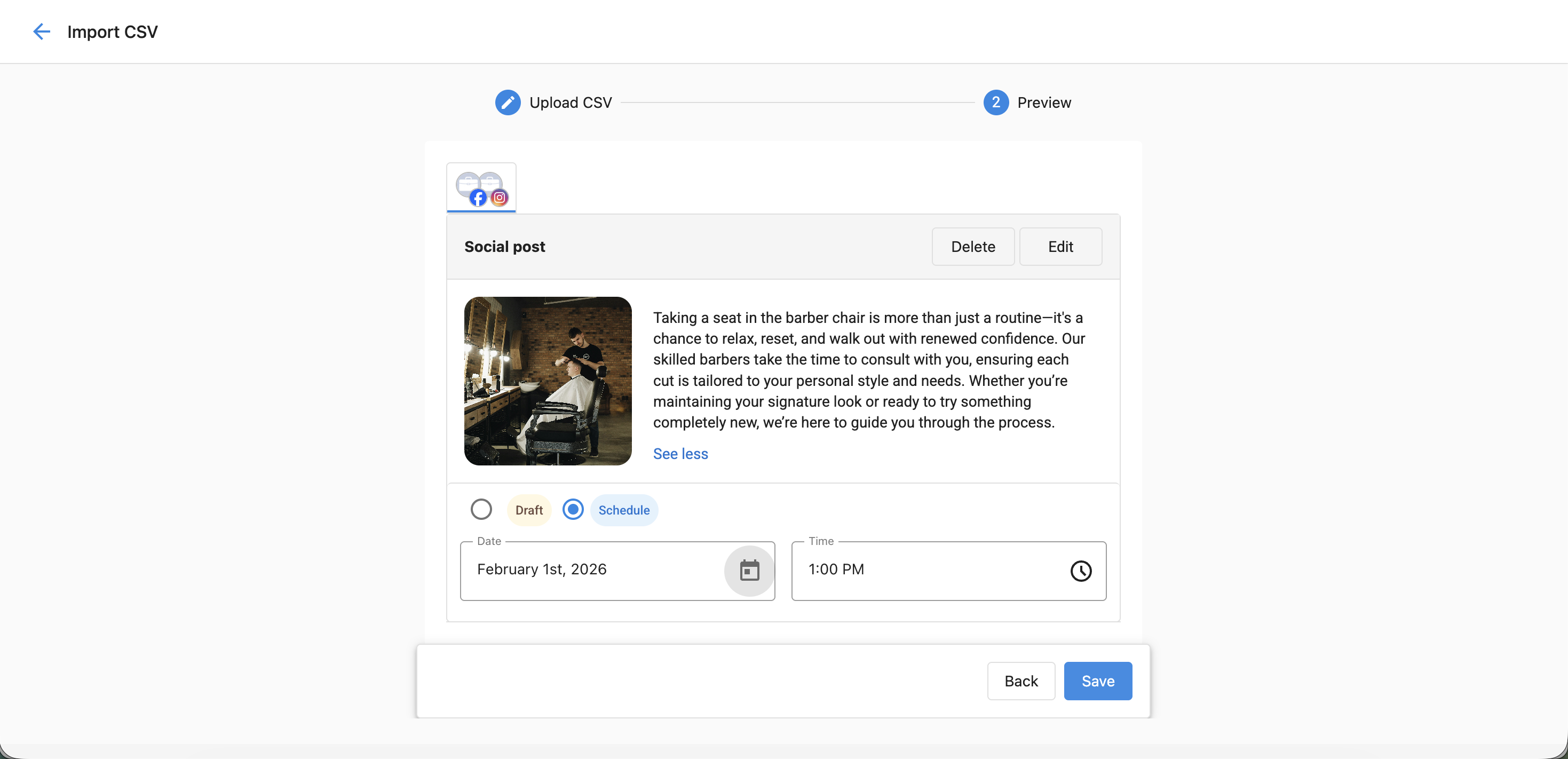
Editto modify individual posts
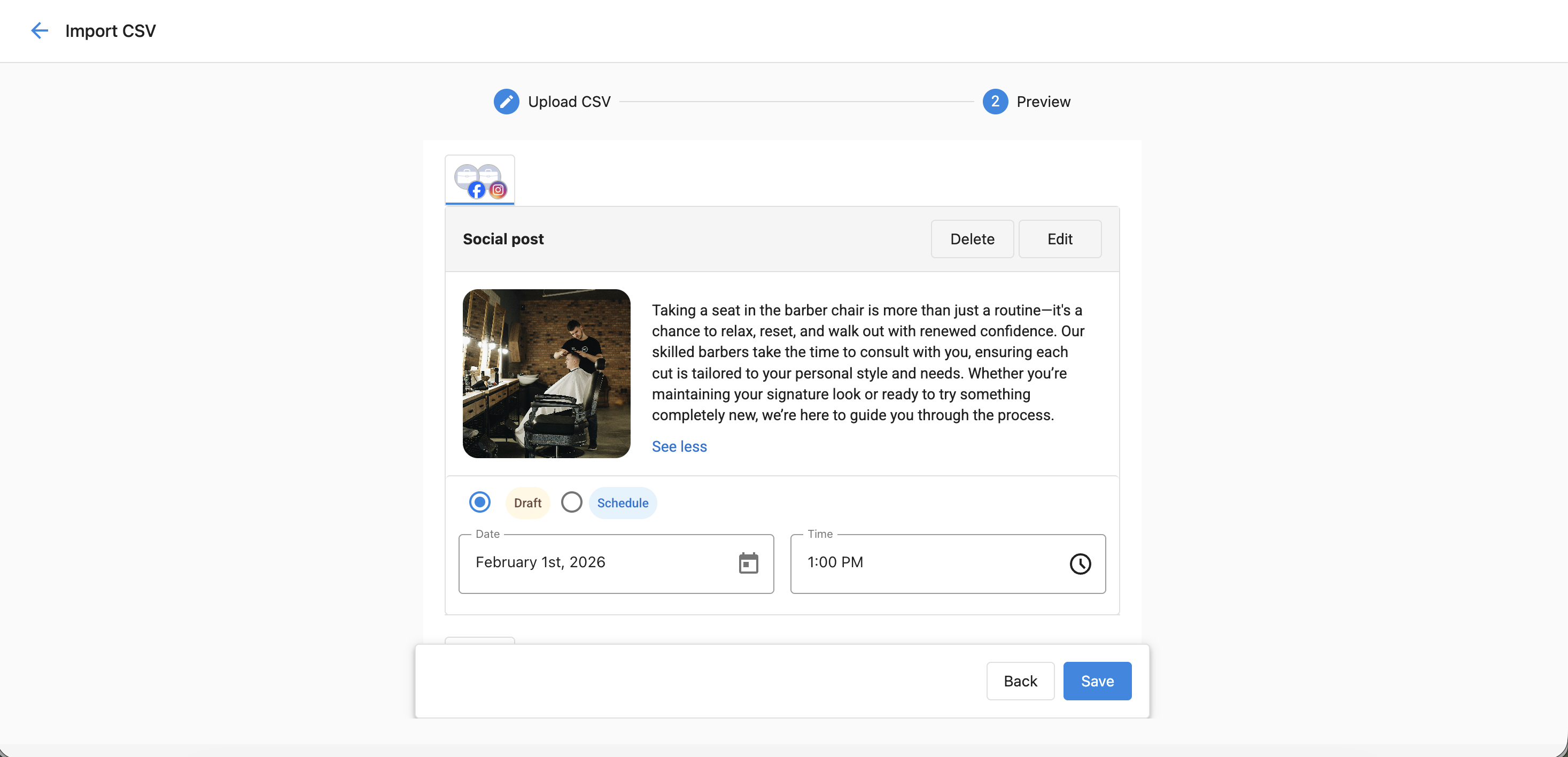
- Use
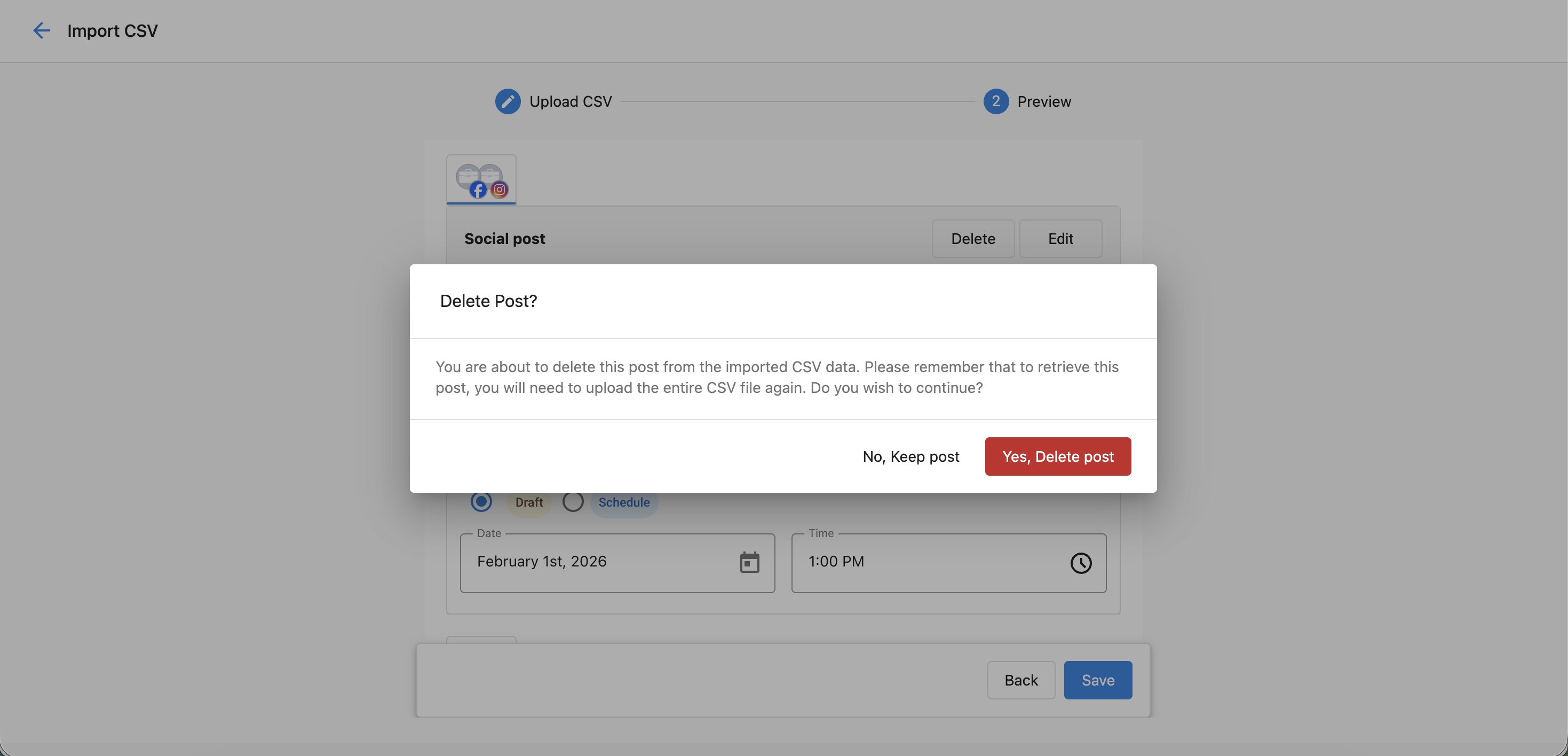
Deleteto remove unwanted posts
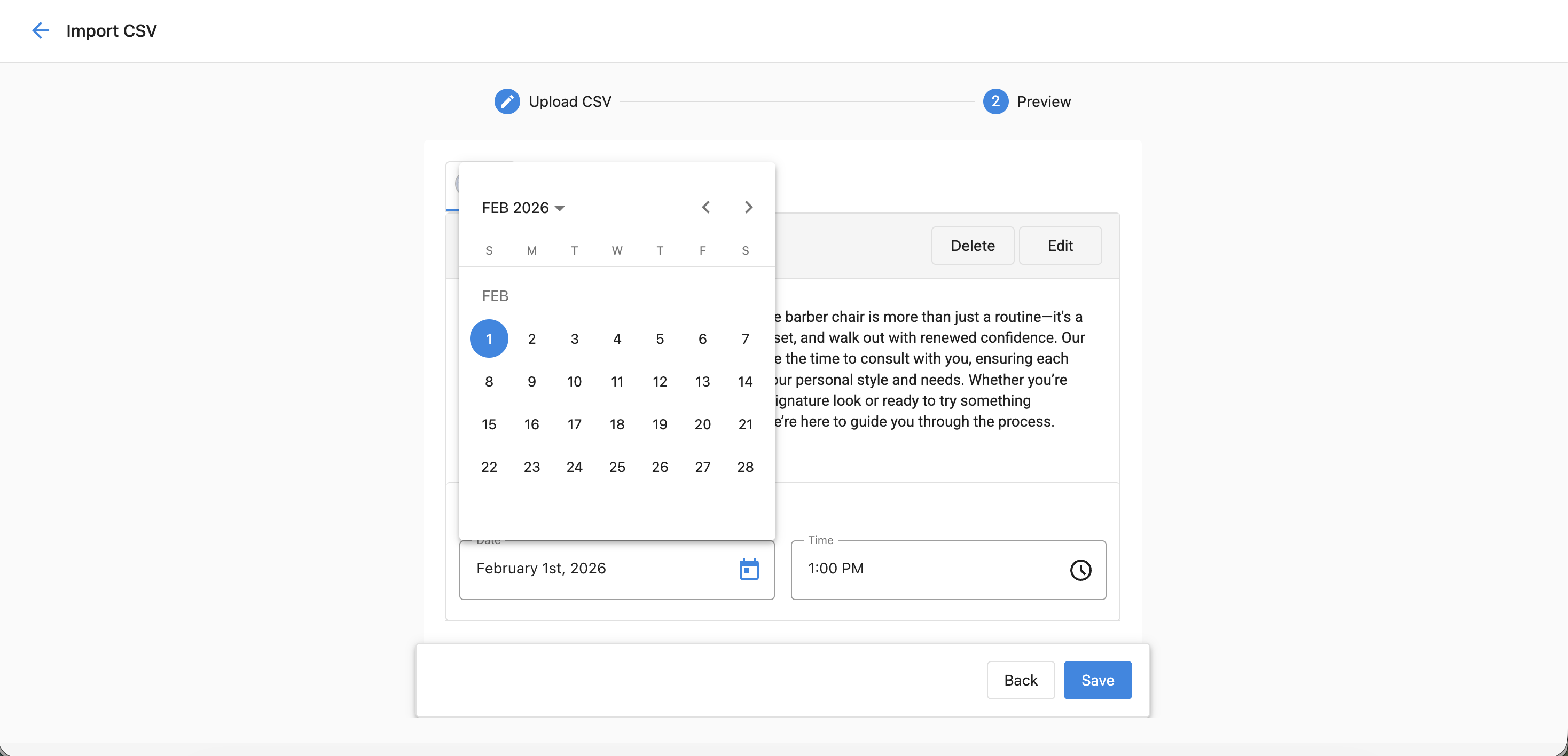
- Adjust the scheduled date and time as needed in the preview
- Click
Saveto save across selected groups
AI-Powered Localization Overview
When the Let AI personalize content by location toggle is enabled:
- AI generates tailored versions of your post for each selected location.
- During processing, a gray tag
Personalization in progressis shown.
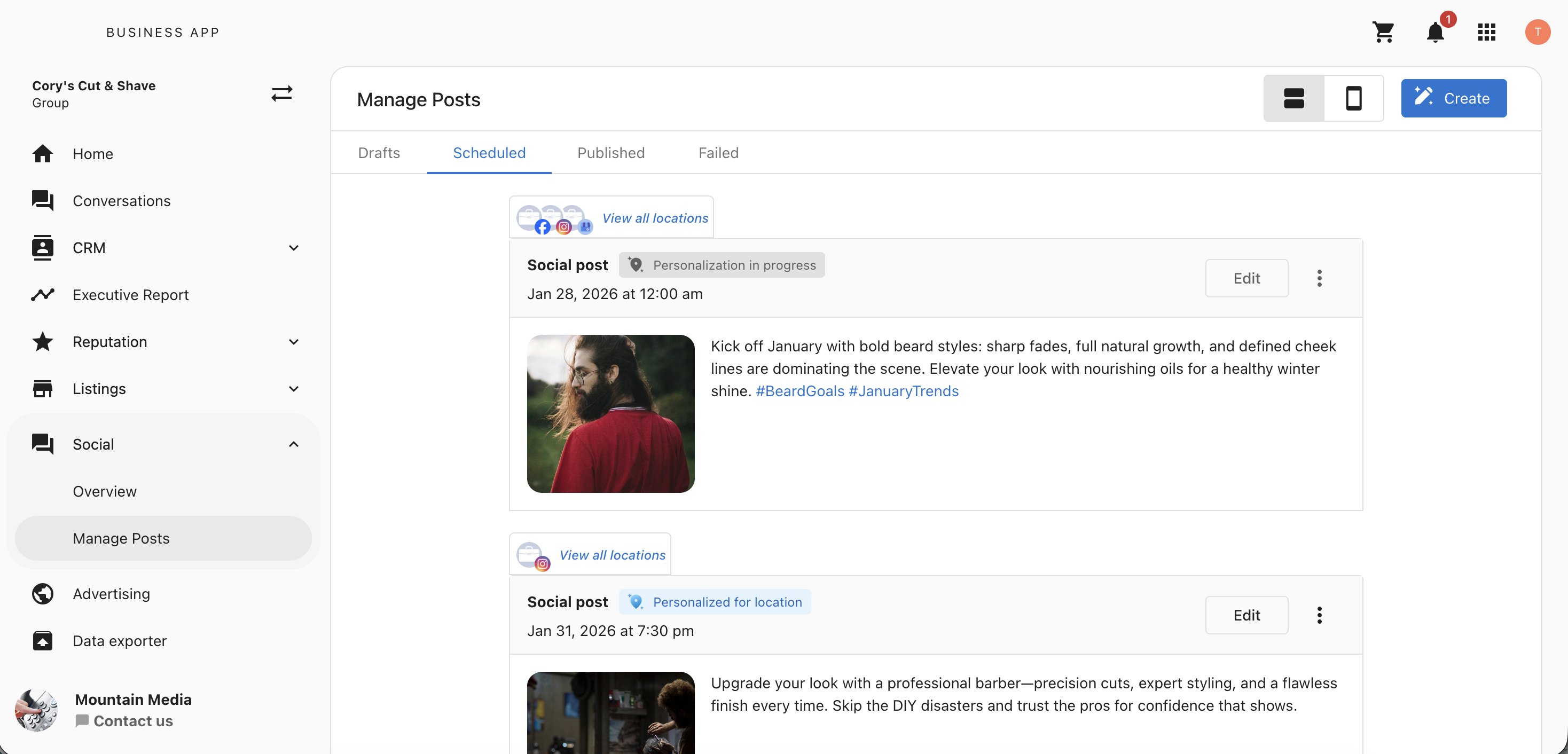
- Once ready, a blue tag
Personalized for locationappears.
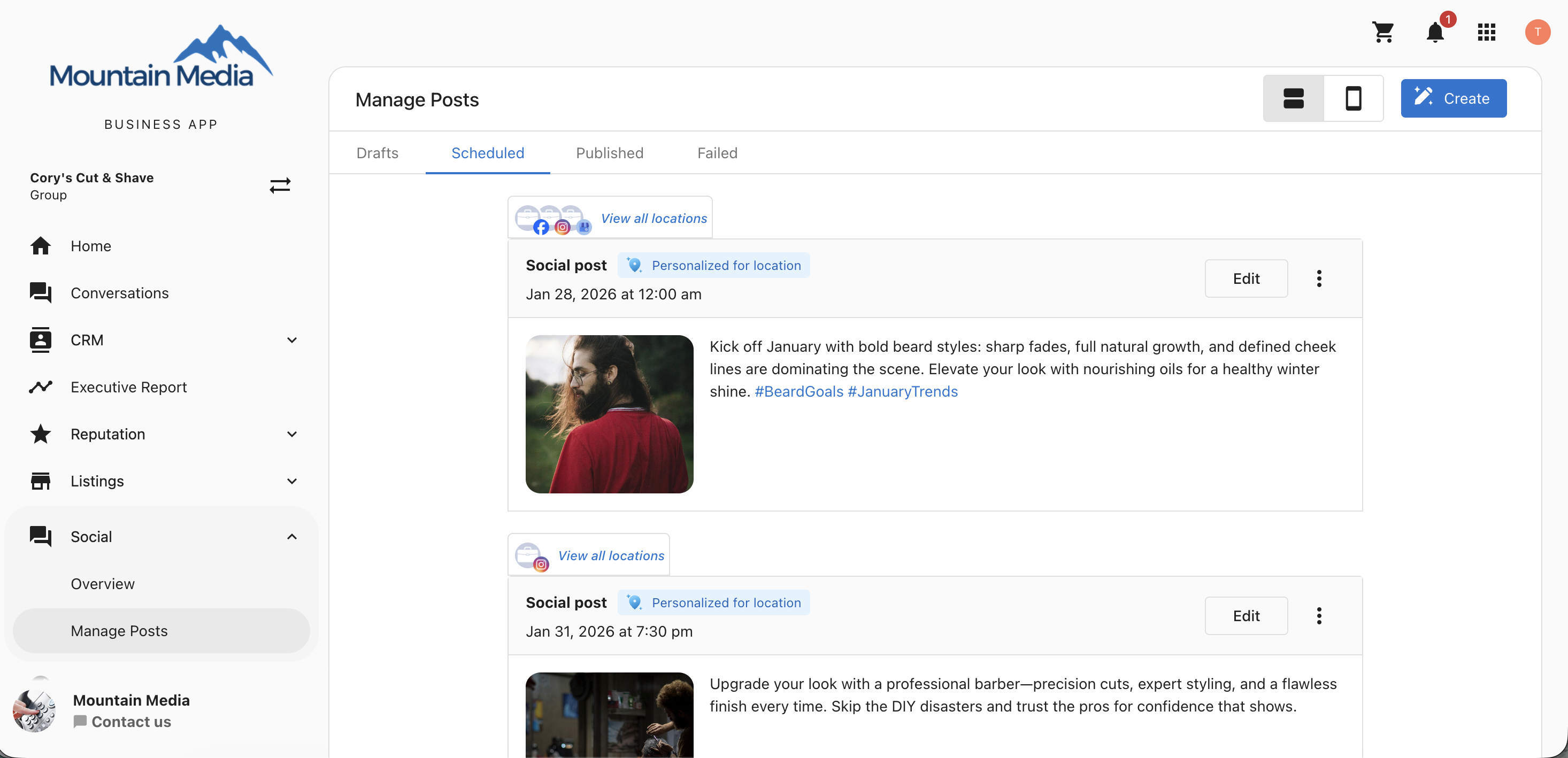
- You can edit each localized post individually using
Edit.
Formatting Requirements and Guidelines
Mandatory Fields
- Locations: Required when saving as a draft
- Social Networks: Optional for drafts, required to schedule
Facebook Story Media
Images:
- Max size: 10 MB
- Formats: JPEG, BMP, PNG, GIF, TIFF
- Limit: 1 image per story
Videos:
- Format: MP4 (recommended)
- Limit: 1 video
- Duration: 3–90 seconds (Story max: 60 seconds)
- Aspect Ratio: 9:16
- Frame Rate: 24–60 fps
- Resolution: 1080×1920 (recommended), 540×960 (minimum)
Facebook Reel Media
Videos:
- Max size: 1 GB
- Formats: MP4 (recommended), QuickTime
- Limit: 1 video
- Duration: Up to 1 hour (90 seconds recommended)
- Aspect Ratio: 9:16 to 16:9
Frequently Asked Questions (FAQs)
Where do I find the Import CSV option?
Navigate to Multi-Location Social → Overview, then click Create → Import CSV.
Can I post to multiple networks at once?
Yes. You can select multiple platforms like Facebook, Instagram, LinkedIn, and Google Business Profile.
Do I need to choose a network when uploading a draft?
No. You only need to select locations. Networks can be added later before publishing.
What happens if I upload a video post?
If a video is uploaded and Facebook is selected, it will be published as a Facebook Reel by default.
Can I edit posts after uploading the CSV?
Yes. Use the Edit option in the post preview screen to make changes.
Is there a character or size limit for posts?
Limits depend on the platform. Follow each platform's content guidelines for best results.
Can I remove posts before publishing?
Yes. Use the Delete option to remove any unwanted posts before scheduling.
Is scheduling required for all posts?
No. You can save posts as drafts without setting a schedule.
Can I change the schedule time after uploading?
Yes. Use the preview screen to adjust dates and times before publishing.
What does the "Let AI personalize content by location" toggle do?
It enables automatic localization of posts per location using AI Knowledge and Social Post Instructions.
What if a location doesn't have AI configuration?
The original multi-location content will be used without personalization.
Why can't I save posts to some of the locations I chose?
This happens when two or more of the chosen locations share the same Facebook, Instagram, LinkedIn, or X connection. Import CSV blocks saving in this case to prevent duplicate posts. Remove the shared connection from the other location(s), or remove the affected location, then continue.
Does Social Marketing support CSV content uploads, and where is the feature available?
Yes. CSV import works at the multi-location (main location) level so you can upload and schedule content across locations. It is not available at the single-location level.