Executive Report overview
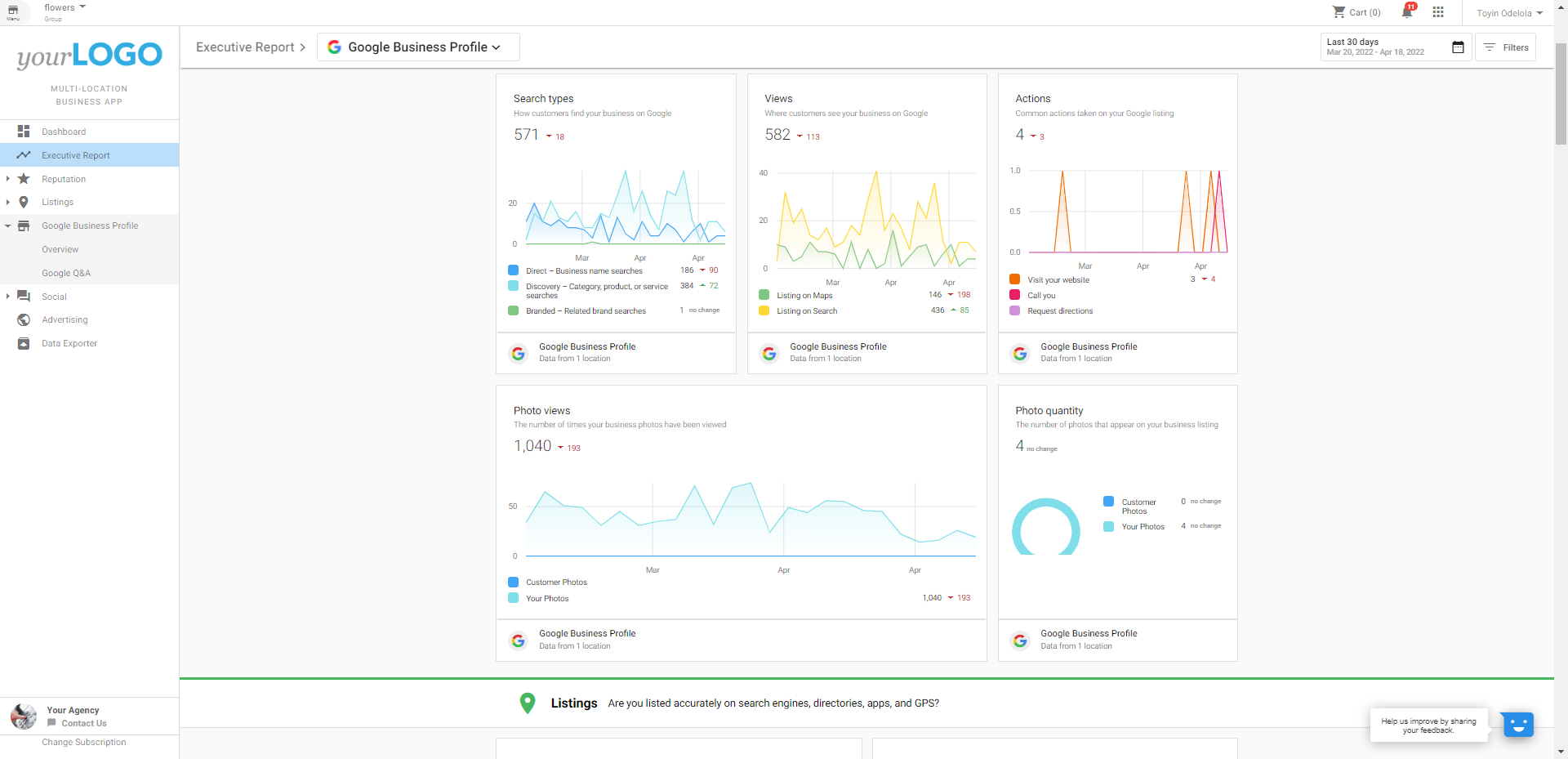
The Multi-Location Executive Report is a powerful roll-up of metrics across any number of business locations. With a custom date selector and filtering, you can slice the data to see trends in marketing performance across a Multi-Location Group. Available in Multi-Location Business App and fully white-labeled, the report supports needs analysis and proof-of-performance reporting.
Why use the Executive Report?
Prospect and identify opportunities: The report shows marketing data collected for all business accounts in the group. Run Snapshot Reports for a group of locations, then view that data in Multi-Location Business App so users can see opportunities for improvement.
Proof-of-performance reporting: Trend lines and delta-change numbers show short- or long-term change across many accounts and demonstrate the impact of your work.
Key features
- Fast data – Slice and dice large data sets quickly.
- Short-term changes and long-term trends – Compare metrics period-over-period with a custom date selection.
- White-labeled – The report is your own, complete with your logo and branding.
- Filtering – Filter by geography, business category, region, groups of locations, or listing/review sources.
What data is included?
The report can include:
- Google Business Profile
- Advertising Intelligence
- Google Analytics
- Reputation (Top Review Sources, Recent Reviews, Review Rating, Review Volume, Average Time to Response)
- Listings data
- Social media (powered by Social AI)
Additional Marketplace products and third-party metric sources will be added over time.
How to view the report
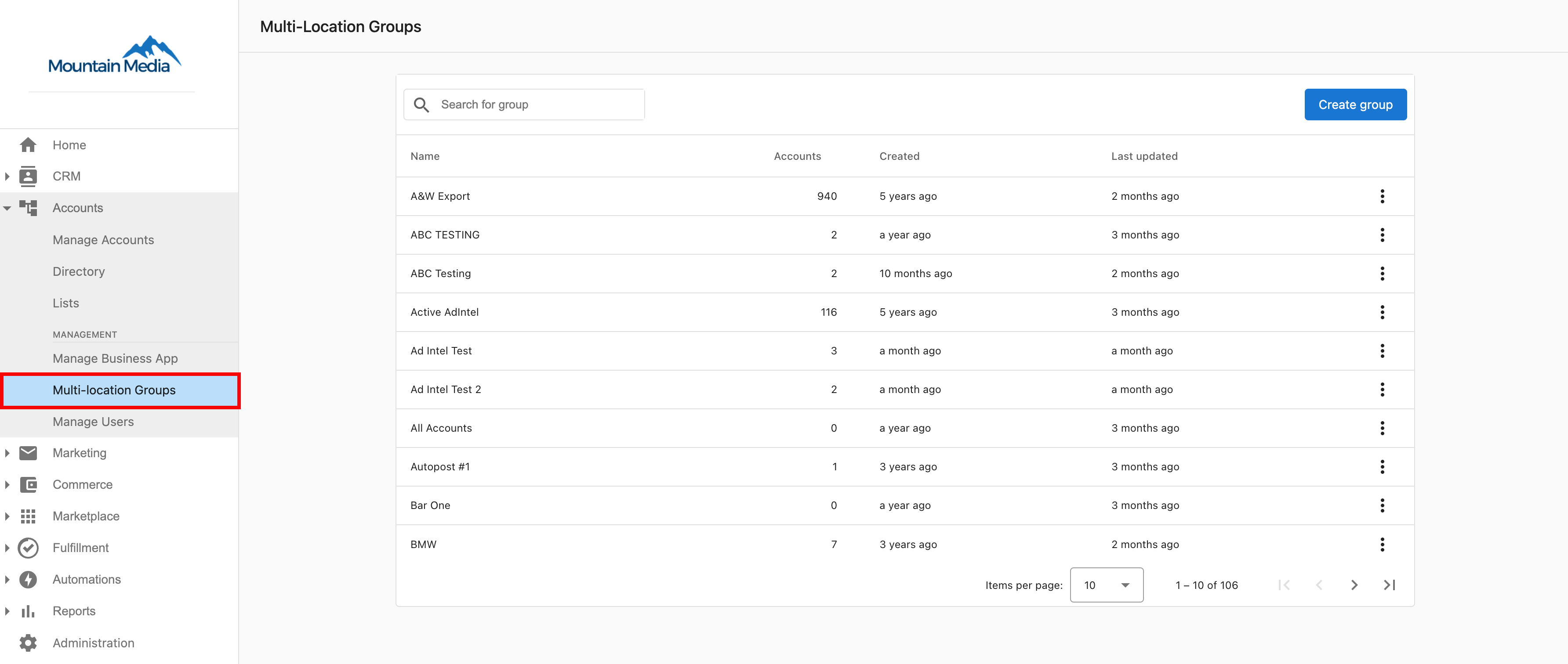
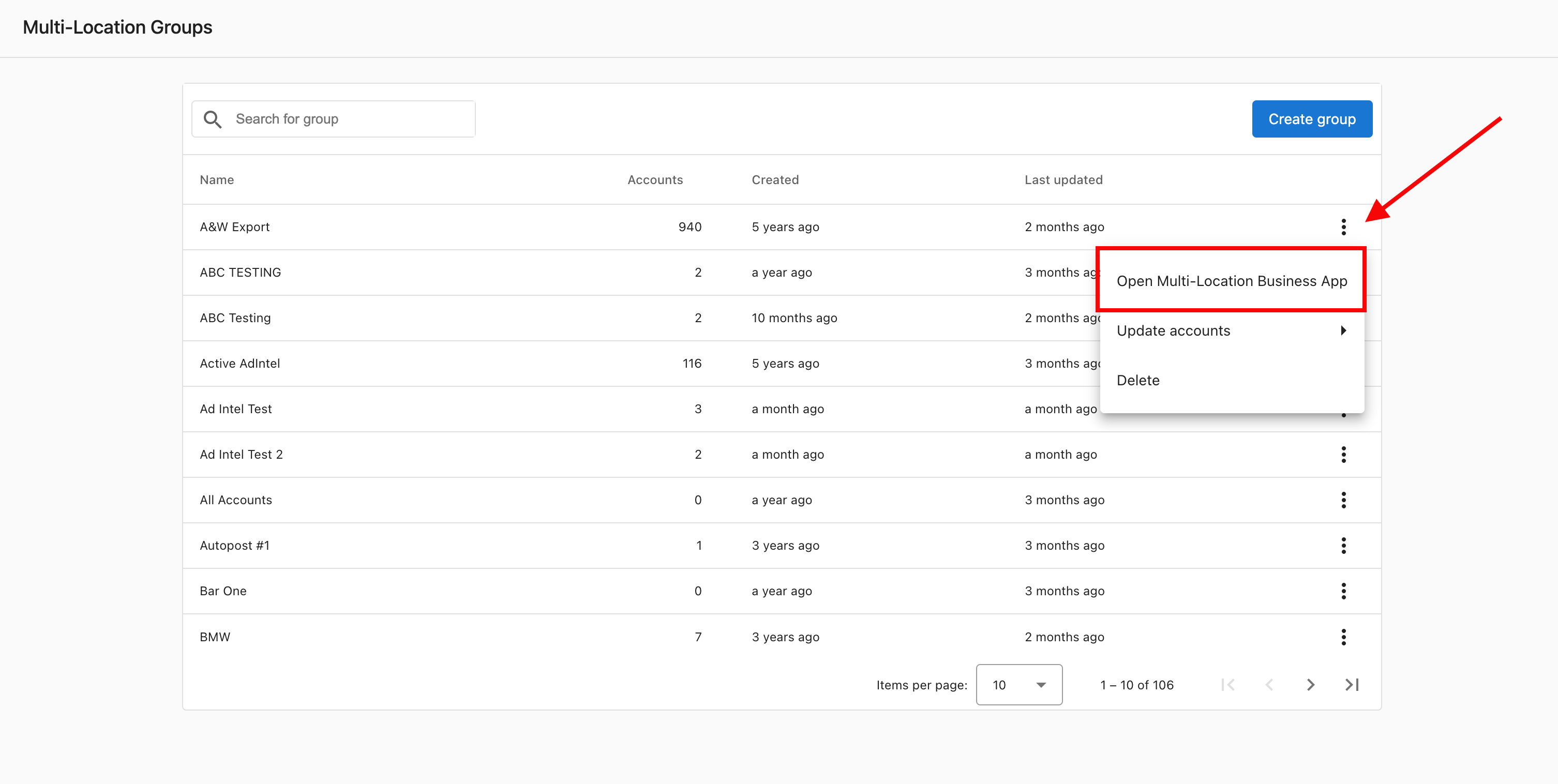
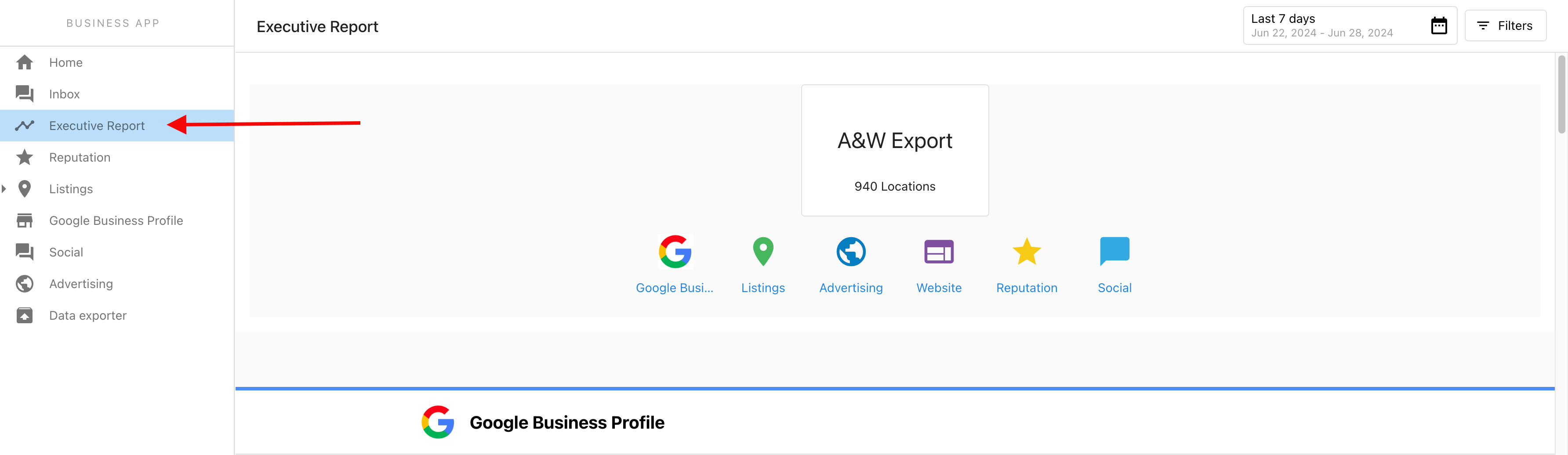
Multi-Location Business App users can view the Executive Report for their multi-location group inside the app. The platform does not email the report to users. As a partner, open the report by going to Partner Center → Accounts → Multi-Location Groups, using the kebab menu on the group name to open Multi-Location Business App, then selecting Executive Report in the left panel.
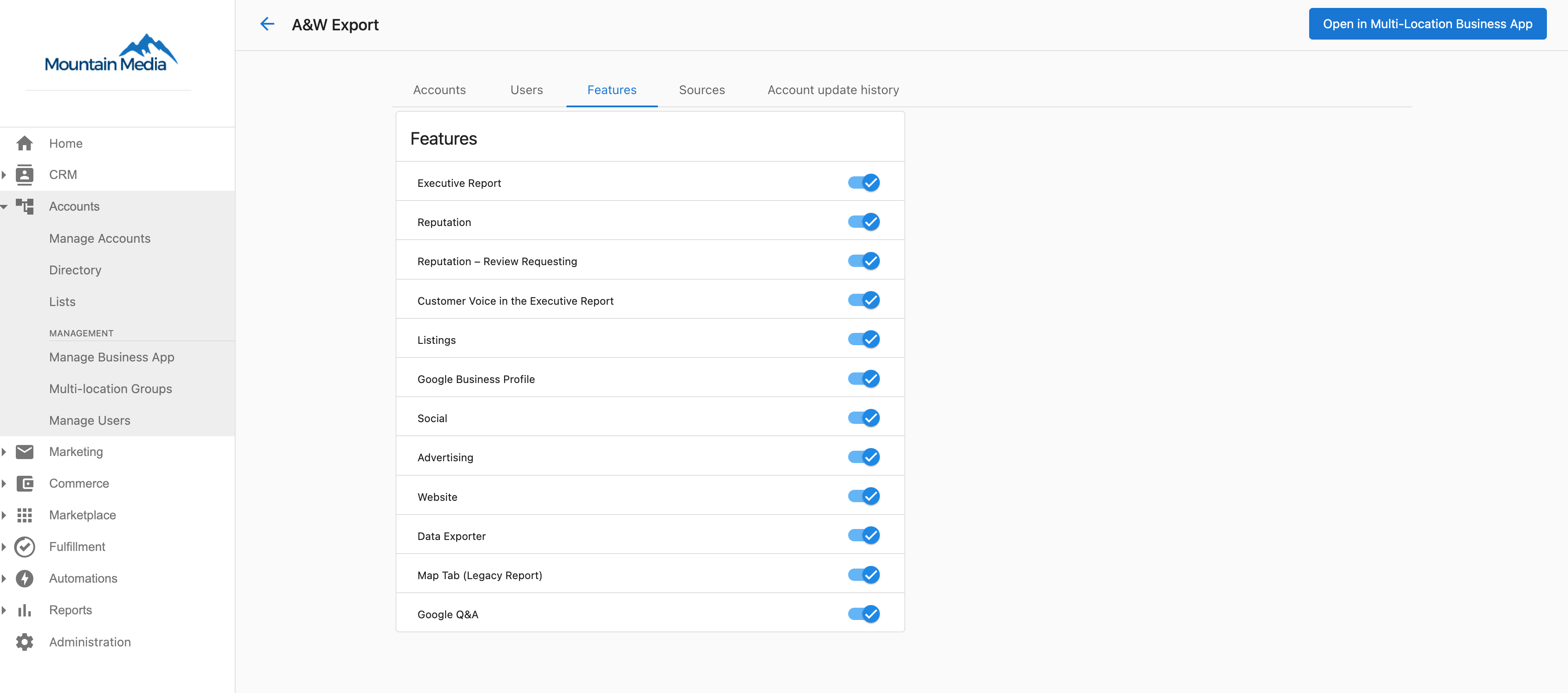
Report content is driven by the features enabled for the group in Partner Center → Accounts → Multi-Location Groups → Group name → Features.
FAQ
How do I configure the Executive Report?
The Multi-Location Executive Report compiles data from all individual locations and rolls them up into an easily digestible report. The report obeys the selections made in Partner Center → Accounts → Multi-Location Groups → Group name → Features.
Why are users not receiving the Executive Report?
Multi-Location users view the Executive Report inside the Multi-Location Business App. The platform does not email Executive Reports to users.
As a partner, you can view the report as follows:
- Go to
Partner Center→Accounts→Multi-Location Groups. - Click the kebab menu on the group name and open Multi-Location Business App.
- Select Executive Report in the left panel to view the report.
Why does my Listing Score look different in the Multi-Location Executive Report vs. a single-location report?
This is expected — the two reports calculate Listing Score differently.
The single-location Business App Listing Score includes citations as part of the calculation. The Multi-Location Executive Report Listing Score does not include citations — it uses a subset of listing signals that can be consistently aggregated across all locations in the group.
Because citations are excluded from the multi-location calculation, the score you see in the Multi-Location Executive Report will generally be lower than the score shown in any individual location's Business App. Both scores are accurate for what they measure — they're just measuring different things.
Why do my review response rate and average response time look different between the Overview and Reviews tabs?
Both tabs are accurate — they use different date ranges by design.
- Overview tab — Shows data scoped to your selected date filter. If you've set a custom date range, response rate and response time reflect only that period.
- Reviews tab — Always shows all-time data for the group, regardless of the date filter set on the Overview.
This means the two tabs will often show different numbers, which is expected, not a bug.
To compare them directly: Set the Overview date filter to the earliest possible date (January 1, 2001) through today. This aligns the Overview to all-time data so both tabs reflect the same period.
Why all-time response time can look unusually high: The all-time calculation includes reviews that came in before Reputation AI was activated for the location — reviews that were never responded to. This drags the average response time up significantly. Filtering the Overview to a more recent period gives a more representative view of current performance.
How does citation tracking work?
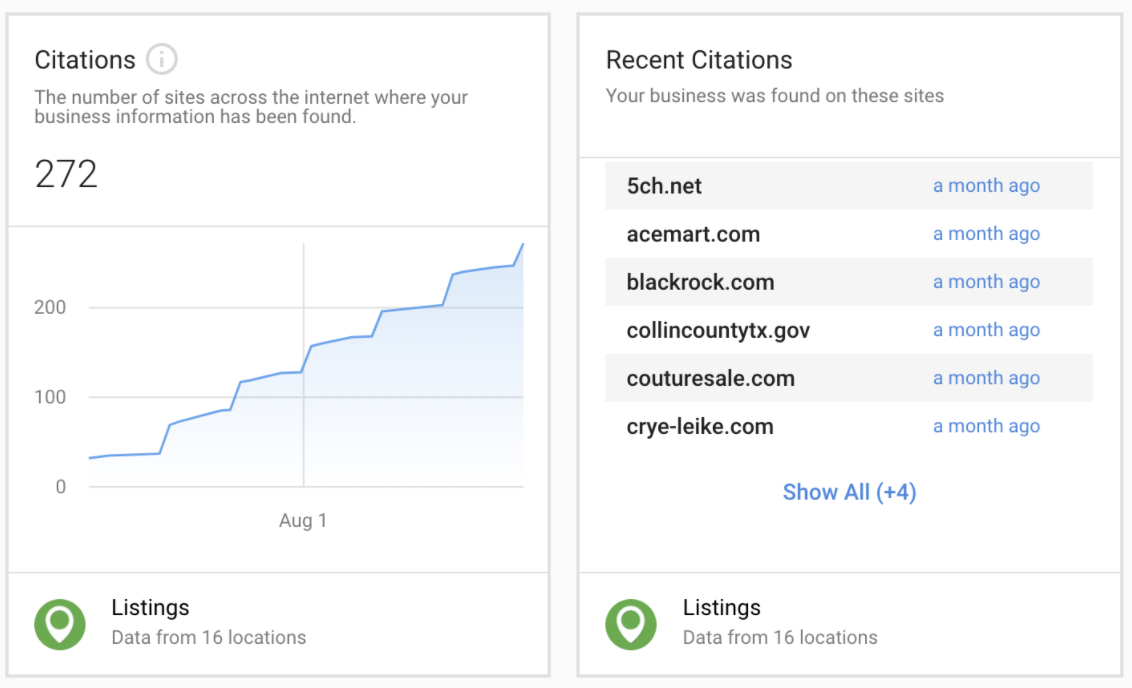
Citation tracking in the Executive Report provides proof of performance under the Listings category. Citations are mentions of a business found online—a business name plus another detail (phone number, website, or address). They help search engines understand a business and improve findability.
The citation tracking card in the Executive Report is powered by Reputation AI Pro — it appears only for accounts that have Reputation AI Pro active. If Reputation AI Pro is not active for a client, the citations card does not appear in their Executive Report.
Citation Builder and Listing Sync Pro are separate, independent Local SEO add-ons that can help build and increase citations found for a business. Neither requires Reputation AI Pro to be active — they're sold and used on their own. Citation Builder is currently available for businesses located in the US only.