How do I post to multiple locations with Multi-location Business App?
Multi-location Business App social posting lets you create and schedule one post that publishes to the connected Facebook, Instagram, and Google Business Profile pages of many locations at once. Each location needs Social AI Standard or Pro.
With Multi-location Business App social posting, you can:
- Post to multiple Facebook, Instagram or Google Business Profile pages in one go
- Customize posts for each individual location through dynamic content and allow the individual locations to customize multi-location posts in their own Social AI app.
- Review and monitor brand performance and drill down on individual locations in one view
How it works
You create and schedule posts from the Multi-location Business App; those posts are published to each location’s connected social accounts. You can target all locations or refine by group, geography, or individual location. Locations can also customize or edit scheduled posts in their own Social AI app.
Requirements: Multi-location Business App must be set up for your group, and each location must have Social AI Standard or Pro. For best results, use one account per location with Facebook, Instagram, and Google Business Profile connected to that account’s Social AI app.
How do I create a multi-location post?
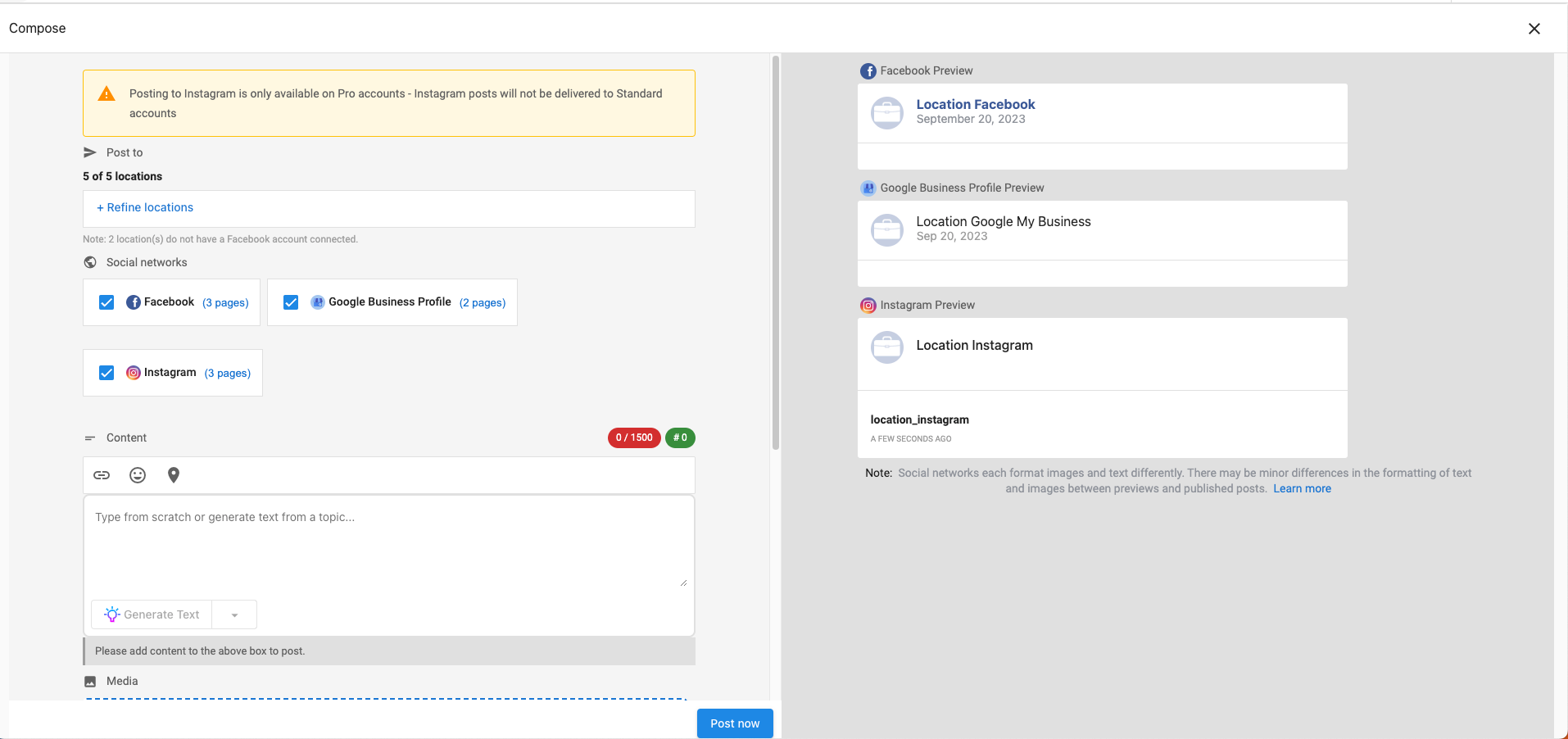
Go to Multi-location Business App → Social → Overview. Here you will see the overview of your Brand's social performance with details for each location. Click on the Compose Post button to open the Composer.
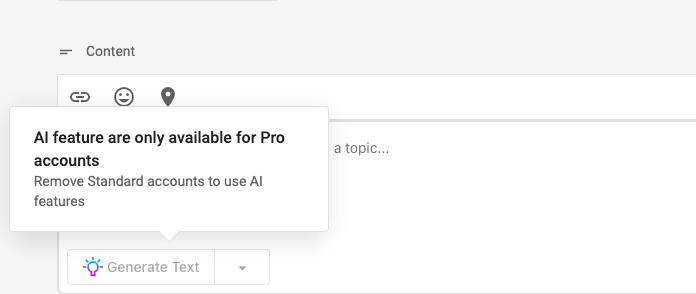
Posting to Instagram and using the AI feature is a Pro functionality.*
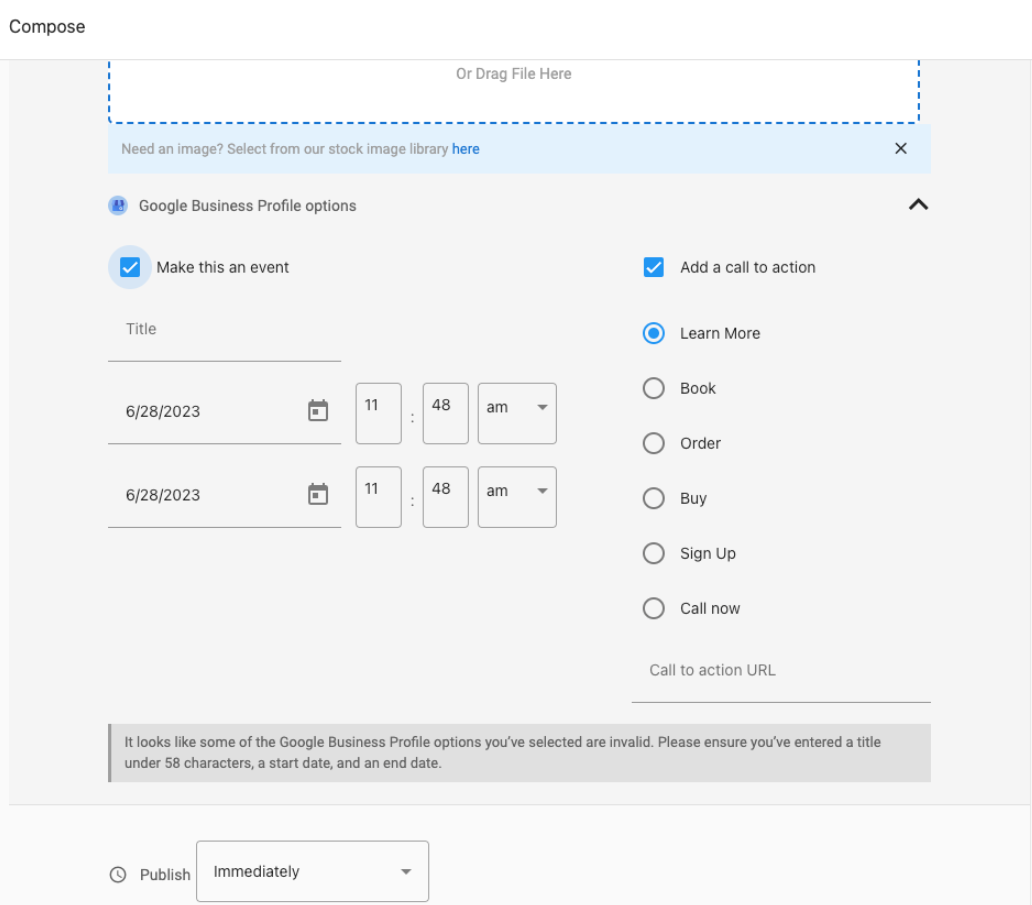
Step 2 - Google Business Events and Call To Actions are also included while composing a post.
Step 3 - Refine Locations
By default, all locations are selected. Click Refine Locations to select locations by Group, Geography, or Location.
- Group - select a group that you've previously created. You can create groups according to however you want to classify your locations. (Example: franchises, corporate-owned branches, etc.)
- Geography - select locations by country or by state/province
- Location - select specific locations that you want to include in your post
If two or more of your selected locations share the same Facebook, Instagram, LinkedIn, or X connection, you can't save the post. You'll see:
"Posts cannot be saved because the same Facebook/Instagram/LinkedIn/X connection is linked to multiple locations to stop duplicate posts. To continue, either remove this social connection from the other location(s) or remove the affected location."
Where possible, the message names the specific location. Remove the shared connection from the other location, or remove the affected location, then save the post again.
Viewing recent and scheduled posts
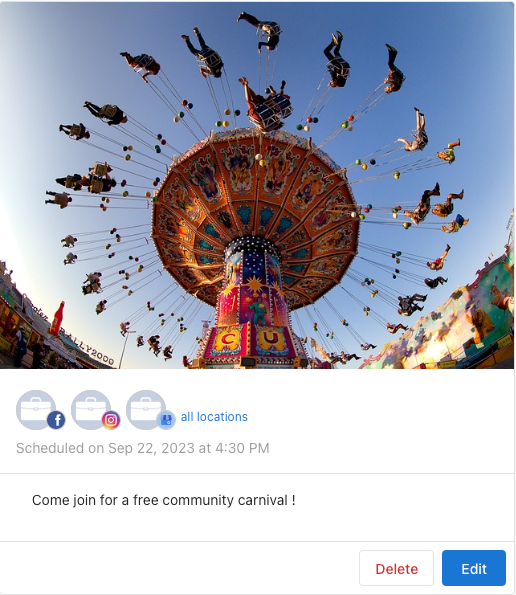
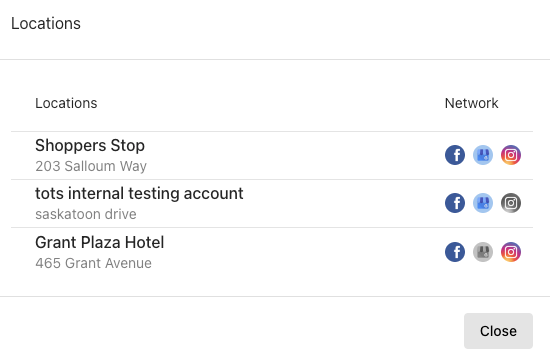
In Recent and Scheduled, each post appears once for Facebook and Google Business Profile. Click all locations to see which accounts the post was published to. Click an individual account name to open that location’s view.
How do I customize a post for each location?
Once you've refined the locations, you can proceed with creating your post. Using dynamic content, you can customize your post for each location. Click the dynamic content icon  to add any of the following information:
- Business name
- City
- Phone number
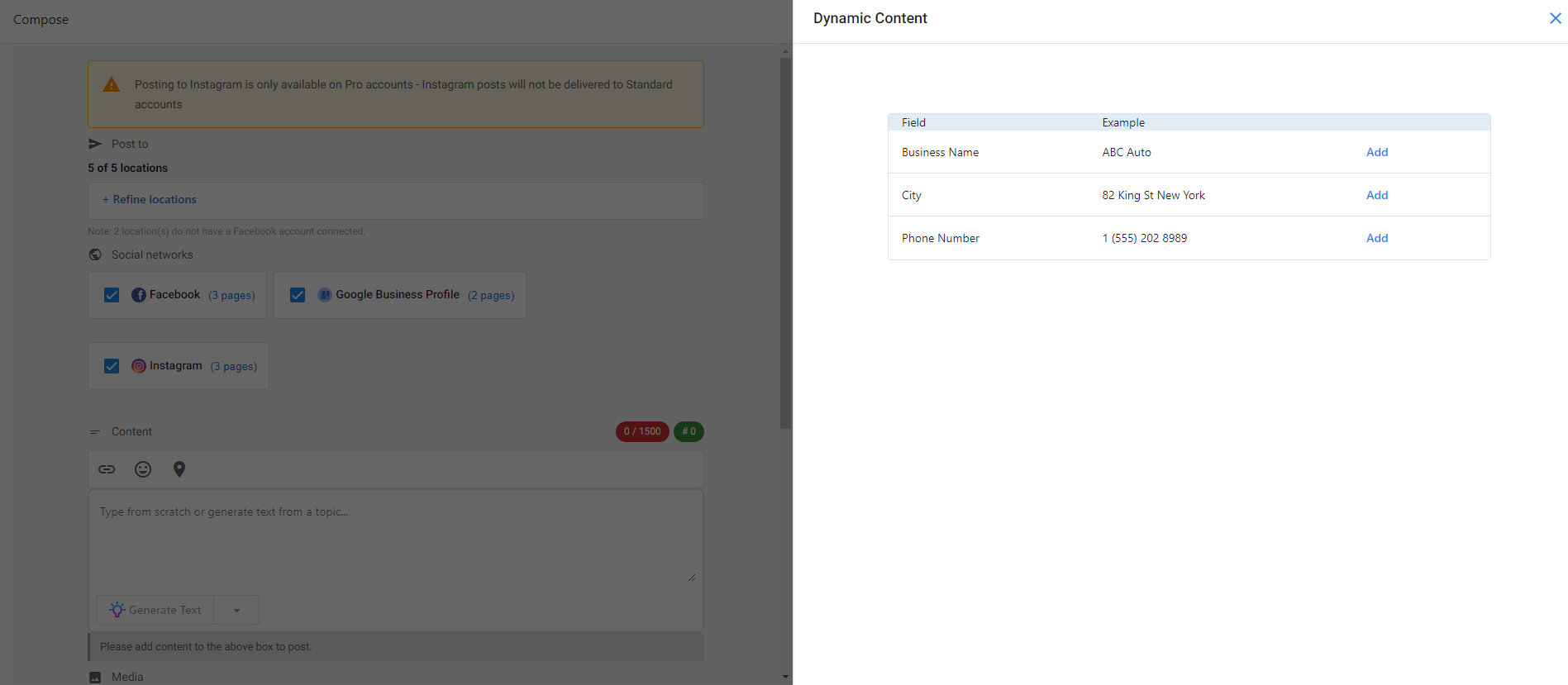
Dynamic content automatically pulls each location's details. You can see what your post looks like in the preview pane of the composer.
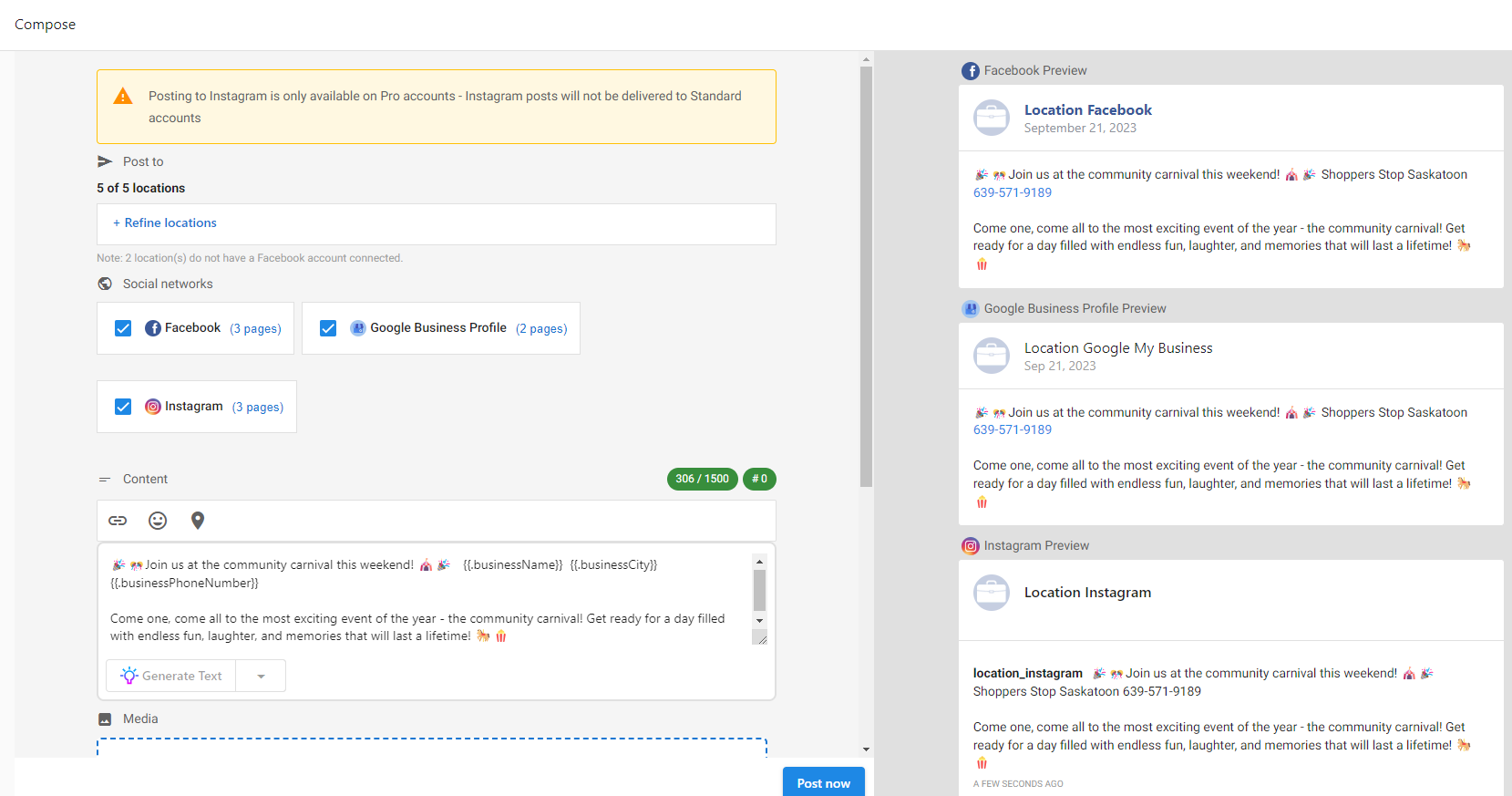
Once you're done with your post, you can choose to either publish it immediately or schedule it for a specific date and time.
How can a location customize a multi-location post?
Each location can customize a scheduled multi-location post through Social AI in its own Business App. They can edit the post as they would with any regular post: change the date and time of posting, edit copy, change images, add hashtags, etc.
Go to Business App → Social AI → My Posts → Scheduled Posts or click View More on the Scheduled Posts section on the Overview page. You will see the scheduled multi-location post and will be able to edit it.
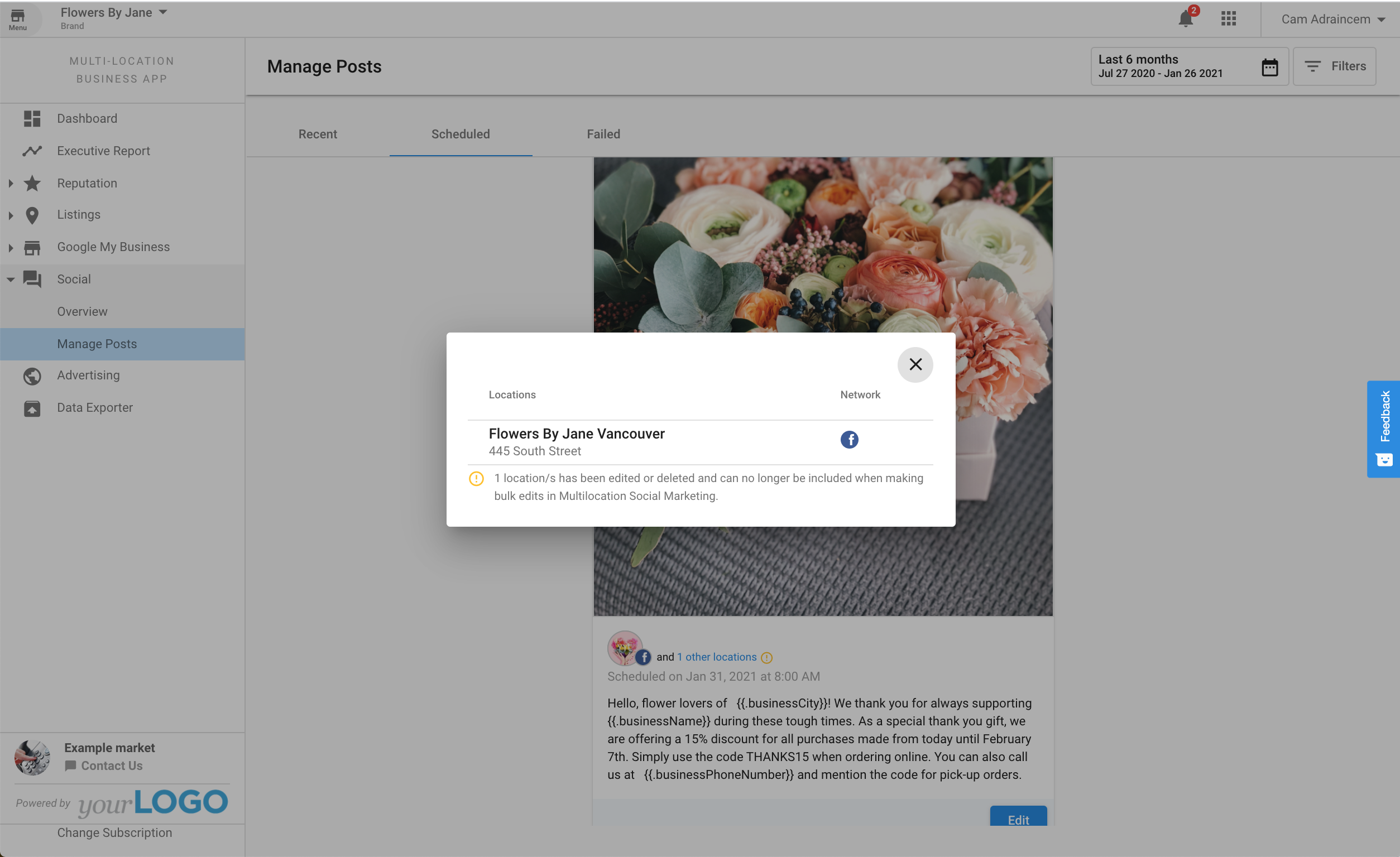
NOTE: Editing a multi-location post for a single location will prevent you from making bulk edits to this location's post through the Multi-location Business App.
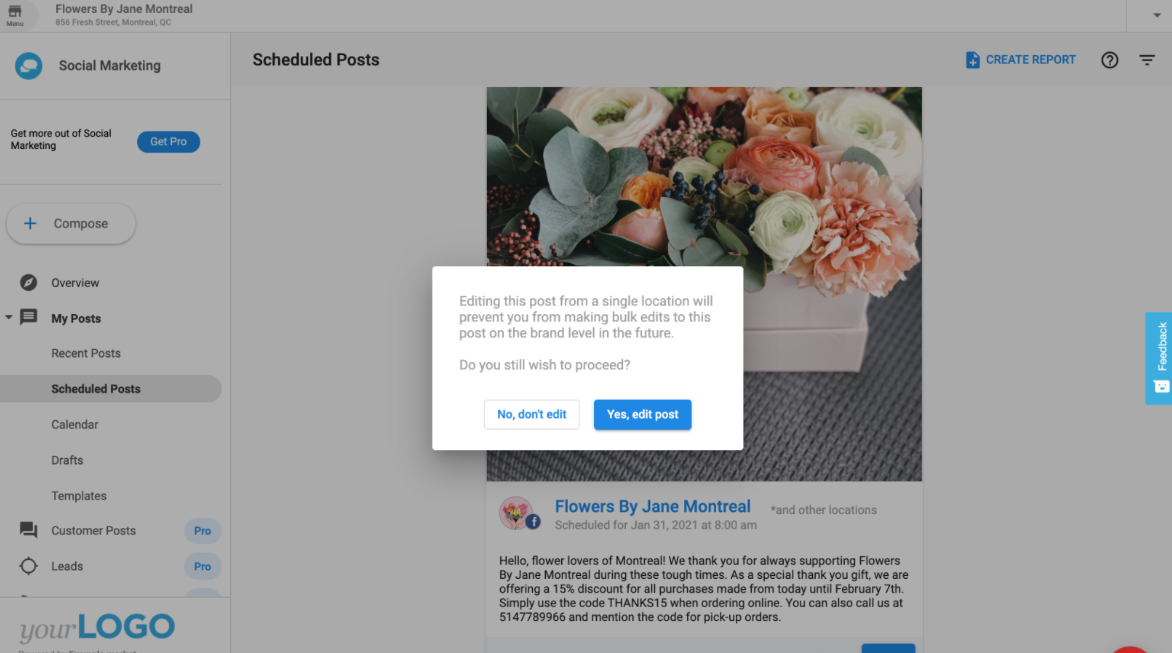
If you try to make changes to your multi-location Scheduled Posts, you will also see a notice through Multi-location Business App → Social → Managed Posts → Scheduled Posts.
How do I manage multi-location posts?
Clicking Multi-location Business App → Social → Managed Posts allows you to view Recent Posts. You can also view and edit Scheduled Posts, as well as retry any posts that may have failed. You can also see which locations are included in each post by clicking the locations link.
How do I review brand performance across locations?
Finally, through the Overview page, you can see how your overall brand is doing and compare performance among your different locations.
The "new posts" and "engagement" stats at the top of the page include data from posts published through the platform and directly on the connected social media sites.
Clicking a location will open a side panel with more details specific to the location. Through this panel, you can launch this location's Business App, Social AI app, or Executive Report in a separate tab.
Frequently asked questions
What social networks are supported with multi-location social posting?
Multi-location posting supports Facebook, Instagram, and Google Business Profile only. Other platforms your locations may have connected — such as LinkedIn or X — are not available for multi-location posts and must be posted to individually from each location's own Social AI app.
Instagram requirements: Instagram posting requires Social AI Pro. Locations on Social AI Standard will not receive Instagram posts from a multi-location campaign, even if Instagram is connected to their account. The post will still publish to their Facebook and Google Business Profile pages.
Why can't I save a post to some of my selected locations?
This happens when two or more of your selected locations share the same Facebook, Instagram, LinkedIn, or X connection. Multi-location social posting blocks saving in this case to prevent duplicate posts. Remove the shared connection from the other location(s), or remove the affected location, then save the post again.
Can I create Social Marketing campaigns at the multi-location-group level?
No. Campaign creation is not available at the multi-location-group level. Create campaigns from a single location instead.
Can AI customize content by location, and can I use Premium or Pro at HQ with Standard at branches?
Yes. You can customize content by location. Mixed editions are supported: an HQ account on Premium or Pro can post to Facebook, LinkedIn, Instagram, and Google Business Profile, while Standard branch accounts can post to Facebook and Google Business Profile.
Do I need to activate Social AI for every location?
Yes. Each location must have Social AI Standard or Pro for multi-location posts to publish to it. For best results, use one account per location with Facebook, Instagram, and Google Business Profile connected to that account's Social AI app.
What can I include in a multi-location post?
You can post to Facebook, Instagram, and Google Business Profile, including Google Business Events and Call To Actions. You can add dynamic content (business name, city, and phone number) so each location's details fill in automatically.
Can a location edit a multi-location post?
Yes. Each location can edit a scheduled multi-location post in Social AI in its own Business App, at Social AI → My Posts → Scheduled Posts. After a location edits its copy, you can't make bulk edits to that location's post from Multi-location Business App.
Do the Overview stats include posts made directly on social sites?
Yes. The new posts and engagement stats at the top of the Overview page include posts published through the platform and posts published directly on the connected social media sites.