Manage Posts in Multi-Location Social
Managing multi-location posts
The Manage Posts feature lets you view and manage all social posts including drafts, scheduled, published, and failed across every location in your multi-location group.
You can easily track, edit, or remove posts from one centralized dashboard, without switching between individual locations.
Why is managing multi-location posts important?
This feature simplifies social media management for multi-location businesses by allowing you to:
- Monitor post status across all locations in one view
- Identify and troubleshoot failed posts with detailed error messages
- Edit content, media, or publishing details before a post goes live
- Remove posts consistently across all locations from one place
What’s included in the 'manage posts' feature?
- A unified post list showing all posts by status (Drafts, Scheduled, Published, Failed)
- Location visibility for each post across the group
- Clickable social networks to navigate to an individual location’s view
- Error messages for posts that fail to publish, with location-level details
- Edit and delete functionality for drafts, scheduled, and published posts
How to use managed posts
- Go to
Multi-Location→Social→Manage Posts.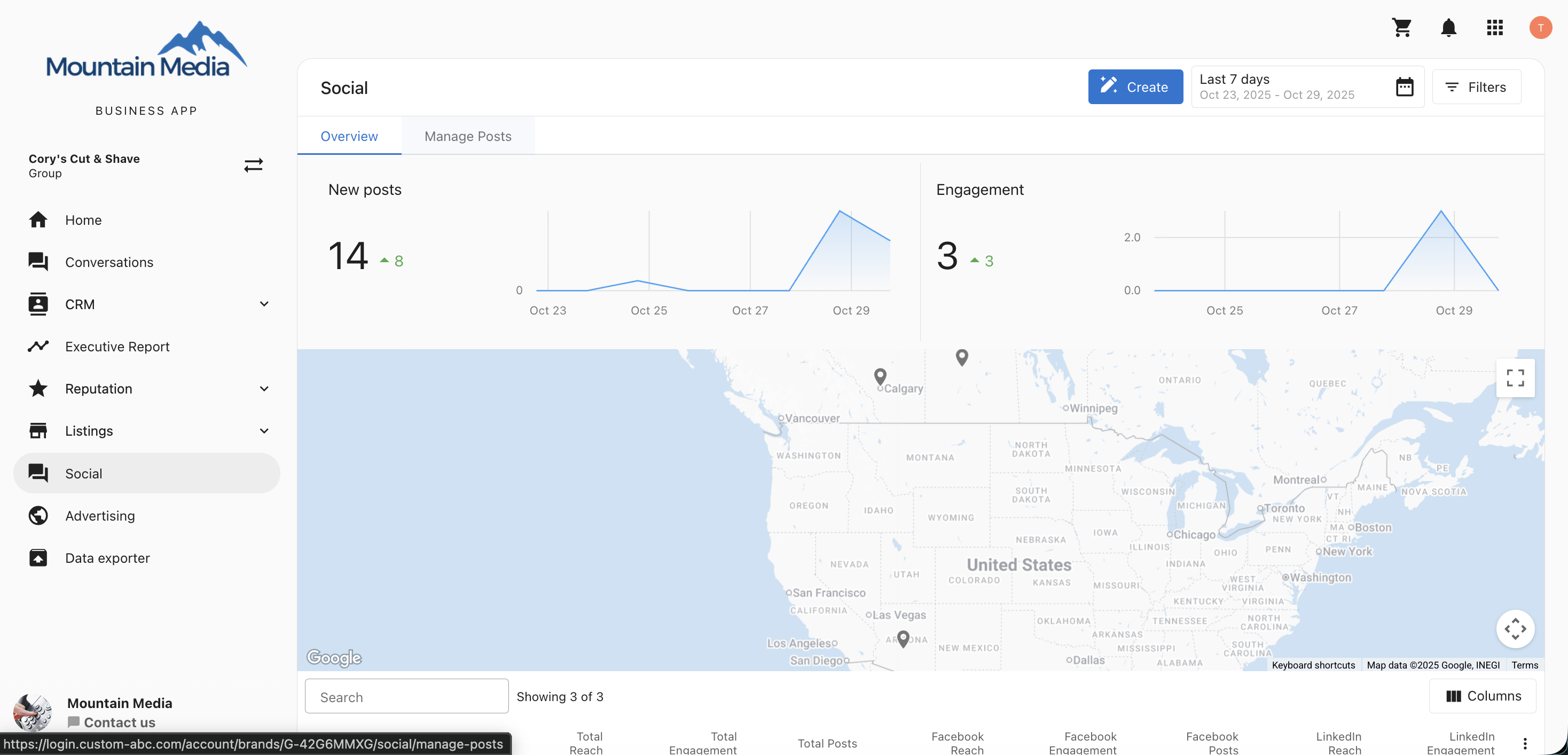
- Choose a tab to view posts by status:
Drafts,Scheduled,Published, orFailed.
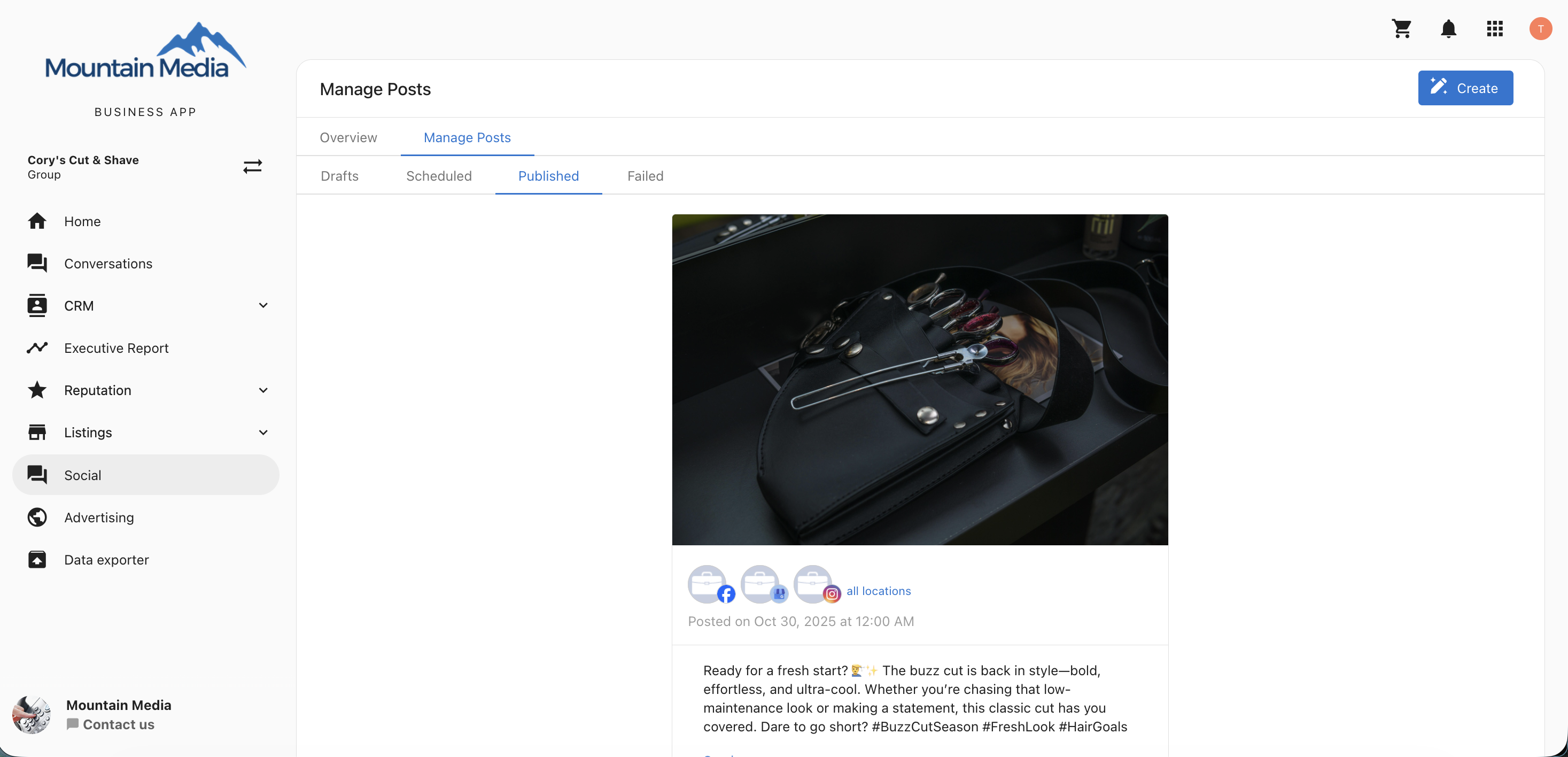
- Click on a post to view details and available actions.
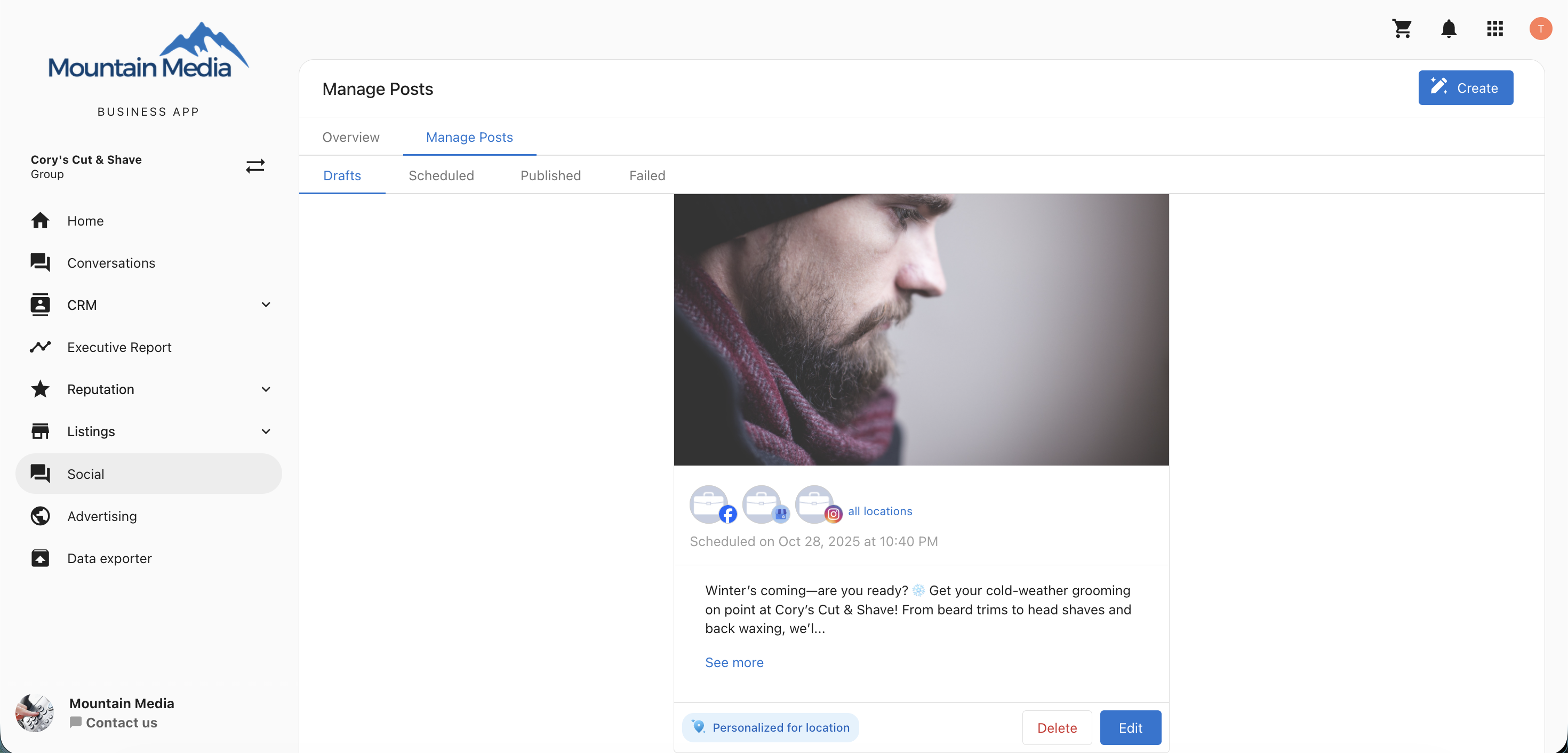
Filtering drafts by context
When viewing drafts, use the filter type that matches your workflow:
- Calendar / Report: drafts are listed by scheduled date
- Post Menu: drafts are listed by updated date
Viewing posts across all locations
- You can see where a post exists (draft, scheduled, published) across all linked locations.
- Clicking on a social network icon will take you directly to that network view for the selected location.
- For failed posts, you’ll see the exact location where the post failed and the related error message.
- If personalizing the content for one or more locations fails, the post displays a Personalization failed badge instead. Hovering over the badge shows: Personalization for each location couldn't be completed. Please delete this post and create a new one to try again. This applies on both web and mobile.
Editing posts
You can edit drafts and scheduled posts to update the following:
- Post content
- Media
- Date and time
- Selected locations
- Social networks
To edit a post:
- Click the post you want to update.
- Select
Edit. - Make your changes and save the post.
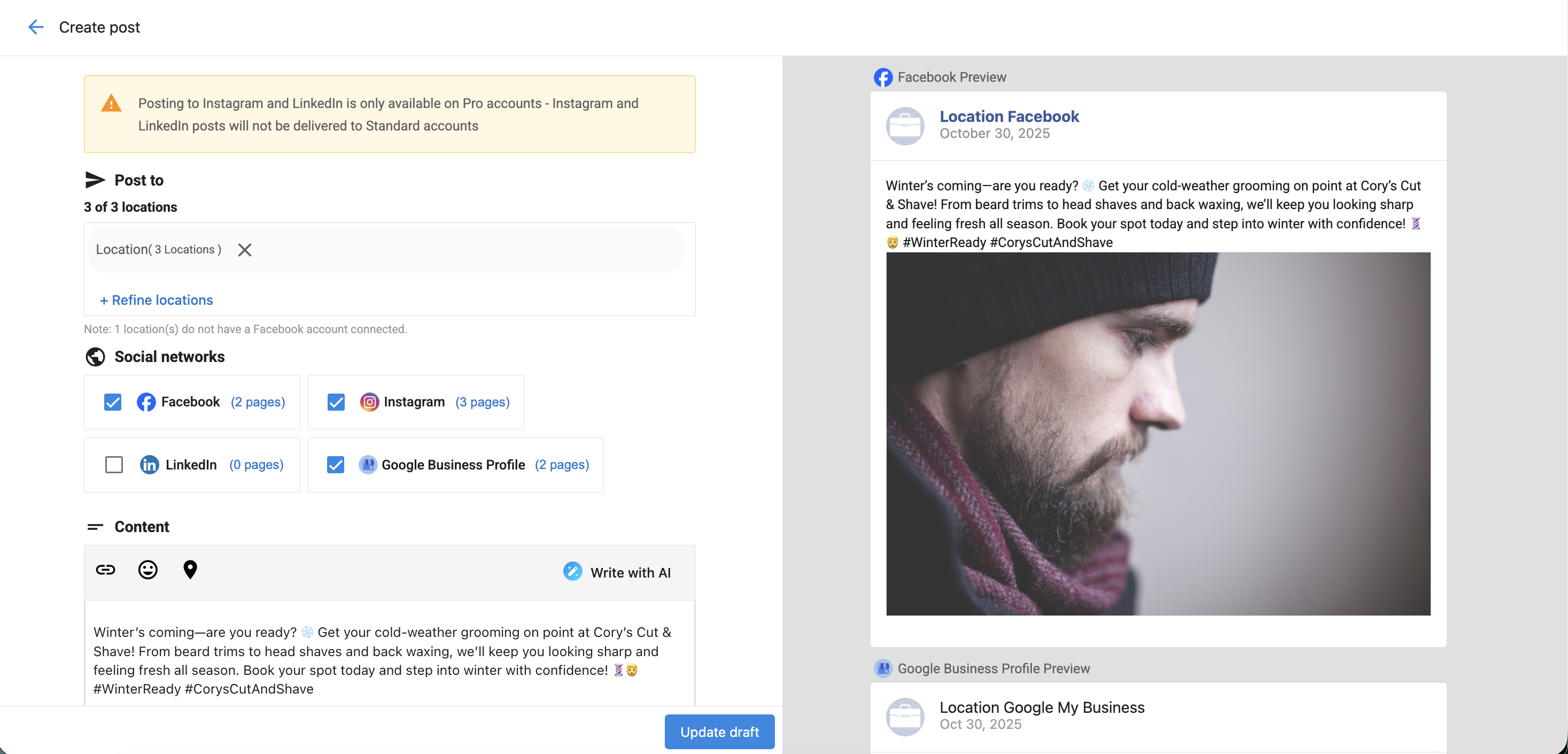
Scheduling draft posts from post cards
In the Drafts tab, each draft post card includes a Schedule action so you can schedule the post directly from the card.
Scheduleis available only for posts in theDraftsstate.- The action is available in desktop and mobile toggle views.
- After you schedule a draft post, a confirmation snackbar appears.
Before the Schedule action is enabled, date and time checks are applied:
- If the selected date and time are in the past, scheduling is disabled and shows:
Please select a future date and time to schedule this post. - If the selected date and time are in the past and no valid social account is connected, scheduling is disabled and shows:
Please ensure the scheduled time is in the future and at least one social account is connected.
Edits made at the multi-location level are reflected across all connected single-location posts.
Deleting posts
You can delete drafts, scheduled, and published posts directly from the multi-location view.
To delete a post:
- Click the post you want to remove.
- Select
Delete. - Confirm the deletion.
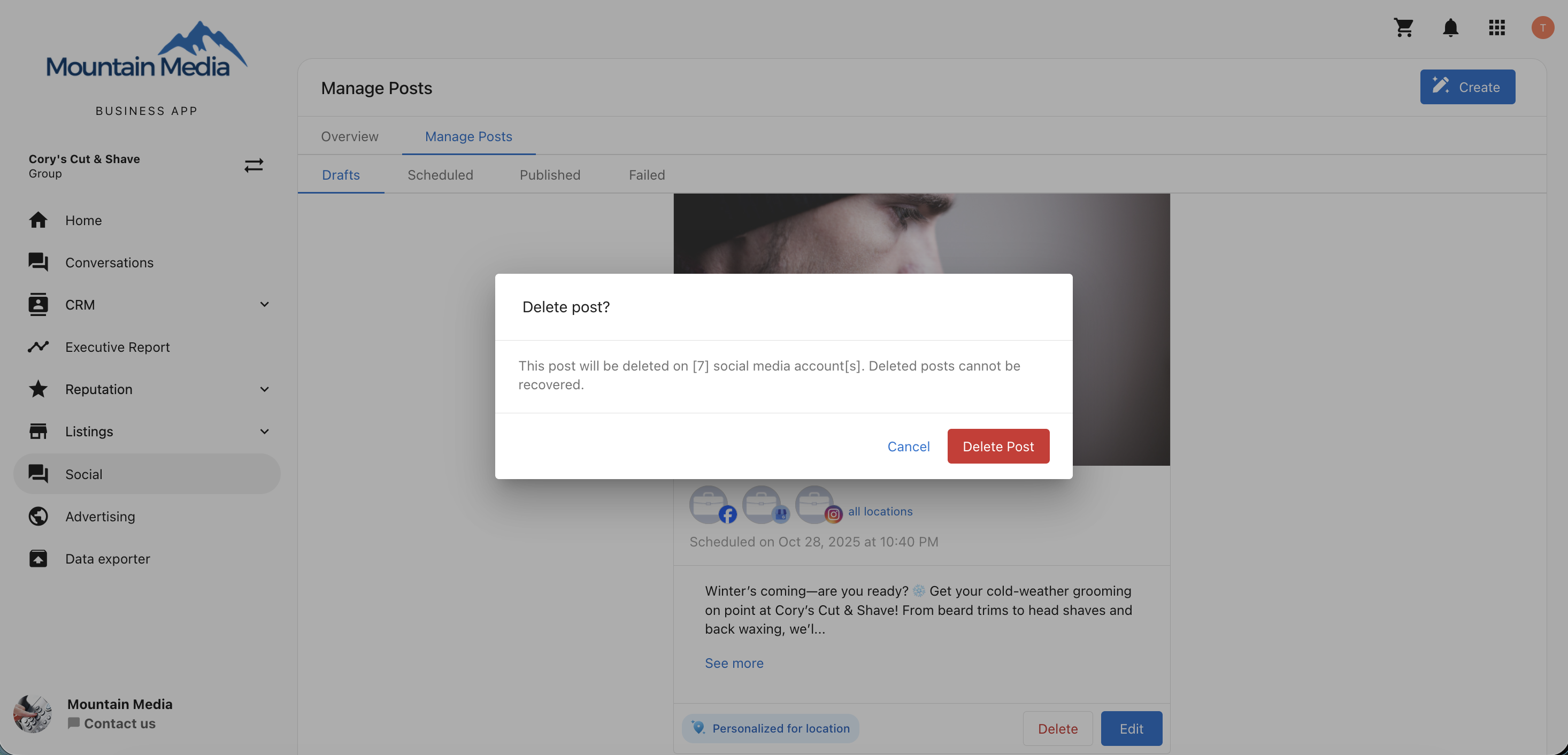
When a post is deleted at the multi-location level, it is also removed from all connected single-location accounts.
Published Instagram posts will not be deleted from single-location accounts even if removed at the multi-location level.
Frequently asked questions
Can I edit published posts?
No. Only drafts and scheduled posts can be edited.
Can I see which locations a post has been published to?
Yes. The All Locations view shows where each post is drafted, scheduled, or published.
Can I click through to view a location’s social network?
Yes. Click on the social network icon to navigate directly to that location’s page.
Can I fix failed posts?
Yes. You can view the specific error message for each failed post and edit or reattempt publishing.
Can I delete published posts?
Yes, but deleted Instagram posts will remain at the single-location level.
Can I change the date and time of a scheduled post?
Yes. You can update the schedule details in the Edit view for scheduled posts.
Do changes at the single-location level affect the multi-location post?
No. Updates made at a single location do not reflect in the multi-location view.
Can I view media associated with posts?
Yes. You can preview attached images or videos in the post details view.
What happens when I delete a draft?
The draft is removed from the multi-location group and all associated single-location accounts.
Are failed posts automatically retried?
No. You’ll need to manually edit and reschedule the failed post.
What does the "Personalization failed" badge mean?
This badge appears on a multi-location post when personalizing the content for one or more locations couldn't be completed. Unlike other failed posts, you can't edit or reattempt these — delete the post and create a new one to try again.