Reputation AI
Review response suggestions make it easy to quickly respond to customer reviews. There are several suggested responses for different star ratings, making it easy to find a response that matches your review.
AI-assisted review responses are only available on the Premium plan. On the Professional plan, suggested responses are pre-written templates rather than AI-generated.
Responding to reviews
- Open the Multi-location Business App from your Partner Center or white-label dashboard.
- Click into a location that has a review you'd like to respond to.
- Click Reviews from the left navigation menu.
- Find the review you'd like to respond to and click Reply in the bottom right corner of the review.

- When the reply box opens, click Use suggested response.
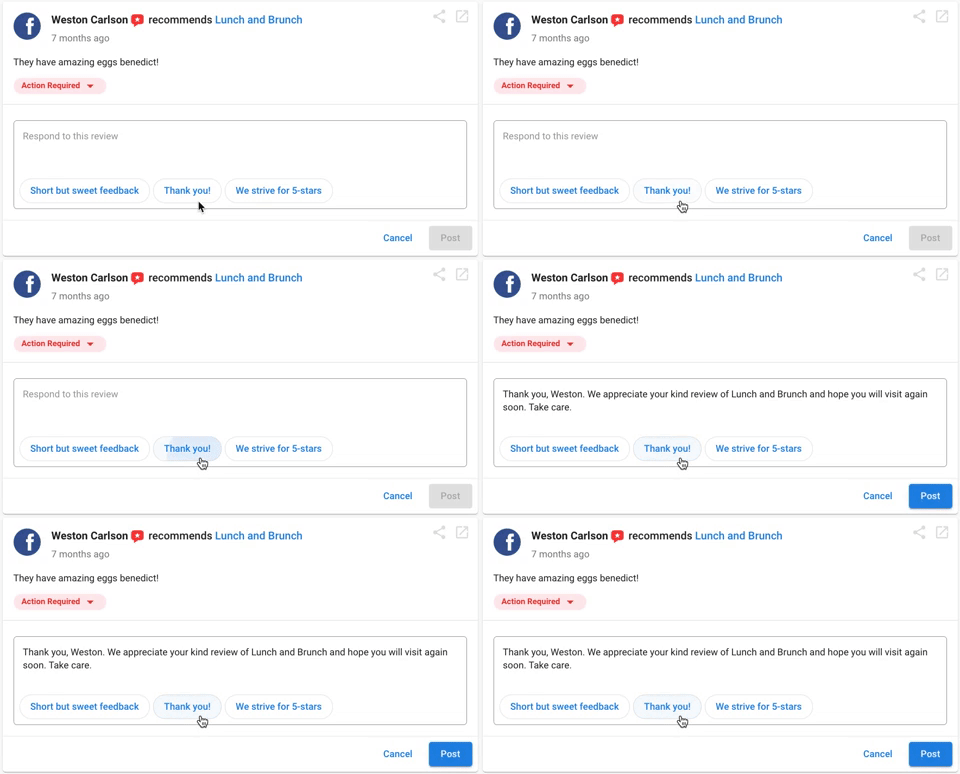
- A list of responses will appear in a pop-up. The suggested responses are tailored based on the star rating of the review.
- Select the response that best fits the review. The text will appear in the reply box and you can edit it if needed.
- When you're ready, click Reply.

Saving a response as a template
When selecting a suggested response, you have the option to save it as a template to use for future review responses.
- Select a suggested response.
- Click the checkbox for "Save as template for future use".
- Click Use this response.

Using saved templates
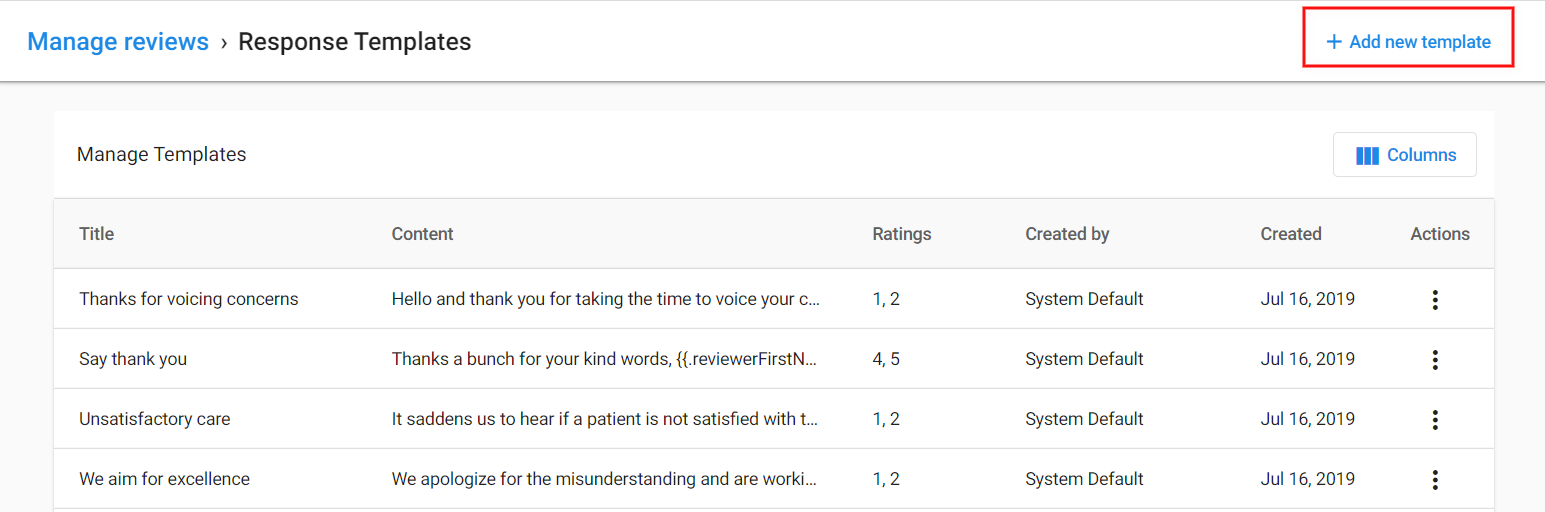
Saved templates appear alongside the suggested responses. You can access them in the same way.
- Click Reply on a review.
- Click Use suggested response.
- Your saved templates will appear at the top of the suggestion list.
How suggested responses behave when reviews are edited
If a customer edits an existing review, the suggested draft response is refreshed for that same review based on the latest review text and star rating.
If a reply has already been posted for the original version of the review, a draft response is not shown in the review card.
Best practices for responding to reviews
- Always personalize the suggested responses before posting them.
- Address the customer by name when possible.
- Reference specific points mentioned in the review.
- For negative reviews, offer to make things right and provide contact information for further assistance.
- Keep responses professional and courteous, even for negative reviews.
- Respond promptly to all reviews, both positive and negative.
Frequently asked questions
Does editing a review set its status to needs response in Reputation AI?
No. Editing a review does not change its response status in the dashboard. The status stays as it was after the edit.