How to send Yesware email campaigns to Vendasta CRM contacts
Use this guide to start a Yesware email campaign (also known as an email sequence or drip campaign) directly from the CRM → Contacts table in Partner Center. You can select contacts, add them to an existing Yesware campaign, and optionally trigger additional actions using Vendasta Automations.
While you can add contacts to Yesware campaigns and see key activities in the contact timeline from the Vendasta CRM, you must create and manage those campaigns in the Yesware platform.
Prerequisites and setup for Yesware and Vendasta CRM integration
Before you can send contacts a Yesware campaign, make sure that:
- your subscription plan has access to Yesware (eg. Professional, Premium, or Custom)
- the Yesware Chrome (Gmail) or Outlook add-in is installed and connected to your mailbox.
- a Yesware Campaign already exists in Yesware.
How to launch Yesware campaigns from the Vendasta CRM contacts table
- Go to
Partner Center→CRM→Contacts. - Select one or more contacts in the table.
- Click
Actions→Add to Yesware Campaign. - Choose the desired Yesware campaign from the dropdown (campaigns previously created in Yesware).
- Confirm to add the selected contacts to the campaign.
You can add up to 100 contacts at a time from the Contacts table. The action does not apply to Select all beyond the first 100.
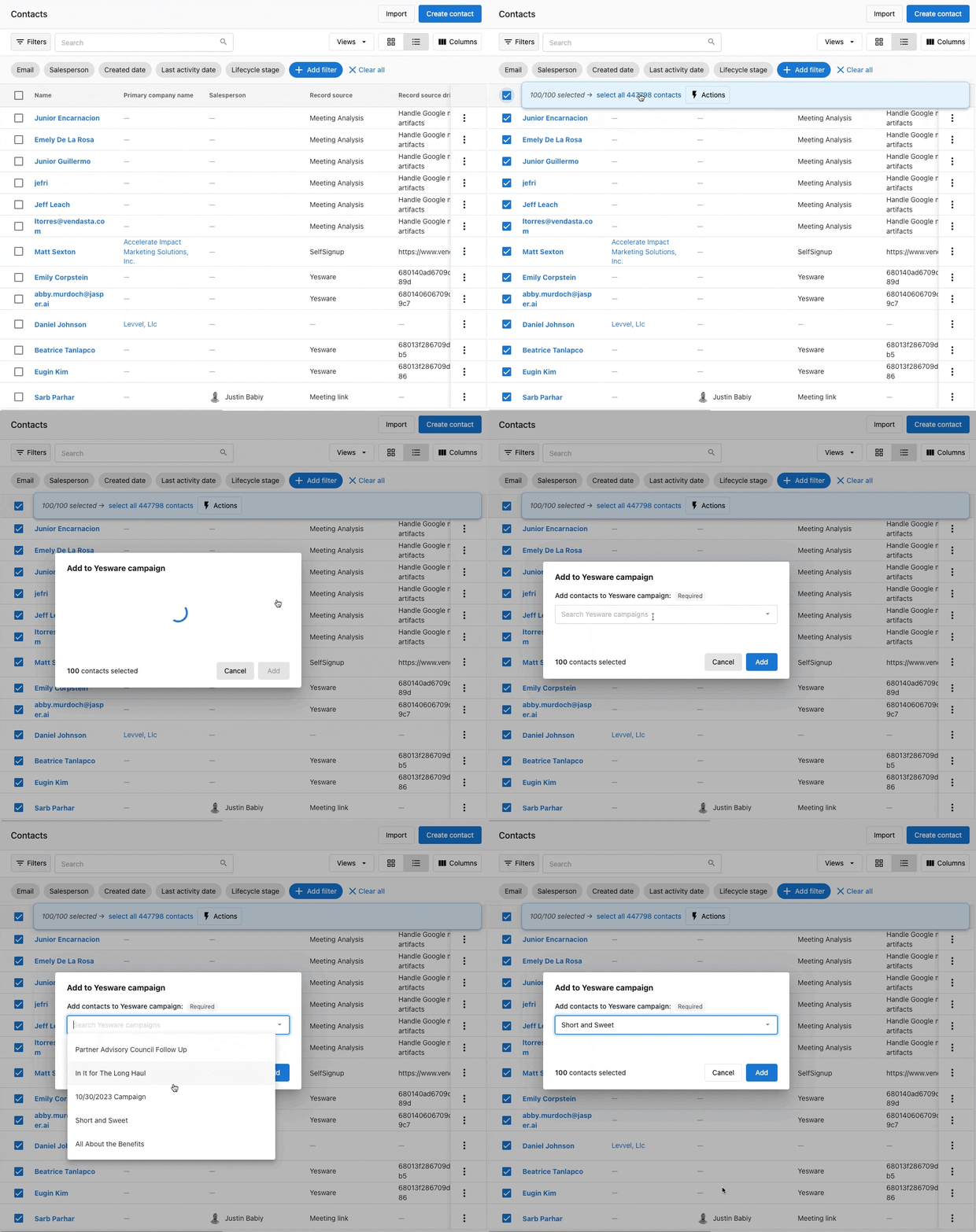
You can also use the row action menu (three dots) for an individual contact and choose Add to Yesware Campaign.
If a selected contact is already active in a different Yesware campaign, you’ll see an error and must remove them from the other campaign first.
Email deliverability best practices for Yesware campaigns
- Verify your email domain and review sending reputation in your email provider.
- Keep daily volumes within Gmail/Outlook limits to avoid deferrals.
- Use clear subject lines and relevant content; avoid spam trigger phrases like "free", "limited time", "exclusive", etc.
Yesware campaigns are sent out directly via the user’s Gmail or Outlook inboxes. While this can help with opens and clicks, it also means that they are subject to the daily send limits of email providers and any other restrictions that may apply.
How to launch Yesware campaigns using Vendasta's Automations
Automations give you another way to launch Yesware campaigns beyond the Contacts table. Any existing Yesware campaign can be triggered by an automation using the Send a Yesware campaign for the contact step.
Example triggers include:
- When a contact is added to a specific list;
- When a contact fills out a specific form;
- When a contact opens a specific email;
- When a contact replies to a specific email;
Only existing Yesware campaigns can be selected in Automations. Campaign creation and sharing must still be managed directly within Yesware.
Related automation guides:
- Automations overview - Learn how to create your first automation workflow
- Automation steps reference - Find the "Send a Yesware campaign" step and other contact actions
- Automation templates for lead nurturing - Pre-built workflows that can trigger Yesware campaigns
Frequently asked questions
Can I send Yesware campaigns from both Vendasta Partner Center and Business App?
Yes. Adding contacts to a Yesware campaign is available in both Partner Center and Business App.
Where do I create and manage Yesware email campaigns?
Campaigns are created in Yesware (Gmail/Outlook). Once created, they appear in the Add to Yesware Campaign dropdown and in Automations within Vendasta.
How do I remove a contact from an active Yesware campaign?
Remove the recipient in the Yesware campaign’s Recipients tab, then add them to a new campaign from Vendasta.
Can I track Yesware campaign results and analytics in Vendasta CRM?
Reply activities from Yesware are logged on the contact timeline in the Vendasta CRM. Campaign completion without a reply may not create an activity.
What's the difference between Yesware campaigns and Vendasta email campaigns?
Yesware campaigns send from your personal Gmail/Outlook inbox with higher open rates but lower volume limits. Vendasta email campaigns send from marketing servers with higher volume capacity but may have lower personal connection. Yesware is better for sales outreach, while Vendasta campaigns work better for marketing newsletters and bulk communications.
How many contacts can I add to a Yesware campaign from Vendasta?
You can add up to 100 contacts at a time from the Contacts table. For larger lists, you'll need to select contacts in batches of 100 or use Vendasta Automations to add contacts over time based on triggers.
Does Yesware integration work with Outlook and Gmail equally?
Yes, Yesware campaigns launched from Vendasta work with both Gmail and Outlook. However, each email provider has different daily sending limits (Gmail: 500/day for Google Workspace, Outlook: varies by plan). The Yesware add-in must be installed and connected to your mailbox first.
Can I schedule Yesware campaigns to send later from Vendasta?
Scheduling is handled within Yesware campaigns themselves, not from Vendasta. You can add contacts to a campaign from Vendasta, but timing and scheduling controls are managed in the Yesware platform where you create the campaign sequence.
Why can't I see my Yesware campaign in the Vendasta dropdown?
Make sure: 1) The campaign exists in Yesware, 2) You're logged into the same email account in both platforms, 3) The Yesware integration is properly connected. Newly created campaigns may take a few minutes to appear in Vendasta dropdowns.
What happens if I add the same contact to multiple Yesware campaigns?
A contact can only be "Active" in one Yesware campaign at a time. If you try to add someone who's already active in another campaign, you'll get an error. You must either remove them from the current campaign or wait until they complete it before adding them to a new one.
Can I use custom fields from Vendasta CRM in Yesware campaigns?
Yesware campaigns pull contact information from your email provider's contacts, not directly from Vendasta CRM fields. To use Vendasta data in Yesware, you'll need to sync or export contact information to your Gmail/Outlook contacts first.