Reusable workflows
Once you've built useful automation patterns, you can group and reuse them — saving time and keeping your workflows consistent.
Grouping automation steps
Grouping consolidates multiple actions into an easily accessible set, improving readability and serving as the foundation for Action Sets.
How to use automation grouping
Step 1: Navigate to Partner Center then Automations then My Automations.
Step 2:
- Option 1: Click on Create Automation in the top right to start building a workflow.
- Option 2: Use the filter feature to find an automation that's not turned ON.
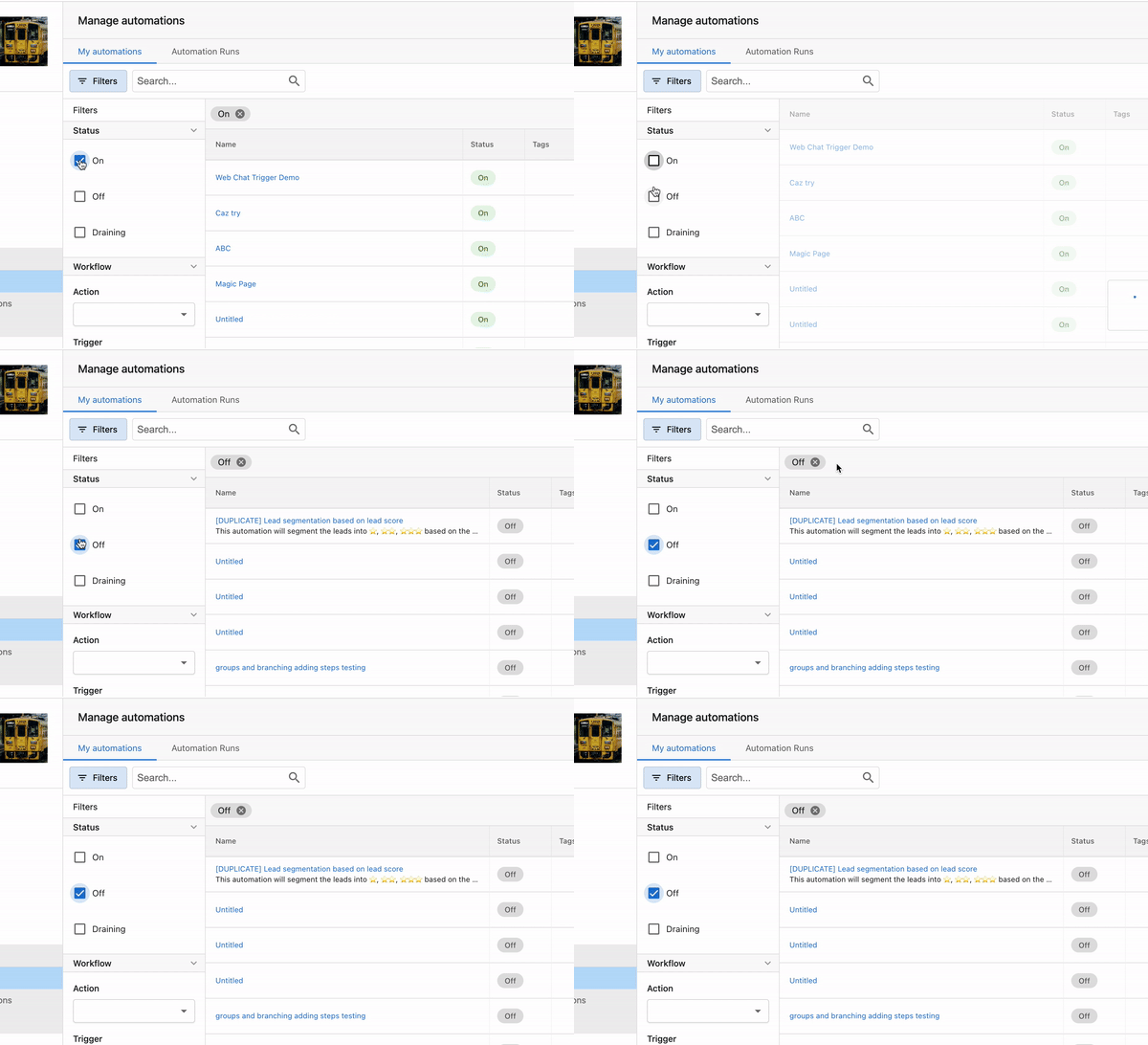
Step 3: Open the automation.
Step 4: Identify Your Action Steps
- Start by identifying the consecutive action steps you want to group. For example, in the automation shown below, the automation includes several actions such as updating lead quality, tagging, starting a campaign, and notifying an internal user.
Step 5: Access the Grouping Option
- Navigate to the sequence of actions you want to group.
- Click on the three dots (more options) next to one of the actions in the sequence.
Step 6: Select Consecutive Steps
- Ensure that the steps you want to group are consecutive (one after the other).
- Select the consecutive steps that should be grouped together.
Step 7: Create the Group
- Once the steps are selected, click on Create Group.
- You will have the option to update the auto-generated name of the group.
- Optionally, you can add notes for clarity, which will be visible when viewing the group.
Action sets
Action Sets let you save groups of steps and reuse them across automations — eliminating the need to recreate similar sequences from scratch.
How to use action sets
Step 1 - Navigate to Partner Center then Automations then My Automations.
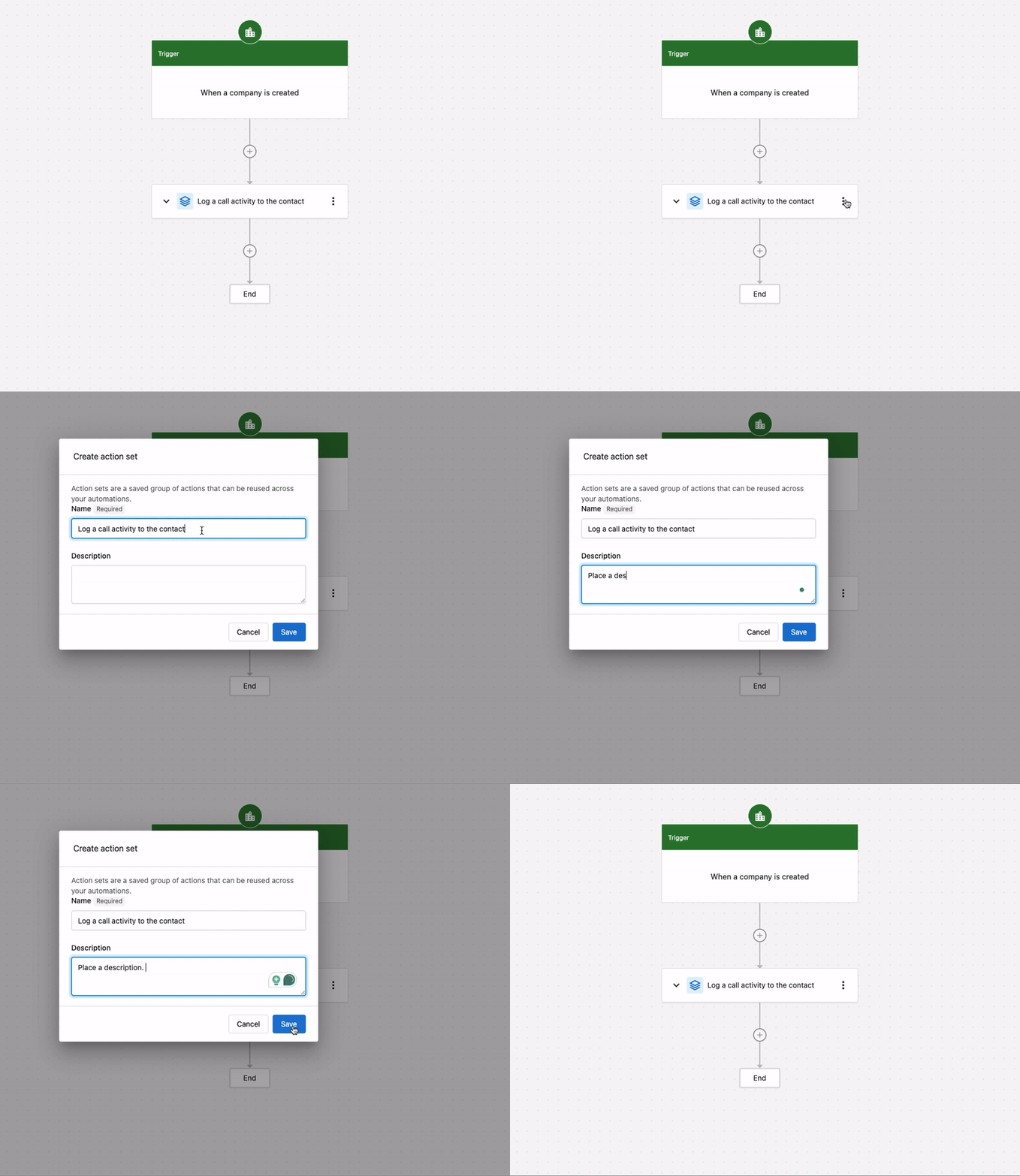
To save an Action Set: Go to any existing Automation Group, click on the 3 dots, then select Save as Action Set.
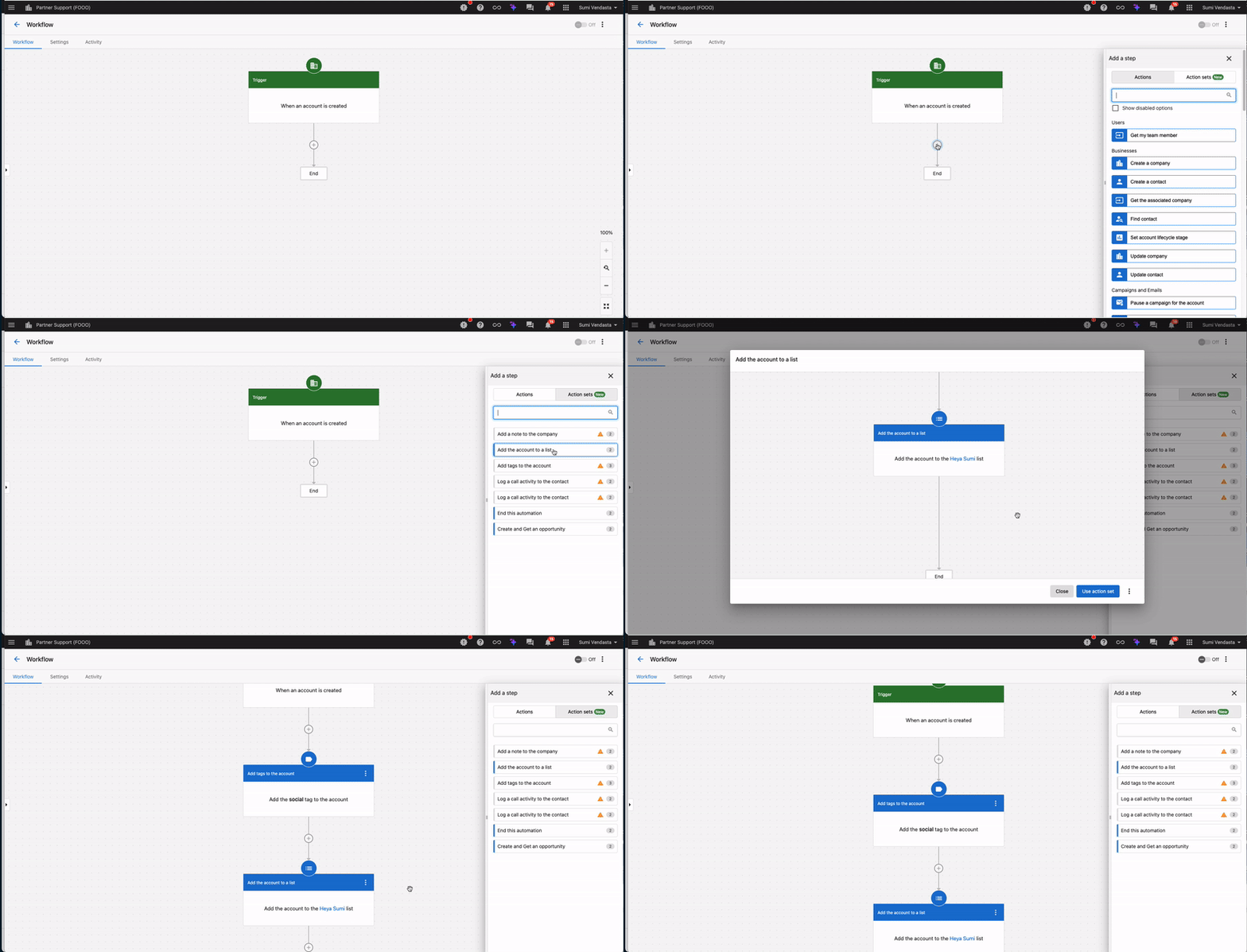
To use an existing Action Set: Click the + to add to the automation, navigate to the Action Sets tab, select the desired action set to preview, then select Use Action Set.
Action sets Q&A
Q: Why can't I add an Action Set inside a Group?
A: This is intentional. The current system design prevents adding Action Sets within a Group because nesting groups within other groups is not supported.
Q: Why can't I save Action Sets with if/else, end, and jump steps?
A: These steps are not included in the initial release of Action Sets. We plan to add them in the future!
Q: Who can create an Action Set?
A: Any Admin with permission to create automations can also create and apply Action Sets when building an automation.
Q: Can other users in my company use an Action Set that I created?
A: Yes, currently, any Action Set created by you can be used by other users within your company, as there are no restrictions to manage this.
Q: Is this feature available in the Business App?
A: Yes, this feature is available in Business App as well.
AI employee integration
You can integrate AI Employees (including Custom AI Employees) into your automation workflows using the "Send a prompt to an AI Employee" step. This adds LLM-powered intelligence and decision-making capabilities to your automations.
How AI employee integration works
The "Send a prompt to an AI Employee" step allows you to:
- Send contextual prompts to your AI Employees within automation workflows
- Use AI Employees for intelligent decision-making based on customer data
- Generate dynamic responses or perform actions based on AI Employee capabilities
- Leverage your AI Employee's knowledge base and capabilities in automated processes
Set up AI employee integration
- Navigate to your automation workflow editor
- Add a new step and select "Send a prompt to an AI Employee"
- Select the AI Employee you want to use (pre-built or Custom AI Employee)
- Configure the prompt with context from your automation (contact data, previous steps, etc.)
- Define how to use the AI Employee's response in subsequent steps
Use cases for AI employees in automations
Intelligent Lead Qualification:
- Use an AI Employee to analyze lead information and qualify prospects
- Generate personalized follow-up messages based on AI analysis
- Route leads to different paths based on AI Employee recommendations
Dynamic Content Generation:
- Generate personalized email content using AI Employee knowledge
- Create custom responses based on customer data and business context
- Adapt messaging based on AI Employee analysis of customer needs
Contextual Decision Making:
- Use AI Employees to make decisions based on complex criteria
- Analyze customer history and generate appropriate next steps
- Provide intelligent routing based on AI Employee recommendations
Custom AI Employee Use Cases:
- Job Estimator: Generate quotes or estimates in automated workflows
- Project Manager: Send status updates based on project data
- Sales Enablement: Provide product recommendations in sales automations
- Payment Coordinator: Handle payment-related decisions in billing workflows
Benefits of AI employee integration
- Enhanced Intelligence: Add AI-powered decision-making to your automations
- Contextual Responses: Leverage business knowledge and customer context
- Reduced Manual Work: Automate complex decision-making processes
- Consistent Quality: Use trained AI Employees for reliable, consistent outputs
Best practices for AI employee integration
- Provide Clear Context: Include relevant customer data and business context in your prompts
- Test Thoroughly: Test AI Employee responses in your automation before deploying
- Handle Edge Cases: Plan for scenarios where AI Employee responses may need fallback logic
- Use Custom AI Employees: Create specialized AI Employees for specific automation use cases
- Monitor Performance: Review AI Employee responses in automation logs to optimize prompts
For more information on creating and configuring AI Employees, see:
Best practices
- Group related actions — Group steps that logically belong together to improve readability and reusability
- Create reusable Action Sets — Identify common sequences of steps that you use across multiple automations
- Document your groups — Add clear descriptions to groups and action sets to help team members understand their purpose
Who can use these features?
These features are available to users managing CRM automation workflows within Business App and Partner Center. Action Sets and grouping features are available to any Admin with permission to create automations.
Related pages
- Actions overview — All available action steps
- Logic & flow control — Branching, delays, and flow control
- Summarize with AI — Dedicated AI action step guides