Hiding AI Employees
The AI Workforce page in Business App advertises every AI Employee your clients could have, including the ones they haven't bought yet. If you've decided not to take a particular AI Employee to market, you can remove it from Business App entirely, market by market, from Customize Business App.
Hiding isn't a display setting. A hidden AI Employee is switched off for every account in that market: it stops responding in chat, its automated work stops, and it disappears from every part of Business App, including accounts that already have it set up. Nothing is deleted, and showing the AI Employee again turns it back on.
Where the setting lives
Go to Partner Center → Administration → Customize Business App → Pages → AI. Below the Show this page setting you'll find the AI employees section.
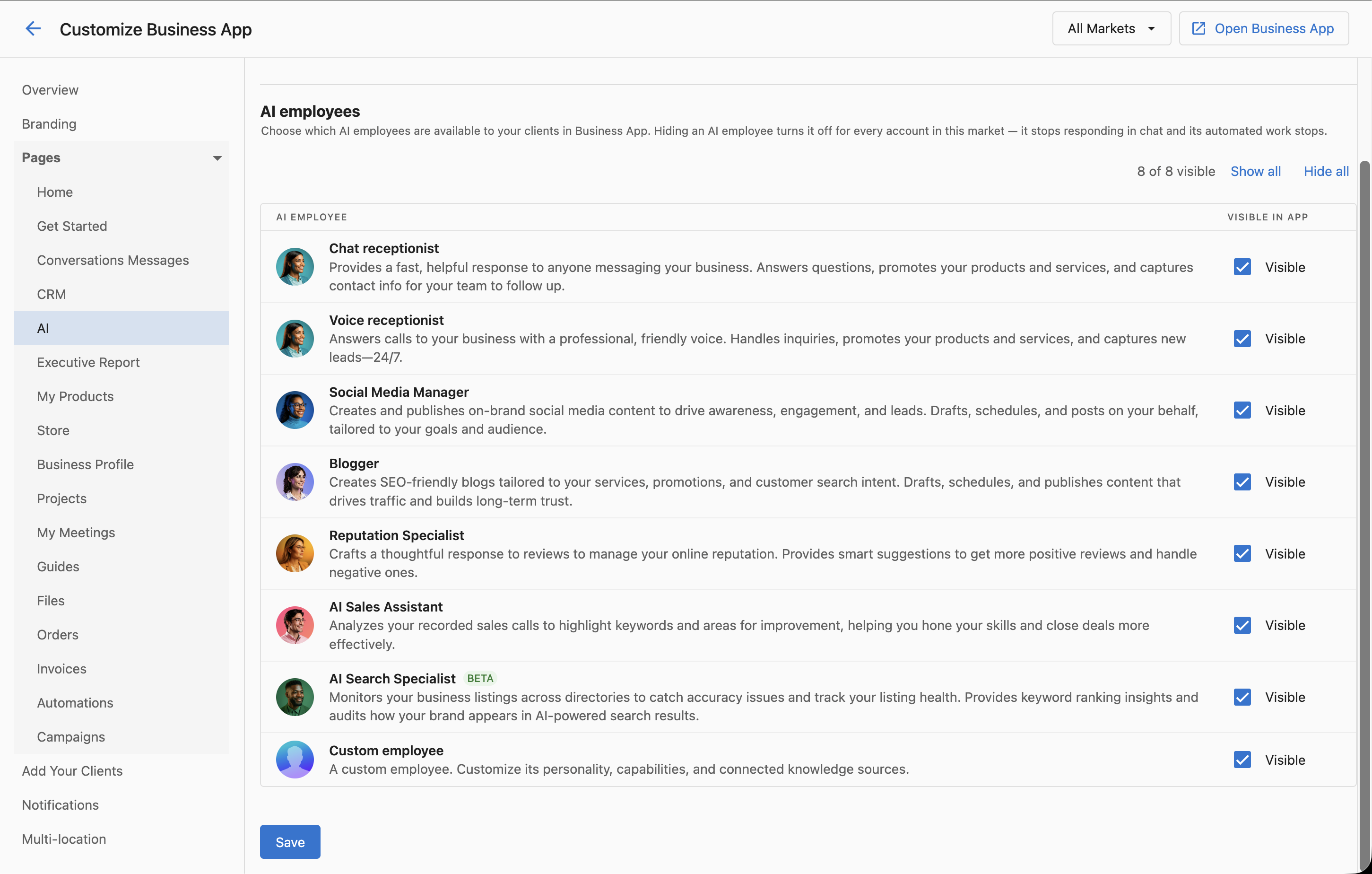
Each AI Employee gets a row with a Visible in app checkbox. The header above the list counts how many are visible, and Show all and Hide all set every row at once.
Show this page only controls whether the AI page appears in Business App. It doesn't turn any AI Employee off: an AI Employee you haven't hidden below keeps answering and keeps doing its automated work even while the page is hidden. Use the AI employees list below to actually turn an AI Employee off. The list stays fully editable whether or not the page is shown.
Which AI Employees you can hide
Every AI Employee on the Business App AI Workforce page can be hidden, including the Chat receptionist and the Custom employee. The rows come from the same catalog the AI Workforce page renders from, so the list you see always matches what's available to your clients, and an AI Employee added to the platform appears as a visible row without any action from you. AI Employees start visible, so curate after a launch rather than before it.
Two of the rows are worth a closer look before you clear them.
Consider the Chat receptionist carefully
The Chat receptionist powers the web chat widget and message replies, so hiding it stops AI responses in conversations your clients' customers are already having. Hide it only if you don't want AI answering messages at all in that market.
Hiding the Custom employee
Hiding Custom employee removes the whole custom AI surface, not just the placeholder card:
- The Create button disappears from the AI Workforce page.
- Custom AI Employees your clients already built no longer appear in the workforce list, the AI Employee picker, or the Inbox chat picker, and their configuration pages don't open.
Show the Custom employee again and both the button and the existing Custom AI Employees come back.
Hide an AI Employee
- Go to
Partner Center→Administration→Customize Business App→Pages→AI. - Choose the market you're configuring from the market selector at the top of the page. See Markets and defaults below.
- In the AI employees section, clear the Visible checkbox for each AI Employee you want to remove. Use Hide all if you want to start from nothing and show only a few.
- Click Save.
- Read the confirmation, then click Confirm.
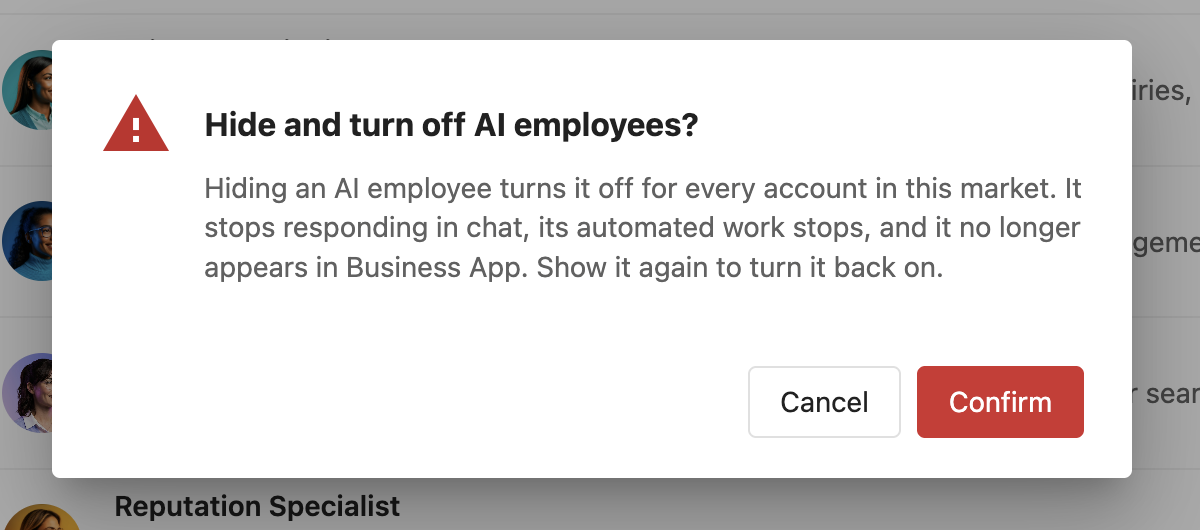
The confirmation only appears on a save that hides something that wasn't hidden before. Saves that show more AI Employees, or that change nothing, go straight through.
Changes reach Business App within about ten seconds. Have your client refresh Business App if they're looking at the AI Workforce page while you save.
What your clients see
Once an AI Employee is hidden for a market, in every account in that market:
- AI Workforce page: no card, in any state. The active card, the locked Upgrade to gain access card, and the Coming soon badge all go away. This is what separates hiding from marketplace gating, which suppresses a locked card but leaves an active one.
- AI Employee pickers: the AI Employee is gone from the chat picker in Business App and from the AI Employee dropdowns in the automation builder. For the web chat widget specifically: a hidden Chat receptionist can't be set as a widget's assistant, and if both the Chat receptionist and Custom employee are hidden, web chat widget setup doesn't appear on the Conversations settings page at all.
- Chat: the AI Employee stops answering. Existing conversations stay in place, but the AI no longer replies in them.
- Automated work: scheduled and triggered work the AI Employee ran stops.
What doesn't change:
- Products, orders, and billing. Hiding is not stop-selling. The product that powers the AI Employee stays active on the accounts that bought it, stays in your store, and keeps billing as before.
- Your own workforce page. The AI Workforce page in Partner Center is unaffected and keeps showing every AI Employee.
- Configuration you've already done. Nothing is deleted. Names, personalities, capabilities, knowledge sources, and connections are all still there when you show the AI Employee again.
Because the product stays active and keeps billing, a client who is paying for an AI Employee you've hidden loses access without losing the charge. If a client shouldn't have the product at all, change their subscription instead of hiding the AI Employee.
Markets and defaults
The setting is per market, and follows the same pattern as the rest of Customize Business App:
- Pick the market you're configuring from the selector at the top of the page.
- A market with the Use All Markets Default toggle on follows whatever the default market has set, and its checkboxes are read-only.
- Turn Use All Markets Default off to give that market its own list.
- Setting the list on the default market applies to every market that hasn't overridden it. Check what your other markets inherit before you save a default.
Switching a market back to Use All Markets Default can hide more than its own list did, if the default market hides more. The confirmation dialog accounts for this and appears in that case too.
If you have a single market, set the list once on the default market and it applies everywhere.
Show an AI Employee again
Select the Visible checkbox, or click Show all, and click Save. There's no confirmation for showing an AI Employee. It reappears in Business App, resumes answering, and picks up any configuration it already had.
Choosing the right control
Several settings affect what your clients see on the AI Workforce page. They do different jobs:
| Goal | Use this |
|---|---|
| Remove one AI Employee from Business App and turn it off | AI employees checkboxes, described on this page |
| Remove the whole AI section from Business App | The Show this page setting on the same AI page |
| Keep a locked card but remove its upgrade button | The product's Upgrade toggle in the Marketplace. See Upgrading AI Employees |
| Stop offering a product entirely, including to clients who have it | Stop selling the product in the Marketplace |
Hiding is the only one of these that removes a single AI Employee's card while leaving the rest of the page, the product, and your store intact.
Frequently asked questions
Does hiding an AI Employee stop my client from being billed for the product behind it?
No. Hiding only affects the AI Employee in Business App. The product stays active on the account and keeps billing. Change the client's subscription if you want the charge to stop.
Can I hide an AI Employee for one account instead of a whole market?
No. The setting is per market. Every account in the market gets the same list.
What happens to a client who already had a hidden AI Employee set up?
They lose access to it while it's hidden, including AI replies in chat and any automated work it was doing. Their configuration is kept, so showing the AI Employee again restores it as it was.
Do hidden AI Employees come back after a new one launches?
No. Your hidden list is unaffected by launches. A newly launched AI Employee starts visible and appears as a new row you can clear.
Does this change the AI Workforce page in Partner Center?
No. The setting applies to Business App accounts only. Your own workforce page in Partner Center keeps showing every AI Employee.
Why did the AI Employee reappear after I saved?
Check whether the market has Use All Markets Default turned on. A market following the default can't hold its own list. Turn the toggle off, set the checkboxes, and save again.