Field layouts
A field layout controls how CRM fields are grouped and ordered on a record. Each group becomes a labelled section, and the order of the groups is the order a user reads them.
The layout applies everywhere a record's fields are rendered:
- The create form for a new record
- The edit form for an existing record
- The record's profile panel
Every object type starts on a standard layout. When you change the layout, your change becomes an override that applies to your CRM only — the standard layout stays available and you can return to it at any time.
What you can change
- Group related fields together under a name you choose
- Reorder groups, and reorder fields within a group
- Choose how ungrouped fields are sorted
- Hide fields you don't use, without deleting them or their data
Before you start
You need the same permission that lets you create and edit custom fields. If you can open Administration → Custom Fields and create a field, you can edit the layout.
Layouts are set per object type. Contacts, Companies, Opportunities, and each custom object type all have their own layout, edited separately.
Open the layout editor
- Go to Partner Center →
Administration→Custom Fields. - Select an object from the list on the left — Contacts, Companies, Opportunities, or one of your custom objects.
- Click Organize layout.
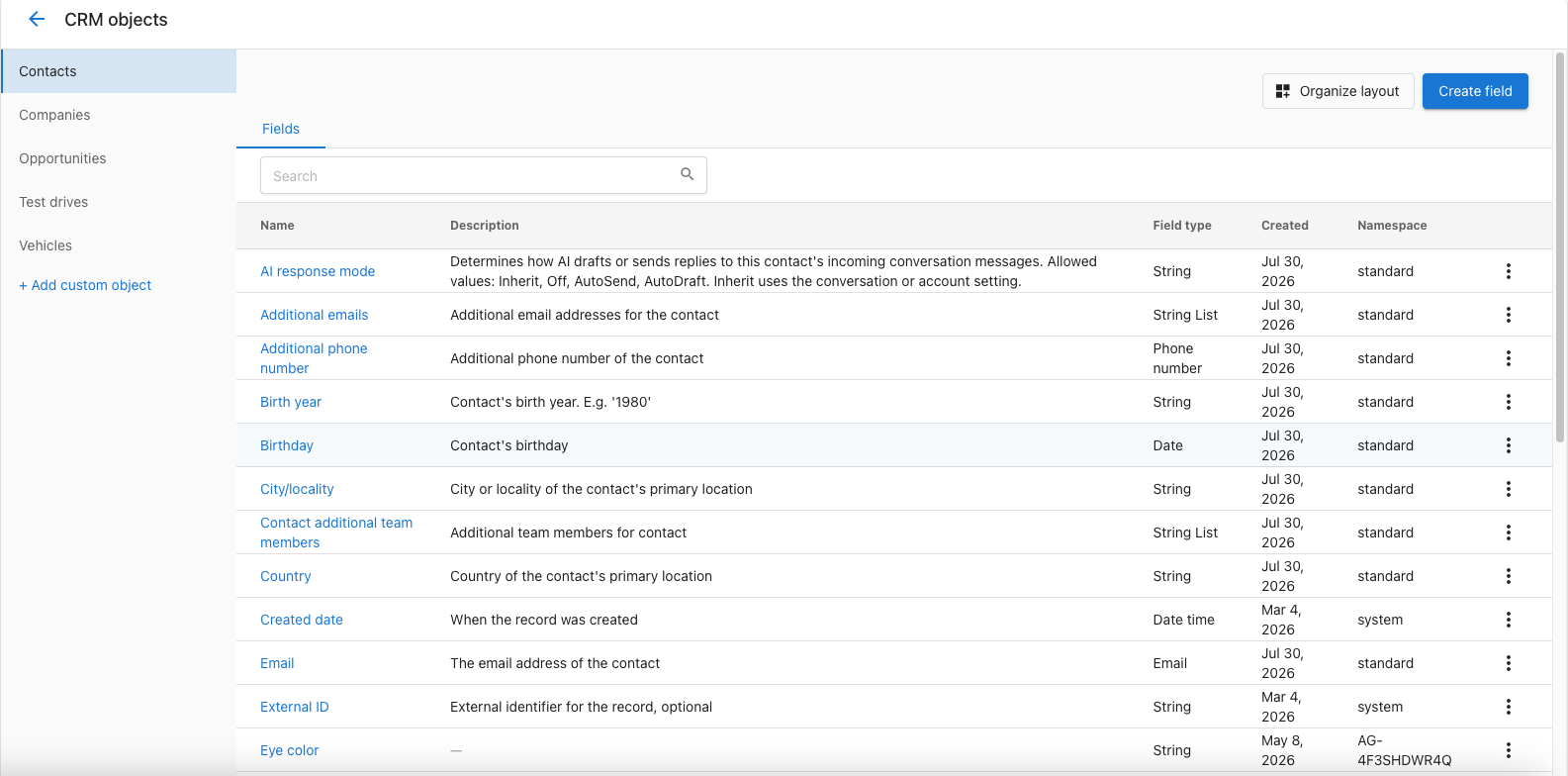
The editor
The editor has three panels.
| Panel | What it holds |
|---|---|
| Unassigned | Fields that aren't in any group. They still appear on records, below every named group. |
| Field groups | Your named groups, in the order they appear on the record. |
| Hidden fields | Fields removed from the record. Their data is kept. |
Drag a field between any two panels, or between groups. To move several fields at once, select them and use Add to group or Hide field from the selection menu.
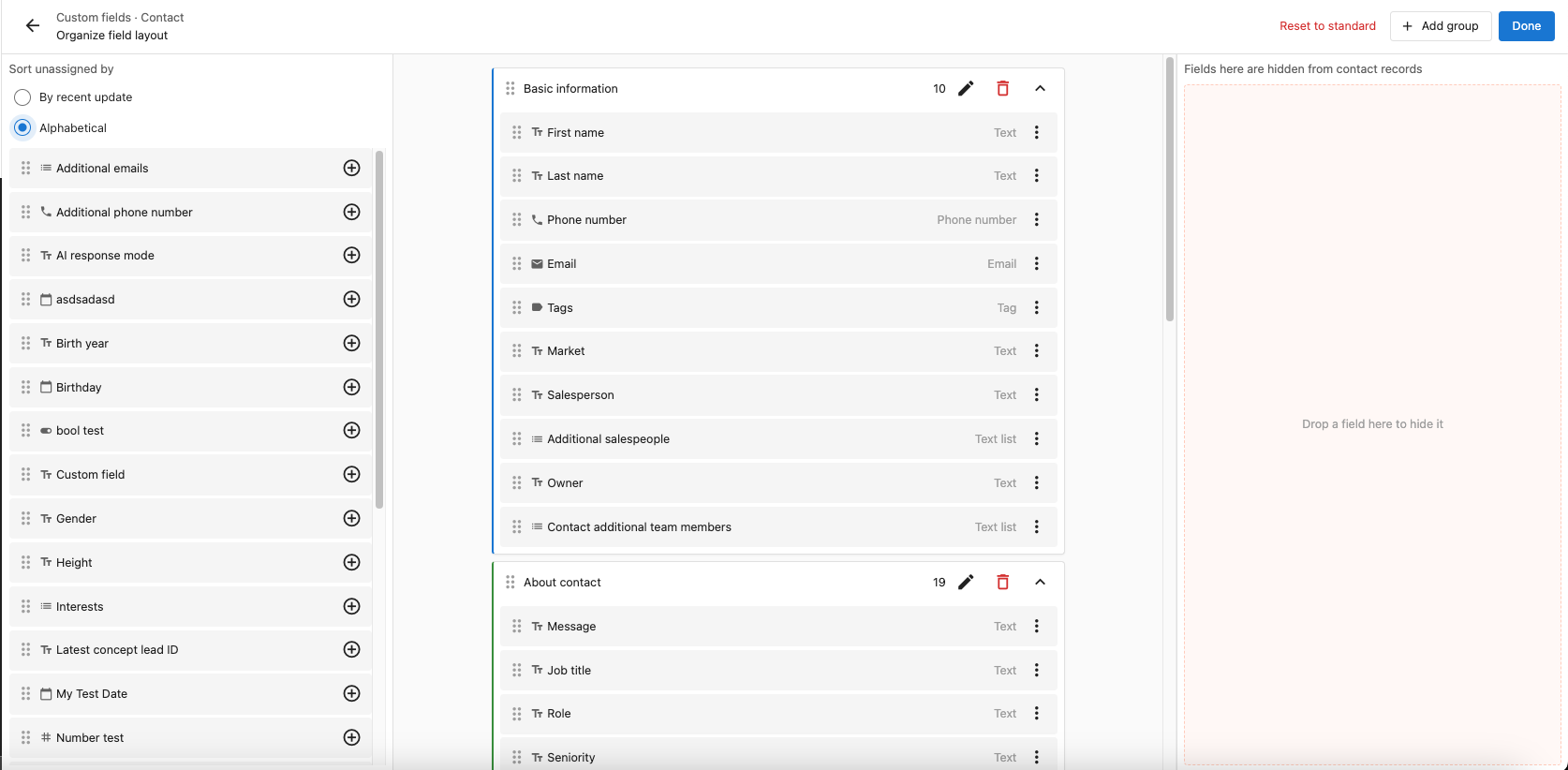
Field groups
- Click Add group and give it a name. Every group needs a name, and names must be unique.
- Rename a group with the pencil icon in its header. Press Enter to confirm or Escape to cancel.
- Delete a group with the trash icon. The fields in it return to Unassigned.
- Click a group's name, or the chevron, to collapse and expand it. The number beside the name is how many fields it holds.
- Drag a group by its handle to move it up or down. The order here is the order on the record.
- Drag fields within a group to reorder them.
- Use a field's ⋮ menu to Move to another group, Remove to Unassigned, or Hide field.
- In Unassigned, the + button on a field is a shortcut: it lists every group so you can drop the field straight into one, or hide it.
A group has to contain at least one displayed field. Empty groups block saving — either add a field or remove the group.
Unassigned fields
Any field that isn't in a group and isn't hidden sits in Unassigned. These fields still appear on the record, after all the named groups.
Use Sort unassigned by to choose their order:
- By recent update — most recently updated field definitions first. This is the default.
- Alphabetical — by field name, ascending.
A newly created custom field starts out unassigned, so it shows up on records right away without you having to edit the layout.
Hidden fields
Drag a field into Hidden fields to take it off the record. Hiding is not deleting: the field definition and all its stored data stay exactly as they are, and the field is still available to imports, automations, and the API.
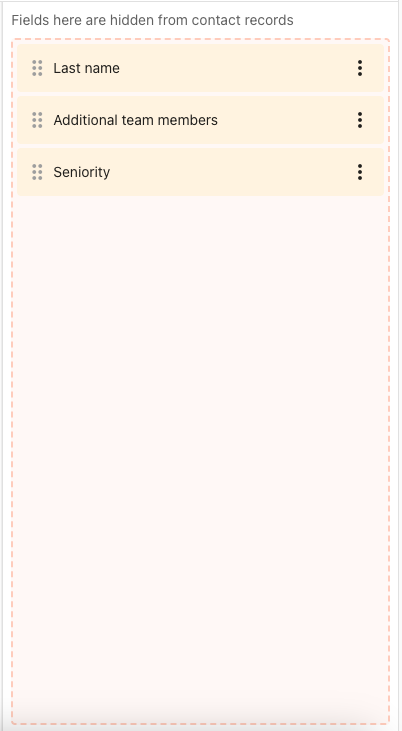
To bring a hidden field back, open its ⋮ menu and choose Restore to Unassigned. From there, drag it into whichever group you want.
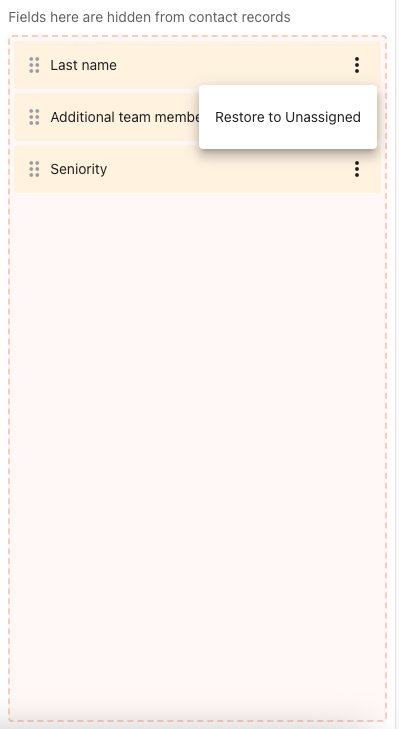
Fields you won't see in the editor
Read-only fields don't appear in the editor, and neither do fields that aren't active for your CRM. Their position in the layout is preserved, so you don't need to do anything about them.
Because of this, a group whose only remaining fields are read-only counts as empty and blocks saving.
Field names in the editor
The editor shows each field under the name your users actually see. If you've overridden a field's title for filters or table columns, the editor shows that title rather than the underlying field name.
Save your changes
Click Done. The editor shows Saving... and then All changes saved.
Nothing is written until you click Done. Leaving the editor before saving discards your changes.
If a save fails, the message tells you what to fix:
| Message | What it means |
|---|---|
| Remove all empty groups before saving | A group has no displayed fields. Add one or delete the group. |
| Group name is required | A group was left unnamed. |
| Two or more groups have the same ID — rename one before saving | Two groups share a name. Rename one. |
| A field appears in more than one group — each field can only belong to one group | Move the field out of one of the groups. |
| You don't have permission to modify this layout | Your user can't edit CRM fields. |
| Could not reach the server — check your connection and try again | Network problem. Your changes are still on screen, so retry Done. |
Reset to standard
Reset to standard removes your custom groups and field ordering for the object type you're editing and puts it back on the standard layout. You'll be asked to confirm.
Resetting affects the layout only. No fields and no field data are deleted, and hidden fields become visible again.
Deleted fields
If a field is deleted after you've placed it in a group, it simply stops appearing. You don't need to edit the layout to clean up after a deletion.
Multi-location records
Multi-location views combine fields from several accounts, so they always use the standard layout. A layout override you set on one account isn't applied to a merged multi-location result.
Field layouts in blueprints
Field layouts are included in blueprints. See Blueprints for how blueprints are built, versioned, and applied.
- Only customized layouts are captured. Object types still on the standard layout are skipped.
- If a layout references custom fields or a custom object type that the target account doesn't have, they're created there first and the layout is repointed at them.
- Applying a template replaces the target account's layout for that object type.
Frequently asked questions
Does hiding a field delete its data?
No. Hiding removes the field from the record view only. The field definition and every stored value are kept, and the field still works in imports, automations, and the API. Restore it at any time from the Hidden fields panel.
Where do the groups actually show up?
On the create form, the edit form, and the record profile panel, as labelled sections in the order you set.
What happens to fields I don't put in a group?
They appear on the record after all the named groups, in whichever order you chose under Sort unassigned by.
Can each object type have a different layout?
Yes. Contacts, Companies, Opportunities, and every custom object type have their own layout, edited separately.
Why can't I save?
Most often an empty group or an unnamed group. Every group needs a unique name and at least one displayed field. The error message names the specific problem.
Does a new custom field need to be added to the layout?
No. New fields land in Unassigned and appear on records immediately. Move them into a group when you want them in a specific section.
Can I undo a layout change?
There's no single-step undo. Drag the fields back and click Done, or use Reset to standard to discard the whole override for that object type.