How do I connect Vendasta to Zapier?
What is Zapier integration?
Vendasta's Zapier integration connects your Vendasta account to thousands of other apps. Connect it from Administration → Integrations, then use the Vendasta app for Zap actions, the Business App app for triggers, or Webhooks by Zapier to start Zaps from Vendasta Automations.
This integration lets you automate workflows between Vendasta and other applications you use daily.
Why is Zapier integration important?
Zapier integration helps you:
- Automate repetitive tasks between applications
- Synchronize data across multiple platforms
- Create workflows without custom coding
- Connect Vendasta to over 6,000+ supported applications
- Reduce manual data entry and human error
- Scale your operations with automated processes
What can you do with the Zapier integration?
| Feature | Description |
|---|---|
| App Connectivity | Connect Vendasta to thousands of applications |
| CRM Integration | Sync contacts and companies with external CRMs |
| Automation Triggers | Use Vendasta automations to trigger Zapier workflows |
| Activity Logging | Log activities like notes, calls, and meetings in Vendasta CRM |
| Workflow Automation | Create complex multi-step automated processes |
How do I set up the Zapier integration?
Accessing the integration
- Log in to your Vendasta account
- Navigate to
Administration→Integrations - Locate the Zapier integration tile
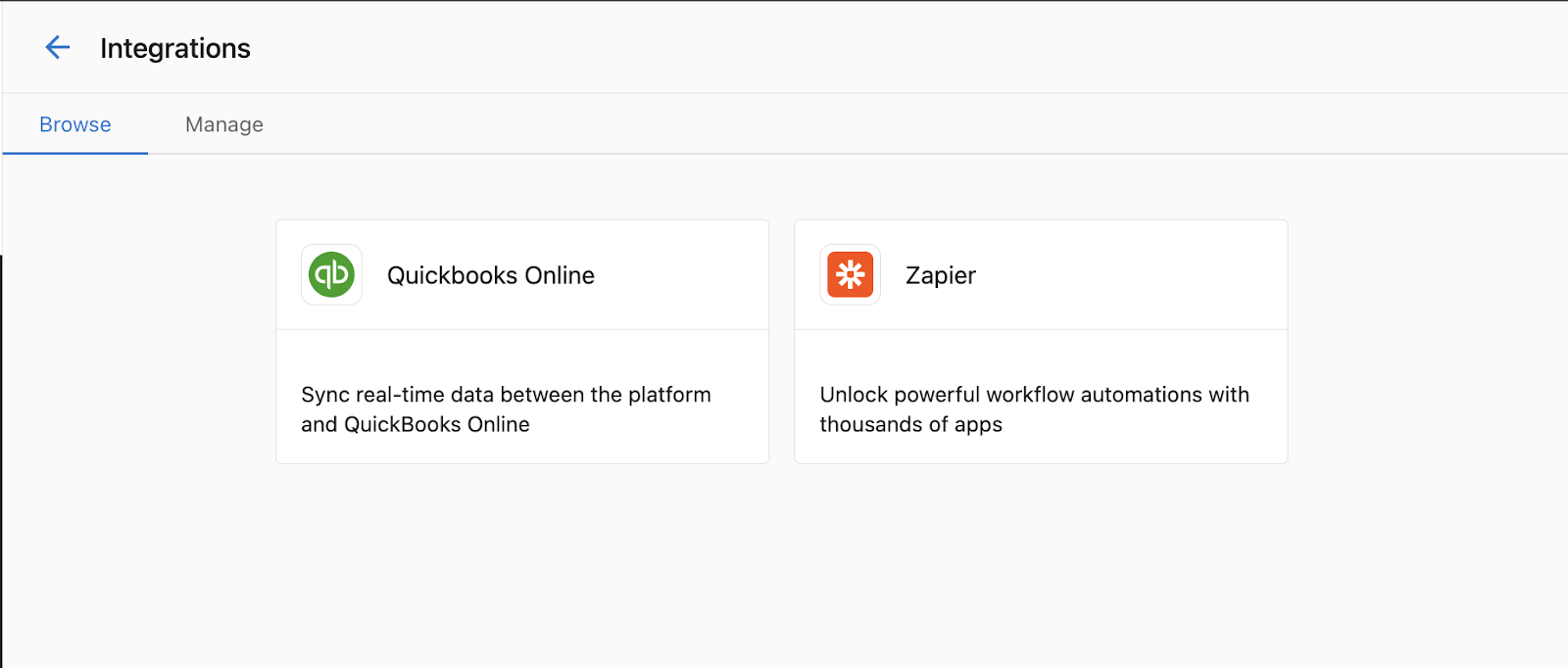
- Click
Connectto be directed to Zapier
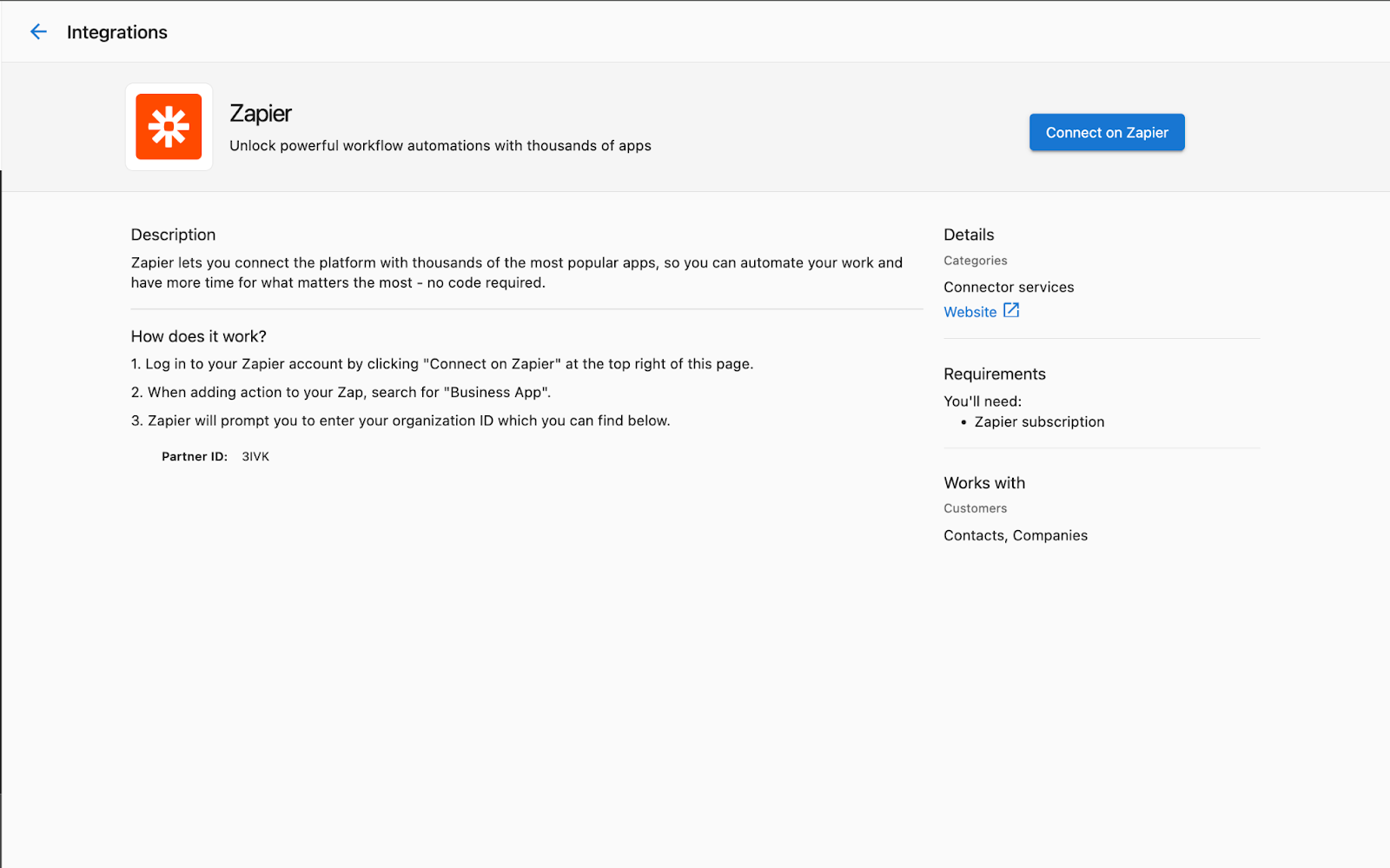
Connecting Vendasta to Zapier
Once you're on the Zapier website, you can start creating automations (Zaps) between Vendasta and other applications.
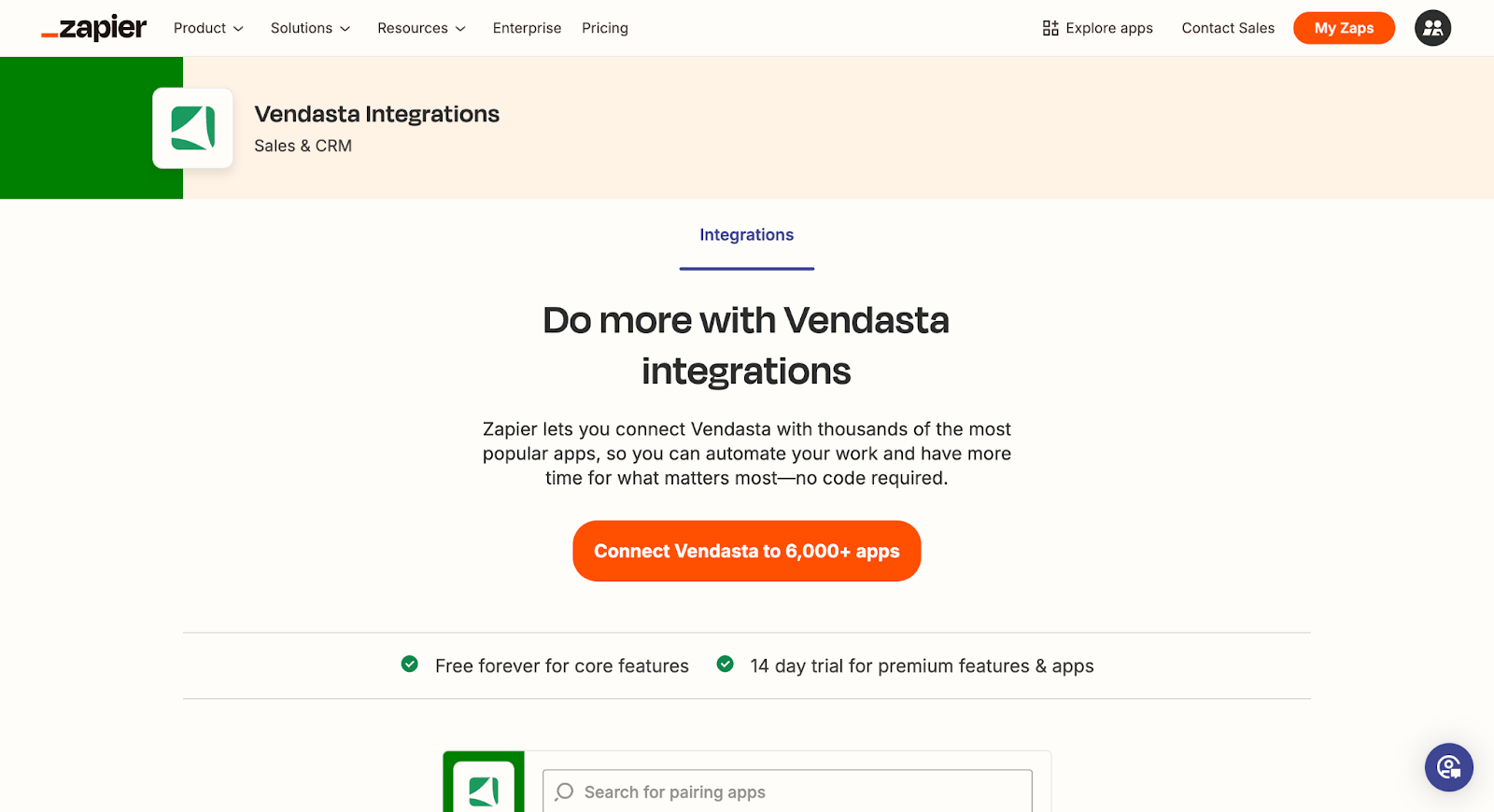
Creating your first Zap
Step 1: Set up your trigger
First, select the app and event that will trigger your automation.
If you want your Zap to start from Vendasta data, select Business App as the trigger app in Zapier, choose the available trigger event, connect your account, and complete the Setup instructions shown in Zapier before testing the trigger.
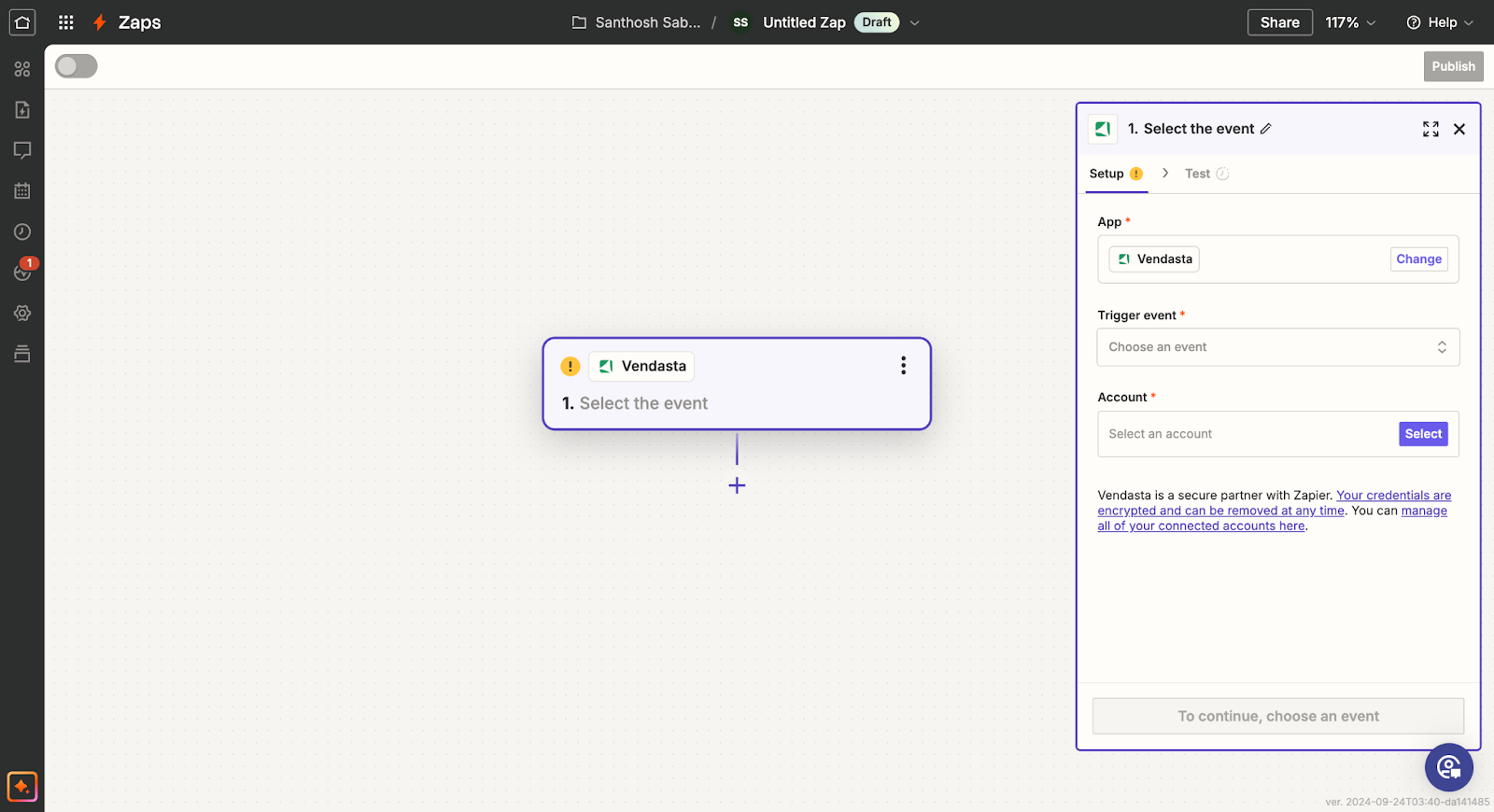
Step 2: Connect to Vendasta
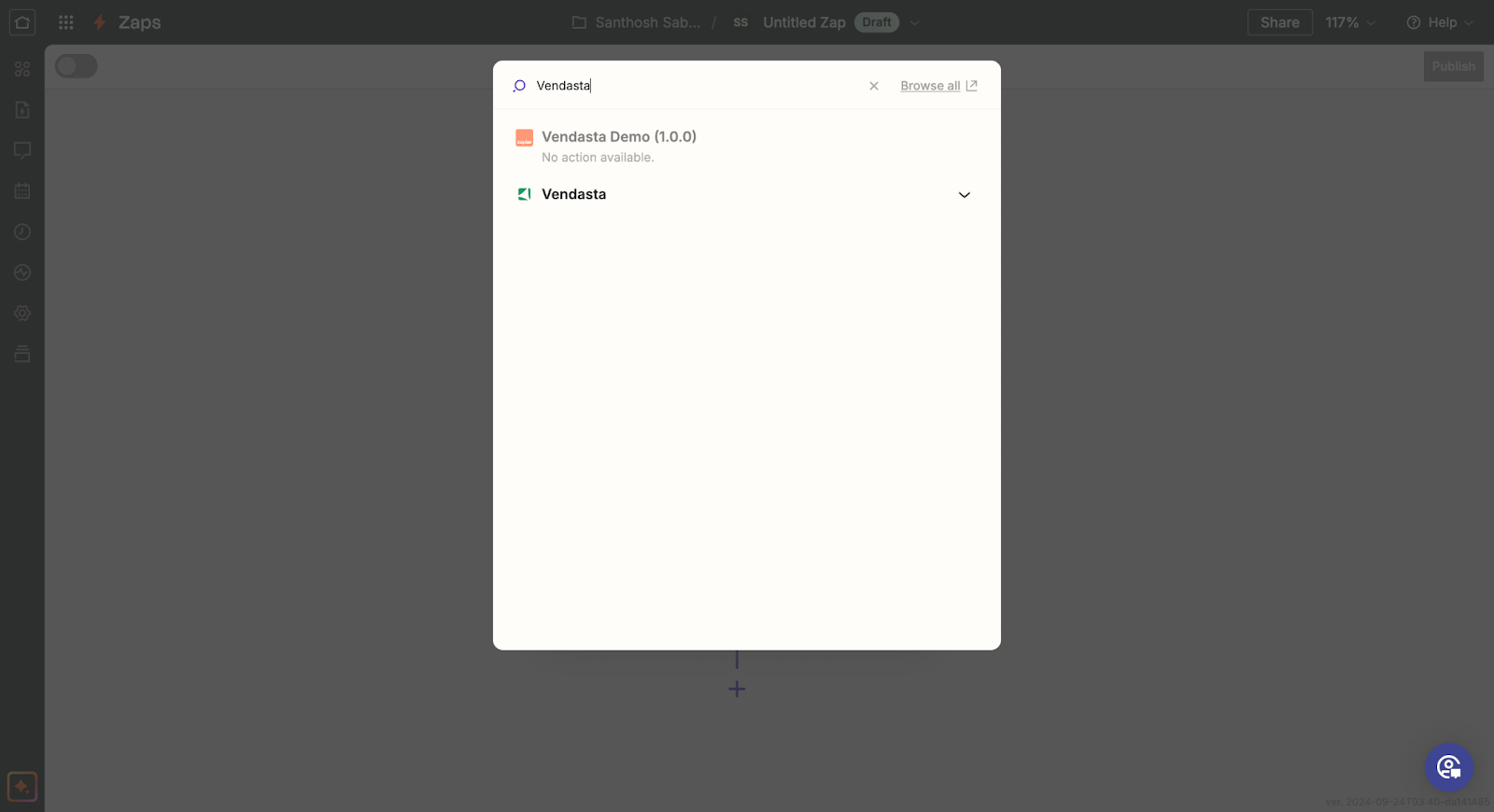
- Select Vendasta as your action app
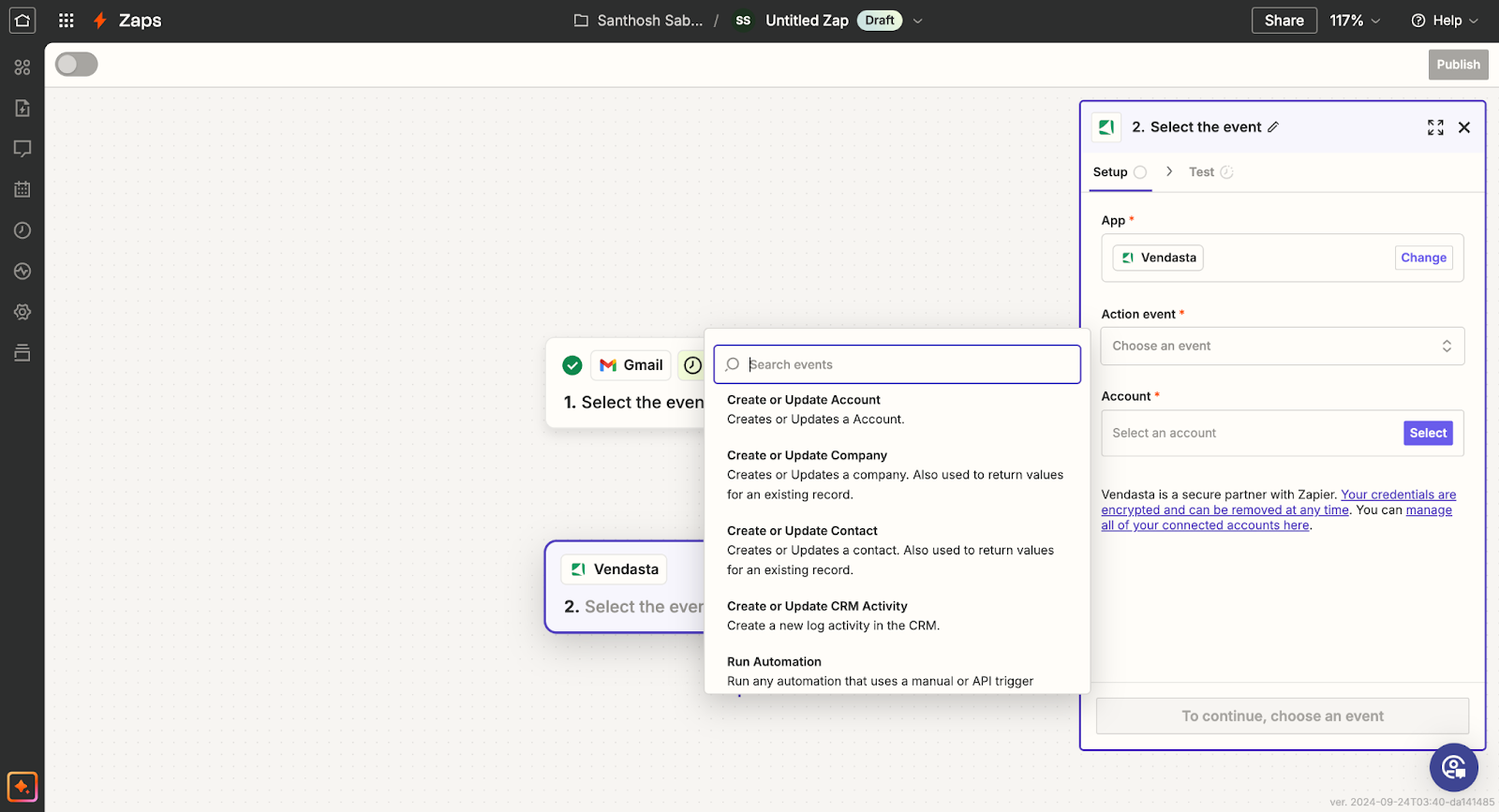
- Choose the Vendasta action you want to perform
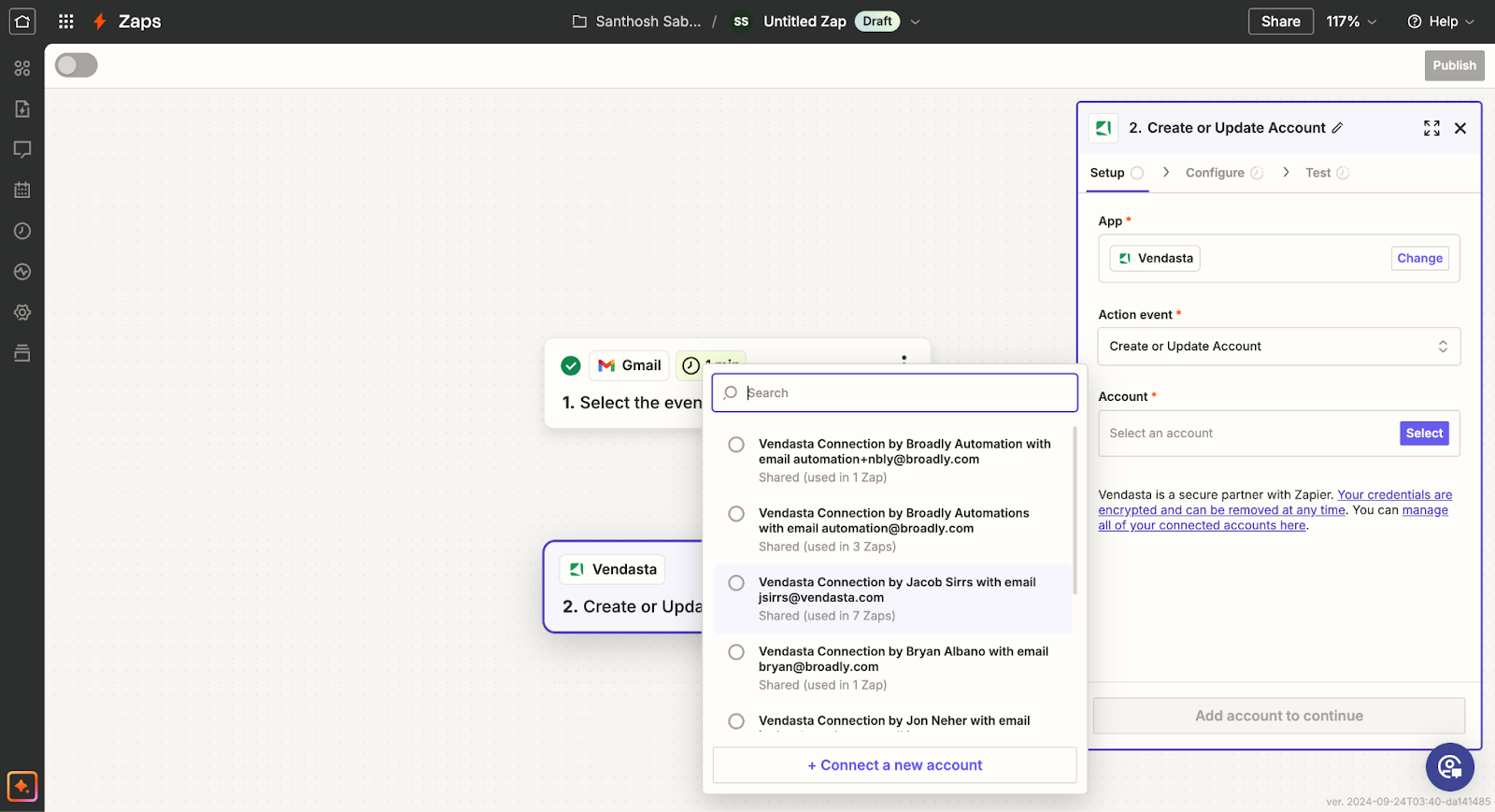
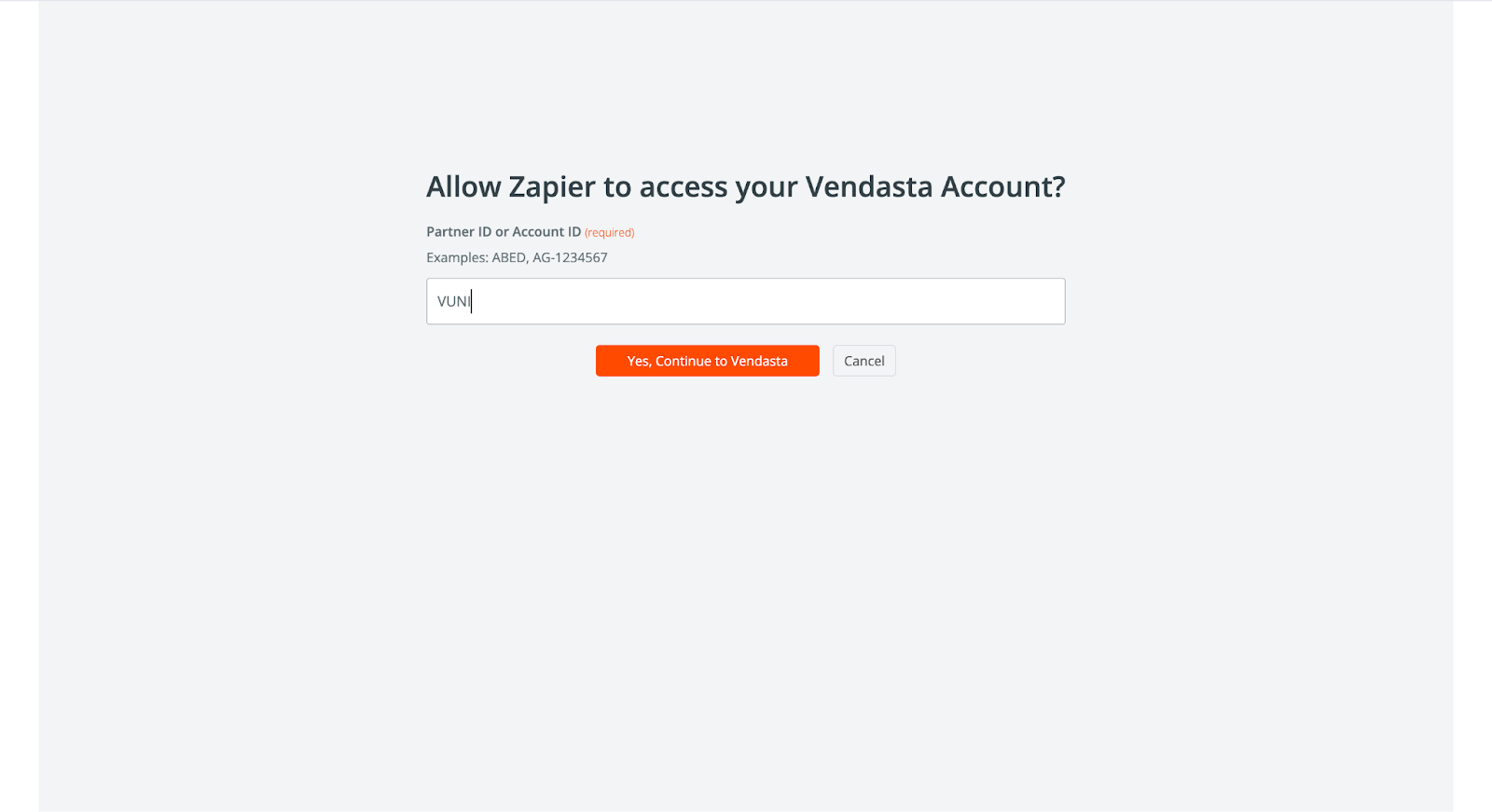
- Connect your Vendasta account if you haven't already
- Complete the setup by configuring the action details
Which Zapier triggers and actions are available?
Triggers (events in Vendasta that can start a Zap)
- New Business Created - When a new business is added to Vendasta
- Business Updated - When business information is modified
- New Order Placed - When a new order is created
- Order Status Changed - When an order status is updated
Actions (things Zapier can do in Vendasta)
- Create a Business - Add new businesses to Vendasta CRM
- Update a Business - Modify existing business information
- Create a Task - Add tasks to Vendasta's task management
- Add a Note to Business - Log notes against business records
- Create or Update CRM Contact - Manage contact records in Vendasta CRM
- Create or Update CRM Companies - Manage company records in Vendasta CRM
- Log CRM Activity - Record notes, emails, calls, meetings, and tasks
How do I trigger Zaps from Vendasta Automations?
Prerequisites
- A Vendasta Partner account with access to Automations
- A Zapier account
- Basic understanding of webhooks
Setting up the Zap for automation triggers
- Go to Zapier and log in to your account
- Click on
Create Zap
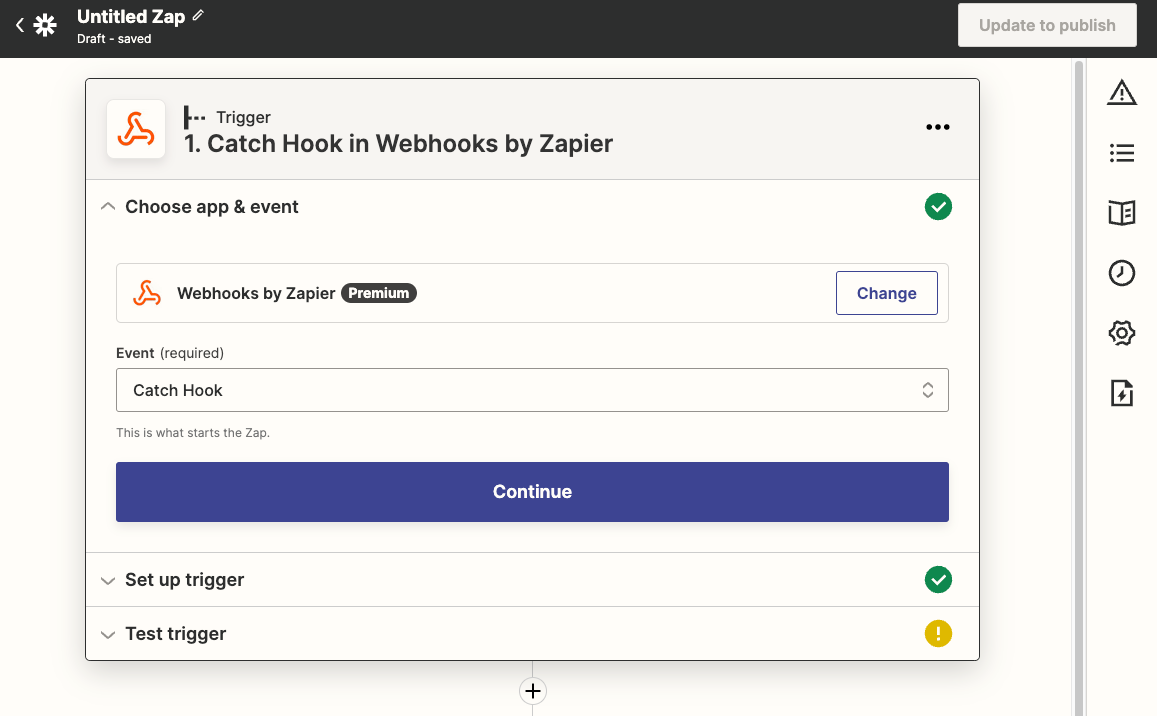
- Search for and select
Webhooks by Zapieras the trigger app
-
Select
Catch Hookas the trigger event, then clickContinue -
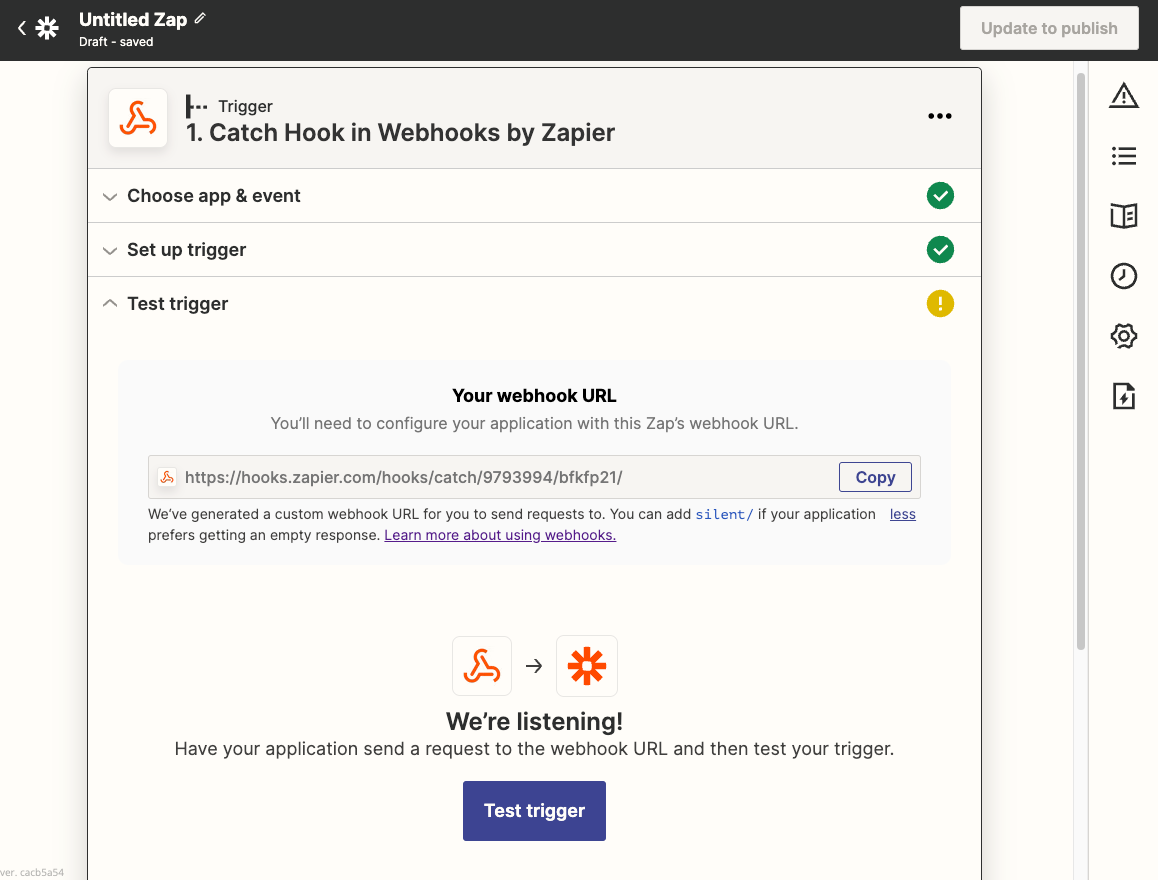
Copy the webhook URL. You'll need this for setting up the Automation in Vendasta
- Click
Continueand thenTest trigger. Don't worry that the test will fail at this point
Setting up the automation in Vendasta
- Log in to your Vendasta Partner Center
- Navigate to
Administration→Automations - Create a new Automation or edit an existing one
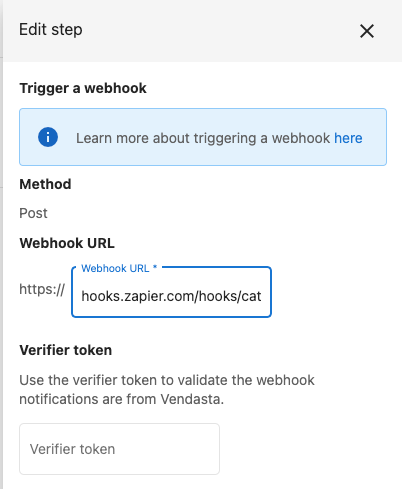
- Add a
Webhookaction to your Automation - In the webhook configuration, paste the URL you copied from Zapier
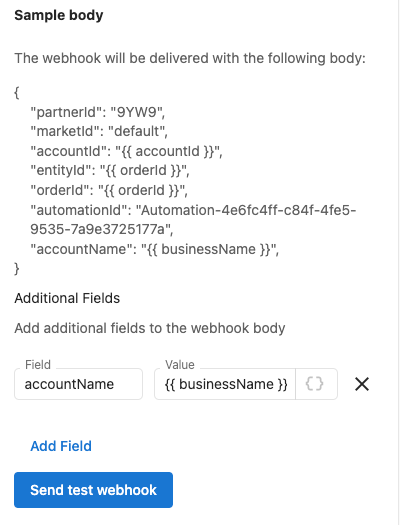
- Configure any additional data you want to send to Zapier in the
Bodyfield - Save your Automation
Testing the integration
- Trigger your Automation in Vendasta
- Go back to Zapier and you should see that the test was successful
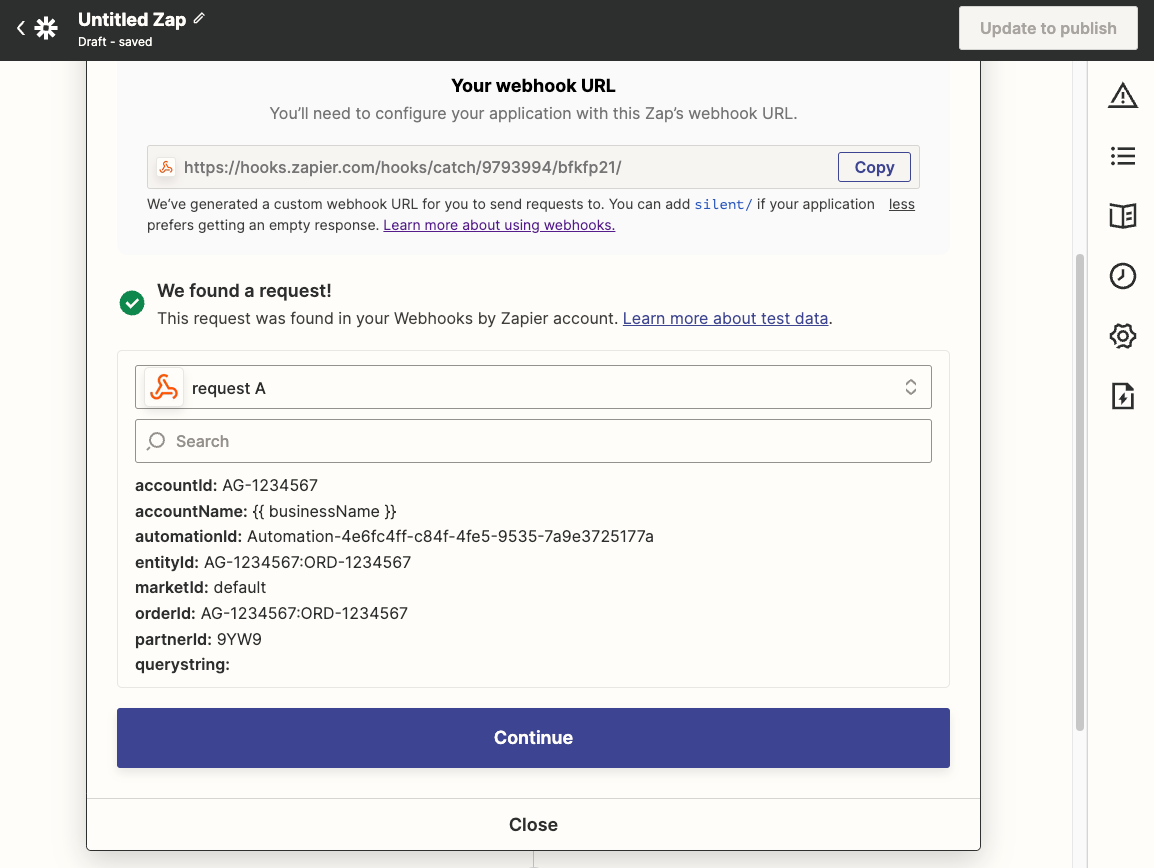
- Continue setting up the rest of your Zap, adding actions that should happen when the webhook is triggered
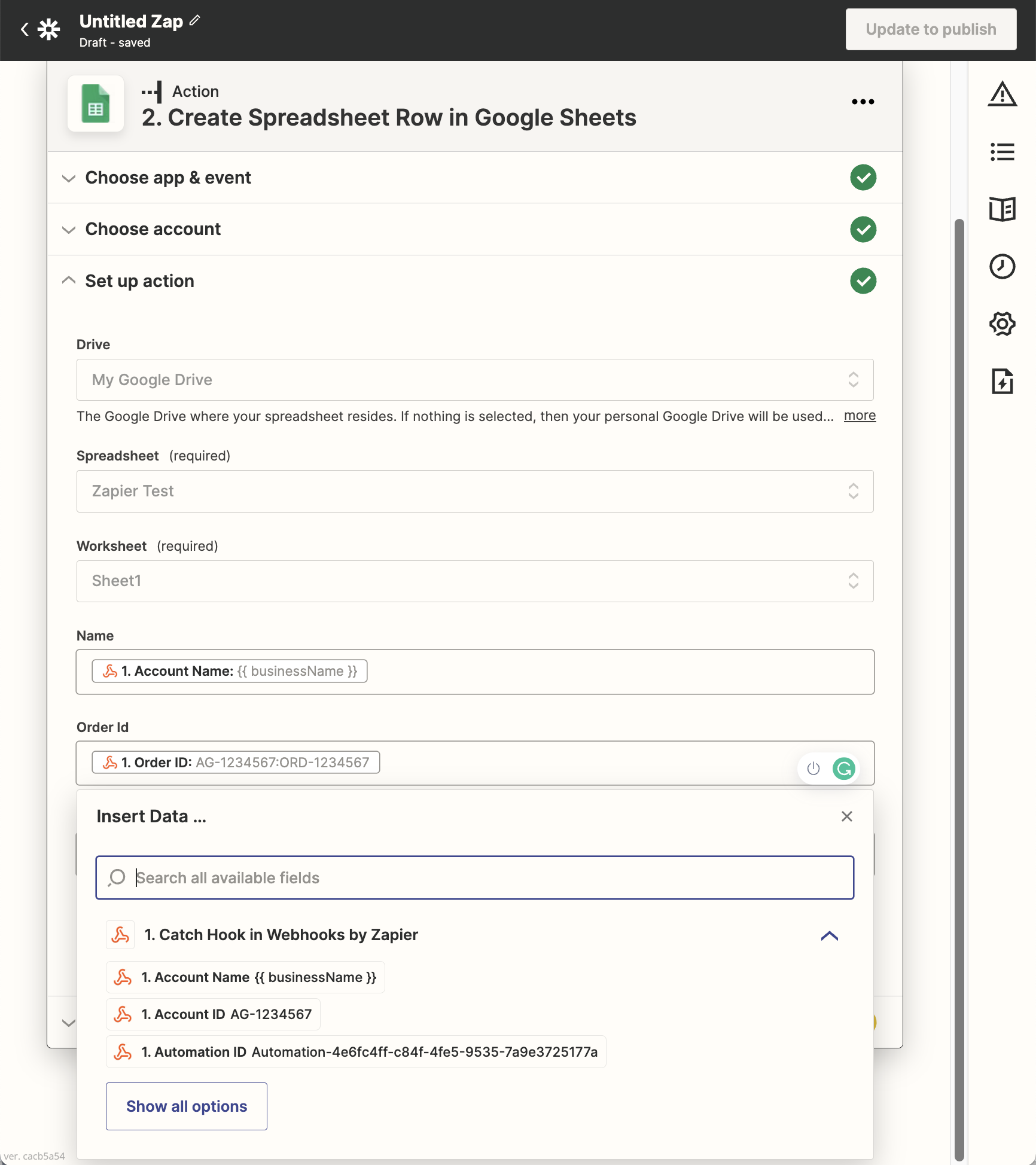
- Name your Zap, test it, and turn it on
What should I know about the Zapier app?
What is Beta mode?
The Beta tag on the Zapier integration indicates that features are still being added to it.
This feature is available only to Partners on a subscription tier that includes integrations.
Who can use the app?
The app can be used by Partners, Salespeople, and their clients as it uses the permissions of the user that set up the Zap. The app is Vendasta branded, so if you white-label the platform, you can't offer this app to your clients. You may instead choose to build the zaps on behalf of your clients.
How companies relate to accounts
An account will be created as a copy of the company data the first time that an account is needed on the platform. Once created, updating the company record will only update the assigned Salesperson and all custom fields on the account. When a client updates their account most fields will update the company record.
Best practices
Planning your integrations
- Start Simple - Begin with basic integrations before building complex workflows
- Map Your Data - Understand how data flows between applications
- Test Thoroughly - Test your Zaps thoroughly before relying on them for critical business processes
- Monitor Regularly - Monitor your Zaps regularly to ensure they continue to work as expected
Optimization tips
- Use Error Notifications - Set up error notifications in Zapier to be alerted if a Zap fails
- Review Usage Limits - Review Zapier's usage limits to ensure your automation needs fall within your plan's constraints
- Batch Operations - Where possible, use batch operations to reduce API calls
- Data Validation - Implement data validation to ensure clean data transfer
Security considerations
- Permissions - Ensure your Vendasta account has the necessary permissions
- Account Security - Keep your Zapier and Vendasta accounts secure
- Data Privacy - Consider data privacy implications when connecting systems
- Access Control - Limit Zap access to necessary team members only
Troubleshooting
Common issues
Zap Not Triggering
- Verify your Vendasta account has the necessary permissions
- Ensure your Zapier account is active and on an appropriate plan
- Check that the trigger conditions are being met in Vendasta
Data Transfer Issues
- Check that the data being passed between apps is formatted correctly
- Verify field mappings in your Zap configuration
- Review the Zap History in Zapier to identify where failures might be occurring
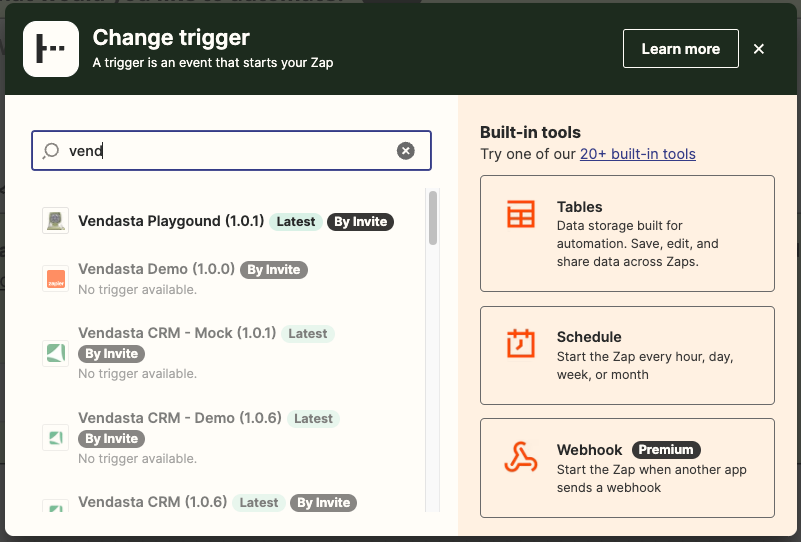
App Greyed Out Use the correct app for your workflow:
Vendastaapp: use this as an action appBusiness Appapp: use this as a trigger app, then complete theSetup instructionsshown in ZapierWebhooks by Zapier: use this when you want to trigger from Vendasta Automations webhook events
Getting support
For additional support with Zapier integration:
- Check Zapier's documentation for general Zapier issues
- Review Vendasta's API documentation for data format requirements
- Contact Vendasta Customer Support for platform-specific issues
- Use Zapier's support resources for Zapier-specific problems
Use cases and examples
CRM synchronization
Example: Automatically create Vendasta CRM contacts when new leads are added to your external CRM
- Trigger: New contact in external CRM (e.g., HubSpot, Salesforce)
- Action: Create or update CRM contact in Vendasta
Task management workflow
Example: Create Vendasta tasks when specific events occur in other systems
- Trigger: New support ticket in help desk system
- Action: Create task in Vendasta for follow-up
Data backup and reporting
Example: Automatically export Vendasta data to spreadsheets for reporting
- Trigger: Scheduled trigger in Zapier
- Action: Export data from Vendasta to Google Sheets
FAQs
What does the Zapier app do?
The Zapier app allows you to:
- Create or update CRM contacts in Vendasta
- Create or update CRM companies in Vendasta
- Log CRM activities (notes, emails, calls, meetings, tasks)
- Run Vendasta automations using API triggers
- Connect Vendasta to 6000+ apps that Zapier supports
Who can use the Zapier app?
The app can be used by Partners, Salespeople, and their clients. It uses the permissions of the user who set up the Zap. Note that the app is Vendasta branded, so white-labeling options are limited.
Why is the app greyed out when I try to add it?
You're likely using the wrong app type for the step:
- Use
Vendastawhen configuring Zap actions - Use
Business Appwhen configuring Zap triggers and follow the in-appSetup instructions - Use
Webhooks by Zapierwhen triggering from Vendasta Automations webhooks
What are the usage limits for Zapier integration?
Both Vendasta Automations and Zapier have their own usage limits and pricing. Check both platforms' documentation for specific details about limits and costs.
Can I use webhooks to trigger Zaps from Vendasta automations?
Yes! You can use Vendasta automations with webhook actions to trigger Zapier workflows. Use "Webhooks by Zapier" as your trigger app and configure the webhook URL in your Vendasta automation.
What subscription level do I need for Zapier integration?
Zapier integration is available only to Partners on a subscription tier that includes integrations. Check your subscription details or contact support for more information.
How do I get a webhook URL to trigger a Zap from Vendasta Automations?
In Zapier, create a Zap, select Webhooks by Zapier as the trigger app, and choose Catch Hook as the trigger event. Copy the webhook URL that Zapier shows, then paste it into a Webhook action in your Vendasta Automation and save the Automation.
Can I sync contacts from an external CRM like HubSpot or Salesforce into the Vendasta CRM?
Yes. Build a Zap that uses a new contact in your external CRM as the trigger and the Vendasta Create or Update CRM Contact action. The Vendasta app can also create or update CRM companies and log CRM activities.
Where do I find the Zapier integration in Partner Center?
Go to Administration → Integrations, locate the Zapier integration tile, and click Connect. You're directed to Zapier, where you can start creating Zaps.