Create user lists and bulk import users
After creating a list, you can bulk import Business App users via CSV file. User lists make it easy to import, view, and manage large lists of users at once.
How to import users via CSV
Step 1: select Import users (CSV)
From your list page, select the Import users (CSV) button to open the import modal.
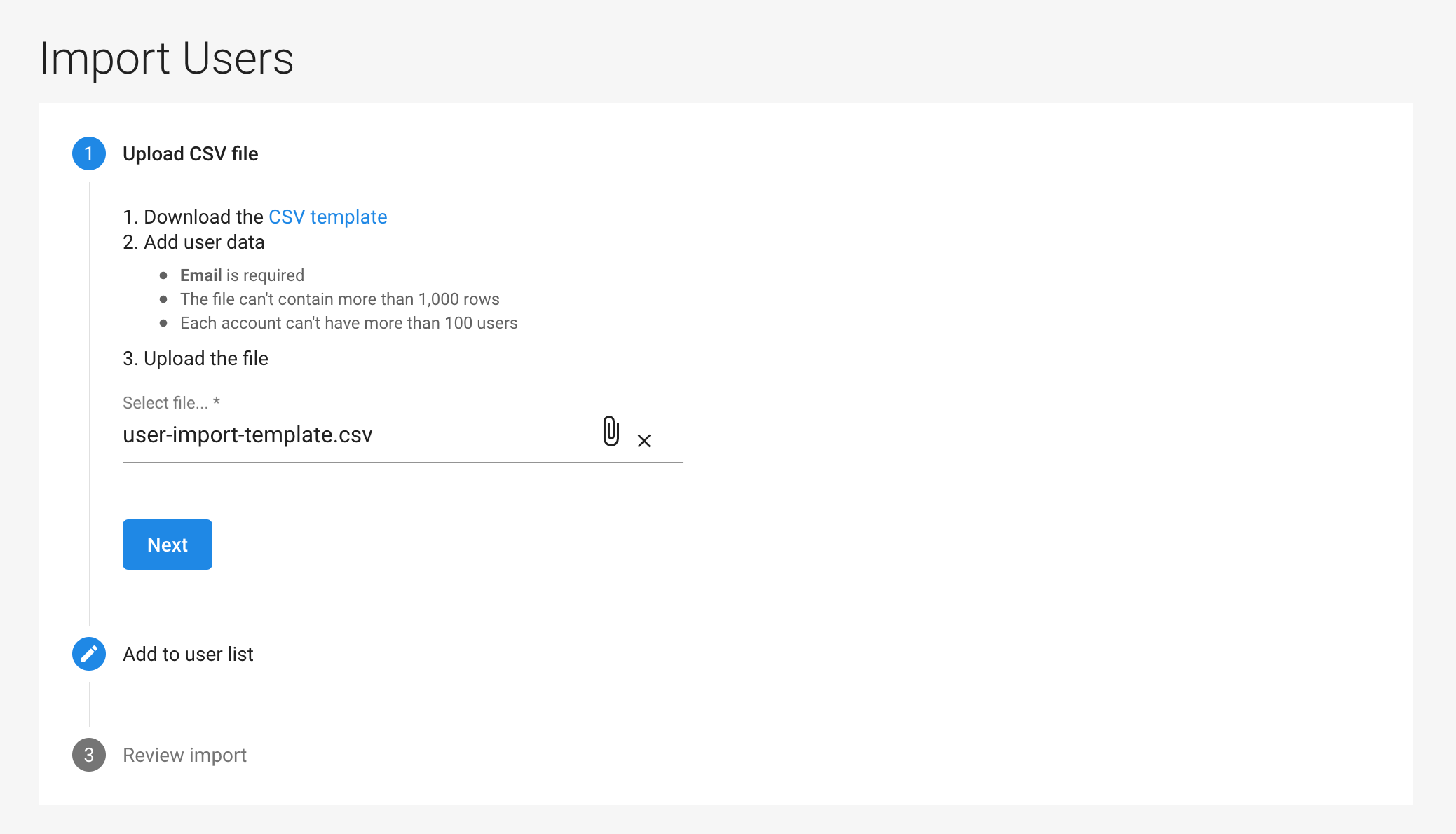
Step 2: download the CSV template
If this is your first time importing users, download the CSV template to ensure you have the correct formatting. You can also use a previously exported user list as a template.
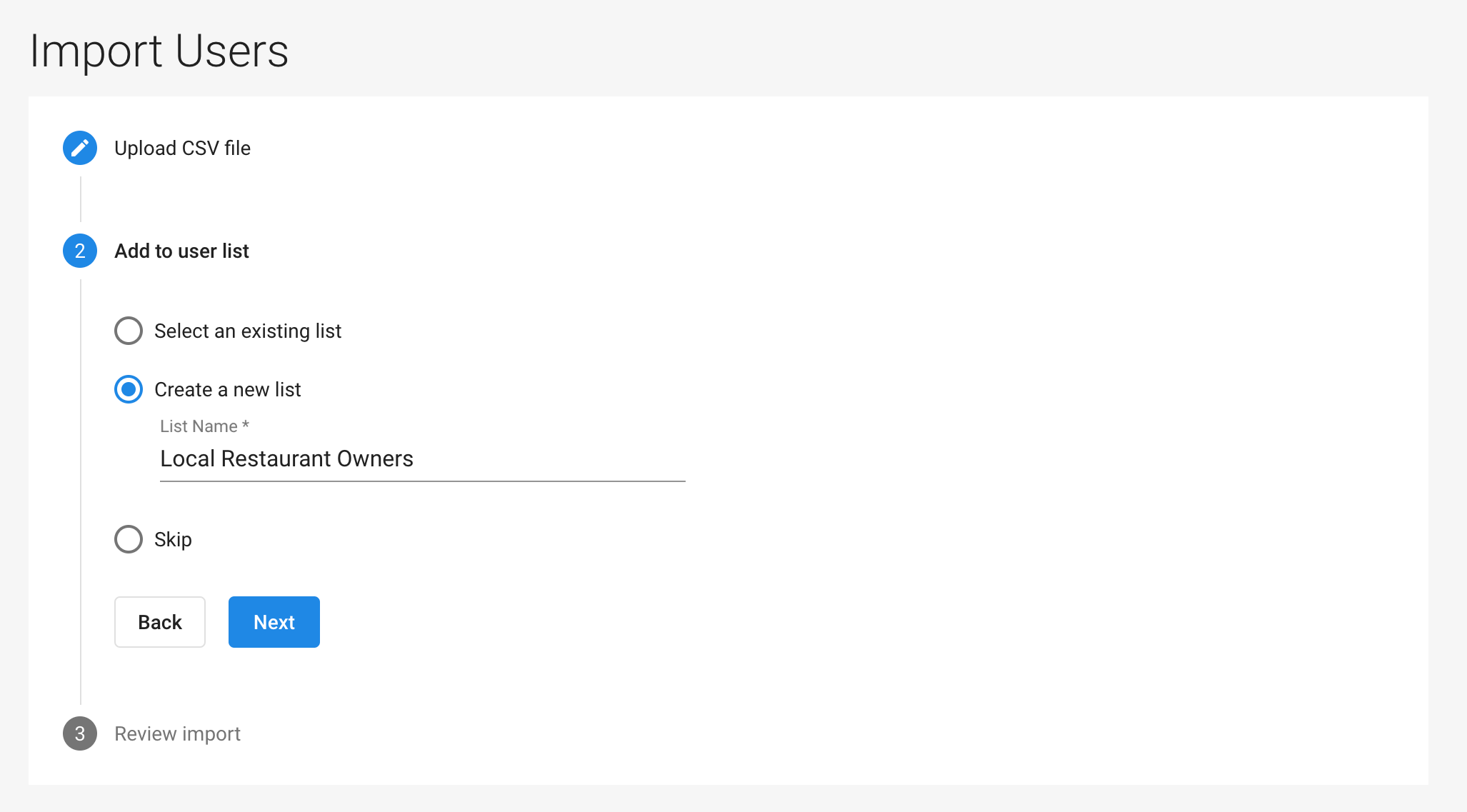
Step 3: fill out the CSV template
Open the template in a spreadsheet program like Excel or Google Sheets and fill in the required fields:
email: The user's email address (required)first_name: User's first namelast_name: User's last namejob_title: User's position or job titledepartment: User's departmentaddress: User's physical addresscity: User's cityregion: User's state/provincecountry: User's countrypostal_code: User's zip/postal codephone: User's phone number
Only the email is required, but adding additional information will help you better segment and target your users.
Step 4: upload your CSV file
Return to the import modal in Business App and:
- Upload your CSV file by clicking
Choose File - Preview your data to ensure everything looks correct
- Click
Import
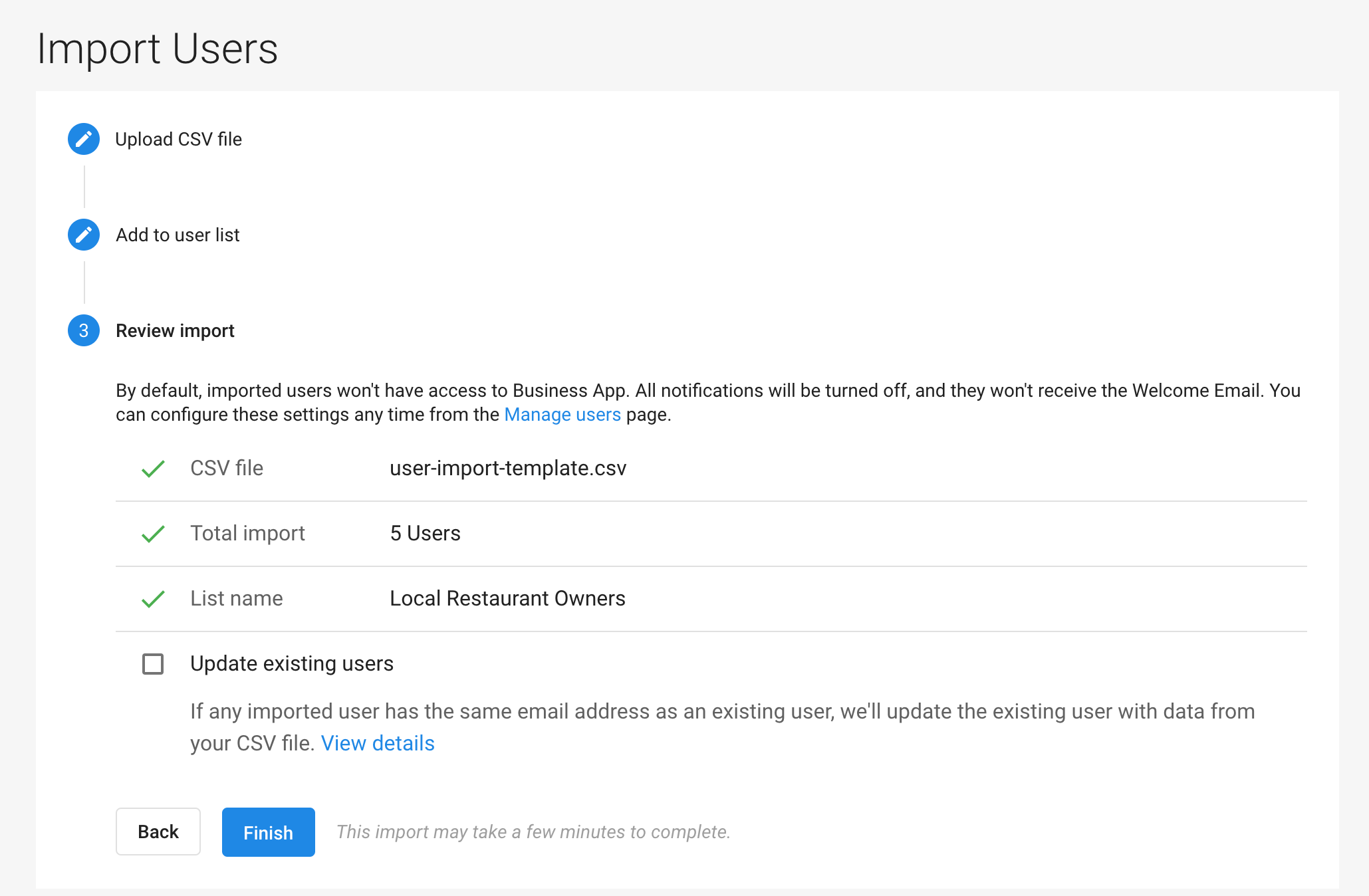
Step 5: wait for import completion
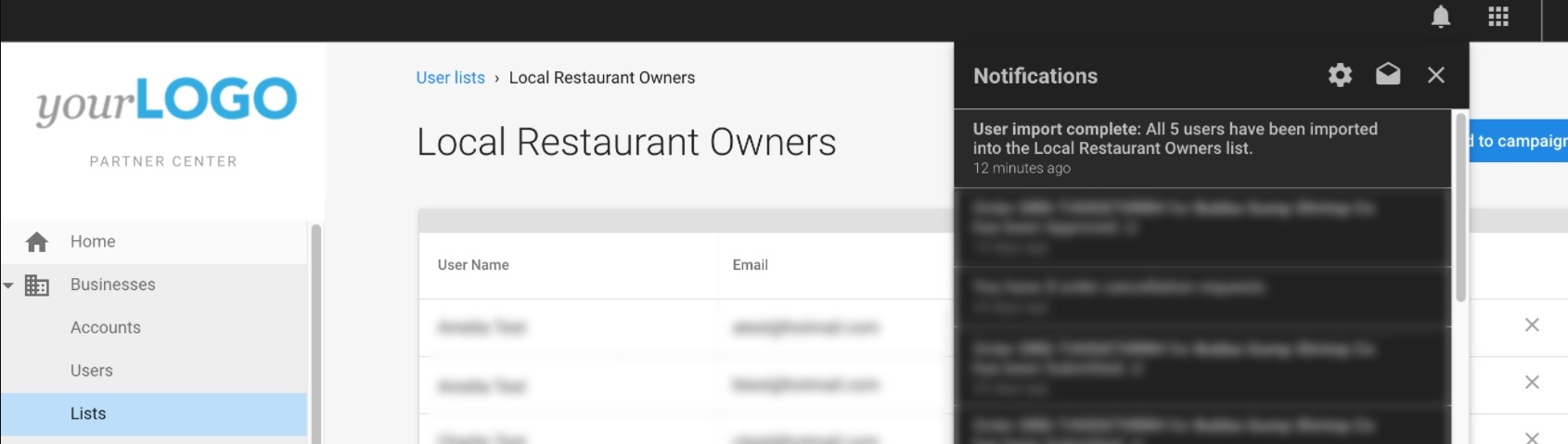
After clicking Import, the system processes your file. This may take a few minutes depending on the size of your list. You receive a notification when the import is complete.
Troubleshooting import errors
Common CSV format issues
- Invalid email format: Ensure all email addresses follow the standard format (e.g., user@domain.com)
- Duplicate emails: Each email address should appear only once in your CSV
- Special characters: Some special characters may cause import errors
- Incorrect column headers: Make sure your column headers match exactly with the template
What to do if your import fails
- Download the error report (if available)
- Fix the identified issues in your CSV file
- Try importing again
Best practices for user lists
- Keep lists organized by creating clear naming conventions
- Regularly update your lists to maintain accuracy
- Use tags and custom fields to further segment your users
- Export your lists periodically as a backup