Create and Import Lists
Create a list
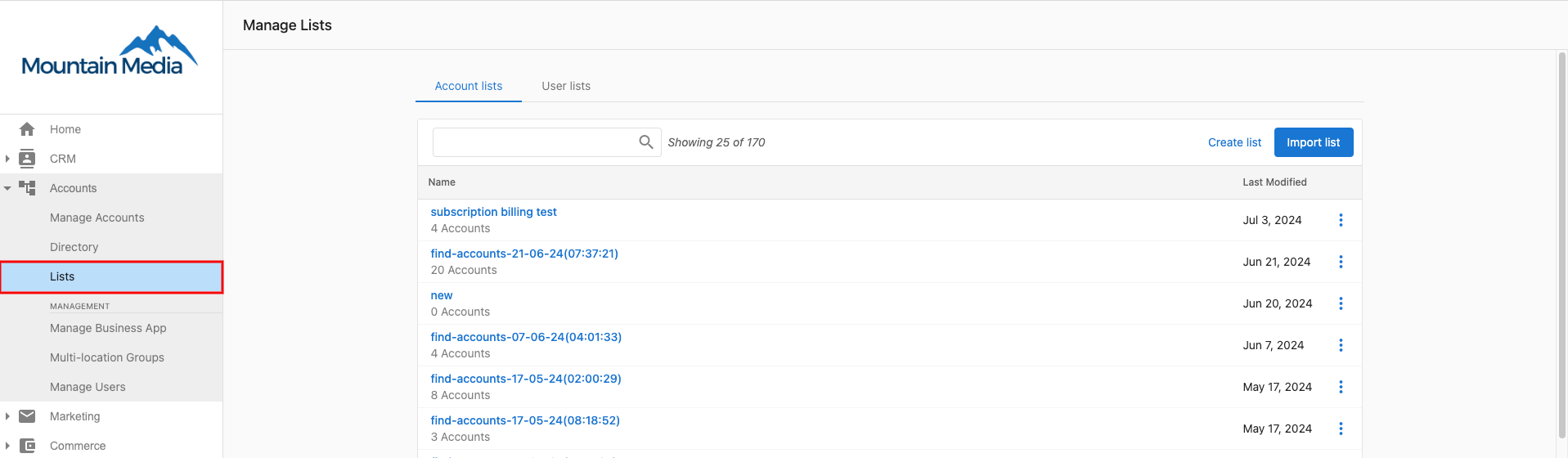
To create a new account List:
- Go to
Partner Center→Accounts→Lists. - Click
Create Listin the upper right corner of the screen.
- Enter a name for the List.
- Click
Create.
You can directly manage your lists at partners.vendasta.com/action-lists/manage
Now, you can add accounts to the List.
You can also import existing account lists into Partner Center. See the Import section below.
Import a list (CSV)
- Go to
Partner Center→Accounts→Lists. - Click
Import Lists. - Download the CSV template or choose a file, then map fields.
- Configure user settings (Business App access, notifications, Welcome Email) for new users added by the import.
Required CSV fields include CompanyName and Zip. Keep unknown fields empty; the system can attempt to fill missing data if you select the fill-empty-cells option during import.
Tags for contacts, companies, and accounts have a maximum length of 50 characters and may include only standard alphanumeric characters (A-Z, 0-9), dashes (-), spaces ( ), or underscores (_).
Please avoid using special characters such as @, #, $, %, &, etc., as they can interfere with filtering and searching functionality.
Choosing the right import template
There are several CSV templates depending on what you are importing:
| What you're importing | Template to use |
|---|---|
| Business accounts (create or update) | import_list_template.csv, downloaded from the Import Lists dialog |
| Bulk-update existing accounts | Bulk Update CSV template, available at Partner Center → Accounts → Bulk Update |
| Users for Business App access | user-import-template.csv, see Create User Lists & Bulk Import Users |
| CRM contacts and companies | Contacts_Companies_Import_template, downloaded from CRM → Contacts → Import |
Using the wrong template is a common cause of import failures. Always start from the template for your specific import type.
Understanding key column names
UserGreetingName1: This column maps to the Greeting name field on the user record, not a job title. It is the informal name the platform uses when addressing the user (e.g., in emails). Do not put a job title here; use the job_title column for that.
Country codes: UK must be entered as GB
The import system uses ISO 3166-1 alpha-2 two-character country codes. The United Kingdom's code is GB, not UK. Entering UK will cause the row to fail or import with a blank country.
Common codes to remember:
| Country | Correct code |
|---|---|
| United Kingdom | GB |
| United States | US |
| Canada | CA |
| Australia | AU |
Import size limits
The front-end import accepts a maximum of 5,000 records per file. If your list exceeds 5,000 rows, split it into multiple files and import them sequentially. For very large one-time imports, contact Support to request a bulk import as a managed task.
Common import errors
| Error | Cause | Fix |
|---|---|---|
| Row fails with country error | UK used instead of GB (or other invalid code) | Replace with the correct ISO alpha-2 code |
| Phone number import fails | Phone numbers contain formatting characters like (, ), or spaces | Use digits only or E.164 format: +14165551234 |
| Import completes but data is wrong | Wrong template used for the import type | Re-export using the correct template and reimport |
| Malformed CSV error | CSV was edited in an app that changed encoding or delimiters | Open in a plain-text editor to verify commas and UTF-8 encoding |