How do I complete Fulfillment Forms for Vendasta Services orders?
A Fulfillment Form collects the information the Vendasta Services team needs to deliver a service you order. Open it from the account's Orders section or from Commerce → Unfulfilled in Partner Center, fill it in, and click Submit form.
Completing the form on time ensures there are no delays in fulfillment. Forms can be filled out before or after placing an order and can be shared with others to gather their input.
How do I purchase a Vendasta Services product?
For more info, check out this article.
- Go to
Partner Center→Accounts→Manage Accounts - Select the account you want to make a purchase for
- Click
Order Products - Select the Vendasta Services product(s) you wish to activate
- Click
Proceed to Next Step - Ensure that the contact information is correct
- Proceed to purchase and activate the product
- After purchase, the order is submitted to the fulfillment team to process
- Once the order is placed, you can access the Fulfillment Form at any time. See Finding a fulfillment form below
How can salespeople fill out a form before activation?
Salespeople can begin filling out a fulfillment form before a product is activated by creating a draft order.
- Select the account for which you want to create a draft order
- Select
Create order - Click
+ Add itemsand select the Vendasta Services product(s) you wish to include - If the product has an associated fulfillment form, the
Fulfillment formstab will be available: fill in the details and clickSave progressto save without submitting
For more information on managing orders in Partner Center, learn more here.
How do I find a fulfillment form?
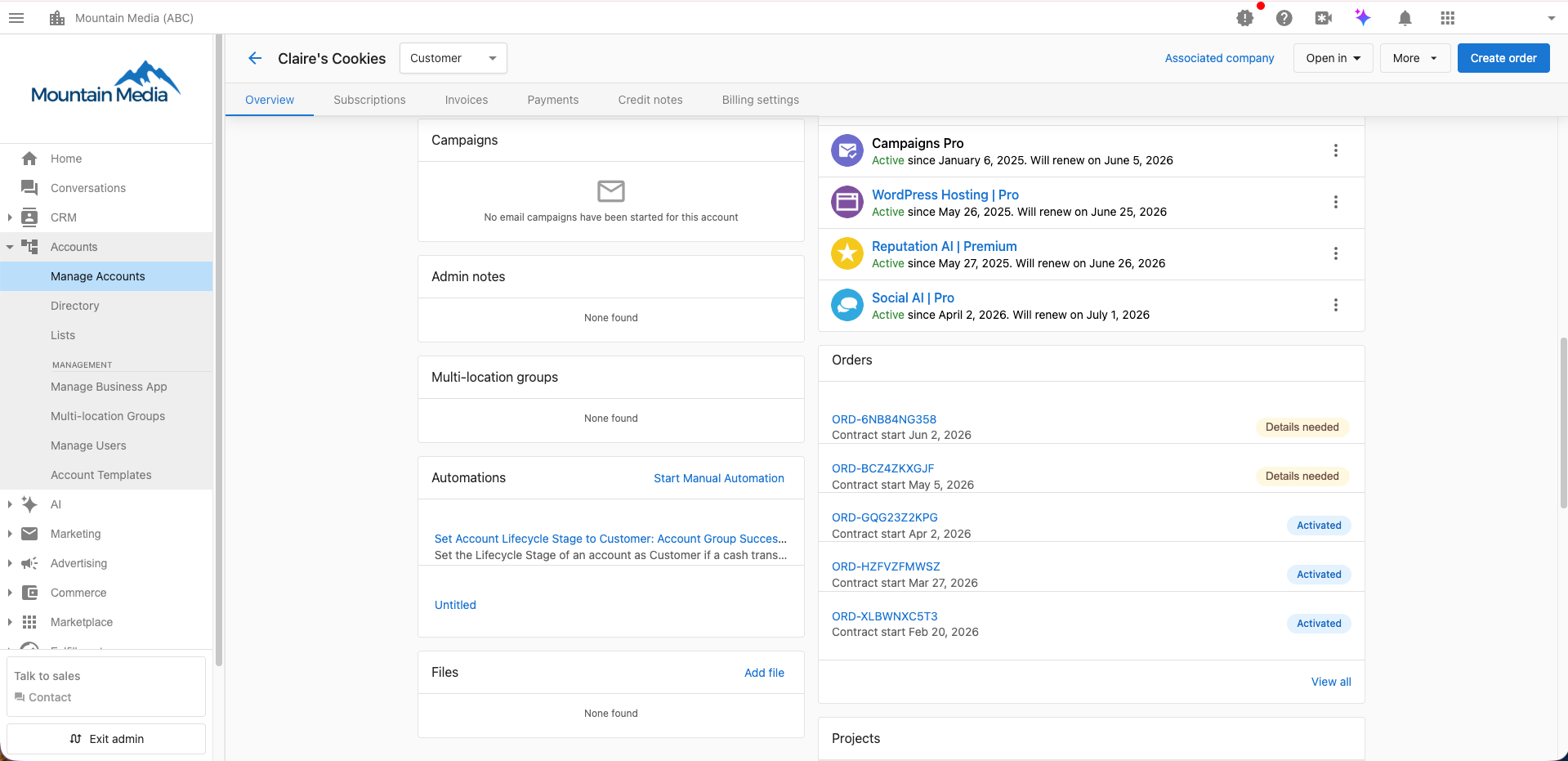
Single account
- Go to
Accounts→Manage Accounts - Navigate to the account you are looking for
- Scroll down to
Orders - Select the
Fulfillment formstab
Managing multiple accounts
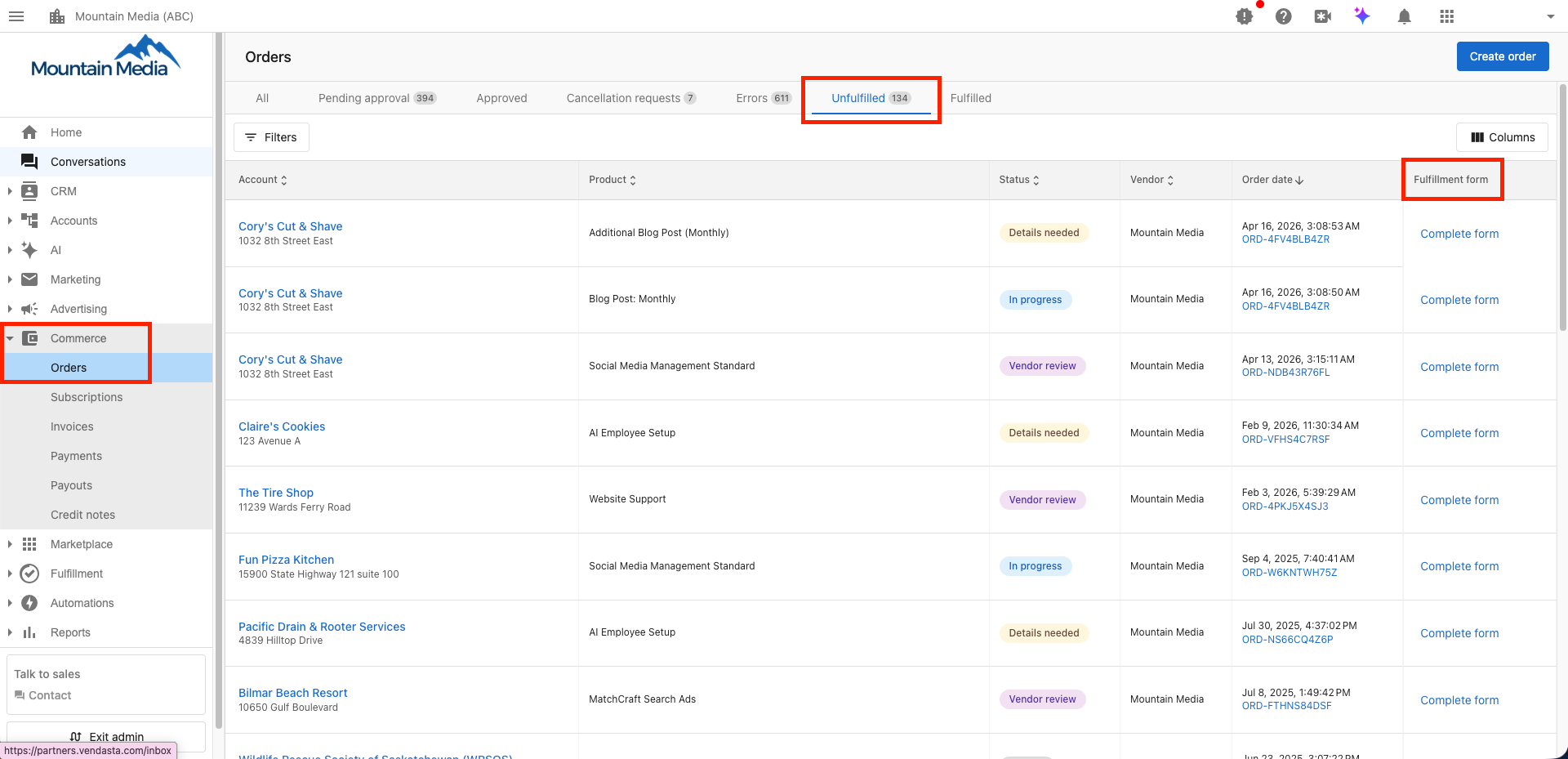
If you are managing a large number of clients with Vendasta Services orders:
- Go to
Commercein the left sidebar - Select the
Unfulfilledtab - Find the account in the list: the far right column is the fulfillment form column
- Click
Complete formto open the form for that account
How do I complete the fulfillment form?
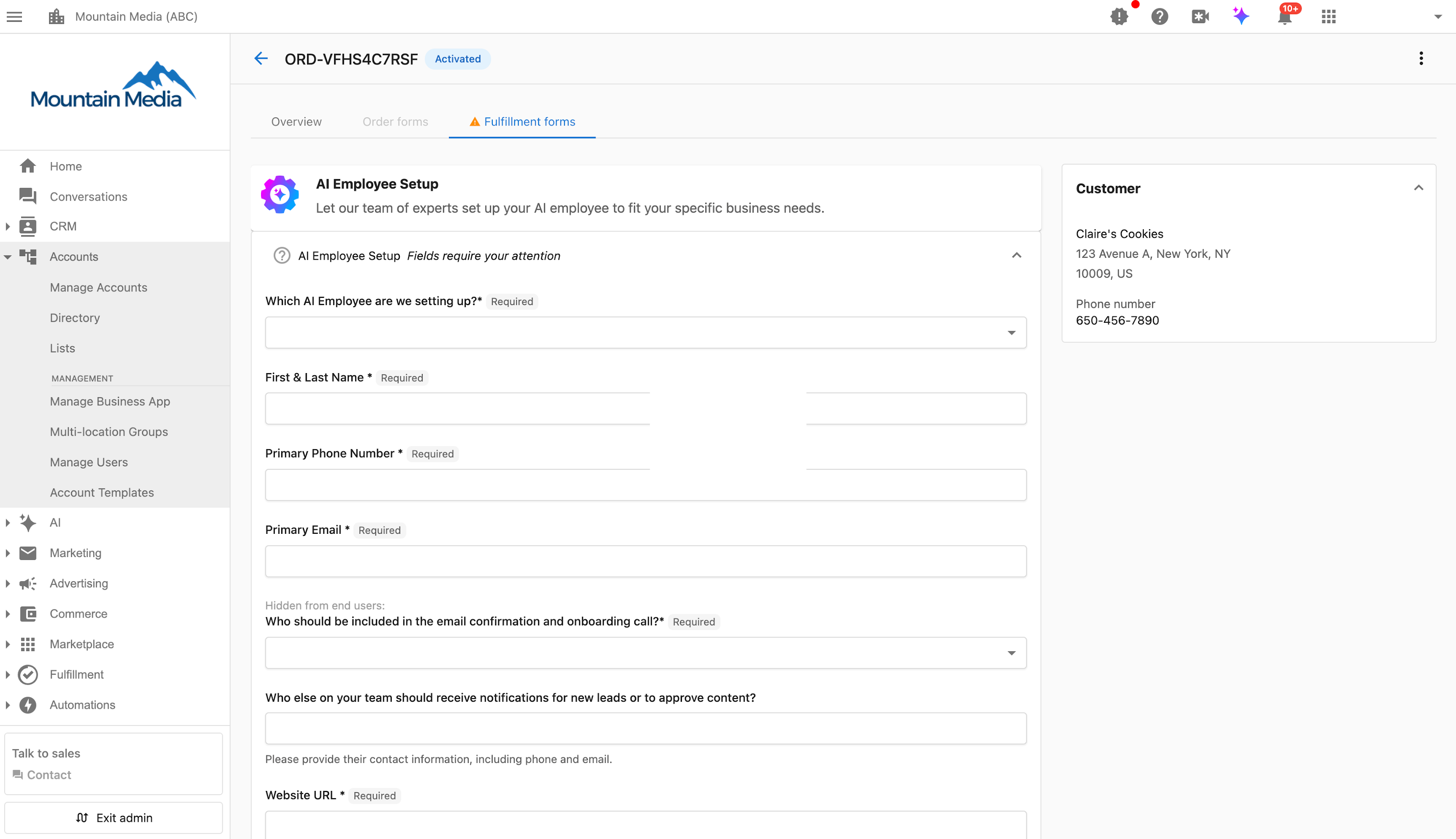
- Entering information: The form contains fields for all the information needed to fulfill your order. This can be provided at any time after placing the order.
- Saving progress: Click
Save progressat the bottom of the form to save and return to it later. - Submitting the form: Once all required fields are complete, click
Submit form. This notifies our team and locks the form from further edits.
How do I share the fulfillment form?
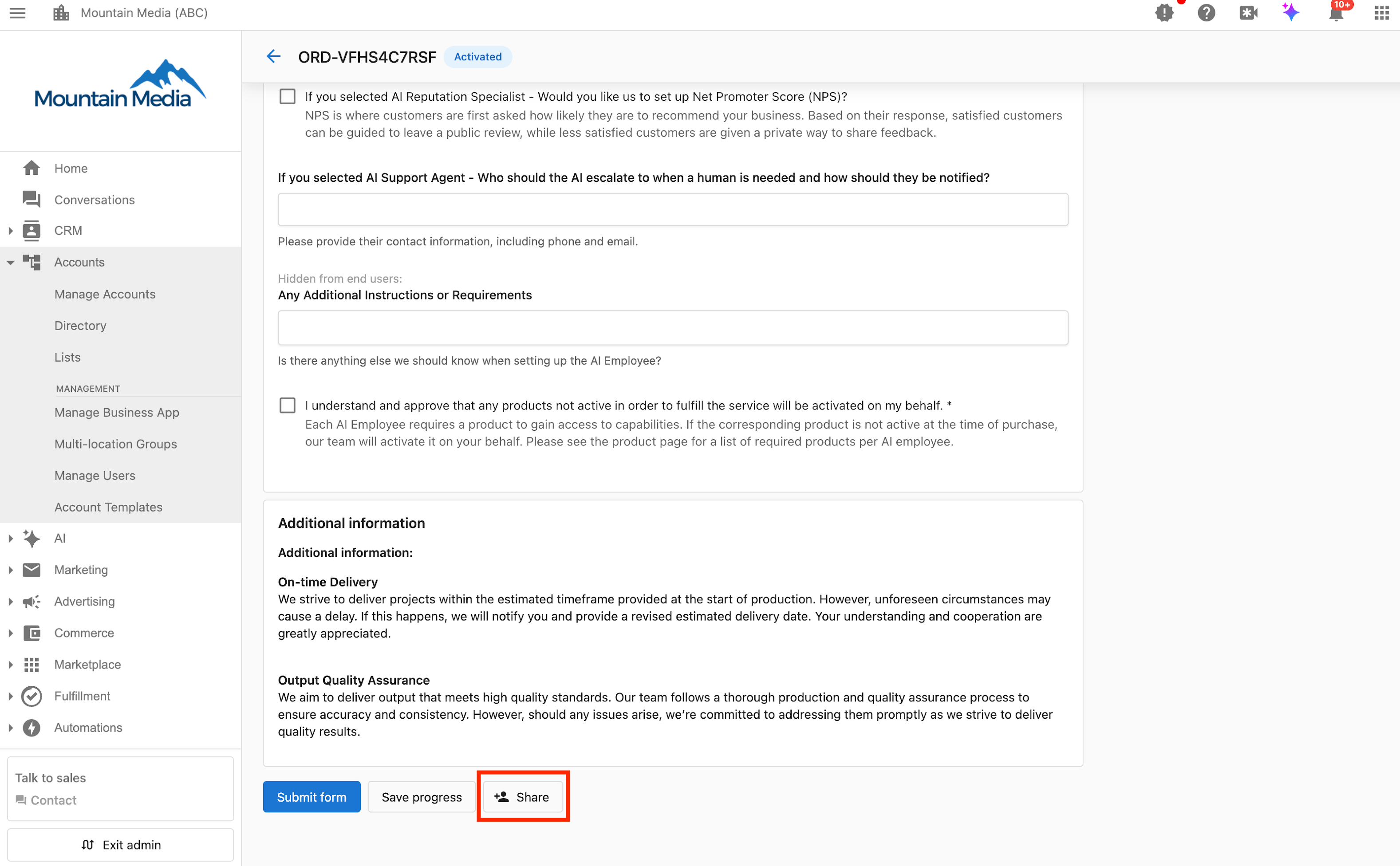
- Sharing the form: At the bottom of the fulfillment form, click the
Sharebutton to share the form with a Business App user. This allows them to provide the information needed to complete the services. - Collaboration: Once shared, the recipient receives an email and can access the form to help fill it out. They can also save their progress and return to it at a later time.
- Updates: Any changes made by the recipient are visible to you in the form.
- Business App access: Any Business App user with permission to view the Orders tab can view and edit the fulfillment form, regardless of whether it has been shared with them directly.
Sharing can only be done by Partner Center Admins and Salespeople. Business App users will not be able to share the form.
How do I track fulfillment form status?
If a fulfillment form still requires information, you will receive an in-app notification and an email notification. You will also see a list of accounts with incomplete fulfillment forms on the home tab.
Once a fulfillment form has been submitted, the status updates to reflect whether it is in review or if additional details are needed. Fulfillment form statuses can be tracked at any time in the order details.
If you have any questions about fulfillment forms or your Vendasta Services order, please reach out to your account manager.
Frequently asked questions
Can I edit a fulfillment form after I submit it?
No. Clicking Submit form notifies the fulfillment team and locks the form from further edits. If you have questions about a submitted form, reach out to your account manager.
How do I save a fulfillment form without submitting it?
Click Save progress at the bottom of the form. You can return to it later and submit it once all required fields are complete.
Can I fill out a fulfillment form before the product is activated?
Yes. Create a draft order for the account, add the Vendasta Services product, and fill in the details on the Fulfillment forms tab. Click Save progress to save without submitting.
Can my client fill out the fulfillment form?
Yes. Click Share at the bottom of the form to send it to a Business App user, who receives an email and can help fill it out. Any Business App user with permission to view the Orders tab can also view and edit the form.
Where can I see all accounts with incomplete fulfillment forms?
Go to Commerce and select the Unfulfilled tab, where the far right column shows the fulfillment form for each account. The home tab also lists accounts with incomplete fulfillment forms.
How will I know if a fulfillment form needs more information?
You receive an in-app notification and an email notification when a form still requires information. After submission, you can track the form's status in the order details.