Walk your client's first experience
Outcomes
Work is done before your client logs in
The first email a new client gets from you is a list of finished work. While their account was being set up, AI read their website, prefilled their business profile, named their AI Chat Receptionist, scanned more than 40 directories for their listings, and gathered their reviews. When Vibe is active on the account, it built them a starter website as well. The email lists each item with a check mark and closes on one button, See what's ready for you, which opens their Business App. Setting a password happens on the way in, when they need one.
Every line is generated from the business's own data and from the products active on the account, so two clients rarely receive the same list. A line about reviews appears when Reputation is active. A line about directories appears when Local SEO is active. The website and business profile lines appear for every business with a website on file. In the first 24 hours after the account is created, the review and visibility lines read as scanning, with results in about 24 hours, then switch to the finished wording once the results are in.
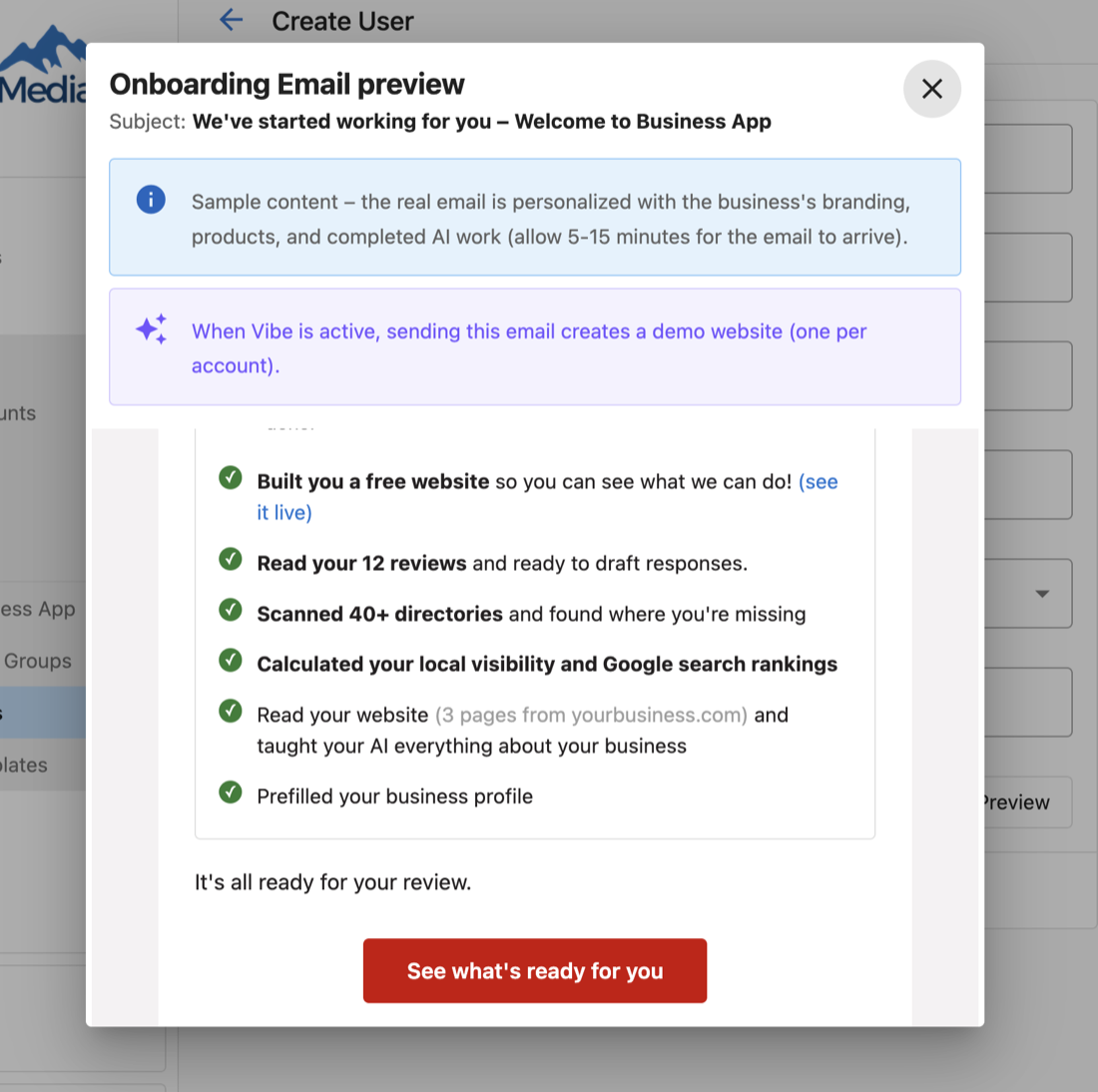
The onboarding email holds its send until the products on the account have finished activating, and when Vibe is active, until the website has been built. Allow 5 to 15 minutes for it to arrive. If a build runs long, the email still goes, without the website line.
What their landing page shows
A new user's first login lands on Home, and that page is organized around what AI already did.
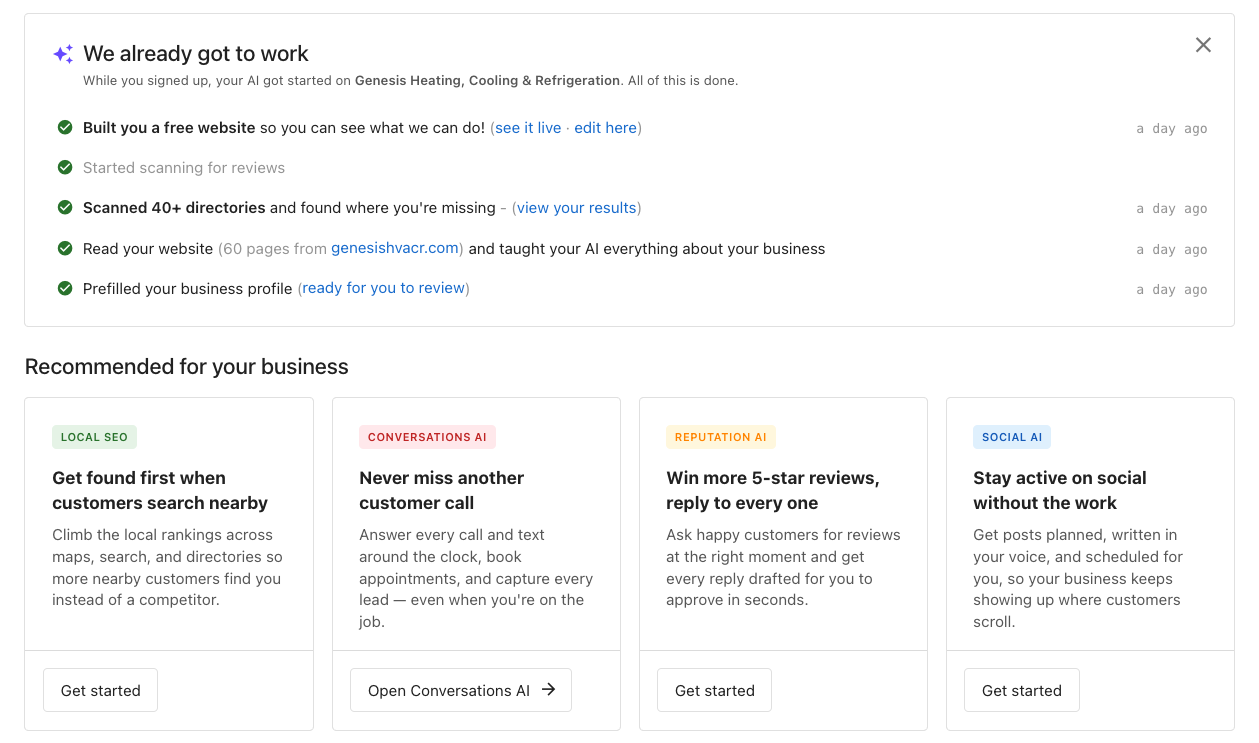
Three sections do the work. Flip each one:
Read together, the three sections carry a client from the work already done, to the next product at your retail price, to the short tasks that finish their setup, without leaving Home. The work card lists what is active on the account and the Recommended cards lead with what is not, so the two read as one screen: what your client already has, and what they can add next. Once the receptionist has a name, the Meet your AI receptionist card takes that name as its title. Your client can dismiss the work card and each upgrade card, and a dismissal lives in that browser only.
Where each link takes your client
Every line on the work card is a link, and each one opens the screen where that work continues. The directory line opens Local SEO → Listing Sync, where the scan's findings are waiting: the directories already carrying the business, and the ones with no listing yet. Connecting Google and Facebook is the first move there, and each source shows its own listing score once it is connected. The business profile line opens Business Profile → Descriptions, where a short description and a long one are already drafted and waiting for a Save.
That is the shape of the whole card. It reports work that genuinely ran, and it hands the next step to whoever opens it. Naming that on your handoff call is what turns a first look into a to-do list your client can act on: the scan found where they are missing, and connecting those sources is the work it found.
On your test account's Home, select view your results on the directory line and count the sources reading Listing Not found. That count is what your next client opens on, and it is the first thing worth explaining to them.
Three settings decide what they see
Everything on that first day traces back to three decisions on your side, and two of them are settings you make once.
What is active on the account when you invite. Lines in the email and on Home are product-gated, so the products you activate before you invite decide what the client reads about. Vibe is the biggest single lever: when Vibe is active and the account has no site yet, sending the onboarding email builds the business a free starter website first, one per account, and the email leads with it. Activate Vibe before you invite, and a client without a website opens their first email to one that exists. If you build websites yourself, or theirs is already live, leave Vibe off the account and the email leads with the rest of the work.
The upgrade path on each product. Each Recommended card follows the product's Upgrade setting in your Marketplace. Self-serve upgrade puts Get started on the card and opens checkout: with Vendasta Payments connected, the client pays by card inside Business App; without it, the purchase arrives as an order for you to process. Contact a salesperson puts Contact us on the card instead. A product you have never configured is treated as upgradeable and shows Get started. Turning Upgrade off removes that product's card from Home entirely.
Labset the upgrade path on one product
Go to Marketplace → Products and open Local SEO.
Home shows Get started, or Contact us if you chose the salesperson route. Open the account's Overview and select Open in → Business App to see it.The Home cards themselves. Both the work card and the Recommended cards are on by default for every client. Partner Center → Administration → Customize Business App → Pages → Home carries one checkbox for each under Page Features: "AI has done the work" card and "Recommended for your business" cards. Clearing one hides that section for all of your clients. The setting controls display only, so a Vibe site still builds and an upgrade path still works underneath it.
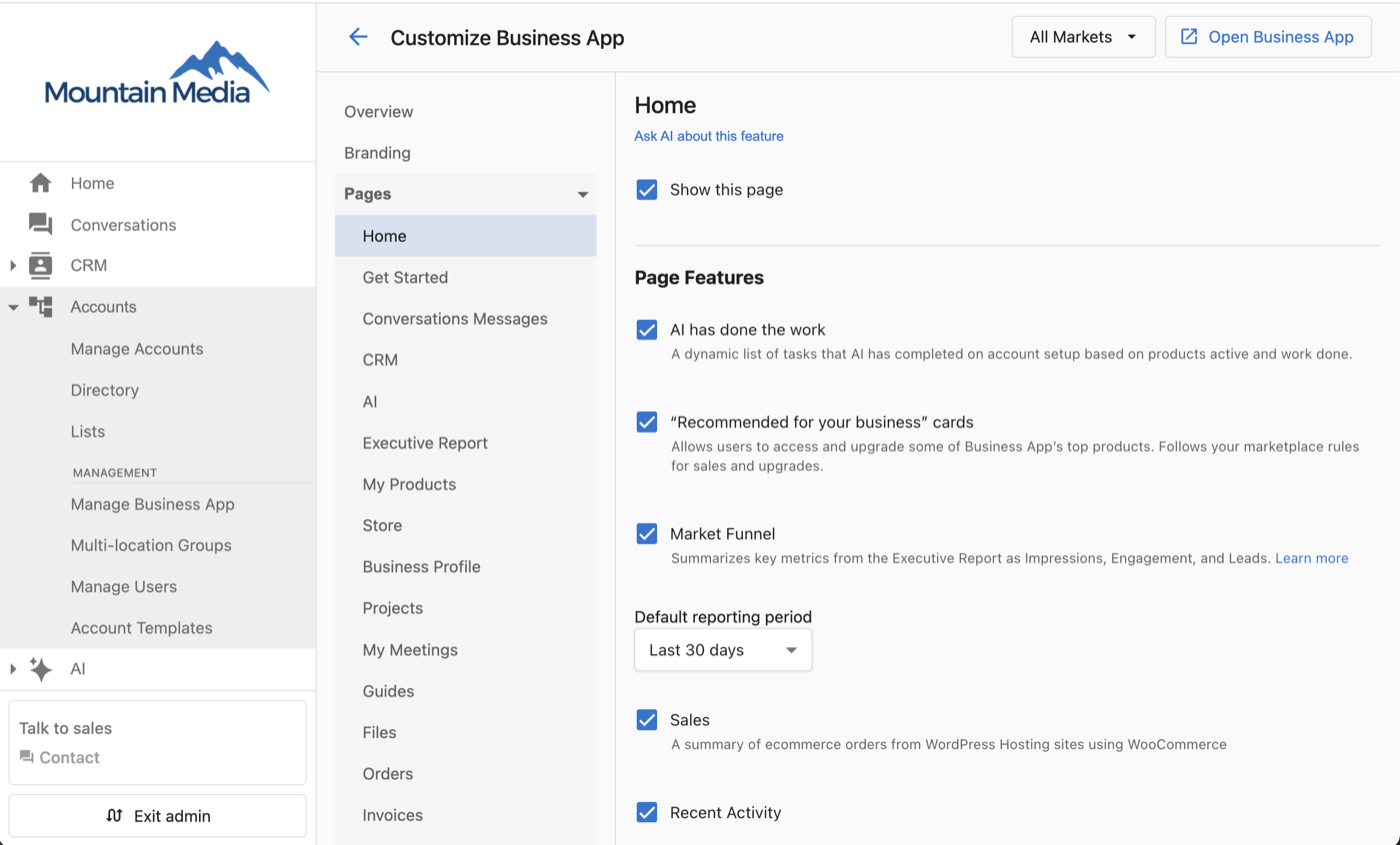
Labconfirm the Home cards are on
Go to Partner Center → Administration → Customize Business App → Pages → Home.
Home opens on the work card, with the Recommended cards beneath it.Send the email to yourself
The preview beside the invite panel is a static sample: your branding, the layout, and the button, with placeholder work. The real email is generated for the business. The one way to read exactly what a client receives is to receive it. Use a recently created account for this: the work card carries roughly the last 30 days of work, so an older account shows a shorter list.
Open your test client account under Accounts → Manage Accounts, select Invite users, add your own email address, and select Invite 1 user. Allow 5 to 15 minutes, then read the email the way a client would and follow See what's ready for you through to Home. To send it again later, the ⋮ menu on your row carries Send Onboarding Email.
This guide lists every line the summary can show and the exact condition for each, and this one covers how each Recommended card decides what to show.
Knowledge Check
Three quick questions on what a new client sees, what on your side decides it, and how you check it yourself.