Summarize with AI
Summarize with AI lets you add an AI-powered summarization step to any automation. Give it text — a form submission, a chat conversation, a webhook payload — and the AI returns a concise custom summary as needed and intended by a user. The summary is available as dynamic content in later steps, so you can drop it into emails, notifications, CRM notes, or any other action without forwarding the full original text.
How it works
- You provide input text — the content the AI should summarize (a message, transcript, form response, etc.)
- The AI reads the input and produces a short summary using a built-in default prompt
- The summary is returned in a Response output that you can reference in any later step
The default prompt produces a punchy headline followed by a single paragraph that captures the key points. If you want a different format — bullet points, a one-liner, a specific tone — you can customize the prompt in the AI configuration section.
Set up the action
- Open the automation builder and add a new step
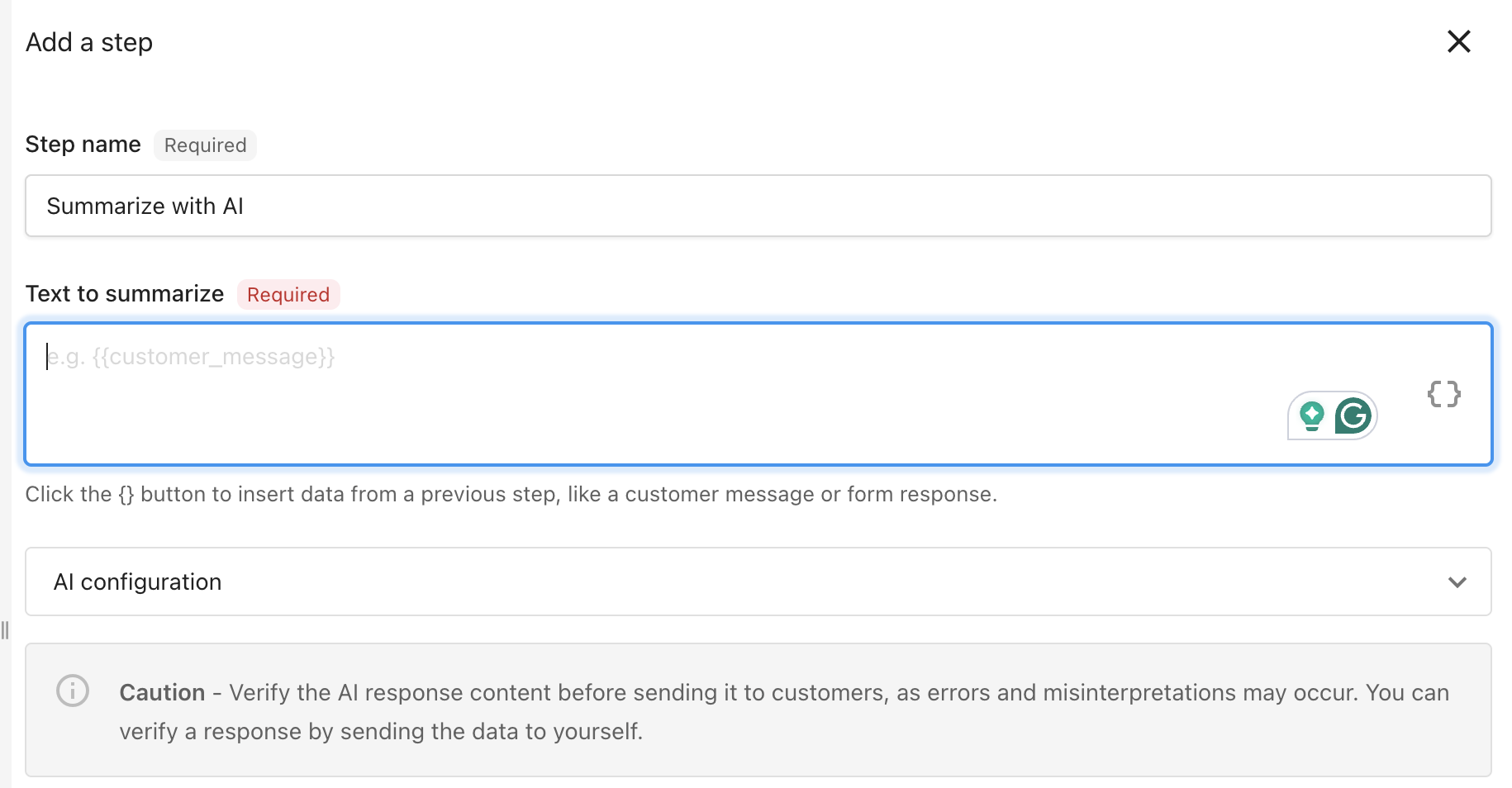
- Under AI actions, select Summarize with AI
- Configure the fields:
1. Provide the text to summarize
In the Text to summarize field, enter or insert the content you want condensed. Select Add dynamic content to insert data from a previous step — for example, a chat summary from a trigger, a form response body, or a webhook payload.
Dynamic content values are resolved before the AI reads the text, so the AI always sees the actual data — not the placeholder.
2. Customize the prompt (optional)
Expand the AI configuration section to view or edit the Prompt. The default prompt instructs the AI to produce a headline and one paragraph. Change it to request any format you need:
| Goal | Prompt example |
|---|---|
| Bullet-point summary | "Summarize the input as 3 to 5 bullet points capturing the main takeaways." |
| One-sentence summary | "Summarize the input in a single sentence of 20 words or fewer." |
| Action-focused summary | "Summarize the input, focusing on any action items or next steps the reader should take." |
The combined prompt and input text must not exceed 4,000 characters. If your input is longer, extract the relevant section in a prior step before summarizing.
Outputs
After the step runs, one value is available to downstream steps:
| Output | Description |
|---|---|
| Response | The AI-generated summary text. |
Reference this output in later steps using Add dynamic content and selecting this step's Response.
Tips for writing good prompts
- Be specific about format — "Summarize as a headline and one paragraph" produces more consistent results than "Summarize this"
- State what to focus on — "Focus on action items" or "Focus on the customer's main concern" helps the AI prioritize the right details
- Set length expectations — "Keep it to 2 to 3 sentences" prevents overly long summaries
- Preserve key data — If names, dates, or amounts matter, add "Preserve any names, dates, and dollar amounts" to your prompt
Use case examples
Brief salespeople before following up on AI employee conversations
Summarize AI employee chat conversations so salespeople get a quick briefing with action items instead of reading the full transcript.
Step 1 — Set the trigger
Select Webchat captures a lead.
Step 2 — Add the Summarize with AI step
- Under AI actions, select Summarize with AI
- Text to summarize: select Add dynamic content and choose Chat Summary from the trigger
- Prompt: "Summarize the conversation, highlighting what the customer needs, any pricing discussed, and commitments the AI employee made. Add next steps and action items for the Salesperson/Support."
Step 3 — Notify the salesperson
- Add a Notify a salesperson step
- In the notification body, select Add dynamic content and choose Response from the Summarize with AI step
- Include a link to the full conversation so the salesperson or any user can review the details if needed
The salesperson gets a 2-3 sentence briefing with action items instead of a wall of chat text — they know what the customer wants before they pick up the phone.
Log customized CRM summary notes for text-heavy form submissions
Automatically condense form submissions into clean, scannable CRM notes so the contact record stays useful.
Step 1 — Set the trigger
Select A form is submitted for a contact (under Contacts).
Step 2 — Add the Summarize with AI step
- Under AI actions, select Summarize with AI
- Text to summarize: select Add dynamic content and choose the form field containing the customer's or prospect's message
- Prompt: "Summarize in 2 to 3 sentences. Include the topic, any specific requests, and urgency level."
Step 3 — Create a CRM note
- Add a Create a CRM note step
- In the note body, select Add dynamic content and choose Response from the Summarize with AI step
- Every form submission gets a clean, readable note on the contact record — sales reps, support staff, and account managers all get context instantly
Digest inbound webhook data for internal alerts
Translate raw webhook payloads from external systems into human-readable email alerts for non-technical teams.
Step 1 — Set the trigger
Select a webhook-based trigger that receives data from an external system (payment processors, monitoring tools, ticketing systems).
Step 2 — Add the Summarize with AI step
- Under AI actions, select Summarize with AI
- Text to summarize: select Add dynamic content and choose the relevant webhook field
- Prompt: "Translate this data into a human-readable briefing. Use a headline and 2 to 3 bullet points. Focus on what happened and whether any action is needed."
Step 3 — Send an email
- Add a Send an email step
- Use the Response from the Summarize with AI step as the email body
- Instead of receiving raw JSON, the operations team gets a readable alert like: "Payment failed — $249.99 charge declined due to insufficient funds. Action needed: contact customer to update payment method."
Summarize AI employee handoff context
Create concise, actionable task descriptions when an AI employee conversation requires human follow-up.
Step 1 — Set the trigger
Select Webchat captures a lead or Call activity added with a conditional filter for AI voice receptionist.
Step 2 — Categorize and summarize
- Add a Categorize with AI step to branch the conversation by outcome
- Add a Summarize with AI step on the branch that needs human follow-up
- Text to summarize: select Add dynamic content and choose the chat summary
- Prompt: "Summarize what the customer needs, what the AI employee already tried, and why the conversation was handed off. Keep it to 3 sentences."
Step 3 — Create a task
- Add a Create a CRM sales task for the contact step
- In the description, select Add dynamic content and choose Response from the Summarize with AI step
- Assign to the contact's owner
The human agent opens the task and sees concise context like: "Customer wants to cancel their subscription due to billing errors on the last two invoices. AI employee confirmed the charges but couldn't process a refund. Handed off because the customer requested to speak with a manager." No need to ask the customer to repeat themselves.
Related resources
- Automation steps reference — Full list of available actions
- Categorize with AI — Classify text into categories and branch your automation
- Advanced automation features — Logic steps, delays, and branching
- Data expressions in automations — Extract and transform data between steps
- Creating and configuring automations — Build and configure workflows