How do I set up Vendasta Payments and payouts?
What is Vendasta Payments?
Vendasta Payments lets you invoice, bill, and collect payment from your clients under your brand, processed through Stripe. To set it up, go to Administration → Commerce Settings → Vendasta Payments in Partner Center, create an account or connect Stripe, and add a payout bank account.
Vendasta maintains a current SOC 2® Type 2 report covering its security controls, and payments are processed through Stripe. For details on how payment and platform data is secured, see Security and privacy or visit the Vendasta Trust Center.
What's included with Vendasta Payments setup?
Account configuration options
- New Vendasta Payments account: Create a new Vendasta Payments processing account
- Stripe account connection: Connect your existing Stripe Standard account
- Account verification: Complete identity verification requirements
- Banking setup: Configure payout destinations and financial details
Supported payment methods
- Credit and debit cards (Visa, Mastercard, American Express, Discover)
- ACH transfers
- Pre-Authorized Debits (PADs)
Regional availability
Vendasta Payments is available in:
- USA, Canada, New Zealand, Australia, United Kingdom, Czech Republic
- Additional countries with sales assistance: Germany, Belgium, Netherlands, Poland, Switzerland
How do I set up Vendasta Payments?
Prerequisites: My billing setup
Before setting up Vendasta Payments, ensure your billing information is properly configured in Partner Center → Administration → My billing. The following settings must be complete:
- Billing Contact: Your business contact information
- Payment Method: Credit card on file (not required if currently billed by Vendasta via invoice)
These settings are necessary to be billed the wholesale costs associated with activating products and services.
Standard Vendasta Payments account setup
Before beginning the setup process, partners must review and agree to the additional Terms of Service associated with using Vendasta Payments.
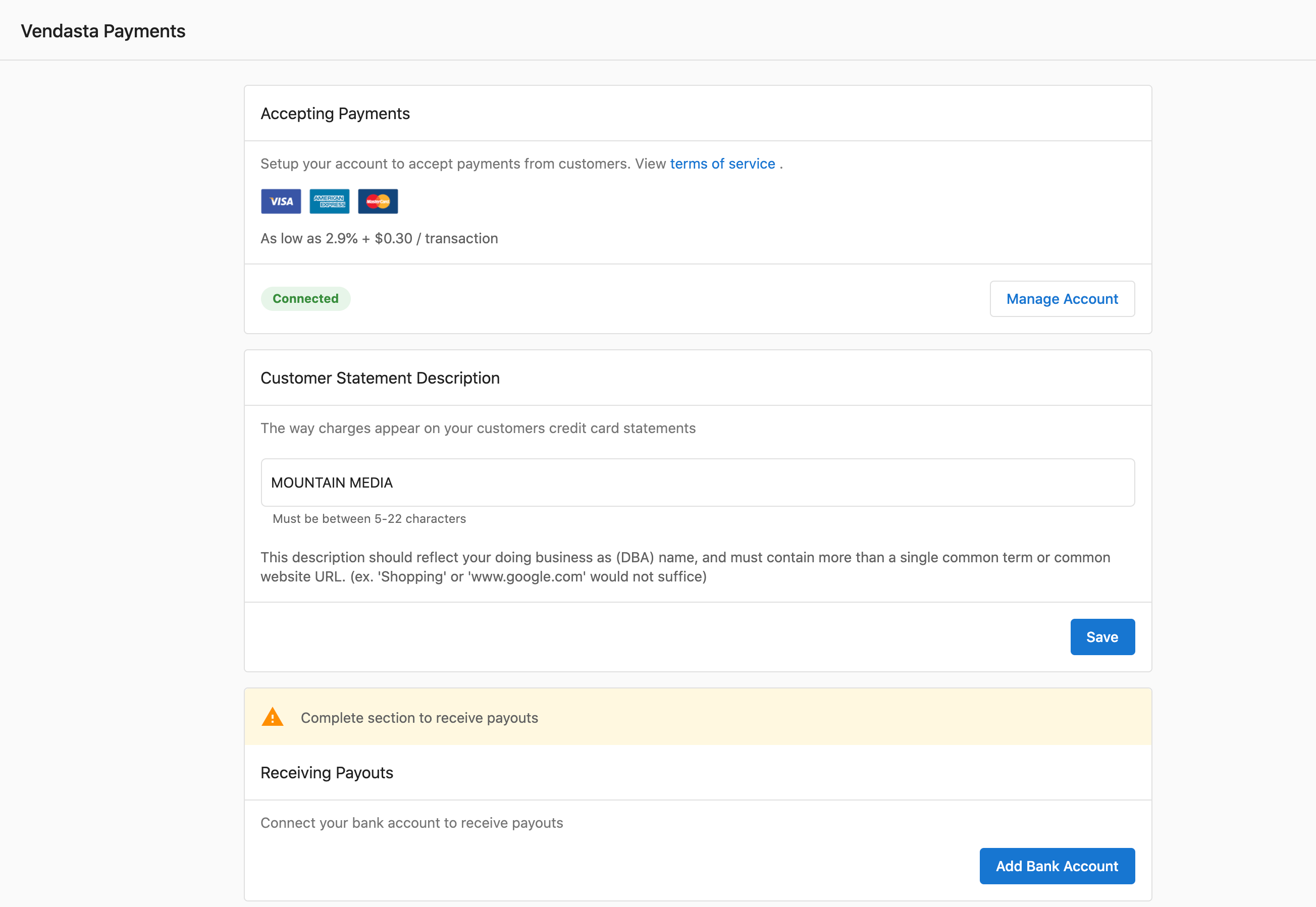
To create a new Vendasta Payments account:
- Navigate to
Administration→Commerce Settings→Vendasta Payments - Click Set up Vendasta Payments to create your Stripe account
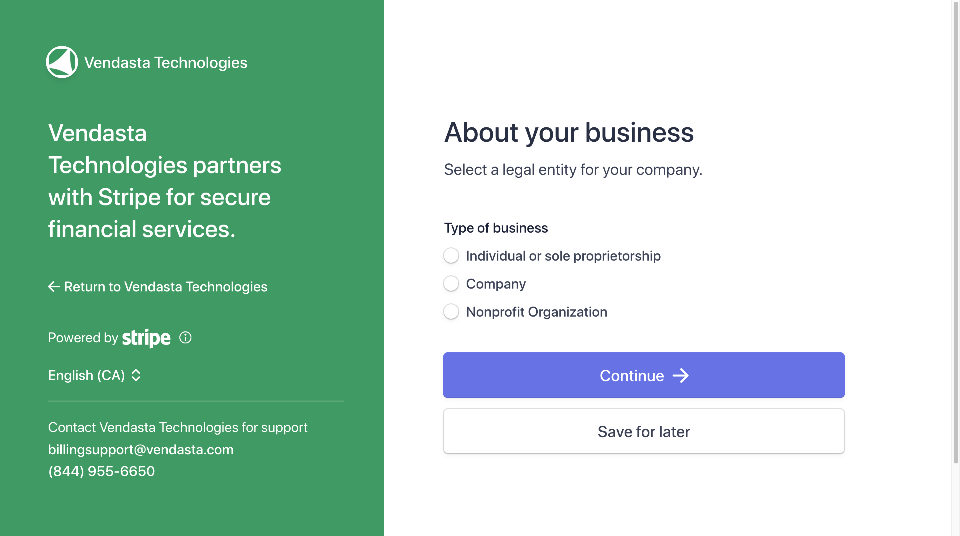
- Provide the following required information:
- Legal business name (must exactly match the name associated with your tax ID)
- Business Number
- For US companies: Employer Identification Number (EIN)
- For Canadian companies: Canada Revenue Agency (CRA) Business Number
- Learn more about identity verification
- Operating name of your company (your "Doing business as" name, if different from legal name)
- Registered business address or home address (if you don't have a business address)
- Account representative information:
- Legal name
- Home address
- ID verification (Full Social Security number for U.S., and Government-issued ID via webcam, phone, or file upload)
- Complete the account application with all required documentation
- Configure banking details for payouts
- Wait for account approval (typically 1-2 business days)
Vendasta Payments is not available for Free or Trial subscription tiers. This restriction applies to new users and current non-users on these tiers due to fraud prevention measures.
Accept online payments
By default, the currency that you accept for online payments is the currency that you use in your billing relationship with Vendasta (your contract currency).
Vendasta Payments accepts payments from Visa, Mastercard, American Express, and Discover credit cards.
Payments that you have received will be displayed under the Partner Center → Commerce → Payments tab.
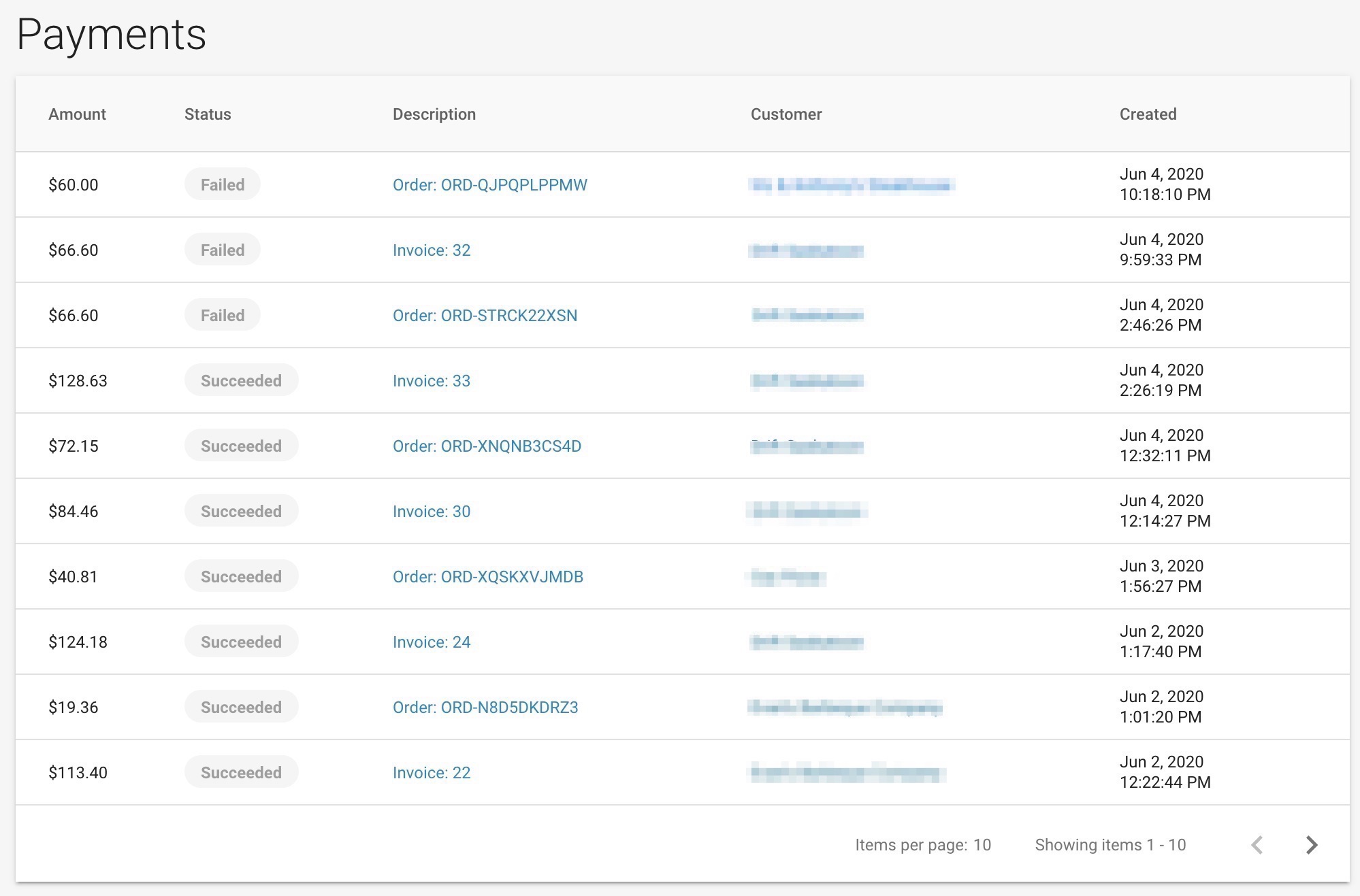
After your first payment has been received, Stripe will hold the payments you receive for up to a week. At the end of this period, Stripe will begin paying out a portion of the balance you've accumulated, on a 7-day rolling basis, into the bank account that you add in the payout settings.
If payment has failed, partners can hover their cursor over the ⓘ Information icon next to the status for more information.
Customer statement description
The customer statement description that you set when setting up Vendasta Payments is shown on your customers' credit card statements and is used to clarify a payment they have made for your products or services.
Using a clear, accurate, and recognizable statement descriptor reduces the likelihood of chargebacks and disputes, as it helps your customers to remember where a particular charge or payment originated from.
By default, "Vendasta" appears on customer credit card statements when they make a payment. Partners can replace this statement descriptor with their own business name by entering this information when setting up Vendasta Payments. You may use up to 22 characters for your statement description.
Connect your existing Stripe account
If you're a Partner with an existing Stripe Standard account, you can connect it to Vendasta Payments to use billing features, including invoicing, subscriptions, and payments.
Requirements for Stripe connection
- You already use Stripe to collect payments from customers
- You bill in a currency supported by Vendasta Payments
- You have not completed a transaction using a custom connect account from Vendasta
- Your connected Stripe account is registered in a country supported by Vendasta Payments
Supported payment methods with Stripe connection
- Credit and Debit Cards
- ACH Transfers
- Pre-Authorized Debits (PADs)
Processing fees with connected Stripe account
- Credit/Debit/Bank Debit: Your existing Stripe fees remain unchanged
- Platform Fee: 0.75% of the transaction amount
Connection process
- Navigate to
Administration→Commerce Settings→Vendasta Payments - Select the option to
Connect Stripe Account
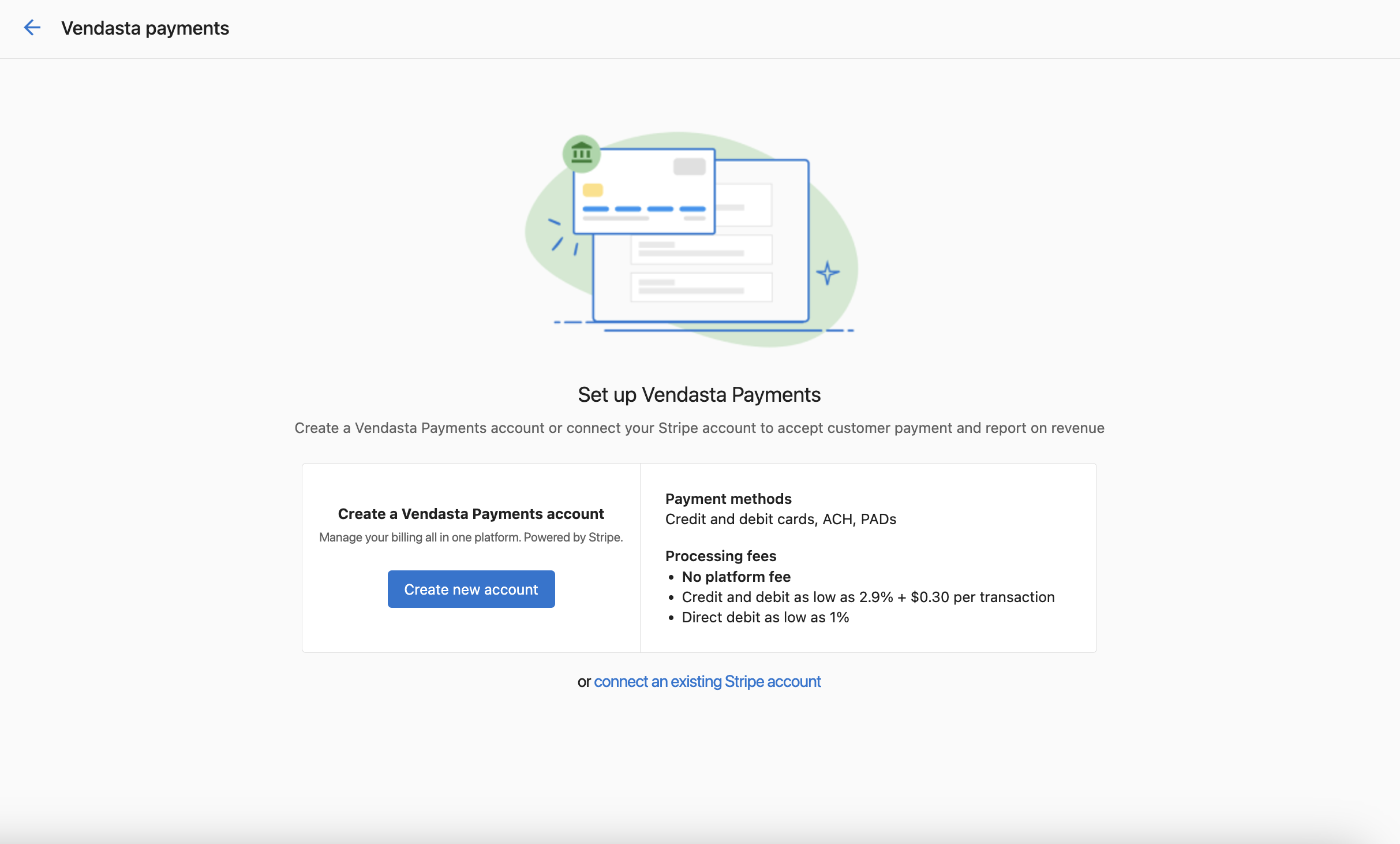
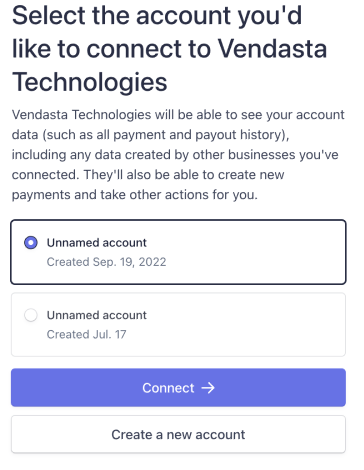
- Choose the Stripe account you wish to connect to Vendasta Payments. If you have multiple Stripe accounts, you'll be prompted to select the one you want to connect.
- Review and accept connection terms
- Complete the integration process
This feature is only available for new users who haven't completed transactions with platform-generated accounts.
How do I set up payouts?
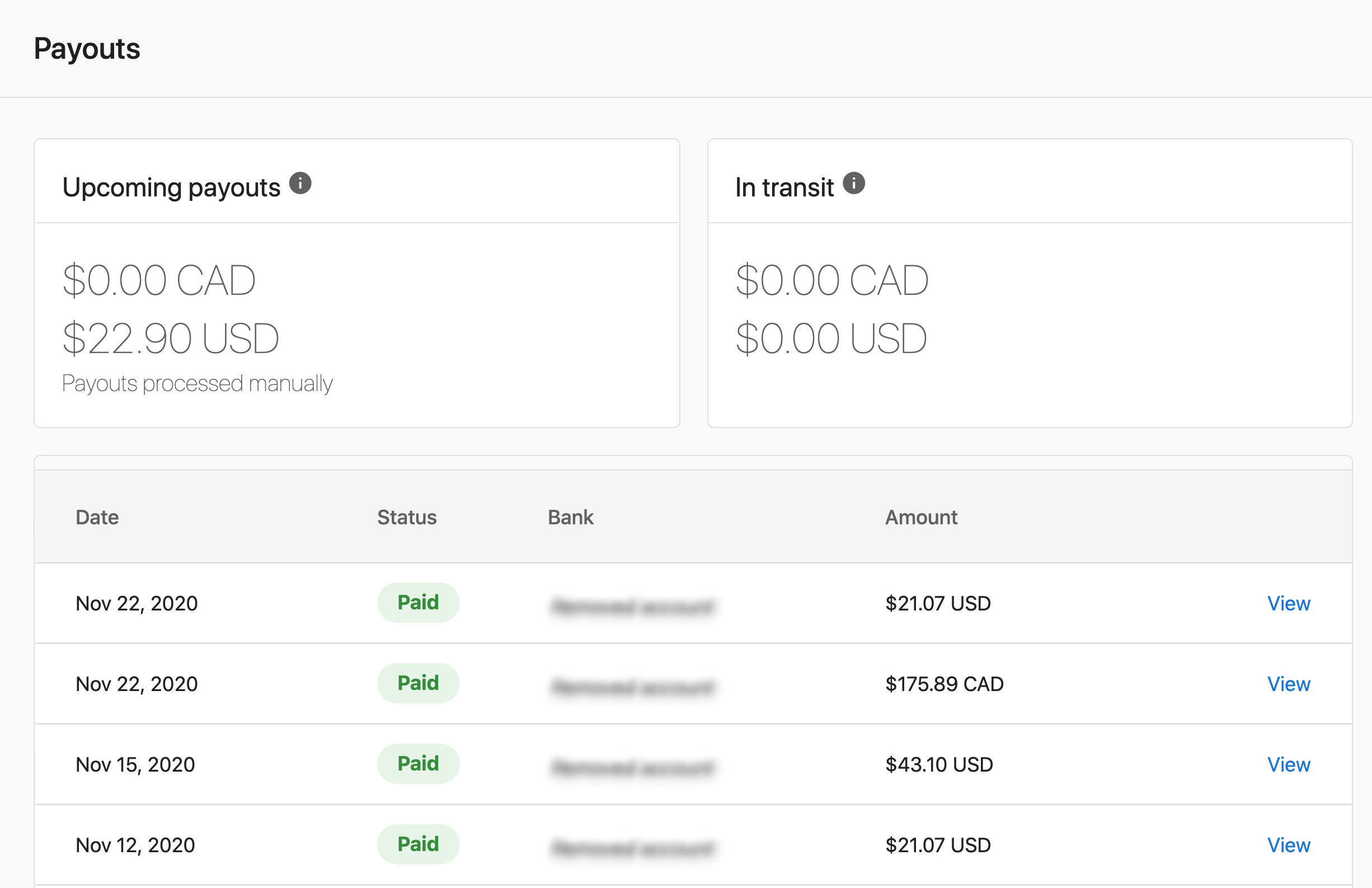
To access your payout settings, navigate to Partner Center → Commerce → Payouts or Administration → Commerce Settings → Vendasta Payments.
How to set up bank accounts
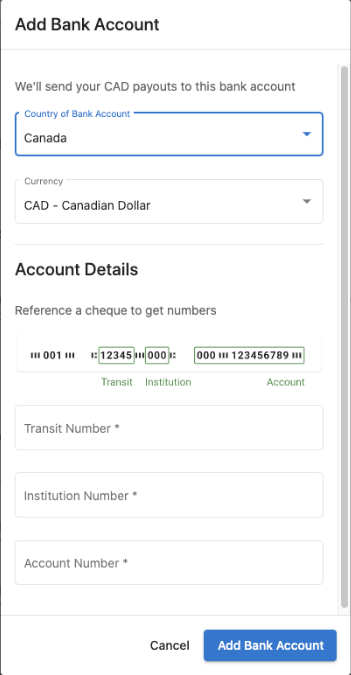
Partners can receive payouts from online credit card payments in one or more bank accounts by entering their account details in Stripe.
If you do not have a banking relationship in every country where you operate, but you'd like to add a bank account in a different country, contact support@vendasta.com for more information.
When configuring your first bank account for payouts:
- Go to the
Administrationtab - Navigate to
Commerce Settings→Vendasta Payments - Click on
Add Bank Accountunder Receiving Payout - Enter your bank account details:
- Account holder type (Individual or Company)
- Individual's name (if Individual is selected) or company name (if Company is selected)
- Bank account number
- Bank routing number
- Set this account as your default for payouts
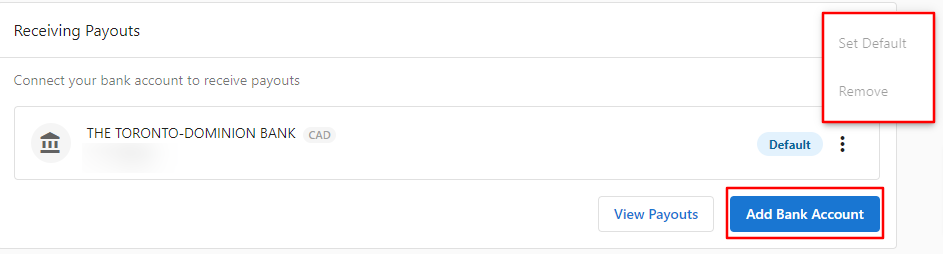
If you already have one bank account connected and want to replace it, you must add a new bank account first. Once the new account is added, you can set it as the default, then remove the old bank account.
Setting a default bank account
If you add more than one bank account to receive payouts, you need to select a default account to specify which account receives your payouts. You can change your default bank account at any time. If you connected your own Stripe account, change it in your Stripe dashboard; otherwise, contact billingsupport@vendasta.com.
How to set up multiple currency bank accounts
In supported countries, you can add multiple bank accounts to receive payouts in different currencies without conversion fees:
- Add one bank account per supported settlement currency
- Select a default settlement currency (which you can change at any time)
- Payments received in configured currencies settle without conversion
- Payments in unconfigured currencies automatically convert to your default currency
Example: A UK-based account with both GBP and USD bank accounts (GBP as default):
- USD payments go to the USD account without conversion
- GBP payments go to the GBP account
- All other currencies convert to GBP and go to the GBP account
Changing your payout currency
By default, payouts will be made to your bank account in your default currency. However, you can add a new payout destination and choose to convert your funds to a different currency before the funds are deposited into a bank account. Stripe may charge a fee for currency conversion; visit the Stripe Docs to learn more.
How does my Vendasta Payments Stripe account work?
When you set up Vendasta Payments, a Stripe account is created and linked to your Vendasta account. This is separate from any personal Stripe account you may already have.
Vendasta Payments Stripe account vs. personal Stripe account
- Your Vendasta Payments Stripe account can only be used within Vendasta. It cannot be used with other platforms.
- If you have a personal Stripe account, that account can be used both inside and outside Vendasta.
Stripe dashboard access
Partners using a Vendasta Payments account don't have access to the Stripe dashboard. Only partners who connect their own Stripe account (Bring Your Own Stripe) can access their Stripe dashboard. Payment and payout reporting is available in Partner Center under Commerce → Payments and Commerce → Payouts.
Changing your business type
If you selected the wrong business type when setting up Vendasta Payments (for example, Company vs. Individual), contact billingsupport@vendasta.com to have this corrected.
How do I manage my account information?
Update your business name
There are two separate business name settings for Vendasta Payments, and they control different things:
| Setting | What it controls | Where to change it |
|---|---|---|
| Stripe legal business name | Your legal name for payouts, compliance, and tax reporting | Stripe Dashboard → Settings → Account details |
| Partner Center display name | The name shown to clients on invoice payment screens and credit card statements | Partner Center → Administration → Business Profile |
Keeping these two settings aligned avoids confusion where clients see a different name when paying an invoice than they expect.
To update your legal business name in Stripe (Bring Your Own Stripe accounts only):
If you use a Vendasta Payments account, contact billingsupport@vendasta.com to update your legal business name.
- Log in to your Stripe account via the link in
Administration→Commerce Settings→Vendasta Payments→Manage Account - Go to
Settings→Account details - Update the Legal business name field
- Save your changes
Changing your legal business name in Stripe may trigger an identity re-verification review. Payouts may be briefly paused while Stripe reviews the change.
To update the name shown on client invoice payment screens:
- Navigate to
Partner Center→Administration→Business Profile - Update the Business name field
- Save your changes
Update ownership information
To replace ownership details in your payment account:
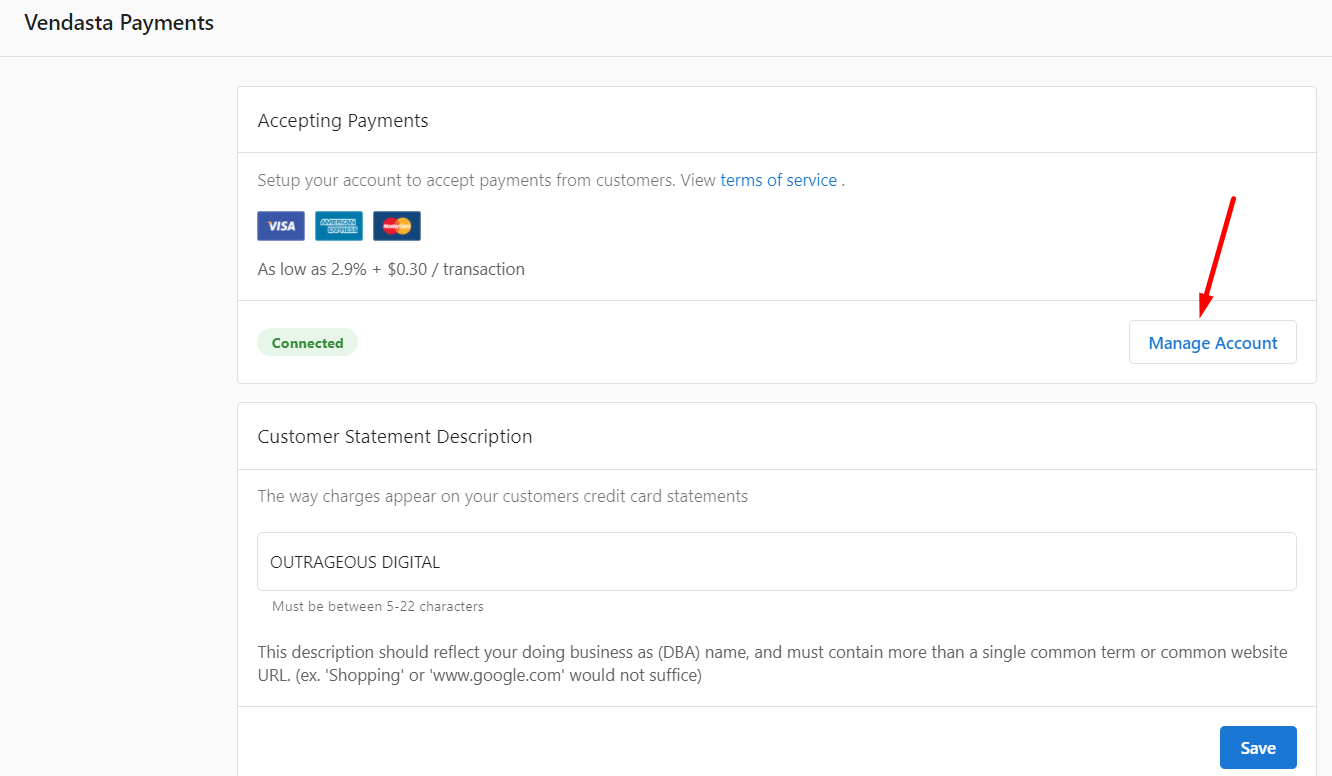
- Navigate to
Administration→Commerce Settings→Vendasta Payments - In the
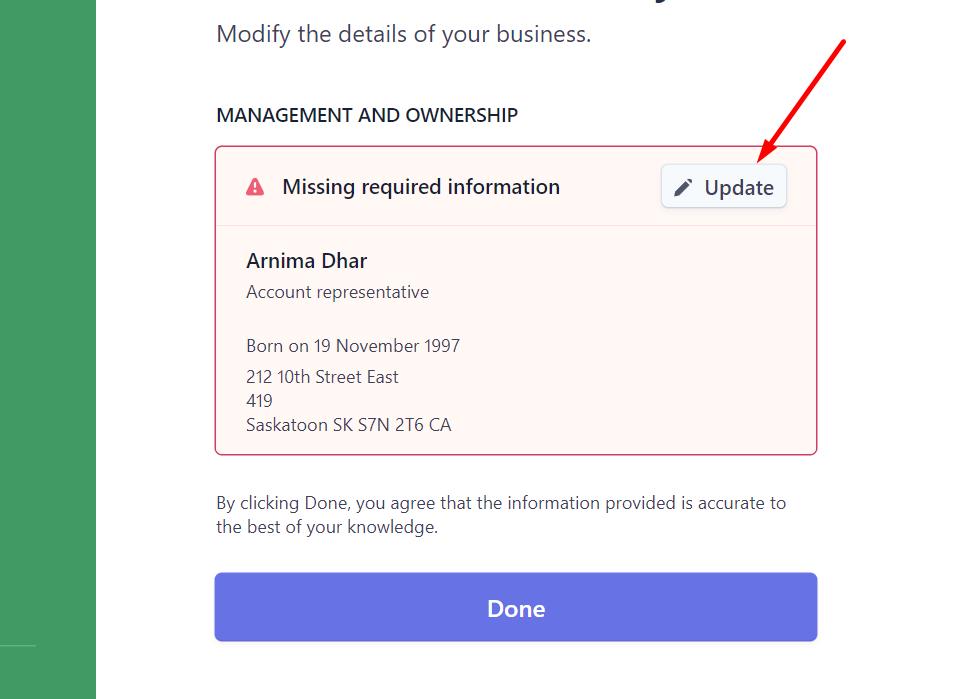
Accepting Paymentssection, clickManage Account - On the Identity Verification page, click
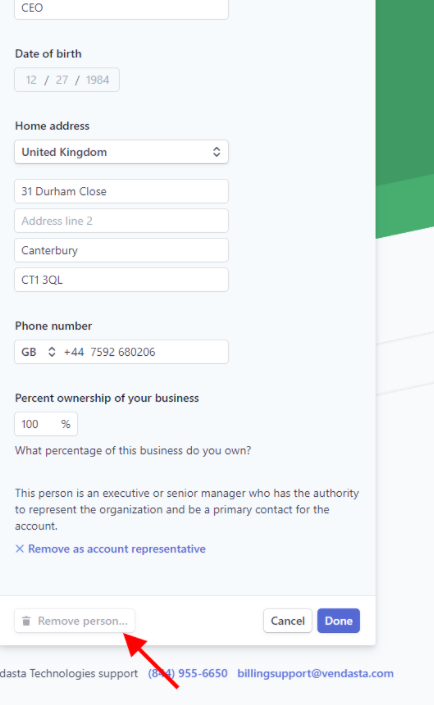
Updatebeside the current owner - Complete the new owner information form
- Remove the previous owner by clicking
Remove Person→Done
Update invoice address
To change the address appearing on customer invoices:
- Go to
Administration→My billing - Click on
Billing Contact - Update the address information as needed
- Save changes
Updated addresses will appear on all future customer invoices.
What are the customer-facing Terms of Service for payment processing?
Your customers need to accept the Terms of Service that apply to payment processing when they pay for a Service Order. These terms explain that Vendasta is facilitating payment collection on your behalf, and provides information about how refunds, disputes, and other payment-specific details are handled.
This helps limit your liability in case of payment disputes with your customers. In most jurisdictions, you are legally required to have terms that apply specifically to payment processing when accepting payments.
The Terms have been created with partner protection and minimizing your liability in mind. All partners using Vendasta Payments should leave this setting switched on so that these Terms will be displayed when the customer makes a payment. Disabling these Terms is not recommended, as it may increase your liability.
How do I troubleshoot setup issues?
"Unsupported in Your Area" Error
If you see this message despite being in a supported region:
- Navigate to
Administration→My billing - Check that your billing contact information is complete
- Ensure your billing address is fully filled out with postal code
- Save any missing information and retry setup
Missing billing address information prevents Vendasta Payments activation even in supported regions.
No setup option available
If you don't see Vendasta Payments setup options, this typically indicates:
- Your account is on a Free or Trial tier (upgrade required)
- You're in an unsupported geographic region
- Your account has restrictions that prevent Vendasta Payments
Stripe account country not supported
If your Stripe account connection is unavailable or fails during setup:
- Confirm that your connected Stripe account is registered in a supported Vendasta Payments country
- If needed, connect a Stripe account registered in a supported country
- If you are unsure which countries are supported for your setup, contact support@vendasta.com
Video walkthrough guides
This section contains two sets of videos to help you get set up with Vendasta Payments and understand how the different components work.
Setup walkthrough videos
Watch the following videos for a step-by-step guide to setting up all components of Vendasta Payments:
1. Set Up Payments
2. Set Currency & Retail Price
3. Update Existing Packages
4. Configure Packages for Buy-It-Yourself
5. Apply Taxes
Understanding Vendasta Payments components
These videos help explain how different elements within Vendasta Payments work:
How does BIY work with Business App?
How does BIY work with the Store?
How does Invoicing work?
How do Payments and Payouts work?
Common questions about Vendasta Payments setup
What are the fees for connecting my own Stripe account?
You'll pay a 0.75% platform fee in addition to your existing negotiated Stripe fees. Your current Stripe rates remain unchanged.
Can I transfer customer payment details from my existing Stripe account?
Automatic transfer of customer payment information is not available. You'll need to manually input payment details into the platform.
Will I be able to view payments after connecting my Stripe account?
Yes, you can view payment details processed through the platform. However, payout information must be accessed directly in your Stripe account.
Can I add my own Stripe account if I'm already using a platform account?
This feature is only available for new users who haven't completed transactions with platform-generated accounts.
Does Vendasta charge additional Stripe fees when I connect my own Stripe account?
No, you'll keep your negotiated Stripe fees. Vendasta only charges a 0.75% platform fee on the transaction amount.
If I need support with my personal Stripe account, can I contact Vendasta?
Due to limited account access, all support for personal Stripe accounts must be handled directly with Stripe.
Why is Vendasta Payments unavailable on Free and Trial tiers?
Due to increased fraudulent transactions, Vendasta Payments is restricted on Free and Trial tiers. Existing users on these tiers who already use the service retain access.
If I create a Stripe connection through Vendasta Payments, can I access my Stripe account?
No. Only partners who connect their own Stripe account (Bring Your Own Stripe) can access the Stripe dashboard. For Vendasta Payments accounts, Stripe access is restricted to Billing Support. If you need assistance with your Vendasta Payments account please submit a ticket to billingsupport@vendasta.com.
Which countries is Vendasta Payments available in?
Vendasta Payments is available in the USA, Canada, New Zealand, Australia, the United Kingdom, and the Czech Republic. Germany, Belgium, the Netherlands, Poland, and Switzerland are available with sales assistance.
How long does Vendasta Payments account approval take?
After you complete the account application and configure banking details for payouts, account approval typically takes 1-2 business days.