Default billing settings
Default billing settings apply your chosen subscription billing configuration to every new account you create. You set it once; new accounts get those settings automatically. Existing accounts are unchanged.
What it is
Subscription billing creates and sends invoices or charges saved payment methods for recurring subscriptions. Default settings in Administration → Default billing settings apply to all new accounts so you don't configure billing for each account manually.
Why it matters
- Less manual work – New accounts get your preferred billing configuration automatically
- Consistency – Same billing practices across new customers
- Flexibility – Change any single account from its own billing settings under
Accounts→Manage Accounts
What you can configure
Subscriptions– A toggle that turns subscription billing on for new accounts. It isOffby defaultPayment collection– How you take the money for a subscriptionSubscription renewal– What happens when a subscription renews. Options includeDo nothingandCreate a draft invoiceSubscription scheduling– Whether each subscription renews on its own start date, or all subscriptions are aligned to a common dateMemo– Free text that prints at the bottom of every invoice subscription billing creates
The page shows a banner stating that these settings apply only to accounts created after you save. Existing accounts keep their current settings.
How to configure default billing
- Go to
Partner Center→Administration→Default billing settings - Turn the
Subscriptionstoggle on. It isOffby default - Set
Payment collectionto the method you want to use to take payment - Set
Subscription renewal. ChooseDo nothingif you do not want anything generated on renewal, orCreate a draft invoiceif you want an invoice you review before sending - Set
Subscription scheduling. Renew each subscription on its own start date, or align subscriptions to a common date - Add a
Memoif you want standing text at the bottom of every invoice subscription billing creates - Review the settings and select
Save
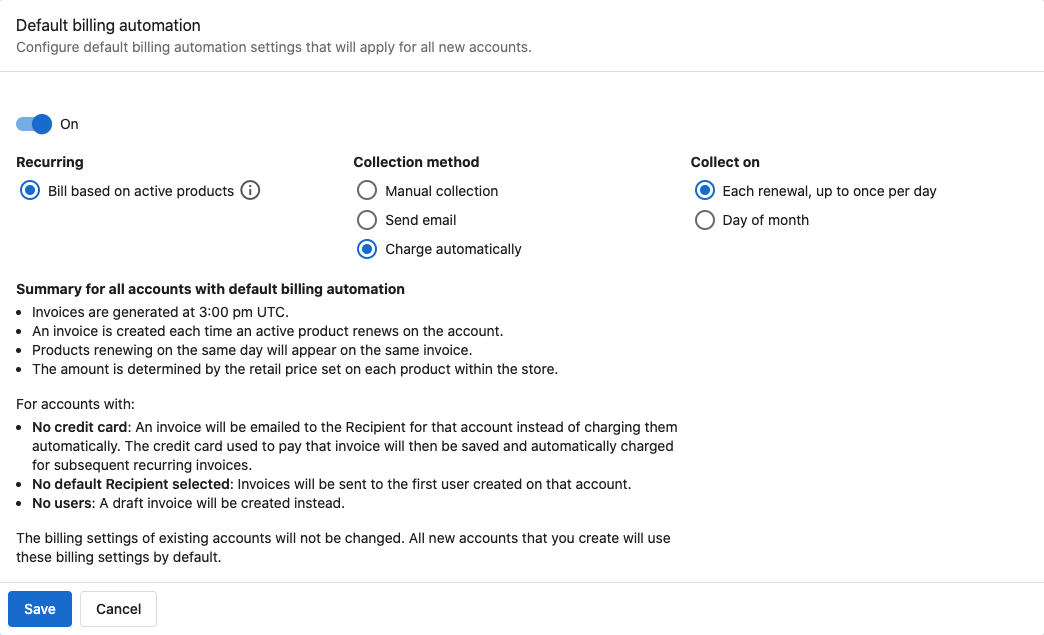
New accounts will get these settings in their billing configuration automatically.
Default billing settings do not change existing accounts. Only accounts created after you save will use these defaults.
Change billing for a single account
You can change billing for any account at any time:
- Go to
Partner Center→Accounts→Manage Accounts - Open the account
- Change that account's own billing settings
For more on per-account billing, see Subscription management.
Market-specific defaults
With multiple markets, you can set different default billing settings per market. Use the market selector on the Default billing settings page.
Product pricing requirement
For automation to bill correctly:
- Retail prices must be set for each product
- Subscription settings must be correct for recurring products
To automatically bill based on active products, you must set retail prices for each product. Without pricing, the automation cannot calculate amounts.
Frequently asked questions
Do default billing settings affect existing accounts?
No. They apply only to accounts created after you save. Existing accounts keep their current billing settings.
Can I change billing for one account after applying defaults?
Yes. Go to Accounts → Manage Accounts, open the account, and change that account's own billing settings.
Do I need to set product prices for automation to work?
Yes. Set retail prices for each product so automatic billing can calculate amounts.
Can I have different defaults per market?
Yes. Select each market on the Default billing settings page and save different settings per market.
What does the Payment collection setting do?
Payment collection sets how you take the money for a subscription on a new account. Open the field on the Default billing settings page to see the methods available to your account, and pick the one that matches how you want to be paid.
What is the Memo field for?
Anything you type in Memo prints at the bottom of every invoice that subscription billing creates. Use it for standing text such as payment terms or a remittance note.
Can I turn off default subscription billing later?
Yes. Go to Default billing settings, set the Subscriptions toggle to Off, and save. New accounts will no longer get defaults; existing accounts are unchanged.
My customers are receiving unexpected invoice emails: how do I stop this?
This happens when subscription billing is turned on and set to generate invoices on renewal. To stop invoice emails from being sent:
- Go to
Partner Center→Administration→Default billing settingsand check whether theSubscriptionstoggle is on - Set
Subscription renewaltoDo nothingso renewals no longer generate an invoice, then selectSave - This changes the default for new accounts only. For an account that is already sending invoices, change that account's own billing settings
Account settings are found under Partner Center → Accounts → Manage Accounts, then open the affected account.
How do I change the recurring invoice renewal day?
Do not change it from the order summary. Open billing settings from the subscription or billing area and use the renewal-date setting, then confirm when payable invoices generate. The order view is informational; billing settings control the schedule.