How do I set up Google Meet and Zoom integrations in Partner Center?
In Partner Center, you connect Google Meet once for your whole Partner account from the Integrations page, and each user connects their own Zoom account from Connected Apps in their user profile. You can then start or schedule meetings from contact records and emails.
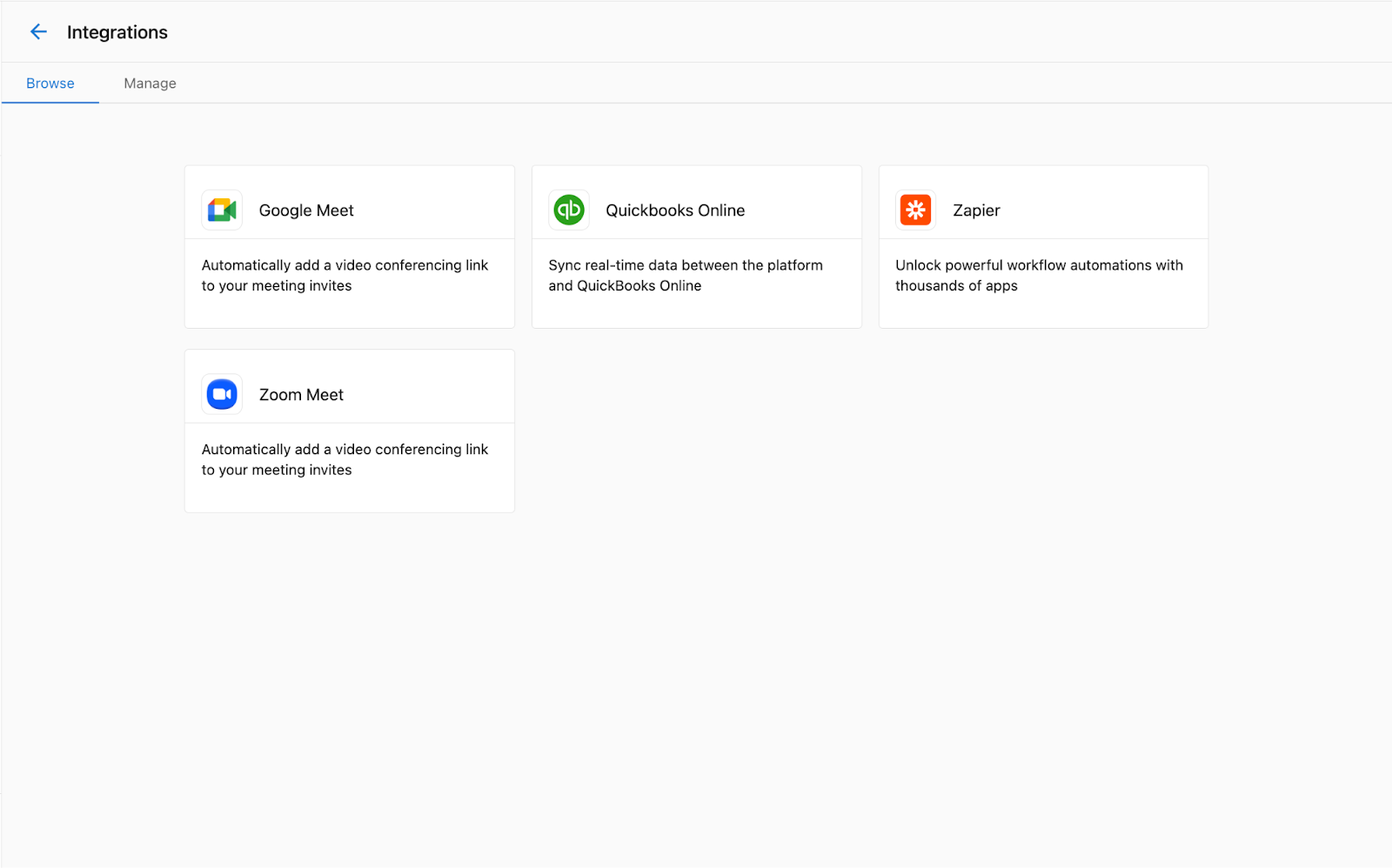
Once you enable either the Google Meet or Zoom integration, you'll notice a few changes in Partner Center when communicating with a customer:
- When viewing a contact record, you'll see an option next to the
CallandEmailbuttons to start or schedule a meeting. - When composing an email to a contact, you'll see options to include a meeting link and suggest meeting time slots.
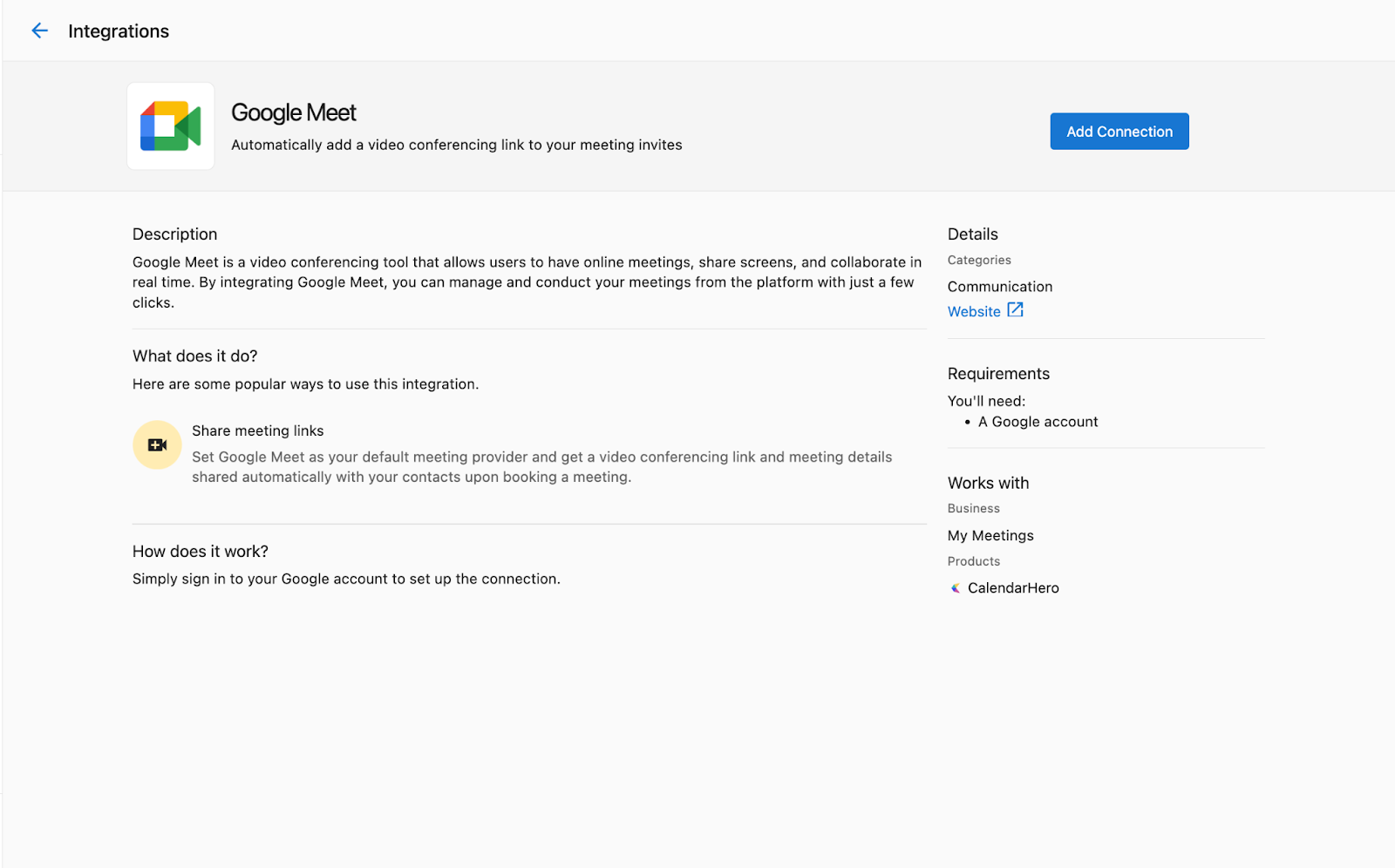
What do I need to use Google Meet?
- To use the Google Meet integration, you must have a Google Workspace account with Google Meet enabled.
- All Partner Center users share the same Google Meet connection. When a user sets up the Google Meet integration, it's available to all users in that Partner account.
- You will not need to log in separately to your Google account to use this integration.
What do I need to use Zoom?
- Unlike Google Meet, each Partner Center user needs to connect their own Zoom account.
- Both free and paid Zoom accounts are supported, but free accounts have some meeting limitations (e.g., 40-minute time limit for group meetings).
How do I set up the Google Meet integration?
To enable the Google Meet integration for your Partner Center account:
- Navigate to the
Integrationspage from the left navigation menu in Partner Center. - Find the
Google Meettile and clickConnect. - Follow the Google authentication flow to grant Partner Center access to your Google account.
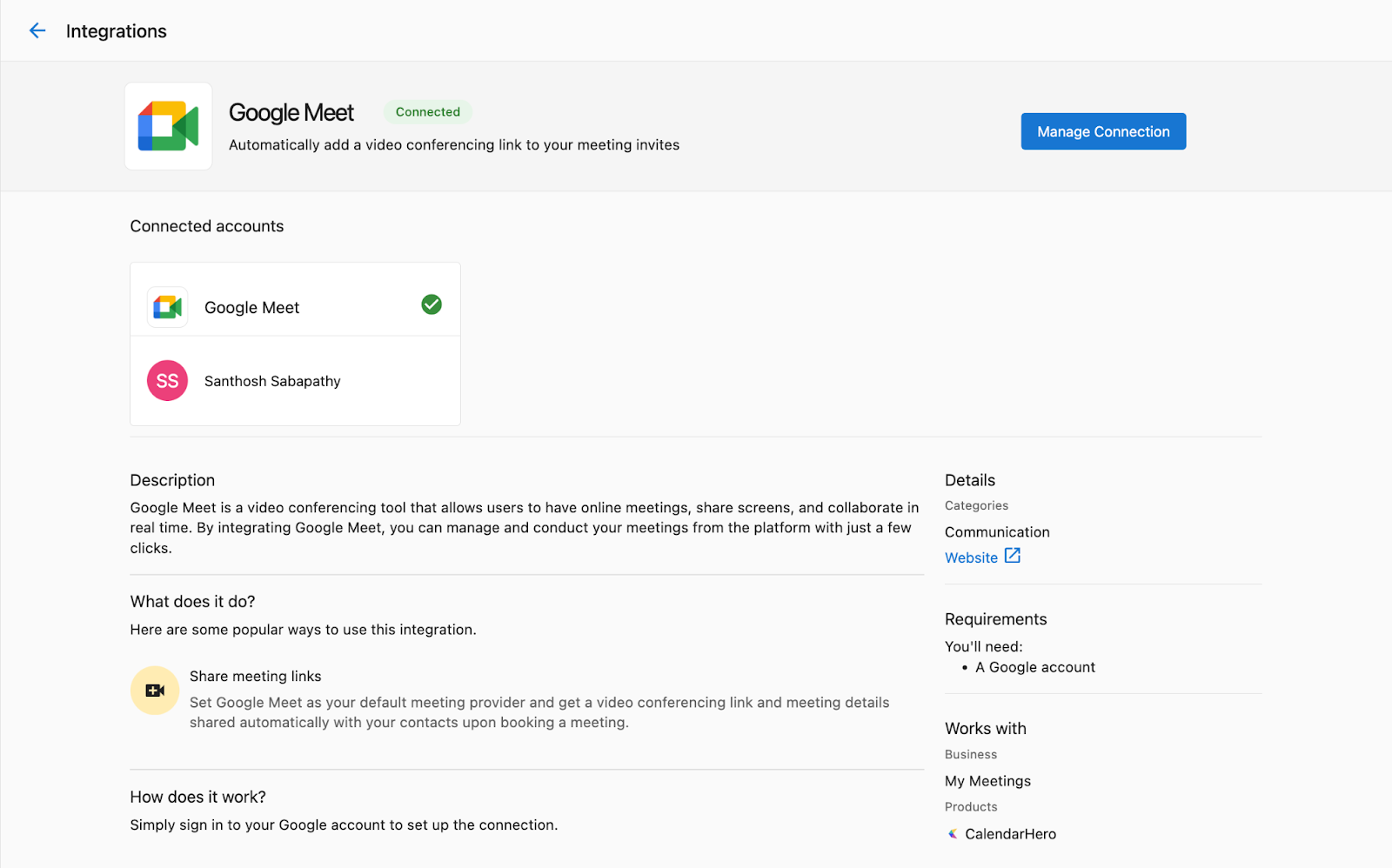
Once completed, you should see a Connection Completed message:
How do I set up the Zoom integration?
Each Partner Center user needs to set up their own Zoom integration:
- Navigate to the
Managetab in your user profile (click your user icon in the top right).
- Select
Connected Appsfrom the left menu. - Find the
Zoomtile and clickConnect. - Follow the Zoom authentication flow to grant Partner Center access to your Zoom account.
How do I manage integration settings?
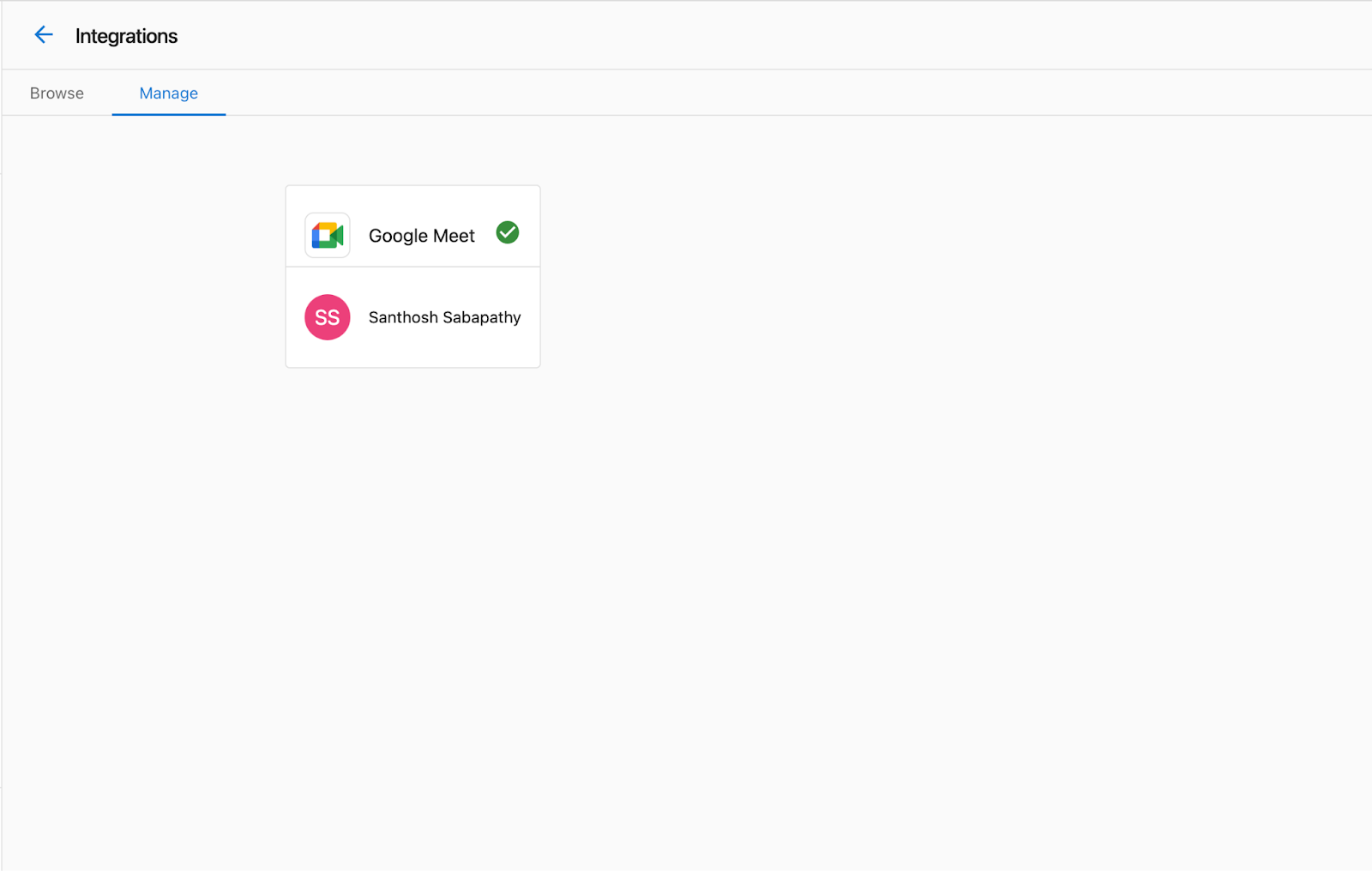
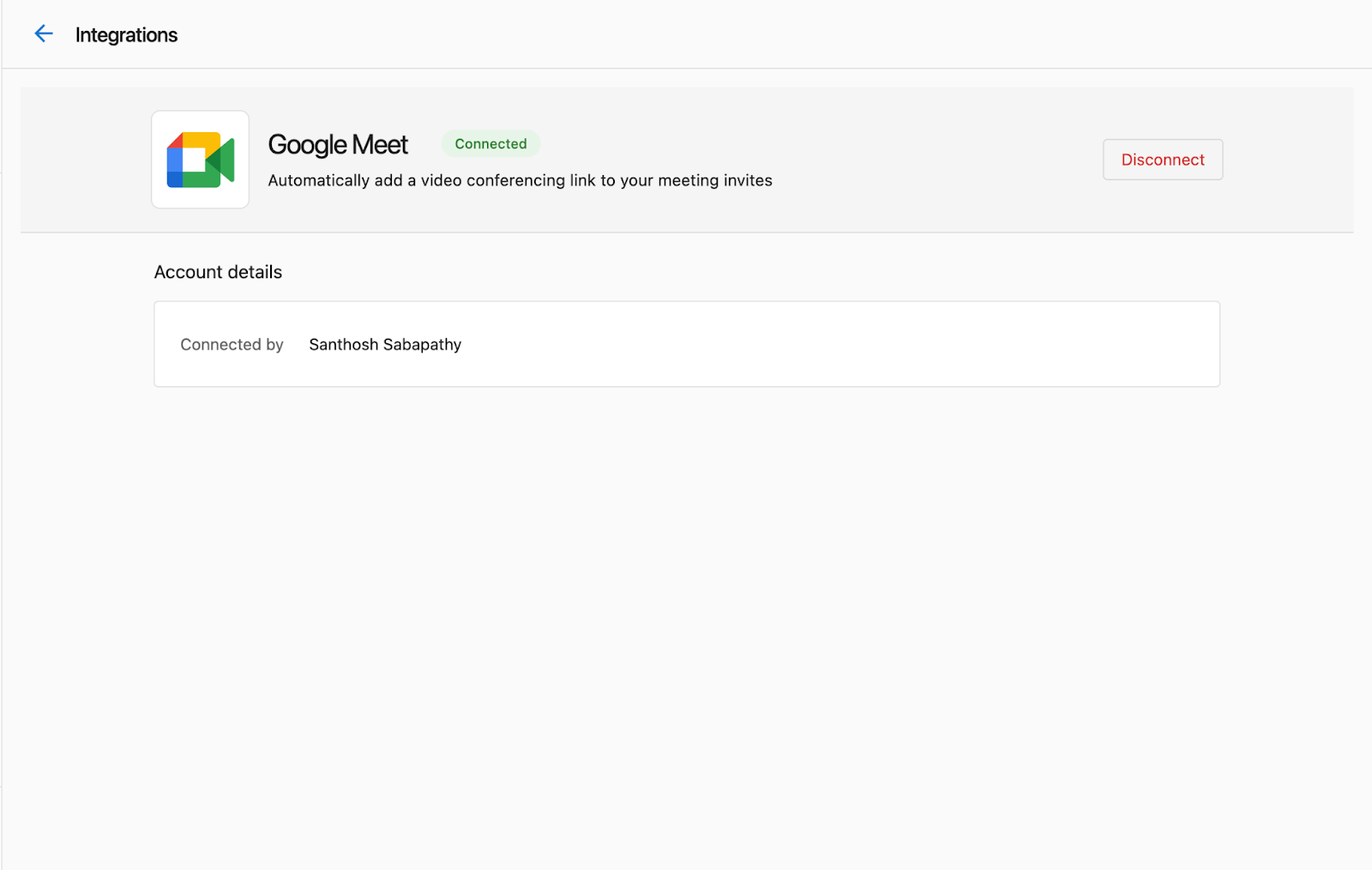
Administrators can manage integration settings and connections through the Integrations page:
- Navigate to the
Integrationspage from the left navigation menu. - Find the integration tile (Google Meet or Zoom).
- Click
Manageto view and adjust connection settings.
How do I schedule meetings with customers?
After you connect an integration, you can schedule meetings with customers:
- Navigate to a customer contact record.
- Click the meeting button next to
CallandEmail. - Choose to start an immediate meeting or schedule one for later.
- When scheduling, select available times and add meeting details.
- Send the invitation to the contact.
Alternatively, when composing an email:
- Click the meeting button in the email composer.
- Choose to add a meeting link or suggest time slots.
- Complete the meeting setup and send the email.
What do I do if the integration isn't working?
If you encounter issues with the Google Meet or Zoom integrations:
- Ensure your Google Workspace or Zoom account is active and properly configured.
- Check that you've granted all necessary permissions during the connection process.
- For Google Meet issues, ask your administrator to verify the connection on the Integrations page.
- For Zoom issues, try disconnecting and reconnecting your account.
For additional assistance, contact Vendasta Support.
Frequently asked questions
Does every Partner Center user need to connect Google Meet?
No. All Partner Center users share the same Google Meet connection. When one user sets it up, it's available to all users in that Partner account.
Where do I connect my Zoom account?
Click your user icon in the top right of Partner Center, open the Manage tab, select Connected Apps, and click Connect on the Zoom tile. Each user connects their own Zoom account.
Can I use a free Zoom account?
Yes. Both free and paid Zoom accounts are supported, but free accounts have some meeting limitations, such as a 40-minute time limit for group meetings.
Do I need Google Workspace to use the Google Meet integration?
Yes. You must have a Google Workspace account with Google Meet enabled.
Why does my Zoom connection stop working in Partner Center?
Make sure your Zoom account is active and that you granted all requested permissions when you connected. If the problem continues, disconnect and reconnect your Zoom account.