Reseller notifications
Start selling notification
Responding quickly to interest is one of the best ways to win more business. Vendor Center helps by sending you a notification as soon as an agency clicks Start Selling in the Marketplace. You'll receive an email and an in-platform alert through the notification bell, so you can follow up right away.
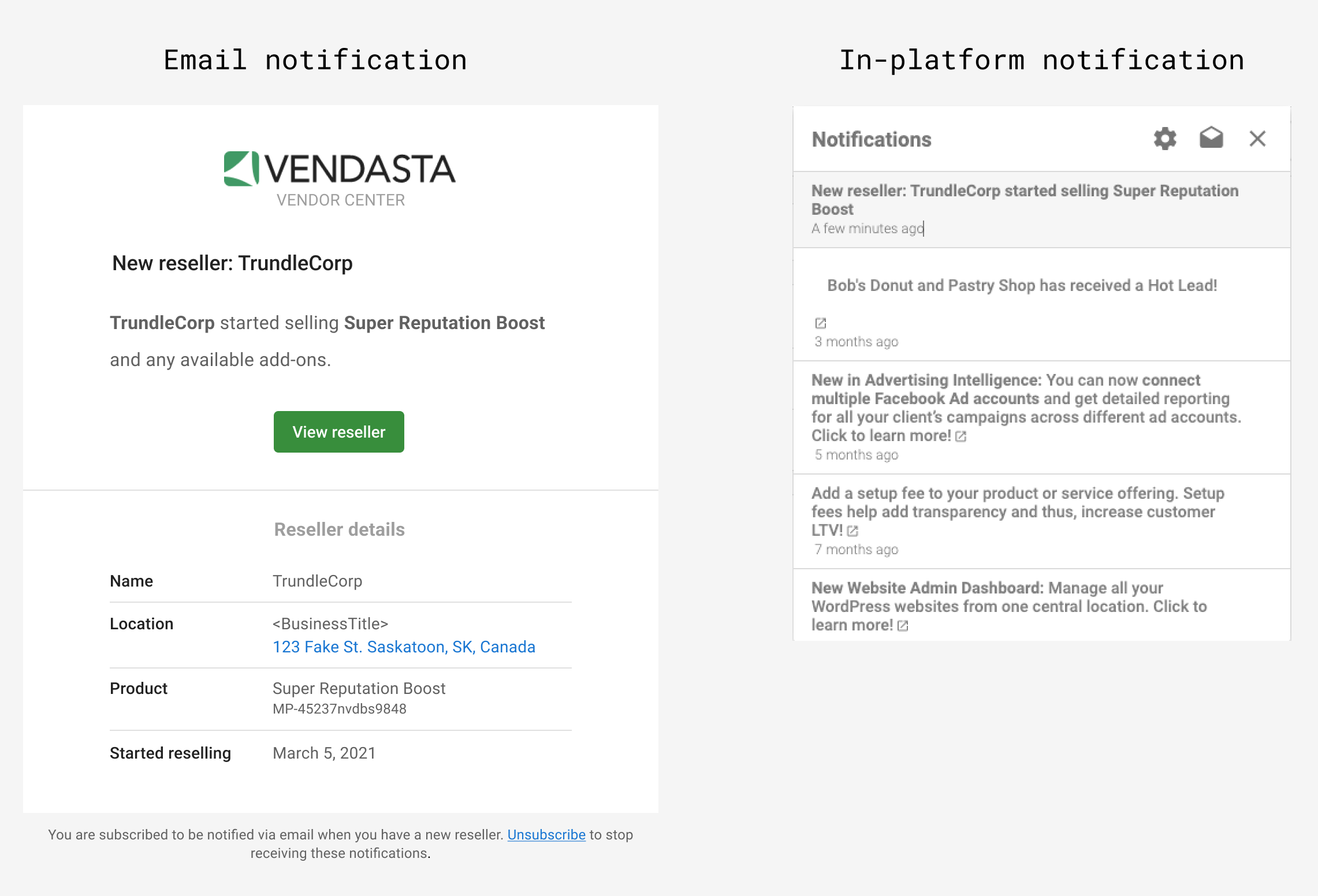
If you're not currently getting these notifications, you can adjust your notification settings:
- Click the bell icon (
 ) in the top right corner of Partner Center.
 - Click the gear icon (
 ) at the top of the dropdown.
 - In the notification settings menu that appears, scroll down to
Vendor notificationsand select the method that works best for you.
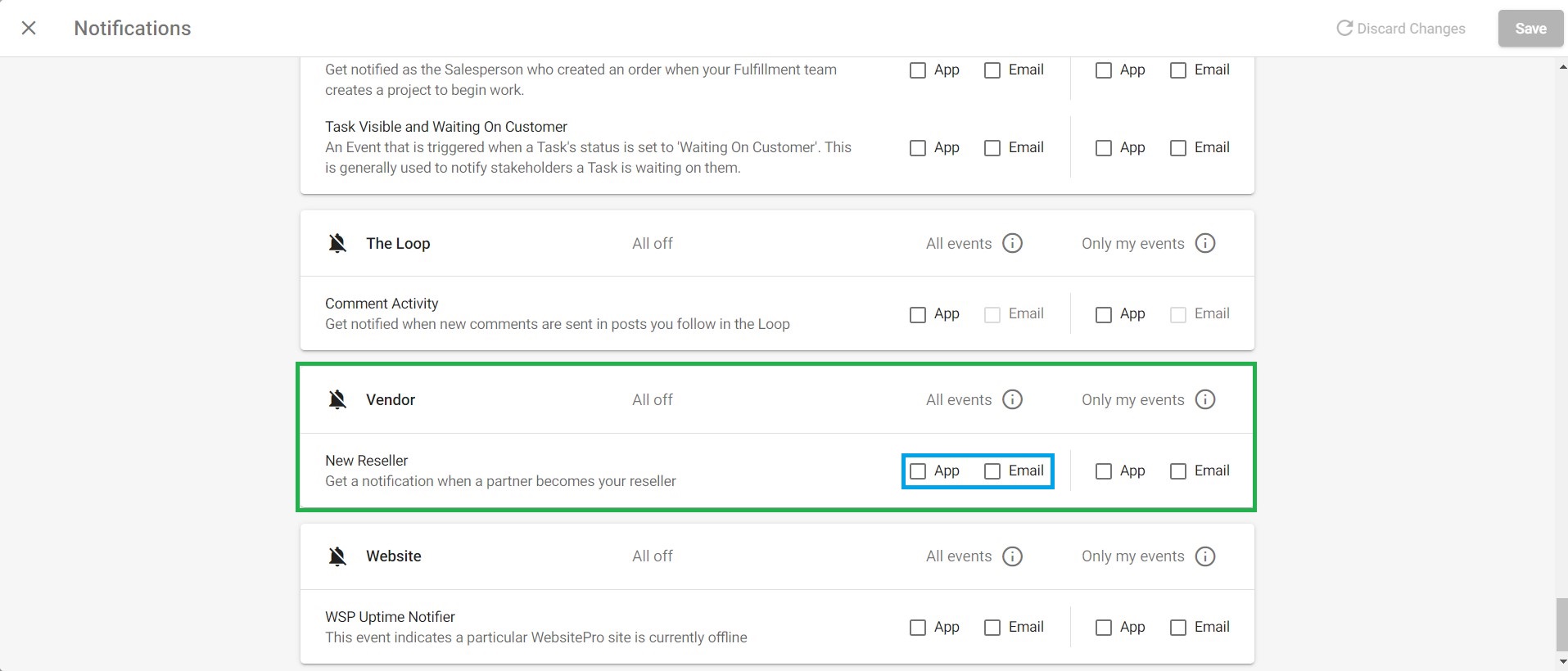
-
Inbox: While we're in the notification settings, let's take the opportunity to make sure you're also getting notified when prospective resellers have a question or existing partners need support. Scroll up to the Inbox section and select the options you need.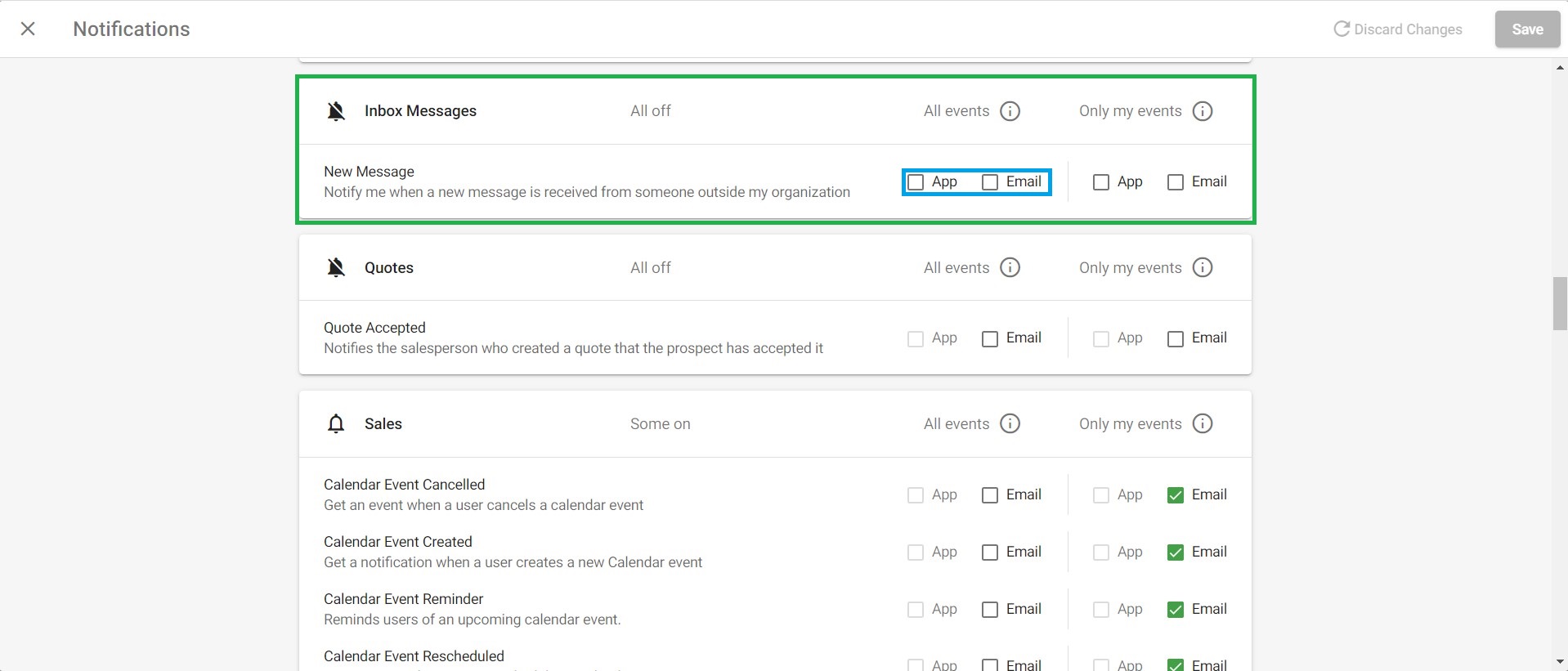
Reseller tab
Once an agency becomes a reseller, the next step is to segment and qualify them. The Reseller tab features a customizable table with relevant information such as name, email, and service tier, helping you prioritize discovery calls and identify which resellers to reach out to.
For more on the Reseller tab, see Reseller information.
Inbox messages
Inbox messages put communication only one click away, so nothing gets lost or undelivered. After clicking on the message icon on the right side of the Reseller information, the Inbox messaging window will open where you can send and receive direct messages to and from your resellers.