Where to find resources, expectations, and forms
Building a new website, taking over your social posting, and setting up a successful digital ads campaign comes with a lot of moving parts.
These steps are laid out to help equip you with plenty of resources and information to get even more out of your fulfilled services!
Find product details and assets in the Marketplace
- Go to
Partner Center→Marketplace→Discover Products - Click
Add filter, thenVendor - Check the box for
Services - Click into any service you want to learn more about
- Read through product information, find FAQs, and check out add-ons
- Click
Screenshots & Filesto find marketing images and sales decks - Click the
Start Sellingbutton in the top right corner to add to your store
Familiarize yourself with the service expectations
To understand the timelines, details, and deliverables you can expect after ordering, check out the Expectations by Service guide for a high-level overview and reference across all product lines.
Review the fulfillment forms
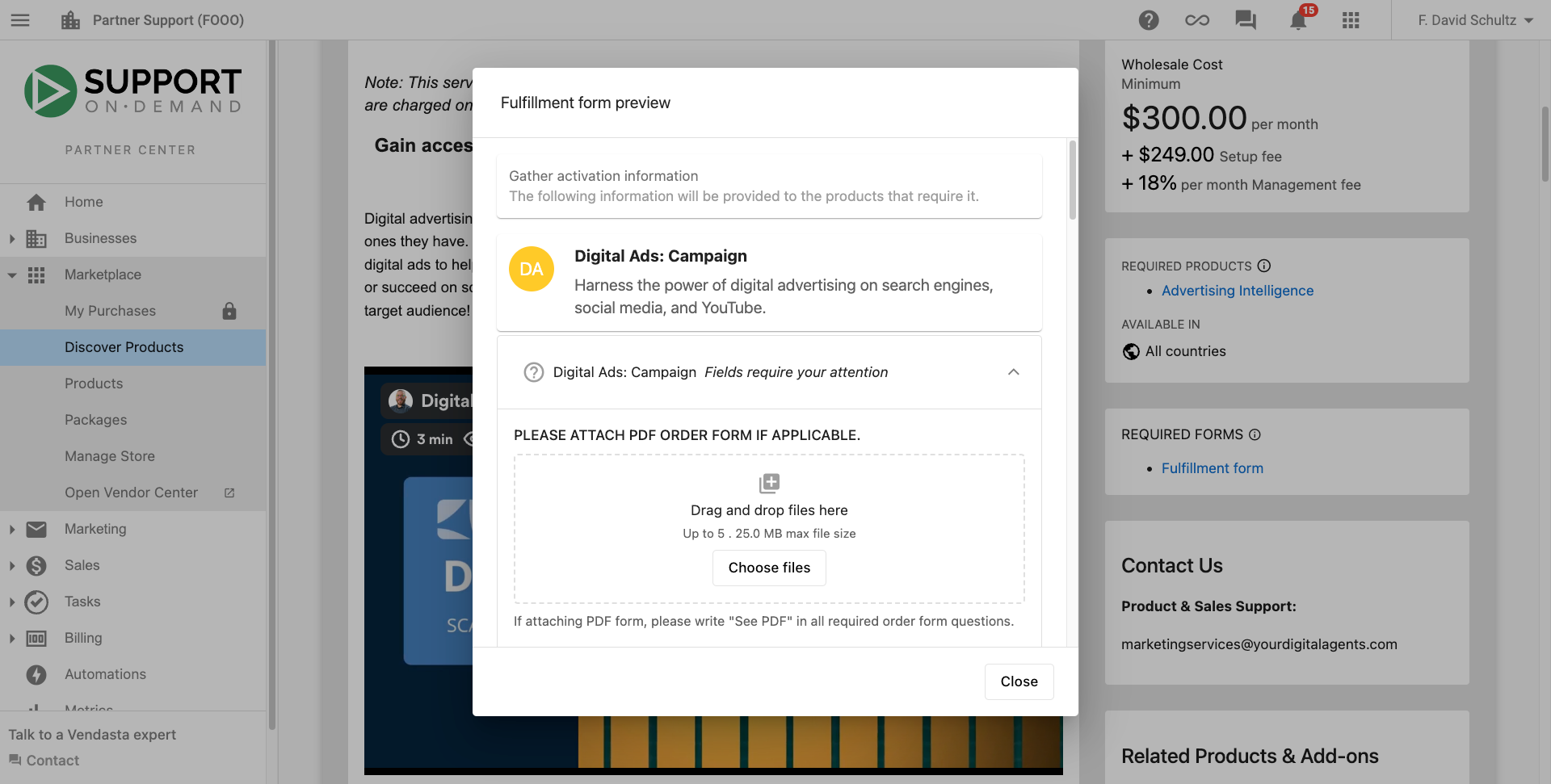
An important step in ensuring a quick turnaround for your fulfillment is providing a completed fulfillment form. The information in these forms helps the Vendasta Services teams to complete the ordered services in alignment with what you want.
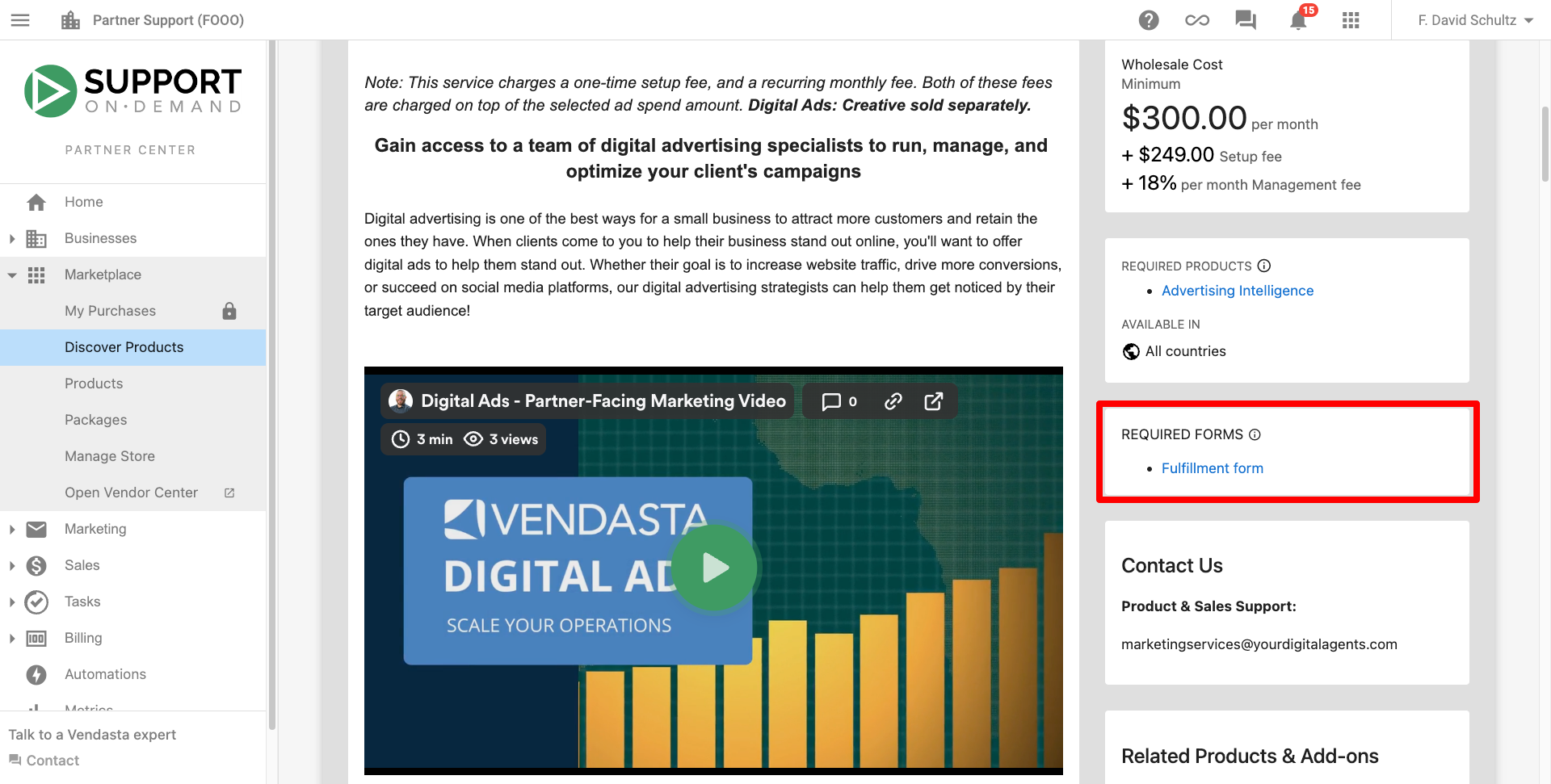
Fulfillment form information is available in Partner Center → Marketplace → Discover Products by visiting any of the product pages. On the right, you will find a section for Required Forms and clicking into it will show you the form.