Track form submissions with Google Analytics 4 and Google Tag Manager
This article will help you track form submissions on your website using Google Analytics 4 through Google Tag Manager. This is useful for anyone who wants to track user interactions with forms on their website.
Forms automatically capture standard UTM parameters (utm_source, utm_medium, utm_campaign, utm_content, utm_term). You can also use hidden fields with "Populate field dynamically" to store specific query parameters (for example, campaign) on the submission.
Prerequisites
Before you begin, make sure you have:
- Google Tag Manager account setup
- Google Analytics 4 property setup
- Website with forms that you want to track
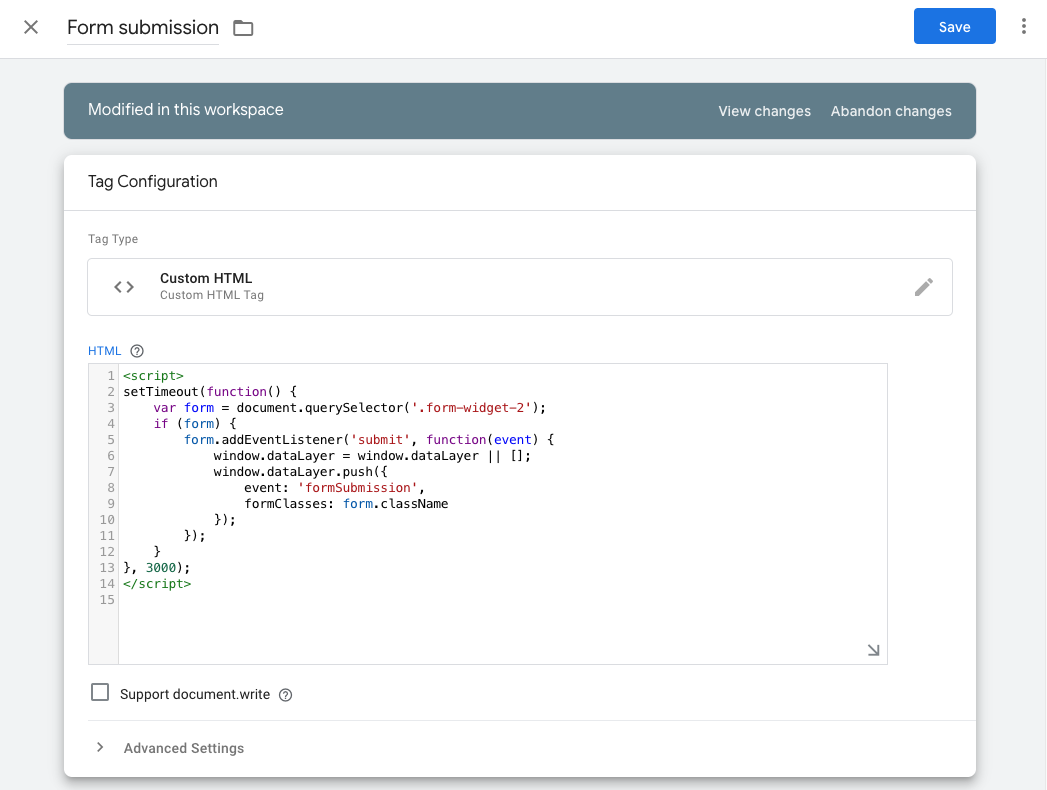
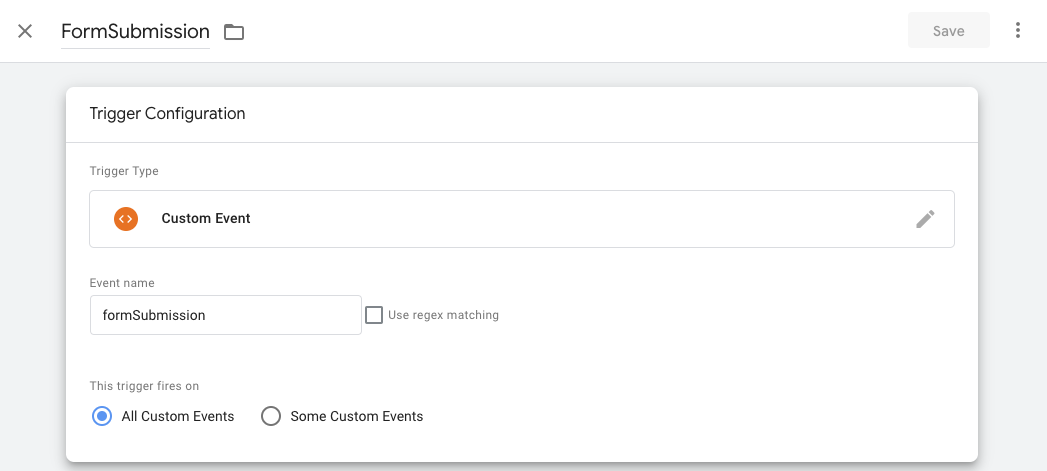
Creating a trigger for form submissions in Google Tag Manager
First, you'll need to create a trigger in Google Tag Manager that will fire when a form is submitted on your website.
- Log in to your Google Tag Manager account
- Navigate to the Triggers section and click on
New - Choose the trigger type as
Form Submission - Configure the trigger to fire on
All Formsor specific forms based on your requirements - Name your trigger (e.g., "Form Submission Trigger") and save it
Creating a Google Analytics 4 event tag
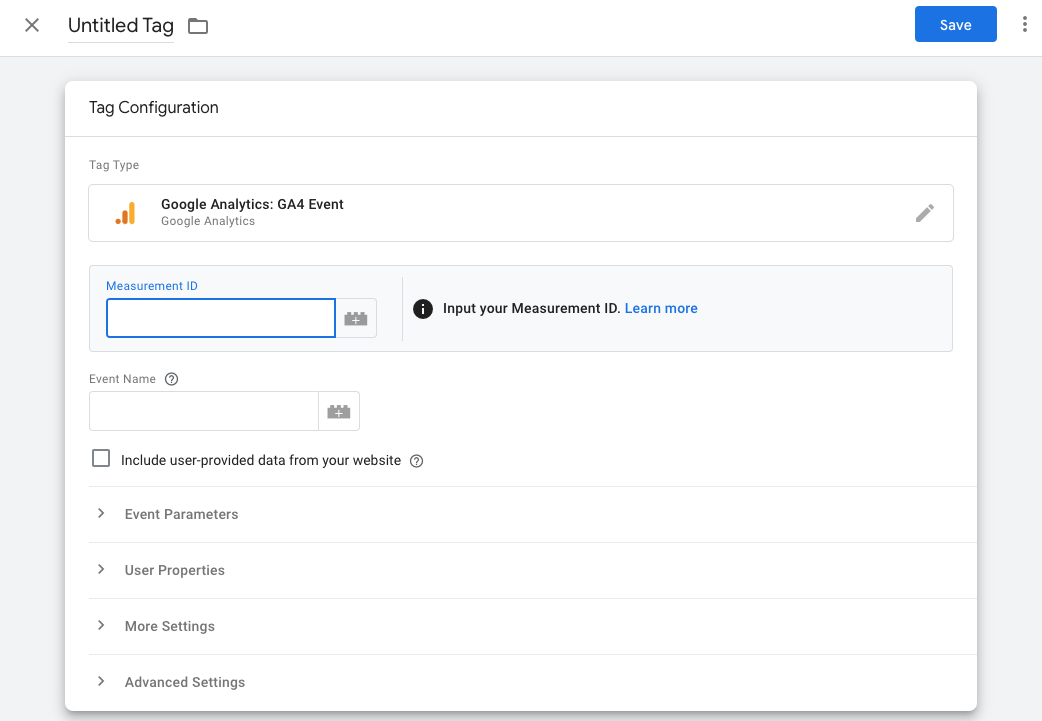
Next, you'll need to create a tag in Google Tag Manager that will send form submission data to Google Analytics 4.
- Navigate to the Tags section and click on
New - Choose the tag type as
Google Analytics: GA4 Event - Configure the tag with your Google Analytics 4 Measurement ID
- Set the Event Name to
form_submissionor any name you prefer - Add event parameters if needed (e.g.,
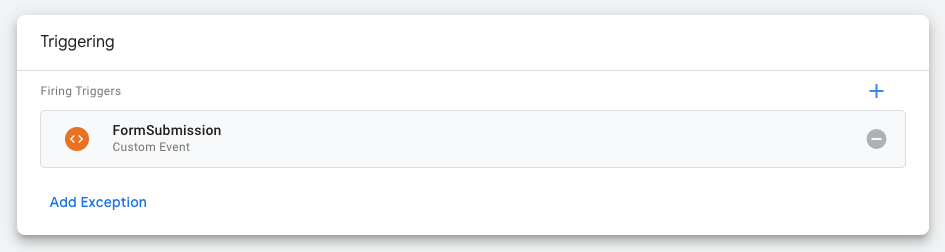
form_id,form_name) - Select the trigger you created earlier
- Name your tag (e.g., "GA4 - Form Submission") and save it
Testing your setup
After setting up the trigger and tag, it's important to test your configuration to make sure it's working correctly.
- Click on the
Previewbutton in Google Tag Manager - Navigate to your website and submit a form
- In the Tag Assistant debug mode, verify that your form submission trigger fired and the GA4 event tag was executed
Verifying data in Google Analytics 4
Once you've confirmed that your tag is firing correctly, you should verify that the data is being recorded in Google Analytics 4.
- Log in to your Google Analytics 4 property
- Navigate to
Reports→Realtime - Submit a form on your website
- Check if the
form_submissionevent appears in the Realtime report

Setting up custom reports
You can create custom reports in Google Analytics 4 to analyze your form submission data more effectively.
- Navigate to Explore in your Google Analytics 4 property
- Create a new exploration
- Add
form_submissionas an event in your report - Add dimensions and metrics based on what you want to analyze
- Save your exploration
Troubleshooting
If you're not seeing form submission data in Google Analytics 4, check the following:
- Make sure your Google Tag Manager container is published
- Verify that your trigger conditions are correctly set up
- Check that your GA4 configuration tag is correctly implemented
- Ensure there are no JavaScript errors on your website that might prevent the tag from firing
- Confirm that your website's forms are actually submitting and not being blocked by validation errors
Conclusion
Following these steps sets up form submission tracking on your website using Google Analytics 4 through Google Tag Manager. Use this data to analyze how visitors interact with your forms and identify where to improve.