Edit email campaigns
Edit email campaigns
To edit a specific campaign, go to Partner Center → Marketing → Campaigns and select a campaign. From the campaign details page, you can edit the following:
Edit email content
Editing the email content for an active campaign will alter the email for all the accounts on the campaign. Doing so will also reset the email's statistics.
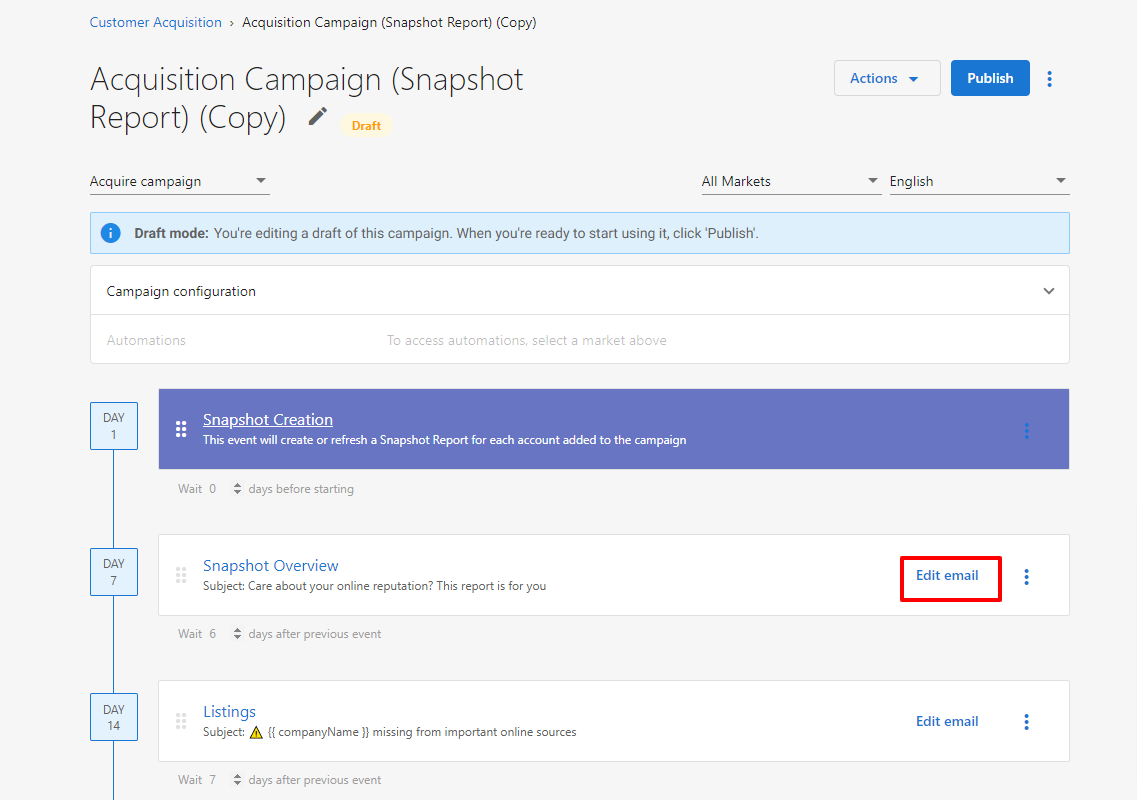
To edit the content of an email within a campaign:
- Click
Editon any email. - Edit the content, then click
Save.
Edit email timing
The Wait [n] days before starting / after previous event field on each email is only available while the campaign is in Draft. Once a campaign is published, email timing is locked along with the event order, and the field no longer appears on the campaign details page.
To change the timing of a published campaign:
- Click
Actions→Copyto create a draft copy of the campaign. - Adjust the
Waitvalue on each email in the copy. - Archive the original campaign and publish the copy.
Edit campaign structure
You cannot change the structure of the email campaign (as in, the order the emails are sent out) for a published campaign. To edit this campaign email order, make a copy of the campaign by clicking Actions → Copy.
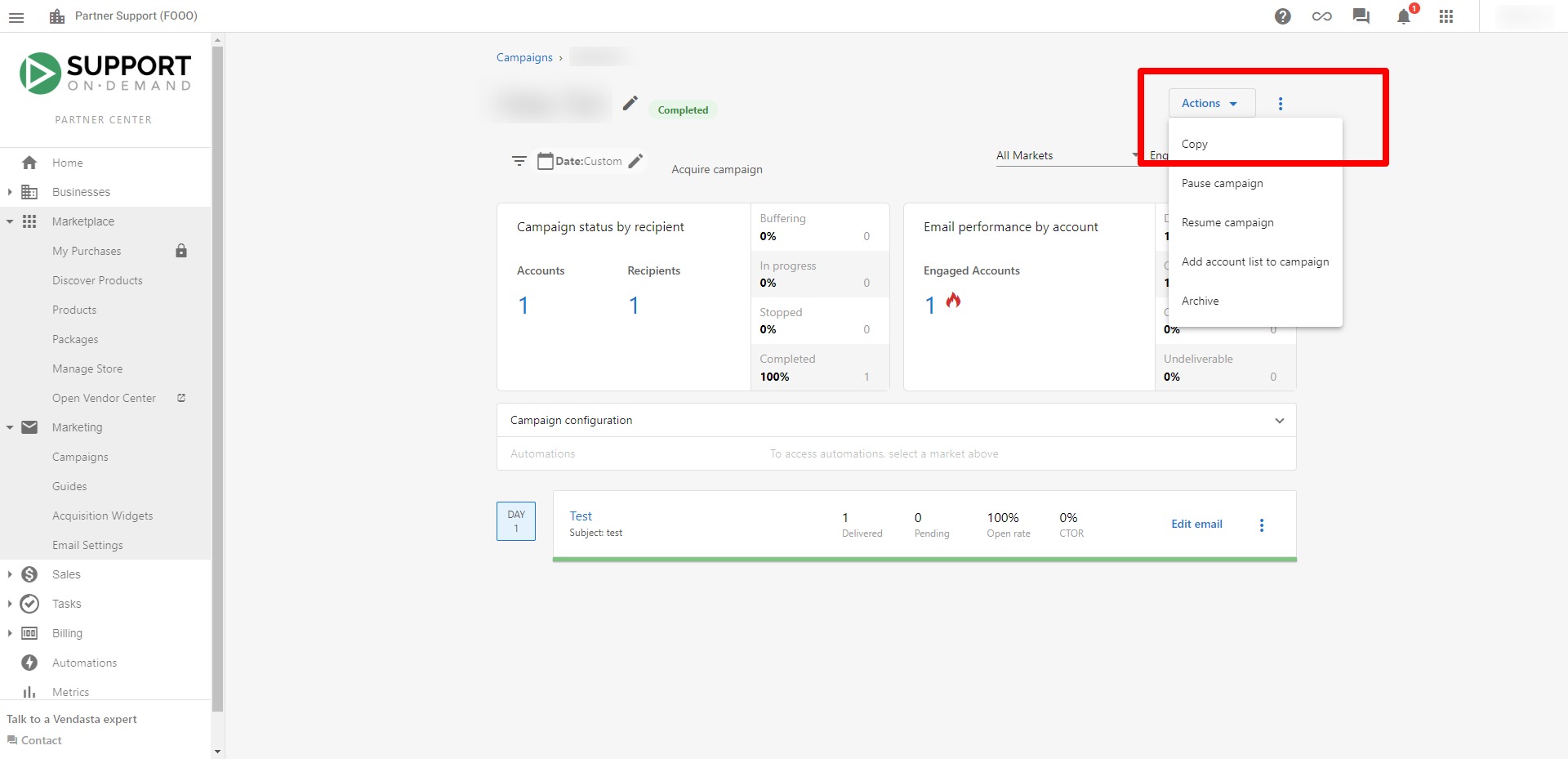
This will create a copy of the campaign in your Campaigns table with (Copy) in the title.

Add email
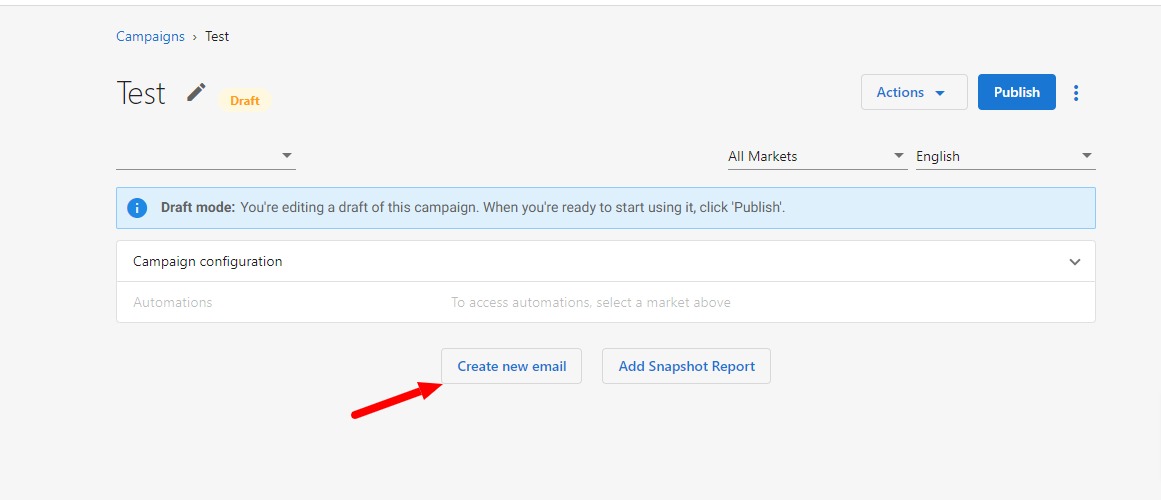
To add an email to a campaign:
- Click on the campaign in
Draftmode. - Select
Create new email.
Remove email
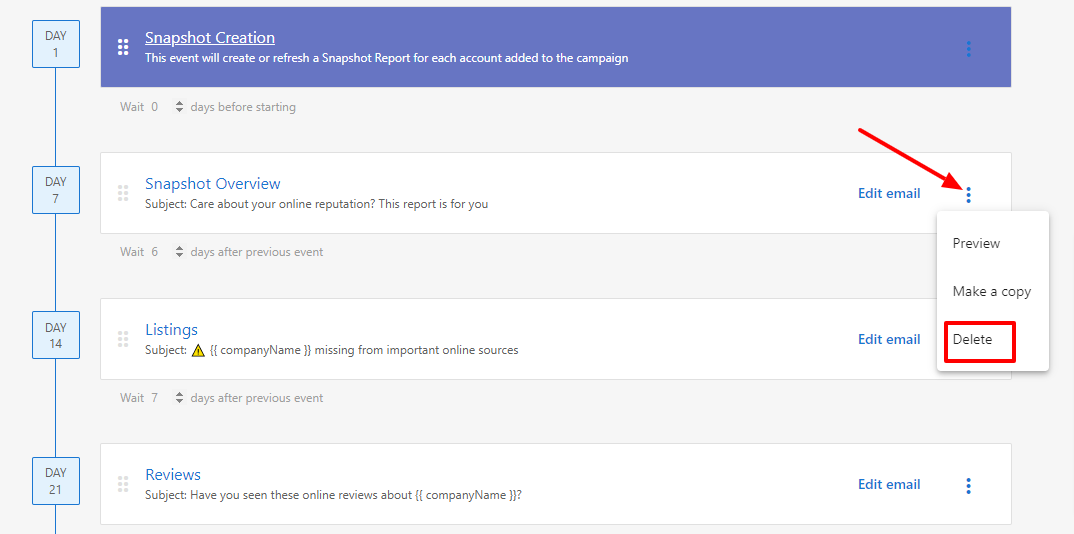
To remove an email from a campaign in Draft mode:
- Click ⋮ next to the Edit email option.
- Click
Deleteto confirm the action.
Reorder email events
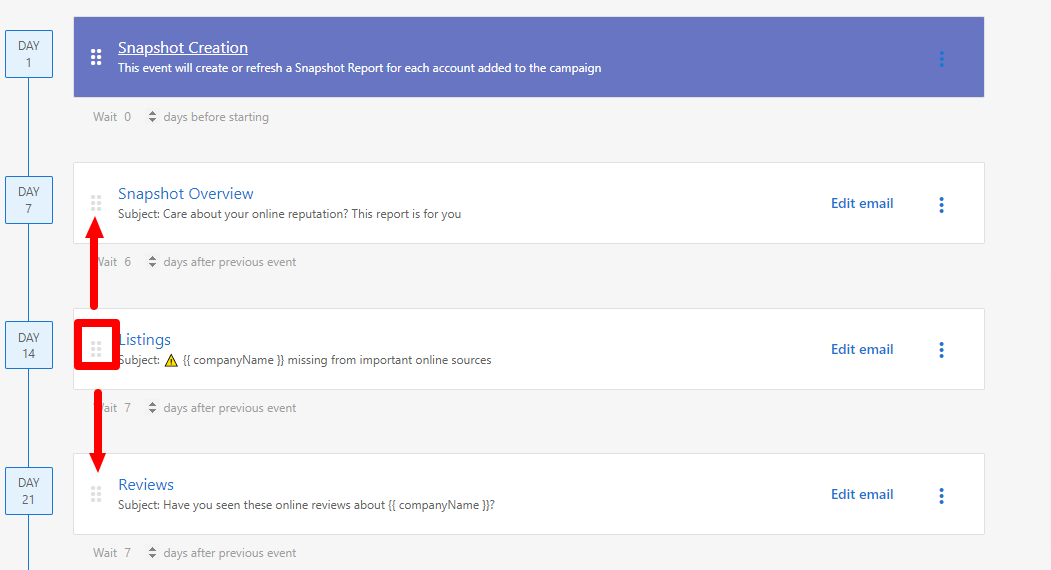
To reorder emails within a campaign:
- Click on the boxes on the left-hand side of the event row and then drag the event up or down to where you want it placed.
Change order of events after publishing
Once a campaign is published, you cannot directly change the order of events. However, you can:
- Create a copy of the campaign by clicking
Actions→Copy - Edit the event order in the copied campaign
- Archive the original campaign and publish the new version with the correct order
This ensures your campaign structure remains consistent while allowing you to make necessary adjustments.