Project templates and automation
What are project templates and automation?
Project templates are reusable project structures that include predefined tasks, assignments, and timelines. Automation allows these templates to automatically create new projects when specific conditions are met, such as product activation or scheduled intervals.
Why are templates and automation important?
Templates and automation save time and ensure consistency by eliminating the need to manually recreate similar projects. You can standardize your workflow processes and automatically generate projects when clients purchase specific products or services.
What's included with templates and automation?
Template creation
- Reusable project structures with predefined tasks
- Default assignees and timeline configurations
- Custom fields and project-specific settings
- Template library for common workflow patterns
Automation features
- Product-triggered project creation from marketplace activations
- Recurring project generation on scheduled intervals
- Automatic task assignment based on template configurations
- Integration with client account management
Template management
- Template library organization and categorization
- Version control and template updates
- Sharing templates across team members
- Template performance tracking and optimization
How to create project templates
Step 1: Access template creation
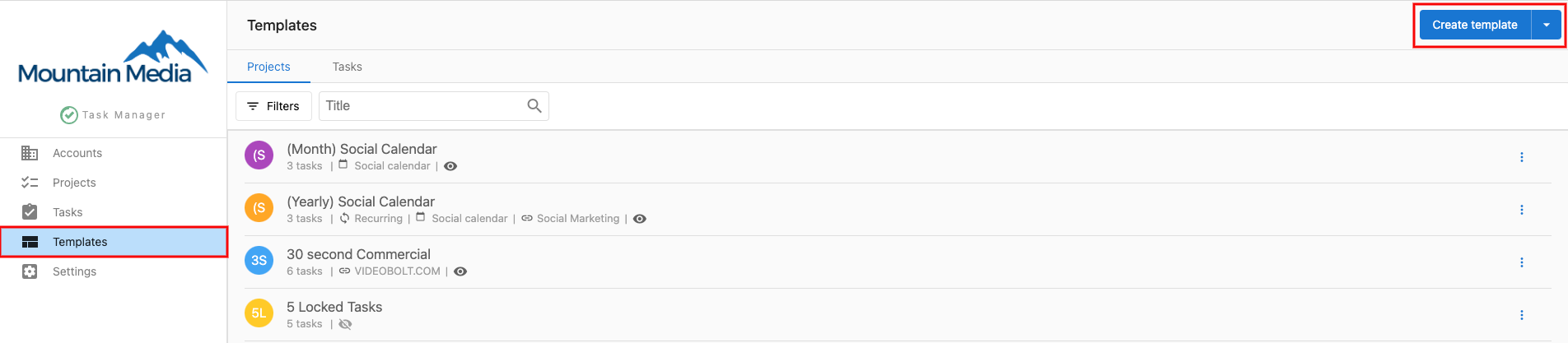
- Navigate to
Fulfillment→Task Manager→Templates - Click
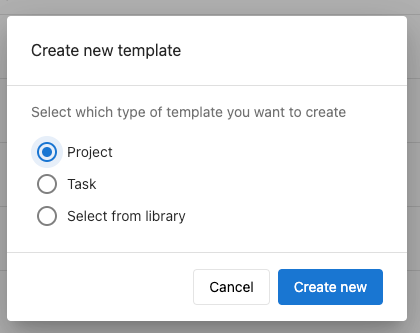
Create templateto start building a new template - Select your template type:
Project: Create a complete project template with multiple tasksTask: Create a single task template for reuseSelect from library: Choose from existing template patterns
- Click
Create newto proceed with template creation
Step 2: Configure template basics
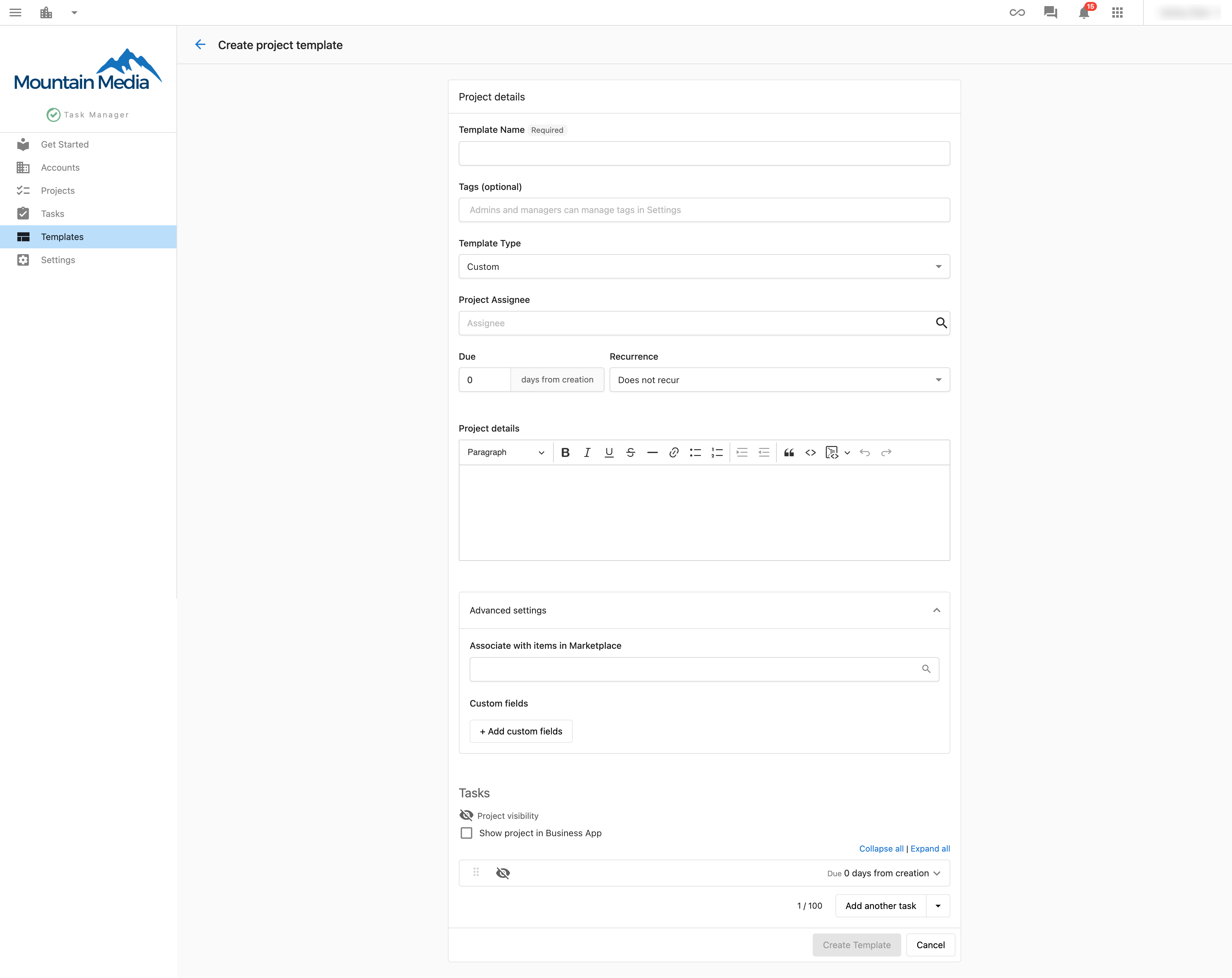
Fill in the general template details:
Template Name(required): Choose a descriptive name that clearly identifies the template purposeTags(optional): Add organizational tags for easy template discoveryTemplate Type: SelectCustomfor general projects orSocial Calendarfor social media workflowsProject Assignee: Set the default team member who will be assigned to projects created from this templateDue __ days from creation: Specify how many days after creation the project should be dueProject details: Add any standard notes or instructions that apply to all projects using this template
Step 3: Configure automation settings
Recurrence options
Set up automatic project recreation:
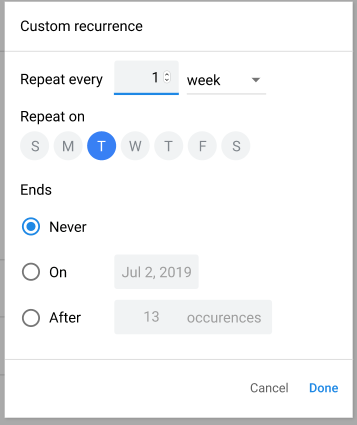
Recurrence: Choose how often the project should automatically recreateCustom intervals: ForCustomrecurrence, you can specify detailed scheduling options
Advanced settings
Associate with Product in the Marketplace: Select specific products that will trigger automatic project creation when activated on client accountsCustom fields: Add specialized fields relevant to your workflow requirements
Step 4: Define template tasks
Create the tasks that will be included in every project using this template:
Task Name: Provide clear, descriptive names for each task in your workflowAssignee: Set default team members responsible for each task typeDue __ days from project creation: Specify when each task should be completed relative to project start
You can add multiple tasks by selecting Add Another Task or Add task template. Remove unwanted tasks by selecting Delete Task.
Step 5: Save your template
- Review all template settings and task configurations
- Click
Create Templateto save your template to the library
How to set up automatic project creation
Product-triggered automation
- Navigate to
Task Manager→Templates - Select an existing template or create a new one
- In
Advanced Settings, clickAssociate with items in Marketplace - Select the specific product that should trigger project creation
- Save your template configuration
When the selected product is activated on any client account, Task Manager will automatically create a project based on your template.
If you activated a product within the last 24 hours on an account, the automated project will be created on that account as well when you set up the automation.
Recurring project automation
- Create or edit a project template
- Configure the
Recurrencesetting with your desired frequency - For custom recurrence patterns, select
Customand specify detailed scheduling - Save the template to activate recurring project creation
Managing your template library
Template organization
- Use descriptive names that clearly indicate template purpose and scope
- Apply consistent tagging to group related templates
- Regularly review and update templates based on workflow improvements
Template optimization
- Monitor project success rates for different templates
- Gather team feedback on template effectiveness
- Update task assignments and timelines based on actual completion data
Template sharing
- Ensure all team members have access to relevant templates
- Document template usage guidelines and best practices
- Coordinate template updates across team members
Best practices for templates and automation
Template design
- Include all essential tasks for complete project delivery
- Set realistic default timelines based on historical project data
- Use clear task descriptions that work for different team members
Automation setup
- Test automation triggers before deploying to client accounts
- Monitor automated project creation to ensure proper functionality
- Review and adjust automation settings based on client feedback
Maintenance
- Regularly update templates to reflect process improvements
- Archive outdated templates to keep your library organized
- Document template changes for team awareness
By effectively using project templates and automation, you can standardize your workflows, reduce manual project setup time, and ensure consistent delivery of client projects while maintaining high-quality standards across your team.
Frequently asked questions
How do I auto-start a Task Manager project when a product is ordered?
First build a project template in Task Manager (Fulfillment → Open Task Manager → Projects → Create template). Then open Vendor Center (Marketplace → Open Vendor Center), click into the product, go to the Integrations tab, toggle Integrate with task manager, and pick the project template(s). You can attach both a one-time onboarding project and a recurring one. A project can only be tied to an individual product, not a package, so pick a product that is in the package.
How do I set up a recurring monthly project?
In Task Manager, create a project template. Give it a name, optionally set a default assignee, and under Recurrence pick the day of the month with end = Never. Then add tasks with Add another task (up to 100 per project). Each task's Advanced settings can lock it until the previous task is done. Projects hold tasks, and tasks only link together inside a project.