Create and manage projects
What is project creation and management?
Project creation and management in Task Manager involves setting up organized workspaces for client deliverables, adding specific tasks, and coordinating team members to complete work on schedule.
Why is project management important?
Effective project management helps you deliver consistent results by organizing work into clear structures, assigning responsibilities, and tracking progress toward deadlines.
What's included with project creation and management?
Project Setup
- Account association for client organization
- Project type selection (Custom or Social Calendar)
- Team member assignment and permissions
- Due date and timeline configuration
Task Management
- Individual task creation with detailed descriptions
- Team member assignment for specific tasks
- Deadline setting and dependency management
- Progress tracking and status updates
Team Collaboration
- Multi-user project access and editing
- Task assignment and responsibility tracking
- Communication tools and progress updates
How to create projects in Task Manager
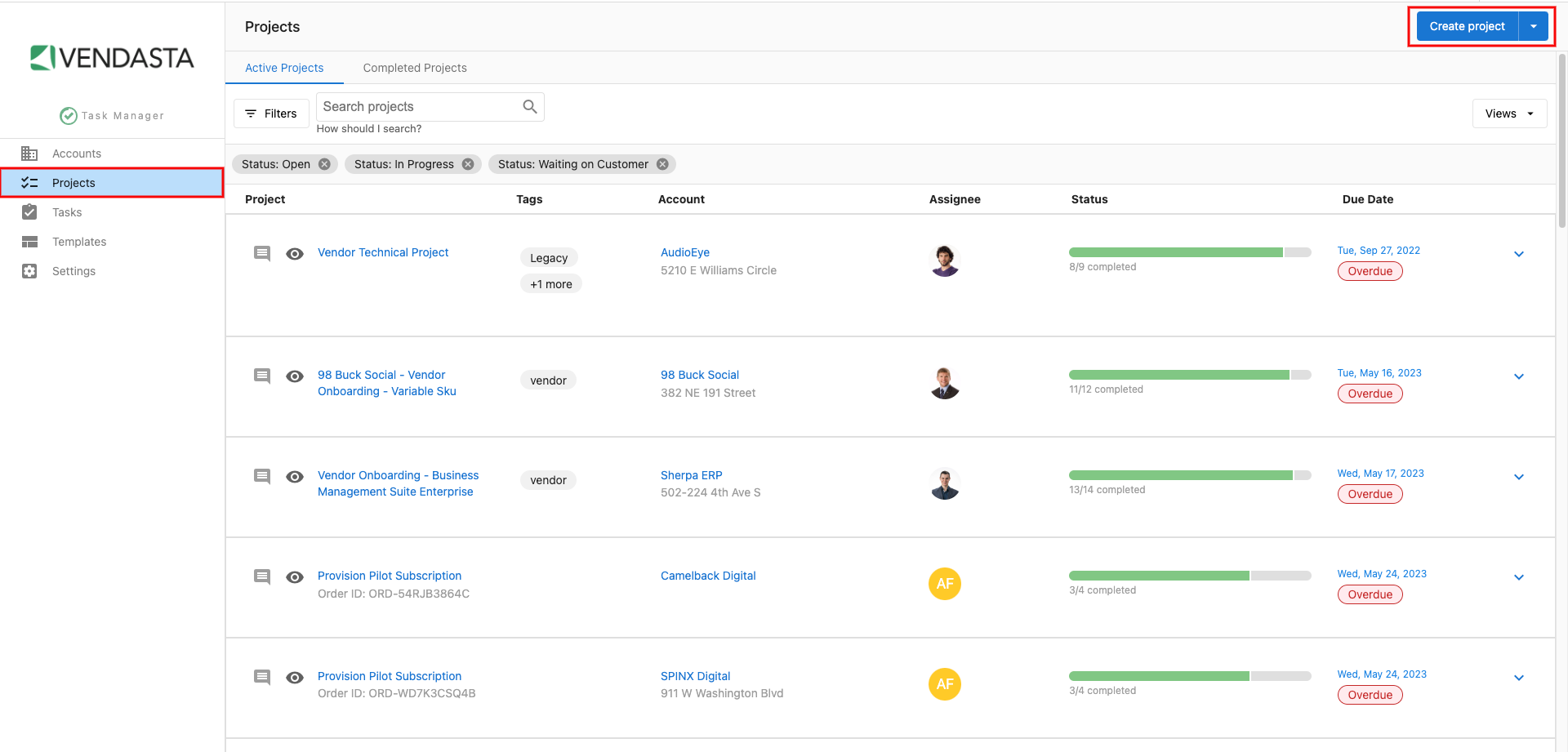
Step 1: Start a new project
- Navigate to Task Manager from the main navigation menu
- Click the Projects tab to access your projects dashboard
- Click Create Project to open the project creation form
Step 2: Configure project basics
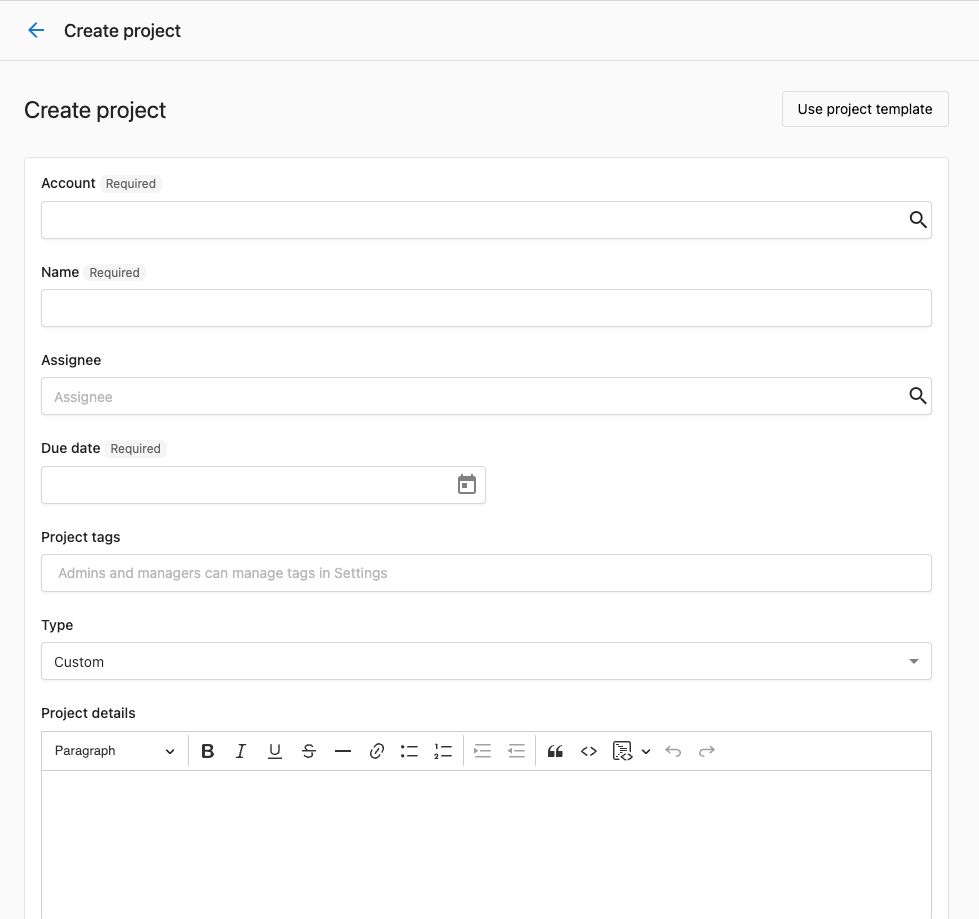
- Select the Account (required) - Choose the client account this project belongs to
- Enter the Project name (required) - Use a descriptive name that clearly identifies the project scope
- Choose the Project Type:
- Custom: For general project management and most types of client work
- Social Calendar: For social media content creation and posting projects
Step 3: Set project details
- Choose an Assignee (optional) - Select the primary team member responsible for project oversight
- Set the Due Date - Establish when the entire project should be completed
- Configure project-specific options:
For Social Calendar projects:
- Content Call: Schedule a call to discuss content strategy and requirements
- Social Calendar Generation: Automatically generate and schedule social post tasks within the project
- Client Review: Require client approval before content goes live
Social Calendar Generation defaults
When you use Social Calendar Generation in a Social Calendar project, these defaults are pre-configured:
- AI model: Gemini Flash Latest (recommended)
- Schedule type: On a Schedule
- Frequency: Weekly
- Day of week: Monday
- Time: 9:00 AM
- Timezone: Automatically populated from the SMB timezone in Business App
- Start date: Current date
- End date: No end date
- Availability: Web and mobile
- Applies to: Social Media Manager
Client Review is only available for Social Calendar projects and requires Schedule Social Posts to be selected first. Once both are enabled and the project is created, a Client Review task appears at the bottom of the project. To send content for client review:
- Open the Client Review task in the project
- Click Generate new preview
- Click Send for review
Clients receive a notification and can approve or request changes before posts go live. If you don't see the Client Review option, confirm that Schedule Social Posts is checked.
Step 4: Complete project creation
- Add any initial tasks if you want to start with specific deliverables
- Click Create project to save your new project
How to add tasks to projects
Step 1: Access your project
- Navigate to Task Manager from the main navigation menu
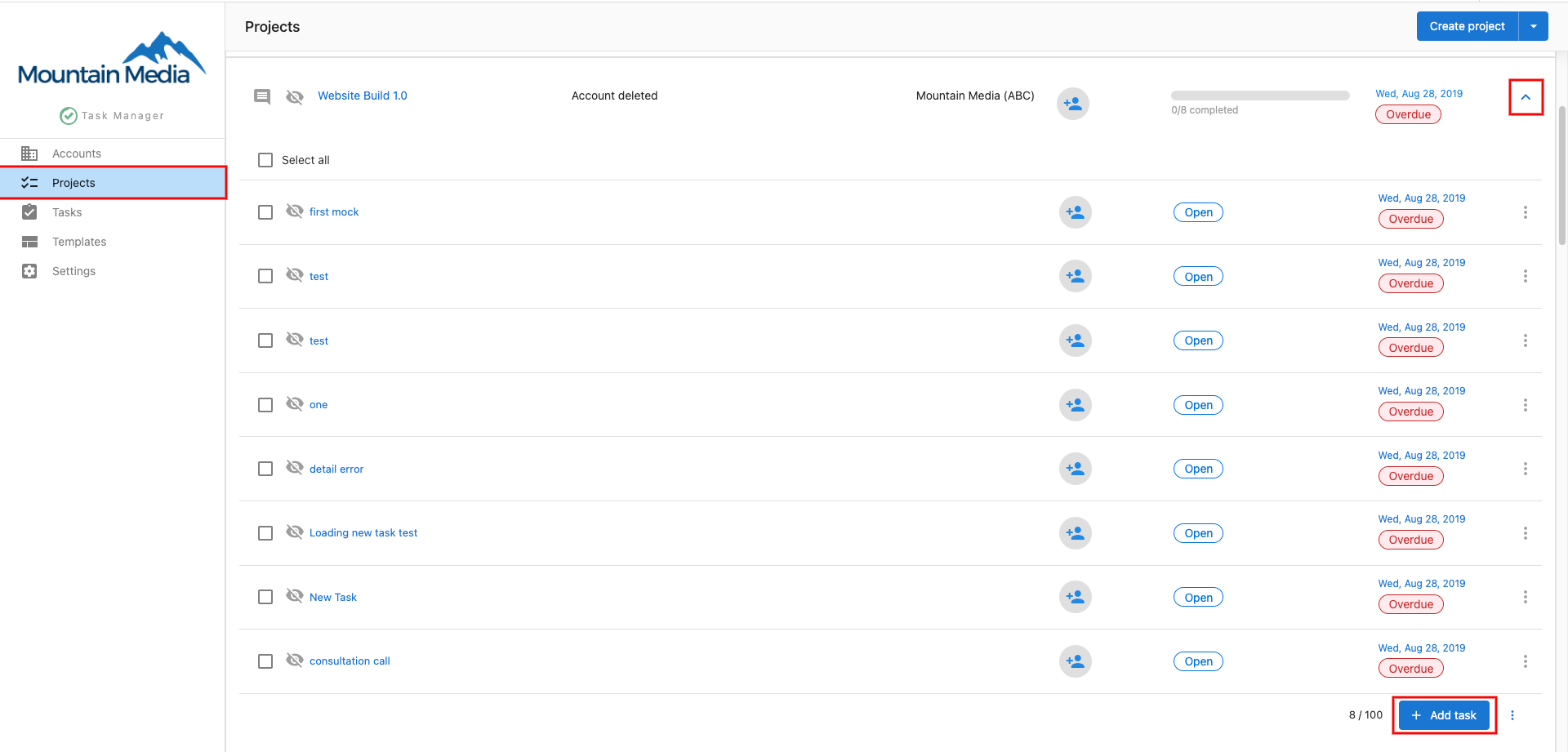
- Click on any project displayed on your dashboard to open it
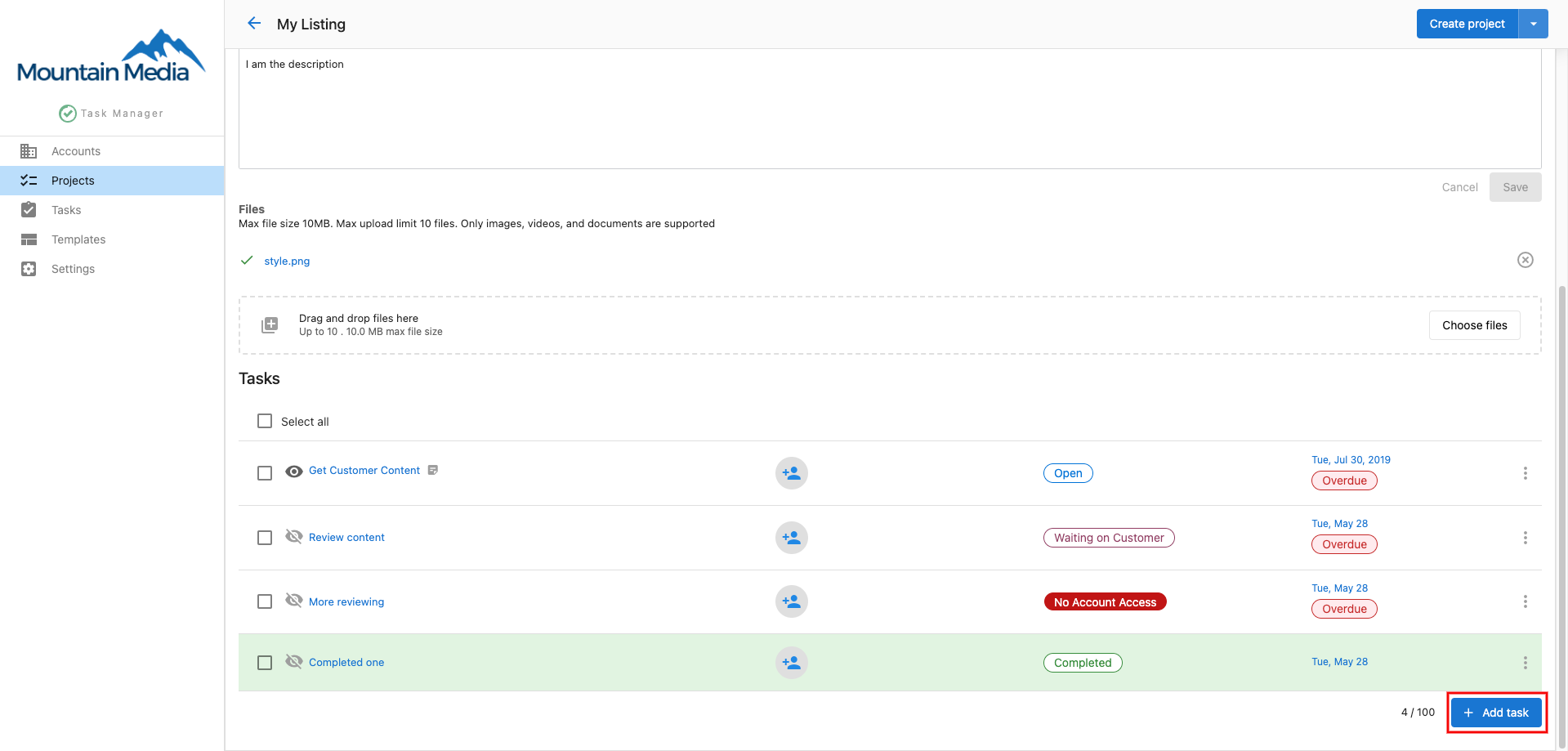
- Click the Add Tasks dropdown button to start creating new tasks
Step 2: Create individual tasks
- Enter a descriptive name for your task in the Task Name field
- Fill out the complete task details in the form:

- Name: Add a clear, descriptive name that explains what needs to be accomplished
- Description: Include detailed information about requirements, deliverables, and any special instructions
- Assignee: Select the team member(s) responsible for completing this specific task
- Due Date: Set a realistic deadline for task completion that aligns with your project timeline
- Dependency: Optionally select other tasks that must be completed before this task can start
- Click Add to save the task to your project
The Projects page does not support bulk due date updates. If you need to change the due date for multiple projects, each one must be updated individually. Note that subtask due dates within a single project can be bulk-edited using the bulk edit feature in the Tasks view.
Step 3: Organize and manage tasks
After creating tasks, you can:
- Track Progress: Monitor task completion as team members update their status
- Edit Details: Modify task descriptions, deadlines, or assignments if requirements change
- Reassign Work: Move tasks between team members based on availability or expertise
- Monitor Deadlines: Use your dashboard to identify approaching due dates and potential delays
- Manage Dependencies: Ensure prerequisite tasks complete before dependent work begins
Managing project workflows
Project Organization
- Group related tasks logically within projects
- Use clear naming conventions for easy identification
- Set realistic timelines that account for dependencies and team capacity
Team Coordination
- Assign tasks based on team member skills and availability
- Communicate changes and updates promptly
- Review progress regularly to identify potential issues early
Progress Tracking
- Monitor individual task completion rates
- Identify bottlenecks or delays before they impact deadlines
- Adjust assignments or timelines when necessary to maintain project momentum
Best practices for project management
Planning Phase
- Break large deliverables into specific, actionable tasks
- Involve team members in timeline estimation for realistic scheduling
- Consider task dependencies when setting up project workflows
Execution Phase
- Check project status regularly and communicate with your team
- Update task descriptions if requirements change during the project
- Use the dashboard to stay aware of approaching deadlines
Communication
- Ensure clear task descriptions so team members understand expectations
- Update project status to keep stakeholders informed of progress
- Address questions or obstacles promptly to maintain project momentum
By effectively creating and managing projects in Task Manager, you can ensure clear communication of responsibilities and deadlines with your team while maintaining organized workflows for client deliverables.