Delete and archive projects
What is project deletion and archival?
Project deletion and archival help you manage your project workspace by removing completed or unnecessary projects and tasks. You can permanently delete projects and tasks or remove user access without deleting the actual project data.
Why is project cleanup important?
Regular project cleanup helps maintain an organized workspace, improves system performance, and ensures team members focus on active work rather than outdated projects.
What's included with project deletion and management?
Project deletion
- Complete project removal including all associated tasks
- Permanent deletion that cannot be undone
- Bulk deletion options for multiple projects
Task management
- Individual task deletion within projects
- Task removal without affecting the overall project
- Selective cleanup of completed or unnecessary tasks
User permission management
- Remove user access to specific projects
- Maintain project data while changing team access
- Granular control over project visibility
Alternative management options
- Project archival for reference purposes
- Status changes instead of deletion
- Project completion marking
How to delete projects
Complete project deletion
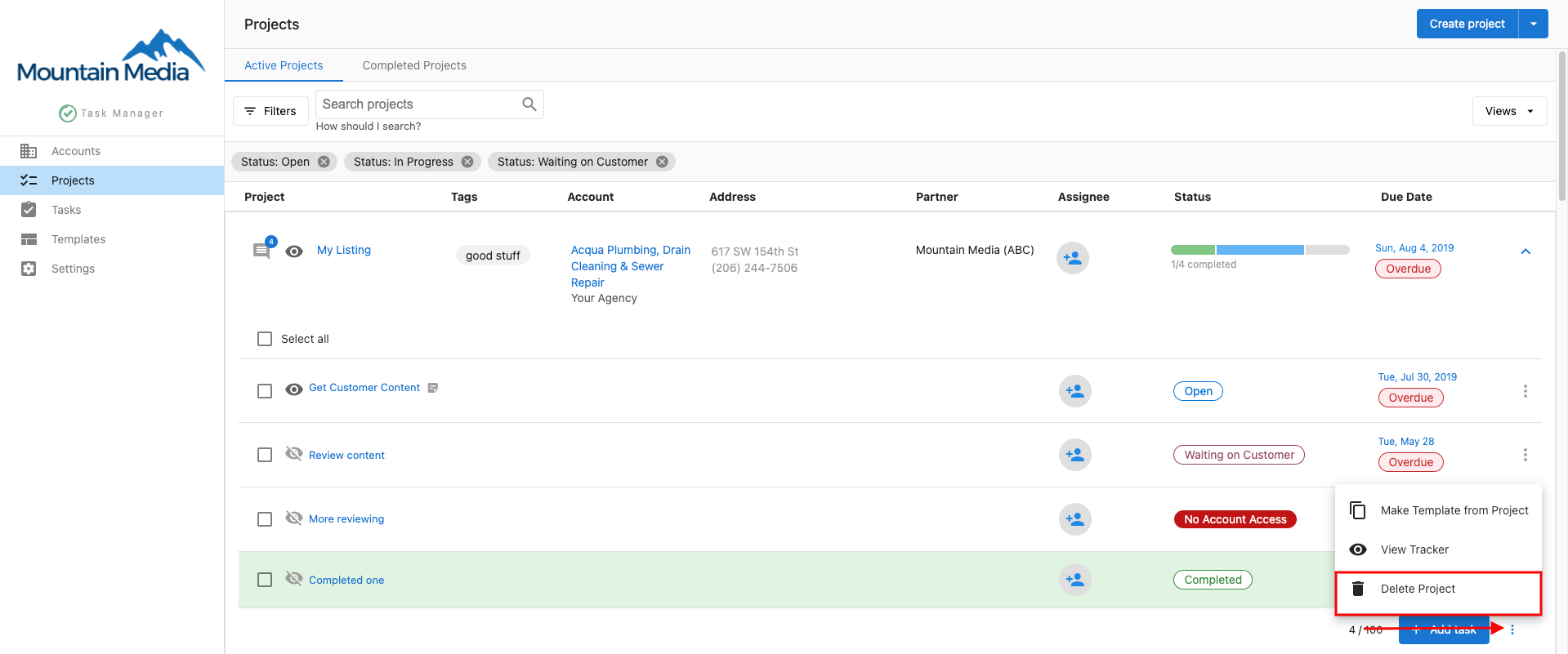
Deleting a project permanently removes the project and all associated tasks. This action cannot be undone.
- Navigate to
Projectsin Task Manager - Locate the project you want to delete from your project list
- Click the
trash canicon next to the project name - Confirm that you want to permanently delete the project
When to delete projects
- Projects that were created in error
- Test projects used for training or experimentation
- Projects that are no longer relevant to your business
- Duplicate projects that should not have been created
Alternatives to deletion
Consider these options before deleting projects:
- Mark as complete: Change project status to completed instead of deleting
- Archive: If your system supports archiving, use this for projects you may reference later
- Remove team access: Remove user permissions while keeping project data intact
How to remove user permissions
If you need to remove a user's access to a project without deleting the project itself:
- Navigate to the specific project in Task Manager
- Click on the
Permissionstab within the project - Find the user whose access you want to remove
- Click the
trash canicon next to their name to remove their permissions
Permission removal benefits
- Maintain project data and history
- Remove access for team members who no longer need it
- Control project visibility without losing information
- Preserve completed work for future reference
How to delete individual tasks
For removing specific tasks within a project without deleting the entire project:
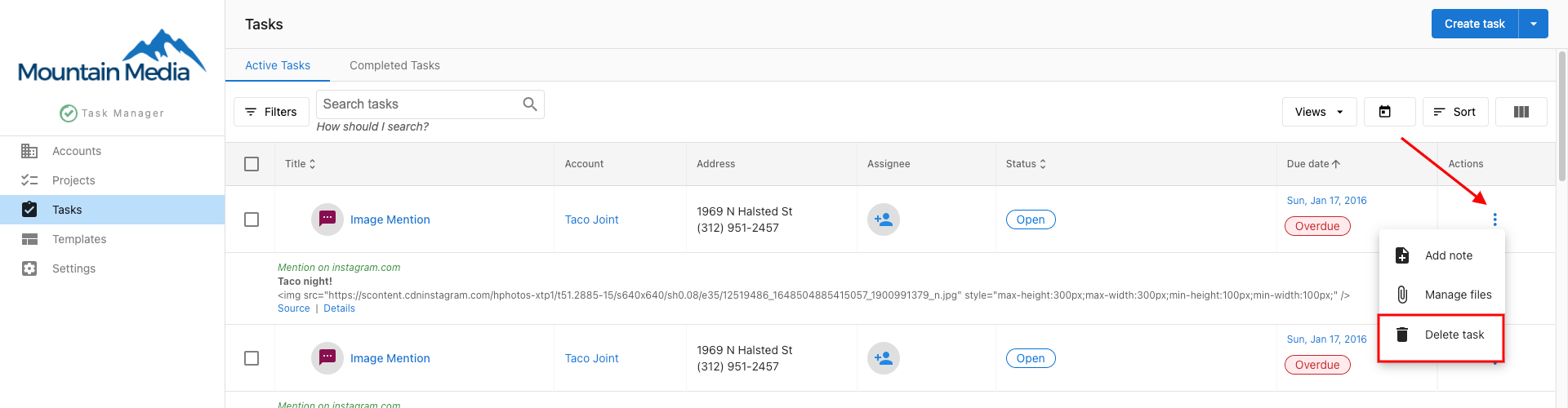
- Navigate to the project containing the tasks you want to delete
- Locate the specific task you want to remove
- Click the
trash canicon next to the task name - Confirm that you want to delete the task
Task deletion considerations
- Deleting tasks may affect project dependencies
- Consider task completion status before deletion
- Review impact on overall project timeline
- Communicate task removal with affected team members
Project lifecycle management
Project completion workflow
- Review completion status: Ensure all essential tasks are finished
- Client sign-off: Obtain necessary approvals before project closure
- Documentation: Save important project information before deletion
- Team notification: Inform team members about project completion
- Cleanup decision: Choose between deletion, archiving, or status change
Retention considerations
Before deleting projects, consider:
- Legal requirements: Some projects may need to be retained for compliance
- Client relationships: Future reference needs for ongoing client work
- Process improvement: Historical data value for workflow optimization
- Training purposes: Completed projects as examples for new team members
Regular cleanup schedule
Establish a routine for project management:
- Weekly reviews: Remove test projects and obvious duplicates
- Monthly cleanup: Archive or delete completed projects based on retention policy
- Quarterly audits: Review project permissions and team access needs
- Annual reviews: Assess overall project organization and cleanup processes
Best practices for project deletion
Before deleting projects
- Document important information: Save client communications, final deliverables, and lessons learned
- Check dependencies: Ensure no other projects or processes rely on the project you're deleting
- Team communication: Notify affected team members about upcoming project deletion
- Client notification: Inform clients if the deletion affects their visibility or access
Permission management
- Regular audits: Review user permissions quarterly to ensure appropriate access
- Role-based access: Align permissions with current team roles and responsibilities
- Security considerations: Remove access promptly when team members change roles
- Documentation: Maintain records of permission changes for audit purposes
Deletion alternatives
- Status updates: Use project status fields instead of deletion when possible
- Tagging systems: Apply tags to identify project phases or completion status
- Folder organization: Group projects by status or client for better organization
- Archive workflows: Develop consistent archival processes for reference retention
Important considerations
Irreversible actions
- Permanent deletion: Deleted projects and tasks cannot be recovered
- Data loss: All associated files, communications, and progress tracking will be lost
- Client impact: Deletion may affect client-facing reports and project visibility
Permission requirements
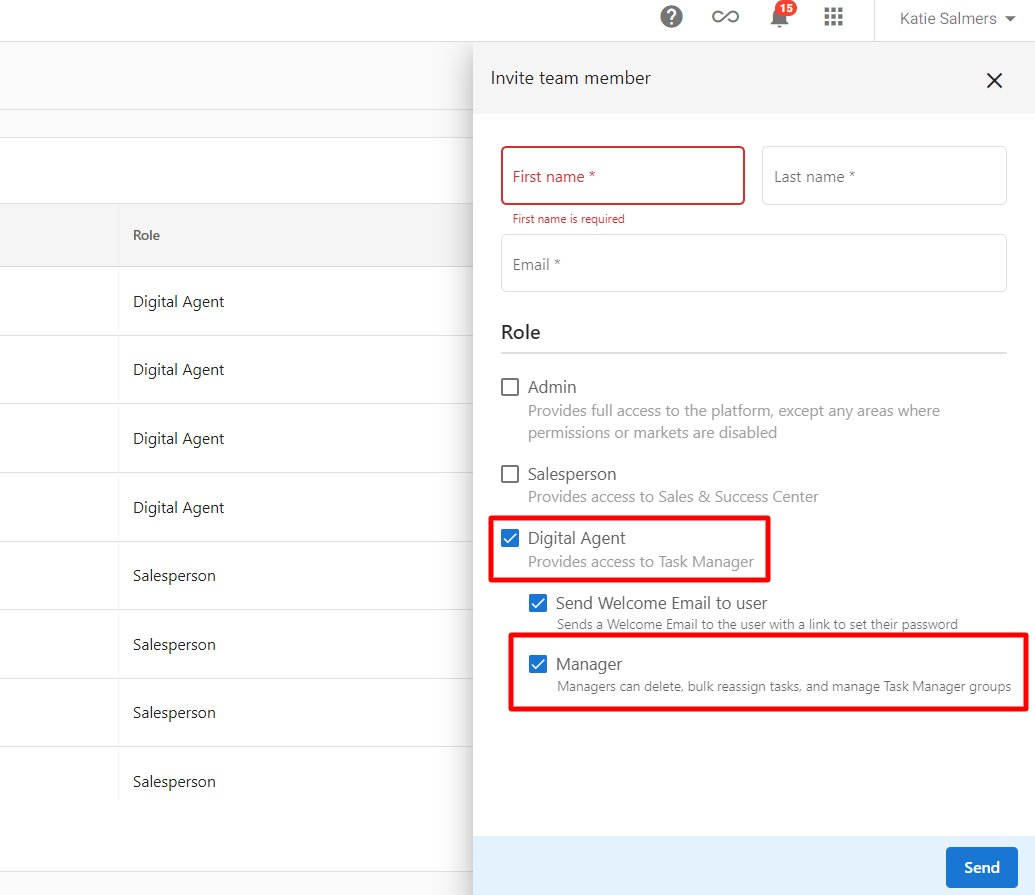
- User roles: Only users with appropriate permissions can delete projects and tasks
- Administrative approval: Some organizations may require approval for project deletion
- Audit trails: Maintain records of who deleted what and when for accountability
System performance
- Database optimization: Regular cleanup improves system performance
- Storage management: Deletion frees up storage space for active projects
- User experience: Clean project lists improve navigation and productivity
By implementing thoughtful project deletion and archival practices, you can maintain an organized, efficient workspace while preserving important information and ensuring appropriate access control for your team members.