Visual Branding and Identity
Customize your platform’s appearance with your own logos, colors, company name, and visual elements. White-label branding keeps your identity consistent everywhere customers see the platform: Business App, email campaigns, and client communications.
Why it matters
Strong branding gives a unified, professional experience and reinforces your business. White-labeling removes other brands so clients see only yours, which builds trust and matches how you present your business elsewhere.
What's included
- Brand identity – Company name, logos, color themes, favicon
- White-label – Replace external brand references across the platform
- Multi-market – Different branding per market; generic or market-specific logos for login
- Technical – File format and size guidance; changes apply quickly
Set up company name and primary branding
- Go to Partner Center → Administration → Partner Branding
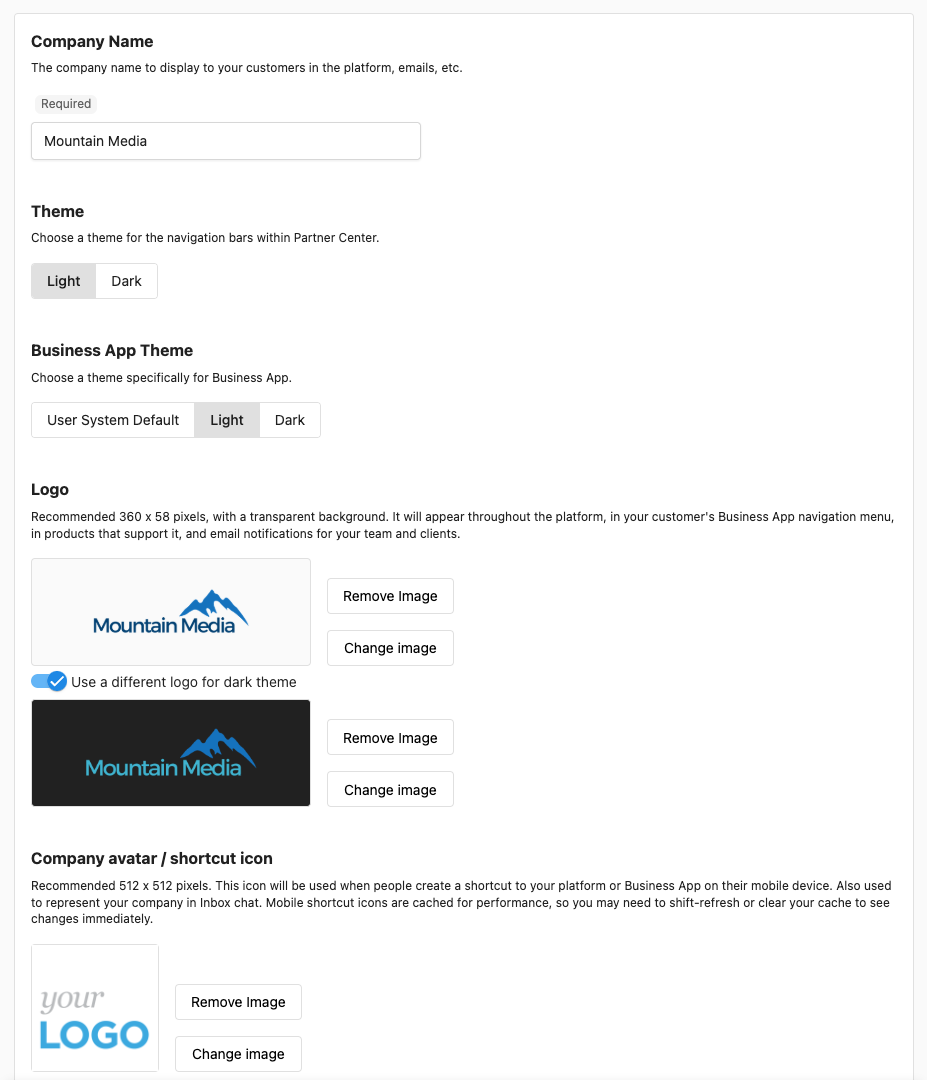
- Set Company Name – Enter the name you want in client communications and across the platform
- Save
Configure color theme
- In Partner Branding, open the Theme section
- Set Primary (and any secondary/background) colors
- Preview, then save
The theme applies across customer-facing areas.
Manage logos
Upload primary logo
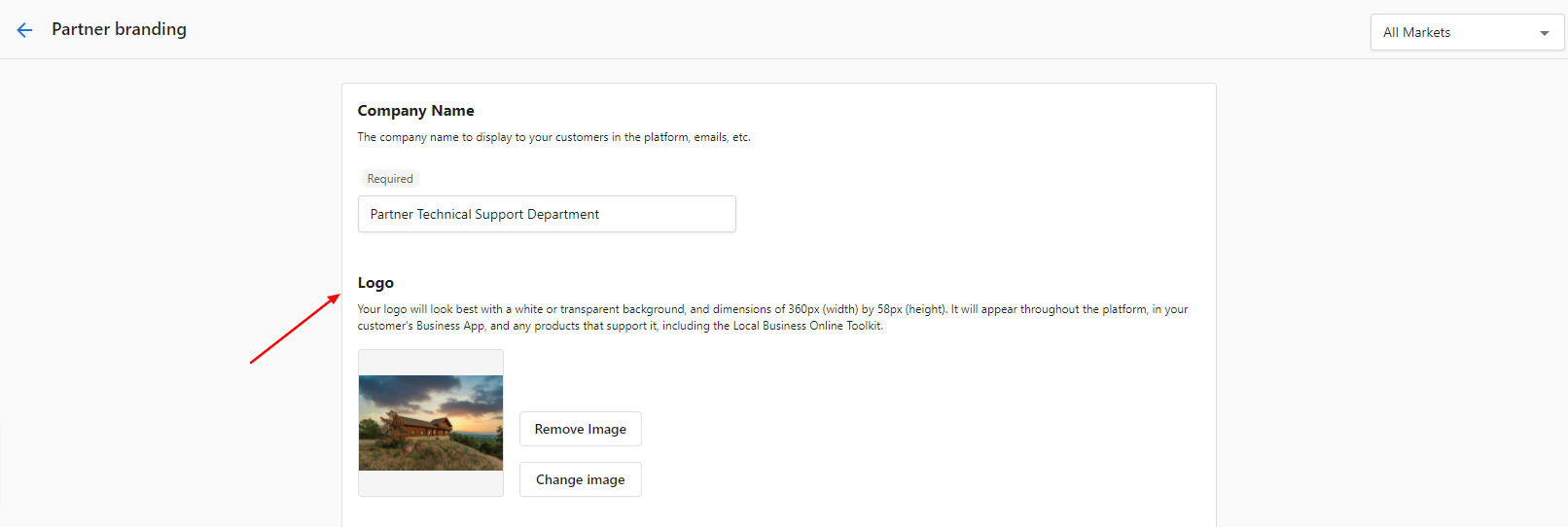
- Go to Partner Center → Administration → Partner Branding → Logo
- Upload your logo (PNG or JPG; transparent PNG recommended)
- Use a high-resolution file for clear display on different devices
- Position and save
Market-specific branding
- In Partner Branding, use the All Markets dropdown (top right) to select a market
- Set logos, colors, and company name for that market
- Save; repeat for other markets
Login page branding
- In Partner Branding → Logo, upload the logo you want on the login page
- Note: The login page cannot be fully white-labeled. With multiple markets, you can use a generic logo for the default market so that market-specific branding appears after login.
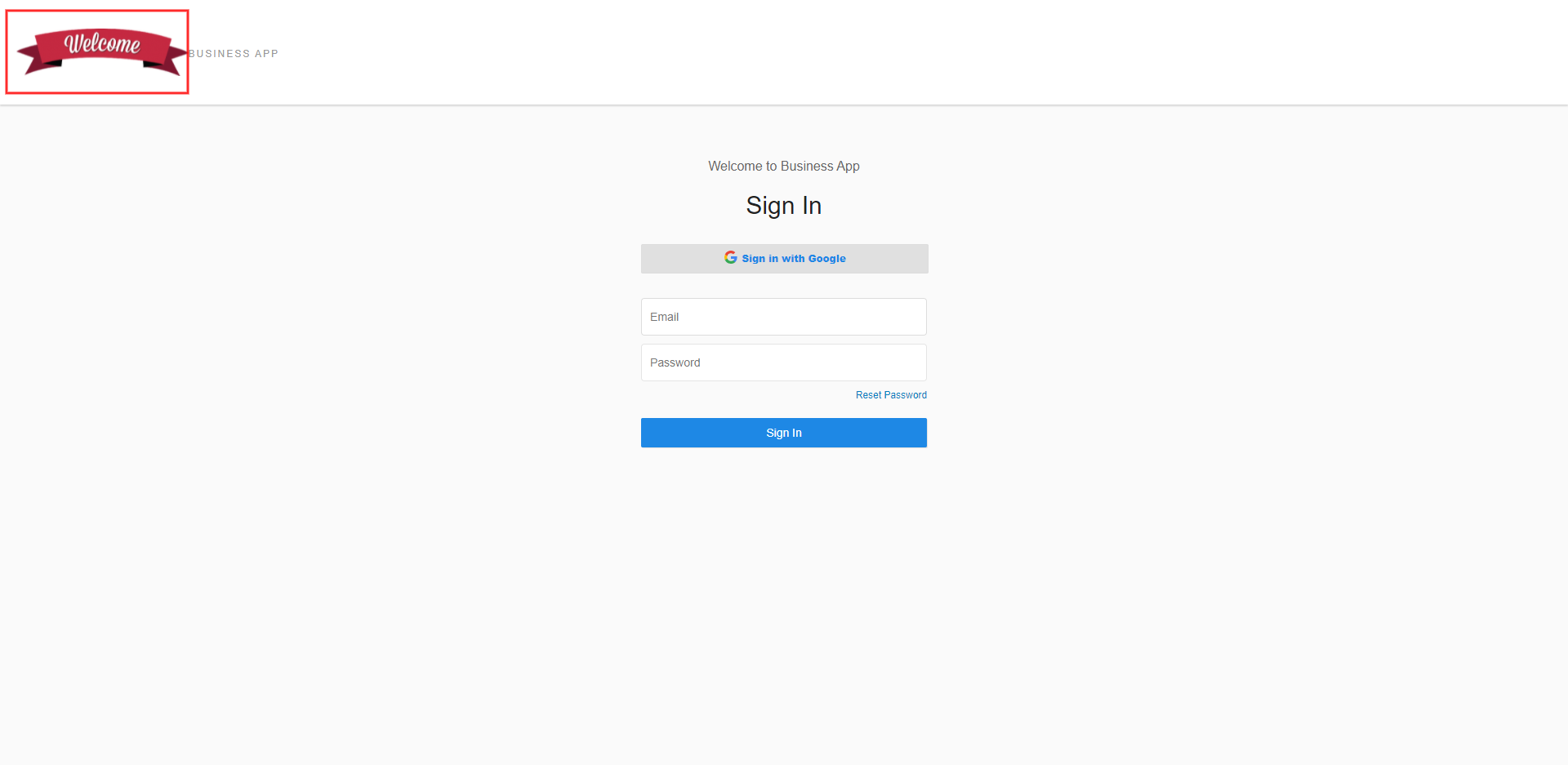
You cannot fully white-label the login page. Using a generic logo for the default market lets market-specific branding show once users are in Business App.
Favicon and browser icons
Upload favicon
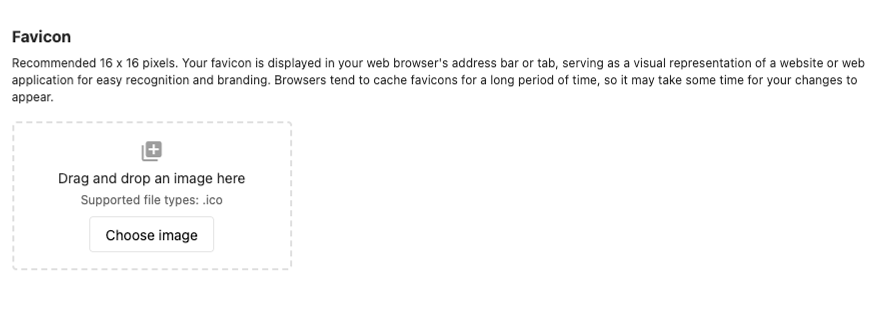
- Go to Partner Center → Administration → Partner Branding → Favicon
- Use an ICO file (e.g. favicon.ico). PNG/JPG are not accepted.
- Recommended size: 16×16 or 32×32 px
- Upload and check that it appears in browser tabs
Favicon troubleshooting
- Wrong format – Use .ico only. Convert PNG/JPG to ICO if needed.
- Blurry or distorted – Use 16×16 or 32×32 px; keep the design simple.
- Not updating – Clear browser cache or try a private window; favicons are cached.
Company avatar / shortcut icon
- In Partner Branding, set Company Avatar (square image for profiles, small contexts)
- Set Shortcut Icon for mobile home screen and bookmarks (512×512 px; GIF, JPG, or PNG)
- Save and test on different devices
Where branding appears
- Business App – Logos in navigation and headers, brand colors, company name, favicon in tabs
- Emails – Logo, brand colors, company name in headers, footers, and sender info
- Login and client areas – Branded login (with limits above); market-specific branding after login
Frequently asked questions
Can I completely white-label the platform?
Yes, for most areas. You can replace logos, colors, company name, and most visual elements. Some options may depend on your subscription.
Why is my favicon not uploading?
Favicons must be ICO files (e.g. image.ico, not image.png or image.jpg). Go to Partner Center → Administration → Partner Branding → Favicon.
If it still fails: check the file is .ico, keep size small (16×16 or 32×32), or try recreating the ICO. If the problem continues, contact support.
Can I customize the Business App login page?
You cannot fully white-label the login page. With multiple markets, use a generic logo for the default market; that logo shows on login, and market-specific branding shows inside Business App after login.
To change branding: Partner Center → Administration → Partner Branding → Logo. For multiple markets, use the All Markets tab (top right) and customize per market.
How quickly do branding changes take effect?
Most changes apply immediately. Favicons can lag due to browser caching.
What file formats work best for logos?
PNG with a transparent background is best. Use high resolution for clarity on different devices.
Can I have different branding for different markets?
Yes. Use the market selector in Partner Branding to set logos, colors, and company name per market.
What if I don't set up custom branding?
The platform uses default visuals. Custom branding gives a more professional, consistent experience.
Are there subscription limits on branding?
Some white-label options may vary by plan. Check your subscription or contact support for details.
How do I test branding before rolling it out?
Use any preview options in the settings, and test with a small group before applying everywhere.
What if my branding isn't displaying correctly?
Check file formats, image sizes, and clear browser cache. If it still fails, contact support with the specifics.
Preview and testing
The branding interface shows a live preview. Test logos, colors, and favicon on different devices and browsers.
For help with visual branding, contact support at support@vendasta.com.