Put the Business App navigation around a Vibe app
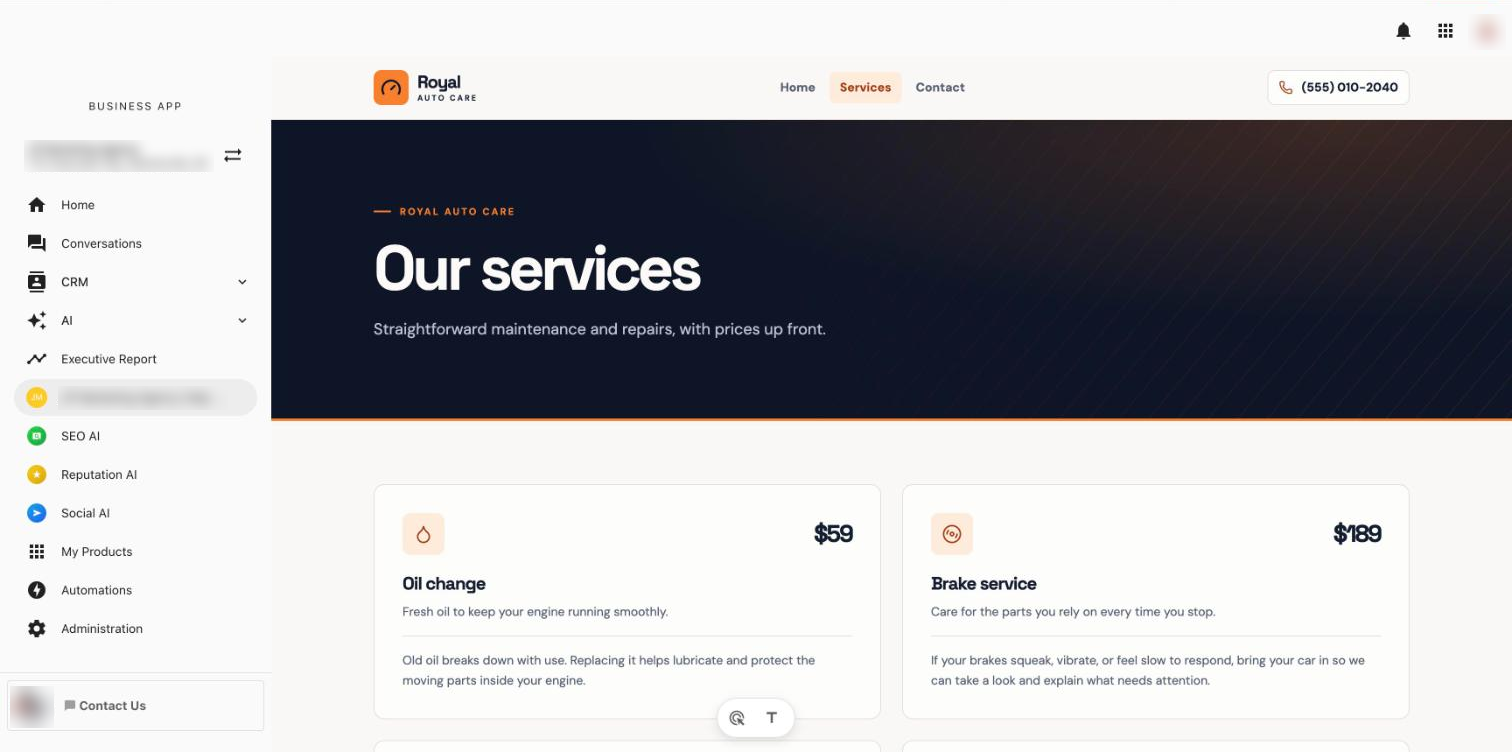
The Business Nav connector puts the real Business App top bar and side menu around a Vibe app, with your branding, notifications, the user menu, and the location switcher. Use it for an app you add to your store: your clients open the app from Business App, and it reads as part of Business App instead of a separate tool.
Before you start
Business Nav is offered only in projects in your primary account group, the Business App account for your own business. That's the same account that can add apps to your store. In any other account, Business Nav doesn't appear in the connector list.
What your clients see
- People sign in with their Business App login before they see the navigation. Pages anyone can visit without signing in show no navigation.
- The navigation loads as each signed-in person and shows only the products and locations that person can already reach.
- Picking another location in the location switcher switches the account the app works with, so one app serves every location a person can reach.
- The app's own pages sit in the main content area, and links in the navigation open the client's other Business App products.
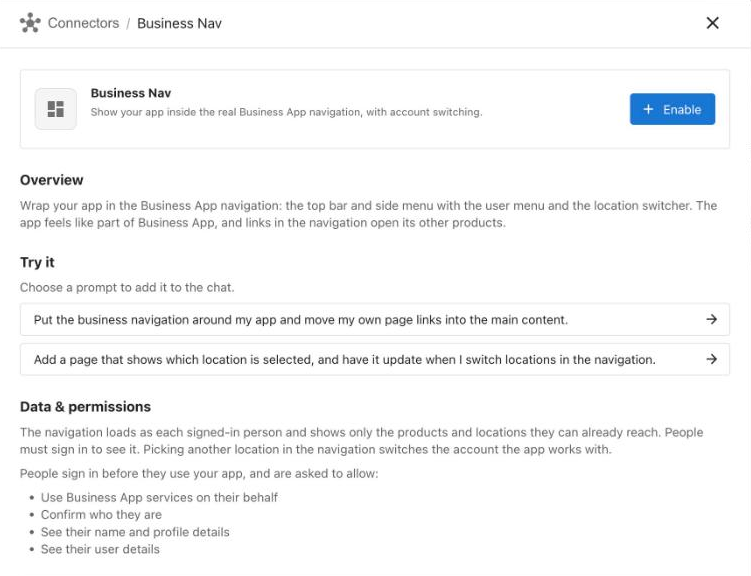
Turn on Business Nav
- In your primary account group, open the app's project in Vibe.
- Go to
Settings→Connectors→Add connectors→Business Nav, and selectEnable. For a new app, select+→Connectorsin the prompt box on the Vibe home page, selectBusiness Nav, then selectAdd to new app. - Business Nav also turns on Single sign-on, because people must sign in to see the navigation.
- Vibe adds the navigation as it builds the app. For an app you already built, choose a
Try itprompt in the connector's details, such as "Put the business navigation around my app and move my own page links into the main content." - Publish the app, then add it to your store. See Add a Vibe app to your store.
How the navigation works in the preview
The navigation behaves a little differently in the preview, so you stay in Vibe while you build:
- Links in the navigation open in a new tab.
- Signing out is turned off, so you don't sign yourself out of Vibe.
In the published app, links open in the same tab and people can sign out from the navigation.
Good to know
- If the navigation can't load, the app runs without it and shows a notice people can close. The app's pages stay usable.
- Business Nav works in a web browser only. If you publish the app to iPhone and Android,
Check my appinSettings→Mobile appflagsBusiness Nav navigation. Leave Business Nav off an app you plan to ship to phones. - Single sign-on stays on while Business Nav is on. To turn off Single sign-on, turn off Business Nav first.
Frequently asked questions
Why don't I see Business Nav in a client's account?
Only your primary account group offers Business Nav. Build the app there and add it to your store. Your clients get the navigation when they open the app from Business App.
Why does a client see fewer products or locations than I do?
The navigation shows each person only the products and locations they can already reach in Business App.
Where did the app's own menu go?
The Business App navigation is the app's main menu, so links to the app's own pages sit in the main content area instead, for example as tabs. Ask Vibe if you want them arranged differently.
Why can't I sign out from the navigation in the preview?
Signing out is turned off in the preview so you don't sign yourself out of Vibe while you build. People can sign out from the published app.