Maximize Snapshot Report value
How do I get the most value from Snapshot Reports?
You get more value from Snapshot Reports in Partner Center by refreshing them only when needed, saving them as PDFs, adding packages to report buttons, and using forms that create reports automatically as lead magnets. Each new or refreshed report costs $2.
Why focus on value maximization?
- Lead generation: Use reports as lead magnets on your website
- Sales follow-up: Automated workflows follow up with prospects while you focus on closing
- Cost control: Creating and refreshing reports only when you need them avoids unnecessary fees
Strategic report management
When should I refresh a Snapshot Report?
Snapshot Reports are active and accurate for seven days after creation. After this period, the report stops updating and requires refreshing to provide current data. Common refresh scenarios include:
- Extended Sales Cycles: When you need more time to close a deal
- Rekindling Prospects: Providing updated data to re-engage old prospects
- Significant Changes: When the business has made major website or online presence updates
- Competitive Analysis: When you want the most current competitive comparison data
How do I refresh a Snapshot Report?
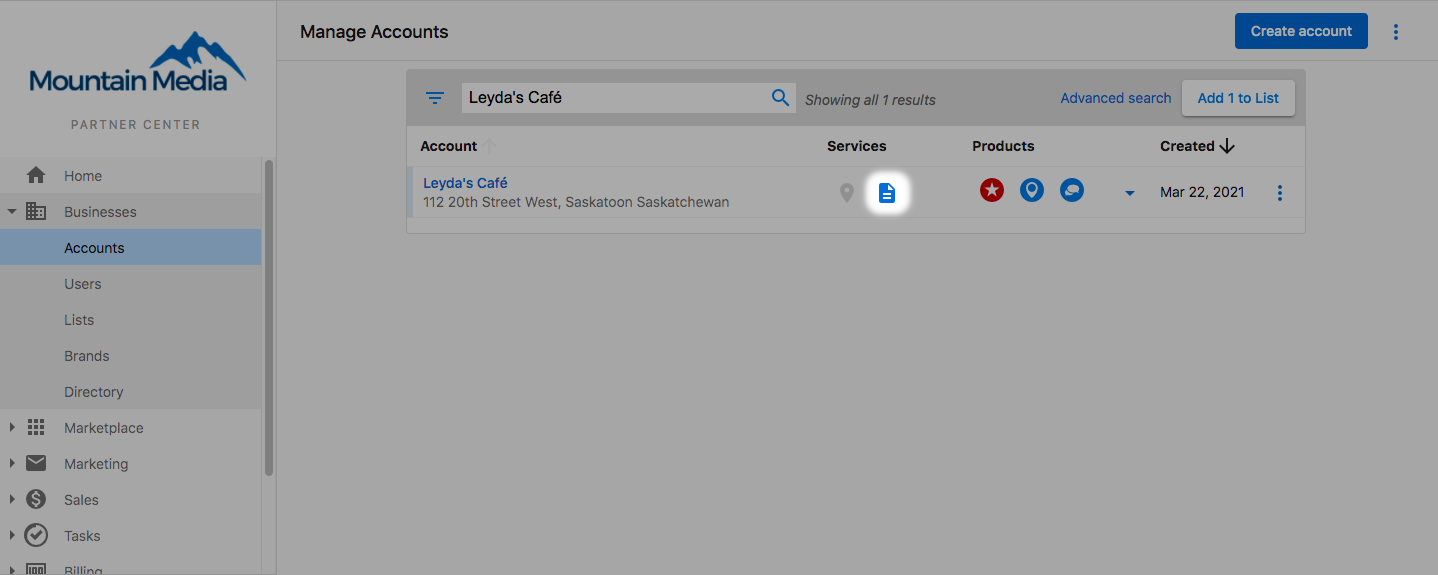
Individual account refresh via Manage Accounts
Steps:
- Navigate to
Partner Center→Accounts→Manage Accounts - Open the Snapshot scorecard by clicking the
Snapshot iconnext to the account name - At the bottom of the scorecard, find the creation date and refresh option
- Click
Refreshand confirm the action
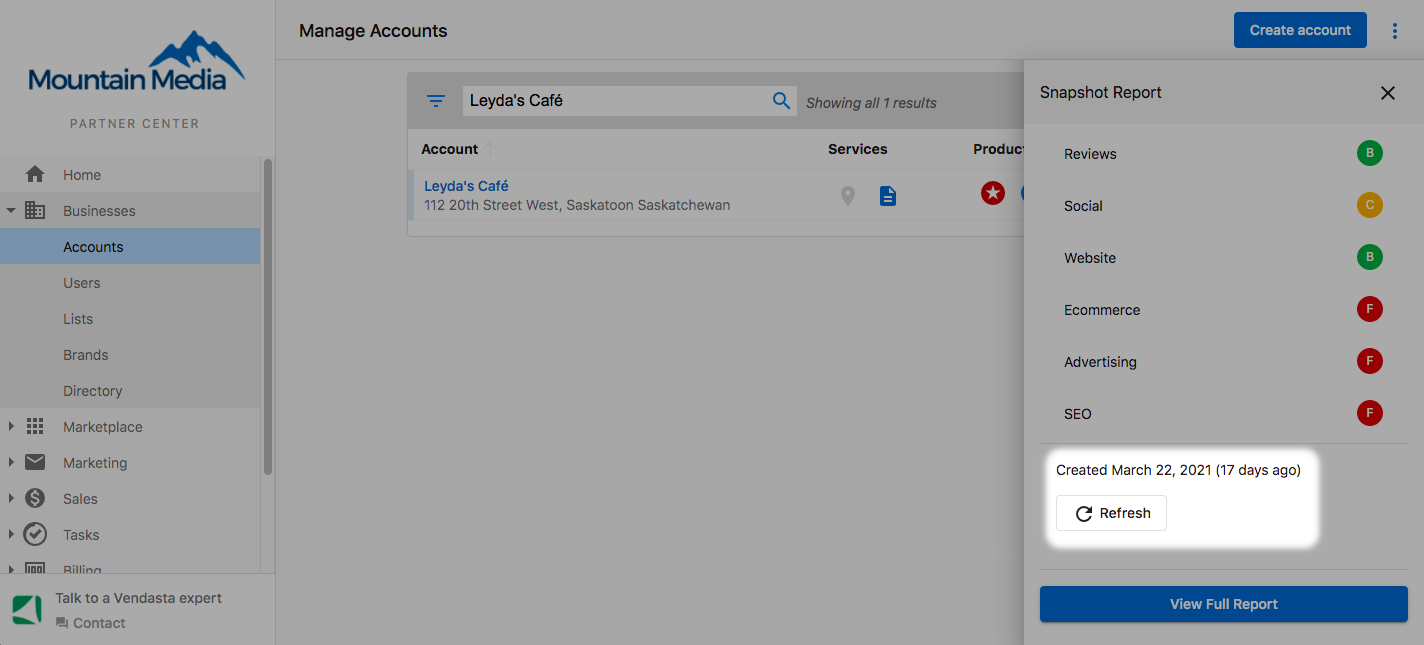
The refresh option only appears if the report is older than 7 days.
Individual account refresh via Companies
Steps:
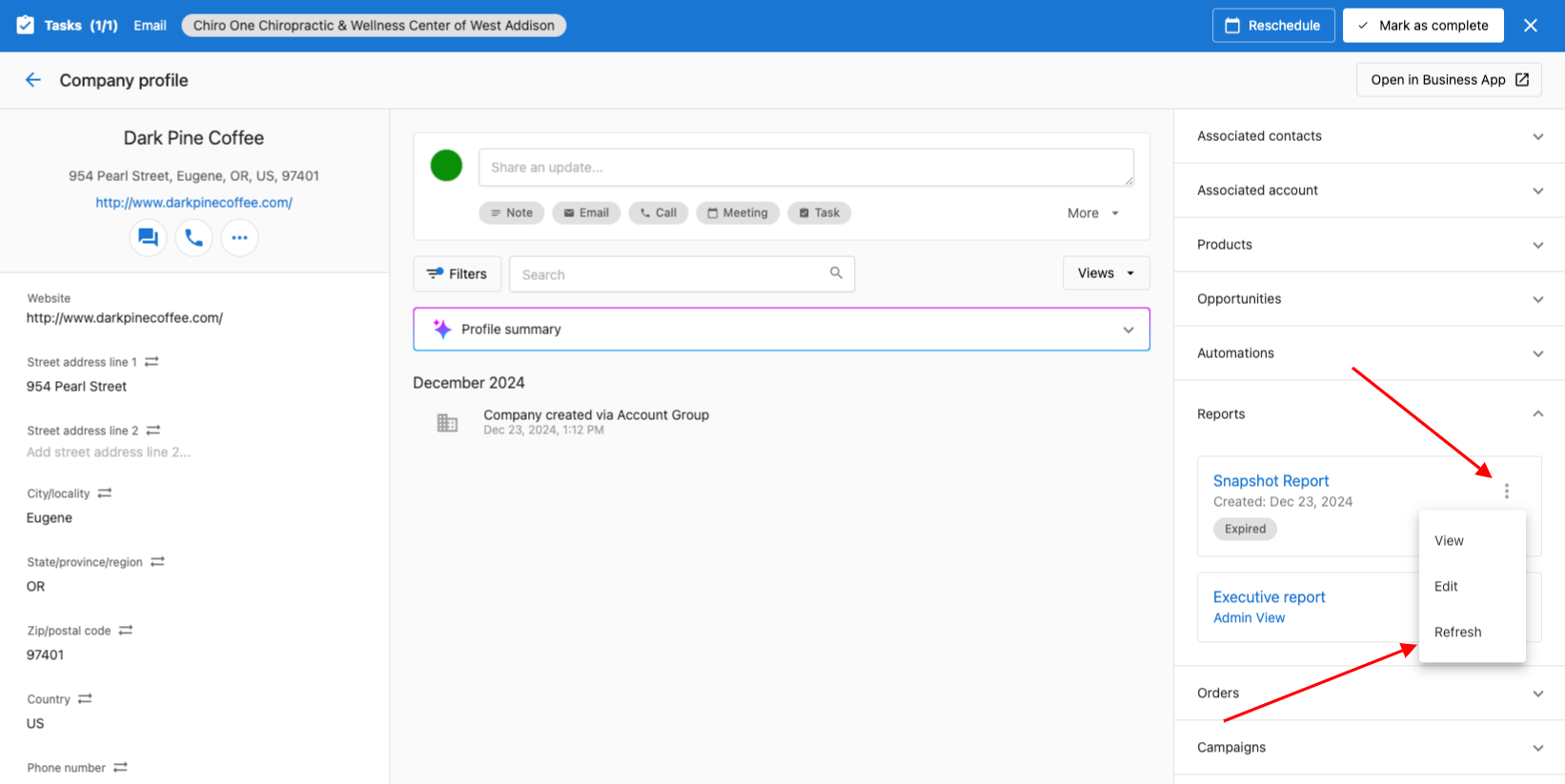
- Navigate to
CRM→Companiesand select the desired company - Find the expired Snapshot Report in the
Reportssection on the right side - Click the 3 dots next to the report
- Select
Refresh
Bulk refresh options
You can create and refresh multiple Snapshot Reports using Lists in Partner Center for efficient bulk management.
Refresh characteristics
Important Refresh Details:
- Same Cost: Refreshed reports cost the same as new reports ($2 standard fee)
- Processing Time: Wait minimum of 10 minutes before accessing refreshed reports
- Data Source: Refreshed reports use current data from live sources
- Report Replacement: New refreshed report overrides the old report completely
When a Snapshot Report is refreshed, the new report completely replaces the old report. Previous data is not preserved.
Professional report delivery
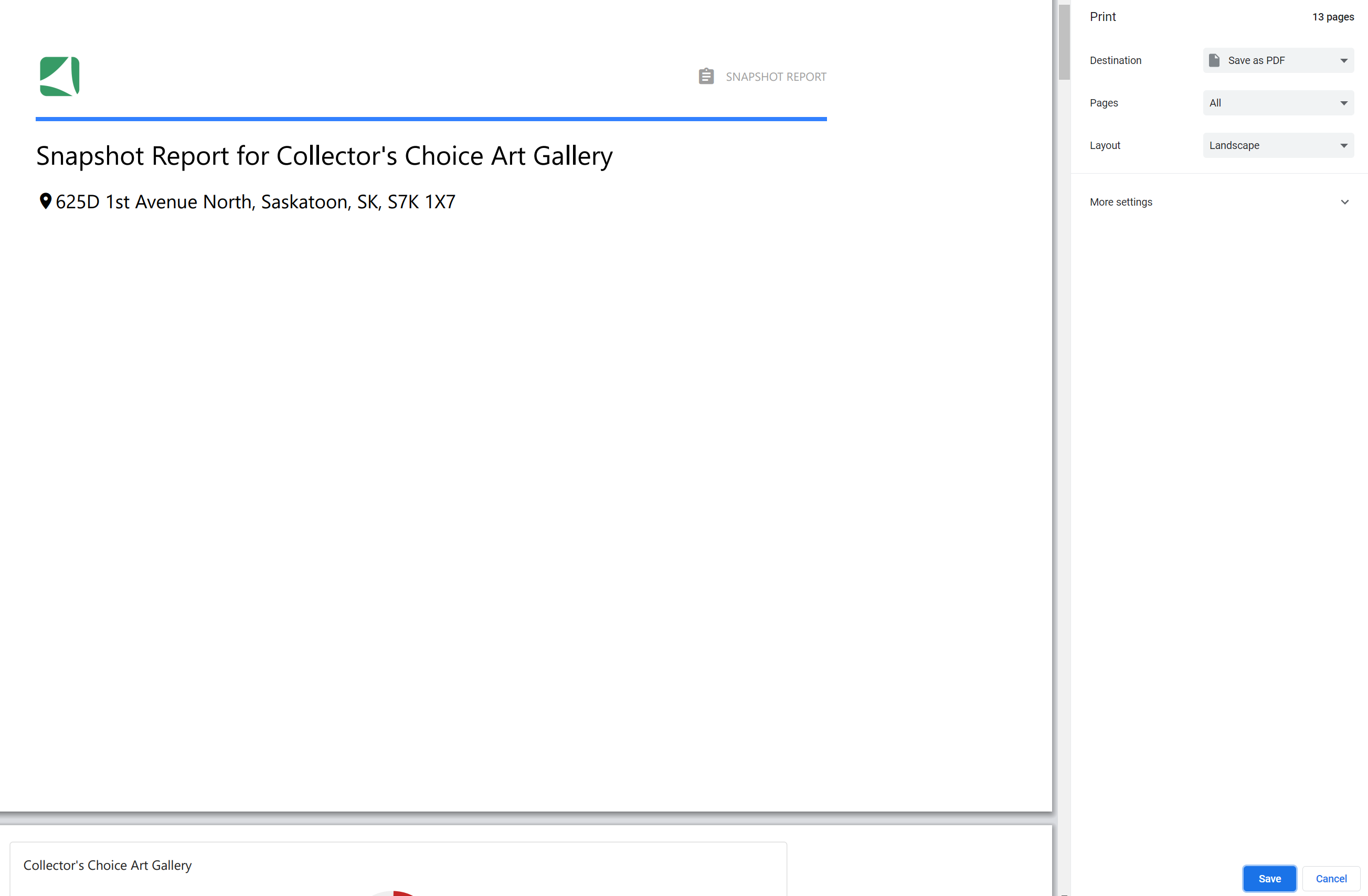
How do I save a Snapshot Report as a PDF?
Export Process:
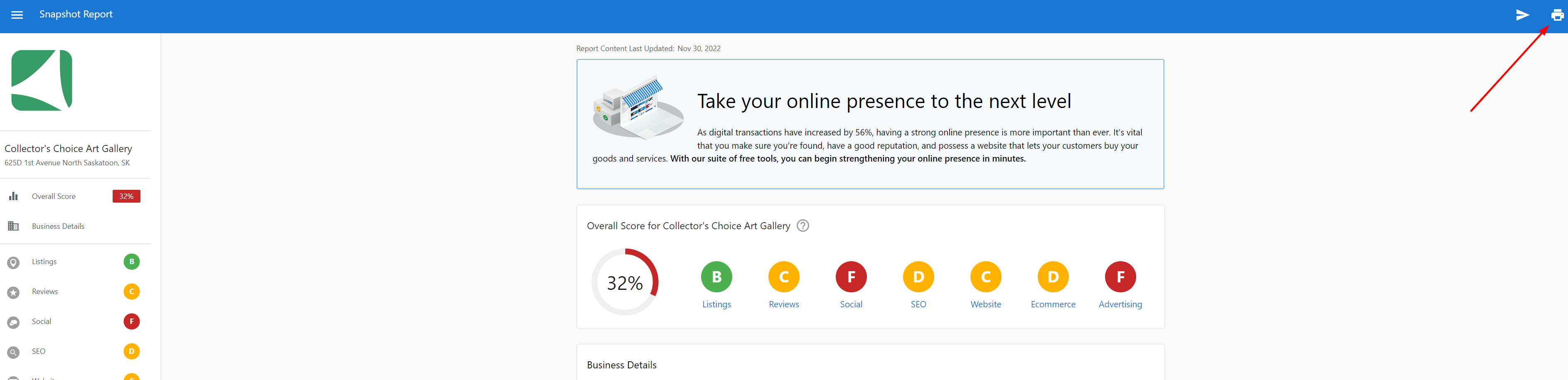
- Click
View Full Reporton the Snapshot Report - Click the printer icon in the top right corner of the report
- Select
Save as PDF
PDF export benefits
- Offline Access: Share reports without requiring platform access
- Professional Presentation: Clean, branded PDF format for client meetings
- Email Attachment: Easy to include in email communications
- Print Capability: Physical copies for in-person presentations
- Archive Storage: Keep historical records of prospect assessments
Video tutorial
Cost optimization strategies
Snapshot Report pricing structure
Standard fees
- New Report Creation: $2 per report
- Report Refresh: $2 per report (separate from creation)
- Automatic Email Campaigns: Standard fees apply for reports created or refreshed
Subscription allocations
Some subscription tiers include a number of 'free' Snapshot Reports that can only be used for:
- Creating new Snapshot Reports for prospecting purposes
- Not applicable for refreshing existing reports
Billing scenarios
Email campaign integration
When using Snapshot Creation Events in email campaigns:
- No Existing Report: System creates new report (standard fee applies)
- Report Older than 30 Days: System automatically refreshes report (standard fee applies)
- Report Younger than 30 Days: System uses existing report (no additional charge)
Multi-report considerations
- Each individual report creation or refresh incurs the standard fee
- Bulk operations are charged per report processed
- Failed report generations are typically not charged
Cost management strategies
- Plan Report Timing: Create reports when you're ready to actively prospect
- Use Existing Reports: Leverage reports under 30 days old in email campaigns
- Batch Creation: Plan multiple reports strategically to maximize efficiency
- Monitor Usage: Track report creation to stay within budget parameters
Convert prospects with package integration
How do I add packages to reports?
Direct prospects to your packages and services through call-to-action buttons in reports:
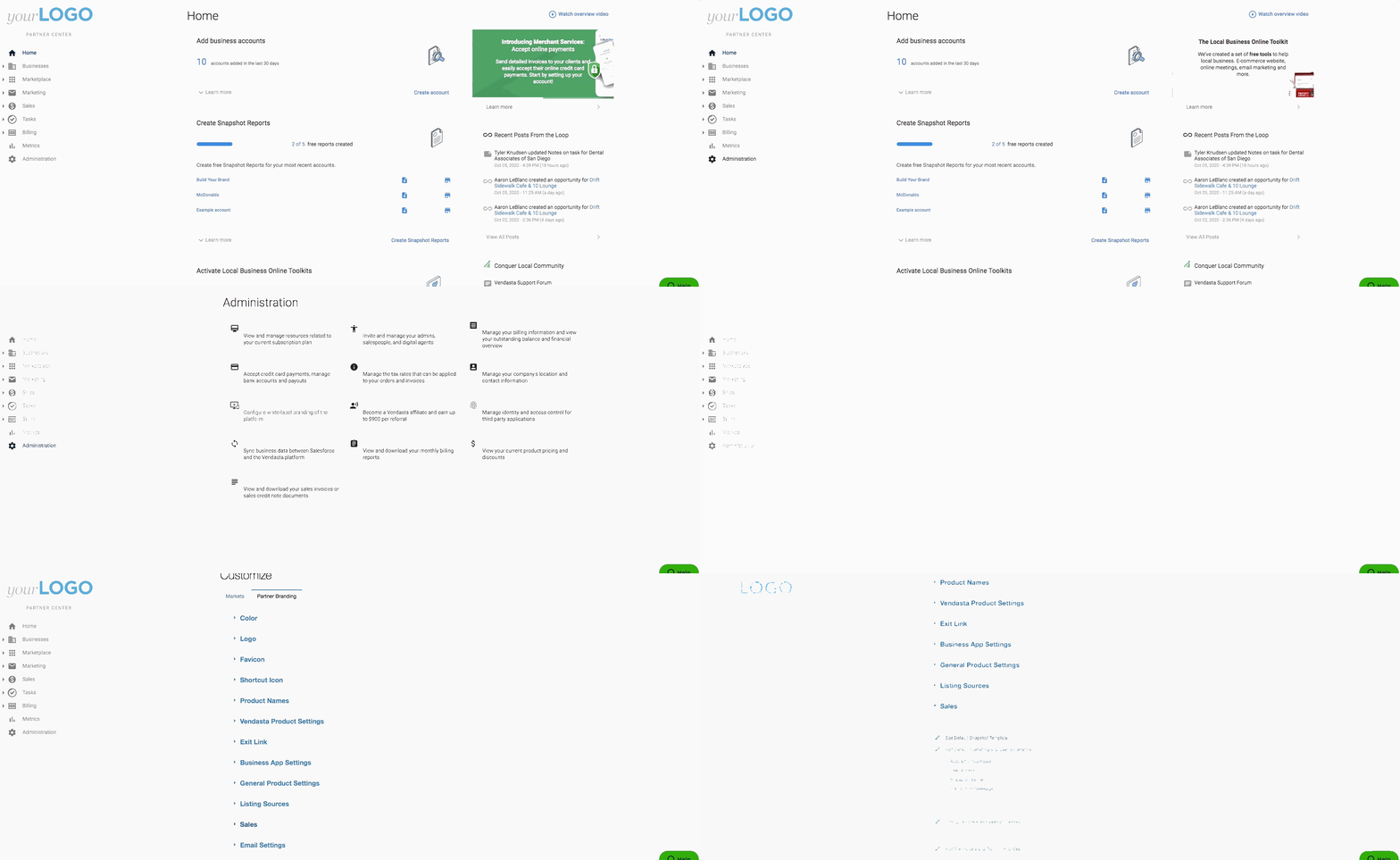
Configuration steps
- Go to
Administration→Customize→Sales→Edit Default Snapshot Template - Locate the specific section for package integration
- Scroll to
Edit Messageat the bottom of the section - Click
Edit primary buttonbelow the call-to-action - Select
Packageand choose from the dropdown menu

Package integration benefits
- Direct Client Access: Prospects can access your solutions without salesperson intervention
- Immediate Engagement: Ideal for free versions or trial offers that can be used immediately
- Increased Conversion: Direct paths to solutions can improve close rates
- Automated Sales Process: Reduces manual follow-up requirements
You can only add packages and services that have been added to your store from the marketplace.
Use Snapshot Reports as lead magnets
How do I capture leads with a Snapshot Report form?
Turn Snapshot Reports into lead magnets that work 24/7:
Setup Process:
- Create Form: Go to
Marketing→Forms→Create form. Select theAcquisition Widgettemplate. - Business Auto-Fill: The company name field uses Google Places API to auto-populate business details when prospects find their business
- Configure Automation:
- Go to the form's
Automationtab - Configure marketing email campaign (or choose from recommended campaigns if you don't have one)
- Turn on the automation
- Go to the form's
- Automated Workflow: When someone fills the form:
- Snapshot Report generates automatically
- Marketing email sends once report is ready (24 hours later)
- Lead appears in your CRM with complete business data
Lead magnet benefits
- Free offer: Prospects get a digital presence assessment at no direct cost to them
- Automated Qualification: Google Places integration ensures accurate business data
- Professional Follow-up: Automated email sequence maintains momentum while you focus on closing
- 24/7 Lead Generation: Forms capture leads even when you're not working
Value maximization strategies
Lead magnet optimization
- Form Placement: Embed forms on high-traffic pages and blog posts about digital marketing
- Compelling Headlines: "Get Your Free Digital Marketing Assessment" or "See How You Compare to Competitors"
- Trust Signals: Include testimonials and partner logos near forms
- Follow-up Tracking: Monitor form conversion rates and optimize placement
Cost-effective refresh strategy
- Strategic Timing: Only refresh when actively working a hot prospect
- Batch Creation: Plan multiple reports for coordinated outreach campaigns
- Campaign Integration: Use 30-day refresh rule in email campaigns to minimize costs
- ROI Tracking: Calculate cost per qualified lead to justify report expenses
Conversion optimization
- Package Placement: Add relevant solutions to high-impact report sections
- Free Trial Strategy: Use reports to promote free trials and demos
- Follow-up Automation: Set up email sequences that reference specific report findings
- Sales Process Integration: Train team to reference report data in sales calls
Frequently asked questions (FAQs)
Why am I charged for refreshing Snapshot Reports?
Snapshot Reports are prospecting tools typically generated once during the prospecting phase. Creating and refreshing are separate products, both charging $2. Some subscription tiers include 'free' reports that can only be used for creating new reports, not refreshing existing ones, as refreshing is treated as a separate product.
How long does a Snapshot Report take to be ready and when is best to present it?
Wait a minimum of 24 hours before viewing reports. The system scans the internet for business information and matches it across directories, which takes time to avoid being identified as malicious software. Reports continue gathering data for up to 7 days, with the most accurate presentation time being at the 7-day mark.
How do I track ROI from Snapshot Report lead magnets?
Monitor form submission rates in Marketing → Forms analytics, track lead quality in CRM, and measure conversion rates from Snapshot Report leads to closed deals. Calculate cost per qualified lead (report cost ÷ qualified leads) to optimize your investment.
What happens if I refresh a report multiple times?
Each refresh generates a completely new report and incurs the standard $2 fee. The new report replaces the previous version entirely. Previous data is not preserved. Multiple refreshes in short periods are not recommended as data may not change significantly.
Can I recover old report data after refreshing?
No, refreshing completely replaces the old report with new data. If you need to preserve historical data, save the report as a PDF before refreshing, or maintain separate records of key metrics for comparison purposes.
When do prospects receive their Snapshot Report after filling the form?
Reports generate automatically when forms are submitted. The marketing email containing the report link sends 24 hours later, giving the report time to gather data.
Can I set up automatic report refreshing?
While reports don't automatically refresh on their own, you can use email campaigns with Snapshot Creation Events to automatically refresh reports older than 30 days when sending campaigns. This provides a semi-automated approach to keeping prospect data current.
What's the difference between creating and refreshing in terms of data?
Creating a report generates entirely new data analysis for a business. Refreshing updates existing report data with current information. Both processes involve the same analysis and data collection, which is why they cost the same amount.
How do I run a new Snapshot Report for an account that already has one?
Refresh the existing report. Go to Partner Center → Accounts → Manage Accounts, click the Snapshot icon next to the account, and click Refresh at the bottom of the scorecard, or use the 3 dots next to the report in CRM → Companies. The refresh option only appears if the report is older than 7 days.
How do I set up a form that prospects fill out to get a Snapshot Report?
Go to Marketing → Forms → Create form and select the Acquisition Widget template. On the form's Automation tab, configure a marketing email campaign and turn on the automation. When someone submits the form, a Snapshot Report generates automatically and the lead appears in your CRM.