How do I troubleshoot automations?
Most Partner Center automation problems come from an automation that's turned off, a Run once per account entry setting, a step error that stopped the run, trigger conditions that don't match, or a step that runs before its data is ready. Check the Activity tab for error details. For a full picture of activity and error details, see Managing your automations.
Why isn't my automation running?
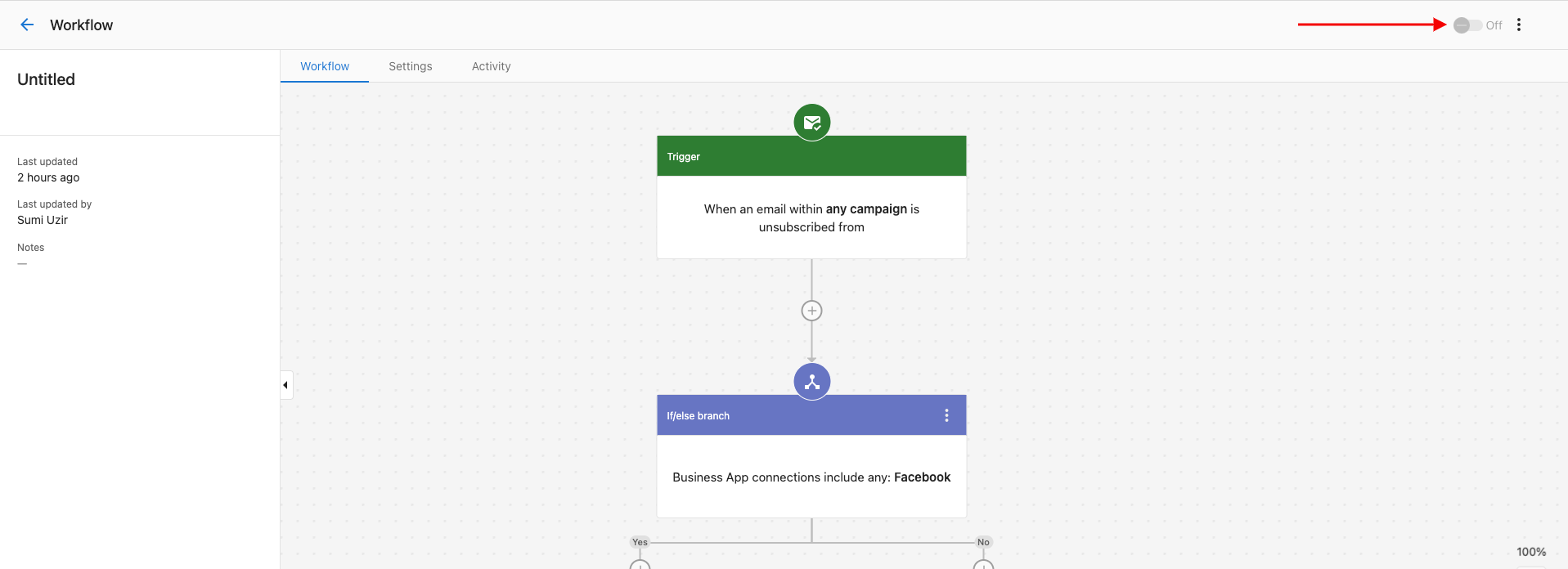
1. The automation is turned off
Automations only run when the toggle at the top-right of the automation editor is set to On.
2. The entry setting is "Run once per account"
By default, an automation only runs the first time the trigger conditions are met for a given account. If you need it to run every time, change Entry settings in the automation's Advanced section to Run every time.
3. A previous step threw an error and stopped the run
If a step fails and your Error handling settings are set to Stop that specific automation run, the workflow halts.
Check the Activity tab for the specific error, then either:
- Fix the underlying issue (missing data, misconfigured step, etc.), then retry the run from the failed step, or
- If non-critical, change Error handling settings to Ignore the error and continue so future runs don't stop.
4. The trigger conditions don't match
Double-check your trigger's conditions against the account or record you expect it to fire on:
- Are you using AND when you meant OR (or vice versa)?
- Are the conditions too restrictive?
- Test with a record you know should qualify.
5. A step is running before its data is ready
Some triggers complete before downstream data exists. For example, when an account is created it takes about 10 minutes before a salesperson is assigned — so an if/else step that checks the salesperson will find nothing if it runs immediately.
Add a Delay or Delay until an event happens step before any branch that depends on upstream data.
6. A step has a once-per-account limit
Some steps can only run once per account regardless of settings. For example, an email campaign can only be sent to the same account once. If your automation is set to run multiple times per account and includes a "Send campaign" step, later runs will error.
Design around these limits by using different campaigns or by using pause/resume campaign steps instead.
Why isn't my webhook action sending data correctly?
Why does the external system receive no data?
The most common cause is that fields were mapped as request headers instead of in the request body. Webhook data must be sent as JSON in the request body.
Open the Send Webhook step and verify that your field mappings are in the Body section as JSON key–value pairs, not in a headers section. Remove any header mappings and re-add the fields to the body.
What does the id.trim is not a function error mean?
This error means a mapped field value is an integer rather than a string. All webhook body values must be strings. Re-map the affected field as text, or use the toString() expression to convert the value before passing it.
What if the webhook URL is not responding?
Confirm the URL is reachable from outside your network and accepts HTTP POST requests. Test it with a tool like webhook.site before connecting it to the automation.
What are the webhook limitations?
- File attachments (PDFs, images, etc.) cannot be sent via webhook. Pass a URL to the file instead.
- The Send Webhook step is not available on all contact-based triggers.
Why did my campaign fail to start?
When starting an email campaign from an automation, you may see this error:
Failed to complete due to an error. The required contact information for campaigns is missing.
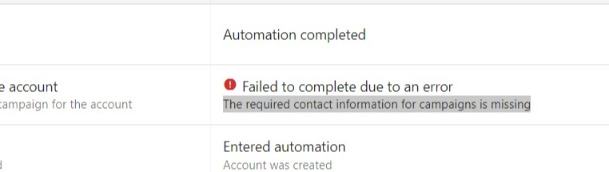
Cause: Contact information for your business isn't set in Partner Center. Every promotional email campaign must include a physical mailing address or PO Box.
Fix:
- Go to
Partner Center→Administration→ Customize. - Expand the Email Settings tab.
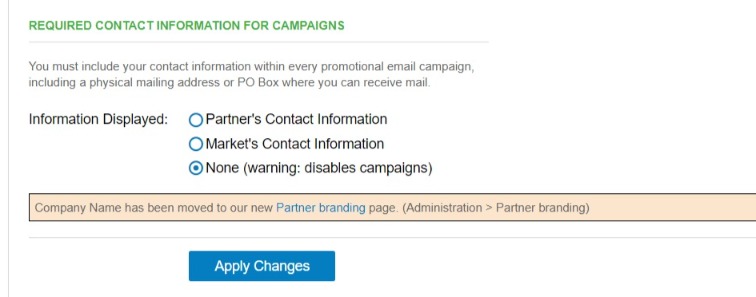
- Fill in the Required Contact Information for Campaigns section.
- Click Apply Changes.
If Markets are enabled, each market needs contact information. Open the Markets tab on the Customize page, click Edit on each market, and choose Partner's Contact Information or Market's Contact Information. Selecting None disables campaigns for that market, even the default market.
Can I remove an account from an automation that's already running?
Once an automation has started processing an account, the completed steps can't be undone. What you can do depends on whether the run is still in flight:
- Run is still in progress or waiting. Check the Activity tab for runs in In progress or Waiting status (for example, between delay steps). You may be able to cancel the remaining steps from there.
- Run has already completed. You'll need to manually reverse any actions that can be undone (remove tags, deactivate products, etc.).
To prevent unintended runs going forward, add conditions or exclusion lists to the trigger so the affected accounts aren't eligible.
How do I get help with an automation issue?
If the above doesn't resolve the issue, reach out to support with:
- Automation name and ID
- The specific error message from the Activity tab
- Steps to reproduce
- Account or record IDs affected
- Timeline of when the issue started
You can also ask in the Vendasta community.
Frequently asked questions
Where can I see why an automation didn't do what I expected?
Open the automation and check the Activity tab for the specific error on that run. For more on activity and error details, see Managing your automations.
Why does my automation only run once for each account?
By default, the entry setting is Run once per account, so the automation only runs the first time the trigger conditions are met for an account. Change Entry settings in the automation's Advanced section to Run every time.
Why isn't my automation firing even though it's turned on?
The trigger conditions may not match the record. Check whether you used AND when you meant OR (or the reverse), whether the conditions are too restrictive, and test with a record you know should qualify.
Why does the Send campaign step fail on later runs?
An email campaign can only be sent to the same account once. If your automation runs multiple times per account, later runs of a "Send campaign" step will error, so use different campaigns or pause/resume campaign steps instead.
Can I send a file through a webhook step?
No. File attachments such as PDFs and images can't be sent via webhook. Pass a URL to the file instead.
Related resources
- Managing your automations — Activity tab, error details, retry
- Creating and configuring automations — entry settings, error handling
- Automation triggers reference
- Automation steps reference