Creating and Managing Tasks
What is Task Creation and Management?
Task creation and management involves both manual task creation for custom work and automated task generation based on account activity. This streamlined process ensures all client work is tracked and organized effectively.
Why is Task Creation Important?
Effective task creation helps you:
- Track All Work: Ensure no client activities fall through the cracks
- Automate Routine Tasks: Generate tasks automatically for common activities
- Scale Operations: Handle more accounts without missing important work
- Maintain Consistency: Apply the same processes across all accounts
How to Create Tasks Manually
Manual Task Creation Process
- Navigate to
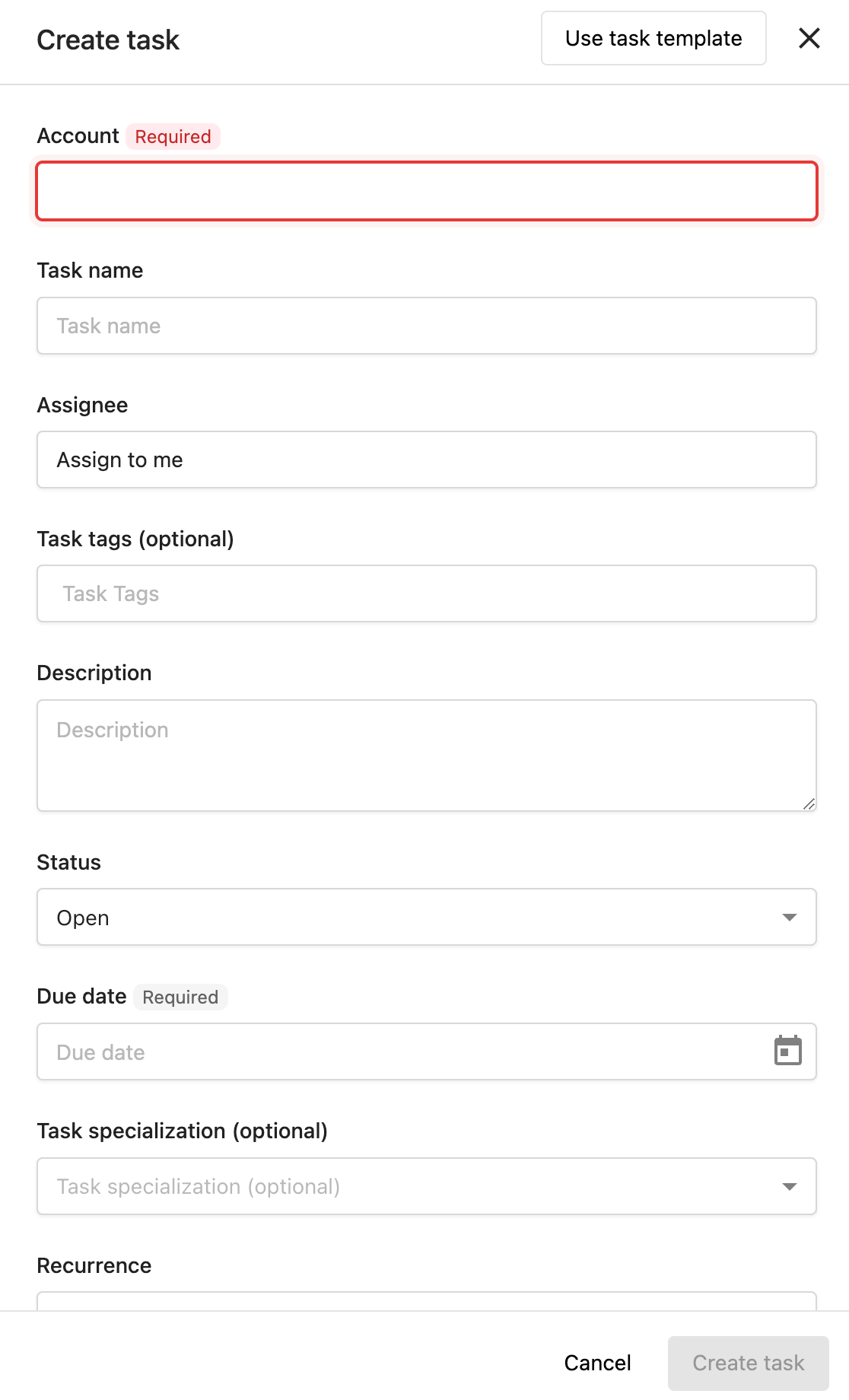
Fulfillment→Task Manager→Tasks - Click
Create task - Select the Account you're creating the task for
- Enter information into all appropriate fields - Due date and Account are the only required fields
- Click
Create task
When to Create Manual Tasks
Create manual tasks for:
- Custom client requests
- One-off projects
- Account-specific work
- Tasks not covered by auto-generation
Task Manager stores all due dates as midnight UTC−6. When you view a task, the due date is displayed in your local timezone — so the same deadline may appear as a different calendar day for team members in timezones significantly ahead of UTC−6. This is expected behavior, not a bug. The actual deadline is the same for everyone; only the displayed calendar date differs.
How to Set Up Auto-Generated Tasks
Auto-generated tasks streamline your fulfillment process by automatically creating tasks based on account activity and configured settings.
This guide covers default task types. You can auto-generate custom tasks using project templates.
Auto-Generate Tasks for All New Accounts
Set default task generation for new accounts:
- Go to
Task Manager→Settings - Click
Reputation AIorSocial AI - Move the toggle to the on or off state to control automatic task generation
Auto-Generate Tasks per Account
Configure task generation for individual accounts:
- Go to
Task Manager→Accounts - Select the respective account
- Click
Account Settings - Navigate to
Task generation - Toggle task types on/off as needed
Certain products may need to be active before you can auto-generate tasks on the account.
Task Types Available for Auto-Generation
Listings Tasks
- Purpose: Tasks that generate when listings are inaccurate
- Setup: Configure listing sources you manage for clients on the Listings tab
- When Generated: When listing data becomes inconsistent or inaccurate
Mentions Tasks
- Purpose: Tasks for business mentions across the web
- Requirements: Reputation AI must be active
- Setup: Configure types of mentions to manage for clients
- When Generated: When the business is mentioned online
Reviews Tasks
- Purpose: Tasks for new customer reviews
- Requirements: Reputation AI must be active
- When Generated: When new reviews are posted for businesses
Social Posts Tasks
- Purpose: Tasks prompting social media posting
- Requirements: Social AI must be active
- Setup: Configure content type and posting commitments on individual accounts
- When Generated: Based on posting schedule and commitments
Socialize Tasks
- Purpose: Tasks for customer interactions on social media
- When Generated: When customers post on client's social media pages and accounts
Account-Specific Configuration
Individual Account Settings
Each account can have unique task generation settings:
- Navigate to
Task Manager→Accounts - Select the account
- Click
Account Settings - Navigate to
Task generation - Configure specific settings for:
- Which task types to generate
- Frequency of generation
- Specific sources to monitor
Product Requirements
Some task types require specific products to be active:
- Mentions and Reviews: Require Reputation AI
- Social Posts and Socialize: Require Social AI
Best Practices for Task Creation
Manual Task Creation
- Use clear, descriptive task titles
- Set realistic due dates
- Include all relevant details in the description
- Assign tasks to appropriate team members
- Add relevant tags for organization
Auto-Generated Task Setup
- Start with conservative settings and adjust based on workload
- Review auto-generated tasks regularly to ensure quality
- Customize settings per account based on client needs
- Monitor task volume to prevent overwhelm
Task Management
- Review task generation settings quarterly
- Adjust settings based on team capacity
- Use bulk editing to manage similar tasks efficiently
- Communicate changes to team members
Frequently Asked Questions
How do auto-generated tasks work?
Auto-generated tasks are created automatically based on account activity and your configured settings. For example, when new reviews are posted, new mentions appear online, or questions are asked on Google Business Profile, tasks will generate automatically if those task types are enabled for the account.
How do I turn off auto-generated tasks for specific accounts?
Go to Task Manager → Accounts, select the account, click Account Settings, navigate to Task generation, and toggle the specific task types off. You can control this for individual accounts or set defaults for all new accounts in Settings.
Can I create custom task templates?
While the system doesn't detail custom task creation templates, you can create review response templates for different star ratings and business categories. For other custom tasks, you'll need to create them manually or use the auto-generation features for standard task types.
What products need to be active for auto-generated tasks?
Mentions and Reviews tasks require Reputation AI to be active. Social Posts and Socialize tasks require Social AI to be active.
Can I set different auto-generation settings for different accounts?
Yes, you can configure task generation settings individually for each account in Account Settings > Task generation, or set defaults for all new accounts in the main Settings area.
Why does a task's due date look different for team members in different timezones?
Task Manager stores all due dates as midnight UTC−6. When a team member in a timezone significantly ahead of UTC−6 views the task, their local time conversion may shift the displayed date by one day. The underlying deadline is identical for everyone — only the calendar date shown in the UI differs by timezone.